
Voice Keyboard Android: The Power User Advantage
The Voice Keyboard Android Power Users Swear By
A screenshot doesn't lie: a message drafted entirely by voice, sitting inside a live Slack thread about dev branches, punctuation and capitalization intact, no fillers, no cleanup pass. That's what a working voice keyboard android setup looks like once dictation stops being a fallback and becomes the default input.
Most Android phones already ship with voice typing baked into Gboard, yet the feature stays buried under a microphone icon most people never touch on purpose. The power users who do rely on voice daily aren't using that built-in tool at all — they've replaced their keyboard entirely.
What a Voice Keyboard Android Setup Actually Replaces
Android has offered voice-to-text inside Gboard for close to a decade. Tap the microphone icon on the keyboard, or hold it, and the phone transcribes your speech into whatever field you're typing in. Google's own support documentation walks through the same basic flow: open Gboard, tap the mic, talk, done.
That default tool works fine for short bursts — a quick text, a search query. It struggles the moment a message gets longer than a sentence or two, because it's transcribing sound, not intent. Every "um," every false start, every "period" spoken out loud instead of implied gets typed exactly as said.
A voice keyboard is a different category of tool. It still replaces your default keyboard the same way Gboard does, but the layer underneath is doing more than converting sound to text — it's interpreting what you meant to say. Readers who want the setup mechanics for Android's native tool specifically can check this walkthrough on enabling voice typing on Android; readers comparing dictation apps broadly will find a fuller landscape in this talk-to-text breakdown.
Android has also lagged the rest of the category on this specific point. Most AI-enhanced voice keyboards launched on iOS and desktop first and either skipped Android entirely or added it years later — Typeless is one of the few competitors that shipped Android alongside its other platforms from early on. BossAI's Android app arrived in 2026, closing a gap that had left Android users choosing between Gboard's raw transcription and nothing.
The Real Difference Shows Up After You Stop Talking
A voice keyboard's real value isn't the transcription step — it's what happens in the half-second after you stop speaking, when filler words disappear, grammar gets corrected, and the sentence comes out formatted for the app you're actually typing into. Android's built-in dictation stops at transcription. An AI-enhanced voice keyboard treats transcription as step one of two.
BossAI, for example, processes that second step in roughly 300 milliseconds after you stop talking — removing "um," "uh," and "like," fixing punctuation, and adjusting formatting based on whether you're writing a Slack reply, an email, or a note. The output lands ready to send, not ready to edit.
None of that requires trusting a server with the conversation, either. Voice input is processed in real time and discarded immediately afterward — no raw audio is stored, and the transcribed text isn't used to train anything.
Here's how the two approaches actually compare on the same phone:
| Android's Built-in Voice Typing | AI Voice Keyboard (BossAI) | |
|---|---|---|
| Filler word removal | No | Automatic |
| Grammar & punctuation correction | Minimal | Real-time |
| Full default keyboard replacement | Input mode inside Gboard | Yes, complete replacement |
| Custom vocabulary / dictionary | Limited | Yes, user-editable |
| One-tap tone rewriting | Not available | Yes (Professional, Casual, Bold, and more) |
| Free tier | Unlimited raw transcription | 500 words/day, AI-enhanced |
Worth knowing: Filler-word removal sounds cosmetic until you're dictating a full paragraph — at that point it's the difference between a message you can send immediately and one you have to reread and fix by hand.
Users comparing dictation strategies across devices, not just Android, will find the broader keyboard-versus-app tradeoffs covered in this voice typing keyboard guide.
Is a Voice Keyboard Android App Actually Faster Than Typing?
Yes — most people speak at 120-150 words per minute and type closer to 40, so a voice keyboard android app that removes the manual cleanup step can cut the time spent on messages, emails, and notes by roughly 40-60%. The gap widens further on a phone screen, where thumb-typing is already slower than typing on a full keyboard.
The bigger shift isn't speed on paper — it's what becomes possible hands-free. Replying to a work message while walking to a meeting, or capturing an idea while driving without touching the phone.
Dictating a paragraph of notes while standing in a grocery line takes one spoken sentence instead of three or four screen unlocks to type it out by hand.
That's a different use case than "texting fast." It's closer to what voice texting already covers for hands-free messaging — except a voice keyboard extends the same behavior into every app on the phone, not just the messages app.
Which Android Apps Actually Work Well With a Voice Keyboard?
A voice keyboard works in any app that accepts text input, because it replaces the system keyboard rather than plugging into a specific app — Slack, Gmail, WhatsApp, Notion, and LinkedIn all just see a normal keyboard typing on your behalf. There's no per-app integration to configure and no separate app to switch into.
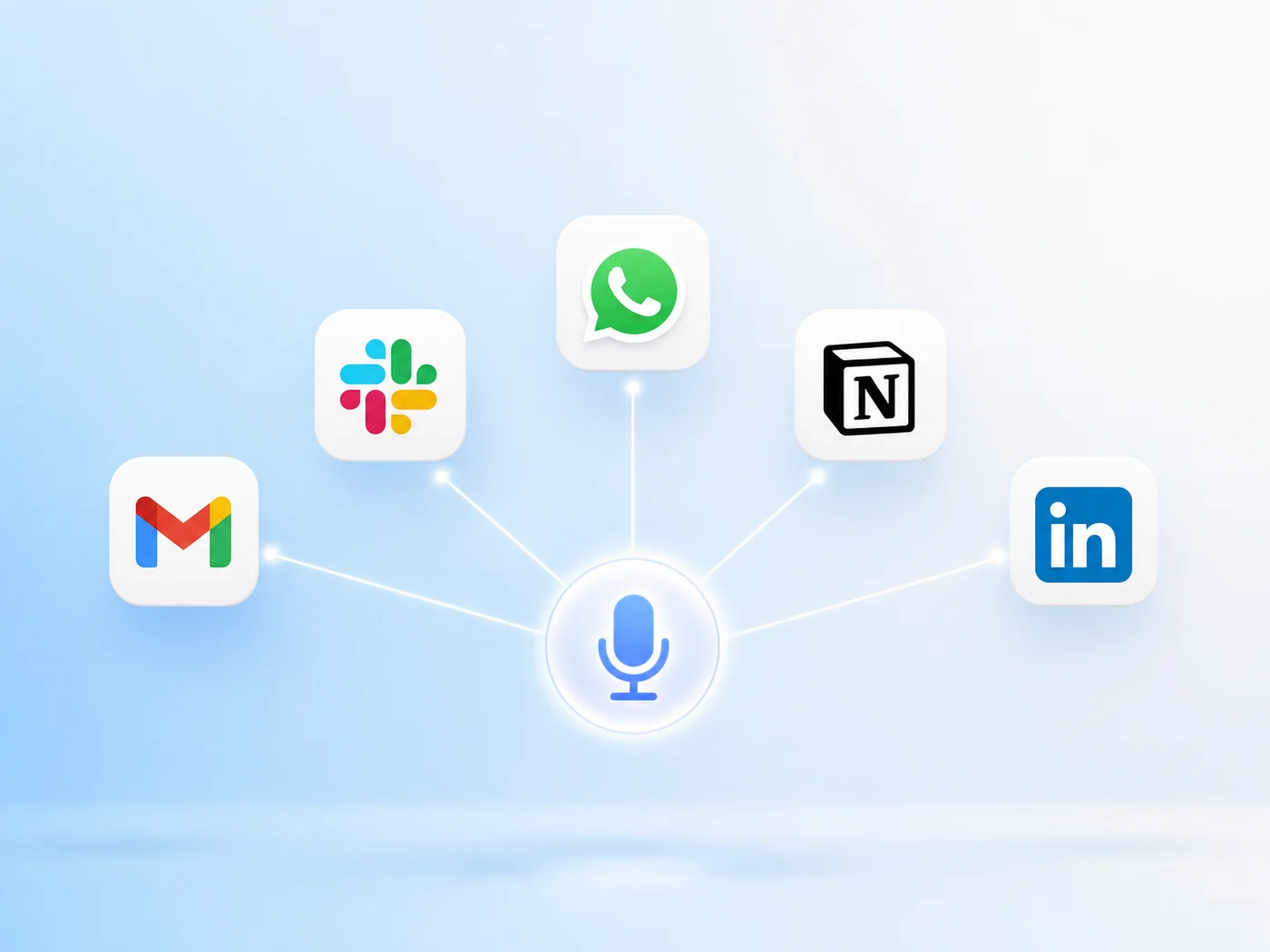 A voice keyboard sits at the system level, so it works the same way across every messaging, email, and productivity app.
In practice, that shows up most in a handful of everyday spots:
- Slack and Teams — replying to threads and standups without breaking focus to type
- Gmail and Outlook — drafting full email replies by speaking naturally, formatted for email rather than chat
- WhatsApp and Messages — quick replies while walking, cooking, or commuting
- Notion and Docs — capturing notes and outlines faster than typing them out
- LinkedIn — drafting comments and posts without the awkward one-thumb typing on mobile
Works in any app — Word, Gmail, Slack — is the actual selling point over app-specific dictation tools, which is also why a full Android dictation app comparison is worth reading before picking one.
How to Set Up a Voice Keyboard as Your Default on Android
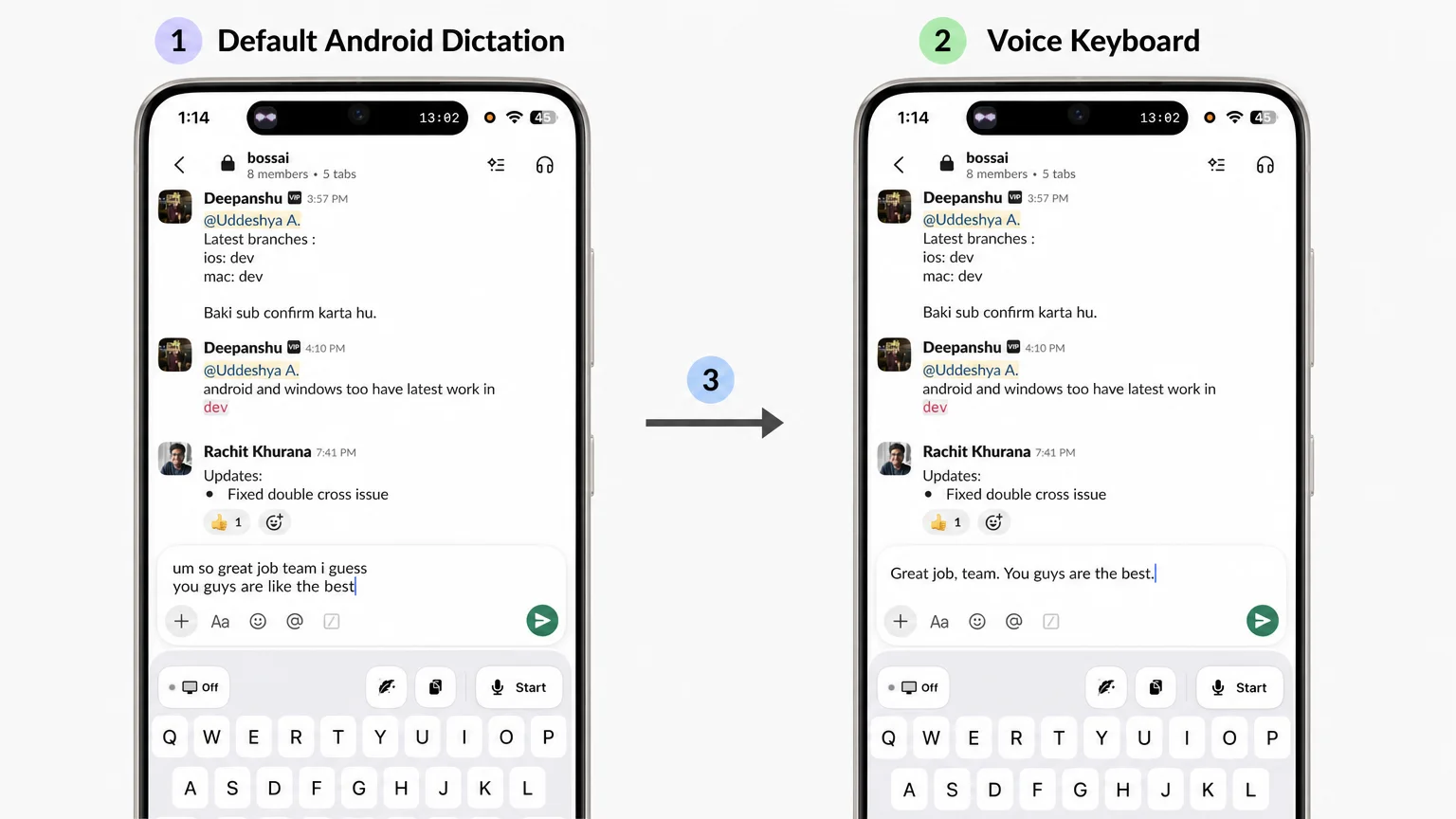 Same spoken sentence, two outputs — one straight from Android's default dictation, one after a voice keyboard cleans it up.
Setting a voice keyboard as the Android default takes a few minutes, and the phone walks through most of it automatically the first time an app is opened after install.
- Download the app from Google Play and open it once to grant microphone permission.
- Go to Settings > System > Languages & input > On-screen keyboard.
- Tap Manage keyboards and toggle the new keyboard on.
- Switch to it from the keyboard-switcher icon (or long-press the spacebar) the next time a text field is open.
- Optionally set it as the default keyboard so it loads first every time, without switching.
BossAI's Android app follows that same flow, with the added step of picking which AI tones and features to keep active from the free tier before upgrading. There's no platform gatekeeping here — iOS has had comparable dictation keyboards for a while, but Android's own adoption of AI-enhanced voice keyboards has lagged behind, which is exactly why most Android users are still stuck on the default mic icon.
Get Started with BossAI
Once a voice keyboard is set as default, typing becomes optional rather than required — speak when it's faster, type when it isn't, without switching apps or interfaces. Download BossAI Free and set it as the Android default in the same few minutes covered above.
Quick recap
- Android's built-in Gboard dictation transcribes speech but does no cleanup — a voice keyboard adds AI polish (filler removal, grammar, formatting) on top of transcription.
- A voice keyboard replaces the entire default keyboard, so it works in every app — Slack, Gmail, WhatsApp, Notion, LinkedIn — without per-app setup.
- Dictating instead of typing saves roughly 40-60% of the time on messages and emails, and it's the only realistic option for hands-free use while walking or driving.
- Setup takes under five minutes: install, grant microphone access, enable it under Languages & input, then switch or set it as default.
FAQ
How do I turn on voice typing on my Android phone?
Go to Settings > System > Languages & input > On-screen keyboard, then tap the microphone icon on Gboard or any installed keyboard while typing. For an AI-enhanced voice keyboard, install the app first, then enable and select it the same way through the keyboard manager.
Can a voice keyboard be my default Android keyboard?
Yes. Any voice keyboard installed from Google Play can be set as the system default under Settings > Languages & input > On-screen keyboard > Manage keyboards. Once set, it loads automatically in every app instead of requiring a manual keyboard switch each time.
What is BossAI?
BossAI is an AI-powered voice keyboard for Android, iOS, macOS, and Windows that replaces typing with voice dictation. It transcribes speech in real time, removes filler words automatically, rewrites text in different tones with one tap, and includes Boss Mode, a screen-reading feature that reads on-screen context to draft replies without copy-pasting.
What platforms does BossAI support?
BossAI runs on Android (Google Play), iOS (App Store), macOS, and Windows — full cross-platform coverage. On Android and iOS it installs as a complete keyboard replacement, so dictation works inside any app without switching to a separate tool first.
Is a voice keyboard free to use on Android?
Yes. BossAI's Android app includes a free tier with a daily word allowance and no weekly cap, so dictation is usable without payment from day one. The paid plan adds unlimited AI processing, extended Clips storage, and priority speed — no credit card is required to start.