
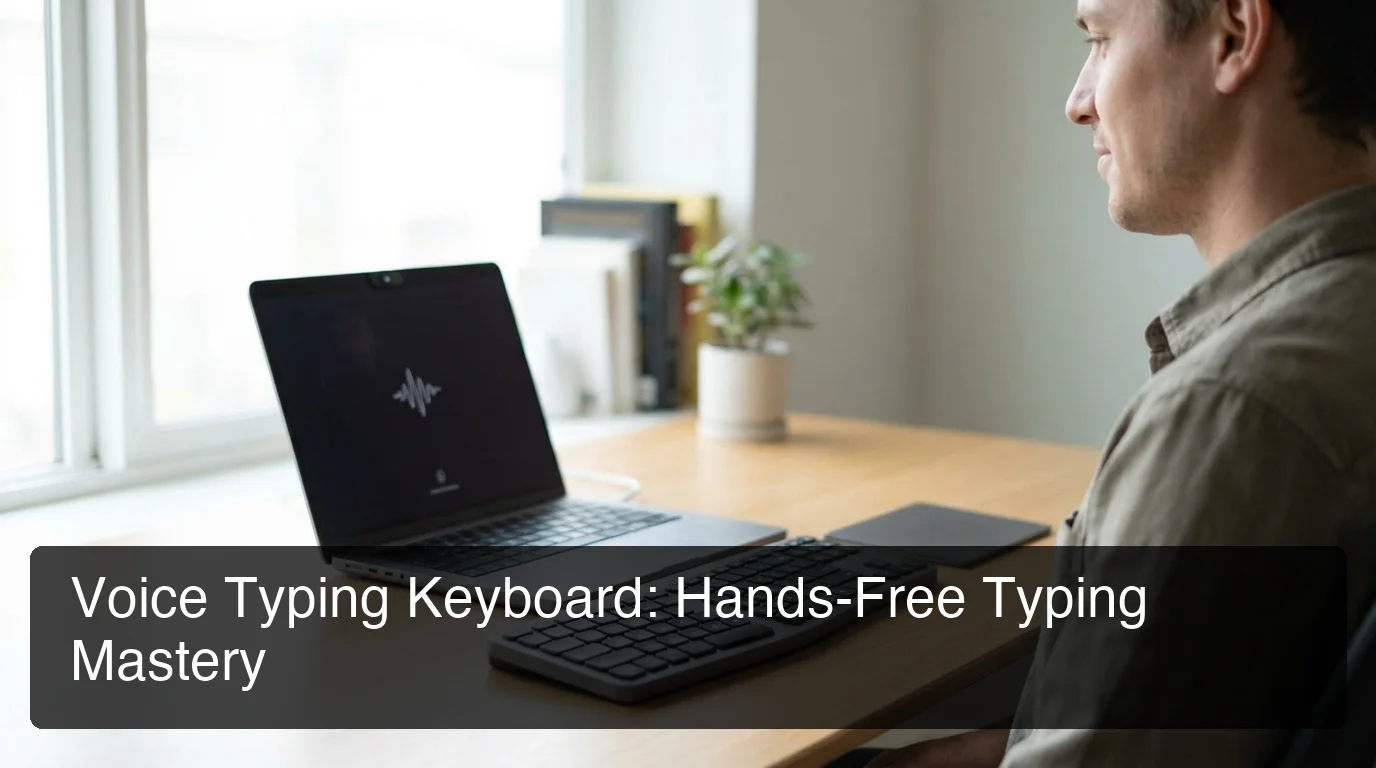
Voice Typing Keyboard: Setup, Accuracy & Tips | BossAI
Voice Typing Keyboard: How It Works and Why Professionals Use It
Most people still type every word — but voice typing keyboards can dictate faster, more accurately, and with less physical strain than any manual method. Here's what you need to know.
Key Takeaways
- Voice typing keyboards allow hands-free input on any keyboard with built-in or AI-powered voice recognition, enabling dictation at 150+ words per minute — 2–3x faster than average typing speed.
- Modern voice typing works across Windows, Mac, Android, and iOS with minimal setup, using your device's existing microphone or a Bluetooth headset.
- Advanced voice typing apps add filler-word removal, punctuation control, and context-aware corrections that built-in tools don't offer.
- Voice typing reduces physical strain on hands and wrists — making it essential for professionals with RSI, carpal tunnel, or high daily typing loads.
- The right software layer transforms any standard keyboard into a professional voice input station — no special hardware required.
Contents
- What Is a Voice Typing Keyboard and How Does It Work?
- How Accurate Is Voice Typing on Keyboards Compared to Manual Typing?
- Which Keyboard Features Are Most Important for Reliable Voice Typing?
- Can You Use Voice Typing on Any Keyboard, or Do You Need Special Hardware?
- What Are the Main Benefits of Using a Voice Typing Keyboard for Productivity?
- How Do You Set Up and Optimize Voice Typing on Your Keyboard?
- How Does BossAI Enhance Voice Typing Keyboards?
- Does Voice Typing on Keyboards Save Time and Reduce Typing Fatigue?
- Frequently Asked Questions
What Is a Voice Typing Keyboard and How Does It Work?
A voice typing keyboard is any keyboard — physical or virtual — combined with voice recognition software that converts spoken words into typed text in real time. The keyboard provides the interface, while a speech-to-text engine (built-in or third-party) processes audio from your microphone and inserts text wherever your cursor sits.
The keyboard itself doesn't need to be special. What matters is the software layer. On Windows, that's voice typing via Win+H. On Android, it's the microphone button on Gboard.
On iOS, the microphone key on any keyboard triggers Apple's dictation engine — or a third-party keyboard can replace it with an AI-enhanced alternative.
How the Speech-to-Text Engine Works
When you activate voice typing, your device captures audio through the microphone and streams it to a speech recognition model — on-device or cloud-based — which transcribes it in milliseconds. Basic engines output raw transcription including filler words, pauses, and errors. Advanced engines layer on AI post-processing: removing "um," "uh," and "like," fixing grammar, and adding punctuation — so the output reads like polished text, not spoken stream-of-consciousness.
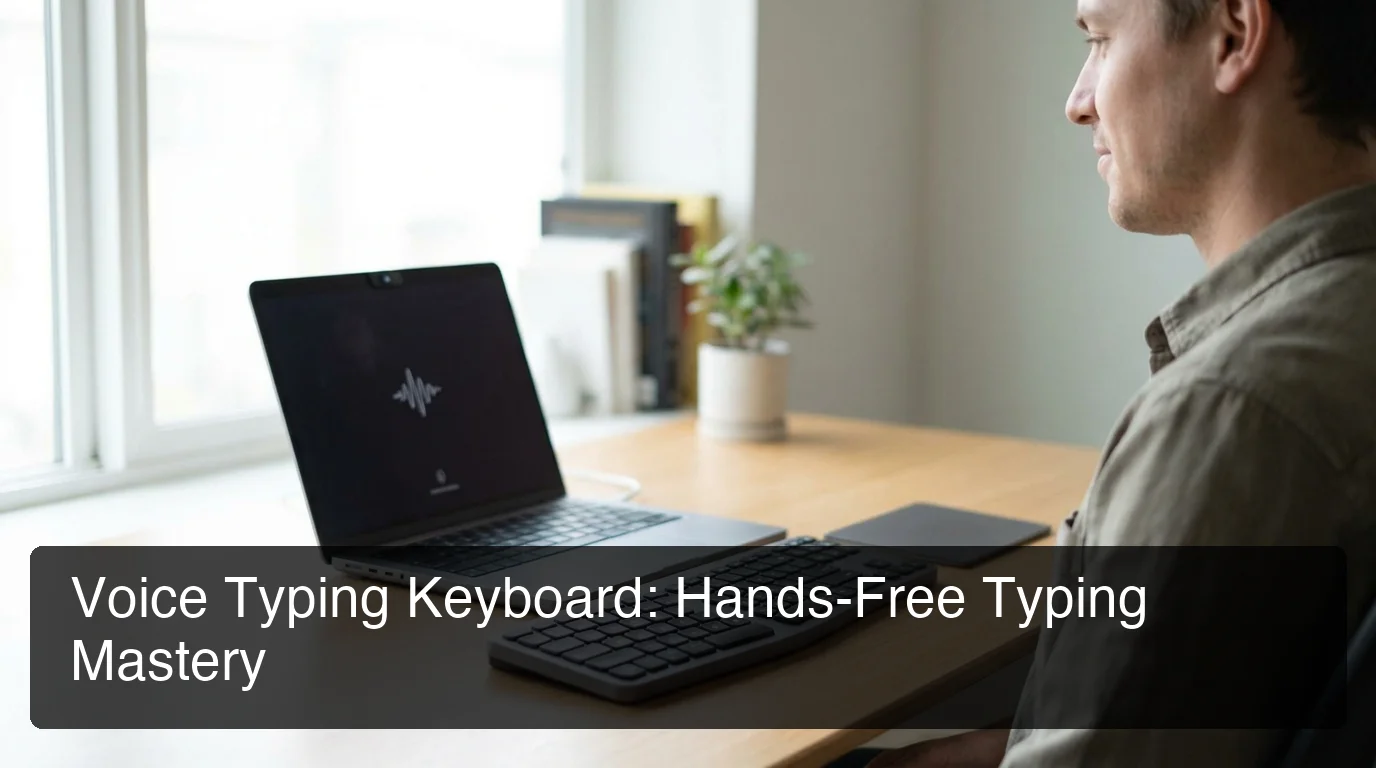 Voice typing keyboards combine any physical or virtual keyboard with real-time speech recognition to replace manual typing.
How Accurate Is Voice Typing on Keyboards Compared to Manual Typing?
Modern voice typing keyboards achieve 95–99% accuracy in quiet conditions. In realistic environments — accented speech, background noise, technical vocabulary — accuracy drops to 85–95% without AI enhancement. AI post-processing that corrects grammar, removes fillers, and applies custom dictionaries brings accuracy close to careful manual typing for most professional use cases.
Three variables determine accuracy: microphone quality (a close-mic headset beats a built-in laptop mic significantly), speaking pace (130–160 WPM with clear enunciation outperforms rushed speech), and vocabulary training (custom dictionaries for names and technical terms address the most common error category).
By the numbers: Average typing speed is 40–60 WPM. Trained voice dictation runs at 130–180 WPM — a 2–4x productivity multiplier once you cross the accuracy threshold.
Which Keyboard Features Are Most Important for Reliable Voice Typing?
The most important keyboard factors for reliable voice typing are microphone access, software compatibility, and physical noise level. The keyboard hardware matters less than the software layer — but keystroke noise from clicky mechanical switches can interfere with dictation in quiet environments.
Hardware Considerations
Noise level: Loud clicky switches (Blue, Green) can create acoustic interference during dictation sessions. Linear switches (Red, Black) or membrane keyboards produce less noise and work better in hybrid voice-typing workflows.
Wireless vs. wired: Bluetooth keyboards introduce no voice typing latency since audio capture happens through the microphone, not the keyboard. Wireless and wired keyboards perform identically for voice input.
Software Layer Requirements
For reliable voice typing, your software layer must deliver:
- Real-time transcription (words appear as you speak, not after a delay)
- Punctuation control via voice commands ("period," "comma," "new paragraph")
- App context awareness (format adjusts for email vs. chat vs. document)
Key insight: On Windows 11, pressing Win+H activates native voice typing in any text field — no download required. On Mac, Fn+Fn triggers system dictation. These are the fastest ways to start, but both lack AI post-processing.
Can You Use Voice Typing on Any Keyboard, or Do You Need Special Hardware?
You can use voice typing on virtually any keyboard — no special hardware required. Voice typing is a software function that uses your device's microphone. Any keyboard connected to a device with microphone access supports voice input through system or third-party apps.
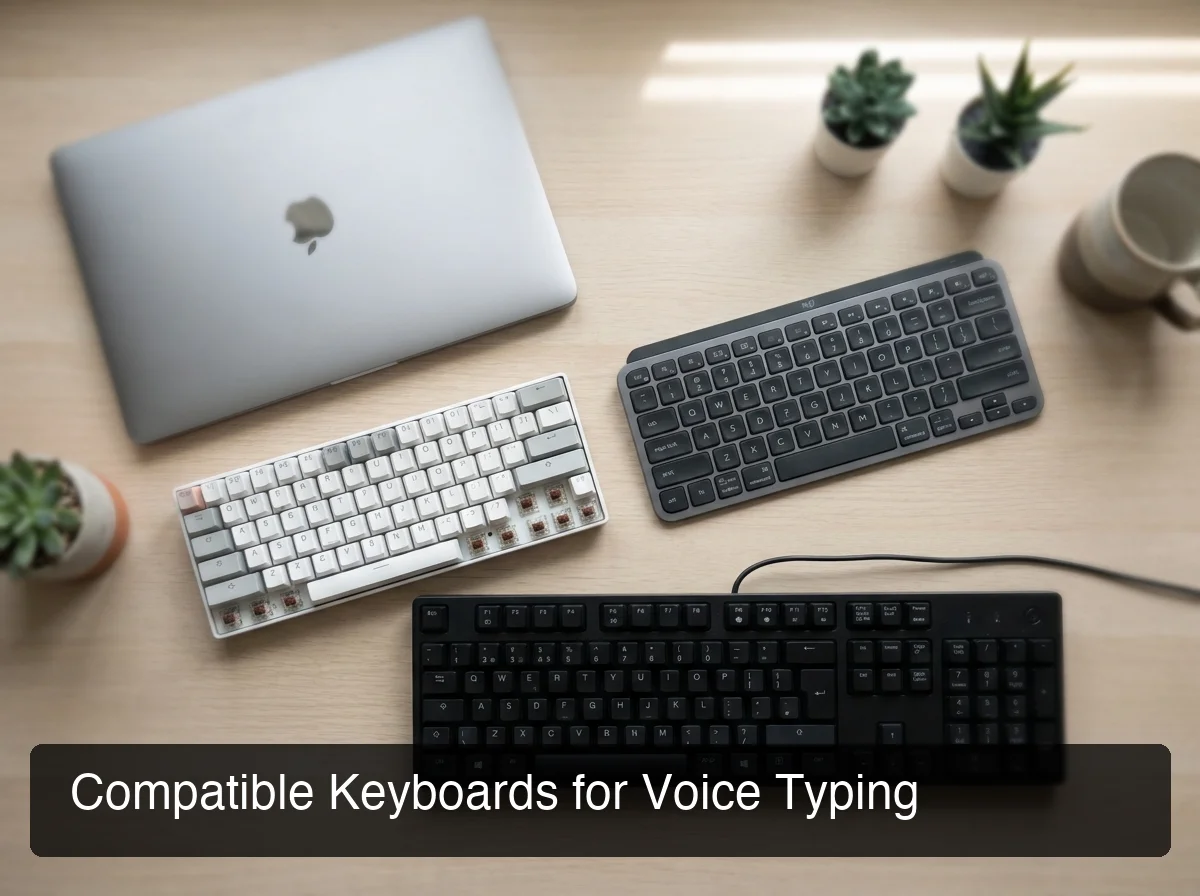 Mechanical, wireless, and standard keyboards all support voice typing — the software layer does the heavy lifting.
This is a common misconception. People assume voice typing requires a keyboard with a built-in microphone. In reality, the voice input feature in Gboard or Windows Voice Typing works regardless of which physical keyboard is connected.
Platform Compatibility Breakdown
| Platform | Built-in Voice Typing | Activation |
|---|---|---|
| Windows 10/11 | Windows Voice Typing | Win+H |
| macOS | Dictation | Fn double-tap |
| iOS | Apple Dictation | Microphone key on keyboard |
| Android | Gboard Voice Input | Gboard microphone button |
| Chrome/Web | Voice Typing Extension | Browser shortcut |
The one exception: for AI-enhanced voice typing with filler removal, tone rewriting, or screen-aware commands, a third-party app is required. Built-in tools don't offer post-processing AI.
For a full device-by-device breakdown of how to type with voice across every platform, including setup guides for each operating system, see our complete guide.
What Are the Main Benefits of Using a Voice Typing Keyboard for Productivity?
Voice typing keyboards deliver three measurable productivity gains: speed (130–180 WPM vs. 40–60 WPM typing), reduced physical strain (eliminating repetitive wrist and finger motion), and hands-free multitasking (dictating while referencing materials or moving around).
Speed and Output Volume
The math is straightforward. If you type 50 WPM and speak at 150 WPM, switching to voice typing triples raw output rate. For email-heavy roles — managers, sales professionals, customer support leads — this translates directly to time saved daily.
A Stanford study found voice input was 3x faster than typing on mobile; desktop gains are smaller but still significant.
Reduced Repetitive Strain
Typing generates repetitive micro-movements — finger depression, wrist flexion, forearm pronation — thousands of times per day. For people with RSI or carpal tunnel, voice typing isn't a productivity hack: it's often the only viable option. For healthy users, reducing keyboard contact by 50–70% through hybrid voice-typing workflows meaningfully lowers cumulative strain over time.
Bottom line: Voice typing keyboards don't just write faster — they expand what's possible during the workday by removing the tether to a keyboard for text production.
For a comparison of the best voice typing apps that pair with any keyboard, see our dedicated roundup.
How Do You Set Up and Optimize Voice Typing on Your Keyboard?
Setting up voice typing takes under 5 minutes on any modern platform. Enable the built-in feature through system settings or a keyboard shortcut, grant microphone access, and start dictating. Optimization — custom vocabulary, punctuation commands, and a better mic — takes 10–15 minutes and dramatically improves daily accuracy.
Quick Setup by Platform
- Windows 11: Press Win+H → grant microphone access → start dictating
- macOS: System Settings → Keyboard → Dictation → Enable → double-tap Fn to activate
- iOS: Settings → General → Keyboard → Enable Dictation → tap mic key in any keyboard
- Android: Open any text field in Gboard → tap microphone button → speak
Optimization Tips That Actually Move the Needle
- Custom vocabulary first: Names, brand names, and technical terms cause 80% of transcription errors. Add them to your device or app dictionary before anything else.
- Learn punctuation commands: Saying "period," "comma," "new paragraph" inserts punctuation without pausing to type it — this is the fastest single habit improvement.
- Use a headset mic in noisy environments: A $20 USB or Bluetooth headset outperforms any built-in laptop mic for voice typing accuracy.
See our full guide on how to use voice typing effectively for workflow-specific tips and platform-specific optimization.
How Does BossAI Enhance Voice Typing Keyboards?
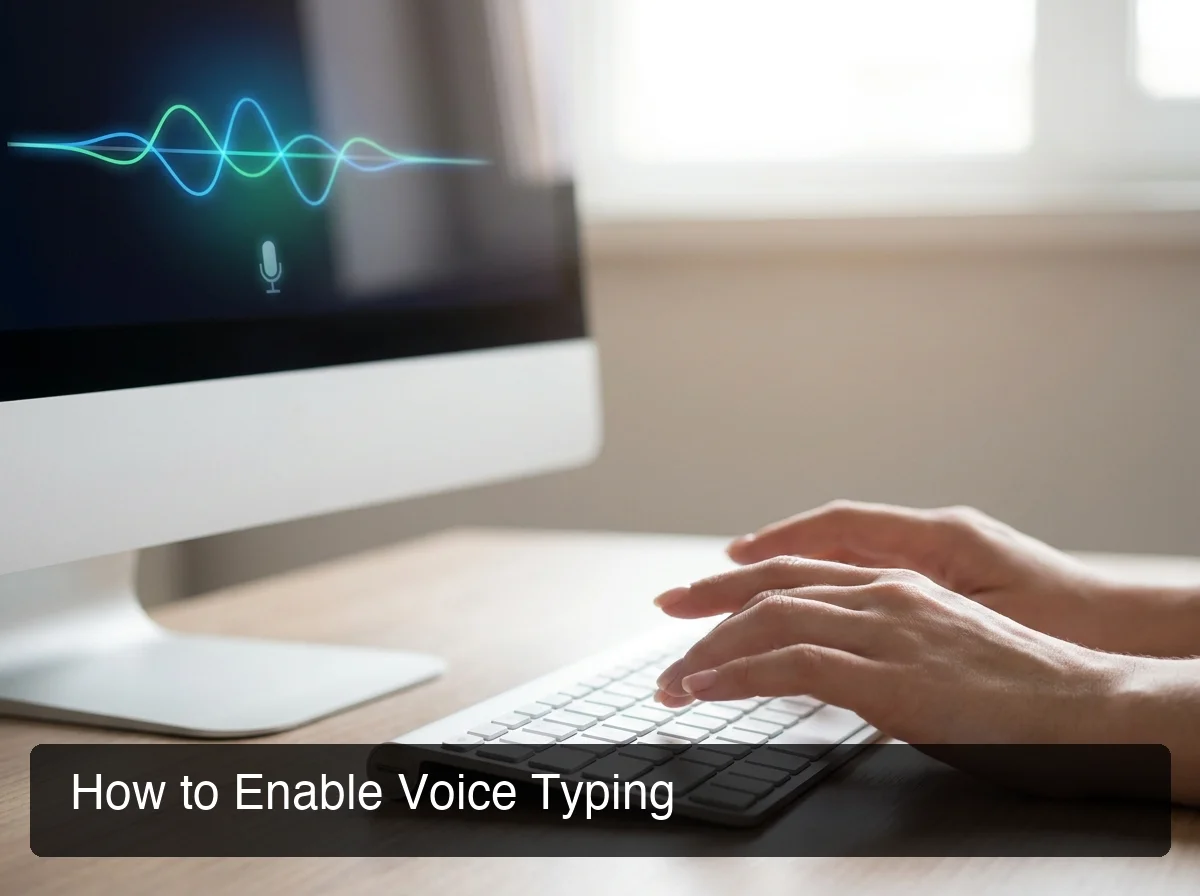 BossAI works on iOS as a full keyboard replacement and on Mac and Windows as a hotkey-activated overlay — bringing AI-enhanced voice typing to any keyboard.
BossAI transforms any keyboard into a professional voice typing station by adding what built-in tools don't offer: automatic filler-word removal, real-time grammar correction, one-tap tone rewriting, and Boss Mode — a screen-reading feature that generates contextually aware text without copy-pasting or app switching.
Standard voice typing outputs what you say. BossAI outputs what you meant to say. The difference matters most in professional communication — emails, client messages, documents — where raw dictation needs editing before it's ready to send.
BossAI vs. Built-In Voice Typing
| Feature | Windows Voice Typing | Apple Dictation | BossAI |
|---|---|---|---|
| Real-time transcription | ✅ | ✅ | ✅ |
| Filler word removal | ❌ | ❌ | ✅ |
| Grammar correction | Partial | Partial | ✅ |
| Custom dictionary | Limited | Limited | ✅ Unlimited (Pro) |
| One-tap tone rewriting | ❌ | ❌ | ✅ 6 tones |
| Screen reading (Boss Mode) | ❌ | ❌ | ✅ |
| Clips (instant snippets) | ❌ | ❌ | ✅ |
| Multi-platform | Windows only | Mac/iOS only | iOS, Mac, Windows |
Boss Mode: The Feature No Competitor Has
The biggest gap between BossAI and every other voice typing tool — built-in or third-party — is Boss Mode. Speak a command like "Boss, reply to this email professionally" and BossAI reads your screen in real time, understands the context of the email you're viewing, and writes a complete response directly into the active text field.
No copy-pasting. No switching to ChatGPT. No explaining what's on screen. It sees the email and generates the reply. This is how AI voice typing is redefining what dictation tools can do.
BossAI runs on iOS as a full keyboard replacement, on macOS as a menu bar app (Fn hotkey), and on Windows as a system tray app — covering all three major platforms.
Does Voice Typing on Keyboards Save Time and Reduce Typing Fatigue?
Yes — voice typing measurably saves time and reduces fatigue when used consistently. Dictation at 130–180 WPM vs. typing at 40–60 WPM is a 2–3x raw speed advantage.
Physical strain reduction is well-documented: voice input eliminates the repetitive wrist and finger movements that accumulate into RSI over months of heavy keyboard use.
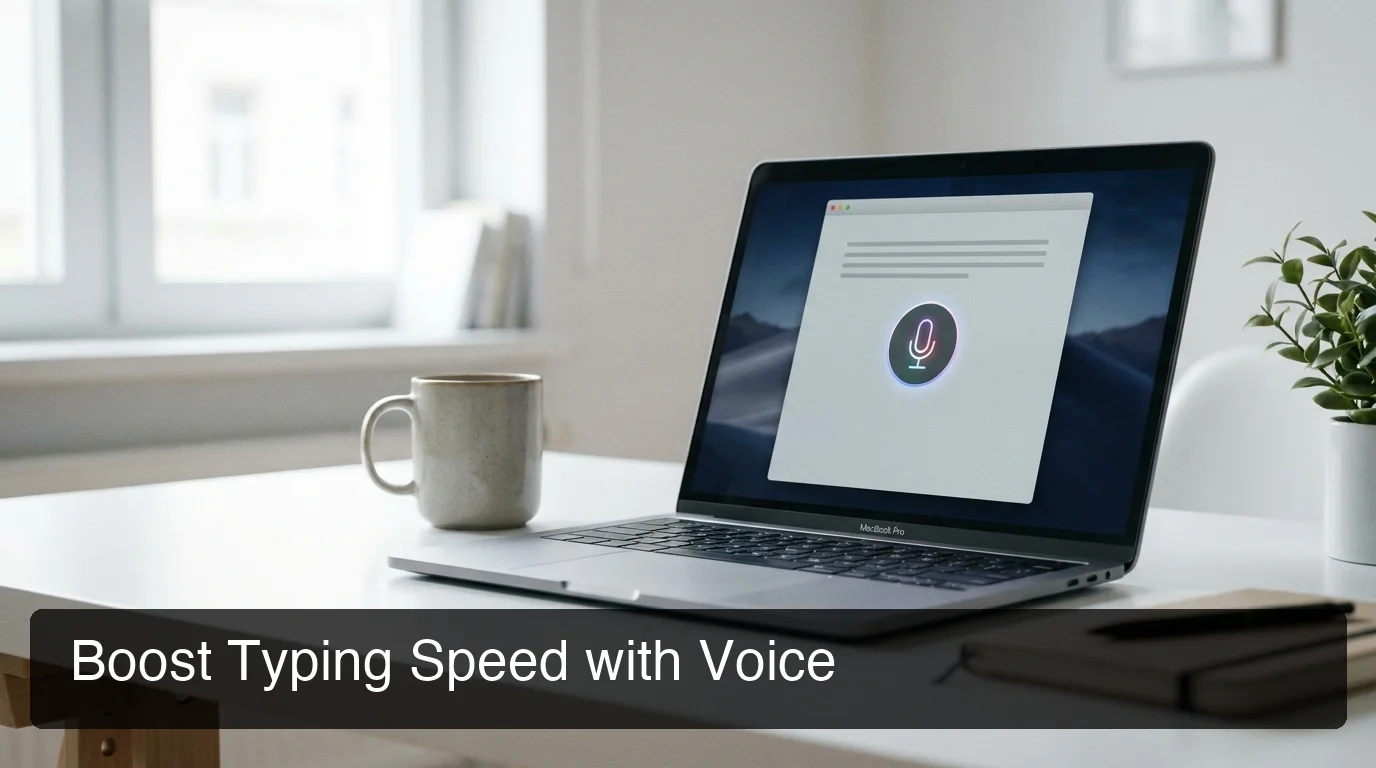 Voice dictation at 140+ WPM vs. average typing at 50 WPM — consistent voice typing doubles daily written output.
The caveat: time savings depend on accuracy. If your voice typing accuracy sits below 90%, editing time erodes the speed advantage. This is why AI post-processing matters — every filler word removed and grammar error auto-corrected is editing time saved.
By the numbers: Switching email workflows to voice typing saves 15–20 minutes per day for professionals processing 30+ emails — that's 65–85 hours per year reclaimed from inbox management alone.
For users in the Google Workspace ecosystem, Google Docs voice typing is a built-in path to test dictation in a document context before committing to a dedicated app. If you're exploring typing with voice across a broader set of apps and workflows, our full guide covers the complete picture.
Get Started with BossAI
If your keyboard is slowing your writing, straining your wrists, or leaving you stuck copy-pasting between apps, a voice typing layer fixes all three. BossAI turns any keyboard on iOS, Mac, or Windows into an AI-enhanced voice input station — removing fillers, rewriting tone, and generating context-aware replies with a single voice command.
Not ready yet? Get Our AI Productivity Guide — free tips on faster writing, smarter dictation, and hands-free workflows.
Frequently Asked Questions
How do I turn on voice typing on my keyboard? On Windows, press Win+H to open the voice typing bar — no setup required. On Mac, double-tap Fn to activate system dictation. On iOS, tap the microphone icon on the keyboard. On Android with Gboard, tap the microphone button in the top keyboard row. All platforms require microphone permission on first use.
Can I use voice typing on any physical keyboard? Yes. Voice typing is a software function that uses your device's microphone — not the keyboard hardware. Any keyboard connected to a device with microphone access supports voice input. Mechanical, wireless, laptop, and external keyboards all work identically for voice typing purposes.
What is the most accurate voice typing keyboard? Built-in tools (Apple Dictation, Gboard, Windows Voice Typing) achieve 90–95% raw accuracy. AI-enhanced apps like BossAI improve on this by automatically removing filler words, correcting grammar, and applying custom dictionaries — delivering cleaner output without manual editing afterward.
Does voice typing work without internet? Most built-in voice typing tools require an internet connection for cloud-based speech processing. Some third-party apps — including Superwhisper and Spokenly — offer offline local transcription using on-device models. BossAI uses real-time cloud processing for AI enhancement, with text appearing as you speak with minimal latency.
What is BossAI? BossAI is an AI-powered voice keyboard for iOS, macOS, and Windows that replaces typing with voice dictation. It transcribes speech in real time, removes filler words automatically, rewrites text in different tones with one tap, and includes Boss Mode — a screen-reading feature that reads your screen to generate contextual replies without copy-pasting.
Is BossAI free? Yes. BossAI has a free tier with no weekly word cap — you can dictate as much as you want. The paid plan unlocks advanced features including unlimited Boss Mode screen reads, priority processing, and extended Clips storage. No credit card required to start.
Does voice typing reduce RSI and typing fatigue? Yes — significantly. Voice typing eliminates the repetitive wrist flexion, finger depression, and forearm pronation that accumulate into RSI over months of heavy keyboard use. For users with carpal tunnel or hand pain, voice typing allows continued productivity entirely hands-free. Hybrid workflows — 50–70% voice, 30–50% keyboard — reduce cumulative strain while preserving precision for editing tasks.