
How to Use Voice Typing: The Complete Beginner's Guide
Learning how to use voice typing is one of the fastest productivity upgrades available — and setup takes under two minutes on any device.
Key Takeaways
- Voice typing works natively on iOS, Android, Windows, and Mac with no extra software required to get started.
- Modern AI-powered voice typing reaches 95%+ accuracy and is 3–5x faster than manual typing for emails, messages, and notes.
- Speaking naturally (including punctuation commands), proper mic positioning, and a quiet environment are the three biggest accuracy boosters.
- Native OS voice typing is free and functional; AI-enhanced tools like BossAI add filler removal, grammar correction, and screen-context awareness for professionals who type at volume.
- Most devices activate voice typing with a single tap; full setup is under 2 minutes on iOS, Android, Windows, and Mac.
Contents
- How to Use Voice Typing on Any Platform?
- What Are the Best Voice Typing Apps and Tools?
- How Can Voice Typing Save You Time Daily?
- How Accurate Is Voice Typing Compared to Traditional Typing?
- Which Device Works Best for Voice Typing?
- Why Should You Use Voice Typing for Email and Messaging?
- How to Use Voice Typing on Your Phone?
- What Are Common Voice Typing Mistakes and How to Avoid Them?
- Get Started with BossAI
- Frequently Asked Questions
 Getting started with voice typing requires no special hardware — just a phone or computer you already own.
How to Use Voice Typing on Any Platform?
Voice typing works by activating the microphone on your keyboard, then speaking naturally while the app transcribes your words in real time. The process is identical across platforms: tap the mic icon, speak clearly, pause when done. Your transcribed text appears directly in the active text field — no copy-pasting, no switching apps.
On iOS, tap the microphone icon on the default keyboard. On Android with Gboard, tap the dedicated voice input button in the top row. Windows users press Win+H from any text field, and Mac users activate dictation via a double-tap of the Fn key (after enabling it in System Settings → Keyboard).
 Natural, conversational speech produces better transcription than slow, deliberate dictation.
What Punctuation Commands Can You Use?
Voice typing supports spoken punctuation that eliminates manual stop-and-type interruptions. Say "comma," "period," "question mark," "exclamation point," "new line," or "new paragraph" and the corresponding character or break inserts immediately.
These commands work on Gboard, Windows Voice Typing, and Apple Dictation. AI-enhanced tools like BossAI add punctuation automatically based on sentence structure — so you don't need to say punctuation commands at all.
Key insight: The #1 beginner mistake is stopping mid-sentence to fix every error. Speak through the full sentence first, then correct. Interrupting the transcription flow causes more errors, not fewer.
What Are the Best Voice Typing Apps and Tools?
The best voice typing tools fall into two categories: native OS solutions built into every device, and AI-enhanced third-party apps that improve accuracy, strip filler words, and add professional formatting. Native tools are free and functional for casual use. AI-powered tools handle high-volume, professional communication where output quality matters.
Here's how the main options compare:
| Tool | Platform | Accuracy | AI Enhancement | Cost |
|---|---|---|---|---|
| Gboard Voice Typing | Android | Good | Basic | Free |
| Apple Dictation | iOS / Mac | Good | Basic | Free |
| Windows Voice Typing | Windows | Good | Basic | Free |
| Google Docs Voice Typing | Browser | Good | None | Free |
| BossAI | iOS / Android / Mac / Windows | Excellent | Full (filler removal, grammar, screen context) | Free / $9.99/mo |
| WisprFlow | Mac / Windows | Excellent | Full | Free / $15/mo |
| SpeechTexter | Browser | Moderate | None | Free |
Native tools get the job done for casual messages and short notes. For anyone sending 30+ emails or messages daily, the output quality difference from AI-enhanced tools is immediate and cumulative.
By the numbers: AI-enhanced voice typing tools remove up to 40 filler words per minute that native tools transcribe verbatim — saving significant editing time on every message.
How Can Voice Typing Save You Time Daily?
Voice typing is 3–5x faster than manual typing for most people. The average typist reaches 40 words per minute; natural speech averages 130–150 words per minute. For email-heavy professionals, shifting even half of daily typing to voice input can recover 1+ hour per workday — compounded across hundreds of messages per week.
The gains show up across every communication type:
- Email replies: A 200-word reply takes 5 minutes to type. Voice? Under 90 seconds.
- Slack/Teams messages: Batch 5 short replies via dictation in the time it takes to type one.
- Meeting notes: Capture ideas in real time without looking down at a keyboard.
- Document first drafts: Voice drafts run 60–70% faster for most writers — the bottleneck is thinking, not transcription.
The deepest unlock is eliminating the "typing gap" — the delay between having a thought and expressing it in text. For anyone evaluating a faster typing app against speed benchmarks, dictation consistently outperforms both manual typing and AI-assisted composition for personal communication.
Bottom line: Voice typing doesn't replace your thinking — it removes the friction between thinking and the page. That friction compounds at hundreds of messages per week into hours of lost time.
How Accurate Is Voice Typing Compared to Traditional Typing?
Modern AI-enhanced voice typing reaches 95–99% accuracy in quiet environments. Native OS solutions — Gboard, Apple Dictation, Windows Voice Typing — typically deliver 90–93% accuracy, which is functional but requires more post-editing. Specialized vocabulary (names, jargon, brand terms) is where all tools struggle most until they're trained.
What Factors Drive Voice Typing Accuracy?
Three variables matter most:
- Microphone quality and placement — Built-in phone and laptop mics perform well in quiet spaces. Headsets or AirPods with noise isolation improve accuracy by 5–8% in typical office noise.
- Speaking pace and clarity — Natural conversational pace outperforms both too-slow (sounds robotic, trips the model) and too-fast (words blur together). Speak like you're talking to a colleague.
- Custom dictionary / vocabulary training — Add names, technical terms, product names, and abbreviations your tool supports. This single step removes your most frequent error patterns permanently.
For hands-free typing scenarios — accessibility use cases, cooking, exercise — microphone quality becomes the dominant accuracy factor since optimal positioning isn't always achievable.
Which Device Works Best for Voice Typing?
Voice typing works well on all modern devices, but smartphones offer the most seamless experience because the microphone stays close to your mouth and voice input is built directly into the keyboard interface. Desktops and laptops work better for long-form dictation where sitting at a desk keeps mic distance consistent.
Platform-by-Platform Accuracy and Setup
iOS — Apple Dictation handles short inputs reliably. The BossAI keyboard adds AI enhancement without changing any existing workflow. See our complete guide to voice typing on every device for cross-platform optimization.
Android — Gboard's voice typing is the standard. Most flagship phones perform well with native dictation.
Windows — Built-in Voice Typing (Win+H) works across all apps. BossAI for Windows adds AI cleanup the native tool lacks. Setup details are in our Windows voice to text guide.
Mac — Fn+Fn activates native dictation. AI-enhanced tools improve output quality significantly for professional volume.
 BossAI is available across iOS, Android, Mac, and Windows — the platforms where most professionals actually work.
Why Should You Use Voice Typing for Email and Messaging?
Voice typing is most valuable for email and messaging because these tasks are high-frequency, repetitive, and time-critical. A professional managing 50+ emails daily who switches to voice input saves 20–30 minutes per day. For messaging — Slack, WhatsApp, iMessage — voice-to-text composes replies 4x faster than two-thumb mobile typing.
The gain isn't just speed — it's quality of communication.
When you type quickly on a phone keyboard, you autocorrect and abbreviate. When you dictate at natural pace, you write in full sentences with proper context — and every recipient gets a clearer message.
Why Is AI-Enhanced Dictation Better for Professional Communication?
Native OS tools transcribe your voice exactly as spoken — including every "um," "uh," and trailing half-thought. For professional email and messaging, raw transcription creates editing work that offsets the speed benefit. AI-enhanced tools like BossAI remove filler words automatically, fix grammar, add punctuation, and format text appropriately for the app you're in.
BossAI's Boss Mode goes further: say "Boss, reply to this email professionally" and it reads the email on screen, understands the full context, and writes a complete response — no copy-pasting, no app-switching. That's the fastest way to compose responses to complex emails on any device. For professionals building fully AI voice typing workflows, Boss Mode is the most advanced capability in this category.
How to Use Voice Typing on Your Phone?
Starting voice typing on your phone takes under 2 minutes. Open any app with a text field, tap the microphone icon, and begin speaking. If the mic isn't visible on iOS, enable Dictation in Settings → General → Keyboard; on Android, open Gboard and tap the mic icon.
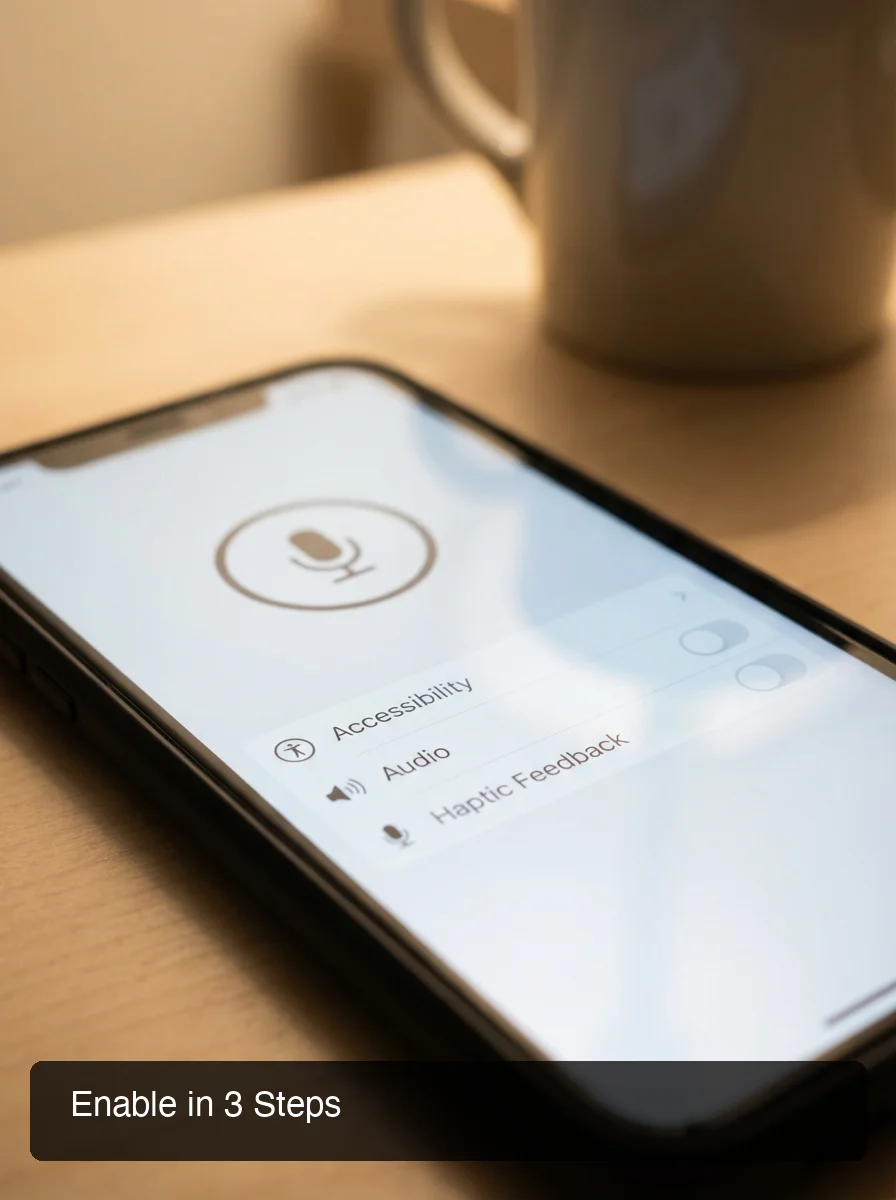 Enabling voice typing on iOS takes three taps — no app downloads, no account creation required.
How to Enable Voice Typing on iPhone (iOS)
- Go to Settings → General → Keyboard
- Toggle Enable Dictation on
- Open any app (Messages, Mail, Notes)
- Tap a text field, then tap the microphone icon on the keyboard
- Speak — text appears in real time as you talk
For iOS-specific tips including BossAI keyboard setup, our voice typing iPhone guide covers the full workflow.
How to Enable Voice Typing on Android
- Open any app with a text field
- Tap the text field to bring up Gboard
- Tap the microphone icon in the top row (or long-press the space bar)
- Speak clearly at natural pace — text inserts in real time
- Tap the mic again or pause to stop
How to Enable Voice Typing on Windows
- Open any app with a text field
- Press Windows key + H
- The voice typing toolbar appears at the top of your screen
- Tap the microphone button and begin speaking
- Say "stop listening" or click the mic button to end
How to Enable Voice Typing on Mac
- Go to System Settings → Keyboard
- Enable Dictation and set a shortcut (default: double-tap Fn key)
- Click any text field, double-tap Fn to activate
- Speak — text inserts at your cursor position in real time
What Are Common Voice Typing Mistakes and How to Avoid Them?
The most common voice typing mistakes are correcting errors mid-sentence (which disrupts transcription context), skipping punctuation commands (which creates run-on text requiring heavy editing), and speaking in slow, unnatural cadence (which degrades accuracy on most models). Knowing these upfront saves hours of frustration.
The Top 5 Mistakes and How to Fix Them
- Stopping mid-sentence to delete errors — Finish the thought, then go back. Interrupting the transcription flow causes more errors than it prevents.
- Speaking too slowly or in a monotone — Speak naturally at conversational speed. The models are trained on real human speech, not deliberate dictation.
- Skipping punctuation commands — Say "period," "comma," and "new paragraph" as you speak. Native tools need explicit commands; AI-enhanced tools add punctuation automatically.
- Ignoring the custom dictionary — Add names, technical terms, and jargon you use daily. This eliminates your most frequent repeat errors permanently.
- Dictating in noisy environments without a headset — Built-in phone mics pick up ambient sound. A Bluetooth headset dramatically improves accuracy in open-plan offices or shared spaces.
Pro tip: Record yourself dictating a typical work email, then count your filler words — "um," "uh," "like," "you know." Most people average 8–12 per minute. Native tools transcribe them all; AI-powered tools like BossAI remove them automatically before the text hits your screen.
Get Started with BossAI
Voice typing is a skill that compounds — the more you use it, the more natural it becomes. If you're ready to go beyond native OS tools, BossAI turns your voice into polished, professional text across every app on iOS, Android, Mac, and Windows. Filler removal, grammar correction, and Boss Mode screen-context commands are all built in.
Not ready to try it yet? Get Our AI Productivity Guide — free tips on working faster with AI.
Frequently Asked Questions
How do I turn on voice typing?
On iPhone: Settings → General → Keyboard → Enable Dictation, then tap the mic icon. On Android: tap the Gboard mic or long-press the space bar. On Windows: press Win+H. On Mac: enable Dictation in System Settings → Keyboard, then double-tap Fn. Setup takes under 2 minutes on any device.
Can voice typing replace regular typing?
Voice typing can replace most everyday typing — emails, messages, notes, documents — for people who speak clearly in reasonably quiet environments. It's 3–5x faster than manual typing for text composition. It doesn't replace typing for code, forms, or tasks requiring precise cursor navigation, but for communication and first-draft writing it handles the majority of daily typing volume.
How accurate is voice typing?
Modern AI-enhanced voice typing tools reach 95–99% accuracy in good acoustic conditions. Native OS tools (Gboard, Apple Dictation, Windows Voice Typing) typically deliver 90–93% accuracy. Accuracy improves significantly with a quality microphone, natural speech pace, and a custom dictionary configured with your specific vocabulary, names, and technical terms.
Does voice typing work in all apps?
On iOS, dictation works via the native mic or BossAI keyboard in any text field. On Windows, Win+H works universally; on Mac, Fn+Fn covers most apps. Some enterprise tools occasionally restrict keyboard input injection, but this is rare in standard productivity software.
How do I use voice typing in WhatsApp?
Open a chat in WhatsApp, tap the text field, and tap the microphone icon on your keyboard. Gboard users can long-press the space bar for voice input. Speak your message and tap Send when done. A Bluetooth headset significantly improves accuracy in noisy environments.