
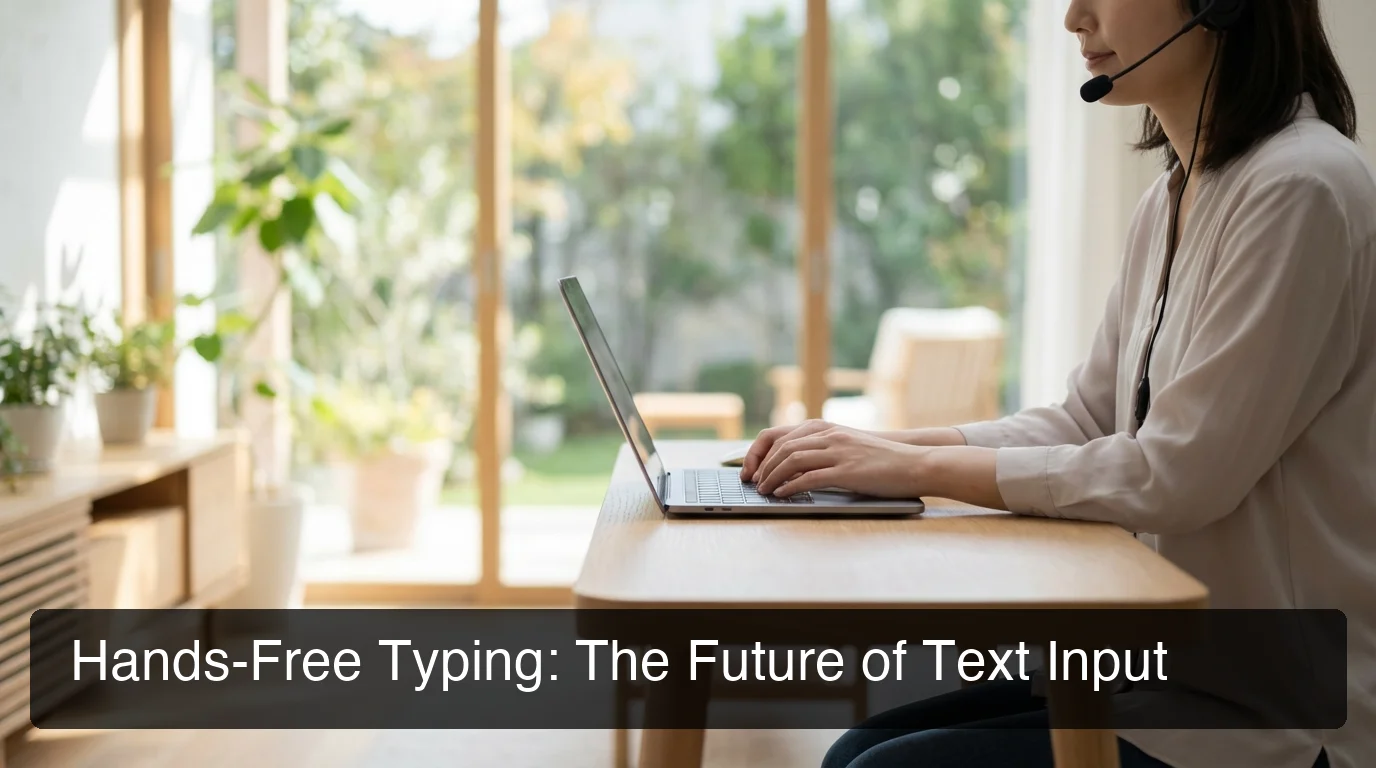
Hands-Free Typing: Voice Dictation Guide 2026
Typing is slow, tiring, and hard on your hands. Hands free typing lets you speak naturally and watch your words appear instantly — no keyboard required.
Key Takeaways
- Hands-free typing uses voice recognition to transcribe speech in real time — no keyboard needed.
- Modern AI-powered dictation reaches 95%+ accuracy, removing filler words, fixing grammar, and adding punctuation automatically.
- Works across iOS, macOS, Windows, Android, and web browsers — set it up once and dictate in any app.
- Voice dictation reduces the risk of repetitive strain injuries (RSI) by eliminating hours of daily keyboard use.
- AI-enhanced tools like BossAI go beyond transcription: they can read your screen and draft replies without copy-pasting.
Contents
- What Is Hands-Free Typing and How Does It Work?
- Why Should You Switch to Hands-Free Typing?
- How Does Hands-Free Typing Improve Productivity and Accessibility?
- Which Devices Support Hands-Free Typing?
- Is Hands-Free Typing as Accurate as Traditional Typing?
- Which Hands-Free Typing Solution Is Best for You?
- How Do You Set Up Hands-Free Typing on Your Phone?
- Can Hands-Free Typing Eliminate Repetitive Strain Injury?
- Frequently Asked Questions
What Is Hands Free Typing and How Does It Work?
Hands-free typing converts your spoken words into text in real time using voice recognition technology. You speak into a microphone, a speech-to-text engine processes the audio, and your words appear in whatever app or text field is active — email, chat, documents, or search boxes — without touching a keyboard.
Every smartphone and computer already has this capability built in. Windows 11 has Voice Typing (Win + H), macOS has Dictation, iOS has the microphone key on the keyboard, and Android uses Google's built-in voice input.
The process is the same across all platforms: a microphone captures your voice, audio is processed by a speech recognition engine, and text is inserted into whatever app is open.
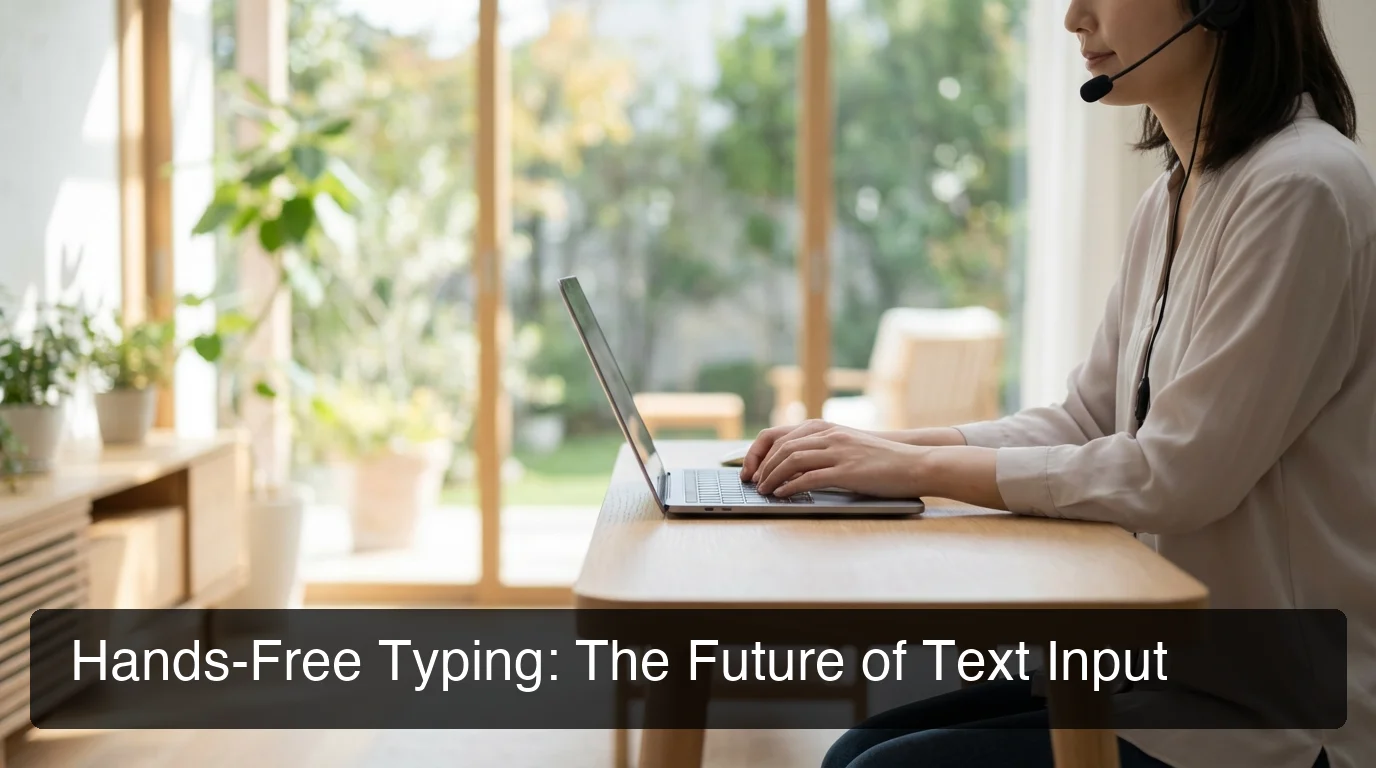 Hands-free typing lets you speak naturally — your words appear without touching a keyboard.
Modern voice recognition goes further than raw transcription. AI-enhanced tools add punctuation automatically, remove filler words like "um" and "uh," fix grammar, and format text to match the context — shorter punchy sentences for chat, complete sentences for email.
Key insight: Built-in dictation is free and useful for occasional use — but AI-enhanced tools process language, not just audio, making them dramatically more accurate for daily professional use.
Why Switch to Hands Free Typing?
You should switch to hands-free typing because speaking is 3x faster than typing. The average person speaks at 130 words per minute but types at only 40 WPM — that 90 WPM gap adds up to hours of reclaimed time per week for anyone who communicates heavily through text.
The speed advantage is only part of the case. Here are the key reasons professionals make the switch:
- Speed: 130 WPM spoken vs. 40 WPM typed — triple the output for the same effort
- RSI prevention: No repetitive keystroke stress on wrists, fingers, and shoulders
- Mobility: Dictate while walking, commuting, or between meetings — no desk required
- Focus: Speak ideas as they form rather than pausing to type and losing the thread
- Accessibility: Enables text input for people with physical disabilities, injuries, or motor impairments
For professionals composing 50–100 messages per day, hands-free typing saves 30–45 minutes daily — 130+ hours per work year recovered from typing alone.
How Does Hands-Free Typing Improve Productivity and Accessibility?
Hands-free typing improves productivity by removing the bottleneck between thought and text — you speak at thinking speed rather than typing speed. For accessibility, it removes the physical barrier to text input entirely, enabling people with RSI, carpal tunnel, dyslexia, or motor impairments to communicate without pain or limitation.
The Productivity Angle
Heavy communicators — managers, salespeople, consultants, content creators — spend 40–60% of their workday typing. Switching even 50% of that volume to voice cuts time-to-text in half. The complete guide to voice typing covers the full picture, from basic setup to advanced dictation workflows.
Productivity gains compound across every task type: emails drafted without losing the thread, long-form documents captured at speaking pace, real-time notes during meetings, and rapid replies to Slack and WhatsApp without stopping other work.
The Accessibility Angle
For people who can't type comfortably — due to injury, disability, or chronic pain — hands-free typing isn't a productivity optimization. It's the primary way they interact with computers and phones.
Conditions that make keyboard typing difficult or impossible include carpal tunnel and RSI, arthritis, Parkinson's disease, arm or wrist injuries, and dyslexia — where voice input reduces the cognitive load of translating thought into typed text.
By the numbers: The average office worker types 40 WPM but speaks at 130 WPM — a 3x speed difference. Switching even half your daily typing to voice can recover 1+ hour per week, every week.
Which Devices Support Hands-Free Typing?
Hands-free typing is supported natively on every major platform: iOS, Android, macOS, Windows, and all major web browsers including Chrome. Most built-in solutions work immediately with no extra app downloads — just a microphone and an internet connection for cloud-based recognition.
| Platform | Built-In Tool | Shortcut / Access |
|---|---|---|
| Windows 11 | Voice Typing | Win + H in any text field |
| macOS | Dictation | Fn key (hold) or System Settings → Dictation |
| iOS | Keyboard Dictation | Microphone icon on native keyboard |
| Android | Gboard Voice | Microphone icon on Gboard keyboard |
| Chrome (all platforms) | Voice In extension | In-browser voice input for any web field |
| Google Docs | Voice Typing | Tools → Voice Typing (Ctrl+Shift+S) |
| Microsoft Word | Dictate | Home → Dictate button |
Built-in tools work well for occasional use. For high-volume users composing 50+ messages a day, third-party AI-enhanced tools deliver meaningfully better accuracy, punctuation, and language formatting. See our voice typing app comparison for a full breakdown of the best options across platforms.
Key insight: Chrome's Voice In extension works in any browser-based text field, making hands-free typing accessible even on web apps and SaaS tools that don't have native dictation support.
Is Hands-Free Typing as Accurate as Traditional Typing?
Yes — modern AI-powered voice recognition reaches 95–99% accuracy for clear speech in English, which is higher than the typical human typing accuracy of 92% when typos and autocorrect corrections are counted. The key variable isn't the technology; it's whether the tool uses basic transcription or AI-enhanced language processing.
 AI-powered voice recognition processes language context — not just audio signals.
Basic vs. AI-Enhanced Dictation
There are two generations of voice dictation tools today:
Basic transcription (Gboard, built-in Windows/Mac dictation): Converts audio to text using a speech model, but doesn't understand context. Misses punctuation, keeps filler words, gets proper nouns wrong, and produces run-on sentences.
AI-enhanced dictation (tools like BossAI, WisprFlow): Processes audio through a language model after transcription. Automatically removes "um," "uh," and "like." Adds periods, commas, and question marks. Capitalizes proper nouns. Formats text to match the context.
What Affects Accuracy
- Microphone quality: A good headset microphone outperforms built-in laptop mics significantly
- Background noise: Quiet environments improve recognition by 15–20%
- Speaking clarity: Natural pace at moderate volume produces the best results
- Custom vocabulary: Adding names and technical terms to a dictionary eliminates common errors
For professionals who want consistent accuracy across every platform, our beginners' guide on how to use voice typing walks through setup and accuracy optimization for each device.
 BossAI delivers AI-enhanced hands-free typing across iOS, Android, macOS, and Windows.
Which Hands-Free Typing Solution Is Best for You?
The best hands-free typing solution depends on your platform, use case, and daily typing volume. For occasional use, built-in tools are sufficient. For professionals and power users, AI-enhanced dictation tools deliver better accuracy, automatic formatting, and cross-platform consistency that built-in options can't match.
Here's how the main options stack up:
| Solution | Best For | Platforms | AI Enhancement |
|---|---|---|---|
| Windows Voice Typing | Casual Windows users | Windows only | Basic |
| Apple Dictation | Casual Mac/iOS users | Apple only | Basic |
| Google Docs Voice Typing | Students, document writers | Web (Chrome) | Basic |
| Gboard Voice Input | Casual mobile users | Android, iOS | Basic |
| BossAI | Professionals, power users | iOS, Android, macOS, Windows | Full AI processing |
| WisprFlow | Mac/Windows professionals | macOS, Windows | Full AI processing |
Why BossAI Stands Out for Heavy Users
For professionals composing high volumes of text daily, BossAI adds capabilities no built-in tool offers:
- Filler removal: Automatically strips "um," "uh," "like," "you know" from dictation output
- Context-aware formatting: Adjusts output for email vs. chat vs. document contexts
- Boss Mode: Reads your screen and writes contextual replies — no copy-pasting required
- One-tap rewrite: Change the tone of any text instantly (Professional, Casual, Witty, Persuasive, Empathetic, Bold)
- Custom dictionary: Teach BossAI your names, brand terms, and vocabulary once — it gets them right every time
Voice keyboards eliminate the need to type manually across every app — once BossAI is active on iOS, it works in email, messages, social media, and any app without switching context. AI voice typing tools that handle language processing remove an entire layer of editing friction from your daily workflow.
How Do You Set Up Hands-Free Typing on Your Phone?
Setting up hands-free typing on a smartphone takes under two minutes. On iPhone, the microphone icon is already built into the native keyboard — tap it to start. On Android, open Gboard and tap the mic key. For AI-enhanced dictation, install BossAI from the App Store (iPhone) or Google Play (Android) and enable it in keyboard settings.
iOS Setup (Built-In Dictation)
- Tap any text field to bring up the keyboard
- Tap the microphone icon (lower-left on the native keyboard)
- Speak — text appears as you talk
- Tap the microphone again to stop
Android Setup (Gboard)
- Tap any text field to open the keyboard
- Tap the microphone icon in the top toolbar
- Speak your message
AI-Enhanced Setup (BossAI on iOS)
- Download BossAI from the App Store
- Open Settings → General → Keyboard → Keyboards → Add New Keyboard → BossAI
- Switch to BossAI using the globe icon in any app
- Tap the microphone button — AI-enhanced text appears instantly
For hands-free typing on iOS devices, the keyboard approach works across every app without platform-specific dictation modes. Our step-by-step voice typing setup guide covers advanced configuration for accuracy and speed.
Can Hands-Free Typing Eliminate Repetitive Strain Injury?
Hands-free typing significantly reduces RSI risk by eliminating the repetitive keystroke patterns that cause cumulative strain injuries. RSI specialists recommend voice dictation as both a recovery tool for existing injuries and a preventive measure for high-volume keyboard users.
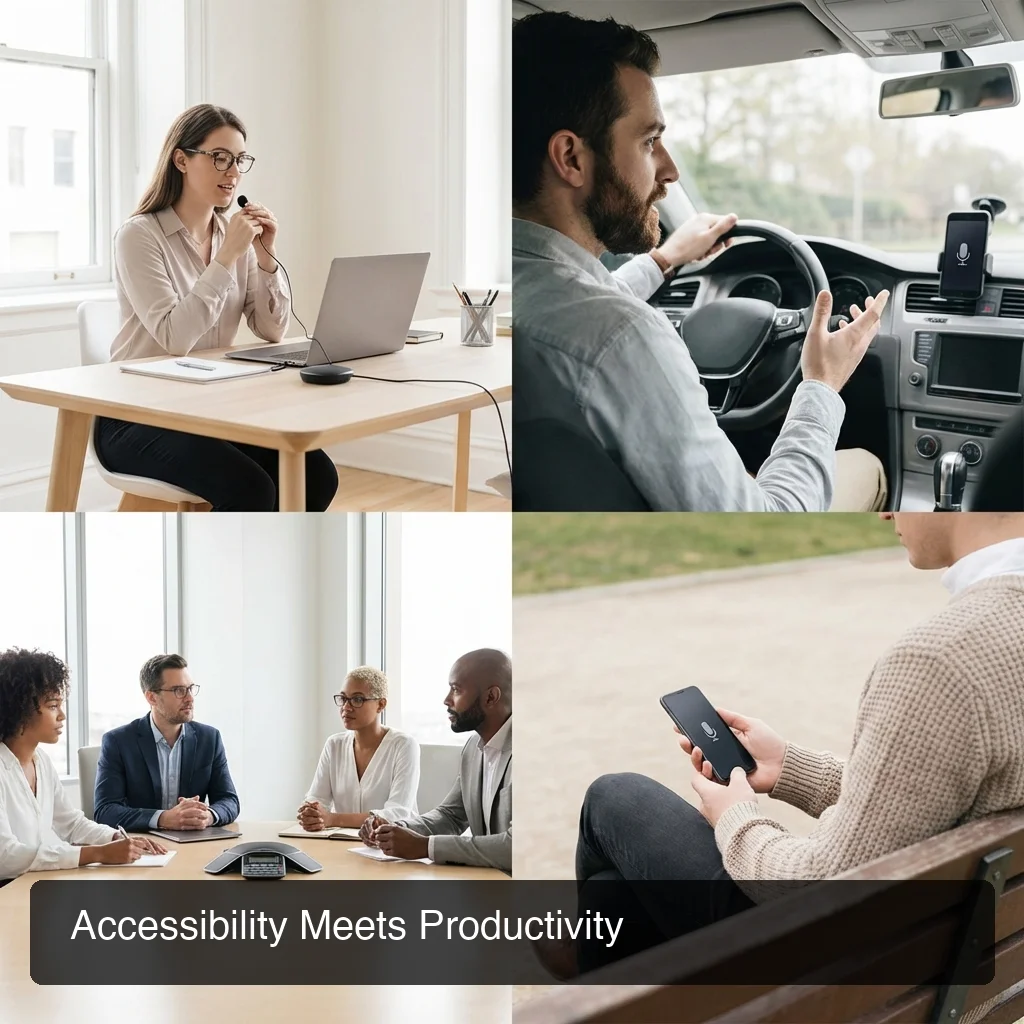 Hands-free typing works in any environment — at your desk, during a commute, or on the move.
Why Keyboards Cause RSI
Repetitive Strain Injury develops from repeated microtraumas — small stresses that accumulate over months or years of heavy typing. The primary culprits:
- Finger flexion/extension: Keystroke motion repeated 8,000–15,000 times per day
- Wrist pronation: Keeping wrists flat on a desk while typing
- Static muscle loading: Holding arms and shoulders in fixed positions for hours
How Voice Input Reduces Strain
Switching to hands-free typing reduces total keystroke volume dramatically. Even replacing 50% of daily typing with dictation cuts repetitive hand and wrist motion in half. For people already managing RSI or carpal tunnel, voice input is often the only way to continue working at full capacity without worsening the injury.
Bottom line: The average office worker makes 8,000–15,000 keystrokes daily. Even replacing half of that with voice dictation removes the primary mechanical driver of RSI while maintaining full productivity.
Get Started with BossAI
If you're ready to move beyond basic built-in dictation, BossAI brings AI-enhanced hands-free typing to iOS, Android, macOS, and Windows — removing filler words, fixing grammar automatically, and even reading your screen to draft contextual replies without copy-pasting.
Frequently Asked Questions
How do I turn on voice typing? On Windows, press Win + H in any text field to open Voice Typing. On Mac, press the Fn key to activate Dictation. On iPhone, tap the microphone icon on your keyboard. On Android, tap the mic icon on Gboard. All four options are free, built in, and work immediately with no additional apps required.
Can I speak to my computer and have it type? Yes — every modern computer supports speech-to-text dictation. Windows 11 has Voice Typing (Win + H) and macOS has Dictation (Fn key), both work in any text field across all apps. For AI-enhanced output with automatic grammar fixes and filler word removal, third-party tools like BossAI produce significantly better text than built-in dictation.
Is hands-free typing accurate enough for professional use? Modern AI-enhanced dictation reaches 95–99% accuracy for clear speech — higher than average human typing accuracy of 92% when typos are counted. AI tools that process language (removing fillers, fixing grammar, adding punctuation) produce near-publish-ready text with minimal editing.
How do I turn on voice typing in Chrome? Install the Voice In extension from the Chrome Web Store, then click the microphone icon in any web text field to begin dictating. It supports 70+ languages and works in Gmail, Google Docs, LinkedIn, and most browser-based apps.
Does hands-free typing work in every app? On iOS and Android, an AI keyboard like BossAI works in every app — email, chat, social media, documents — because it replaces the system keyboard entirely. On macOS and Windows, BossAI inserts text into the active text field in any app using hotkey activation, with no app switching required.
What is the best hands-free typing app? For professional use, BossAI combines AI-enhanced dictation (filler removal, grammar, punctuation) with cross-platform support (iOS, Android, macOS, Windows), Boss Mode for screen-aware replies, and one-tap tone rewriting. For casual use, built-in platform dictation tools are free and sufficient.
Does voice dictation help with RSI? Yes. Voice dictation reduces daily keystroke volume dramatically — replacing half your typing with voice cuts repetitive hand and wrist strain by 50%. RSI specialists frequently recommend voice input as both a recovery tool and a long-term prevention strategy for heavy keyboard users.