Voice to Text Windows: Complete Dictation Guide (2026)
Voice to Text Windows: The Complete Guide to Dictation on Windows 10 & 11
Voice to text Windows has become essential for professionals who spend 5-8 hours daily typing emails, documents, and reports. Whether you're using Windows 10 or Windows 11, voice to text on Windows eliminates typing burden by letting you speak naturally while your PC transcribes every word. Voice input on Windows cuts composition time in half for emails, Slack messages, and meeting notes.
This guide covers everything you need to know about voice to text on Windows: how to activate the built-in Windows Voice Typing feature, why AI-powered alternatives outperform native tools, and how to set up dictation for maximum accuracy across Windows 10 and Windows 11.
How to Use Voice to Text on Windows (Built-In Method)
Windows includes a free, built-in voice typing feature that works across nearly every text field on your PC. It requires no installation and activates with a single keyboard shortcut.
Enabling Windows Voice Typing on Windows 11
Windows 11 includes voice typing by default. To use it:
- Click into any text field — email, document, browser search bar, chat app
- Press Windows key + H on your keyboard
- A small microphone toolbar appears at the top of your screen
- Start speaking naturally, and Windows transcribes your words in real time
Windows 11 Voice Typing supports over 35 languages and includes basic punctuation commands like "period," "comma," and "new line."
Enabling Windows Voice Typing on Windows 10
Windows 10 calls the feature Windows Speech Recognition and requires a one-time setup:
- Press Windows key + H (same shortcut as Windows 11)
- If prompted, follow the setup wizard to train Windows to recognize your voice
- Grant microphone permissions when asked
- Once configured, press Windows key + H anytime to start dictating
After the initial setup, Windows 10 voice typing works identically to Windows 11.
Win+H Keyboard Shortcut
The Windows key + H shortcut is the universal activation method for voice to text on Windows. Press it once to start dictating. Press it again (or click the microphone icon) to stop.
You can also navigate the voice typing menu using Windows key + Alt + H for keyboard-only control.
Basic Voice Commands and Punctuation
Windows Voice Typing understands spoken punctuation and basic formatting commands:
- Say "period" to add
. - Say "comma" to add
, - Say "question mark" to add
? - Say "new line" to start a new paragraph
- Say "delete that" to remove the last phrase
For a full list of commands, visit Microsoft's official voice typing support page.
Voice to Text Windows: Features and Limitations
Windows Voice Typing is functional, free, and accessible to every Windows user. But it has clear limitations when compared to modern AI keyboard apps designed specifically for dictation.
What Windows Voice Typing Does Well
It's built-in and always available. You don't need to download, install, or subscribe to anything. Every Windows 10 and Windows 11 PC ships with voice typing enabled.
It works across most apps. Whether you're in Microsoft Word, Gmail, Slack, Notion, or a code editor, Windows Voice Typing inserts text wherever your cursor sits.
It's private and offline-capable. Depending on your settings, Windows can process voice locally without sending audio to the cloud.
Where It Falls Short
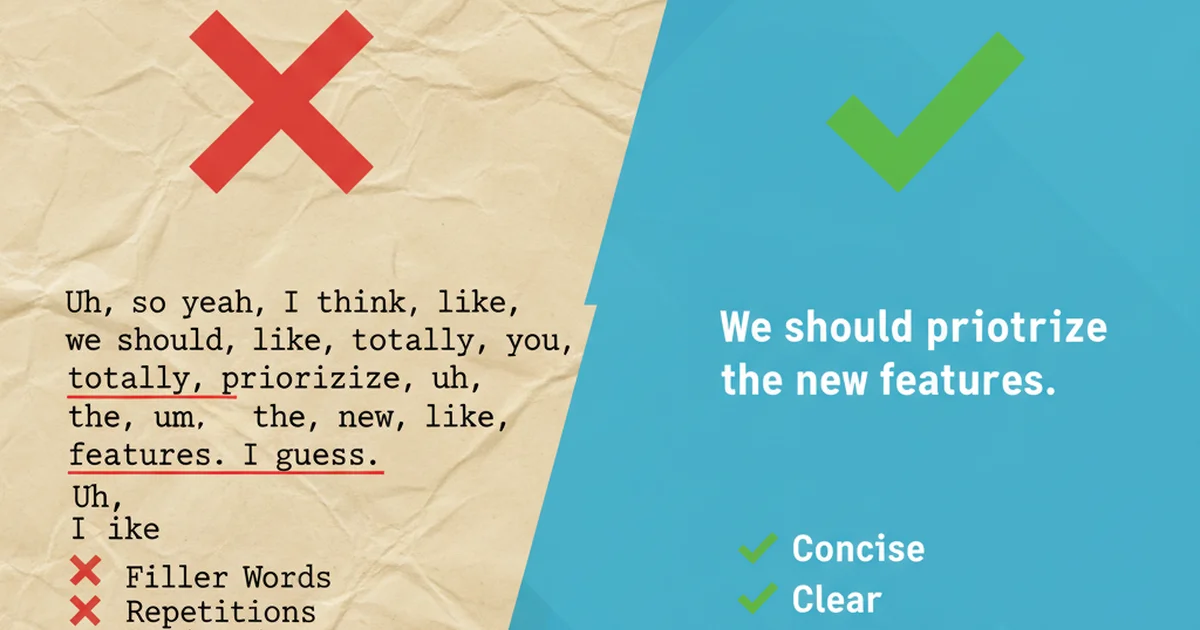
No filler word removal. Windows transcribes everything you say, including "um," "uh," "like," and "you know." If you speak naturally, your transcription reads like a rough draft, not polished text.
Limited punctuation intelligence. You must say "comma" and "period" out loud. Windows won't infer punctuation from your speech cadence or sentence structure.
Accuracy issues with accents, jargon, and proper nouns. Windows struggles with technical terms, brand names, non-native accents, and unusual vocabulary. There's no custom dictionary feature in the native tool.
No AI enhancement. Windows transcribes word-for-word. It doesn't fix grammar, remove redundancies, or reformat text for clarity.
For users dictating quick notes or casual messages, Windows Voice Typing suffices. For professionals composing client-facing emails, reports, or content, the lack of AI polishing creates extra editing work.
Best AI-Powered Voice to Text Apps for Windows
Third-party voice to text apps solve Windows Voice Typing's limitations by adding AI-powered transcription, filler word removal, grammar correction, and context-aware formatting. Here's how they compare.
BossAI
BossAI is an AI-enhanced voice keyboard for Windows that runs as a native system tray app. It replaces Windows Voice Typing with a smarter dictation engine that automatically removes filler words, fixes grammar, adds punctuation, and formats text based on the app you're using.
What sets BossAI apart:
AI-enhanced dictation. BossAI transcribes your speech using Deepgram, then processes it through Gemini Flash to strip out "um," "uh," and "like," correct grammar mistakes, and add natural punctuation. The result is polished, publish-ready text.
Boss Mode screen reading. BossAI can read your screen in real time. Say "Boss, reply to this email professionally," and BossAI reads the email on your screen, generates a contextual response, and inserts it wherever your cursor is. No copy-pasting. No app switching.
Custom dictionary for technical terms. Add names, jargon, brand names, and acronyms to BossAI's vocabulary. It learns your language and gets specialized terms right every time.
Works system-wide. BossAI inserts text into any Windows app — Outlook, Teams, Notion, VS Code, Chrome, Slack. Hold a hotkey (default: Fn), speak, and your words appear wherever your cursor sits.
BossAI offers a free tier with 500 words/day and full Pro access for $9.99/month or $69.99/year.
Other Popular Alternatives
WisprFlow is the market leader in AI dictation for Windows. It offers voice-triggered text editing (e.g., "make this more formal") and supports Mac, Windows, and iPhone. Pricing: free tier with 2,000 words/week, Pro at $15/month.
Google Docs Voice Typing works only inside Google Docs but offers high accuracy and multi-language support. It's free but limited to the Google ecosystem.
Voicy is a Windows-specific app with 99% claimed accuracy in 50+ languages. Pricing: $8.49/month.
Comparison: Windows Voice Typing vs. AI-Powered Apps
| Feature | Windows Voice Typing | BossAI | WisprFlow |
|---|---|---|---|
| Filler word removal | ❌ No | ✅ Automatic | ✅ Automatic |
| AI grammar correction | ❌ No | ✅ Yes | ✅ Yes |
| Punctuation inference | ❌ Must say "comma" | ✅ Automatic | ✅ Automatic |
| Custom dictionary | ❌ No | ✅ Unlimited terms | ✅ Yes |
| Screen context awareness | ❌ No | ✅ Boss Mode | ❌ No |
| Works offline | ✅ Optional | ❌ Requires internet | ❌ Requires internet |
| Pricing | Free | $9.99/month | $15/month |
| Free tier | Full access | 500 words/day | 2,000 words/week |
For users who dictate daily and want polished output without manual editing, AI-powered tools deliver measurably better results than native Windows Voice Typing.
Voice to Text Windows Setup Tips for Better Accuracy
Whether you use Windows Voice Typing or a third-party app, these setup tips improve transcription accuracy and reduce errors.
Optimize Your Microphone Settings
Windows Voice Typing relies on your microphone input quality. Poor audio = poor transcription.
Steps to optimize:
- Open Settings > System > Sound
- Under "Input," select your microphone
- Click "Device properties" and set the volume to 80-90%
- Enable noise suppression and acoustic echo cancellation if available
- Test your mic by speaking the phrase "Windows voice typing test" and checking the input level
A stable input level (60-80% on the meter) ensures consistent accuracy.
Train Custom Vocabulary
If you frequently use technical terms, brand names, or jargon, third-party apps like BossAI let you add custom vocabulary.
Example use cases:
- Medical professionals: drug names, procedure codes
- Developers: framework names (TensorFlow, Kubernetes), function names
- Sales teams: client names, product SKUs
Adding 10-20 frequently used terms to your custom dictionary can reduce transcription errors by 30-40%.
Reduce Background Noise
Voice typing accuracy drops in noisy environments. Fans, HVAC systems, keyboard clatter, and nearby conversations introduce errors.
Quick fixes:
- Use a unidirectional (cardioid) microphone instead of an omnidirectional laptop mic
- Dictate in a quiet room or use a noise-canceling headset
- Mute notifications and system sounds before dictating
Modern AI apps handle background noise better than Windows Voice Typing, but clean audio always improves results.
Use a Quality Headset vs. Built-in Mic
Laptop and desktop built-in microphones are designed for video calls, not high-accuracy dictation. A dedicated USB or Bluetooth headset with a boom mic captures clearer audio and positions the mic closer to your mouth.
Recommended headset specs:
- Frequency response: 100 Hz – 10 kHz (optimized for voice)
- Noise-canceling boom mic
- USB-A or USB-C connection (Bluetooth introduces slight latency)
Investing $30-$60 in a quality headset can double your effective dictation speed by reducing correction time.
Voice Input Windows: Real-World Use Cases
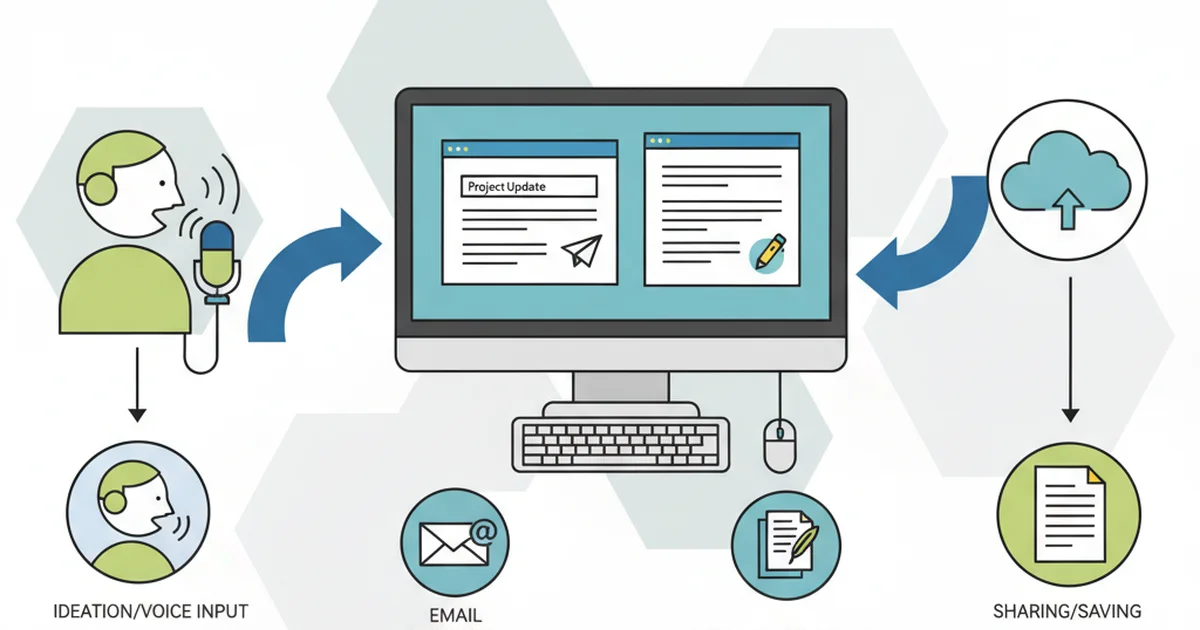
Voice to text on Windows isn't just for transcription. It's a productivity tool that speeds up daily workflows across email, documents, and communication.
Composing Emails and Messages
Typing a 300-word email takes 5-7 minutes. Speaking it takes 90 seconds.
Workflow example:
- Open Outlook or Gmail
- Press your dictation hotkey (Win+H for native, or BossAI's Fn key)
- Speak your email naturally: "Hi Sarah, thanks for the update on the project timeline. I reviewed the deliverables and everything looks good. Let's schedule a call Friday afternoon to finalize next steps. Thanks, [Your Name]"
- AI-powered apps automatically add punctuation and remove filler words
- Review, edit if needed, and send
For users sending 20+ emails daily, voice composition saves 1-2 hours per day.
Writing Documents and Reports
Long-form writing — proposals, reports, blog posts, research papers — benefits most from dictation. You can capture ideas at the speed of thought without waiting for your fingers to catch up.
Workflow example:
- Open Microsoft Word or Google Docs
- Outline your document structure (headings, bullet points)
- Use voice typing to fill in each section
- Speak in short bursts (2-3 sentences), then pause to review
- Edit for tone and clarity after drafting
Professional writers often use a hybrid approach: dictate the first draft, then type edits. This combines the speed of speech with the precision of keyboard editing.
Meeting Notes and Transcription
Voice typing captures meeting notes in real time without breaking your focus on the conversation.
Workflow example:
- Open OneNote, Notion, or a text editor
- Activate voice typing before the meeting starts
- Repeat key points aloud as they're discussed: "Action item: Sarah to send updated timeline by Friday. Decision: We're moving forward with vendor B."
- Voice typing transcribes your spoken summaries
- Review and organize notes after the meeting
This approach works best for solo meetings or when you're a passive participant. For full meeting transcription, dedicated tools like Otter.ai or Microsoft Teams transcription are better suited.
Get Started with AI-Powered Voice to Text on Windows
Windows Voice Typing is functional for basic dictation, but AI-powered apps like BossAI deliver polished, publish-ready text without manual editing. BossAI's filler word removal, grammar correction, and Boss Mode screen reading make it the fastest way to compose emails, documents, and messages on Windows.
Frequently Asked Questions About Voice to Text on Windows
How do I turn on voice to text on Windows?
Press Windows key + H on your keyboard. A microphone toolbar will appear at the top of your screen. Click into any text field, start speaking, and Windows will transcribe your words in real time. This shortcut works on both Windows 10 and Windows 11.
Does Windows 11 have built-in dictation?
Yes. Windows 11 includes Windows Voice Typing, a built-in speech-to-text feature that works across all apps. Activate it by pressing Windows key + H. It supports 35+ languages and includes basic voice commands for punctuation and formatting.
What's the keyboard shortcut for Windows voice typing?
The keyboard shortcut for Windows voice typing is Windows key + H. Press it once to start dictating, and press it again to stop. You can also use Windows key + Alt + H to navigate the voice typing toolbar with your keyboard.
Can I use voice to text offline on Windows?
Yes, with limitations. Windows Voice Typing offers an offline mode, but accuracy is lower than the online version. To enable offline dictation, go to Settings > Privacy > Speech and download the offline speech recognition model for your language. Third-party apps like BossAI and WisprFlow require an internet connection.
Is Windows Voice Typing free?
Yes. Windows Voice Typing is completely free and included with Windows 10 and Windows 11. There are no subscription fees, word limits, or hidden costs. However, third-party apps with AI enhancement (like BossAI, WisprFlow, and Voicy) offer free tiers with usage limits and paid plans for unlimited access.
What's the best voice to text app for Windows?
The best voice to text app for Windows depends on your needs. Windows Voice Typing is free and built-in but lacks AI enhancement. BossAI offers AI-powered filler word removal, grammar correction, and screen-aware dictation for $9.99/month. WisprFlow is the market leader with voice-triggered editing at $15/month. Google Docs Voice Typing is free but limited to Google Docs.
How accurate is Windows voice typing?
Windows Voice Typing achieves 85-90% accuracy in ideal conditions (quiet environment, clear speech, standard vocabulary). Accuracy drops with background noise, accents, technical jargon, or fast speech. AI-powered apps like BossAI and WisprFlow claim 95%+ accuracy by using advanced language models that infer context and correct errors automatically.
Conclusion
Voice to text on Windows transforms how you work. The native Windows Voice Typing feature offers a free, accessible starting point for basic dictation, but AI-powered alternatives like BossAI deliver polished, professional-grade text without manual editing.
Whether you're composing emails, writing reports, or capturing meeting notes, voice input cuts composition time in half while reducing typing strain. Start with the built-in Win+H shortcut to experience dictation, then explore AI-enhanced tools when you're ready for filler-free, grammar-corrected results.
If you're on macOS instead, similar voice typing options exist with platform-specific features. And as AI speech to text technology continues advancing, expect even smarter dictation tools that understand context, tone, and intent with human-level precision.
Visual References