AI Keyboard App: Voice & Smart Typing Features (2026)
AI Keyboard App: Transform Your Typing with Smart Voice and AI Features
Typing on your phone or computer doesn't have to be slow, error-prone, or exhausting. AI keyboard apps use machine learning to predict your next words, fix grammar mistakes automatically, and even let you dictate entire emails or messages with your voice. These smart keyboards learn your writing style, remember your frequently used phrases, and adapt to different contexts—whether you're drafting a professional email or sending a casual text.
Professionals, students, and content creators are switching from stock keyboards to AI-powered alternatives because the difference is measurable. With features like real-time voice transcription, context-aware predictions, and one-tap text rewriting, modern AI keyboard apps like BossAI can reduce typing time by 40-60% while improving accuracy and clarity.
If you're tired of typos, repetitive corrections, or slow thumb-typing on mobile devices, an AI keyboard app might be the productivity upgrade you didn't know you needed.
What Is an AI Keyboard App?
An AI keyboard app is a keyboard replacement or extension that uses artificial intelligence to predict text, correct grammar, adapt to your writing style, and reduce typing effort by 40-60% compared to stock keyboards. Unlike standard keyboards that rely on static dictionaries and basic autocorrect, AI keyboards use machine learning models to understand context, learn from your typing patterns, and make increasingly accurate predictions over time.
These apps work by analyzing millions of text patterns to predict what you're likely to type next. As you use the keyboard, it learns your vocabulary, writing style, common phrases, and even the apps where you type differently. For example, it recognizes that your tone in Slack is casual while your LinkedIn messages are professional, and it adjusts suggestions accordingly.
AI keyboard apps are available across platforms. On iOS and Android, they install as custom keyboards that replace your default typing interface. On macOS and Windows, they typically run as menu bar or system tray applications that activate via hotkeys, inserting text wherever your cursor is positioned.
The core capabilities that separate AI keyboards from standard keyboards include context-aware predictions (suggesting full phrases based on what you're writing), adaptive learning (improving accuracy the more you type), grammar and style correction (fixing errors in real time), and voice typing integration (letting you dictate instead of type).
Key Features of the Best AI Keyboard Apps
Smart Text Prediction and Autocorrect
The defining feature of any AI keyboard app is its ability to predict what you're about to type before you finish typing it. Advanced AI keyboards analyze the context of your sentence, the app you're typing in, and your personal writing history to suggest complete words or even full phrases with a single tap.
Microsoft SwiftKey pioneered this with its neural network-based prediction engine, which learns from billions of typed words to understand language patterns. TypeAI takes a similar approach but adds GPT-powered grammar checking that catches errors standard autocorrect misses. The difference between AI prediction and basic autocorrect is dramatic: where a stock keyboard might suggest "the" after you type "t," an AI keyboard reading the context "I'll send you t" predicts "the report" or "the link" based on your conversation history.
These systems improve over time. The more you type, the better the keyboard understands your vocabulary, favorite phrases, industry jargon, and even the people you frequently mention. This adaptive learning means that six months after installation, your AI keyboard is significantly more accurate than on day one.
Voice Typing Integration
Voice input has become essential in modern AI keyboard apps, and it's where the biggest productivity gains happen. Instead of tapping out messages character by character, you speak naturally and the AI transcribes, formats, and enhances your words in real time.
The best voice-enabled AI keyboard apps go beyond basic speech-to-text. They remove filler words like "um," "uh," and "like" automatically, fix grammar on the fly, add punctuation based on sentence structure, and format text appropriately for the app you're using. BossAI's AI-enhanced voice dictation exemplifies this approach: you speak naturally, and it outputs polished, professional text ready to send—no manual editing required.
Voice typing is particularly valuable for mobile users who find thumb-typing slow or uncomfortable, professionals managing high email volumes who can dictate responses faster than they can type, and anyone with repetitive strain injuries or accessibility needs. If you want to explore voice typing in depth, including platform-specific setup guides and accuracy tips, read our complete guide on how to type with voice for every device.
The integration matters. Some keyboards require you to switch to a separate dictation mode or app, breaking your workflow. The best AI keyboard apps embed voice input directly into the keyboard interface—just tap the microphone and start speaking without leaving your current app.
Grammar and Style Correction
Real-time grammar checking used to require standalone apps like Grammarly. Now, leading AI keyboard apps build grammar correction directly into the typing experience, catching errors as you write and offering fixes with a single tap.
Grammarly Keyboard remains the gold standard for grammar-focused users, detecting not just spelling mistakes but subject-verb agreement errors, misplaced modifiers, and passive voice overuse. However, AI-native keyboards like TypeAI and BossAI integrate similar capabilities without requiring a separate Grammarly subscription.
What makes AI-powered grammar correction superior to basic spell-check is context awareness. The AI understands the difference between "their," "there," and "they're" based on sentence meaning, not just proximity to other words. It recognizes when you've used the wrong word that's spelled correctly—like typing "desert" when you meant "dessert."
Beyond grammar, tone adjustment is emerging as a killer feature. BossAI offers one-tap rewrite with tone options like Professional, Casual, Witty, Persuasive, and Empathetic. You draft a quick, informal message, tap "Professional," and the keyboard reformats it into polished business language. This saves enormous time when switching contexts between casual chats and formal communications.
Personalization and Learning
AI keyboard apps improve through personalization. They build custom dictionaries containing names, technical terms, industry jargon, and brand names specific to your work and life. If you're a developer typing "TypeScript" and "GitHub" constantly, or a marketer mentioning "CTR" and "conversion rate," the keyboard learns these terms and prioritizes them in predictions.
Multi-language support is another critical personalization feature. The best AI keyboard apps let you type in multiple languages without manually switching settings. You can start a sentence in English, add a Spanish phrase, and continue in French—the AI detects the language shift and adjusts predictions accordingly.
Emoji and GIF predictions based on context add personality to your messages. Type "happy birthday" and the keyboard suggests automatic emoji. These small touches make the keyboard feel intuitive and save seconds on every message, which compounds into meaningful time savings across hundreds of daily interactions.
Top AI Keyboard Apps in 2026
Microsoft SwiftKey
Microsoft SwiftKey is the most established AI keyboard app, with over 500 million downloads and years of refinement. It's available free on both iOS and Android, making it the most accessible option for users new to AI keyboards.
SwiftKey's strengths lie in its mature learning algorithm, which predicts full phrases with impressive accuracy after a week of use, and its swipe typing implementation, which lets you glide your finger across letters instead of tapping each one. The keyboard supports over 400 languages and offers extensive theme customization.
However, SwiftKey's limitations become apparent for power users. Voice integration is basic—it uses the system's default speech-to-text without AI enhancement. There's no screen context awareness, no rewrite functionality, and no desktop application. For users who only need predictive typing and autocorrect, SwiftKey is excellent. For those wanting voice-first workflows or advanced AI features, it falls short.
TypeAI
TypeAI is an iOS-focused AI keyboard app with strong App Store ratings (4.7 stars from 18,000+ reviews) and a clean, well-designed interface. It excels at grammar correction and integrates ChatGPT for text generation directly within the keyboard.
TypeAI's main appeal is its simplicity. The keyboard feels native to iOS, integrations are smooth, and the free tier is generous enough for casual users. However, it's mobile-only—there's no macOS or Windows version, limiting its usefulness for users who type across multiple devices. Voice typing is supported but not enhanced by AI, meaning you get standard iOS dictation without filler removal or advanced formatting.
TypeAI works best for iPhone users who want ChatGPT access and grammar checking built into their keyboard and don't need cross-platform support or advanced voice features.
BossAI – AI Keyboard App with Voice and Screen Awareness
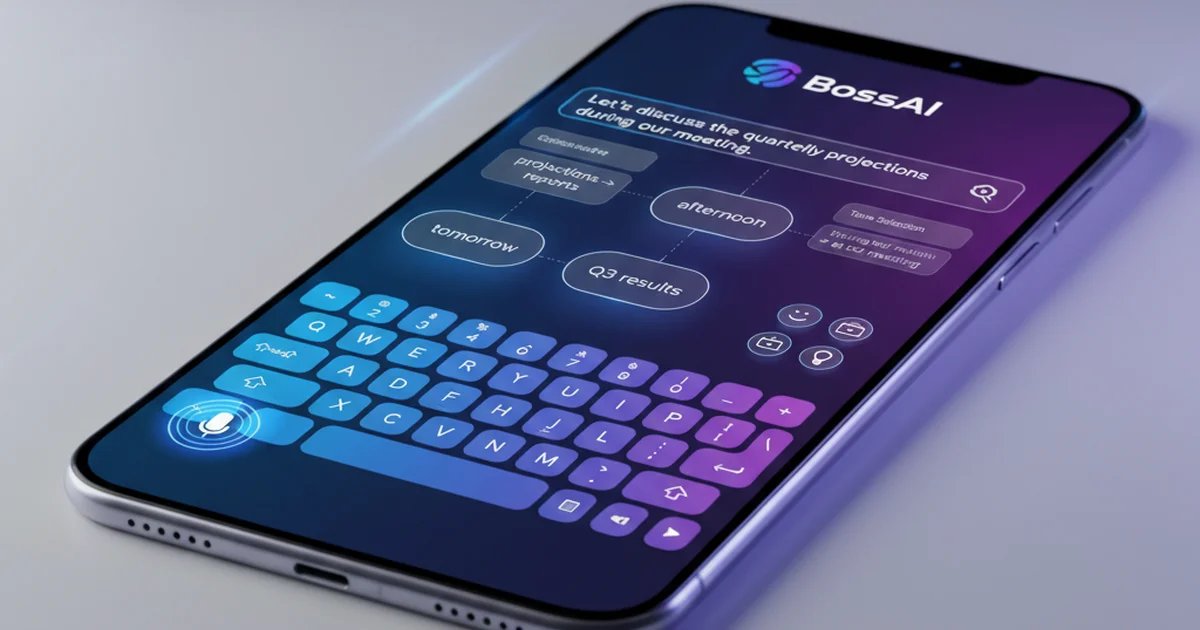
BossAI is an AI keyboard app built around three capabilities no competitor combines: AI-enhanced voice dictation, screen context awareness, and one-tap text rewriting.
The voice dictation in BossAI goes beyond standard speech-to-text. It automatically removes filler words (um, uh, like, you know), fixes grammar, adds punctuation, and formats text based on the app you're using. You speak naturally, and the output is polished, professional text ready to send. This AI enhancement is what separates BossAI from keyboards that simply pipe in system dictation.
Boss Mode is BossAI's signature feature and something no other AI keyboard app offers. It reads your screen in real time to understand context, then generates responses based on what it sees. You're replying to an email, and instead of summarizing or copying the message, you just say "Boss, reply confirming Friday delivery and ask for a follow-up call." BossAI reads the email thread, understands the context, and writes a complete, contextual reply. This eliminates copy-pasting, app switching, and the mental overhead of explaining context to an AI chatbot.
The keyboard also includes one-tap tone rewrite with six options: Professional, Casual, Witty, Persuasive, Empathetic, and Bold. You draft a message quickly in your natural voice, then tap a tone to reformat it. This is faster than voice-command-based rewriting (offered by competitors like WisprFlow) because it's visual and requires no additional dictation.
Clips is another unique feature. You save frequently used text—email signatures, addresses, standard replies, meeting links—and paste them with a single tap from the keyboard. No clipboard manager, no app switching, no searching through notes. For users who type the same information repeatedly, Clips becomes indispensable.
BossAI works across iOS (as a custom keyboard), macOS (menu bar app), and Windows (system tray app), making it one of the few AI keyboard apps with true cross-platform coverage. Pricing is transparent: free tier with 500 words/day of dictation and 1 Boss Mode use per day, or Pro at $9.99/month ($69.99/year) for unlimited everything.
BossAI is designed for professionals, content creators, and anyone who communicates heavily across email, chat, and documents. If voice typing and screen-aware AI matter to your workflow, BossAI is the only keyboard that delivers both.
Grammarly Keyboard
Grammarly Keyboard brings Grammarly's trusted writing assistant into keyboard form. It's the best choice for users whose primary concern is writing quality—catching grammar mistakes, improving clarity, and ensuring professional tone.
The keyboard integrates Grammarly's full correction engine, detecting errors in real time and offering explanations for each fix. For users who already subscribe to Grammarly Premium, the keyboard is a natural extension. However, for those who don't, the free tier is limited, and upgrading means paying for Grammarly Premium ($12-30/month depending on plan), which is expensive compared to keyboard-native AI solutions.
Grammarly Keyboard's limitations include minimal voice typing support, no screen context awareness, and a focus on correction over creation. It's reactive (fixing what you write) rather than proactive (helping you write faster or smarter). For grammar-conscious writers, it's excellent. For productivity-focused users who want speed and AI generation features, it's not the right tool.
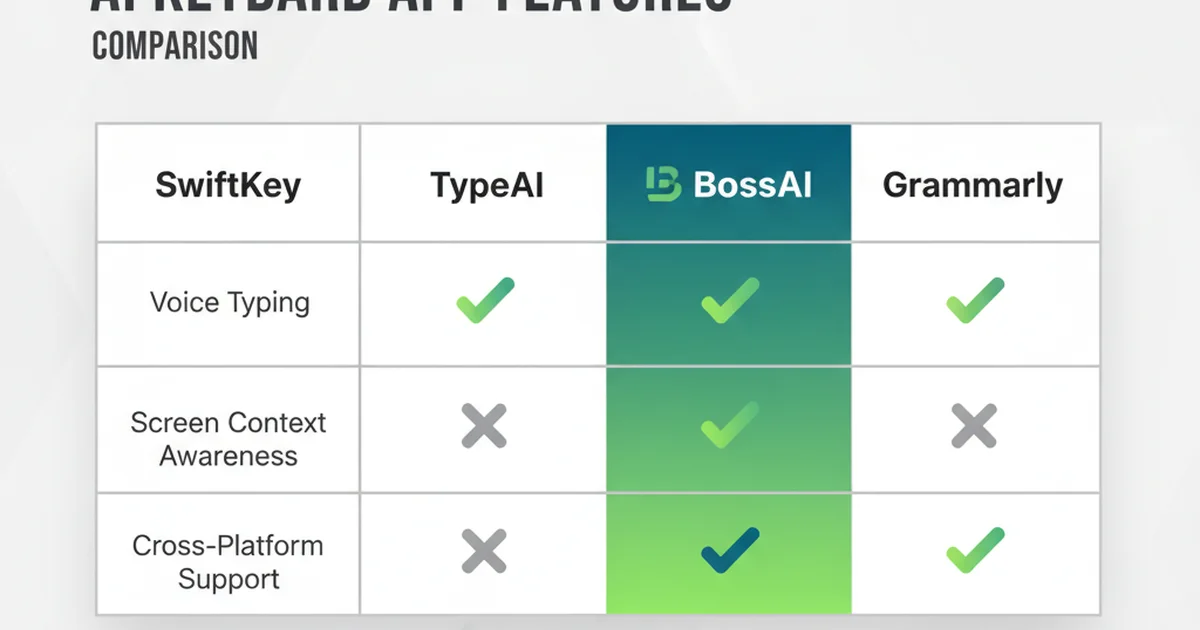
Comparison Table: AI Keyboard App Features
| App Name | Voice Typing | Screen Context | Platforms | Price | Best For |
|---|---|---|---|---|---|
| Microsoft SwiftKey | Basic (system) | No | iOS, Android | Free | Predictive typing and swipe |
| TypeAI | Basic (system) | No | iOS | Free / $4.99/mo | iPhone users wanting ChatGPT access |
| BossAI | AI-enhanced | Yes (Boss Mode) | iOS, macOS, Windows | Free / $9.99/mo | Voice-first workflows and contextual AI |
| Grammarly Keyboard | Basic (system) | No | iOS, Android | Free / $12-30/mo | Professional writing and grammar |
| Gboard | Google Voice | No | iOS, Android | Free | Google ecosystem integration |
How to Choose the Right AI Keyboard App
Consider Your Primary Use Case
Your workflow determines which AI keyboard app fits best. If you spend most of your day writing professional emails and documents where grammar and clarity matter more than speed, Grammarly Keyboard makes sense. If you're managing high message volumes and need to type faster without sacrificing quality, voice-enabled keyboards like BossAI provide measurable time savings.
Content creators and note-takers benefit most from voice-first keyboards. Capturing ideas, drafting outlines, and transcribing thoughts is faster by voice than by typing. BossAI's AI-enhanced dictation with automatic filler removal and formatting is built specifically for this use case.
Multilingual users should prioritize keyboards with deep language support and seamless language switching. SwiftKey supports over 400 languages, making it the top choice for users who regularly type in three or more languages. BossAI and TypeAI support major languages but with smaller language catalogs.
Platform and Device Compatibility
If you type exclusively on mobile, any major AI keyboard app will work. But if you switch between phone, tablet, and computer throughout the day, cross-platform support becomes essential. BossAI's iOS keyboard + macOS/Windows desktop apps provide continuity—your custom dictionary, clips, and settings sync across devices.
SwiftKey covers mobile (iOS and Android) but has no desktop version. TypeAI is iOS-only. Grammarly Keyboard works on mobile, but for desktop, you need the separate Grammarly browser extension or desktop app, which fragments the experience.
Desktop integration matters for professionals who type primarily on computers but want voice input. BossAI's macOS menu bar app and Windows system tray app let you activate voice dictation with a hotkey in any application—email clients, Slack, Google Docs, code editors—without opening a separate dictation tool.
Privacy and Data Security
AI keyboard apps require significant permissions to function. On iOS, they need "Full Access" to provide predictions and cloud-based AI features. This raises valid privacy concerns about what data is collected, where it's processed, and how long it's stored.
Reputable apps are transparent about data handling. BossAI processes voice and text in real time and discards data immediately—nothing is stored on servers. Microsoft SwiftKey (owned by Microsoft) and Grammarly have established privacy policies and compliance certifications, but they do collect usage data for model improvement.
For maximum privacy, look for keyboards that offer on-device processing or let you bring your own API keys. Some keyboards allow you to use local speech recognition models, though this typically limits AI capabilities compared to cloud-based options.
Avoid installing unknown third-party keyboards from developers with no track record or privacy documentation. The keyboard sees everything you type—including passwords, credit card numbers, and private messages. Stick with established apps with transparent privacy policies.
Free vs. Paid Tiers
Most AI keyboard apps use freemium models with word limits or feature restrictions on free tiers. Microsoft SwiftKey is fully free with ads, which is rare. BossAI offers 500 words/day free dictation plus limited Boss Mode and Rewrite (1/day each). Grammarly Keyboard is free for basic grammar checking but locks advanced features behind Premium ($12-30/month).
For casual users typing a few messages and emails daily, free tiers are sufficient. Power users who type thousands of words per day or rely on advanced features (voice dictation, AI rewriting, context awareness) will hit free limits quickly and need to upgrade.
Evaluate value based on time saved. If an AI keyboard app with voice dictation saves you 30 minutes daily compared to manual typing, and your time is worth $50/hour, the productivity gain ($25/day) justifies a $10/month subscription immediately. Trial periods let you test this math with real usage data before committing.
Setting Up an AI Keyboard App on Your Device
iOS Installation
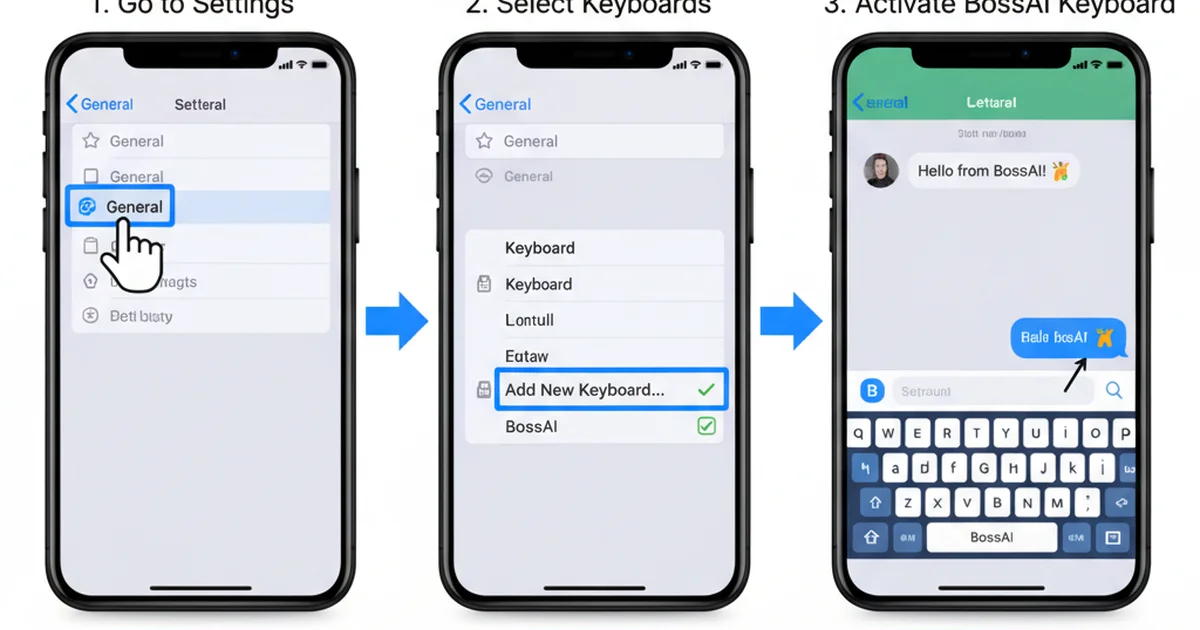
Installing an AI keyboard app on iPhone or iPad takes less than two minutes. After downloading the app from the App Store, open your device's Settings app, navigate to General → Keyboard → Keyboards, and tap "Add New Keyboard." Select the AI keyboard app from the list (e.g., BossAI, SwiftKey, TypeAI).
Most AI keyboards require "Full Access" to enable cloud-based predictions, voice typing, and advanced AI features. Without Full Access, the keyboard functions as a basic layout without intelligent features. To grant this, tap the keyboard name in Settings → Keyboards, then toggle "Allow Full Access" on. The system will display a privacy warning—this is standard for third-party keyboards.
Once installed, switch to your new keyboard by tapping the globe icon in any app's keyboard area. The first time you use the keyboard, it may prompt you to complete setup steps like enabling voice permissions or customizing settings. Most apps offer a brief tutorial highlighting key features.
Android Installation
Android keyboard installation follows a similar pattern. Download the keyboard app from Google Play Store, open the app, and follow the setup prompts. You'll be directed to Settings → System → Languages & input → Virtual keyboard → Manage keyboards, where you can enable your new keyboard.
After enabling, set it as your default keyboard by tapping "Default keyboard" in the same menu and selecting your AI keyboard app. The next time you tap a text field, your new keyboard appears automatically.
Android permissions for keyboards vary by app. Most AI keyboards request microphone access for voice typing, internet access for cloud AI features, and storage access for custom dictionaries. Review permissions during installation and grant only what you're comfortable with based on the app's privacy policy.
Desktop Integration
Desktop AI keyboard apps work differently from mobile keyboards because they don't replace your physical keyboard. Instead, they run as background applications that activate via hotkeys.
On macOS, apps like BossAI install as menu bar utilities. After installation, the app icon appears in your menu bar (top-right corner). You configure a hotkey (often Fn, Ctrl+Space, or a custom combination) to activate voice dictation. Press the hotkey in any app, speak your message, and the text inserts wherever your cursor is positioned.
On Windows, the pattern is similar. AI keyboard apps run in the system tray (bottom-right corner), and you activate dictation via a global hotkey. The app injects text into the active window regardless of whether it's Microsoft Word, Gmail in Chrome, Slack, or any other application.
Desktop setup typically requires granting accessibility permissions (macOS) or input simulation permissions (Windows) so the app can insert text system-wide. These permissions are necessary for functionality but should only be granted to trusted apps from verified developers.
AI Keyboard Apps vs. Standard Voice Typing
Every major operating system includes built-in voice typing: iOS Dictation, Google Voice Typing on Android, Windows Speech Recognition, and macOS Dictation. These are free, pre-installed, and functional. So why use a dedicated AI keyboard app?
The core difference is AI enhancement. Standard OS voice typing performs basic speech-to-text transcription. It converts your spoken words into text with reasonable accuracy but doesn't process or improve the output. If you say "um, so like, I think we should, uh, schedule the meeting for Friday," standard dictation types exactly that—filler words and all.
Dedicated AI keyboard apps process your speech through AI models that remove filler words, fix grammar, add punctuation intelligently, and format text appropriately. BossAI, for example, would output: "I think we should schedule the meeting for Friday." The same spoken input, but the result is polished and professional.
Additional advantages of AI keyboard apps over standard voice typing include custom vocabulary learning (the AI remembers technical terms, names, and jargon you use frequently), contextual awareness (formatting adjusts based on the app you're typing in), advanced features like rewrite and screen context (not available in OS-level dictation), and cross-app consistency (the same AI voice typing experience in every app).
Standard voice typing is sufficient for occasional use—capturing a quick note or sending a short message when your hands are busy. But for users who dictate frequently or professionally, upgrading to an AI keyboard app with enhanced voice features delivers measurably better results and faster workflows.
Real-World Use Cases for AI Keyboard Apps
Responding to Emails on Mobile Devices
Email is one of the highest-value use cases for AI keyboard apps. Typing detailed email responses on a phone keyboard is slow and error-prone. With voice dictation, you speak your response naturally, and the AI formats it into professional text.
BossAI's Boss Mode takes this further. Instead of composing your reply from scratch or copying the original email to provide context, you simply say "Boss, reply to this email confirming Friday delivery and asking for a follow-up call." Boss Mode reads the email thread on your screen, understands the context, and generates a complete, contextual response. You review, potentially edit, and send—all in seconds.
This workflow is impossible with standard keyboards or basic dictation tools. It requires screen context awareness, natural language understanding, and AI generation capabilities combined into a single keyboard interface.
Writing Messages and Chat Responses
Chat apps (Slack, Teams, WhatsApp, iMessage) are where most people spend the majority of their typing time. Quick responses benefit from speed, while important messages benefit from tone control.
Voice dictation via an AI keyboard app lets you reply faster than typing. Tap the microphone, speak your message, and send—no thumb-typing required. For messages that need tonal adjustment, BossAI's one-tap rewrite feature lets you draft casually, then tap "Professional" before sending to a manager or client.
The time savings compound across dozens of daily messages. Five seconds saved per message × 100 messages/day = 8 minutes saved daily, which is over 50 hours per year. For professionals managing high communication volumes, this efficiency gain is significant.
Drafting Documents and Notes
Students, researchers, writers, and knowledge workers who capture notes or draft long-form content benefit enormously from voice-first workflows. Speaking is faster than typing (150+ words/minute vs. 40-60 words/minute for average typists), and AI keyboards ensure the output is formatted and polished.
Capturing meeting notes via voice dictation means you can participate in the conversation while documenting key points. Drafting outlines, brainstorming ideas, or writing first drafts by voice removes the friction of staring at a blank page. You think out loud, and the AI keyboard captures and cleans up your thoughts in real time.
This use case particularly benefits from AI enhancement. Raw transcription of spoken thoughts includes tangents, filler words, and grammatical messiness. AI processing turns that into coherent, readable text, reducing editing time significantly.
Accessibility and Reduced Typing Strain
For users with repetitive strain injuries (RSI), carpal tunnel syndrome, arthritis, or other conditions that make typing painful, AI keyboard apps with robust voice features aren't just convenient—they're essential accessibility tools.
Voice-first workflows let you communicate, work, and create content without physical keyboard use. The AI enhancement ensures the output quality is high enough for professional use, not just casual messaging. This expands the range of tasks accessible to users who can't type comfortably for extended periods.
Even for users without chronic conditions, reducing keyboard time prevents strain. If you type 10,000+ words per day, switching half of that volume to voice dictation reduces repetitive hand and wrist movements significantly, lowering long-term injury risk.
Multilingual Communication
Users who communicate in multiple languages throughout the day face constant friction with standard keyboards. Switching language settings manually breaks flow and slows communication.
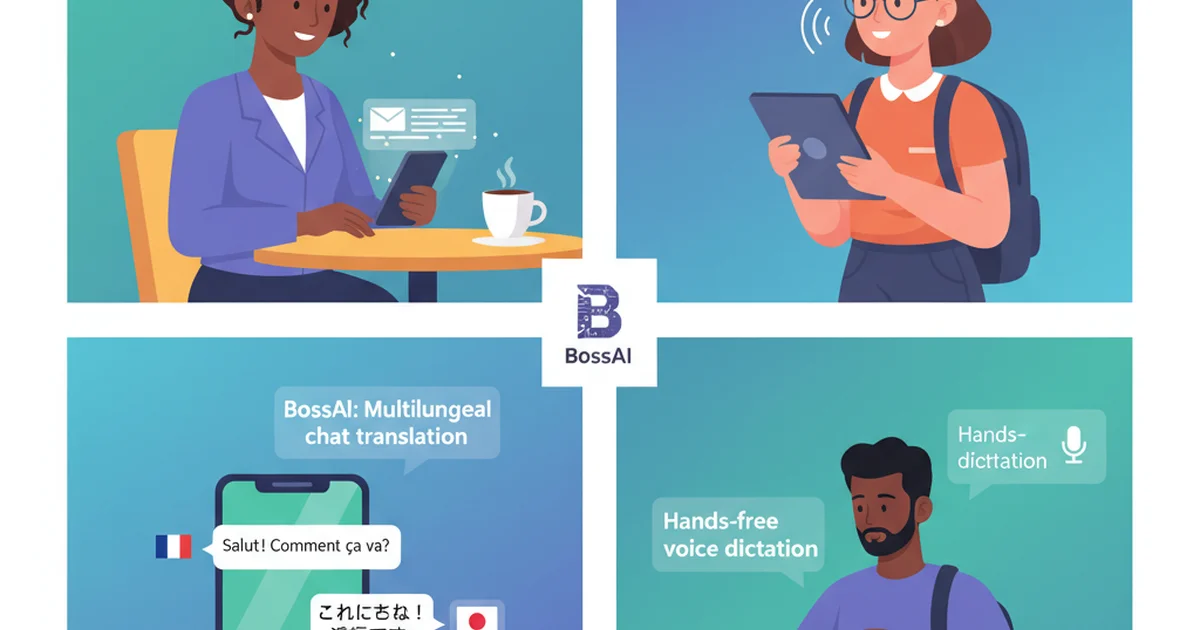
AI keyboard apps with strong multilingual support detect language automatically and adjust predictions, autocorrect, and voice recognition accordingly. You can start a message in English, add a Spanish phrase for a colleague, and continue in French—all without manually changing settings. The AI recognizes the language shifts and adapts.
This is particularly valuable for bilingual professionals, international teams, customer support roles serving global audiences, and anyone living or working in multilingual environments. The cognitive load reduction from not managing language switching manually is subtle but meaningful over hundreds of daily interactions.
FAQ About AI Keyboard Apps
What is the best AI keyboard app?
The best AI keyboard app depends on your primary use case. Microsoft SwiftKey is best for predictive typing and swipe features, especially for multilingual users. BossAI is best for voice-first workflows and advanced AI features like screen context awareness and one-tap rewriting. Grammarly Keyboard is best for users prioritizing grammar and writing quality over speed. For most professionals who want a balance of voice typing, AI enhancement, and cross-platform support, BossAI stands out because it combines AI-enhanced voice dictation, screen-aware contextual AI (Boss Mode), and productivity features (Clips, Rewrite) that no competitor matches.
Are AI keyboard apps free?
Most AI keyboard apps offer free tiers with limitations. Microsoft SwiftKey is fully free with ad support. BossAI offers 500 words/day of free dictation plus 1 Boss Mode and 1 Rewrite use per day, with Pro plans starting at $9.99/month. Grammarly Keyboard is free for basic grammar checking but requires Grammarly Premium ($12-30/month) for advanced features. TypeAI has a free tier with ChatGPT access and limited word usage. Premium tiers typically range from $5-15/month and remove word limits, unlock all features, and improve processing speeds.
How do I add AI to my keyboard?
To add AI to your keyboard, download an AI keyboard app from the App Store (iOS), Google Play Store (Android), or the developer's website (desktop apps). On iOS, enable the keyboard in Settings → General → Keyboard → Keyboards → Add New Keyboard, then grant Full Access for AI features. On Android, enable in Settings → Languages & input → Virtual keyboard → Manage keyboards, then set as default. On macOS and Windows, install the app and configure a hotkey for activating voice dictation system-wide. Most apps guide you through setup with tutorials on first launch.
Is there an AI that helps you type?
Yes. AI keyboard apps like BossAI, Microsoft SwiftKey, and TypeAI use machine learning to predict text, correct grammar, and enhance typing speed. BossAI goes further by offering AI-enhanced voice dictation that removes filler words and fixes grammar automatically, plus Boss Mode, which reads your screen and writes contextual responses based on what it sees. You can dictate messages, emails, and documents using natural speech, and the AI outputs polished, professional text ready to send. These AI tools reduce typing effort by 40-60% compared to manual typing on standard keyboards.
Do AI keyboard apps work offline?
AI keyboard apps have partial offline functionality. Basic text prediction and autocorrect work offline using on-device models. However, advanced AI features—voice transcription, AI-enhanced dictation, grammar checking, rewrite functions, and screen context awareness—typically require internet connectivity because they use cloud-based AI models. SwiftKey offers offline prediction but limited voice features. BossAI requires internet for voice dictation and Boss Mode. Some niche keyboards (like Spokenly) support local AI models for offline use, but accuracy and capabilities are reduced compared to cloud processing. Check specific app documentation for offline limitations.
Are AI keyboard apps safe and private?
Reputable AI keyboard apps from established developers are safe when you review their privacy policies and understand what data they collect. BossAI processes voice and text in real time with no server storage—data is immediately discarded after processing. Microsoft SwiftKey (Microsoft-owned) and Grammarly have established privacy policies, security certifications, and compliance with data protection regulations. However, both collect usage data for product improvement. To protect privacy, only install keyboards from verified developers with transparent privacy policies, review requested permissions carefully, and avoid unknown third-party keyboards. Never install keyboards requesting Full Access without understanding what data they access and how it's used.
Can AI keyboard apps replace traditional typing?
For many users, yes. AI keyboard apps with robust voice dictation can handle 80%+ of daily typing tasks including emails, messages, notes, and documents. Voice input with AI enhancement is faster than typing for most people and produces professional-quality output. However, certain tasks still benefit from manual typing: complex code editing (where syntax precision matters), detailed formatting and tables (where visual layout control is needed), precise word choice and creative writing (where you're crafting specific language), and password entry (where voice typing creates security risks). The most effective approach is hybrid: use voice for high-volume communication and content drafting, and use manual typing for precision work requiring exact control.
Conclusion
AI keyboard apps have evolved from basic autocorrect tools into intelligent assistants that predict text, correct grammar, and enable voice-first workflows. The key differentiator in 2026 is no longer just predictive typing—it's how well the keyboard integrates voice input, learns your writing style, and adapts to your workflow.
For users prioritizing predictive typing and multilingual support, Microsoft SwiftKey remains a solid free choice. For grammar-conscious professionals, Grammarly Keyboard offers trusted writing assistance. But for users who want the most advanced combination of AI-enhanced voice dictation, screen context awareness, and productivity features like one-tap rewriting and instant clips, BossAI delivers capabilities no other keyboard matches.
The future of AI keyboard apps is moving toward multimodal input and screen context understanding. As these tools become more sophisticated, the line between typing, speaking, and AI-generated text will blur. Keyboards won't just transcribe or predict—they'll understand what you're trying to accomplish and help you communicate faster and better.
If you're ready to upgrade from your stock keyboard, start by evaluating your primary workflow. Do you send dozens of emails daily? Dictate notes and ideas? Switch between languages? Need professional grammar checking? Your answer determines which AI keyboard app fits best. Try free tiers from multiple apps—SwiftKey for predictions, BossAI for voice and AI features, Grammarly for grammar—and measure the difference in your daily typing speed and quality. The right AI keyboard app isn't just faster. It changes how you communicate.
Visual References