

Voice Typing iPhone: Complete Guide to iOS Dictation 2026
Voice Typing iPhone: The Complete Guide to Faster Communication on iOS
Voice typing on iPhone is the fastest way to send messages, draft emails, and capture notes without touching your keyboard.
Key Takeaways
- Voice typing on iPhone is free and native to iOS, but requires enabling in Settings > Keyboard > Dictation
- Third-party dictation apps like BossAI enhance accuracy by removing filler words, fixing grammar automatically, and learning your vocabulary through custom dictionaries
- For professionals and power users, AI dictation apps save 2–3 hours per week by replacing typing with speaking for emails, messages, and documents
- Voice typing works best in continuous speech; short phrases or command sequences perform better with app-specific AI enhancement
- Most dictation users switch to dedicated tools within the first month because native iOS dictation lacks context awareness (Boss Mode), tone rewrite, and clips functionality
Contents
- Can I Use Voice Typing on My iPhone?
- How Do I Enable Voice Typing on iPhone?
- What Is the Best Way to Dictate on iPhone?
- How Much Time Does Voice Typing on iPhone Save?
- What Settings Do I Need to Configure for Best Voice Typing?
- Does iPhone Dictation Work Without Internet?
- What Are the Best AI Dictation Apps for iPhone?
- How Accurate Is Voice Typing iPhone?
- Frequently Asked Questions
Can I Use Voice Typing on My iPhone?
Yes, every iPhone since iOS 5 includes built-in voice typing called Dictation. You activate it by tapping the microphone icon on your keyboard, speaking naturally, then tapping the keyboard icon to insert the text. It works in any app where you can type — Messages, Mail, Notes, Safari, and all third-party apps.
Voice typing is a standard iOS feature that comes free with every iPhone. You don't need to download anything or pay for a subscription. The feature must be enabled in your Settings before the microphone icon appears on your keyboard.
Third-party keyboards like Gboard and BossAI offer enhanced dictation features beyond what Apple's native keyboard provides. These include AI-powered grammar correction, automatic filler word removal, and context-aware text generation.
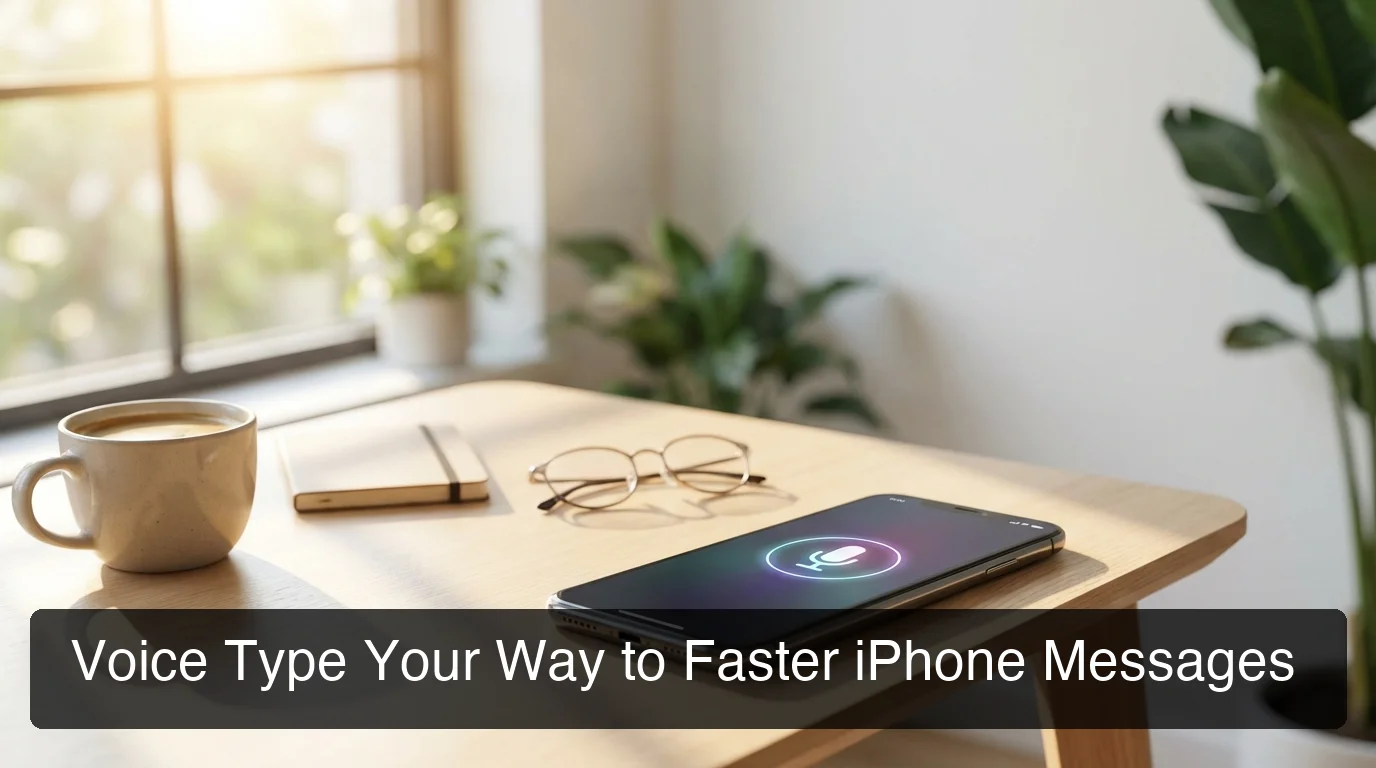 Voice typing works in every app on your iPhone — just tap the microphone icon and speak.
How Do I Enable Voice Typing iPhone?
To enable voice typing on iPhone, open Settings → General → Keyboard, then toggle on "Enable Dictation." If a prompt appears, tap "Enable Dictation" to confirm. Once enabled, the microphone icon will appear on your keyboard in all apps. No restart required — the feature is immediately active.
Here's the exact step-by-step process:
- Open the Settings app on your iPhone
- Scroll down and tap General
- Tap Keyboard
- Find the Enable Dictation toggle and turn it on
- If a privacy prompt appears, tap Enable Dictation to confirm
The microphone icon will appear immediately on your keyboard in the bottom-left corner (next to the space bar). You can start using voice typing in any app right away.
What if the Microphone Icon Doesn't Appear?
If you don't see the microphone icon after enabling Dictation:
- Check Settings again to confirm Dictation is actually enabled
- Restart the app you're trying to use (swipe up and close it, then reopen)
- Restart your iPhone (hold the power button and slide to power off)
- Check keyboard language settings — Dictation must be supported for your selected keyboard language
- Update iOS — older iOS versions may have compatibility issues
In most cases, simply toggling Dictation off and back on in Settings resolves the issue.
What Is the Best Way to Dictate on iPhone?
The best way to dictate on iPhone is to speak in complete sentences at a natural pace, pause briefly for punctuation, and use voice commands like "period," "comma," "new paragraph," and "question mark." Avoid shouting or speaking too slowly — iOS Dictation performs best with conversational speech patterns and minimal background noise.
Think of dictation as talking to a colleague, not a robot. Natural phrasing improves accuracy far more than slow, over-enunciated speech.
Voice Commands for Punctuation and Formatting
iOS Dictation supports voice commands for punctuation and formatting. Say "period," "comma," "question mark," "exclamation point," "new line," or "new paragraph" while dictating. You can also dictate emoji by saying their names — "smiley face," "thumbs up," "heart emoji."
Best Practices for High-Quality Dictation
Environment matters. Find a quiet space with minimal background noise. Wind, traffic, and conversations in the background degrade accuracy.
Hold your phone naturally. Don't cover the microphone (usually at the bottom of the device). Speak from 6–12 inches away.
Speak at a conversational pace. Not fast, not slow — just how you'd explain something to a friend. Dictation engines are trained on natural speech patterns.
Pause for punctuation. Instead of speaking non-stop, pause briefly where you'd naturally place a comma or period. iOS Dictation often inserts punctuation automatically if you pause.
Pro tip: Dictate as if you're explaining something to a colleague. Natural phrasing improves accuracy more than slow, over-enunciated speech.
How Much Time Does Voice Typing on iPhone Save?
Voice typing on iPhone saves 15–20 minutes per day for heavy messengers and email users — roughly 65+ hours per year. Speaking is 3–4x faster than thumb-typing on a mobile keyboard. For professionals managing 50+ messages daily, AI-enhanced dictation tools (like BossAI) eliminate an additional 10–15 minutes by removing the copy-paste loop.
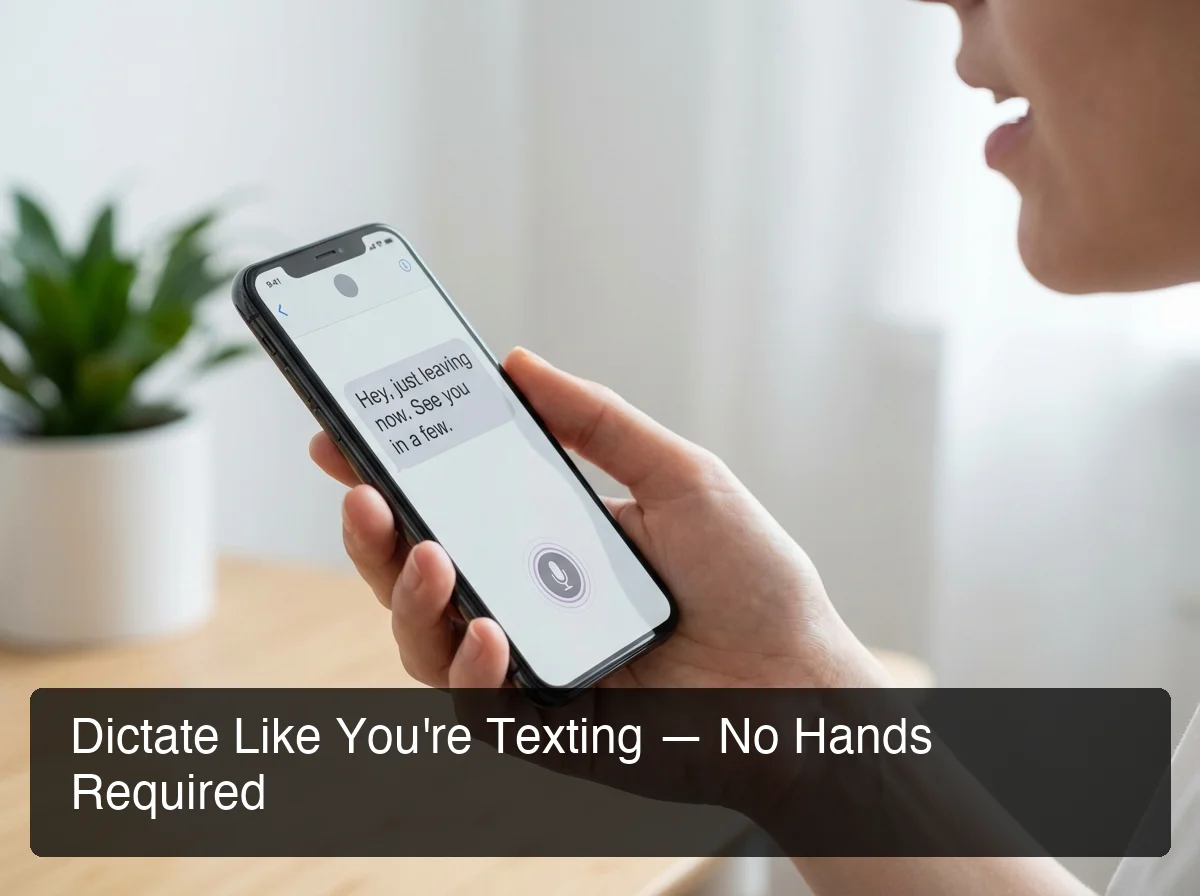 Dictate messages, emails, and notes 3–4x faster than thumb-typing.
The math is simple: average thumb-typing speed on an iPhone is 40 words per minute (WPM). Average speaking speed is 150 WPM. Even accounting for errors and corrections, voice typing delivers 100+ WPM consistently.
Real-World Time Savings Examples
A 200-word email takes 5 minutes to type, 90 seconds to dictate. Across 10 emails per day, that's 35 minutes saved. For busy professionals, the cumulative time savings compound quickly — 2–3 hours per week you're no longer staring at a keyboard.
By the numbers: Average typing speed on iPhone is 40 WPM. Average speaking speed is 150 WPM. Voice typing bridges that gap — when accuracy is high.
For a deeper dive into voice typing across all devices, see our complete guide on how to type with voice.
What Settings Do I Need to Configure for Best Voice Typing?
For best voice typing results on iPhone, enable Dictation in Settings → General → Keyboard, select your primary language(s), turn on Auto-Punctuation if available, and grant microphone access to your keyboard app. Third-party keyboards like BossAI also benefit from enabling Full Access and screen recording permissions for context-aware features like Boss Mode.
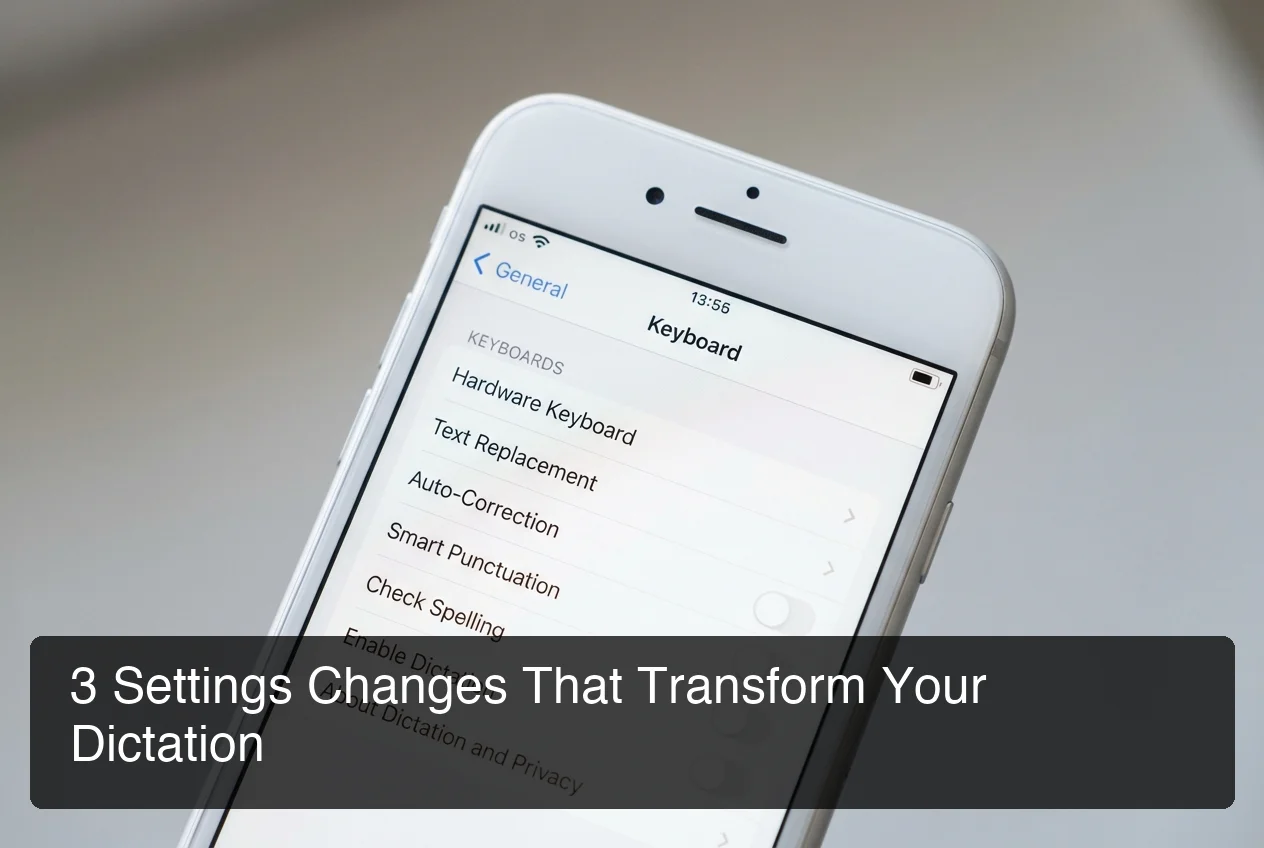 Three critical settings changes unlock the full power of voice typing on iPhone.
Essential Settings Checklist
1. Enable Dictation
- Settings → General → Keyboard → Enable Dictation (toggle on)
2. Select Your Language(s)
- Settings → General → Keyboard → Keyboards → Add New Keyboard
- Choose your primary dictation language
- For multilingual users, add multiple keyboard languages
3. Grant Microphone Access
- Settings → Privacy & Security → Microphone
- Ensure your keyboard app (and any third-party dictation apps) have microphone access enabled
4. Enable Auto-Punctuation (if available)
- Some iOS versions and third-party keyboards offer automatic punctuation insertion
- Check your keyboard settings for this option
Do I Need to Grant Full Access to Third-Party Keyboards?
Third-party keyboards require "Full Access" for cloud-based AI processing, clipboard access, and advanced features like custom dictionaries. Reputable developers like BossAI don't store or log your data.
BossAI's Boss Mode requires ReplayKit screen recording permission to read what's on your screen when triggered. Screen captures are processed in real time and immediately discarded.
Learn more about what makes an AI keyboard app different from native iOS keyboards.
Does iPhone Dictation Work Without Internet?
iPhone Dictation works offline for supported languages on devices running iOS 15 or later with on-device processing enabled. Offline dictation is slightly less accurate than server-based processing and supports fewer languages. Third-party AI dictation tools like BossAI require an internet connection because they use cloud-based large language models for grammar correction and filler removal.
On-Device vs Server-Based Dictation
| Feature | On-Device (Offline) | Server-Based (Online) |
|---|---|---|
| Internet required | No | Yes |
| Accuracy | 85–90% | 90–95% |
| Languages supported | 20+ | 40+ |
| Privacy | Highest (data never leaves device) | Lower (data sent to Apple/third-party servers) |
| Speed | Fast (no network latency) | Slightly slower (network-dependent) |
Use offline dictation for sensitive content or poor connectivity. Use online dictation when maximum accuracy is critical or when using AI-enhanced tools.
Key insight: Offline dictation is perfect for privacy-sensitive content, but AI-enhanced tools deliver noticeably cleaner results when connected.
What Are the Best AI Dictation Apps for iPhone?
 BossAI combines iOS integration with AI features no competitor offers — Boss Mode, one-tap rewrite, and clips.
The best AI dictation apps for iPhone in 2026 are BossAI (screen-aware dictation with Boss Mode, one-tap rewrite, and clips), WisprFlow (command-based editing), and Typeless (fast accuracy with generous free tier). All three remove filler words automatically, fix grammar in real time, and support custom dictionaries — features native iOS Dictation lacks.
Here's how they compare:
| Feature | BossAI | WisprFlow | Typeless | iOS Native |
|---|---|---|---|---|
| AI filler removal | ✅ | ✅ | ✅ | ❌ |
| Custom dictionary | ✅ | ✅ | ✅ | Limited |
| Screen reading (context-aware) | ✅ (Boss Mode) | ❌ | ❌ | ❌ |
| One-tap tone rewrite | ✅ | Voice commands | Voice commands | ❌ |
| Clips (instant paste) | ✅ | ❌ | ❌ | ❌ |
| Free tier | 500 words/day | 2,000 words/week | 4,000 words/week | Unlimited |
| Pricing | $9.99/mo | $15/mo | $30/mo | Free |
Why BossAI Is the Best Choice for iPhone Users
BossAI stands out because it's the only dictation tool that reads your screen and generates contextual responses. No copy-pasting, no app switching, no friction.
Boss Mode is the killer feature. Say "Boss, reply to this email professionally" and BossAI sees the email on your screen, understands the context, and writes a complete response. It works in Mail, Messages, Slack, LinkedIn, and every other app — no need to copy the original message into a separate AI tool.
Unlike native iOS dictation, BossAI's Boss Mode reads what's on your screen and drafts contextual replies. Say "Boss, reply to this email confirming Friday delivery" and BossAI sees the email, understands the context, and writes the response — no copying, no pasting, no explaining what's on screen.
One-tap rewrite lets you change tone instantly. Tap Professional, Casual, Witty, Persuasive, Empathetic, or Bold — BossAI rewrites your text in that voice. No voice commands, no typing instructions. Just tap and done.
Clips save frequently used text (email signatures, addresses, standard replies, meeting links) and paste them with one tap from the keyboard. No switching to a notes app, no clipboard manager needed.
Custom dictionary learns names, jargon, technical terms, and brand names. Add "Cupertino," "API," "SaaS," "ChatGPT" once — BossAI gets them right every time.
BossAI works as a native iOS keyboard, which means it's accessible in every app without switching contexts. Install it once, enable it in Settings, and you're done.
How Accurate Is Voice Typing iPhone?
Native iPhone Dictation achieves 85–90% accuracy in ideal conditions (quiet environment, clear speech, common vocabulary). AI-enhanced dictation apps like BossAI and WisprFlow reach 95–98% accuracy because they remove filler words automatically, fix grammar in real time, and learn from your custom dictionary. Accuracy improves as the app learns your speaking patterns.
Factors That Affect Dictation Accuracy
Background noise, speech clarity, uncommon vocabulary, and accents affect accuracy. Quiet spaces and natural conversational pace produce the best results. AI tools with custom dictionaries handle technical jargon and proper nouns better than native iOS Dictation.
How AI Enhancement Improves Results
Native iOS Dictation transcribes your words exactly as spoken — including "um," "uh," "like," and "you know." It guesses at punctuation and capitalization but often gets it wrong.
AI-enhanced dictation tools like BossAI process your speech through a large language model after transcription. The AI removes filler words, fixes grammar, adds punctuation, capitalizes proper nouns, and formats the text appropriately for the app you're in (casual for Messages, formal for Mail).
Example — Before AI enhancement (native iOS Dictation):
"um so I wanted to uh check in and see if you know we're still on for the meeting friday like around 2 p.m."
After AI enhancement (BossAI):
"I wanted to check in and see if we're still on for the meeting Friday around 2 p.m."
The difference is immediate. AI-enhanced dictation delivers email-ready text on the first pass — no editing required.
Bottom line: Native iOS dictation handles casual messages well. AI-enhanced tools deliver email-ready text on the first pass — no editing required.
Mac users can achieve similar accuracy gains with a dedicated voice to text app for macOS.
Frequently Asked Questions
How do I turn on voice typing on my iPhone?
Open Settings → General → Keyboard and toggle on "Enable Dictation." The microphone icon will appear on your keyboard immediately. Tap it to start dictating in any app.
Can I use voice typing in all iPhone apps?
Yes, voice typing works in any app with a text field — Messages, Mail, Notes, Safari, WhatsApp, Slack, and all third-party apps. The microphone icon appears on the keyboard in every app.
Why isn't my iPhone dictation working?
Check that Dictation is enabled in Settings → General → Keyboard. Ensure your microphone isn't blocked or covered. Restart the app or your iPhone. Update to the latest iOS version. If using a third-party keyboard, check that microphone access is granted in Settings → Privacy → Microphone.
Is voice typing free on iPhone?
Yes, native iOS Dictation is completely free and unlimited. Third-party AI dictation apps offer free tiers with daily or weekly word limits (e.g., BossAI offers 500 words/day free) and paid plans for unlimited usage with advanced features.
Does voice typing on iPhone work in multiple languages?
Yes, iOS Dictation supports over 40 languages. You can add languages in Settings → General → Keyboard → Keyboards → Add New Keyboard. Switch languages by tapping the globe icon on your keyboard.
Can I dictate punctuation on iPhone?
Yes, say "period," "comma," "question mark," "exclamation point," "new line," or "new paragraph" while dictating. iOS inserts the punctuation automatically. For a full list of commands, see Apple's support page on dictation commands.
What's the difference between voice typing and voice control on iPhone?
Voice typing (Dictation) converts your speech into text in apps. Voice Control lets you navigate your iPhone, open apps, and trigger actions using voice commands. They're separate features with different purposes.
Get Started with BossAI
If you're ready to move beyond native iOS dictation, BossAI delivers AI-enhanced accuracy, screen-aware responses with Boss Mode, one-tap tone rewriting, and instant clips — all from your iPhone keyboard. No app switching, no copy-pasting, no friction.