

Voice to Text App for Mac: Best Dictation Tools 2026
Voice to Text App for Mac: Best Dictation Tools for macOS in 2026
Finding the right voice to text app for Mac can transform how you work. Whether you're drafting emails, writing documents, or capturing meeting notes, voice dictation eliminates the friction of typing and lets you communicate at the speed of thought.
Modern voice to text apps for Mac go far beyond Apple's built-in dictation. AI-powered transcription removes filler words, fixes grammar, adds punctuation automatically, and learns your vocabulary—turning raw speech into polished, professional text. The best tools work seamlessly across every app on your Mac without requiring you to switch contexts or copy-paste between windows.
This guide covers everything you need to know about voice typing on Mac, from native dictation to advanced AI-enhanced apps that can read your screen and write for you.
Can I Do Voice to Text on My Mac?
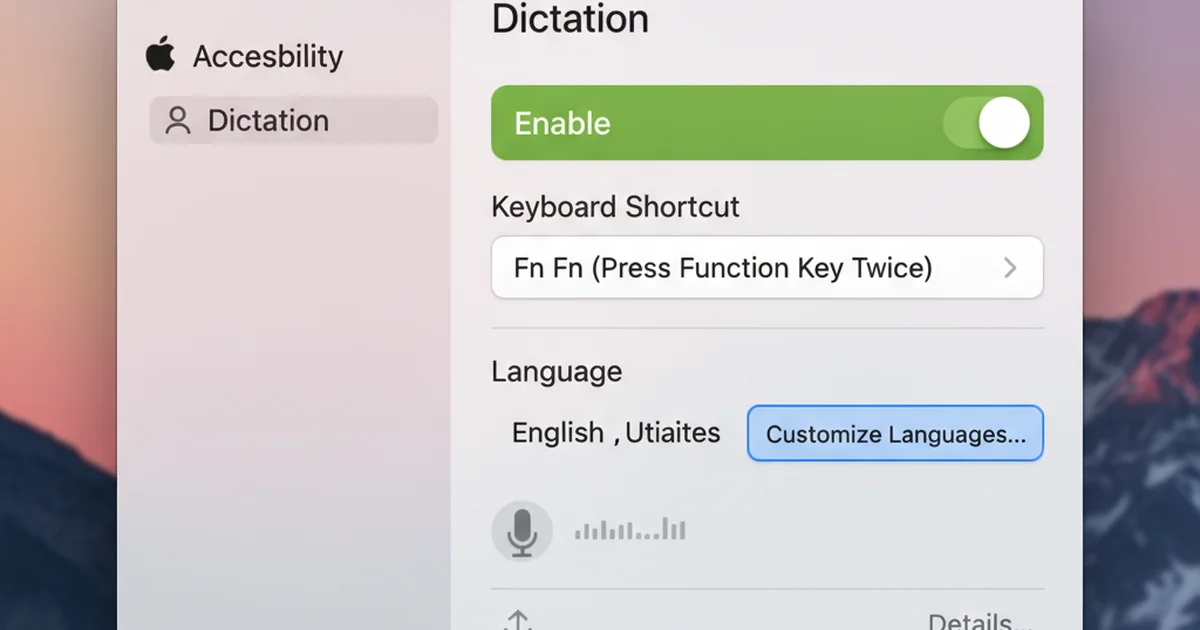
Yes. macOS includes a built-in dictation feature that converts speech to text in any app where you can type. To enable it, open System Settings → Keyboard → Dictation, then toggle the switch on. Once activated, press the Fn (Function) key twice to start dictating wherever your cursor is positioned.
Apple's native dictation works across all macOS apps—Mail, Messages, Pages, Safari, Slack, and third-party applications. It requires an internet connection and sends audio to Apple's servers for processing. The system handles basic punctuation when you speak commands like "comma," "period," or "new line."
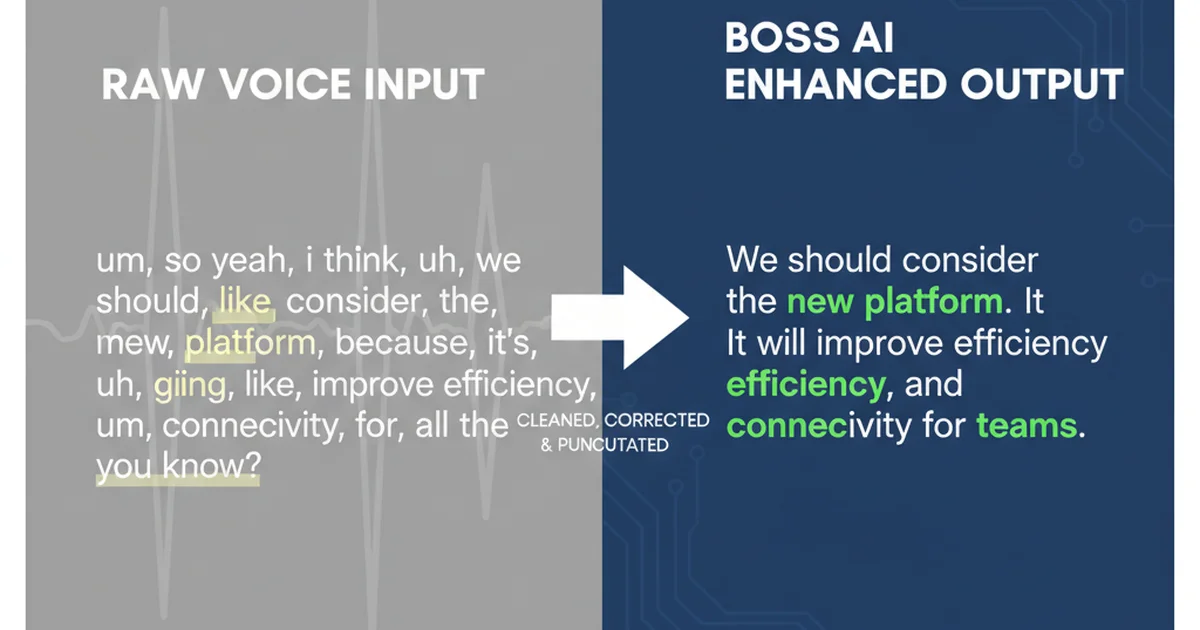
However, native Mac dictation has significant limitations. It doesn't remove filler words like "um," "uh," or "like." It struggles with technical terms, brand names, and proper nouns unless you train it manually. There's no AI layer to correct grammar, restructure awkward phrasing, or adapt tone. For casual dictation, it works. For professional communication, you'll quickly hit its ceiling.
What Makes a Great Voice to Text App for Mac
Accuracy matters most. A great mac dictation app transcribes your natural speech patterns without requiring robotic pacing or exaggerated enunciation. It handles accents, industry jargon, technical terms, and names that standard speech recognition models miss.
Real-time transcription speed separates professional tools from basic dictation. The best voice to text apps display words as you speak with minimal latency, so you can catch errors immediately and maintain your flow.
Custom vocabulary support is non-negotiable for power users. Developers need to dictate variable names and function calls. Consultants work with client-specific terminology. Writers use niche vocabulary. A custom dictionary that learns your words once and gets them right forever is essential.
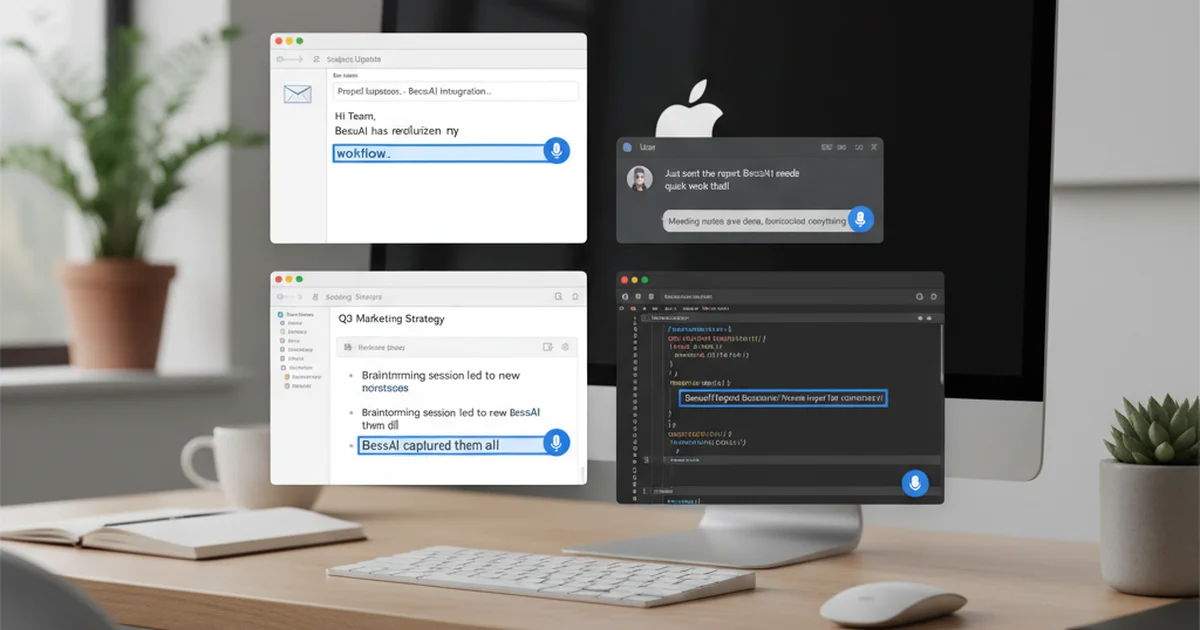
Cross-app compatibility determines whether a tool becomes part of your workflow or stays installed but unused. The best apps work in every text field—email clients, code editors, messaging apps, browsers, document tools—without requiring you to leave your current context.
AI-powered features multiply your efficiency. Grammar correction, automatic punctuation, filler word removal, and intelligent formatting transform rough speech into publication-ready text. Advanced tools can rewrite your dictation in different tones, read your screen for context, and generate responses based on what you're replying to.
Best Voice to Text Apps for Mac in 2026
Native macOS Dictation
Apple's built-in dictation is free and requires no installation. It works immediately after enabling it in System Settings and activates with a double-tap of the Fn key. You can dictate directly into any text field without opening a separate app.
The system handles basic punctuation commands and supports multiple languages. For casual users who dictate occasionally—adding quick notes, sending short messages, or filling out forms—native dictation is sufficient.
But it lacks AI enhancement. You'll type to fix grammar, delete filler words manually, and rephrase awkward sentences yourself. There's no custom dictionary for specialized vocabulary. For professionals who dictate extensively, these limitations compound quickly.
BossAI
BossAI is an AI keyboard for Mac that turns voice into polished, professional text across every app on your system. Unlike tools that require you to dictate into a separate window and paste results, BossAI works wherever your cursor is—email, Slack, code editors, browsers, documents.
The AI layer removes filler words automatically ("um," "uh," "like," "you know"), fixes grammar, adds punctuation, and capitalizes proper nouns as you speak. You get clean, formatted text without manual editing.
BossAI's custom dictionary learns technical terms, client names, product names, and industry jargon. Add a word once, and the system transcribes it correctly every time. For developers dictating code comments, consultants using client-specific terminology, or writers working with niche vocabulary, this eliminates the friction that makes other dictation tools unusable.
What makes BossAI different from every competitor is Boss Mode—a feature that reads your screen and generates contextual responses. You can say "Boss, reply to this email professionally" while reading an incoming message, and BossAI sees the email, understands the context, and writes a complete reply. No copy-pasting. No explaining what's on screen. No switching apps. It's the fastest way to handle email, messaging, and collaborative writing on a Mac.
The app includes one-tap rewrite with tones (Professional, Casual, Witty, Persuasive), a clips feature for instantly pasting frequently used text, and multi-language support. It's available as a menu bar app that activates with a hotkey—hold Fn, speak, and your text appears wherever you need it.
WisprFlow
WisprFlow is the market leader in AI dictation for Mac. The app offers polished voice-to-text with Command Mode for editing dictated text through voice commands like "make this more professional" or "delete the last sentence."
WisprFlow works across all macOS apps and provides accurate transcription with grammar correction and filler removal. The interface is clean, the latency is low, and the user experience is well-designed.
The downside is cost. WisprFlow charges $15/month or $12/month annually—the highest price point in the dictation category. It doesn't include screen-aware context features, clips for frequently used text, or visual tone selection. It's a strong dictation tool but lacks the productivity multipliers that differentiate advanced AI keyboards.
Superwhisper
Superwhisper is built on OpenAI's Whisper model and delivers fast, accurate transcription. The app works on Mac, Windows, and iPhone, making it a solid choice for users who work across multiple devices.
Superwhisper handles technical vocabulary well and supports multiple languages. It's faster than most competitors and offers solid accuracy out of the box.
However, it lacks advanced AI features. There's no automatic grammar correction beyond basic punctuation, no screen context awareness, no one-tap rewriting, and no clips system. It's a reliable speech-to-text tool but doesn't enhance your workflow beyond transcription.
Comparison Table
| Feature | BossAI | WisprFlow | Superwhisper | Native macOS |
|---|---|---|---|---|
| AI-enhanced dictation | ✅ Removes fillers, fixes grammar | ✅ Grammar correction | ❌ Basic transcription | ❌ Basic transcription |
| Screen context awareness | ✅ Reads screen, writes contextual responses | ❌ | ❌ | ❌ |
| Custom dictionary | ✅ Learns technical terms, names | ✅ | ✅ | Limited |
| Cross-app compatibility | ✅ Works everywhere via menu bar | ✅ | ✅ | ✅ |
| One-tap rewrite with tones | ✅ Professional, Casual, Witty, etc. | Voice commands only | ❌ | ❌ |
| Clips (instant paste snippets) | ✅ | ❌ | ❌ | ❌ |
| Pricing | $9.99/mo or $69.99/year | $15/mo or $144/year | Varies | Free |
| Platforms | Mac, iOS, Windows | Mac, Windows, iPhone | Mac, Windows, iPhone | macOS only |
How to Turn Audio into Text on Mac
Setting up voice dictation on your Mac takes less than two minutes. For native macOS dictation, open System Settings → Keyboard → Dictation. Toggle Dictation on and grant microphone permissions. Choose your preferred activation method—double-tap Fn (default) or hold a custom hotkey.
To test it, place your cursor in any text field and activate dictation. Speak naturally and say punctuation commands aloud: "comma," "period," "new line."
For third-party voice to text apps like BossAI, WisprFlow, or Superwhisper, download from the Mac App Store or developer website. These apps require microphone and accessibility permissions in System Settings → Privacy & Security.
Once configured, third-party apps run in the background via your menu bar. Activate dictation with a hotkey, speak your text, and release. The AI processes your speech and inserts formatted text wherever your cursor is positioned.
To optimize accuracy, configure your custom dictionary with frequently used terms. Add technical vocabulary, client names, product names, and jargon.
Voice to Text App for Mac: Real-World Use Cases
Email and Messaging
Voice dictation transforms email composition from a typing bottleneck into a natural conversation. Instead of drafting replies at 60–80 words per minute (average typing speed), you dictate at 150–200 words per minute—the pace of natural speech.
For professionals managing heavy inboxes—customer support, sales, consulting, management—this speed advantage compounds daily. A 10-email morning becomes a 20-minute dictation session instead of an hour of typing.
Mac voice-to-text apps handle email formatting automatically. Speak a greeting, body paragraphs, and closing naturally. The AI adds punctuation, capitalizes proper nouns, and structures sentences. You're not reading a script—you're talking through your response as if you were speaking to the recipient in person.
For messaging workflows in Slack, Teams, or iMessage, voice typing removes the friction of switching between keyboard and trackpad. Dictate your message, review it visually, and send. For conversations requiring quick back-and-forth exchanges, this eliminates the cognitive load of typing while thinking about your response.
If you work across multiple devices, mastering how to type with voice on every platform ensures you're never slowed down by the device you're using.
Document Creation and Note-Taking
Long-form content creation—reports, articles, documentation, research notes—becomes significantly faster with voice dictation. Writers, researchers, and knowledge workers who spend hours daily drafting documents gain back 30–50% of that time by dictating instead of typing.
Voice input is especially valuable during brainstorming. When ideas are flowing, typing creates resistance. Dictation removes that bottleneck. Speak your outline, capture every idea as it comes, and structure it later.
Mac dictation apps work natively in document tools like Pages, Microsoft Word, Google Docs, Notion, and Obsidian. Place your cursor where you want text to appear, activate dictation, and speak.
Code Documentation and Comments
Developers use voice-to-text apps to dictate code comments, docstrings, README files, and technical documentation. A custom dictionary trained with programming vocabulary ensures accuracy. Add function names, variable conventions, library names, and technical terms once. The app transcribes "useState hook," "async await," or "Docker container" correctly every time.
Voice typing works in every code editor—VS Code, Xcode, IntelliJ, Sublime Text. Dictate multi-line comments explaining complex logic or commit messages summarizing changes. Your hands stay on the keyboard for code, and your voice handles the prose.
Cross-Platform Workflows
Many professionals work across macOS and Windows throughout the day—Mac for design or development, Windows for corporate tools or client systems. Voice dictation that works consistently across both platforms eliminates relearning activation methods or adjusting to different transcription quality.
If you switch between Mac and Windows regularly, understanding voice to text on Windows ensures your dictation workflow stays consistent regardless of which machine you're using.
The best cross-platform apps maintain your custom dictionary, clips, and settings across devices. Add a client name to your dictionary on your Mac—it's available immediately on your Windows machine. This continuity prevents the productivity loss that comes from platform-specific tools.
Advanced Features to Look For in Voice to Text Apps for Mac
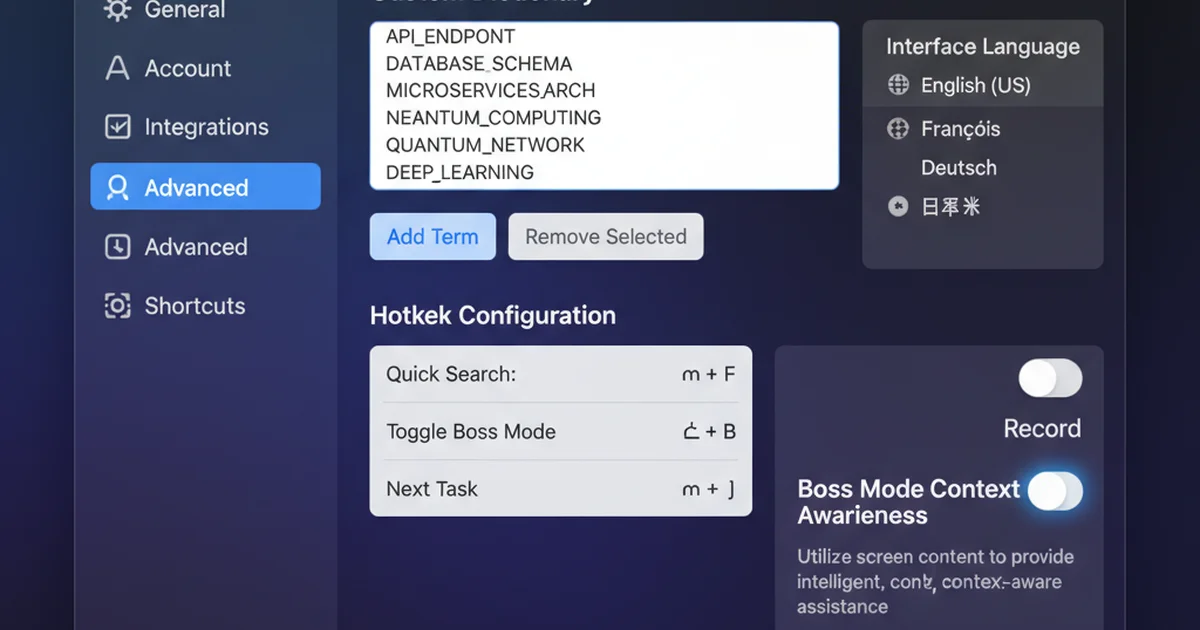
Custom dictionaries separate professional-grade dictation tools from consumer apps. A robust dictionary system lets you add unlimited terms—technical jargon, client names, product names, industry acronyms, brand-specific vocabulary—and ensures they're transcribed correctly every time.
The best implementations allow bulk imports via CSV or text files, manual one-by-one additions, and automatic learning from corrections. When you manually fix a transcription error, the app should recognize the pattern and learn the correct spelling for future dictations.
Multi-language support matters for global teams and multilingual users. The ability to switch languages mid-dictation—or even dictate in multiple languages within the same session—prevents workflow interruptions. Look for apps that support 20+ languages with accurate transcription for each.
Hotkey activation and shortcuts define how seamlessly dictation integrates into your workflow. The default Fn-key double-tap works for casual use, but power users need custom shortcuts that don't conflict with existing keyboard bindings. Configurable hotkeys—Cmd+Shift+Space, Control+Option+D, or any combination—let you tailor activation to muscle memory.
Screen context awareness is the feature that separates basic dictation from AI-powered productivity tools. BossAI's Boss Mode reads your screen in real time and generates contextual responses. You can say "Boss, reply to this email confirming the meeting" while reading an incoming message, and the AI sees the email, understands the request, and writes a complete reply. No copy-pasting. No explaining context. It just works.
This capability extends beyond email. "Boss, summarize this Slack thread" reads the conversation and generates a summary. "Boss, write a professional comment on this LinkedIn post" analyzes the post and drafts a relevant response. Context awareness eliminates the busywork of manually copying information between apps.
One-tap text transformation accelerates post-dictation editing. Instead of manually rewriting sentences to sound more professional, casual, or persuasive, visual tone selectors let you tap a button and see the rewritten text instantly. This is faster and more intuitive than voice-command-based editing, especially on mobile or when multitasking.
For users serious about maximizing AI-powered speech recognition accuracy, investing in tools with advanced language models ensures your dictation quality stays ahead of competitors relying on older transcription engines.
Tips for Better Voice Typing Accuracy on Mac
Speak naturally. Over-articulation or robotic pacing confuses modern AI transcription models trained on conversational speech. Talk as if you're explaining something to a colleague.
Train your custom dictionary immediately. The first time you encounter a transcription error—a client name, technical term, or brand—add it to your dictionary. This prevents the same error from repeating for months.
Microphone positioning affects accuracy. Built-in Mac microphones work well for casual dictation, but background noise creates interference. Position yourself 12–18 inches from the microphone. For noisy environments, use a headset with a boom mic.
Review transcribed text before sending. AI dictation is highly accurate but not perfect. Glance through your dictated message to catch errors and confirm tone.
Combine dictation with keyboard shortcuts. The fastest workflow isn't pure dictation or pure typing—it's both. Dictate body text, use keyboard shortcuts for formatting, and use trackpad for editing.
Advanced users integrating AI into every part of their workflow often explore AI keyboard apps that combine voice dictation, predictive text, contextual responses, and instant snippets into a unified input system.
Get Started with BossAI
If you're looking for the fastest, most accurate way to turn your voice into polished text on Mac, BossAI delivers AI-enhanced dictation, screen-aware contextual writing, and productivity features no competitor offers. It works across every app on your Mac without switching windows or copy-pasting between tools.
Frequently Asked Questions About Voice to Text Apps for Mac
Can I do voice to text on my Mac?
Yes. macOS includes built-in dictation that you can enable in System Settings → Keyboard → Dictation. Press Fn twice to activate dictation in any text field. Third-party apps like BossAI, WisprFlow, and Superwhisper offer AI-enhanced dictation with features like filler removal, grammar correction, and custom vocabulary.
What is the best voice to text app for Mac?
The best app depends on your needs. For basic dictation, native macOS dictation is free and built-in. For AI-enhanced transcription with screen context awareness, BossAI offers the most advanced features at $9.99/month. WisprFlow is a polished alternative at $15/month. Superwhisper provides fast, accurate transcription without AI enhancements.
Does Apple have a voice to text app?
Yes. Apple includes a native dictation feature in macOS. Enable it in System Settings → Keyboard → Dictation, then press Fn twice to start dictating. It works across all macOS apps but lacks AI features like filler removal, grammar correction, and custom vocabulary management.
How to turn audio into text on Mac?
Enable dictation in System Settings → Keyboard → Dictation. Activate it with Fn + Fn (double-tap) and speak naturally. Say punctuation commands aloud ("comma," "period," "new line"). For AI-enhanced dictation, install a third-party app like BossAI, grant microphone and accessibility permissions, and activate dictation with a hotkey.
Is Mac dictation free?
Native macOS dictation is free and included with every Mac. Third-party AI dictation apps use freemium or paid models. BossAI offers 500 words/day free with full AI quality, with Pro subscriptions starting at $9.99/month. WisprFlow offers 2,000 words/week free, with Pro at $15/month.
Can voice-to-text apps work offline on Mac?
Native macOS dictation requires an internet connection. Most third-party apps also require internet for AI processing. Some apps like Spokenly support local transcription models that work offline, but this typically requires bring-your-own API keys or local model downloads.
How accurate is Mac dictation compared to AI apps?
Native Mac dictation provides basic transcription accuracy but lacks filler removal, grammar correction, and intelligent formatting. AI-powered apps like BossAI and WisprFlow deliver significantly higher accuracy by automatically removing "um," "uh," "like," fixing grammar, and learning from your custom vocabulary. For professional communication, AI dictation produces noticeably cleaner output.