
Text Shortcuts iPhone: Set Up Replacements & Clips (2026)
Someone emails: "Can you send me your scheduling link?" You know exactly where it lives. Notes, an old message, a browser tab. Thirty seconds later you are still hunting, and the thread has gone cold.
That is the problem text shortcuts iPhone owners set up are meant to fix. Apple's built-in tool solves part of it, and this guide shows you how to set it up, what to put in it, and where it runs out of road.
Text Shortcuts iPhone Basics: What Is Text Replacement?
Text shortcuts on iPhone are short abbreviations that expand into longer phrases as you type. Apple calls the feature Text Replacement. You type "omw" and the keyboard offers "On my way!", which you accept with the space bar or a tap on the suggestion.
They are not the same thing as the Shortcuts app. That app automates actions, such as sending a message at a set time, and most of the results on the search page for this topic are about it. Text replacement is simpler: it only swaps typed characters for stored text.
The feature is free, built into iOS, and works in any app that uses the system keyboard. It also works with a third-party keyboard only as far as that keyboard supports it, which matters later.
How Do You Create a Text Shortcut on iPhone?
To create a text shortcut on iPhone, open Settings, tap General, then Keyboard, then Text Replacement. Tap the plus button, type the full phrase in the Phrase field and your abbreviation in the Shortcut field, then tap Save. The whole setup takes under a minute.
Here is the sequence:
- Open Settings → General → Keyboard → Text Replacement.
- Tap + in the top-right corner.
- Enter the long text under Phrase.
- Enter the abbreviation under Shortcut.
- Tap Save.
Pick abbreviations that you would never type by accident. "addr" is fine. "me" is a disaster. A common trick is a doubled first letter or a trailing character, such as ";sig" for a signature.
 Text replacement works well for short, stable phrases you type in every app.
If you also want to type less by speaking, voice dictation for iPhone is the other half of the toolkit, and turning on voice to text takes about the same minute.
Which Text Shortcuts iPhone Users Should Set Up First
The best text shortcuts on iPhone cover phrases you type at least weekly and that never change: your email address, a sign-off, a standard "thanks, I'll get back to you" line, a phone number. Skip anything you edit each time, because a shortcut that needs rewriting saves nothing.
Start from your own sent messages, not from a list of clever abbreviations. Scroll your last week of texts and emails and note what you typed more than once. That is your list.
A starter set that holds up for most people:
- Email address and phone number
- Home or work address
- A polite decline ("Thanks for thinking of me, but I can't take this on right now.")
- A holding reply ("Got it, I'll get back to you today.")
- Your sign-off and name
 Write down what you retype every week before you invent a single abbreviation.
Resist the Medium-style list of 40 replacements. Past about ten, you stop remembering which abbreviation does what, and you are back to typing the full text. A short list you actually use beats a long one you forget.
Where Built-In Text Replacement Starts to Feel Limiting
Built-in text replacement has real strengths. It costs nothing, needs no extra app, and the abbreviations are quick once they are in your fingers.
The trade-off shows up when the text gets long or you need it often. You have to remember the abbreviation, and nobody remembers thirty of them. There is no way to browse what you saved from the keyboard while you are mid-message.
Other friction points are common:
- Multi-line text. Signatures, addresses and templated replies are awkward to enter in a single Phrase field.
- Links. A scheduling or payment link is long and easy to get slightly wrong, so you want to paste it, not re-expand it from memory.
- Discoverability. You can only use a shortcut you remember, and the system gives you no list to scan.
If your real need is "put this saved thing into the box", a general clipboard manager for iOS is one alternative. It keeps what you copied recently, but it does not give you a curated set of the text you always send.
How Do Clips Improve Text Shortcuts on the BossAI Keyboard?
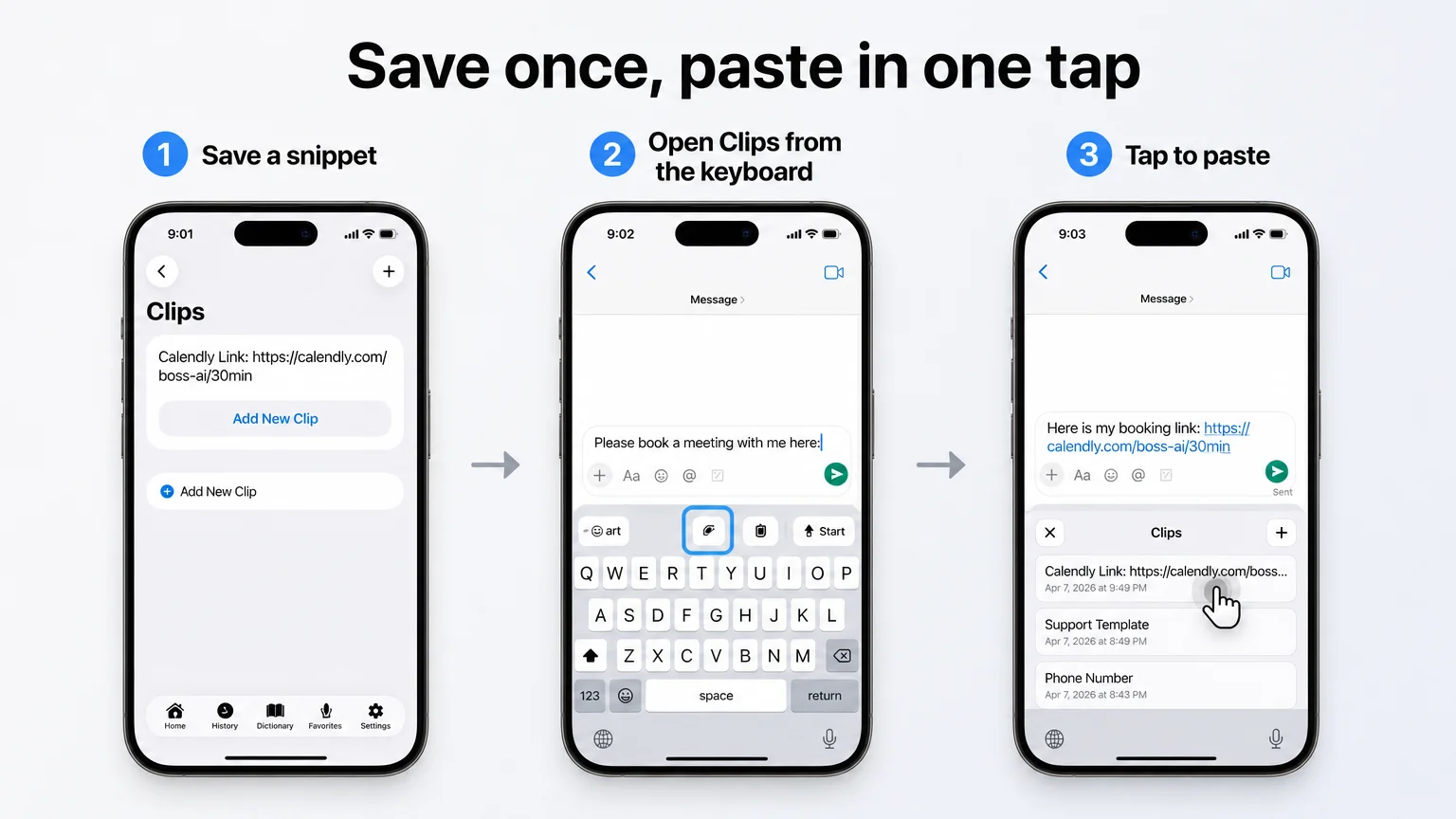 The three-step Clips flow: save once, open from the keyboard, tap to paste.
BossAI Clips lets you save text such as a signature, address, link or standard reply inside the keyboard, then paste it with a single tap. There is no abbreviation to remember and no app to switch to. Clips is available in the BossAI keyboard on iOS and Android.
BossAI is a voice keyboard for iPhone that you enable like any other custom keyboard. Clips is one of its features, next to dictation, Rewrite and Boss Mode.
Here is what the flow looks like, taken from a real screen sequence in the app:
- Save it once. In the Clips screen, a "Calendly Link" entry holds the booking URL. Tap Add New Clip to store another.
- Open it from the keyboard. In Messages, a Clips icon sits in the keyboard's top row, so there is no trip to Notes.
- Tap to paste. The Clips panel lists your saved items, such as Calendly Link, Support Template and Phone Number. One tap on Calendly Link drops it into the message.
Back to the opening scenario: the scheduling-link request becomes one tap instead of a thirty-second search.
What it costs
The free plan includes two Clips, which is enough to try it with your scheduling link and your address. Pro unlocks all your Clips, along with the rest of the paid features, at $9.99 a month or $69.99 a year. There is a 7-day full Pro trial with no account needed.
Which one should you use?
Keep Apple's text replacement for the handful of short abbreviations you already know by heart, like "omw". Use Clips for the longer, rarely-changing pieces of text where you would rather see a list than recall a code. The two work side by side without conflict.
Mac and Windows: What Carries Over
Apple's text replacement also exists on the Mac, under System Settings → Keyboard → Text Replacements. Apple's iCloud settings may let your list follow you across Apple devices, so check Apple's support pages for your iOS and macOS versions before relying on it.
BossAI's Clips feature does not work that way yet. Clips is not on the Mac or Windows apps today, so it is an iPhone and Android tool for now. The desktop apps do cover dictation, so you can still speak instead of type there.
Quick recap
- Use Text Replacement for a few short abbreviations you know cold.
- Use Clips for the text you paste every day: links, addresses, standard replies.
- Start with the five things you retype most, and stop at about ten.
Get Started with BossAI
If you find yourself hunting for the same link, signature or reply, Clips turns those into one-tap pastes from the keyboard you already type with. Try the free plan's two Clips and see how many messages they cover.
Not ready to try it yet? Get Our AI Productivity Guide — free tips on working faster with AI.
FAQ
How do I make a text shortcut on iPhone?
Go to Settings → General → Keyboard → Text Replacement and tap the plus button. Enter the full phrase and your abbreviation, then tap Save. The shortcut works in most apps that use the standard iPhone keyboard.
Why is my iPhone text replacement not working?
Check that the abbreviation is saved exactly as you type it, with no stray spaces. Confirm you are using Apple's keyboard, since third-party keyboards handle text replacement differently. Restarting the phone also clears many one-off glitches.
Is BossAI free?
Yes. The free plan includes 500 words of dictation a day, one full Boss Mode reply and one Rewrite daily, two Clips and one language. Pro removes those limits for $9.99 a month or $69.99 a year, and a 7-day Pro trial needs no account.
What is BossAI?
BossAI is a voice keyboard for iPhone and Android, plus a voice-to-text app for Mac and Windows. It cleans up dictation as you speak, rewrites text in different tones, and includes Boss Mode, which reads your screen to draft replies in context.
Are text shortcuts the same as the Shortcuts app?
No. Text shortcuts, or Text Replacement, swap a typed abbreviation for stored text. The Shortcuts app is Apple's automation tool for multi-step actions, such as sending a message on a schedule.