
Voice Dictation for iPhone: Speed Up Typing on iOS
Voice dictation for iPhone lets you speak naturally and watch your words appear on screen — no typing required, no shortcuts, no friction.
Key Takeaways
- Voice dictation is Apple's built-in hands-free typing feature on iOS, letting you compose messages, emails, and documents by speaking
- iPhone voice dictation reaches 95%+ accuracy in quiet environments and supports dozens of languages and dialects
- Enable it in Settings → General → Keyboard → Enable Dictation, then tap the microphone icon on any keyboard
- Third-party voice dictation apps extend Apple's built-in feature with AI enhancement, filler word removal, and deeper workflow integration
- Voice dictation is most valuable for email composition, note-taking, content drafting, and hands-free mobile communication
Contents
- What Is Voice Dictation for iPhone?
- How Does iPhone Voice Dictation Work and How Do You Enable It?
- How Accurate Is iPhone's Native Voice Dictation?
- Why Should You Use Voice Dictation for iPhone?
- Which Apps and Services Support Voice Dictation for iPhone?
- Can You Use Third-Party Voice Dictation Apps Instead of Apple's Built-in Feature?
- How Do You Fix Common Voice Dictation Issues on iPhone?
- What Are the Advanced Tips for Getting More from Voice Dictation on iPhone?
- Frequently Asked Questions
What Is Voice Dictation for iPhone?
Voice dictation for iPhone is Apple's built-in speech-to-text feature that converts spoken words into typed text across all iOS apps — no third-party software required. It works wherever the iOS keyboard appears: iMessage, Mail, Notes, WhatsApp, Slack, and every third-party app on your device.
Apple introduced voice dictation as part of iOS's accessibility-first design philosophy. The average person speaks at 130 words per minute but types only 40–50 on a smartphone touchscreen — dictation is the fastest text input method available on mobile.
Unlike Siri, which interprets commands and performs actions, voice dictation acts as a direct transcription engine. Tap the microphone, speak, and your words appear as text. No commands, no waiting for a response, no app switching.
 Voice dictation lets you type at the speed of speech — without touching your keyboard.
If you're new to voice-based input on iOS, our Voice Typing iPhone guide covers the full spectrum of hands-free typing on iOS, from native dictation to AI-enhanced keyboards.
How Does iPhone Voice Dictation Work and How Do You Enable It?
iPhone voice dictation uses a combination of on-device and cloud-based speech recognition to transcribe audio in real time. On iPhone 11 and later running iOS 15+, basic dictation processes entirely on-device — no internet connection required. Older iPhones send short audio clips to Apple's servers for cloud processing and return text instantly.
The feature lives directly in the iOS keyboard. No app download, no account creation — one toggle and it's live.
How to Enable Voice Dictation on iPhone
- Open Settings → tap General → tap Keyboard
- Toggle Enable Dictation to on (green)
- Tap Enable Dictation to confirm the prompt
For a detailed walkthrough with screenshots, follow our step-by-step voice-to-text setup guide.
Once enabled, a microphone icon appears on every keyboard. Tap it to start dictating — tap it again, or tap Done, to stop.
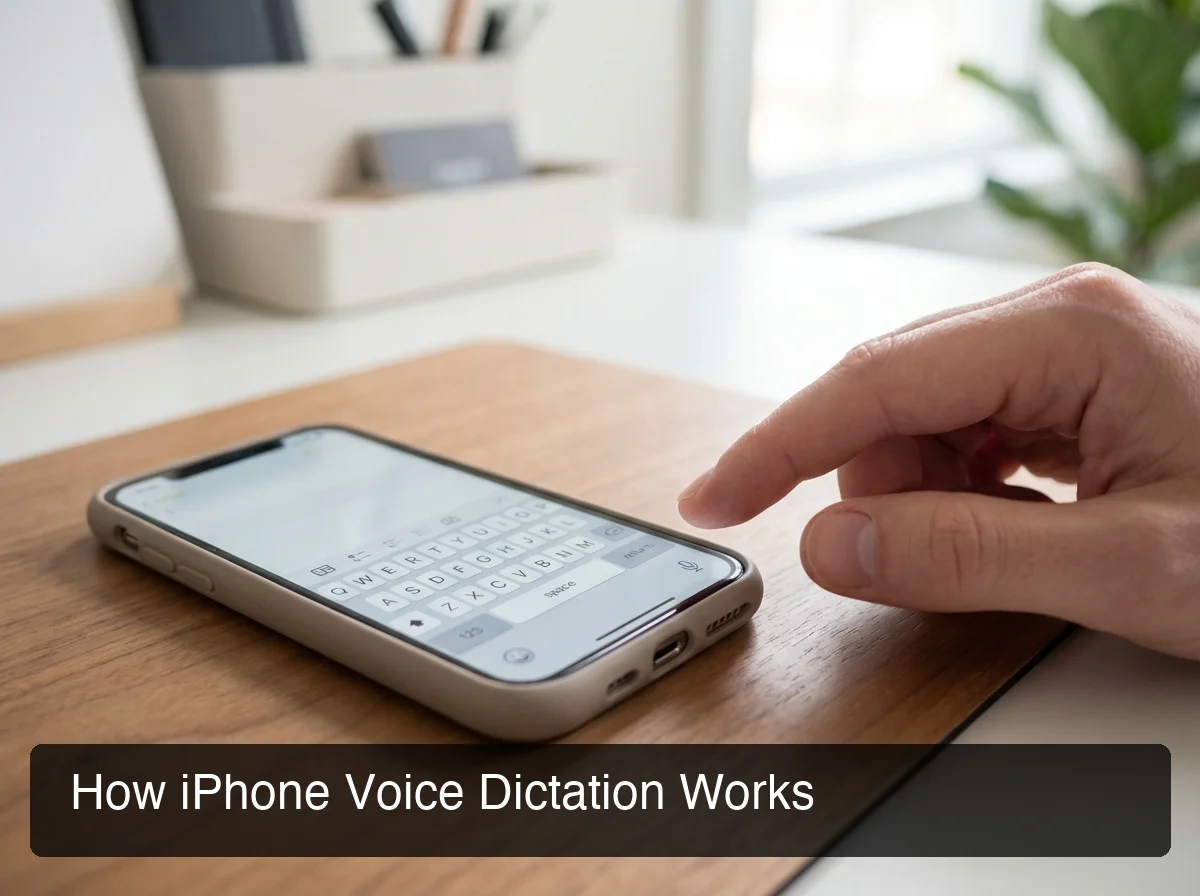 The microphone icon on the iOS keyboard activates voice dictation in any app with a single tap.
Punctuation Commands for iPhone Voice Dictation
Apple's dictation engine understands verbal punctuation. Say these naturally while speaking:
- "period" →
. - "comma" →
, - "question mark" →
? - "exclamation mark" →
! - "new paragraph" → paragraph break
- "new line" → line break
- "open quote" / "close quote" →
"" - "hyphen" →
- - "em dash" →
—
Key insight: Speak continuously — don't pause before punctuation commands. The recognition model processes commands in context, so fluid speech produces better results than word-by-word input.
How Accurate Is iPhone's Native Voice Dictation?
iPhone voice dictation achieves approximately 95% accuracy in quiet environments for clear speech in standard English. Accuracy drops in noisy settings, with regional accents, or for specialized vocabulary like medical terms, legal language, or brand names the system hasn't encountered.
Apple's on-device model (iPhone 11 and later) often outperforms cloud processing for everyday dictation because it eliminates network latency. For longer content with uncommon vocabulary, cloud processing provides more contextual accuracy.
What Affects Dictation Accuracy
| Factor | Impact on Accuracy |
|---|---|
| Background noise | High — find a quiet space when possible |
| Speaking pace | Medium — natural pace beats rushed speech |
| Accent variation | Medium — standard accents perform best |
| Specialized vocabulary | High — technical terms often misrecognized |
| Device age (older = cloud-only) | Low on modern devices, moderate on older |
By the numbers: Native Apple Dictation achieves 95%+ accuracy in quiet conditions. AI-enhanced apps push this further by automatically removing filler words and correcting grammar errors that Apple's raw transcription leaves intact.
One key limitation: Apple's dictation is literal. It captures filler words (um, uh, like, you know) exactly as spoken.
If your speech includes fillers, your transcript includes them too. This is where AI-enhanced dictation tools provide a meaningful upgrade.
Why Should You Use Voice Dictation for iPhone?
Voice dictation for iPhone is the fastest text input method on mobile — speaking at 130 words per minute versus 40–50 for touchscreen typing. Beyond raw speed, it enables genuinely hands-free operation for professionals, accessibility users, and anyone who types on mobile for more than 20 minutes a day.
The case for voice dictation is strongest in three scenarios: hands occupied, typing would slow you down, or repetitive screen interaction is causing physical strain.
What Are the Best Use Cases for Voice Dictation on iPhone?
 Voice dictation transforms email composition from a multi-minute task to a 30-second one.
Email and messaging. Composing replies to email, Slack, and SMS while commuting, cooking, or walking. Voice dictation reduces a 3-minute typing session to under 45 seconds.
Note-taking during meetings. Capture decisions and action items by speaking into Notes or Notion without breaking focus from the conversation.
Content creation. Writers and marketers use voice dictation to bypass the blank-page block. Speaking gets first drafts out faster — without the hesitation that slows keyboard-based writing.
Accessibility. For users with RSI, carpal tunnel, or motor disabilities, voice dictation isn't a productivity tool — it's how they use their iPhone. No special mode required.
Bottom line: If voice dictation saves 20 minutes per day, that's 120+ hours per year reclaimed — the equivalent of three full workweeks.
Which Apps and Services Support Voice Dictation for iPhone?
Every app that uses the iOS native keyboard supports Apple's built-in voice dictation — including Mail, Messages, WhatsApp, Telegram, Slack, Notes, Notion, Gmail, LinkedIn, X (Twitter), Instagram DMs, and any other text field on your device.
Voice dictation operates at the keyboard layer, not the app layer. That means it works everywhere you type — no per-app configuration required. This is one of its most underrated advantages over standalone transcription tools.
Apps That Benefit Most from Voice Dictation
- Mail and Gmail — Long email composition produces the biggest time savings
- Messages and WhatsApp — Faster than typing for anything beyond short replies
- Notes and Notion — Capture thoughts and draft documents at conversation speed
- Slack and Teams — Reply to threads during commutes without hunching over a screen
Voice keyboards like those we've reviewed in our voice keyboard iPhone guide extend native dictation with AI-powered suggestions and screen-aware commands.
Can You Use Third-Party Voice Dictation Apps Instead of Apple's Built-in Feature?
Yes. Third-party voice dictation apps replace or extend Apple's built-in feature with AI-powered filler word removal, tone rewriting, custom vocabulary training, and screen-aware reply generation. For users who dictate frequently or need cleaner output, third-party apps produce meaningfully better results.
Apple's native dictation transcribes accurately but delivers raw speech output — fillers intact, grammar as-spoken, formatting left to you. Third-party apps route the transcript through AI layers that clean output before it ever reaches the text field.
Native Dictation vs. AI-Enhanced Apps
| Feature | Apple Dictation | AI-Enhanced Apps (e.g., BossAI) |
|---|---|---|
| Filler word removal | ❌ Keeps um, uh, like | ✅ Removes automatically |
| Grammar correction | ❌ Transcribes as-spoken | ✅ Fixes in real time |
| Punctuation | Manual commands | ✅ Automatic insertion |
| Tone rewriting | ❌ | ✅ One-tap (Professional, Casual, etc.) |
| Custom dictionary | Limited | ✅ Full control |
| Screen-aware reply generation | ❌ | ✅ (BossAI Boss Mode) |
| Cost | Free | Free tier + optional upgrade |
For a full comparison of third-party voice to text apps for iPhone, see our complete 2026 guide covering every major option.
How Do You Fix Common Voice Dictation Issues on iPhone?
Most iPhone voice dictation problems fall into four categories: microphone permission errors, internet connectivity issues, a software bug after an iOS update, or the dictation toggle being disabled. Each has a quick fix.
Common Issues and Fixes
Dictation button missing from the keyboard:
- Settings → General → Keyboard → Enable Dictation → toggle off, wait 5 seconds, toggle back on
- Restart your iPhone to clear the keyboard cache
Microphone not responding / no text appears:
- Settings → Privacy & Security → Microphone → confirm the app has permission
- Verify "Enable Dictation" is still on in Settings → General → Keyboard
Poor accuracy:
- Move to a quieter environment and speak at a natural, unhurried pace
- Check your internet connection — cloud dictation requires a stable signal
- Add frequently misrecognized words via Settings → General → Keyboard → Text Replacement
Dictation cuts off mid-sentence: On older iPhones using cloud dictation, sessions may cut off after 30–60 seconds. On iPhone 11+ with on-device mode, there is no session limit. If cutting off persists, toggle dictation off and on, then restart the app.
Key insight: The fastest fix for 90% of dictation problems: Settings → General → Keyboard → toggle Enable Dictation off and back on, then force-close and reopen the app.
What Are the Advanced Tips for Getting More from Voice Dictation on iPhone?
 Advanced dictation users save 60+ hours per year with the right habits and setup.
The most effective voice dictation users treat speaking as a skill — not a button press. A few deliberate habits can triple accuracy and usability for iPhone voice input.
Top Tips for iPhone Voice Dictation Power Users
1. Speak in complete sentences, not word-by-word bursts. The transcription model uses contextual windows — it reads words ahead and behind to improve accuracy. Short bursts break this context and reduce quality.
2. Use Text Replacement for consistently misrecognized terms. Settings → General → Keyboard → Text Replacement creates spoken shortcuts. Define "myemail" → expands to your full address. This works in dictation: say the shortcut, and iOS expands it.
3. Position your microphone correctly. Hold the phone at chin level or use wired earphones. Desk-distance pickup degrades accuracy on iPhone microphones more than on purpose-built dictation hardware.
4. Upgrade to AI-enhanced dictation for production use. If your dictated text includes filler words, grammar errors, or inconsistent punctuation, switching to an AI-enhanced keyboard like BossAI removes those limitations automatically. BossAI strips fillers, fixes grammar, and its Boss Mode reads your screen to write contextual replies — all without leaving the keyboard.
6. Dictate templates, then refine once. For recurring content (meeting recaps, standard email replies, follow-up messages), dictate a strong version once, refine it, then save it as a Clips snippet for instant future use.
Download BossAI and Dictate Smarter on iPhone
Apple's native dictation gets you 80% of the way there. BossAI covers the rest: AI-cleaned output with no fillers, one-tap tone rewriting, and Boss Mode that reads your screen to write contextual replies without switching apps.
Download BossAI Free on iPhone
Frequently Asked Questions
Can I do voice dictation on my iPhone?
Yes — iPhone includes built-in voice dictation that works in every app. Enable it via Settings → General → Keyboard → Enable Dictation. A microphone icon appears on your keyboard — tap it to start speaking and your words convert to text instantly, with no additional software required.
What is the best free dictation app for iPhone?
Apple's built-in dictation is free and works across all apps without setup. For AI-enhanced output that automatically removes filler words and corrects grammar, BossAI's free plan includes 500 words of dictation a day, resetting daily.
Is Apple Dictation free to use?
Yes — Apple Dictation is completely free and built into every iPhone. There are no word limits, subscription fees, or usage caps. It uses on-device processing on iPhone 11 and later, and cloud processing on older models — both included at no cost.
How do I dictate voice notes on iPhone?
Open the Notes app, create a new note, tap the text field, then tap the microphone icon on the keyboard. Speak your note naturally, using "new paragraph" for paragraph breaks and "period" or "comma" for punctuation. Tap the microphone again to stop when finished.
What is BossAI?
BossAI is an AI voice keyboard for iPhone and Android, and a voice-to-text app for Mac and Windows, that replaces typing with voice dictation. It transcribes speech in real time, removes filler words automatically, rewrites text in different tones with one tap, and includes Boss Mode — a screen-reading feature that reads your screen to generate contextual replies without copy-pasting.
Is BossAI free?
Yes — BossAI's free plan includes 500 words of dictation a day, and the allowance resets daily. Pro makes everything unlimited — dictation, Boss Mode, Rewrite, every tone and all Clips. No credit card required to start.
How accurate is BossAI dictation?
BossAI uses advanced speech recognition models that achieve high accuracy in quiet environments and handles accented speech well. It automatically removes filler words (um, uh, like, you know) and corrects grammar in real time — so the transcribed text is cleaner than raw dictation from most built-in tools like Apple Dictation or Google voice typing.