
Best Voice Keyboard for iPhone: Complete 2026 Guide
Voice keyboard iPhone technology has made hands-free typing faster and smarter than ever. Speak naturally and watch polished text appear — no thumbs required.
Key Takeaways
- Voice keyboards on iPhone can boost typing speed by 3-5x compared to touchscreen tapping, making them ideal for messages, emails, and notes on the go.
- iPhone's native voice dictation is free and built-in, but third-party apps like BossAI deliver superior accuracy, filler-word removal, and AI features like one-tap tone rewriting.
- Setting up voice input takes under 30 seconds — just go to Settings → General → Keyboard → Enable Dictation.
- Voice typing accuracy improves with consistent use as AI models learn your vocabulary, speech patterns, and common phrases.
- BossAI's iPhone keyboard combines industry-leading transcription with Boss Mode — screen-aware AI that drafts contextual replies without copy-pasting.
Contents
- What Is a Voice Keyboard on iPhone?
- How Do I Enable Voice Typing on My iPhone?
- Can You Use Third-Party Voice Keyboards on iPhone?
- Which Voice Keyboard iPhone App Is Best?
- How Accurate Is Voice Typing on an iPhone?
- How Fast Is Voice Keyboard iPhone Typing?
- Does Voice Keyboard Work Offline on iPhone?
- What Makes BossAI's Voice Keyboard Different for iPhone?
- Frequently Asked Questions
What Is a Voice Keyboard on iPhone?
A voice keyboard on iPhone is a keyboard — either Apple's built-in dictation or a third-party app — that converts your spoken words into typed text in real time. Modern voice keyboards go beyond basic transcription: they remove filler words, fix grammar, add punctuation, and can rewrite text in different tones without any manual editing.
The term covers two distinct categories. Apple's native dictation (built into every iPhone) lets you tap the microphone icon on any standard keyboard. Third-party voice keyboards, installed from the App Store, replace your default keyboard entirely and offer more advanced AI features.
 Modern voice keyboards on iPhone go far beyond basic transcription — they think while you speak.
Native vs. Third-Party Voice Keyboards
Native iOS dictation is reliable for short texts and simple messages. It struggles with long-form content, technical terms, names, and speaker-specific vocabulary.
Third-party voice keyboards — such as BossAI, Wispr Flow, and Typeless — use dedicated AI models trained specifically for voice input. They remove verbal fillers automatically, maintain context across longer dictations, and learn your vocabulary over time.
Key insight: The difference between native dictation and an AI voice keyboard is like autocorrect versus a professional editor — both fix mistakes, but only one understands what you meant to say.
How Do I Enable Voice Typing on My iPhone?
Enabling voice typing on iPhone takes under 30 seconds with Apple's native dictation: open Settings → General → Keyboard and toggle Enable Dictation. For third-party AI keyboard apps, install from the App Store, then add the keyboard in Settings → General → Keyboard → Keyboards → Add New Keyboard.
Setting Up Apple's Built-In Dictation
- Open Settings on your iPhone
- Tap General, then Keyboard
- Toggle Enable Dictation to on
- Tap the microphone icon on your keyboard when ready to speak
Apple's dictation works in any text field across iOS. A waveform indicator appears while it listens — tap the microphone again or pause to stop.
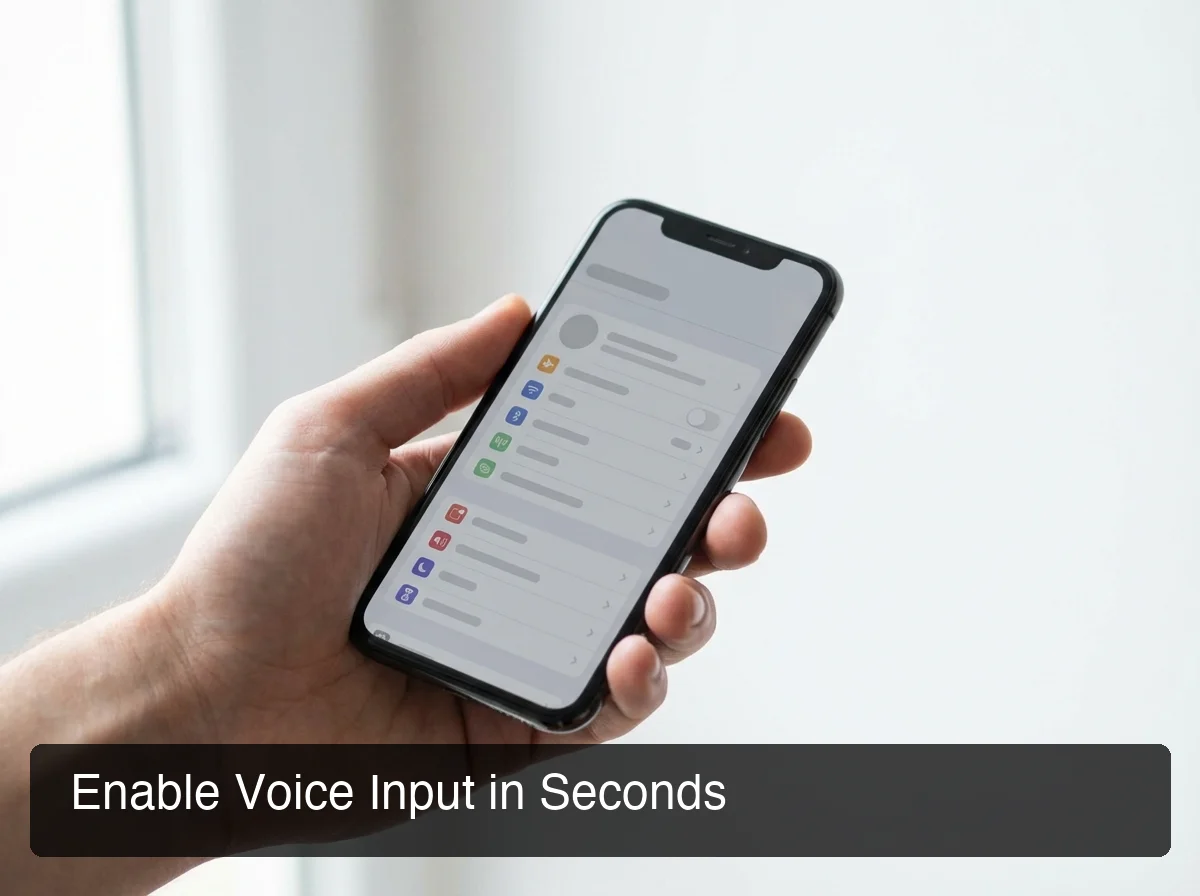 Activate voice input in seconds — one toggle in iPhone Settings.
Setting Up a Third-Party Voice Keyboard
- Download the app from the App Store (e.g., BossAI, Wispr Flow)
- Open Settings → General → Keyboard → Keyboards
- Tap Add New Keyboard and select the app
- Enable Allow Full Access when prompted (required for AI processing)
- In any app, tap and hold the globe icon to switch keyboards
For a complete walkthrough of iPhone voice typing setup and techniques, see our voice typing iPhone guide.
Bottom line: Native dictation setup = 30 seconds. Third-party app setup = 2-3 minutes once, then seamless switching forever.
Can You Use Third-Party Voice Keyboards on iPhone?
Yes — iOS fully supports third-party keyboard extensions via the Keyboard Extension API. Any Apple-approved app can replace your default iPhone keyboard. Third-party voice keyboards appear alongside Apple's built-in options in Settings → Keyboard and switch instantly with a tap of the globe icon in any app.
Apple's keyboard extension system has matured significantly since iOS 8. Third-party keyboards receive the same input access as Apple's own keyboard, except in secure fields (passwords, payment screens) where Apple's keyboard is enforced for security.
What Third-Party Voice Keyboards Can Do That Native Can't
Understanding how AI-powered keyboards work reveals the capability gap. AI-powered keyboards designed specifically for iPhone use cloud-based language models — they don't just transcribe, they understand context, strip filler words automatically, and rewrite text in different tones.
| Feature | Native iOS Dictation | AI Voice Keyboard |
|---|---|---|
| Basic speech-to-text | ✅ | ✅ |
| Filler word removal | ❌ | ✅ |
| Grammar correction | Partial | ✅ |
| Custom vocabulary | ❌ | ✅ |
| Tone rewriting | ❌ | ✅ |
| Screen-aware AI responses | ❌ | ✅ (BossAI only) |
| Offline transcription | ✅ (limited) | Varies |
iOS Permissions to Know
When adding any third-party keyboard, iOS asks whether to Allow Full Access. This enables AI processing by letting the keyboard communicate with external servers. Without full access, most AI features won't function — it's a required permission, not an optional one.
Which Voice Keyboard iPhone App Is Best?
 Choosing the right voice keyboard depends on how often you dictate and what you need AI to do.
The best voice keyboard for iPhone depends on your use case. BossAI leads for AI-enhanced dictation with unique screen-awareness. Wispr Flow is the most polished alternative for pure voice writing. Typeless is a cross-platform alternative with Android support, though BossAI now covers Android too. Apple's native dictation is best for basic, occasional use.
Here's how the top voice keyboard options for iPhone compare:
| App | Free Tier | Paid | Best For | Full iOS Keyboard |
|---|---|---|---|---|
| BossAI | 500 words/day | $9.99/mo | AI dictation + screen-aware replies | ✅ |
| Wispr Flow | 2,000 words/week | $15/mo | Pure voice writing | ✅ (limited) |
| Typeless | 4,000 words/week | $30/mo | Cross-platform iOS + Android | ✅ |
| Spokenly | Unlimited (local) | $7.99/mo | Privacy-first, local model | ✅ |
| Native iOS | Unlimited | Free | Quick, occasional dictation | Built-in |
Why AI Voice Keyboards Are Worth It
Native iOS dictation transcribes accurately in ideal conditions but consistently falters with filler words left in ("um, I wanted to, like, schedule a meeting"), technical terms and names misspelled, and long-form content losing coherence after 30-40 seconds.
AI voice keyboards fix these problems before the text reaches your screen. You speak naturally — they output professionally.
By the numbers: Users who switch from native iOS dictation to AI-enhanced voice keyboards report 40-60% fewer correction loops per session — that's the difference between a productivity tool and a frustrating gimmick.
How Accurate Is Voice Typing on an iPhone?
Modern AI voice keyboards on iPhone achieve 95-99% transcription accuracy in quiet environments. Apple's native dictation averages 90-95% under ideal conditions. The real accuracy gap isn't in raw transcription — it's in post-processing: filler removal, grammar correction, and vocabulary recognition for names and technical terms.
Factors That Impact Voice Typing Accuracy
Environment is the single biggest variable. Background noise drops accuracy meaningfully across all tools — quiet rooms deliver 95%+, while noisy offices or car interiors typically land at 80-85%.
Vocabulary is where tools diverge most visibly. Standard conversational vocabulary transcribes at near-perfect accuracy. Names, technical terms, product names, and niche jargon are where native dictation makes mistakes that AI voice keyboards — with custom dictionaries — avoid.
Speech rate affects accuracy too. Slow, deliberate speaking boosts accuracy on all tools. Natural conversational pace works well with AI-enhanced keyboards; native dictation occasionally clips words at normal conversational speed.
Tips to Improve Voice Typing Accuracy on iPhone
- Speak at a consistent, natural pace — don't rush or over-articulate
- Add frequently dictated names and terms to a custom dictionary
- Use Siri regularly in the same environment to help iOS calibrate to your voice
- Allow a 1-2 week learning period with any new AI voice keyboard app
For platform-agnostic accuracy techniques that work across every device, our guide to typing with voice covers the fundamentals in depth.
How Fast Is Voice Keyboard iPhone Typing?
Voice typing on iPhone delivers 100-150 words per minute at natural speaking pace — versus 40-50 WPM for touchscreen tapping. For most users, that's a 3-5x speed advantage. The real multiplier comes from fewer corrections: AI voice keyboards reduce post-dictation editing by 40-60%, compounding the speed gain on every longer message.
Real-World Speed Benchmarks
The theoretical speed advantage is real, but practical gain hinges on how much you need to fix after speaking.
| Method | Raw WPM | Post-Correction WPM | Time for 200-Word Email |
|---|---|---|---|
| iPhone tapping | 40-50 | 35-45 | ~5 min |
| Native iOS dictation | 120-150 | 80-100 | ~2 min |
| AI voice keyboard | 120-150 | 110-140 | ~1.5 min |
Key insight: Voice typing speed isn't about how fast you talk — it's about how little you fix afterward. AI-enhanced voice keyboards minimize post-dictation editing, and that's the compounding advantage that native dictation can't match.
Where Voice Typing Wins Most on iPhone
Voice keyboards deliver their biggest advantage in high-stakes, longer-form contexts:
- Email replies — 2-5 minutes → 30-60 seconds, with professional tone intact
- Notes and ideas on the go — capture thoughts hands-free while walking or commuting
- Slack and Teams messages — where tone matters and corrections are noticeable
- Any hands-occupied situation — cooking, exercising, driving (via hands-free activation)
Does Voice Keyboard Work Offline on iPhone?
Apple's native iPhone dictation has supported fully offline transcription since iOS 15, using an on-device language model — though with slightly lower accuracy than server-side processing. Most third-party AI voice keyboards require an internet connection because their AI enhancement happens in the cloud. Offline support varies significantly by app.
Offline Mode Comparison
| App | Offline Support | Notes |
|---|---|---|
| Native iOS | ✅ Full offline | On-device model, slightly reduced accuracy |
| BossAI | ❌ Requires internet | AI processing is cloud-based |
| Spokenly | ✅ Local model option | Whisper.cpp on-device, unlimited words |
| Wispr Flow | ❌ Requires internet | Cloud-based AI |
| Typeless | ❌ Requires internet | Cloud-based AI |
When Offline Matters
For most iPhone users, internet is available 95%+ of the time. Offline voice typing becomes relevant for flights without Wi-Fi, international travel without data roaming, and areas with poor cellular signal.
If offline is a hard requirement, Apple's native dictation (on-device mode since iOS 15) or Spokenly with a local Whisper model are your best options. For maximum AI quality and screen-aware features, a reliable connection is the trade-off.
What Makes BossAI's Voice Keyboard Different for iPhone?
BossAI is the only iPhone voice keyboard that reads your screen. Beyond AI-enhanced dictation that removes filler words, fixes grammar, and learns your vocabulary — BossAI's Boss Mode captures your current screen context and writes replies without copy-pasting. No other voice keyboard on iOS combines full-keyboard replacement with screen awareness and one-tap tone rewriting.
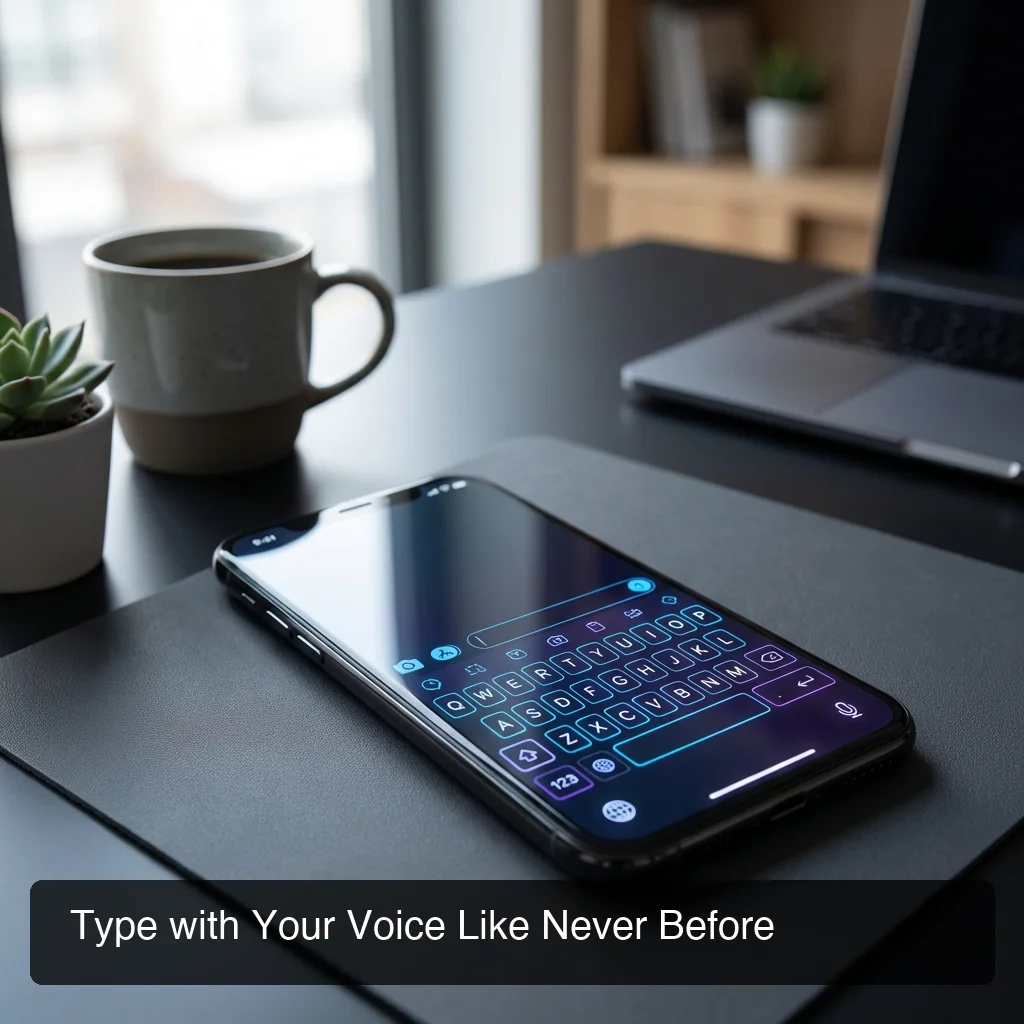 BossAI turns your iPhone keyboard into a screen-aware AI communication engine.
Four Things That Set BossAI Apart
1. Boss Mode — Screen-Aware AI Replies Say "Boss, reply to this email professionally" and BossAI reads your screen, understands the context, and writes a complete response directly into the text field. No switching apps, no copy-pasting, no explaining what's on screen. This feature is exclusive to BossAI — no other iOS voice keyboard offers screen reading.
2. One-Tap Tone Rewriting Select Professional, Casual, Witty, Persuasive, Empathetic, or Bold — and BossAI rewrites your dictation in that tone with a single tap. Competitors require voice commands for rewriting; BossAI does it from a visual selector in the keyboard UI.
3. Clips — Instant Paste from the Keyboard Save your email signature, address, standard replies, and meeting links in BossAI's Clips tray. One tap pastes them without leaving your current app. No competitor offers a snippet system accessible directly from the keyboard interface.
4. Custom Dictionary Add your name, colleagues' names, technical terms, and brand names so BossAI gets them right every time. This solves the #1 accuracy pain point for professional dictation users — names and jargon that generic transcription models consistently misspell.
Bottom line: BossAI starts where other voice keyboards end. AI-enhanced dictation is the baseline; Boss Mode, Rewrite, and Clips are the leap forward that no other iPhone keyboard can offer.
For beginners building voice typing habits from scratch, our how to use voice typing guide covers the foundational techniques before moving to advanced features.
What makes a great voice keyboard goes beyond transcription: it's how deeply it integrates into your workflow, reduces friction, and adapts to your communication style. BossAI is built to that standard.
Get Started with BossAI on iPhone
Your iPhone's built-in dictation is a starting point — BossAI is where voice typing becomes a genuine productivity upgrade. AI-enhanced accuracy, screen-aware Boss Mode, and one-tap tone control make every app on your iPhone faster to use.
Download BossAI Free on the App Store
Frequently Asked Questions
How do I turn on voice typing on my iPhone?
Go to Settings → General → Keyboard and toggle Enable Dictation. This activates Apple's built-in voice dictation across all iOS apps. For AI-enhanced voice typing with filler removal and tone rewriting, download BossAI from the App Store, add it in Settings → Keyboard → Add New Keyboard, and enable full access.
Which voice keyboard app is best for iPhone?
BossAI is the top AI voice keyboard for iPhone, offering filler removal, grammar correction, Boss Mode screen awareness, and Clips in one app. Wispr Flow is a strong alternative for pure voice writing. Native iOS dictation works for basic, occasional use — but lacks AI enhancement and custom vocabulary.
How accurate is voice typing on iPhone?
Modern AI voice keyboards achieve 95-99% transcription accuracy in quiet conditions. Native iOS dictation averages 90-95%. The real gap is in post-processing: AI keyboards handle filler words, grammar, and technical vocabulary automatically, while native dictation passes those corrections back to you.
Does iPhone voice keyboard work in all apps?
Yes — both Apple's native dictation and third-party keyboard apps work in any app with a standard text input field. BossAI's Boss Mode extends this further, reading the screen content of any app to generate contextual replies, not just transcribing what you say.
How fast is voice typing on iPhone vs. manual typing?
Voice typing delivers 100-150 words per minute at natural speaking pace — versus 40-50 WPM for touchscreen tapping. AI voice keyboards reduce post-dictation corrections by 40-60%, making the real-world speed advantage 3-5x over manual typing for messages and emails.
Can I use voice typing in multiple languages on iPhone?
Yes — Apple's native dictation supports 40+ languages via the language settings. BossAI also supports multi-language dictation. Check each app's language support before choosing if you switch between languages frequently throughout the day.
Does using a voice keyboard drain my iPhone battery faster?
Voice keyboards have moderate battery impact — they activate the microphone, Neural Engine, and network radio during sessions. Short dictation bursts have negligible effect. Extended continuous dictation (10+ minutes) may increase battery drain by 5-10% compared to typing the equivalent text.