
How to Turn On Voice to Text on iPhone (2026 Guide)
Knowing how to turn on voice to text on iPhone is simpler than most people realize — it's a single toggle already installed on your device, ready to activate in under 60 seconds.
Key Takeaways
- Voice to Text on iPhone is built into iOS and requires just 3 taps to enable: Settings → General → Keyboard → Enable Dictation.
- iPhone's native voice typing works in every app with a keyboard — Gmail, Notes, Messages, and more — with no downloads required.
- Voice to Text respects spoken punctuation: say "period," "comma," or "new line" to format text as you speak.
- Enabling dictation also unlocks voice shortcuts for frequently used phrases, saving 30+ seconds per email on average.
- AI keyboards like BossAI layer on top of native voice typing to add filler-word removal, tone rewriting, and screen-aware replies.
Contents
- How to Turn On Voice to Text on iPhone: Quick Answer
- How to Turn On Voice to Text on iPhone: Step-by-Step?
- Where Is the Voice to Text Button on iPhone?
- What Happens After I Turn On Voice to Text on iPhone?
- How Does Voice to Text Compare to Manual Typing on iPhone?
- Why Should I Use Voice to Text on iPhone?
- Can I Customize Voice to Text Settings on iPhone?
- How Do AI Keyboards Like BossAI Improve iPhone Voice Typing?
- Try BossAI on iPhone
- Frequently Asked Questions
How to Turn On Voice to Text on iPhone: Quick Answer?
Yes — voice to text is built into every iPhone running iOS 14 or later. It requires no third-party app, no download, and no account. You activate it once in Settings, and the microphone button appears on your keyboard in every app where you can type. It's ready to use in under 60 seconds.
Apple calls this feature "Dictation," and it uses on-device or cloud processing depending on your iPhone model. Newer iPhones (iPhone 12 and later) can process short dictations entirely on-device, meaning your words never leave your phone.
Key insight: iPhone's native Dictation is free, unlimited, and private. You already have it — you just need to flip one toggle.
 Voice to text is built into iOS — one setting change activates it across every app on your iPhone.
How to Turn On Voice to Text on iPhone: Step-by-Step?
To turn on voice to text on iPhone, open Settings → General → Keyboard, then toggle on "Enable Dictation." A confirmation dialog appears — tap "Enable Dictation" again to confirm. The microphone button will appear on your iPhone keyboard immediately in every app.
Here are the exact steps:
- Open the Settings app on your iPhone
- Tap General
- Tap Keyboard
- Scroll down to find Enable Dictation
- Toggle it on (green)
- Tap Enable Dictation in the confirmation popup
That's the entire setup. Voice to text is now active on your iPhone across every app.
Alternative Path: Enable Through Accessibility Settings
If you navigate via Settings → Accessibility → Spoken Content, note that this controls text-to-speech (iPhone reads text aloud to you) — not dictation. For voice-to-text (you speak, iPhone types), the correct path is always Settings → General → Keyboard → Enable Dictation.
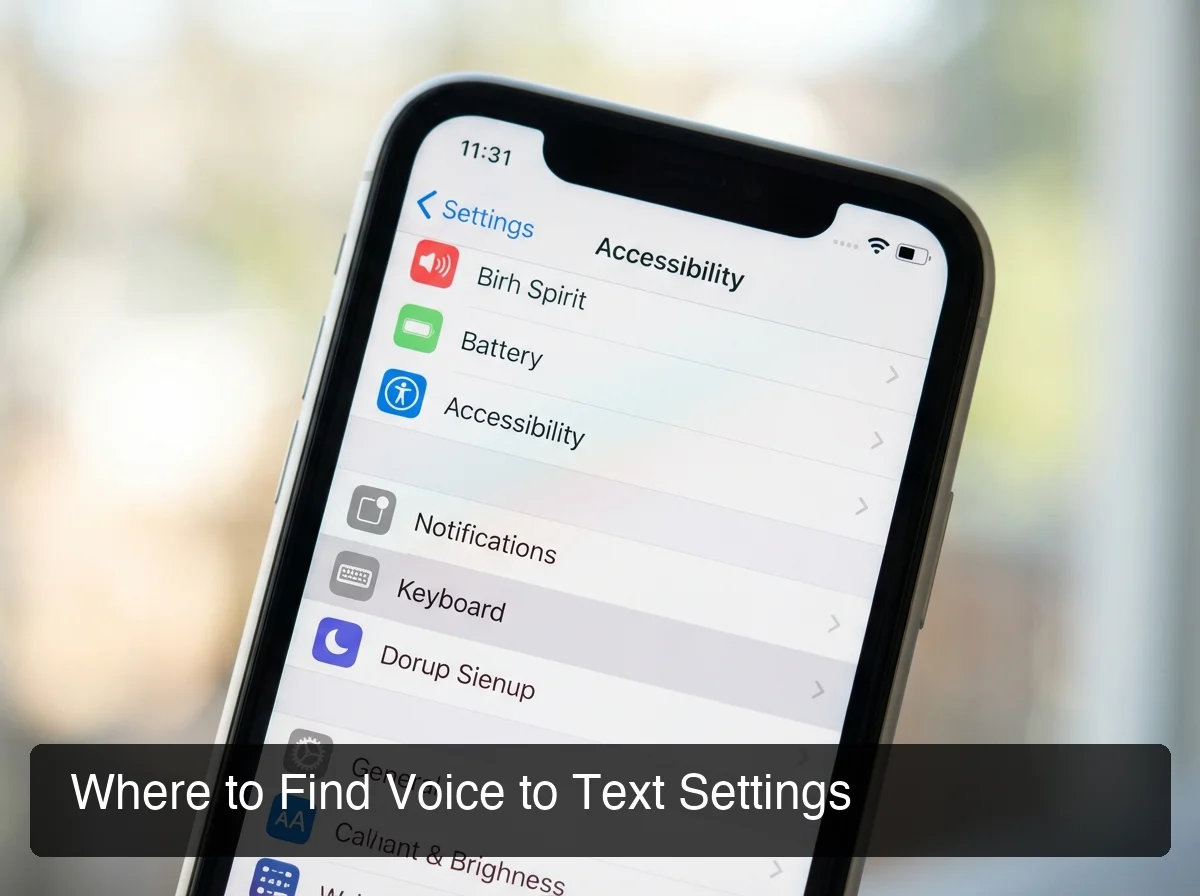 Settings → General → Keyboard is where the Enable Dictation toggle lives — a 3-tap path from your home screen.
Where Is the Voice to Text Button on iPhone?
After enabling Dictation, a microphone icon appears on the iPhone keyboard. On iOS 16 and later, it sits in the bottom-right corner near the emoji and Globe keys. Tap it once to start speaking — it animates while listening. Tap again or pause speaking to stop.
The exact location varies slightly by iOS version:
- iOS 16+: Microphone icon in the bottom-right corner of the keyboard row
- iOS 15 and earlier: Microphone icon next to the spacebar on the bottom row
If the microphone icon doesn't appear after enabling Dictation, force-quit Settings and check that no third-party keyboard is overriding your default. Switch back to the Apple keyboard (Globe icon → Apple Keyboard) and the icon will show.
Pro tip: If you tap the mic and it immediately stops, microphone permission may be blocked for that app. Fix it at Settings → Privacy & Security → Microphone → toggle on the app you're using.
What Happens After I Turn On Voice to Text on iPhone?
Once enabled, tap the microphone icon in any app with a keyboard and speak naturally. iPhone transcribes your speech in real time, inserting words as you talk. You say punctuation commands aloud ("period," "comma," "new line") to format your text without touching the screen at all.
Punctuation Commands You Can Say
| Voice Command | Output |
|---|---|
| "period" | . |
| "comma" | , |
| "question mark" | ? |
| "exclamation point" | ! |
| "new line" | Line break |
| "new paragraph" | Paragraph break |
| "open parenthesis" | ( |
| "close parenthesis" | ) |
| "hyphen" | - |
| "colon" | : |
| "semicolon" | ; |
Tips for Accurate Transcription
- Speak at a natural, steady pace — not artificially slow
- Say punctuation clearly at the end of each sentence
- Pause briefly between thoughts to let the engine keep up
- Use a quiet environment for the highest accuracy
For in-depth editing workflows and app-specific tips, see our guide to voice typing on iPhone — it covers corrections, re-dictation, and integrations with iOS productivity apps.
How Does Voice to Text Compare to Manual Typing on iPhone?
Spoken dictation averages 130–150 words per minute on iPhone. Manual thumb typing on a smartphone averages 38–40 words per minute. Voice to text is 3–4x faster — and the gap grows larger for messages, emails, and documents over 50 words.
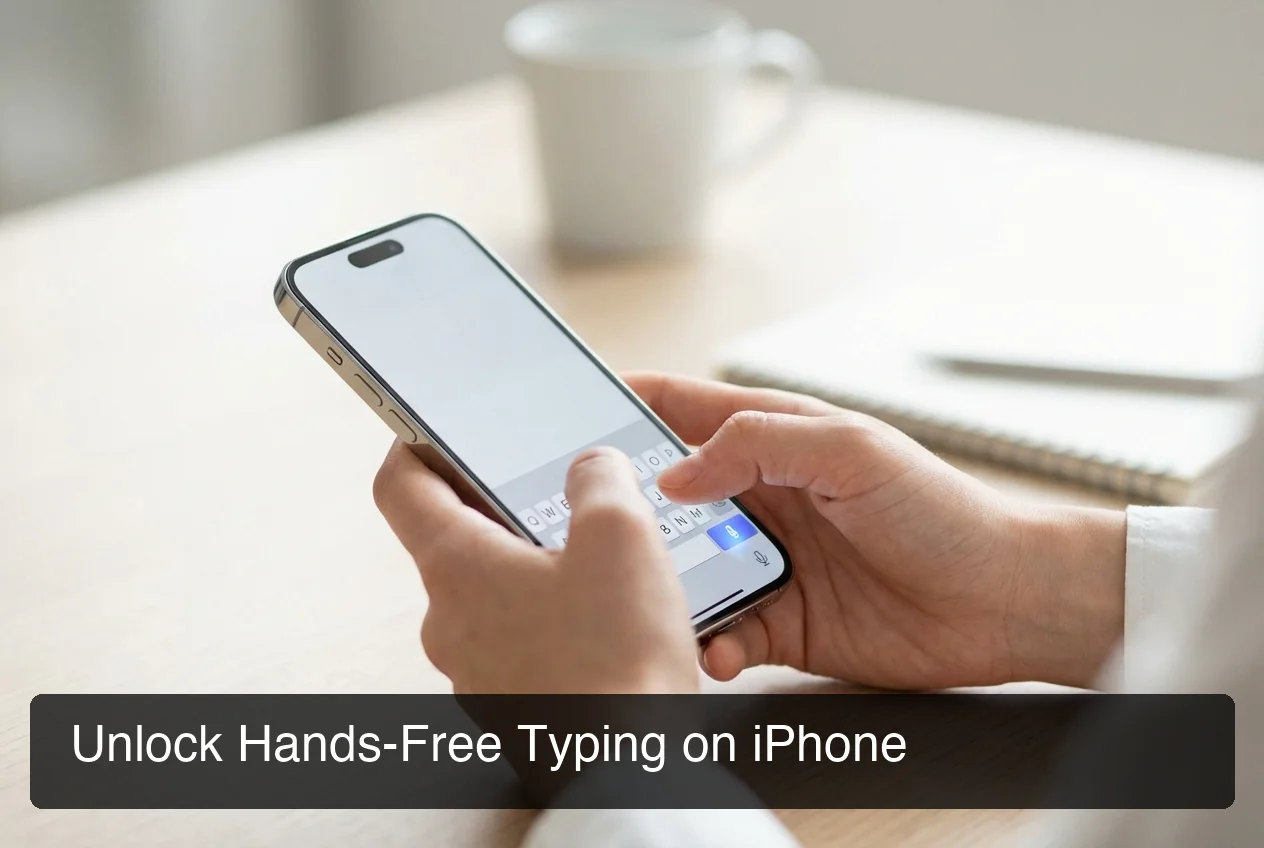 Voice typing outpaces thumb typing at 3–4x the speed — the gap becomes measurable within days of daily use.
Native iPhone Dictation vs. AI Keyboards
| Feature | Native iPhone Dictation | AI Keyboard (e.g. BossAI) |
|---|---|---|
| Transcription speed | Real-time | Real-time |
| Filler word removal | ❌ (transcribes "um", "uh") | ✅ Automatic |
| Grammar correction | Basic autocorrect | ✅ AI-powered |
| Auto-punctuation | ❌ Manual commands | ✅ Auto-punctuates |
| Context-aware replies | ❌ | ✅ Reads your screen |
| Works in all apps | ✅ | ✅ |
| Custom vocabulary | Limited | ✅ Extensive |
| One-tap tone rewrite | ❌ | ✅ 6 tone options |
Native iPhone Dictation handles casual messages well. For professionals composing multiple emails daily, the filler-word output ("um so basically...") requires cleanup — which is where AI keyboards eliminate the editing step entirely.
By the numbers: Voice dictation averages 130 WPM vs. 38 WPM for smartphone typing — a 3.4x speed difference that translates to 65+ hours saved per year for heavy mobile communicators.
Why Should I Use Voice to Text on iPhone?
Voice to text on iPhone is consistently faster than typing, reduces screen-time strain, and works hands-free in situations where typing isn't practical. The most measurable benefit is speed: a 100-word email that takes 3 minutes to type takes under 60 seconds to dictate — and that gap compounds across dozens of daily messages.
Three Situations Where Voice to Text Wins
1. Composing emails and messages on the go. Walking between meetings, riding transit, or cooking — voice lets you reply without stopping.
2. Capturing ideas the moment they occur. Dictate to Notes or Reminders in under 5 seconds. No hunting for the right app, no typing delay.
3. Injury and accessibility. For users with RSI, carpal tunnel, or temporary wrist injuries, dictation removes the typing requirement completely. For a step-by-step beginner walkthrough, see our guide to using voice typing.
Bottom line: If you send more than 20 messages or emails per day from your phone, turning on voice to text will recover measurable time every single day — with zero ongoing effort after a 60-second setup.
Can I Customize Voice to Text Settings on iPhone?
Yes. iPhone allows you to add words to your personal vocabulary, create text replacement shortcuts (sayable in dictation), and configure auto-punctuation behavior. These settings are in Settings → General → Keyboard and give you meaningful control over how dictation performs for your specific vocabulary.
Text Replacement Shortcuts (Work in Dictation)
Go to Settings → General → Keyboard → Text Replacement to create shorthand expansions. Type "mysig" once, set the replacement to your full email signature — iPhone expands it whenever you say "mysig" while dictating. This is the closest thing to voice shortcuts on native iOS.
Adding Custom Words for Accuracy
For unusual names, technical terms, or brand names that dictation consistently gets wrong, iOS learns from corrections over time. Repeatedly correcting a misspelled name in the suggestion bar trains the dictionary.
Multi-Language Dictation
Add language keyboards at Settings → General → Keyboard → Keyboards. Once added, tap the Globe icon before dictating to switch languages. iPhone Dictation supports each installed language independently.
For users who dictate across Mac, Windows, and iPhone, our guide to typing with voice across every device covers platform-specific settings and cross-device sync strategies.
 BossAI takes iPhone voice typing beyond basic transcription — filler-word removal, tone rewrites, and screen-aware replies in one keyboard.
How Do AI Keyboards Like BossAI Improve iPhone Voice Typing?
AI keyboards improve iPhone voice typing by processing your speech with large language models that automatically remove filler words, fix grammar, add punctuation, and format text for the app you're in. The result is clean, professional output without any editing — delivered in the same real-time as native dictation.
Native iPhone Dictation transcribes exactly what you say — including every "um," "uh," and "like." If you dictate "um so basically I was thinking we should uh schedule the call for Friday," that's what you get. An AI keyboard filters that in real time and outputs: "I was thinking we should schedule the call for Friday."
What BossAI Adds to iPhone Voice Typing
BossAI is a full iOS keyboard replacement that works in every app — Gmail, Messages, Slack, Notes, and more. Key capabilities beyond transcription:
- Boss Mode — Say "Boss, reply to this email professionally" and BossAI reads your current screen, understands the context, and generates a full reply. No copy-pasting. No explaining what the email says.
- One-tap rewrite — Tap Professional, Casual, Witty, Persuasive, Empathetic, or Bold to instantly rewrite any dictated text in a different tone
- Clips — Save frequently used phrases (email signatures, addresses, standard replies) for one-tap insertion directly from the keyboard
- Custom dictionary — Add names, technical terms, and jargon that get transcribed correctly every time
For a deeper look at what advanced voice keyboard features are available on iOS, see our guide to the best voice keyboard for iPhone.
Try BossAI on iPhone
If you're already using iPhone voice to text for emails and messages, BossAI takes that same tap-to-speak workflow to the next level. Enable it as your default iOS keyboard and every dictation is automatically cleaned up — no filler words, no grammar edits, no copy-pasting to get contextual replies.
Frequently Asked Questions
How can I activate voice to text on iPhone?
Open Settings → General → Keyboard and toggle on "Enable Dictation." Tap "Enable Dictation" in the confirmation popup. A microphone icon will appear on your iPhone keyboard in every app immediately. No app download or account required — the feature is built into iOS and activates in under 60 seconds.
Why is voice to text not working on my iPhone?
Voice to text fails most often because microphone permission is blocked for the app you're using, or the Enable Dictation toggle is off. Go to Settings → Privacy & Security → Microphone and confirm the app has permission. Also check that you have a network connection — some iPhone models use cloud processing for longer dictations.
Does voice to text on iPhone work without internet?
iPhones running iOS 15 or later on iPhone 12 and newer models support on-device dictation for short phrases without internet. Longer dictation sessions and older iPhone models require Wi-Fi or cellular for cloud processing. Apple Dictation defaults to on-device whenever possible for privacy and speed.
What is BossAI?
BossAI is an AI voice keyboard for iPhone and Android, and a voice-to-text app for Mac and Windows, that replaces typing with voice dictation. It transcribes speech in real time, removes filler words automatically, rewrites text in different tones with one tap, and includes Boss Mode — a screen-reading feature that reads your screen to generate contextual replies without copy-pasting.
Is BossAI free?
Yes. BossAI's free plan includes 500 words of dictation a day, and the allowance resets daily. Pro makes everything unlimited — dictation, Boss Mode, Rewrite, every tone and all Clips, for $9.99/month or $69.99/year. No credit card required to start.
Can I use voice to text for emails on iPhone?
Yes. iPhone Dictation works in any app with a keyboard, including the Mail app, Gmail, Outlook, and every other email client. Tap the text field, wait for the keyboard to appear, then tap the microphone icon to dictate your email in real time. Spoken punctuation commands like "period" and "new paragraph" format your email as you speak.
How accurate is iPhone voice to text?
Apple's native Dictation achieves approximately 95% accuracy for standard speech in quiet environments and handles common vocabulary well. It may struggle with uncommon names, technical terms, and non-native accents. AI keyboards like BossAI close that accuracy gap with custom dictionary support and real-time grammar correction, producing cleaner output than raw dictation from built-in tools.