
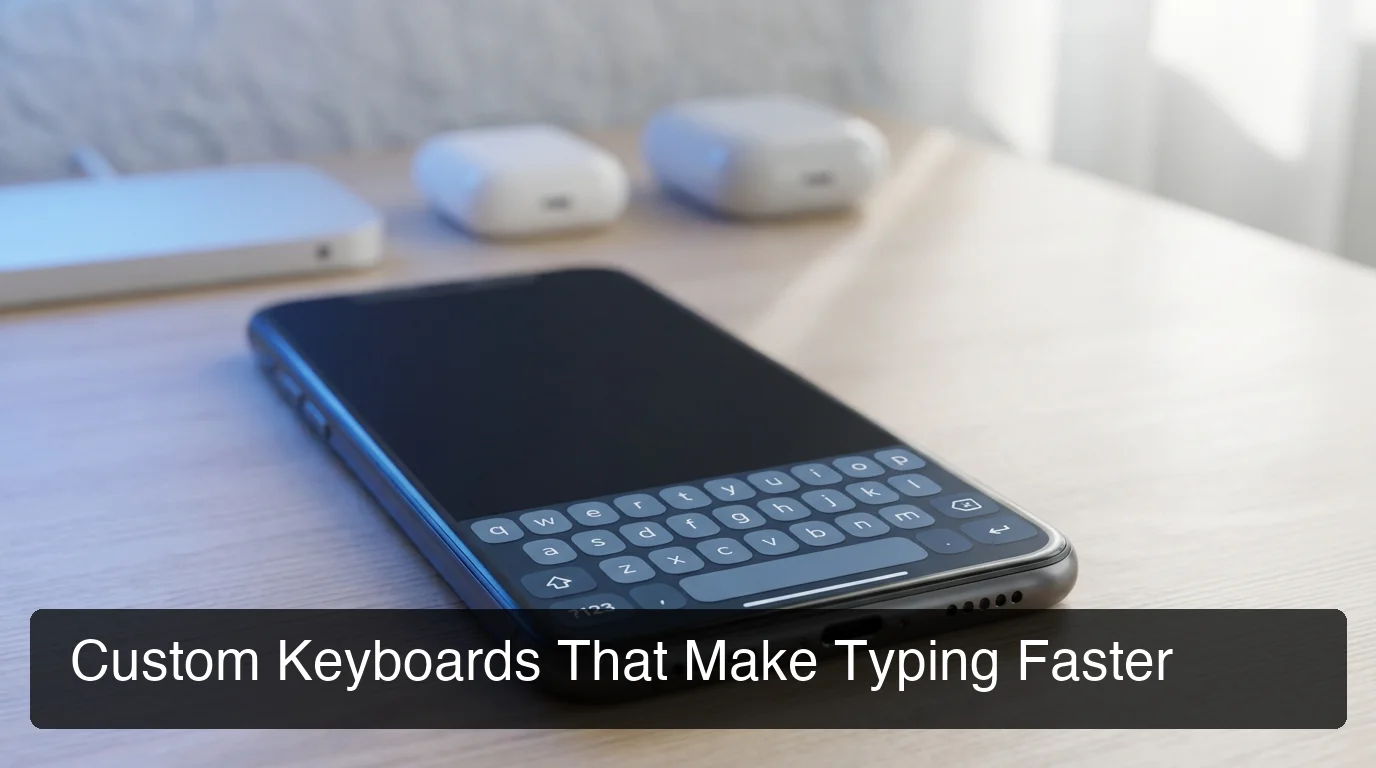
Custom Keyboard iOS: Top Features & Setup
Most iPhone users never change their keyboard. They stick with Apple's default, unaware that a custom keyboard iOS extension could cut their typing time in half.
Key Takeaways
- Custom keyboards on iOS unlock productivity features unavailable in the stock keyboard — including AI dictation, text shortcuts, emoji search, and one-tap rewrite
- Third-party keyboards require a one-time setup in iOS Settings — the process takes under two minutes
- AI keyboards like BossAI transcribe your voice in real time, remove filler words, and can read your screen to write contextual replies without copy-pasting
- Custom keyboards work across every app on your iPhone — email, messaging, social media, notes, and document editors
- Popular iOS keyboard features include clipboard managers, emoji/GIF search, custom themes, and voice dictation smarter than Apple's built-in tools
Contents
- What Is a Custom Keyboard on iOS?
- How Do Custom Keyboard iOS Extensions Work?
- Can You Change Your Default Keyboard on iOS?
- How Do You Enable Third-Party Keyboards on iOS?
- What Are the Benefits of Using a Custom Keyboard on iPhone?
- Which Custom Keyboard iOS Apps Offer AI-Powered Features?
- What Makes an AI Keyboard Different?
- How Do Custom iOS Keyboards Handle Privacy and Data?
- Get Started with BossAI
- Frequently Asked Questions
What Is a Custom Keyboard on iOS?
A custom keyboard on iOS is a third-party keyboard extension that replaces or supplements Apple's stock QuickType keyboard. Custom keyboards run inside every app on your iPhone — from iMessage to Gmail to Instagram — and can add features Apple never built in, like AI dictation, emoji search, text shortcuts, and clipboard managers.
iOS has supported third-party keyboards since iOS 8, but most users have never switched. Apple doesn't advertise the feature prominently, and the setup isn't automatic. Once enabled, your chosen keyboard becomes the active default — it appears every time you tap a text field in any app.
The key distinction: a custom keyboard is an extension, not a separate app you have to open. It lives inside iOS itself, activating automatically whenever you need to type.
How Do Custom Keyboard iOS Extensions Work?
Custom keyboards on iPhone use Apple's Keyboard Extension API to run inside the iOS keyboard slot. When you tap any text field, iOS loads your chosen keyboard instead of Apple's default. The keyboard can access the internet, process your voice, or run AI models — depending on what the developer built.
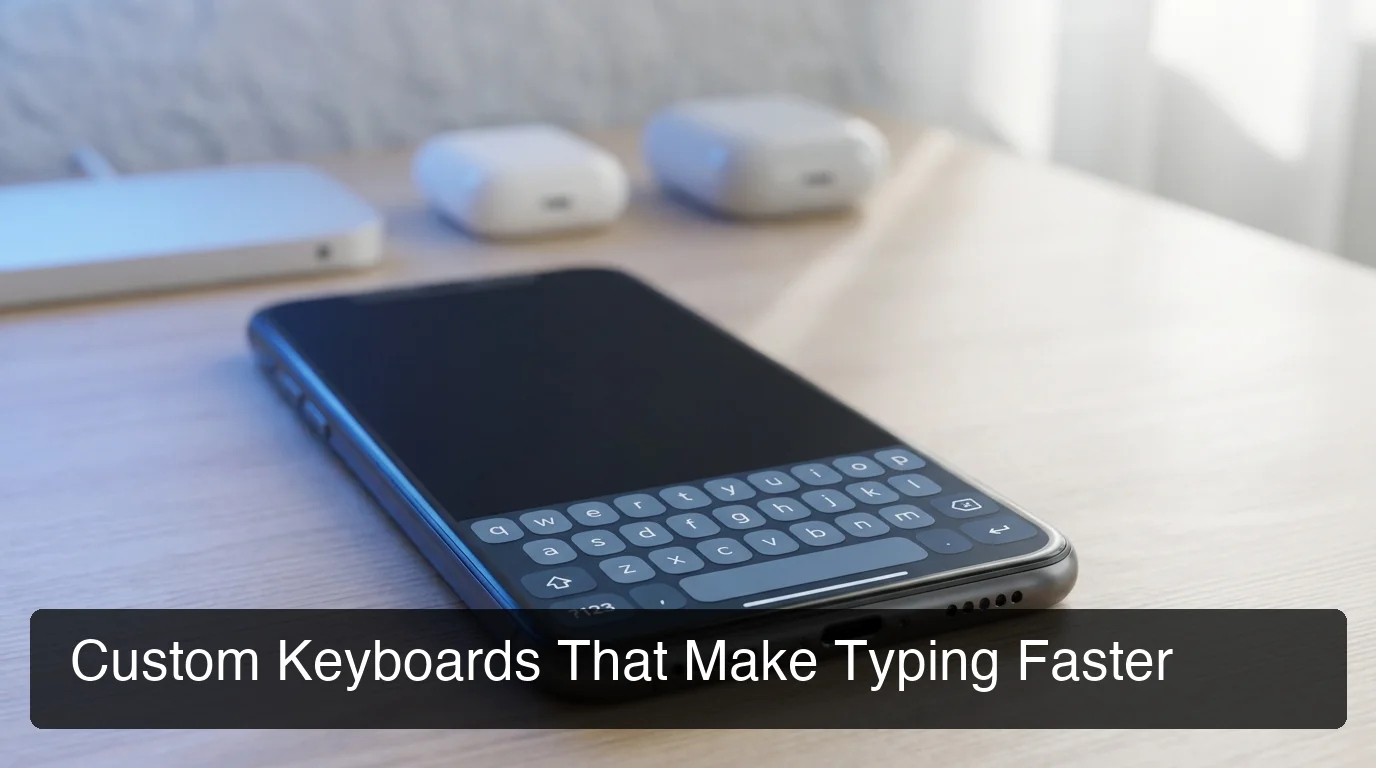 iOS custom keyboards replace the default typing experience across every app on your phone.
Apple controls what extensions can access. By default, third-party keyboards don't have internet access unless you grant "Full Access" — a permission developers must request separately. Full Access enables features like AI processing, cloud sync, and real-time suggestions.
Key insight: Full Access doesn't mean a keyboard can read your passwords. iOS automatically prevents keyboard extensions from activating in secure text fields — password inputs, banking apps, and Face ID prompts all revert to the Apple keyboard.
Can You Change Your Default Keyboard on iOS?
Yes — iOS lets you install and switch between multiple keyboards. Apple doesn't expose a one-tap "set as default" toggle, but once you install a custom keyboard and switch to it via the globe icon (🌐), most users naturally stop going back to the stock keyboard within a few days.
Apple's approach is additive: you add keyboards rather than replace them. The globe icon cycles through all installed keyboards. Once you switch to your preferred custom keyboard in any app, it stays selected until you manually switch again.
Some third-party keyboards display a "Set as Default" prompt after installation — this is a reminder to use the globe icon, not a system-level change. Knowing this removes one of the biggest friction points for new users.
How Do You Enable Third-Party Keyboards on iOS?
To enable a custom keyboard on iOS: (1) Download the keyboard app from the App Store, (2) go to Settings → General → Keyboard → Keyboards → Add New Keyboard, (3) select it from the list. Use the globe icon in any text field to switch. For AI features, enable Full Access when prompted.
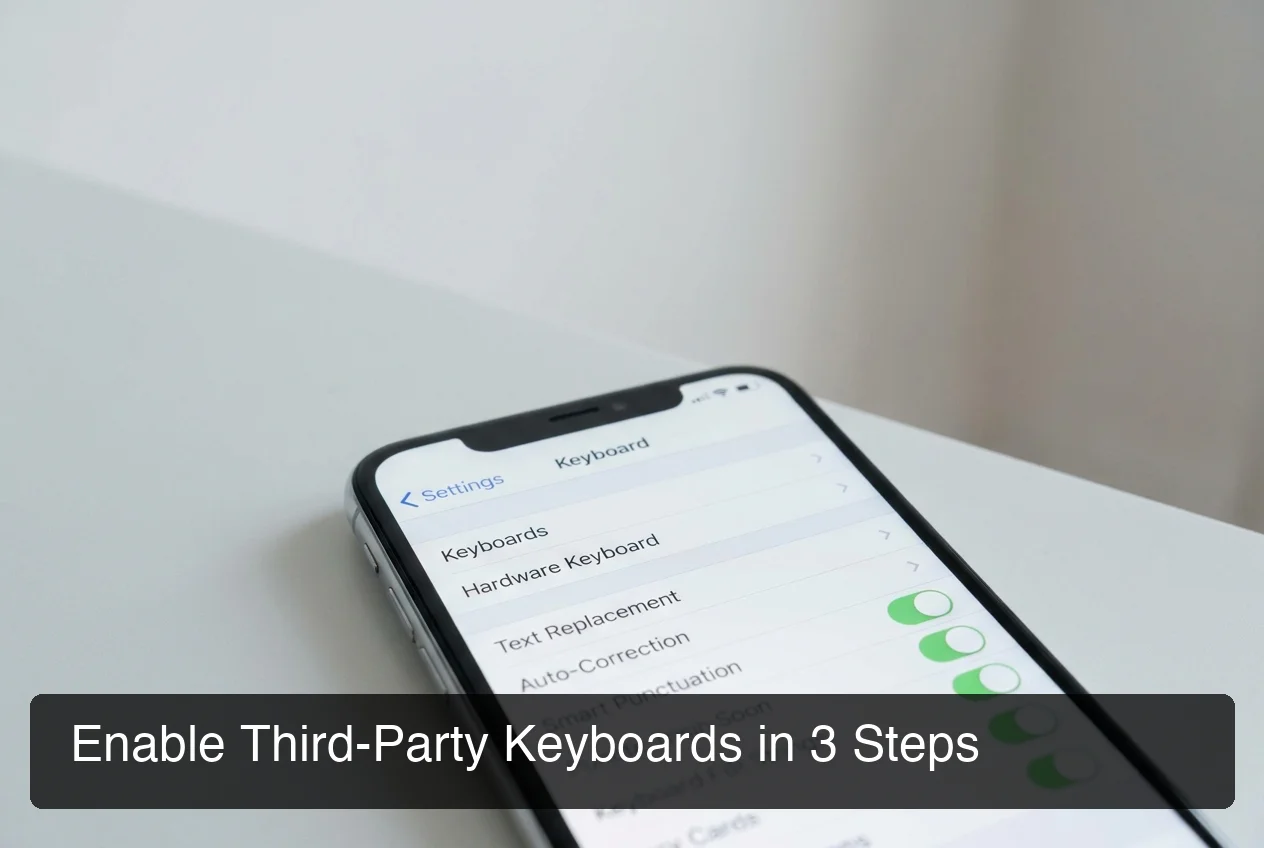 Enable any third-party keyboard in three taps inside iOS Settings.
Here's the complete setup process:
- Download the keyboard app from the App Store (BossAI, Gboard, SwiftKey, or another)
- Open Settings → Tap General → Tap Keyboard → Tap Keyboards
- Tap "Add New Keyboard" → Locate your keyboard → Tap to add it
- Expand its settings → Enable "Allow Full Access" if the app requires it for AI features
- Open any app (Messages, Gmail, Notes) → Tap a text field → Tap 🌐 to switch keyboards
By the numbers: iOS users who switch to a custom AI keyboard save an average of 15–20 minutes per day on message and email composition — up to 90 hours per year.
What Are the Benefits of Using a Custom Keyboard on iPhone?
Custom keyboards on iPhone unlock features that Apple's stock QuickType doesn't offer: AI-powered dictation, text expansion shortcuts, emoji/GIF search, clipboard managers, custom themes, and one-tap tone rewriting. For heavy iPhone typists, switching to a capable custom keyboard is one of the highest-ROI phone changes you can make.
 Custom keyboards add entire feature layers that the stock iOS keyboard simply doesn't include.
The most valuable benefits break down by use case:
For speed and efficiency:
- Text shortcuts that auto-expand ("addr" → your full address)
- Clipboard managers with multi-item snippet history
- One-tap quick replies for common responses
For communication quality:
- AI-powered grammar correction and filler word removal
- Tone rewriting (rephrase as professional, casual, witty, persuasive, empathetic, or bold with one tap)
- Multi-language support with automatic detection
For accessibility:
- Voice dictation with AI enhancement — significantly better than built-in Apple Dictation
- One-handed keyboard mode for comfortable single-hand use
- Customizable layouts for users with physical limitations
Here's how top custom iOS keyboards compare on key features:
| Feature | Apple QuickType | Gboard | SwiftKey | BossAI |
|---|---|---|---|---|
| AI dictation | Basic | No | No | ✅ Advanced |
| Filler word removal | ❌ | ❌ | ❌ | ✅ |
| Emoji/GIF search | Limited | ✅ | ✅ | ✅ |
| Text shortcuts/Clips | ❌ | ❌ | ❌ | ✅ (Clips) |
| Tone rewriting | ❌ | ❌ | ❌ | ✅ (6 tones) |
| Screen-context replies | ❌ | ❌ | ❌ | ✅ (Boss Mode) |
| Custom themes | Basic | ✅ | ✅ | ✅ |
| Price | Free | Free | Free | Free / $9.99/mo |
For professionals managing heavy messaging loads, the productivity gap between Apple's stock keyboard and a capable custom keyboard is significant. A deeper look at the best third-party keyboard options for iPhone shows where these feature gaps translate into real daily time savings.
Which Custom Keyboard iOS Apps Offer AI-Powered Features?
The leading AI custom keyboards for iOS are BossAI, Gboard, and SwiftKey — each taking a different approach. Gboard focuses on search integration and emoji prediction. SwiftKey emphasizes personalized autocorrect. BossAI leads with voice dictation, filler removal, screen-context awareness, and one-tap tone rewriting — features no competitor keyboard combines in one interface.
Here's the AI feature breakdown for top custom keyboards:
- Gboard — Google's keyboard excels at emoji, GIF, and image search. AI features include next-word prediction and Google Search integration. No dedicated voice dictation mode.
- SwiftKey — Microsoft's keyboard learns your writing style across devices. Strong autocorrect and multi-language support. No AI voice dictation.
- Typewise — Privacy-focused with hexagonal key layout. Limited AI feature set overall.
- BossAI — The only iOS keyboard combining real-time AI dictation, filler removal, screen reading (Boss Mode), one-tap rewrite with 6 tones, and a Clips snippet manager in one place.
For a comprehensive comparison of the best keyboard apps for iPhone, these AI distinctions drive the biggest differences in real-world value for power users.
Worth noting: BossAI's Clips feature acts as a keyboard-native clipboard manager, storing your frequently used snippets for one-tap insertion — a feature that connects naturally with the growing category of clipboard manager tools for iOS emerging for power users.
 BossAI combines AI dictation, screen-reading, and tone rewriting inside a single iOS keyboard.
What Makes an AI Keyboard Different?
An AI keyboard goes beyond autocorrect. It uses large language models to transcribe speech in real time, remove filler words, rewrite text in different tones, and — in BossAI's case — read your screen to generate contextually accurate replies. The result is a keyboard that writes with you, not just for you.
Standard keyboards predict your next word. AI keyboards handle complete sentences, manage voice input, and adapt their output based on what you're writing and where.
How BossAI Transforms iOS Typing
BossAI is built around three capabilities no standard or AI-lite keyboard offers:
1. Voice dictation with AI enhancement — Tap the microphone, speak naturally, and BossAI transcribes in real time while removing filler sounds (um, uh, like, you know) and correcting grammar. Polished text appears in ~300ms after you stop speaking.
2. Boss Mode — Screen Context Awareness — Tap "Boss" and BossAI captures your current screen, reads the email or message you're responding to, and drafts a contextual reply. No copy-pasting. No explaining what's on screen to an AI chatbot. It just sees it and responds.
3. One-Tap Rewrite with Tone Selection — Select any text and tap a tone: Professional, Casual, Witty, Persuasive, Empathetic, or Bold. Your text rewrites instantly — no voice commands, no typing instructions.
Bottom line: BossAI is the only iOS keyboard that combines dictation + screen reading + tone rewriting in a single interface. Competitors like Gboard and SwiftKey handle autocorrect well. BossAI handles entire conversations.
For writers, salespeople, and founders who type heavily on iPhone, BossAI eliminates the friction between thinking something and having it written correctly. The BossAI for iPhone guide covers the full keyboard experience in detail, including setup tips for new users.
How Do Custom iOS Keyboards Handle Privacy and Data?
Custom iOS keyboards that request "Full Access" can send keystroke data to their servers — but Apple prevents keyboards from activating in password fields. Reputable keyboards disclose their data practices. BossAI processes voice input securely without storing raw audio recordings and does not log keystrokes.
This is the most common concern before switching keyboards. Here's what actually happens:
Without Full Access: The keyboard works offline. No data leaves your device. Limited features — no cloud AI, no sync, no real-time suggestions.
With Full Access: The keyboard can send data to external servers, enabling AI features. This requires trusting the developer. Always review the app's privacy policy before granting access.
Apple's Built-In Protections
- Keyboard extensions cannot access password fields — iOS blocks them automatically
- Sensitive inputs (credit card numbers, Face ID, secure notes) also revert to the Apple keyboard
- You can revoke Full Access at any time in Settings → General → Keyboard
For AI keyboards processing voice, data handling mirrors Siri or any cloud voice service. BossAI's approach: voice is processed in real time and immediately discarded — no audio recordings are stored on their servers.
Key insight: The security risk of custom keyboards is frequently overstated. Apple's Keyboard Extension API has strong sandboxing. The real question is whether you trust the specific company — read their privacy policy before granting Full Access.
If privacy permissions are a concern, the complete guide to custom keyboard iPhone settings explains what each permission actually means in plain language, without the technical jargon.
Get Started with BossAI
If you type on your iPhone for more than 30 minutes a day, a custom AI keyboard pays for itself in time saved within the first week. BossAI combines real-time voice dictation, AI grammar correction, Boss Mode screen reading, and one-tap tone rewriting — all inside your iOS keyboard, with no app switching required.
Not ready yet? Get Our AI Productivity Guide — free tips on working faster with AI on your iPhone.
Frequently Asked Questions
Can you get custom keyboards on iOS? Yes. iOS has supported third-party keyboards since iOS 8. Download any keyboard from the App Store, enable it in Settings → General → Keyboard → Keyboards, and switch using the globe icon (🌐) in any text field. Thousands of custom keyboards are available, from Gboard to AI-powered options like BossAI.
What is BossAI? BossAI is an AI voice keyboard for iPhone and Android, and a voice-to-text app for Mac and Windows, that replaces typing with voice dictation. It transcribes speech in real time, removes filler words automatically, rewrites text in different tones with one tap, and includes Boss Mode — a screen-reading feature that reads your screen to generate contextual replies without copy-pasting.
Is BossAI free? Yes. BossAI's free plan includes 500 words of dictation a day, and the allowance resets daily. Pro makes everything unlimited — dictation, Boss Mode, Rewrite, every tone and all Clips, for $9.99/month or $69.99/year. No credit card required to start.
What platforms does BossAI support? BossAI is available on iOS (App Store), Android (Google Play), macOS (App Store and direct download), and Windows (Microsoft Store) — full cross-platform coverage. On iOS and Android it works as a full keyboard replacement with the same features, so you can dictate in any app without switching — and on iPhone you can start dictating instantly from the Action Button or with Back Tap.
How do you type special characters using a custom iOS keyboard? Most custom keyboards include long-press character options — hold a letter key to reveal accented variants or symbols. Keyboards like Gboard and BossAI also include dedicated emoji and symbol panels. You can temporarily switch to the Apple keyboard via the globe icon for any character it supports natively.
Do custom keyboards slow down an iPhone? No. Custom keyboards are lightweight extensions that use minimal system resources. AI keyboards may require a brief network call to process voice input (typically under 300ms), but normal typed input is instant. Sluggish performance indicates a poorly optimized app — not a platform limitation.
Is it safe to use third-party keyboards near sensitive passwords? Yes. iOS automatically prevents keyboard extensions from appearing in password fields and other secure inputs. You'll see the default Apple keyboard activate in those situations, regardless of which custom keyboard you have enabled.