Custom Keyboard iPhone: Best Apps & Setup Guide 2026
Your iPhone's default keyboard is fine. But "fine" isn't the same as fast, comfortable, or yours — and in 2026, custom keyboard iphone options have never been more powerful.
Key Takeaways
- Custom keyboards on iPhone let you change themes, add shortcuts, and unlock AI-powered features far beyond Apple's default keyboard.
- Top options like Gboard, SwiftKey, and Kika offer different strengths: Google's AI, Microsoft's adaptive learning, and Kika's 9,000+ themes — all free to install.
- You can customize nearly every aspect — swipe gestures, emoji placement, color themes — without jailbreaking your iPhone.
- Custom keyboards work best when paired with voice dictation: speak to compose, customize how text appears.
- The custom keyboard + voice input combo cuts typing time by 40–60% for emails, messages, and longer mobile text.
Contents
- What Is a Custom Keyboard iPhone?
- How Do You Add a Custom Keyboard on iPhone?
- Can You Customize the Default iOS Keyboard Without Third-Party Apps?
- Which Custom Keyboard iPhone Apps Are Best in 2026?
- What Are the Top Custom Keyboard Features That Matter Most?
- How Do Custom Keyboards Improve Typing Speed and Accuracy?
- How Can Custom Keyboards Pair with Voice Dictation for Faster Typing?
- Do Custom Keyboard Apps Drain Battery or Affect Privacy?
- Get Started with BossAI
- Frequently Asked Questions
What Is a Custom Keyboard iPhone?
A custom keyboard for iPhone is a third-party keyboard app installed from the App Store that replaces or supplements Apple's default QuickType keyboard. Custom keyboards add themes, AI suggestions, swipe-to-type, GIF search, voice dictation, and text shortcuts — extending your iPhone typing experience far beyond what Apple ships by default.
iOS has supported third-party keyboards since iOS 8, giving users full control over their primary input method. Unlike Android, iOS keyboards run as sandboxed extensions — they only access what you explicitly allow — which keeps your text secure.
Custom keyboards fall into two broad categories:
- Theme-focused — Change colors, fonts, key shapes, and backgrounds
- Feature-focused — Add AI suggestions, voice input, GIF search, clipboard tools, and productivity shortcuts
Most top apps combine both: Gboard is feature-first with basic customization, while Kika is theme-first with solid feature depth.
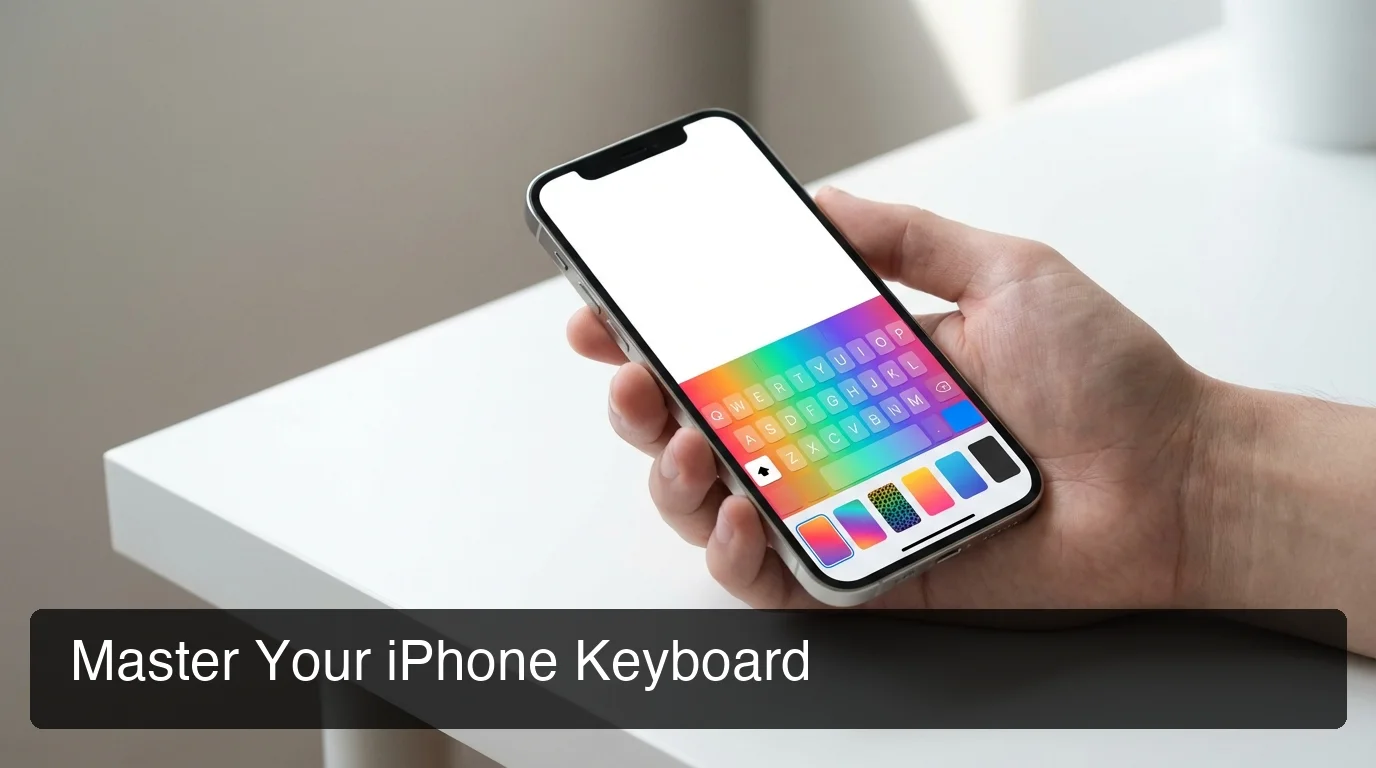 The right custom keyboard matches your workflow — not just your aesthetic.
How Do You Add a Custom Keyboard on iPhone?
To add a custom keyboard on iPhone: install any keyboard app from the App Store, go to Settings → General → Keyboard → Keyboards → Add New Keyboard, select the app, and grant Full Access if needed. The keyboard is now available globally — switch to it during typing by holding the globe icon on your current keyboard.
Here's the step-by-step:
- Download a keyboard app from the App Store (Gboard, SwiftKey, BossAI, Kika, etc.)
- Open Settings → General → Keyboard → Keyboards
- Tap Add New Keyboard
- Find your app in the Third-Party Keyboards list and tap it
- Toggle Allow Full Access if the keyboard requires it (needed for AI features, cloud sync, and voice dictation)
- While typing in any app, hold the globe icon (bottom-left) to switch keyboards
Key insight: "Full Access" enables internet connectivity for the keyboard — it powers AI suggestions, GIF search, and voice transcription. Reputable apps like BossAI process data in real time without storing it, so the permission is safer than it sounds.
To remove a keyboard: Settings → General → Keyboard → Keyboards, swipe left on the keyboard, and tap Delete. The app stays installed; you've only removed it from the active keyboards list.
Can You Customize the Default iOS Keyboard Without Third-Party Apps?
Yes — Apple's built-in QuickType keyboard supports limited customization without any third-party app. You can enable one-handed mode, add text replacements, switch keyboard language and layout, and toggle autocorrect and predictive text. For themes, colors, AI suggestions, and advanced shortcuts, a third-party keyboard is required.
Apple's native customization options include:
- Text Replacement — Type "omw" → auto-expands to "On my way!" (Settings → General → Keyboard → Text Replacement)
- One-handed keyboard — Shift the layout left or right for thumb comfort
- Language keyboards — Add QWERTY, AZERTY, Dvorak, or international layouts
- Autocorrect and autocapitalization — Toggle via Settings → General → Keyboard
What Apple doesn't let you change natively: key colors, fonts, background images, swipe-to-type patterns, or AI-powered suggestions that learn your vocabulary. For those, you need a third-party app.
For a deeper look at everything third-party keyboards add, see our complete guide to the best keyboard apps for iPhone.
Which Custom Keyboard iPhone Apps Are Best in 2026?
The top custom keyboard iPhone apps in 2026 are Gboard (best AI and Google integration), Microsoft SwiftKey (best adaptive learning), and Kika (best themes with 9,000+ options). For AI voice dictation, BossAI works as a full iOS custom keyboard with built-in filler-removal, tone rewriting, and screen-context commands.
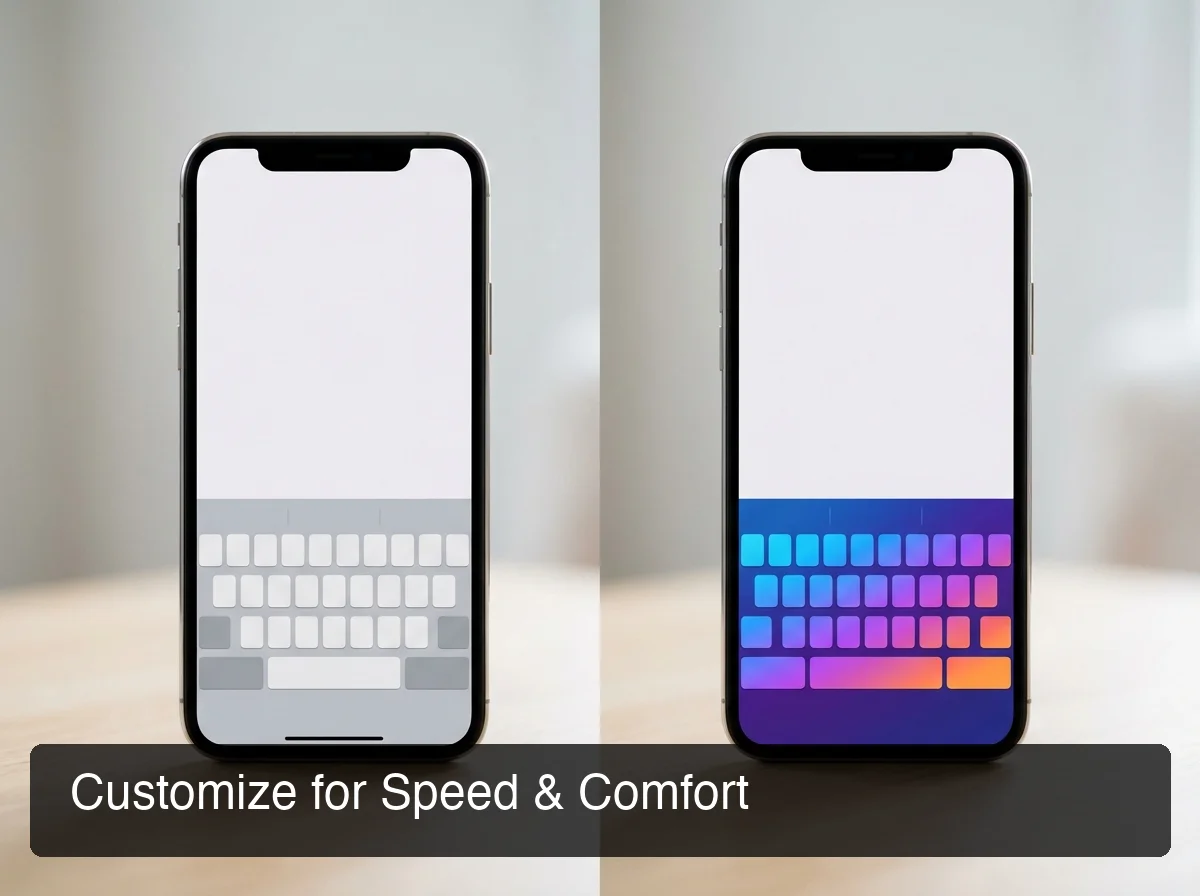 Different apps serve different needs — pick the one that fits your typing style.
| Keyboard | Best For | Key Features | Price |
|---|---|---|---|
| Gboard | AI suggestions + Google integration | Emoji search, GIF search, Google Translate, voice typing | Free |
| SwiftKey | Adaptive predictions | Learns your writing style, clipboard sync, multi-language | Free |
| Kika | Themes and aesthetics | 9,000+ themes, emoji arts, custom fonts, kaomoji, stickers | Free + Pro |
| BossAI | AI dictation + productivity | Voice-to-text, filler removal, Boss Mode, Clips, tone rewriting | Free + Pro |
| Custom Keyboard Themes & Fonts | Visual customization | Backgrounds, button shapes, sound effects | Free + IAP |
By the numbers: Kika has 303,000+ App Store reviews with a 4.6-star rating — making it the most-reviewed custom keyboard app in the iOS App Store as of 2026.
Each keyboard wins in a different context. Gboard wins on search integration; SwiftKey wins on prediction accuracy over time; Kika wins on visual customization; BossAI wins on voice-powered text creation.
For a full feature-by-feature breakdown across every major option, see our complete guide to third-party keyboards for iPhone.
What Are the Top Custom Keyboard Features That Matter Most?
The features that drive the biggest typing speed gains are swipe-to-type, AI-powered next-word prediction, voice dictation, and customizable shortcuts. Visual themes improve comfort and reduce eye strain — but speed and accuracy features deliver the measurable productivity wins that make custom keyboards worth switching to.
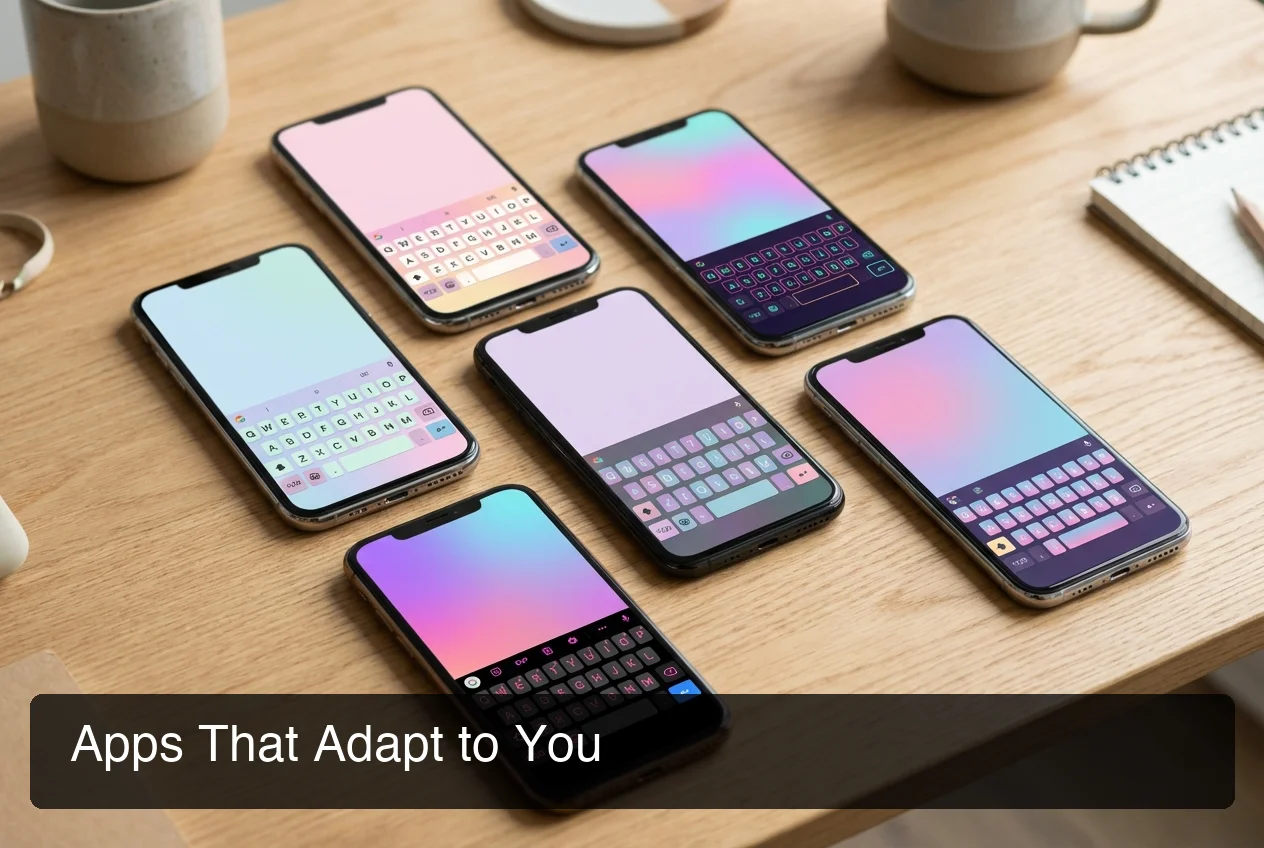 Speed-first features like swipe typing and voice input outperform visual themes for productivity.
Swipe Typing (Gesture Input)
Gboard and SwiftKey both support swipe typing — you drag your finger between keys to trace words instead of tapping each letter. Swipe typing averages 30–40 WPM compared to 20–25 WPM for tap typing on mobile. It's the single biggest native speed improvement without adding external tools.
AI Predictions and Autocorrect
Modern keyboard AI doesn't just guess your next word — it learns your vocabulary, writing style, and common phrases. SwiftKey's predictions improve measurably after a week of use. Gboard leverages Google's language models for context-aware suggestions across search queries, emojis, and text.
Shortcuts and Text Expansion
Text replacement lets you type a short code that expands into a long phrase. Native iOS supports this natively, but apps like BossAI take it further with Clips — a built-in snippet tray accessible directly from the keyboard that stores email signatures, frequently used links, addresses, and standard replies for one-tap insertion without leaving the current app.
Voice Dictation
The highest-leverage custom keyboard feature for mobile is voice-to-text. Speaking is 3–4x faster than typing on a touchscreen. Combined with AI that removes filler words and corrects grammar in real time, voice dictation is the fastest way to compose on iPhone — period.
How Do Custom Keyboards Improve Typing Speed and Accuracy?
Custom keyboards improve typing speed through three mechanisms: swipe-to-type reduces tap count by 60–70% per word; adaptive AI prediction reduces keystrokes by completing phrases; and voice dictation eliminates the keyboard entirely for long-form content. Power users who combine all three cut mobile typing time by 40–50% compared to tap-only input.
Accuracy gains come from personalized learning. Generic autocorrect consistently fails on names, technical terms, and industry jargon. Custom keyboards with user-defined dictionaries — SwiftKey, BossAI — learn your vocabulary and stop "correcting" the words you actually mean.
Bottom line: The default iOS keyboard is designed for the average user. Custom keyboards are designed for your habits — and the difference shows up in how rarely you hit backspace.
For a deeper look at how voice input supercharges mobile typing, see our guide on the best voice keyboard for iPhone.
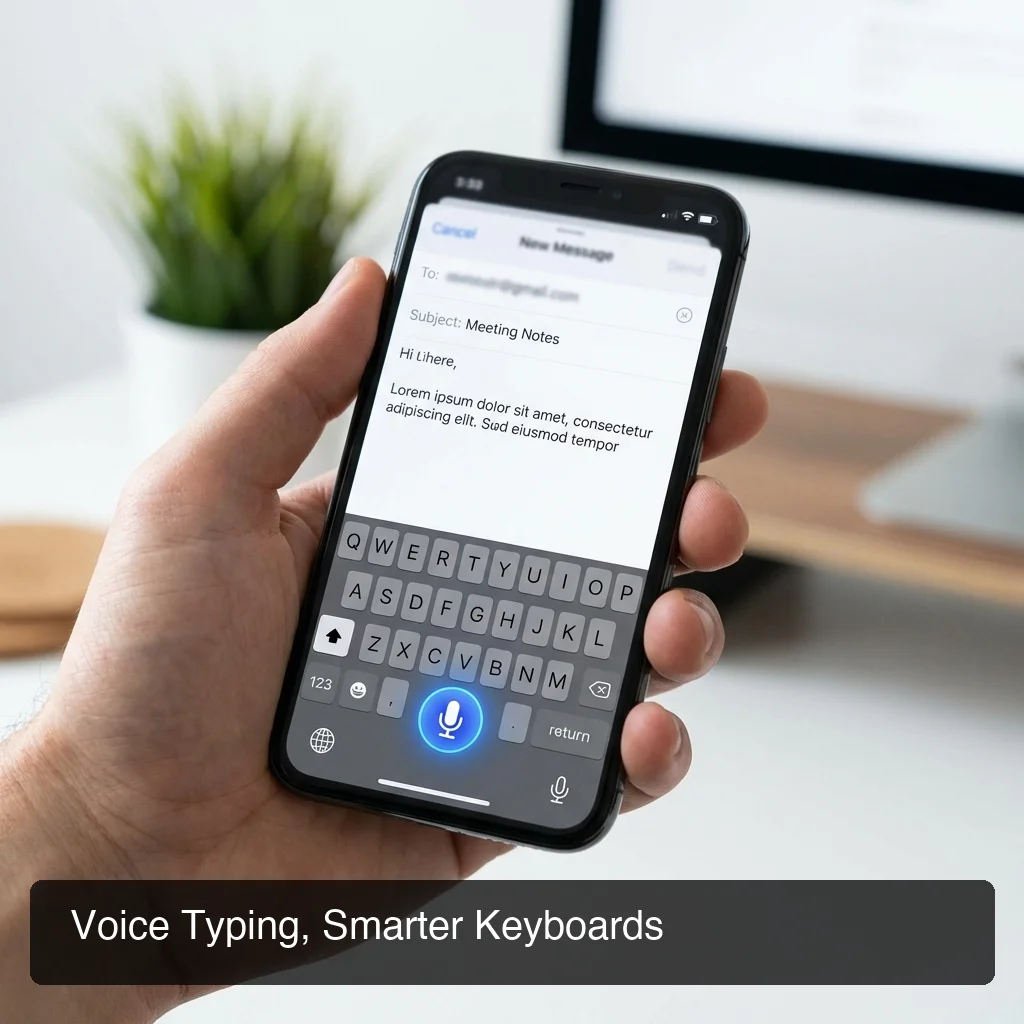 Voice typing paired with a custom keyboard eliminates thumb fatigue for long-form mobile composition.
How Can Custom Keyboards Pair with Voice Dictation for Faster Typing?
Custom keyboards and voice dictation work best together: the keyboard handles short, precise inputs — names, numbers, quick edits — while voice dictation handles long-form composition. This combination eliminates the two biggest mobile typing bottlenecks — slow tap speed and constant error correction — and cuts composition time by 40–60% for emails and messages.
This is where BossAI — an AI keyboard app — is purpose-built. BossAI works as a full iOS custom keyboard with a built-in microphone button. You speak naturally, and BossAI:
- Transcribes your words in real time
- Removes filler words (um, uh, like, you know) automatically
- Fixes grammar and adds punctuation
- Adjusts formatting based on the app you're in (email vs. chat vs. notes)
What Is Boss Mode?
Boss Mode is BossAI's screen-reading feature. Activate it from the keyboard, and BossAI reads your current screen — the email you're responding to, the Slack thread you're in, the LinkedIn post you're viewing — and generates a full, contextually aware reply. No copy-pasting, no app switching, no prompting required.
This pairs naturally with custom keyboard use: pick your preferred keyboard for comfort and aesthetics, then use BossAI's voice layer to compose faster than any thumb-typist ever could.
Setting up voice-to-text in iOS takes under 2 minutes — see our complete setup guide for voice to text on iPhone to get started.
Key insight: No other dictation app reads your screen. Boss Mode is the only feature in the keyboard category that generates contextual replies without copy-pasting — a genuine, defensible differentiator in 2026.
Do Custom Keyboard Apps Drain Battery or Affect Privacy?
Custom keyboard apps have minimal battery impact — typically less than 1% per day, since keyboards only run as active extensions when you're typing, not as background processes. The bigger consideration is privacy: keyboards with "Full Access" can theoretically log keystrokes, so choosing apps with explicit no-log policies (like Gboard, SwiftKey, and BossAI) is essential.
Battery Impact
Third-party keyboards run as extensions that activate only when the keyboard is open. The battery draw is negligible compared to video playback, maps, or LTE. Animated or video-heavy keyboard themes (common in Kika) use slightly more power — comparable to a bright wallpaper.
Privacy Considerations
Full Access is required for: Cloud sync, AI predictions, GIF search, voice dictation, and any feature requiring network connectivity.
Full Access is NOT required for: Offline themes, local text replacement, basic swipe typing.
If privacy is a priority:
- Disable Full Access and use offline-only features
- Choose keyboards with explicit no-log policies and clear privacy practices
- BossAI's policy: no voice or text data is stored; processing is real-time and immediately discarded
Bottom line: "Full Access" sounds alarming but is technically required for any internet-connected keyboard feature. The risk depends entirely on the app's data practices — not the permission level itself. Read the privacy policy before granting access.
Get Started with BossAI
Custom keyboards give you the look, feel, and shortcuts you want. BossAI adds everything else — AI dictation that removes filler words, one-tap rewriting in six tones, a Clips tray for instant text insertion, and Boss Mode that reads your screen to compose contextual replies without copy-pasting.
Not ready to try it yet? Get Our AI Productivity Guide — free tips on working faster with AI.
Frequently Asked Questions
What is a custom keyboard for iPhone?
A custom keyboard for iPhone is a third-party keyboard app from the App Store that replaces Apple's default QuickType keyboard. Custom keyboards add themes, swipe-to-type, AI suggestions, voice dictation, emoji search, GIF access, and text shortcuts — features the default iOS keyboard doesn't support. They've been available since iOS 8.
Can you use a custom keyboard on any iPhone app?
Yes. Once enabled in Settings → General → Keyboard → Keyboards, custom keyboards work in any app that accepts text input — Messages, Mail, WhatsApp, Slack, Instagram, browsers, and more. Switch keyboards during typing by holding the globe icon on the bottom-left of the keyboard.
What is BossAI?
BossAI is an AI voice keyboard for iPhone and Android, and a voice-to-text app for Mac and Windows, that replaces typing with voice dictation. It transcribes speech in real time, removes filler words automatically, rewrites text in different tones with one tap, and includes Boss Mode — a screen-reading feature that reads your screen to generate contextual replies without copy-pasting.
Is BossAI free?
Yes. BossAI's free plan includes 500 words of dictation a day, and the allowance resets daily. Pro makes everything unlimited — dictation, Boss Mode, Rewrite, every tone and all Clips, for $9.99/month or $69.99/year. No credit card required to start.
Do custom keyboards work with iPhone's autocorrect?
Third-party keyboards replace the default keyboard entirely, including Apple's autocorrect engine. Each app has its own autocorrect system. SwiftKey and Gboard are consistently rated higher than Apple's native autocorrect for English, and both improve with use as they learn your personal writing style over time.
Which custom keyboard is best for iPhone themes?
Kika Keyboard leads for theme variety with 9,000+ themes, custom backgrounds, sound effects, and font options — all with a 4.6-star App Store rating from over 303,000 reviews. Custom Keyboard Themes & Fonts is another strong option for purely visual customization. Both are free to download with optional paid theme packs.
How do I remove a custom keyboard from my iPhone?
Go to Settings → General → Keyboard → Keyboards, find the keyboard you want to remove, swipe left on it, and tap Delete. This removes it from your active keyboards list — the app itself stays installed. To delete the app entirely, long-press it on your home screen and select Remove App.