Best Keyboard App for iPhone in 2026: Complete Guide
Choosing the right keyboard app for iPhone is the easiest upgrade most iOS users overlook. Third-party keyboards unlock swipe typing, AI dictation, and smart composition features that Apple's built-in keyboard simply doesn't offer — and switching takes under two minutes.
Key Takeaways
- Third-party keyboard apps for iPhone deliver faster typing speeds and AI-powered features unavailable in Apple's native keyboard, including swipe input, voice dictation, and smart tone rewriting.
- Top contenders include Gboard (best for Google integration), SwiftKey (best for predictive text), Fleksy (best for speed customization), and BossAI (best for AI dictation and voice composition).
- Security matters: always review what data permissions a keyboard app requests — keyboards have access to everything you type, including passwords and personal data.
- Voice dictation keyboards are the fastest-growing keyboard category, with AI-enhanced tools removing filler words, correcting grammar, and writing contextual replies in real time.
Contents
- What Are the Best Keyboard Apps for iPhone?
- How Does a Third-Party Keyboard App Work on iPhone?
- Which Keyboard App is Best for Typing Speed on iPhone?
- Can I Customize My iPhone Keyboard App with Themes and Layouts?
- How Secure Are Third-Party Keyboard Apps for iPhone?
- What Features Should You Look for in a Keyboard App for iPhone?
- How Much Does a Premium Keyboard App for iPhone Cost?
- Which Keyboard App Integrates Best with Dictation on iPhone?
- Get Started with BossAI
- Frequently Asked Questions
 The best keyboard apps for iPhone in 2026 go far beyond autocorrect — from swipe typing to AI dictation.
What Are the Best Keyboard Apps for iPhone?
The best keyboard apps for iPhone in 2026 are Gboard, Microsoft SwiftKey, Fleksy, and BossAI. Gboard leads on Google integration and GIF search, SwiftKey wins for predictive text and multilingual support, Fleksy delivers the most customizable typing gestures, and BossAI is the only iPhone keyboard with AI-enhanced voice dictation and screen-context awareness.
Here's how the top options compare at a glance:
| App | Best For | Free Tier | AI Features |
|---|---|---|---|
| Gboard | Google integration, GIFs | Fully free | Smart compose, translation |
| Microsoft SwiftKey | Predictive text, multilingual | Fully free | Copilot integration |
| Fleksy | Speed, customization | Base features free | Limited |
| Typewise | Offline, privacy | Limited free tier | Basic autocorrect |
| BossAI | Voice dictation, AI composition | 500 words/day | AI dictation, Boss Mode, Rewrite |
For pure typing speed, Gboard and SwiftKey dominate through swipe input and sentence-level prediction. For AI-assisted writing, BossAI occupies a category of its own — it's a keyboard that composes, not just types.
Key insight: The "best" keyboard app for iPhone depends entirely on your primary use case — speed, privacy, customization, or AI writing assistance. Choose based on your workflow, not app store ratings alone.
How to Enable a Third-Party Keyboard App on iPhone
Downloading a keyboard app from the App Store doesn't activate it. After installation, go to Settings → General → Keyboard → Keyboards → Add New Keyboard and select your app. For AI features and dictation, tap the keyboard name and toggle Allow Full Access — this grants network connectivity the app needs to function.
How Does a Third-Party Keyboard App Work on iPhone?
A third-party keyboard app for iPhone replaces the built-in Apple keyboard using iOS's keyboard extension API. Once enabled in Settings, the app intercepts keystrokes inside a sandboxed process across every app on your device — email, messages, social media, documents — without requiring you to switch away from your current context.
Apple introduced third-party keyboard support in iOS 8. Since then, developers have built keyboards with swipe typing, AI prediction, multilingual dictation, GIF search, and screen-aware composition — all within the familiar keyboard interface.
The key trade-off is "Allow Full Access." Without it, third-party keyboards run in restricted mode with no internet access — no cloud AI, no GIF search, no voice dictation processing. Every AI-powered keyboard requires full access to function.
For a deeper look at how voice keyboards work on iPhone, our complete guide to voice keyboard for iPhone covers setup, dictation accuracy, and advanced use cases.
Which Keyboard App is Best for Typing Speed on iPhone?
For raw typing speed on iPhone, Gboard and SwiftKey lead the field. Both support swipe (gesture) typing — dragging one finger continuously across letters instead of tapping each one. Trained users consistently reach 50–70 WPM on mobile. Fleksy adds adjustable gesture sensitivity for fine-tuned speed optimization beyond what Google or Microsoft offers.
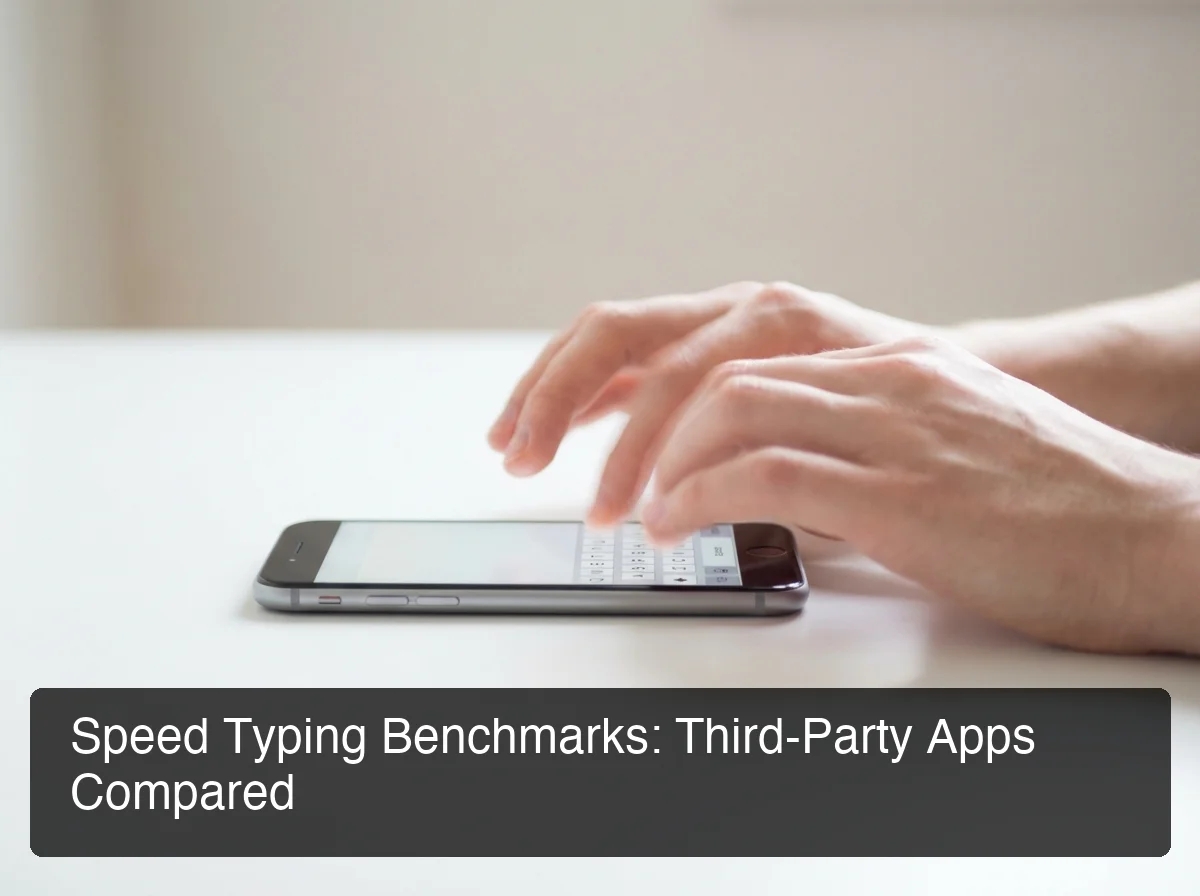 Swipe typing on Gboard and SwiftKey consistently outperforms standard tap-to-type on iPhone.
Swipe Typing vs. Standard Tapping
Swipe typing eliminates the biggest speed bottleneck on mobile: lifting your finger between letters. You slide continuously across the keyboard, and the autocorrect algorithm interprets the path. With practice, it's faster than tap-to-type by a significant margin.
The best keyboard apps ranked by typing speed features:
- Gboard — Industry-leading swipe accuracy backed by Google's ML models, trained on billions of queries
- SwiftKey — Sentence-level prediction that auto-completes full phrases before you finish typing
- Fleksy — Adjustable gesture radius lets you shrink the keyboard for optimized thumb reach
- Typewise — Hexagonal key layout reduces accidental taps from key proximity
By the numbers: Users switching from tap-to-type to swipe input report 20–35% faster average typing speeds within the first week of consistent practice.
Can I Customize My iPhone Keyboard App with Themes and Layouts?
Yes — most third-party keyboard apps for iPhone include theme libraries, color pickers, and keyboard height controls. SwiftKey and Gboard offer hundreds of preset themes. Fleksy supports custom image backgrounds. BossAI includes a clean theme system alongside its AI toolset. Customization goes well beyond aesthetics — layout optimization directly reduces typo rates and thumb fatigue.
What Customization Options Are Actually Available?
- Themes: Custom color schemes, dark/light mode, gradient fills, and image backgrounds
- Key spacing: Adjust padding between keys to match your finger size and reduce mis-taps
- Keyboard height: Taller keyboards give larger targets; shorter keyboards reclaim screen space
- Sound and haptics: Configure click sounds and vibration feedback intensity independently
- One-handed mode: Shift the entire keyboard layout left or right for single-thumb operation
Layout optimization is a real productivity lever for daily mobile typists. A keyboard sized and spaced to your thumb pattern will outperform any stock configuration.
How Secure Are Third-Party Keyboard Apps for iPhone?
Third-party keyboard apps for iPhone access everything you type — passwords, banking details, private messages. Apple's sandboxing limits risk, but "Allow Full Access" enables internet connectivity, meaning keystrokes could potentially be transmitted externally. The risk is manageable with reputable developers, but significant with unknown or ad-supported apps that lack clear privacy policies.
The Full Access Trade-Off
When you grant Full Access, you're trusting the developer not to log your keystrokes. For Gboard and SwiftKey, this trust is well-established — both come from major companies with public privacy commitments and third-party security audits.
For lesser-known or free "theme" keyboards, the risk is real. Low-quality keyboard apps are a well-documented vector for mobile data harvesting — iOS is not immune.
Security Best Practices for Third-Party Keyboards
- Only install keyboard apps from developers with published, detailed privacy policies
- Switch back to Apple's native keyboard for password fields (tap the globe icon to toggle)
- Check recent App Store reviews for any reported unusual data behavior
- Prefer apps from well-known companies with publicly accountable privacy programs
Bottom line: Gboard, SwiftKey, Fleksy, and BossAI all have documented no-keystroke-logging policies. Avoid unknown keyboards offering "free premium themes" — the data you type may be the actual product.
What Features Should You Look for in a Keyboard App for iPhone?
The five features that separate great keyboard apps from average ones are: AI-enhanced predictive text, swipe gesture input, voice dictation, multilingual switching, and clipboard snippet management. Beyond those, AI writing tools — tone adjustment, smart reply generation, and screen-aware composition — define the next tier of iPhone keyboard productivity.
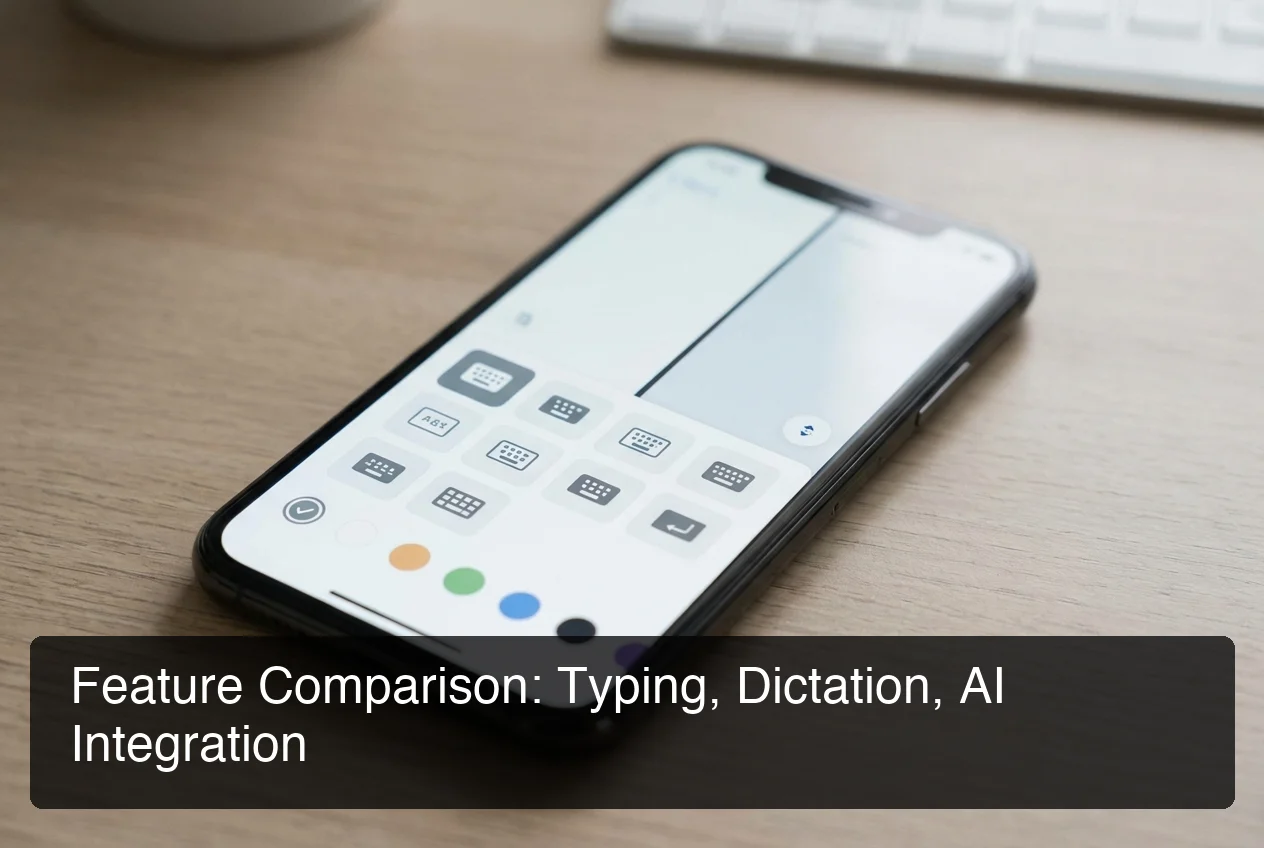 From basic autocorrect to AI composition, keyboard app feature depth varies enormously.
The Feature Evaluation Checklist
When choosing a keyboard app for iPhone, prioritize in this order:
- Autocorrect quality — Does it learn your vocabulary, including names and technical terms?
- Swipe typing — Is gesture input fast and accurate, or does it produce more errors than it saves?
- Voice dictation — Is dictation built-in, or does it require jumping to a separate app?
- Multilingual support — Can you switch languages mid-sentence without going to Settings?
- AI writing assistance — Smart compose, tone rewriting, contextual reply generation
- Customization depth — Themes, layout, key spacing, haptic feedback options
Keyboard apps that only offer themes and swipe typing are trailing the feature curve. The current competitive edge is AI-assisted composition: keyboards that don't just help you type faster, but help you write better.
For a detailed breakdown of AI keyboard capabilities — from autocorrect to full composition tools — the AI keyboard app guide covers every tier of feature depth.
How Much Does a Premium Keyboard App for iPhone Cost?
Most major keyboard apps for iPhone are free. Gboard and SwiftKey are completely free with no paid tier. Fleksy charges for theme packs. AI-powered keyboards with advanced writing tools range from $5–$15/month. BossAI offers a free tier with 500 words/day dictation and a Pro plan at $9.99/month, $69.99/year, or $149.99 lifetime.
| App | Free Tier | Paid Plan | Annual Option |
|---|---|---|---|
| Gboard | Fully free | None | — |
| SwiftKey | Fully free | None | — |
| Fleksy | Base features | Theme packs ~$2.99 | — |
| Typeless | 4,000 words/week | $30/month | $12/month annual |
| BossAI | 500 words/day dictation | $9.99/month | $69.99/year |
If your primary need is typing speed and autocorrect, Gboard and SwiftKey are free and excellent. If you want voice dictation, tone rewriting, and AI composition features, BossAI's $9.99/month tier is the most cost-effective premium keyboard option available — particularly with the $149.99 lifetime plan for power users who want a one-time purchase.
 BossAI replaces the standard iPhone keyboard with a dictation-first, AI-powered typing experience.
Which Keyboard App Integrates Best with Dictation on iPhone?
BossAI is the only keyboard app for iPhone that combines full QWERTY functionality with AI-enhanced voice dictation, automatic filler word removal, and Boss Mode — a screen-reading feature that reads your current app and generates a contextual reply without copy-pasting. No other keyboard in the App Store matches this combination.
Other keyboards offer basic voice input: tap the microphone, speak, get raw transcription. BossAI transforms that input before it reaches the text field — stripping "um," "uh," and "like" automatically, fixing grammar, adding punctuation, and formatting text appropriately for the context (email versus chat versus notes).
What Boss Mode Changes About iPhone Dictation
Boss Mode takes dictation a step further. When you need to reply to an email or respond to a Slack thread, activate Boss Mode, speak your intent ("Reply professionally confirming Friday"), and BossAI reads the screen, understands the context, and writes the full reply directly into the text field.
No copy-pasting. No switching to ChatGPT. No explaining what the email says. This is how voice-to-text apps transform iPhone composition into dictation-first workflows.
For more on dictation-first iPhone productivity, our voice keyboard iPhone guide covers tools, setup, and benchmarks.
Bottom line: No other dictation app reads your screen. Boss Mode is the only feature in the keyboard category that generates contextual replies without copy-pasting — and it lives inside your keyboard, not a separate app.
Get Started with BossAI
If voice dictation, AI writing, and keyboard productivity are priorities for your iPhone workflow, BossAI is the upgrade that closes the gap. It replaces your current keyboard entirely — no app switching, no setup friction — and begins free with 500 words/day of AI-enhanced dictation.
Not ready to try it yet? Get Our AI Productivity Guide — free tips on working faster with AI on iPhone.
Frequently Asked Questions
Where is the keyboard app on iPhone?
Third-party keyboard apps for iPhone are enabled in Settings → General → Keyboard → Keyboards → Add New Keyboard. After downloading from the App Store, the keyboard doesn't activate automatically — you must add it through this Settings path. Toggle "Allow Full Access" for AI features, voice dictation, and cloud-connected tools to function properly.
What is the best typing app for iPhone?
For typing speed, Gboard and SwiftKey are the highest-rated keyboard apps for iPhone. Gboard excels at swipe accuracy using Google's ML models; SwiftKey leads on sentence-level prediction. Both are fully free. For AI-powered writing and voice dictation, BossAI is the strongest option with AI dictation, tone rewriting, and screen-aware composition built into the keyboard.
What is BossAI?
BossAI is an AI voice keyboard for iPhone and Android, and a voice-to-text app for Mac and Windows, that replaces typing with voice dictation. It transcribes speech in real time, removes filler words automatically, rewrites text in different tones with one tap, and includes Boss Mode — a screen-reading feature that reads your screen to generate contextual replies without copy-pasting.
Is BossAI free?
Yes. BossAI's free plan includes 500 words of dictation a day, and the allowance resets daily. Pro makes everything unlimited — dictation, Boss Mode, Rewrite, every tone and all Clips, for $9.99/month or $69.99/year. No credit card required to start.
How do I switch to a third-party keyboard app on iPhone?
To use a third-party keyboard app for iPhone, download it from the App Store, then navigate to Settings → General → Keyboard → Keyboards → Add New Keyboard. Select it and enable "Allow Full Access" if required. In any app, tap the globe or emoji icon on your current keyboard to toggle between your installed keyboards.
How accurate is BossAI dictation?
BossAI uses advanced speech recognition models that achieve high accuracy in quiet environments and handles accented speech well. It automatically removes filler words (um, uh, like, you know) and corrects grammar in real time — so the transcribed text is cleaner than raw dictation from most built-in tools like Apple Dictation or Google voice typing.
Are third-party keyboard apps for iPhone safe?
Third-party keyboard apps for iPhone are safe from reputable developers like Google (Gboard) and Microsoft (SwiftKey), which have documented no-keystroke-logging policies. Always review privacy policies before enabling full access, avoid unknown apps offering free premium themes, and switch to Apple's native keyboard for password fields to minimize exposure of sensitive credentials.