
Best Third-Party Keyboards for iPhone (2026 Guide)
Every third party keyboard iPhone users install unlocks features Apple's default keyboard simply doesn't offer — AI dictation, swipe typing, smarter autocorrect, and tone rewriting. If you're still using the stock keyboard, you're leaving a lot of speed on the table.
Key Takeaways
- Third-party keyboards on iPhone unlock more control, custom shortcuts, and advanced features than Apple's default keyboard.
- You can enable and switch between third-party keyboards in iPhone Settings > General > Keyboards in just seconds.
- Voice typing keyboards are the fastest way to compose messages, emails, and documents on iPhone — some users report 3x faster input than traditional typing.
- Security permissions for third-party keyboards are strictly managed by Apple, but always review what each keyboard accesses before enabling.
- Pairing a third-party voice keyboard with iOS shortcuts and accessibility features creates a hands-free workflow for busy professionals.
Contents
- What Is a Third Party Keyboard iPhone Users Are Switching To?
- Can You Use Third-Party Keyboards on iPhone?
- How Do You Enable a Third-Party Keyboard on iPhone?
- What Are the Best Third Party Keyboard iPhone Apps in 2026?
- Which Third-Party Keyboard Works Best for Voice Input?
- How Do Third-Party Keyboards Improve Your Productivity on iPhone?
- Are Third-Party Keyboards Secure to Use?
- Get Started with BossAI
- Frequently Asked Questions
 Third-party keyboards for iPhone bring voice input, AI writing, and custom shortcuts to every app.
What Is a Third Party Keyboard iPhone Users Are Switching To?
A third party keyboard iPhone users install is any keyboard app from the App Store that replaces or supplements Apple's built-in keyboard. These apps add capabilities Apple's native keyboard doesn't offer — including swipe-to-type, AI-enhanced dictation, tone rewriting, GIF search, custom themes, and voice input powered by large language models.
Third-party keyboard support arrived with iOS 8 in 2014 and has matured significantly. Today, you can find keyboards specialized for speed typists, voice dictators, grammar-conscious writers, and multilingual users.
Unlike the default keyboard, third-party options can modify how text input works at a system level. You still type in any app — Messages, Gmail, WhatsApp, Notion, or anything else — but the keyboard doing the work is entirely different.
Key insight: Third-party keyboards don't just add features — they can fundamentally change your input speed. Voice typing keyboards, in particular, eliminate the physical bottleneck of thumb-typing entirely.
Can You Use Third-Party Keyboards on iPhone?
Yes, you can absolutely use third-party keyboards on iPhone. Apple has supported them since iOS 8, and you can install any keyboard app from the App Store and switch between it and the default Apple keyboard at will. You can have multiple third-party keyboards active simultaneously.
There is one important limitation: certain system-level inputs — like the passcode lock screen, Apple Pay confirmation, and some secure password fields — revert to Apple's native keyboard for security reasons. This is an Apple restriction, not a keyboard limitation.
For every other context — text messages, emails, social media, documents, notes, search bars — third-party keyboards work exactly as intended. The switch is seamless and takes under five seconds once set up.
For a deeper look at all keyboard options available on the App Store, see our complete guide to the best keyboard app for iPhone covering every major category.
How Do You Enable a Third-Party Keyboard on iPhone?
Enabling a third-party keyboard on iPhone takes four taps in Settings. Install the keyboard app from the App Store, then go to Settings > General > Keyboard > Keyboards > Add New Keyboard — select the app from the list and it's ready to use. Switch between keyboards mid-typing by holding the globe icon.
Here's the exact step-by-step process:
- Install the keyboard app from the App Store (e.g., Gboard, BossAI, SwiftKey)
- Open Settings > General > Keyboard
- Tap Keyboards, then Add New Keyboard
- Select the keyboard from the third-party apps list
- Tap the keyboard name to configure permissions (e.g., "Allow Full Access" if required)
- Switch keyboards while typing by pressing and holding the globe icon (🌐) on the bottom-left
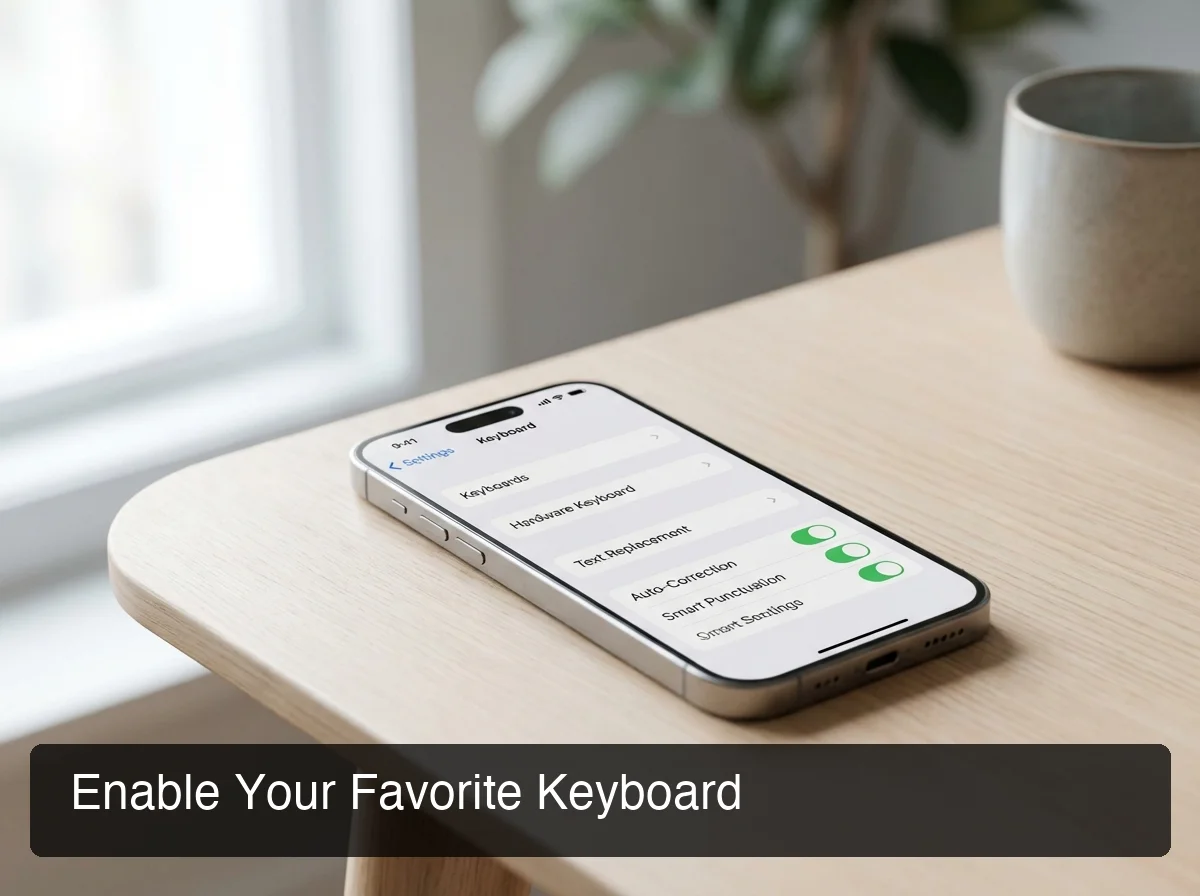 Access the keyboard settings menu to add and manage your third-party keyboards.
Should You Grant Full Access?
Some keyboards request "Allow Full Access" — this enables network connectivity so the app can sync settings, offer cloud-based autocorrect, or process AI requests. It does NOT give the keyboard access to your passwords, biometrics, or payment data.
You can deny Full Access and most keyboards still work, but AI-powered features (like voice transcription or Boss Mode in BossAI) require it. Always check an app's privacy policy before granting this permission.
Bottom line: Full Access is required for any cloud-connected keyboard feature. For voice dictation apps, it's necessary for real-time transcription. For simple layout keyboards, you can safely decline it.
What Are the Best Third Party Keyboard iPhone Apps in 2026?
The best third party keyboard iPhone apps in 2026 span five categories: AI voice keyboards, versatility-first options, autocorrect-heavy tools, writing assistants, and speed typing layouts. The right choice depends entirely on whether you prioritize voice input, writing quality, typing speed, or customization.
Here's how the top options compare:
| Keyboard | Best For | Key Feature | Price |
|---|---|---|---|
| BossAI | Voice input + AI writing | AI dictation + Boss Mode screen reading | Free / $9.99/mo |
| Gboard | Versatility | Google integration, swipe typing, GIF search | Free |
| SwiftKey | Autocorrect | Learns your writing style, multilingual support | Free |
| Grammarly | Writing quality | Inline grammar and tone suggestions | Free / Premium |
| Typewise | Accuracy | Hexagonal layout, zero autocorrect errors | Free / Premium |
| Fleksy | Speed | Swipe gestures, extensions, themes | Free / Premium |
When to Pick Each Option
- Gboard: Best all-around free keyboard. Google search built in, GIF access, reliable swipe typing.
- SwiftKey: Best autocorrect engine. Great for multilingual users who switch between languages often.
- Grammarly: Best for writers who want grammar and clarity suggestions right in the keyboard.
- Typewise: Best for users who make too many typos — its alternative layout prevents adjacent key errors.
- BossAI: Best for anyone who wants to stop typing entirely. Voice-first, AI-enhanced, context-aware.
For a full comparison across even more options, our AI keyboard guide goes deep on how AI-powered input is changing mobile typing.
Which Third-Party Keyboard Works Best for Voice Input?
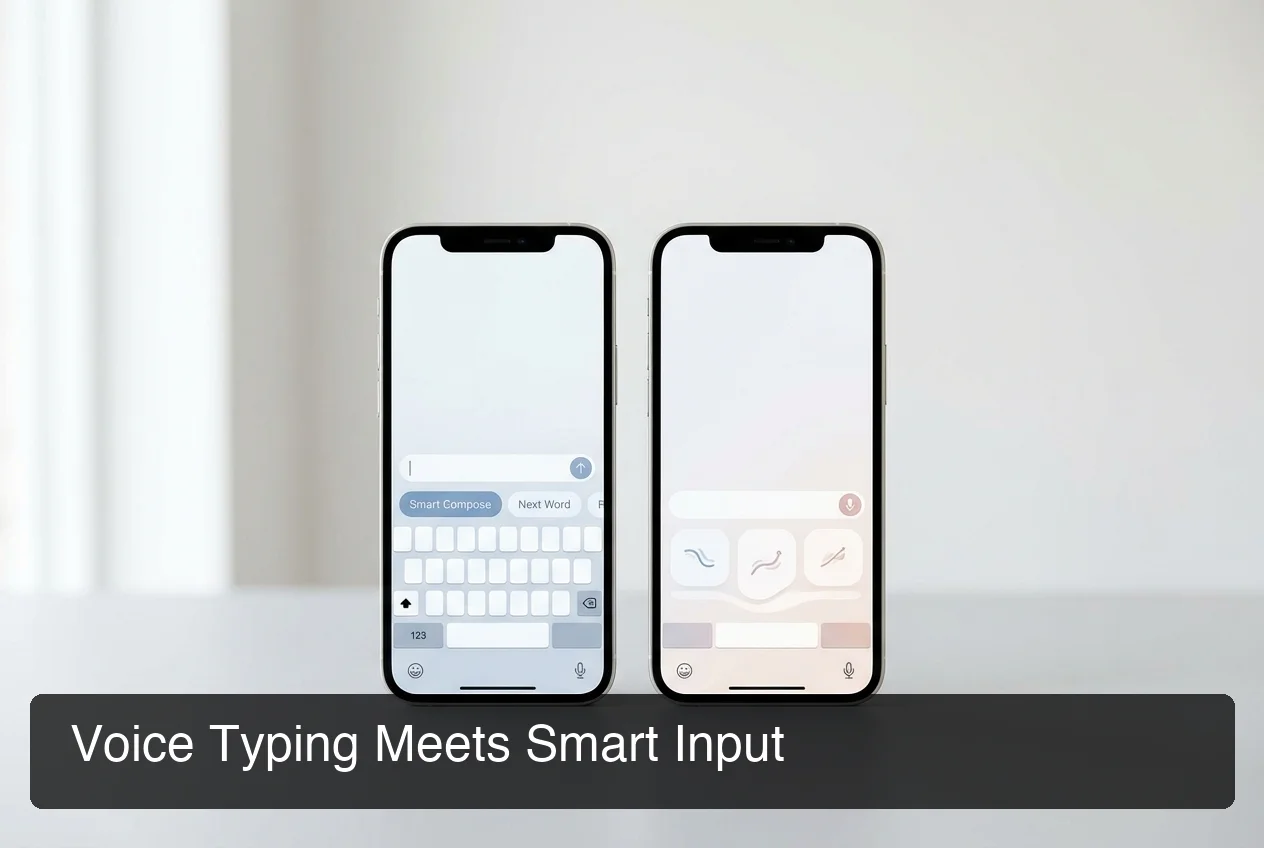 AI voice keyboards like BossAI go beyond basic transcription — they clean up speech, remove fillers, and rewrite in your tone.
For voice input on iPhone, BossAI is the most capable third-party keyboard available in 2026. It goes beyond raw transcription by automatically removing filler words (um, uh, like, you know), fixing grammar, adding punctuation, and adjusting formatting based on the app you're in — so what you say becomes polished text, not a raw transcript.
Standard voice-to-text — including Apple Dictation — captures what you say verbatim. That's fine for quick notes, but produces messy output for emails, documents, or messages where presentation matters.
What Makes BossAI Different for Voice
BossAI's AI-enhanced dictation pipeline processes speech through multiple layers:
- Transcription — converts voice to text in real time via Deepgram
- Filler removal — automatically strips um, uh, like, you know, so
- Grammar correction — fixes run-on sentences, punctuation, capitalization
- Context-aware formatting — formats differently for email vs. chat vs. document
Beyond dictation, BossAI's Boss Mode takes voice input to a different level. Speak a command like "Boss, reply to this email professionally" and BossAI reads your screen — the actual email or message you're looking at — and drafts a complete, contextual response. No copy-pasting. No switching apps.
This is the only feature in the iOS keyboard category that reads your screen and generates replies with full context. WisprFlow, Gboard, SwiftKey, and Grammarly have nothing comparable.
For a complete look at voice typing capabilities across all keyboard options, see our voice keyboard for iPhone guide.
By the numbers: Voice typing averages 130-150 words per minute compared to 30-50 wpm for thumb typing on iPhone — a 3x speed difference that compounds across every email, message, and document you write.
How Do Third-Party Keyboards Improve Your Productivity on iPhone?
Third-party keyboards improve iPhone productivity by eliminating the slowest parts of mobile text input: physical typing, copy-paste workflows, and repetitive phrasing. Voice keyboards remove the physical input bottleneck entirely, while AI rewriting and snippet systems eliminate the editing cycles that follow.
 Third-party keyboards turn iPhone text input into a productivity system — voice, shortcuts, and AI all working together.
Three Productivity Gains Worth Knowing
1. Voice input saves 15-20 minutes per day
Professionals who handle heavy email and messaging loads spend 2-3 hours daily typing on their phone. Switching to a voice keyboard that outputs clean, formatted text from spoken input cuts that time by 60-70%. That's recovered time that compounds across every workday.
2. Snippet/clip systems eliminate repetitive typing
Keyboards like BossAI include a Clips feature — a tray of frequently used text (email signatures, addresses, meeting links, standard replies) accessible with one tap from the keyboard itself. No app-switching. No clipboard manager. Just tap and paste.
3. Tone rewriting eliminates editing cycles
When you dictate a casual message but need it to sound professional, most workflows involve copy-pasting into ChatGPT, editing, copying back, and pasting. BossAI's one-tap Rewrite feature handles this directly in the keyboard: tap Professional (or Casual, Witty, Persuasive, Empathetic, Bold) and the rewrite happens instantly, previewed before paste.
Key insight: Pairing a third-party voice keyboard with customizing your keyboard settings — autocorrect, text replacement, shortcuts — creates a compound productivity advantage. Each layer saves seconds that add up to hours.
Workflows Built Around Third-Party Keyboards
- Email on iPhone: Dictate a response with BossAI → tap Professional rewrite → send. No typing.
- Slack messages: Speak your update → auto-cleaned output lands in the text field → send.
- Meeting notes: Voice-capture action items in real time → formatted notes ready to copy.
- Content creation: Dictate ideas as they come → cleaned transcript ready for editing.
These workflows are impossible with Apple's native keyboard. They require a keyboard that can process voice input with AI, not just capture raw audio.
Are Third-Party Keyboards Secure to Use?
Third-party keyboards on iPhone are generally secure. Apple's sandboxing restricts what keyboards can access — they cannot read your passcode, biometrics, or Apple Pay data. The main security consideration is Full Access permission, which enables network connectivity. Review each keyboard's privacy policy before granting this permission.
Apple's iOS security model puts strict limits on keyboard apps:
- Keyboards operate in a sandboxed environment
- They cannot access other apps' data, contacts, or files
- Secure text fields (passwords, payment info) force Apple's keyboard to appear
- Full Access enables network but is clearly disclosed and user-controlled
What to Check Before Installing a Keyboard
- Who makes it? Established companies (Google/Gboard, Microsoft/SwiftKey, BossAI by Hyathi Technologies) have reputational accountability.
- What does Full Access enable? Check the privacy policy for explicit data use statements.
- Does it store audio? Voice keyboards should explicitly state whether voice data is retained.
BossAI, for example, processes voice input via secure API calls and does not store raw audio recordings. Text is transcribed in transit and not used for model training.
Bottom line: The App Store review process and iOS sandboxing provide strong baseline protection. Keyboards from established developers with clear privacy policies are safe to use with Full Access enabled.
Get Started with BossAI
The fastest way to upgrade your iPhone typing experience is to eliminate typing. BossAI's AI-powered keyboard replaces physical input with voice — automatically cleaned, grammatically corrected, and formatted for whatever app you're in.
Frequently Asked Questions
Can you use a third-party keyboard on an iPhone?
Yes — Apple has supported third-party keyboards since iOS 8. Install any keyboard app from the App Store and enable it in Settings > General > Keyboard > Keyboards > Add New Keyboard. You can have multiple keyboards active and switch between them instantly by holding the globe icon.
How do I switch between keyboards on iPhone while typing?
Hold the globe icon (🌐) in the bottom-left corner of any keyboard to see a list of active keyboards and tap to switch. You can also tap repeatedly to cycle through enabled keyboards one at a time. The entire switch takes less than a second.
Are third-party keyboards safe on iPhone?
Third-party keyboards on iPhone are sandboxed by iOS — they can't access passwords, biometrics, or payment data. The main consideration is "Full Access" permission, which enables network features like cloud sync or AI processing. Always review the developer's privacy policy before granting Full Access to any keyboard.
What is BossAI?
BossAI is an AI voice keyboard for iPhone and Android, and a voice-to-text app for Mac and Windows, that replaces typing with voice dictation. It transcribes speech in real time, removes filler words automatically, rewrites text in different tones with one tap, and includes Boss Mode — a screen-reading feature that reads your screen to generate contextual replies without copy-pasting.
Can I install Gboard on my iPhone?
Yes — Gboard by Google is available on the App Store and works as a full keyboard replacement on iPhone. It supports swipe typing, Google Search integration, GIF search, and multilingual input. Enable it in Settings > General > Keyboard after installing.
Which third-party keyboard is best for typing speed on iPhone?
For raw typing speed, Fleksy and SwiftKey are top choices — Fleksy's swipe gestures and SwiftKey's predictive suggestions both reduce keystrokes. For overall speed including voice input, BossAI is fastest: voice typing averages 3x the speed of thumb-typing, and AI cleanup means the output is edit-ready.
What makes BossAI different from other dictation apps?
Three features no competitor offers: (1) Boss Mode reads your screen and generates contextually aware replies without copy-pasting — the only dictation app with screen awareness; (2) Clips saves frequently used phrases for instant insertion; (3) one-tap tone rewriting lets you switch between six tones (Professional, Casual, Witty, Persuasive, Empathetic and Bold) in a single tap. WisprFlow, AquaVoice, and Typeless have none of these.