
Typing With Voice: Complete Guide to Faster Typing
Typing With Voice: The Complete Guide to Faster, Hands-Free Typing in 2026
If you type for hours every day, your hands are doing more work than they need to. Typing with voice lets you dictate text at 130–150 words per minute — nearly three times the average keyboard speed — turning spoken words into polished, punctuated text without lifting a finger.
Key Takeaways
- Typing with voice is 2–3x faster than keyboard typing, saving 60–90 minutes per day for heavy writers.
- Modern AI-powered voice typing achieves 95–99% accuracy and automatically removes filler words, fixes grammar, and adds punctuation.
- Voice typing is built into Windows, macOS, iOS, and Android — no app download required to get started.
- Dedicated AI apps like BossAI go further with real-time enhancement, screen-reading, and tone rewriting for professional output.
- Voice typing reduces repetitive strain injury risk and is a proven accessibility solution for users with hand, wrist, or motor impairments.
Contents
- What Is Typing With Voice and How Does It Work?
- How Much Faster Is Typing With Voice Compared to Keyboard Typing?
- What Are the Best Apps for Typing With Voice in 2026?
- Can I Use Typing With Voice on All Devices?
- How Accurate Is Voice Typing for Professional Work?
- Is Typing With Voice Accessible for People With Disabilities?
- Why Should I Switch to Typing With Voice Instead of Traditional Typing?
- Why BossAI Is the Best Voice Typing Solution
- Get Started With BossAI
- Frequently Asked Questions
What Is Typing With Voice and How Does It Work?
Typing with voice is the process of speaking naturally into a microphone so that software converts your speech into text in real time. Modern voice typing systems use AI-powered speech recognition to transcribe words, remove filler sounds, add punctuation, and format output — all within milliseconds of you finishing a sentence.
Today's tools use deep learning models trained on billions of words to understand context, handle accents, and distinguish between similar-sounding words based on surrounding text.
How AI Processes Your Voice
When you speak, the system captures audio through your microphone, converts it into a digital signal, and passes it through a neural network trained on speech. The model predicts the most likely word sequence — then a language model layer corrects grammar, adds punctuation, and strips filler words in a post-processing step.
Basic OS dictation (Apple Dictation, Windows Voice Typing) handles the core transcription. Dedicated AI tools add an enhancement layer — delivering polished, professional output approximately 300 milliseconds after you stop speaking.
 Voice typing converts spoken words into polished text in real time — no typing required.
How Much Faster Is Typing With Voice Compared to Keyboard Typing?
The average person types 40–60 words per minute on a keyboard. Speaking naturally runs at 130–150 words per minute — making typing with voice 2–3x faster for drafting content. Over a workday with two hours of writing, switching to voice saves 60–90 minutes.
The advantage is most pronounced for longer-form content: emails, reports, Slack threads, and meeting notes. Short replies benefit less because activating the mic adds minor friction.
The Numbers Behind Voice Typing Productivity
Research consistently shows voice typing outpaces keyboard input for drafting tasks. Microsoft's data on Windows Voice Typing shows average dictation speeds 3x faster than keyboard typing — recovering 45–90 minutes weekly for high-volume writers.
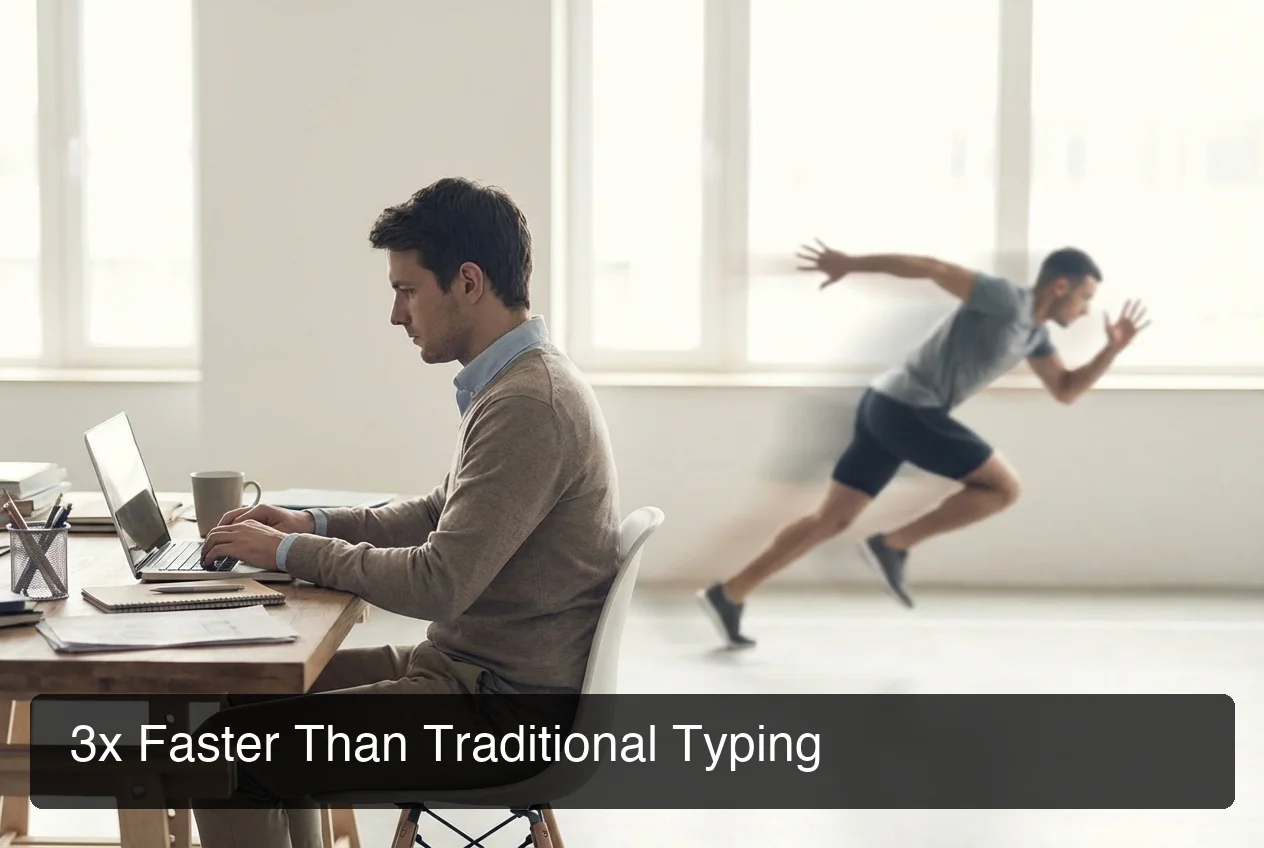 Speaking is consistently 2–3x faster than typing for content drafting — and the gap grows as you build the habit.
By the numbers: Switching from keyboard to voice for email alone saves the average professional 65+ hours per year — equivalent to 8+ full workdays recovered.
When Voice Typing Wins — and When It Doesn't
Voice typing wins for: drafting from scratch, composing long emails, brainstorming notes, and replying to messages.
Voice typing is slower for: precise code editing, filling out forms with specific values, and very short responses where speaking takes as long as typing.
What Are the Best Apps for Typing With Voice in 2026?
The best apps for typing with voice in 2026 fall into two categories: built-in OS tools (free, works everywhere, limited AI polish) and dedicated AI dictation apps (subscription, advanced accuracy, AI enhancement). For casual use, built-in tools are sufficient. For professional output, dedicated apps deliver noticeably cleaner text.
For in-depth feature comparisons and pricing, our voice typing app guide covers every major tool in detail.
Comparison: Voice Typing Tools in 2026
| Tool | Platform | AI Enhancement | Free Tier | Best For |
|---|---|---|---|---|
| Windows Voice Typing | Windows | Basic | Free | Quick dictation, short messages |
| Apple Dictation | macOS / iOS | Basic | Free | Apple ecosystem users |
| Google Docs Voice Typing | Browser | None | Free | Document writing |
| BossAI | iOS / macOS / Windows | Advanced (filler removal, grammar, tone) | 500 words/day | Professional work |
| WisprFlow | macOS / Windows | Advanced | Word cap (limited) | Mac power users |
| Speechify Dictation | iOS / Android / Web | Moderate | Yes | Mobile dictation |
Key insight: Built-in OS voice typing handles basic transcription. Only dedicated apps with AI enhancement produce output clean enough to send without editing — eliminating the correction loop that kills dictation speed.
The top voice-to-text apps in 2026 differ most on accuracy, AI post-processing, and cross-platform support. AI-enhanced tools deliver professional-quality output immediately — no cleanup required.
Can I Use Typing With Voice on All Devices?
Typing with voice works on Windows, macOS, iOS, and Android through native built-in tools, and on any browser through web-based tools. Dedicated apps extend the experience with AI enhancement across multiple platforms. Most major productivity devices are covered out of the box.
To turn on voice-to-text typing on your device, each operating system has a built-in shortcut you can activate instantly — no downloads needed. Our complete guide on how to use voice typing covers step-by-step setup for every platform.
Platform-by-Platform Setup
Windows: Press Win + H to open the built-in Voice Typing panel. Works in any text field on Windows 10 and 11.
macOS: Enable in System Settings → Keyboard → Dictation. Press Fn twice (or your custom shortcut) to activate in any app.
iOS (iPhone / iPad): Tap the microphone icon on the keyboard. Or switch to BossAI as your keyboard for AI-enhanced dictation in every app.
Android: Tap the microphone icon on Gboard. Works across all Android text fields.
Browser (any device): Google Docs Voice Typing, SpeechTexter, and Dictation.io all work in Chrome without installing anything.
 Voice typing works across every major platform — built-in tools for basics, AI apps for professional output.
How Accurate Is Voice Typing for Professional Work?
Modern AI voice typing achieves 95–99% accuracy in normal conditions — meaning 1–5 errors per 100 words. For professional use, what matters more than raw accuracy is the AI layer: tools that add grammar correction and filler word removal deliver send-ready text without manual cleanup.
Accuracy varies by environment and vocabulary. Quiet rooms with clear speech produce near-perfect results. Noisy environments (open offices, coffee shops) reduce accuracy by 5–15% depending on the microphone and tool.
What Affects Voice Typing Accuracy
- Microphone quality — headsets and dedicated mics outperform built-in laptop mics significantly
- Speaking pace — 120–140 wpm is the sweet spot; too fast or too slow reduces accuracy
- Custom vocabulary — tools with custom dictionaries handle proper nouns, brand names, and technical terms that generic models miss
- AI post-processing — tools that correct grammar after transcription produce cleaner final output than raw transcription alone
Custom dictionary support is especially important for professionals who use industry jargon, client names, or product terminology regularly. Generic models consistently mistranscribe uncommon terms without this capability.
Bottom line: For professional email and documents, raw OS dictation requires 2–3 rounds of editing. AI-enhanced dictation produces output ready to send without review in most quiet-environment use cases.
Is Typing With Voice Accessible for People With Disabilities?
Typing with voice is one of the most impactful accessibility tools available. Users with RSI, carpal tunnel syndrome, hand injuries, or motor impairments can dictate emails, documents, and messages entirely hands-free — eliminating the keyboard interaction that causes pain or is physically impossible.
Beyond injury-related use, voice typing benefits users with dyslexia who speak faster than they type, and multilingual users working in their dominant language.
Who Benefits Most From Voice Accessibility
- RSI and carpal tunnel: Eliminate repetitive motion entirely — no keyboard contact required
- Post-surgery recovery: Maintain full productivity after wrist or hand surgery
- Motor impairments: Control text input without fine motor coordination
- Dyslexia: Capture ideas verbally before editing — reduces anxiety from staring at a blank cursor
- Fatigue and chronic pain: Reduce physical load during long work sessions
A complete voice typing workflow — dictate, AI-enhance, send — requires no typing at any step. Users with serious hand conditions can manage full email and document workloads without touching a keyboard.
Why Should I Switch to Typing With Voice Instead of Traditional Typing?
You should switch to typing with voice if you write more than 1,000 words per day, experience hand or wrist fatigue from keyboard use, or want to capture ideas faster than your fingers allow. The speed advantage, health benefits, and AI enhancement combine into a measurable productivity upgrade.
The ROI is clearest for professionals with high writing volume. At 2–3x speed with AI polish, voice typing pays for any tool cost within days. Our complete guide to typing with voice on every device covers every platform with step-by-step setup instructions.
Three Reasons 2026 Is the Right Time to Switch
- Accuracy crossed the professional threshold. AI enhancement now produces output clean enough to send without editing in most cases.
- It works everywhere. Native OS tools and third-party apps cover every device, platform, and text field.
- Health costs of keyboard-only work are proven. Repetitive strain injury affects 1.8 million US workers annually — typing is the leading cause.
While many premium options exist, free voice-to-text solutions like Windows Voice Typing and Apple Dictation let you test the workflow at zero cost before committing to a paid tool.
Why BossAI Is the Best Voice Typing Solution
 BossAI's AI layer converts raw speech into polished, professional text in approximately 300ms.
BossAI combines AI-enhanced dictation with three features no competitor offers: Boss Mode (screen-reading for contextual replies without copy-pasting), one-tap tone rewriting, and Clips (instant text paste from within the keyboard). It works on iOS, macOS, and Windows — and the free tier has no weekly word cap.
Unlike built-in OS tools that deliver raw transcription, BossAI adds an AI enhancement pass that removes filler words, fixes grammar, and formats text for the app you're in — approximately 300 milliseconds after you finish speaking.
What Sets BossAI Apart From Every Competitor
Boss Mode reads your screen in real time and generates contextually aware replies without copy-pasting. Speak "Boss, reply to this email professionally" and BossAI reads the email on screen, writes a contextual response, and inserts it — no app switching, no explaining context.
Rewrite lets you tap a tone — Professional, Casual, Witty, Persuasive, Empathetic, Bold — and instantly rephrase your last dictation. No voice command, no typing instructions. One tap.
Clips saves frequently used phrases (email signatures, addresses, standard replies, meeting links) and pastes them with one tap from the keyboard — accessible in every app without switching.
Bottom line: No other dictation app reads your screen. Boss Mode is the only feature in the category that generates contextual replies without copy-pasting — making BossAI a complete voice typing solution, not just a transcription tool.
Get Started With BossAI
Voice typing is faster, healthier, and — with the right AI layer — produces output cleaner than manual typing. BossAI brings AI enhancement, screen-reading, and cross-platform support together in one keyboard, free to start.
Not ready to try it yet? Get Our AI Productivity Guide — free tips on working faster with AI.
Frequently Asked Questions
How do I turn on voice typing?
On Windows, press Win + H to open the built-in Voice Typing panel. On Mac, go to System Settings → Keyboard → Dictation and press Fn twice to activate. On iPhone, tap the microphone icon on the keyboard. For AI-enhanced voice typing with filler removal and grammar correction, download BossAI — free on iOS, macOS, and Windows.
Is voice typing free to use?
Yes. Windows, macOS, iOS, and Android all include free built-in voice typing tools. Web tools like Google Docs Voice Typing and SpeechTexter are also free. Dedicated AI apps like BossAI offer free tiers with daily usage limits; paid plans unlock unlimited dictation, Boss Mode, and advanced features for professional workflows.
How do I turn on voice typing on my iPhone?
Tap the microphone icon on the standard iOS keyboard to activate Apple Dictation. For AI-enhanced voice typing with automatic filler removal and grammar correction, install BossAI from the App Store and add it as your keyboard in Settings → General → Keyboard → Keyboards → Add New Keyboard.
What is BossAI?
BossAI is an AI-powered voice keyboard for iOS, macOS, and Windows that replaces typing with voice dictation. It transcribes speech in real time, removes filler words automatically, rewrites text in different tones with one tap, and includes Boss Mode — a screen-reading feature that reads your screen to generate contextual replies without copy-pasting.
Is BossAI good for RSI or hand injuries?
Yes. BossAI is designed for zero-keyboard use — you dictate everything and it handles transcription, filler word removal, and tone correction automatically. Users with RSI, carpal tunnel, broken wrists, or repetitive strain injuries use BossAI to write emails, messages, and documents entirely hands-free, with no typing required at any step.
How accurate is voice typing for professional use?
Modern AI voice typing achieves 95–99% accuracy in quiet environments. AI-enhanced tools that add grammar correction and filler word removal produce near-perfect professional output without manual editing. Accuracy improves with custom vocabulary setup, consistent speaking pace, and a quality microphone.
What makes BossAI different from other dictation apps?
Three features no competitor offers: (1) Boss Mode reads your screen and generates contextually aware replies without copy-pasting — the only dictation app with screen awareness; (2) Clips saves frequently used phrases for instant insertion; (3) one-tap tone rewriting lets you switch between casual, professional, or concise in a single tap. WisprFlow, AquaVoice, and Typeless have none of these.