
Google Docs Voice Typing: Complete Setup Guide 2026
Typing every word slows you down. Google Docs voice typing lets you speak your ideas and watch them appear on screen — no app downloads, no subscriptions, and no learning curve required.
Key Takeaways
- Google Docs voice typing is a free, built-in feature that converts speech to text in real time using Google's speech recognition technology.
- To enable voice typing in Google Docs, open your document in Chrome, click Tools → Voice Typing, then allow microphone access and start dictating.
- Voice typing supports 120+ languages and hands-free formatting commands like "bold," "new line," and "heading 2."
- Chrome is required for desktop voice typing — the feature isn't available in Firefox, Safari, or Edge.
- AI-powered alternatives like BossAI extend dictation across every app — email, Slack, notes — with automatic filler word removal and cross-device support.
Contents
- What Is Google Docs Voice Typing and How Does It Work?
- How Do I Enable Voice Typing in Google Docs?
- Is Google Docs Voice Dictation the Same as Voice Typing?
- Can You Use Voice Commands to Format Text in Google Docs?
- How Accurate Is Google Docs Voice Typing Compared to Typing?
- What Languages Does Google Docs Voice Typing Support?
- How Can I Fix Voice Typing Errors in Google Docs?
- Is Google Docs Voice Typing Free, and What Are the Limitations?
- Why Do AI Voice Typing Tools Beat Google Docs Native Dictation?
- Get Started with BossAI
- Frequently Asked Questions
What Is Google Docs Voice Typing and How Does It Work?
Google Docs voice typing is a free, built-in dictation feature that converts spoken words into text in real time using Google's speech recognition engine. It requires no installation, no paid plan, and no third-party software — just a Google account, a Chrome browser, and a working microphone. Words appear on screen as you speak, with automatic punctuation added at natural pauses.
Google's speech recognition is powered by the same technology behind Google Assistant and Google Cloud Speech-to-Text. Your audio streams to Google's servers, converts to text, and inserts into your document in under a second.
The feature is built into Google Docs and Google Slides speaker notes. It is not available in Gmail, Google Chat, or other Google Workspace apps.
 Google Docs voice typing turns spoken words into formatted document text — no extra software required.
Does Google Docs Voice Typing Work on Mobile?
On mobile, the experience differs from desktop. The Tools → Voice Typing menu is a desktop-only feature exclusive to Chrome.
On Android and iPhone, you use the microphone button built into your device's default keyboard while editing a Google Doc in the app. For a full breakdown of voice typing across all devices and platforms, see our complete guide to typing with voice.
How Do I Enable Voice Typing in Google Docs?
To enable google docs voice typing on desktop, open any document in Google Chrome, click Tools in the top menu, and select Voice Typing. A floating microphone icon appears on the left — click it or press Ctrl+Shift+S (Windows) or Command+Shift+S (Mac), grant microphone permission, and start speaking. Your words transcribe in real time.
The full setup takes under 30 seconds:
- Open your Google Doc in Chrome
- Click Tools → Voice Typing
- Select your language from the dropdown
- Click the microphone icon to begin
- Speak naturally — Google handles punctuation and capitalization
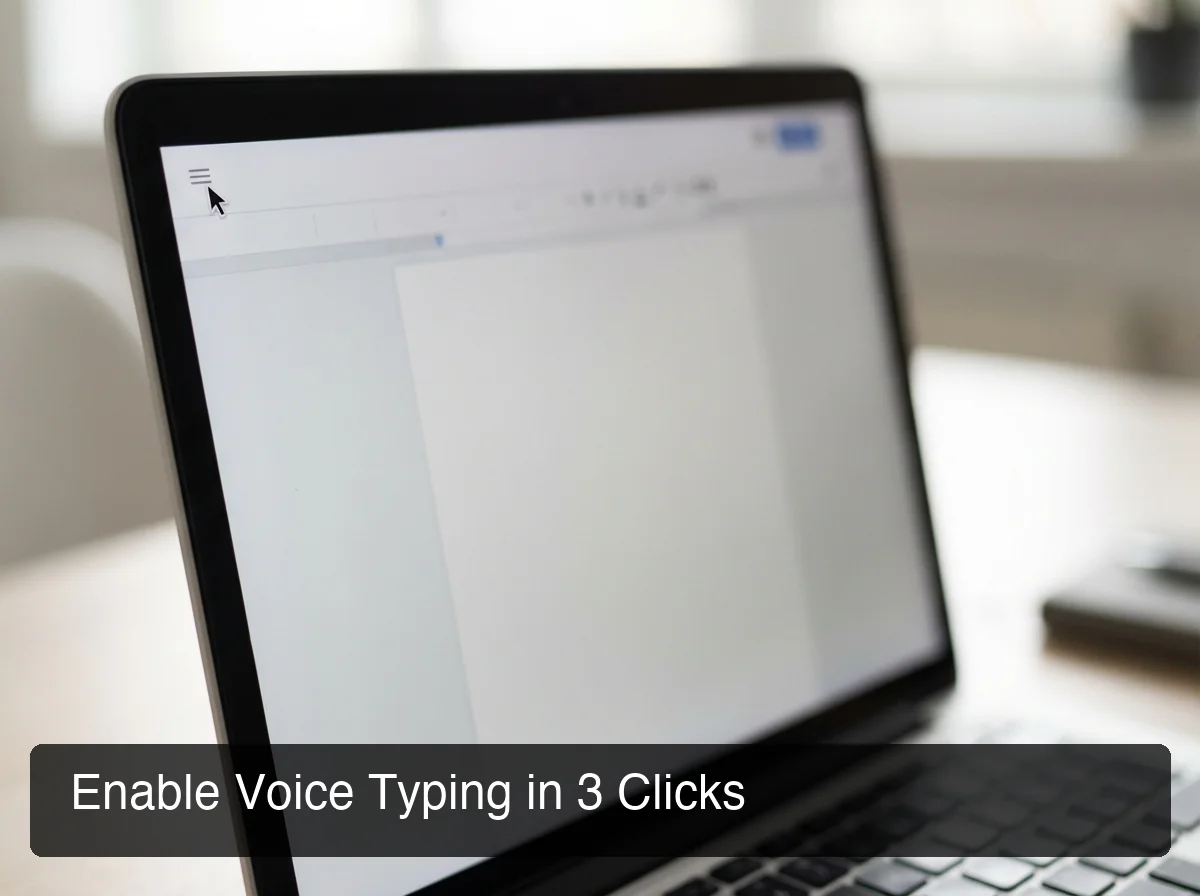 Access Google Docs voice typing from Tools → Voice Typing in Chrome — no extensions or downloads required.
What to Do If Voice Typing Doesn't Appear
If you don't see Voice Typing in the Tools menu, you're likely not using Chrome. The feature is exclusive to Chrome on desktop — it won't appear in Firefox, Safari, or Edge.
Key insight: The keyboard shortcut Ctrl+Shift+S (Windows) or Command+Shift+S (Mac) toggles voice typing on and off without opening the Tools menu — ideal for pausing and resuming quickly mid-draft.
How Voice Typing Works on iOS and Android
On mobile, there is no Tools menu for voice input. Open the Google Docs app, tap any text area, and use the microphone button on your device keyboard to dictate.
On iPhone, this triggers iOS voice input — similar quality to Siri dictation. For more control over iPhone voice typing, a dedicated keyboard app handles dictation more precisely. New to voice typing entirely? Our beginner's guide to voice typing walks through the fundamentals for every platform.
Is Google Docs Voice Dictation the Same as Voice Typing?
Yes. "Voice dictation" and "voice typing" in Google Docs are the same feature. Google's menus call it Voice typing, while most people search for it as dictation. There is one menu entry (Tools → Voice typing), one shortcut (Ctrl+Shift+S on Windows, Command+Shift+S on Mac) and one microphone icon.
On a Mac, the feature still needs Chrome. If you prefer Safari, or want to dictate outside Docs, macOS has its own system dictation (System Settings → Keyboard → Dictation) that works in any app, including Docs in Safari. It is a separate feature from Google's, so the two don't share settings or vocabulary.
Can You Use Voice Commands to Format Text in Google Docs?
Yes. Google Docs voice typing supports spoken formatting commands that let you add punctuation, apply headings, bold text, and navigate your document entirely hands-free. Say "new line," "bold," "heading 2," or "undo" to format without touching the keyboard. A full command list appears under the microphone icon → "Voice typing commands."
Most Useful Formatting Voice Commands
| Voice Command | What It Does |
|---|---|
| "New line" | Inserts a line break |
| "New paragraph" | Creates a new paragraph |
| "Period" / "Comma" | Inserts punctuation |
| "Bold" / "Italics" | Applies text formatting |
| "Heading 1" / "Heading 2" | Applies heading style |
| "Undo" | Undoes the last action |
| "Delete last word" | Removes the previous word |
| "Select all" | Selects entire document text |
What Voice Commands Can't Do
Voice commands handle text formatting effectively, but they can't manipulate tables, insert images, or navigate by content type. Multi-column layouts, chart editing, and embedded objects still require manual input.
By the numbers: Dictation produces 3× more words per minute than average typing speed. Even accounting for light proofreading, most users complete first drafts 40–60% faster than pure keyboard entry.
How Accurate Is Google Docs Voice Typing Compared to Typing?
Google Docs voice typing achieves 90–95% accuracy in quiet environments with clear, moderate-paced speech. In noisy settings, with heavy accents, or for specialized vocabulary, accuracy drops noticeably. Most users can produce a clean 500-word draft with 2–3 minutes of light proofreading — still faster overall than typing the same content from scratch.
When Google Docs Voice Typing Performs Best
- Quiet room with minimal background noise
- Moderate, consistent speaking pace
- Common vocabulary and standard proper names
- Quality external microphone or USB headset
When Accuracy Suffers
- Background TV, music, or active conversation
- Fast speaking pace or mumbling
- Technical jargon, product names, or unusual terms
- Strong regional accents or non-native speech
 Dictation consistently outpaces typing for first drafts — even at 90% accuracy, the time savings are significant.
Google Docs voice typing has no custom vocabulary training. If you frequently dictate content with brand names or technical terms, expect to manually correct those areas after each session.
What Languages Does Google Docs Voice Typing Support?
Google Docs voice typing supports over 120 languages and regional dialects — one of the broadest language sets among free dictation tools. Select your language from the dropdown inside the microphone panel before starting. Notable supported languages include Spanish, French, German, Mandarin, Hindi, Arabic, and Japanese, each with regional dialect variants.
Switching Languages Mid-Document
You can switch languages between sessions by pausing dictation, changing the language dropdown, and resuming. There is no automatic language detection — you manually select one language per session.
For multilingual users who switch languages frequently throughout the day, this per-session approach can be limiting. Cross-app voice tools with real-time transcription and language hot-switching handle multilingual workflows more smoothly.
How Can I Fix Voice Typing Errors in Google Docs?
Fix voice typing errors hands-free using built-in correction commands: say "delete last word" to remove the previous word, "select [word]" to highlight a specific term, or "undo" to revert the last action. For systematic improvement, eliminate background noise, speak at a consistent pace, and invest in a directional headset microphone rather than relying on your laptop's built-in mic.
Common Voice Typing Problems and Fixes
| Problem | Fix |
|---|---|
| Microphone doesn't activate | Check Chrome permissions — allow microphone for Google Docs |
| Words cut off mid-sentence | Don't pause mid-thought; speak in complete phrases |
| Punctuation missing | Say "period," "comma," "question mark" explicitly |
| Names and terms wrong | Speak slower; use a custom dictionary tool for recurring terms |
| Voice typing grayed out | Switch to Chrome browser — not available in Firefox or Safari |
Pro Tips for Better Accuracy
- Use a USB headset or dedicated microphone over laptop built-in
- Speak in complete sentences — avoid starting and stopping mid-phrase
- Position the microphone 6–12 inches from your mouth
- Reduce room echo by dictating away from hard, flat surfaces
Is Google Docs Voice Typing Free, and What Are the Limitations?
Google Docs voice typing is completely free with no word limits, session caps, or subscription required — any Google account holder can use it without restrictions. The main limitations are browser dependency (Chrome only), app lock-in (Google Docs and Slides only), and no AI enhancement features like filler word removal, grammar correction, or custom vocabulary training.
What Google Docs Voice Typing Covers vs. Misses
| Feature | Google Docs Voice Typing |
|---|---|
| Free with no word limits | ✅ |
| Works in Google Docs | ✅ |
| Works in Google Slides (speaker notes) | ✅ |
| Works on Firefox / Safari / Edge | ❌ |
| Works in Gmail or Google Chat | ❌ |
| Works in non-Google apps | ❌ |
| Filler word removal (um, uh, like) | ❌ |
| AI grammar and punctuation correction | ❌ |
| Custom vocabulary / name training | ❌ |
| Mobile app dictation via Tools menu | ❌ |
For Mac users looking for system-wide dictation, our voice to text app for Mac guide covers the best alternatives to Google's native tool.
Why Do AI Voice Typing Tools Beat Google Docs Native Dictation?
 BossAI brings AI-enhanced voice typing to every app on your device — not just Google Docs.
AI-powered voice typing tools work across every app on your device — email, Slack, social media, notes — while automatically removing filler words, correcting grammar, and adapting output style to context. If you regularly dictate outside Google Docs, a cross-app AI voice keyboard saves significantly more time than any browser-locked dictation solution.
The Core Problem: Google Docs Voice Typing Is App-Locked
Google's voice input works inside Google Docs. The moment you open Gmail, Slack, Notion, or any other app, voice typing stops. You either retype your content or copy-paste dictated text manually — eliminating most of the productivity benefit.
Bottom line: For users who write exclusively in Google Docs, native voice typing is genuinely sufficient. For everyone who communicates across multiple apps daily, browser-locked dictation solves only one piece of a much larger problem.
What BossAI Adds Beyond Google Docs Dictation
BossAI is an AI voice keyboard on iOS and Android and a hotkey voice-to-text app on macOS and Windows, and it works in every app. It activates with a single hotkey or microphone button from any text field — no browser switching required. It automatically removes filler words (um, uh, like), fixes grammar in real time, and adjusts its formatting style to match the app context.
Its Boss Mode feature reads your screen and generates contextual replies without any copy-pasting — the only dictation tool with screen awareness. No other voice typing tool, including Google Docs dictation, can match that.
For a full comparison of the best voice typing apps across all platforms, see our voice typing app comparison guide.
Get Started with BossAI
Ready to take voice typing beyond Google Docs? BossAI gives you AI-enhanced dictation across every app on your device — with automatic filler word removal, cross-app compatibility, and a free tier that requires no credit card.
Frequently Asked Questions
How do I turn on voice typing in Google Docs?
Open your document in Chrome, click Tools → Voice Typing, and click the microphone icon that appears on the left side. You can also use the shortcut Ctrl+Shift+S (Windows) or Command+Shift+S (Mac). Grant microphone access when prompted, then speak — your words appear in real time with automatic punctuation.
Does Google Docs have speech to text built in?
Google Docs includes a free, built-in speech-to-text feature called Voice Typing under Tools → Voice Typing. It supports 120+ languages, requires no extra software, and has no word limits. The feature works exclusively in Chrome on desktop and is not accessible via the Tools menu in the Google Docs mobile app.
Can I use Google Docs voice typing on my iPhone?
The Tools → Voice Typing option is desktop Chrome only. On iPhone, tap the microphone button on your iOS keyboard while editing in the Google Docs app — this uses native iOS voice input. For more capable iPhone voice typing across every app, a dedicated AI voice keyboard like BossAI replaces your iOS keyboard entirely.
What is BossAI?
BossAI is an AI voice keyboard for iPhone and Android, and a voice-to-text app for Mac and Windows, that replaces typing with voice dictation. It transcribes speech in real time, removes filler words automatically, rewrites text in different tones with one tap, and includes Boss Mode — a screen-reading feature that reads your screen to generate contextual replies without copy-pasting.
How accurate is Google Docs voice typing?
Google Docs voice typing reaches 90–95% accuracy in quiet environments with clear speech. Accuracy drops in noisy settings, with non-standard accents, or for specialized vocabulary. Most users find it solid for first drafts but expect 2–3 minutes of proofreading per 500 words — AI tools like BossAI eliminate this step with automatic correction.
Is BossAI better for voice typing than Google Docs?
BossAI works across all apps (email, Slack, notes, social media), automatically removes filler words, and corrects grammar in real time — features Google Docs voice typing doesn't offer. Google's tool is browser-locked and limited to Docs. BossAI is the better choice if you write across multiple apps daily; Google Docs voice typing is sufficient for in-document dictation only.