
How to Change Keyboard on Android: Pixel & Samsung
Here is how to change keyboard on Android in three moves: install the keyboard you want, switch it on in your phone's keyboard settings, then pick it from the keyboard picker while you type. The menu path for the middle step depends on who made your phone, and that is the only part that trips people up.
On a Pixel it is Settings → System → Keyboard. On a Samsung it is Settings → General management → Keyboard. The rest of this guide walks through both, plus customizing the keyboard and fixing the "it won't stick" problem.
How to Change Keyboard on Android in Three Steps
To change keyboard on Android, install a keyboard app from Google Play, enable it in your phone's keyboard settings, then switch to it from the keyboard picker in any app. Android keeps the old keyboard installed, so you can switch back at any time.
Here is the whole flow in order:
- Install the keyboard. Open Google Play, search for the keyboard, and tap Install. BossAI is at
com.hyathi.bossaion Google Play. - Enable it in keyboard settings. Go to the on-screen keyboard list (the exact path is in the next two sections) and toggle the new keyboard on. Android shows its standard warning about third-party keyboards; accepting it is part of the normal setup.
- Open any app with a text field. Messages, Gmail, Chrome, anything you can type in.
- Tap the keyboard picker. While the keyboard is open, a small keyboard icon appears at the bottom-right of the screen. Tap it and choose your new keyboard.
That last step is the one most guides skip. Enabling a keyboard makes it available. Picking it is what actually makes it the one you type on.
Key Takeaways
- Android keyboards change in Settings. The menu path depends on the manufacturer: Settings → System → Keyboard on Pixel, Settings → General management → Keyboard on Samsung.
- Once BossAI is enabled in the phone's keyboard settings, you switch to it in any app from the keyboard picker, the same way as any other Android keyboard.
- BossAI installs from Google Play and works as a full keyboard replacement, with the same features as on iOS: AI dictation, Boss Mode, Rewrite and Clips.
Where Are Android Keyboard Settings on Pixel and Samsung?
Android keyboard settings live in different menus on different phones. On a Google Pixel, open Settings → System → Keyboard. On a Samsung Galaxy, open Settings → General management → Keyboard. Both lead to a list where you turn keyboards on or off and choose a default.
Pixel first. Open Settings, tap System, then Keyboard, and open the on-screen keyboard list to see every keyboard installed. Switch on the one you want. If you mainly use Google's own keyboard, Gboard voice typing is built into that same screen, so you can try it before installing anything.
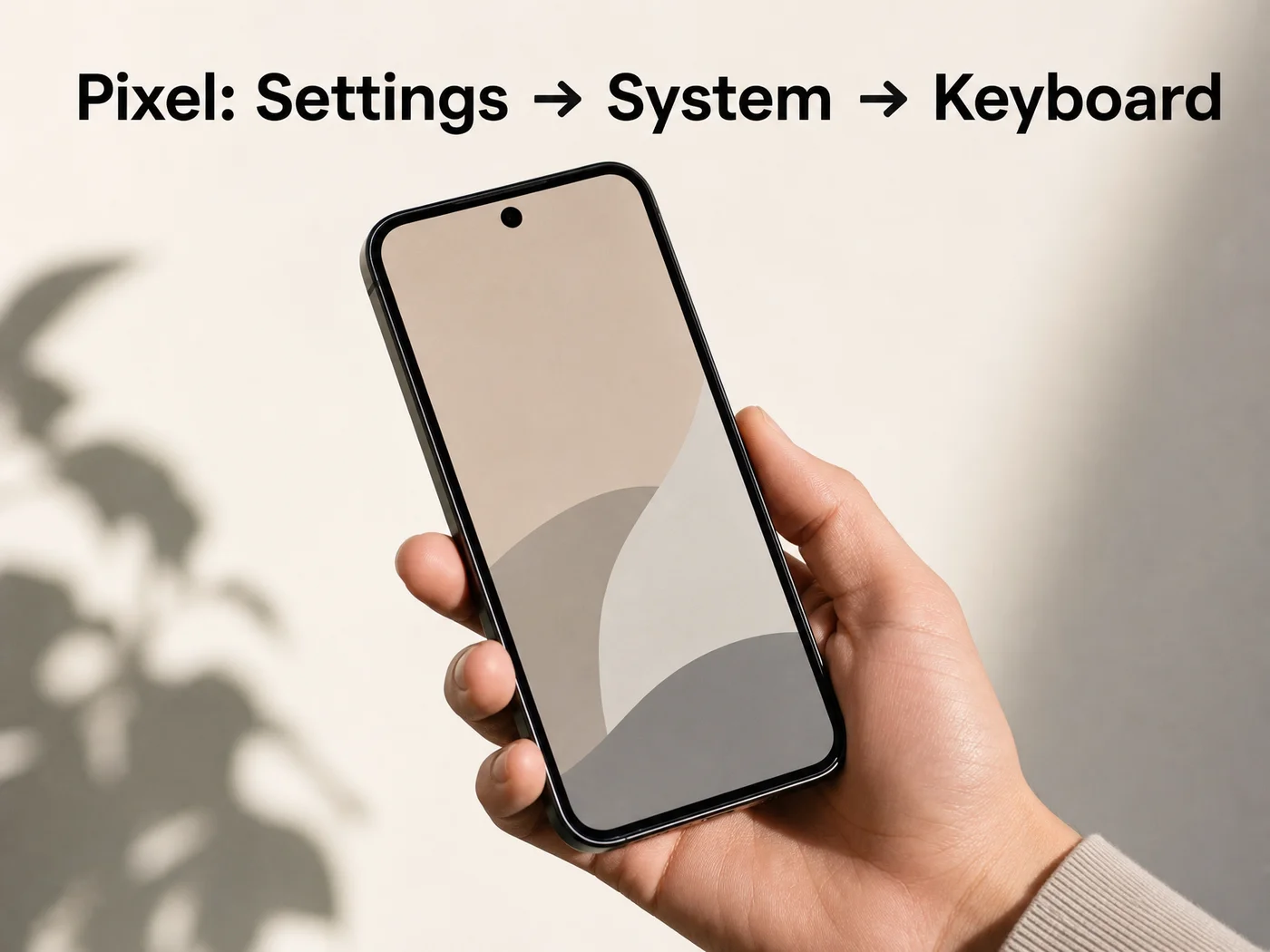 On a Pixel: Settings → System → Keyboard.
Other brands follow their own layouts. If you cannot find the menu, open Settings and search for "keyboard". Typing "keyboard list and default" into the search bar is a trick that gets many people to the right screen straight away.
Related: Samsung Keyboard Dark Mode: How to Turn It On & Fix It
How Do I Change the Keyboard on a Samsung Phone?
To change the keyboard on a Samsung phone, open Settings → General management → Keyboard, turn on the keyboard you installed, then switch to it with the keyboard icon at the bottom-right while typing. Samsung Keyboard remains installed as a fallback.
Samsung's menu is a little different from stock Android. The Keyboard entry sits under General management, and Samsung's own Samsung Keyboard has a separate settings page there for things like size and transparency.
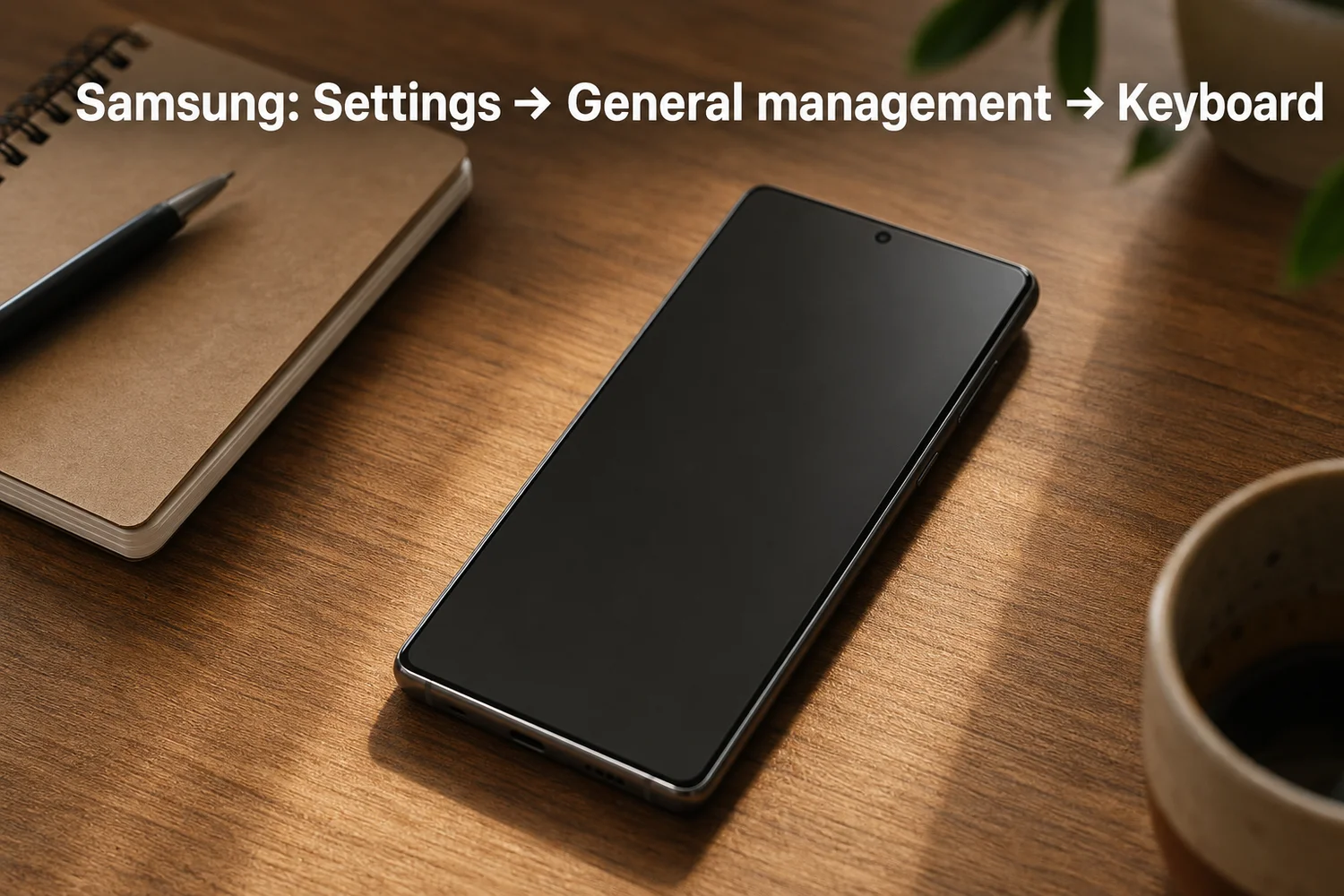 On a Samsung Galaxy: Settings → General management → Keyboard.
Once the new keyboard is toggled on, open any app, tap a text field, and use the picker. If you mostly want voice input on a Galaxy, our guide to talk to text on Android covers the basics, and talk to text on Samsung relies on the same keyboard-switching steps used here.
How Do I Customize My Android Keyboard?
To customize an Android keyboard, open the keyboard's own settings from the gear icon on its toolbar, or from the keyboard list in Settings. Most keyboards let you change the theme, height, layout and key feedback. Which options you get depends on the keyboard you chose.
Start with what the stock keyboards offer. Gboard has theme and preference options, including keyboard height. Samsung Keyboard has its own settings page, with a size and transparency option for resizing the keyboard.
Then think about what you want from a third-party keyboard. A few things are worth setting up early:
- Theme and look. BossAI includes themes, so the keyboard can match your phone.
- Words it keeps getting wrong. BossAI's Custom Dictionary lets you add names, technical terms and brand names so they come out right.
- Text you retype constantly. Clips stores an email signature, an address or a standard reply that you paste in one tap. This is the Android version of what people search for as Android text shortcuts.
- Tone. Rewrite changes your text into one of six tones: Professional, Casual, Witty, Persuasive, Empathetic or Bold.
Worth knowing: Customization options belong to each keyboard, not to Android. If a setting is missing, you are probably looking in the wrong keyboard's menu.
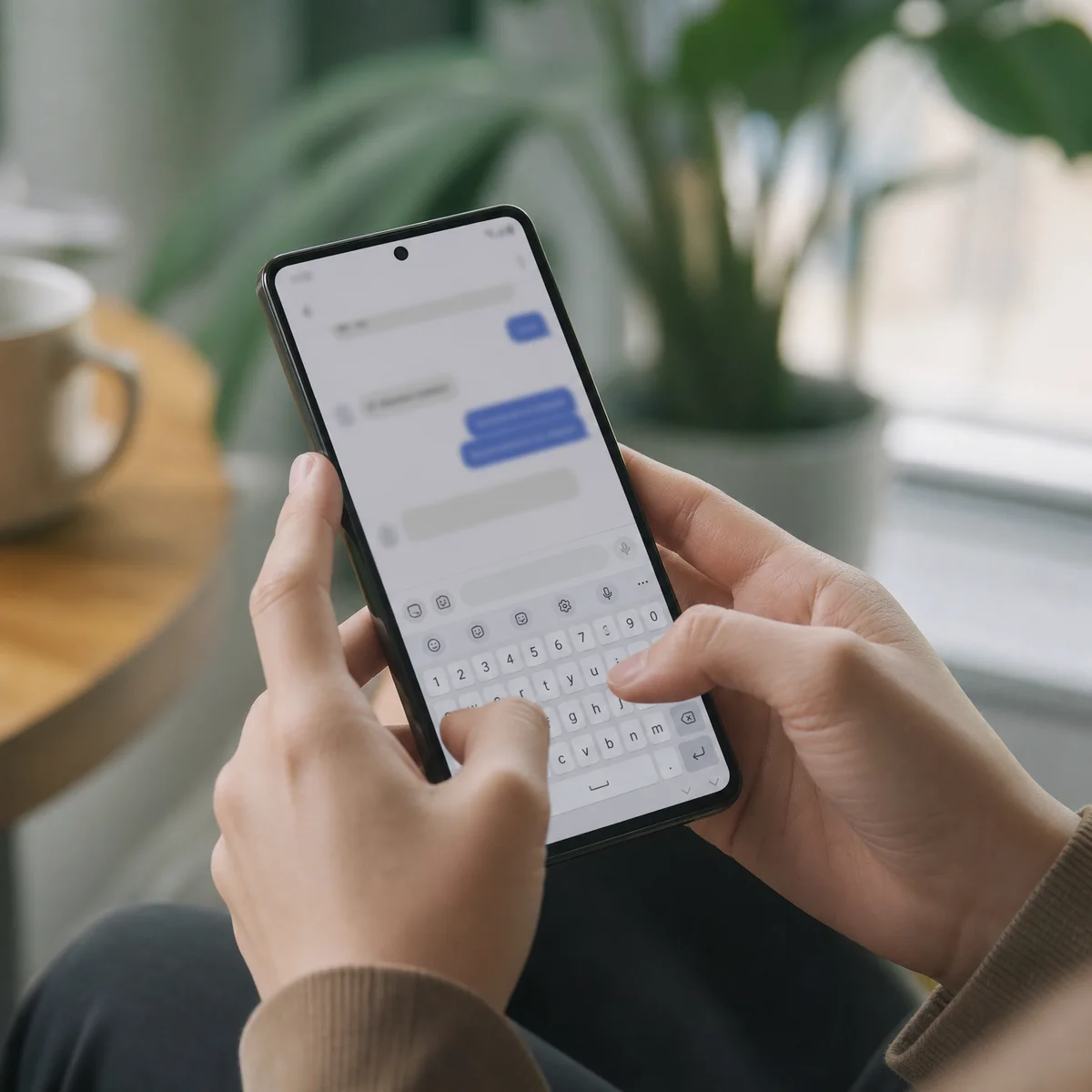 Once a keyboard is enabled, the picker switches to it in any app.
Can BossAI Replace Gboard or Samsung Keyboard?
Yes. BossAI is a full keyboard for Android, installed from Google Play, that replaces Gboard or Samsung Keyboard. You enable it in keyboard settings, switch to it in any app, and get AI dictation, Boss Mode, Rewrite, Clips, a Custom Dictionary and a Knowledge Base on the same keyboard.
Android has every feature that iOS has. That includes AI dictation that removes filler words and fixes grammar and punctuation, plus Boss Mode, which reads what is on your screen so you can say "Boss, reply to this professionally" and get a full draft. The Android app also adds a floating button alongside the keyboard.
Switching in practice takes seconds. Open a chat, tap the field, tap the keyboard icon, choose BossAI. Your old keyboard is still one tap away.
If you are still deciding which keyboard to set as your default, our comparison of the best Android keyboard lays out six options. For voice-first typing specifically, the voice keyboard for Android piece explains what changes once you start dictating instead of tapping. And if dictation is the real goal, dictation apps for Android shows the numbers behind it.
How to Change Keyboard on Android When the Change Won't Stick
If your keyboard will not change or keeps reverting, check three things: the keyboard is toggled on in the keyboard list, you actually picked it from the keyboard picker, and your phone has restarted since installing. Most failures come from skipping the enable step.
Work through these in order:
- The keyboard is not in the list. Confirm the app finished installing from Google Play, then reopen the keyboard list. If it is still missing, restart the phone.
- It is in the list but off. Toggle it on. Disabled keyboards never show up in the picker.
- No keyboard icon appears. The picker icon only shows while a text field is open and the keyboard is on screen. Tap into a field first.
- It reverts after a restart or update. Open the keyboard list again and set your preferred keyboard as the default.
Common mistake: Enabling a keyboard and assuming it is active. On Android, "enabled" and "selected" are two separate steps.
If you are comparing a long list of options before settling on one, our text-to-speech app for Android guide may save you a few installs.
Get Started with BossAI on Android
BossAI turns your Android keyboard into one that cleans up your dictation, rewrites in six tones and stores the text you retype most. Install it from Google Play, enable it using the path for your phone, and switch to it from the picker.
FAQ
How do I change my keyboard back to normal on Android?
Open any text field, tap the keyboard icon at the bottom-right, and select Gboard or Samsung Keyboard. To make it permanent, go to your phone's keyboard list in Settings and set the original keyboard as the default. Your other keyboards stay installed.
Can I use more than one keyboard on Android?
Yes. Android lets you enable several keyboards at once and switch between them from the keyboard picker while typing. Only one is active at a time, and you can change it in any app without returning to Settings.
What is BossAI?
BossAI is an AI voice keyboard for iPhone and Android, plus a voice-to-text app for Mac and Windows. It transcribes speech, strips filler words, rewrites text in different tones, and includes Boss Mode, which reads your screen to draft contextual replies.
Is BossAI free on Android?
BossAI has a free plan that gives you 500 words a day, and the allowance resets daily. A single Pro subscription covers every platform, including Android, iOS, macOS and Windows.