
Samsung Keyboard Dark Mode: How to Turn It On & Fix It
Picture a Galaxy phone at 11 p.m., every screen dark, and then you tap a text field and a bright white keyboard slides up. It's a small thing, and it still stings.
Samsung keyboard dark mode comes down to two settings that have to agree: the system's Dark mode and the keyboard's own theme. Below are the steps, the reasons the two fall out of sync, and one alternative if you'd rather skip Samsung's keyboard.
How Do You Turn On Samsung Keyboard Dark Mode?
The fastest way to get a dark Samsung keyboard is to switch on the phone's system Dark mode from Quick Settings. The keyboard follows it. If you want a dark keyboard while the rest of the phone stays light, choose the Dark or Solid dark theme in Samsung Keyboard settings.
Menu names shift slightly between One UI versions, so treat the paths below as a guide, not gospel. They match what Samsung's own support page and the walkthroughs from Beebom and Android Police describe.
Option 1: Turn on system Dark mode
- Swipe down twice from the top of the screen to open Quick Settings.
- Tap the Dark mode tile (the moon icon).
- Open any text field. The keyboard should now be dark.
You can also schedule it. Go to Settings > Display > Dark mode settings and choose a schedule, such as sunset to sunrise, so the phone flips on its own.
Option 2: Pick a dark keyboard theme
- Open Settings > General management > Samsung Keyboard settings.
- Tap Theme (some versions label it "Style and layout", then keyboard themes).
- Choose Dark or Solid dark.
Dark has translucent keys with a faint border. Solid dark hides the key borders for a flatter look. The full list also includes Light, Solid light and a Color palette option.
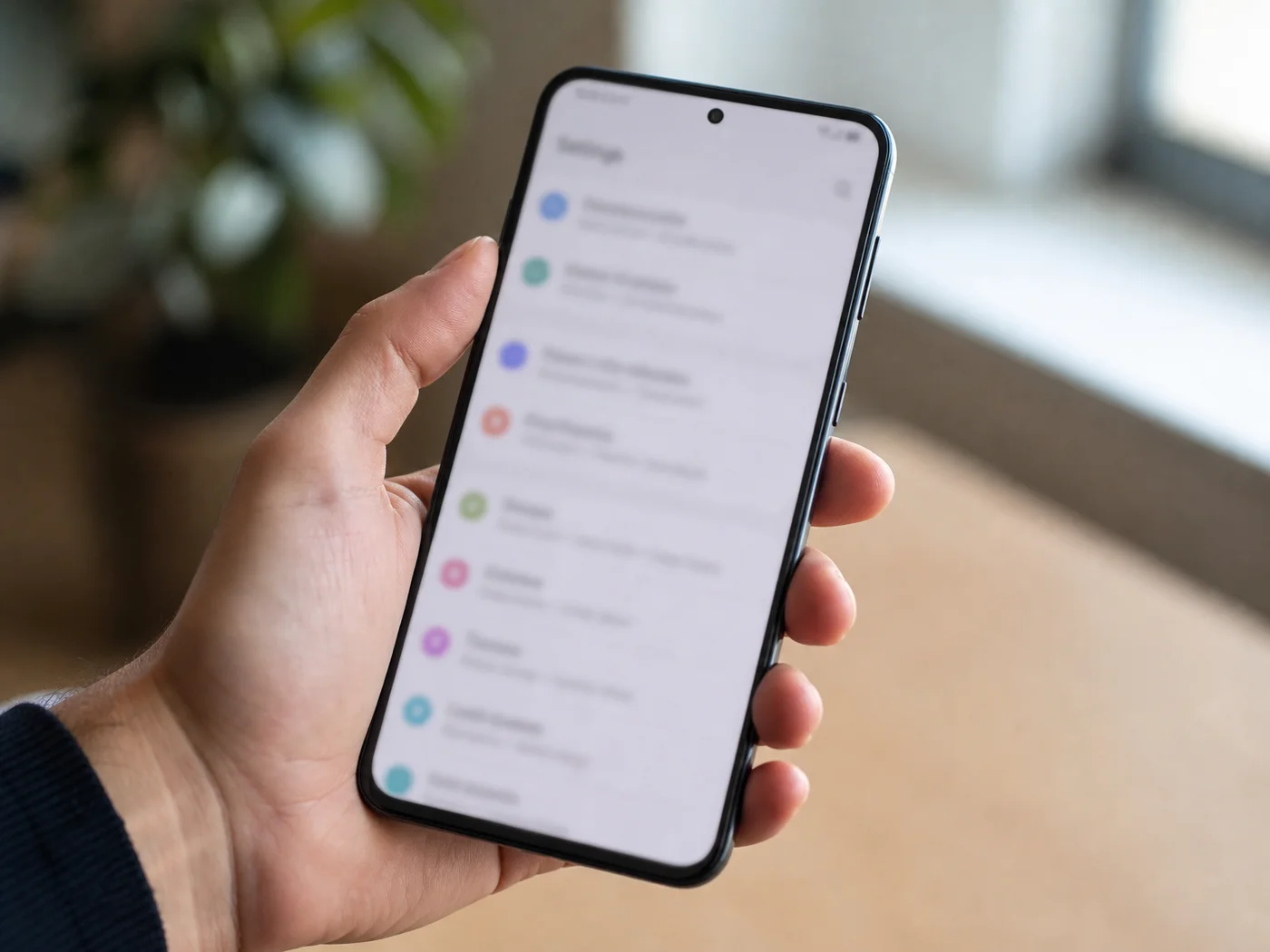 The theme controls live inside Samsung Keyboard settings, one level below General management.
Not sure Samsung Keyboard is even your active keyboard? Our guide on how to change keyboard on Android covers the Samsung and Pixel paths for switching it.
What the Samsung Keyboard Follows: System Dark Mode
Yes, in the sources we checked, the Samsung keyboard follows system Dark mode by default, and Samsung doesn't offer a separate "follow system" switch the way Gboard does. The manual theme choice only takes effect when the system is in light mode.
That second sentence is the part that confuses people. Android Police says the Light, Dark and Color palette themes "don't work" while system Dark mode is on. A Reddit thread on r/S24Ultra describes the mirror image: a user on system dark who wanted a white keyboard and found the theme option unavailable.
We haven't run our own device test for this article, so these are the behaviours reported by Samsung's community threads and the guides we checked. If your One UI version acts differently, trust your phone.
Reality check: If you want a dark keyboard and a light phone, pick the dark theme with system Dark mode off. If you want the reverse, Samsung's keyboard settings won't give you that on their own.
Why Does My Samsung Keyboard Dark Mode Not Work?
When the keyboard stays light, the cause is usually a mismatch: system Dark mode is off or scheduled for later, a light theme is selected, or a third-party theme is overriding the keyboard's colors. Each has a quick fix.
Run down this list in order.
- System Dark mode is off. Check the Quick Settings tile. A schedule that hasn't kicked in yet looks identical to "off".
- A Light or Solid light theme is saved. Open Samsung Keyboard settings > Theme and choose Dark or Solid dark, then keep system Dark mode off so the theme applies.
- A custom theme is overriding it. A Samsung community thread about the Keys Cafe theme module reports a custom keyboard theme that wouldn't switch with dark mode. The suggested steps there were updating both the OS and the module, then clearing the app's cache and data.
- The keyboard changed. If you recently installed another keyboard, it may now be your default, and Samsung's settings no longer apply to it.
- Dim-light readability. If dark is on but the keys are hard to see, Beebom points to the High contrast keyboard option in the same settings menu, with a white-letters-on-black keypad.
One user in a Samsung community thread says their workaround for the keyboard ignoring dark mode was creating a routine that toggles high contrast. It's clunky, but it shows how long this mismatch has been around.
Changing the Samsung Keyboard Theme to a Dark One
Open Settings, go to General management, tap Samsung Keyboard settings, then Theme, and choose Dark or Solid dark. You can also tap the gear icon above the keyboard to jump straight to its settings from any text field.
Two small notes make this smoother (the same menu path appears in our Samsung keyboard switching guide). The gear shortcut saves three taps, and it only appears when Samsung Keyboard is the active keyboard. And the Theme list is hidden or inactive while system Dark mode is on, so flip Dark mode off first if you can't tap it.
 A dark keyboard theme looks the same whichever messaging app you open.
Can BossAI Give You a Dark Keyboard Too?
Yes. BossAI is a voice keyboard for Android, and its themes include a dark mode. On the free plan you get one theme. Pro, at $9.99 a month or $69.99 a year, unlocks every theme.
Here is how that works in practice. Free gives you exactly one theme, so you pick the look you want to keep. If you want to switch between themes later, say a dark one at night and something lighter in the day, that is a Pro feature.
What we can't promise: BossAI's own docs don't say that its dark theme follows or overrides your phone's system Dark mode, so don't assume either. Check the behaviour on your own phone after you install it.
The reason to consider it isn't the color. BossAI is also an AI voice keyboard, so you get dictation with filler words stripped out, one-tap Rewrite and Boss Mode alongside the theme, in every app. If you only want a dark keyboard, Samsung's built-in option is enough.
For a wider comparison of what's out there, see our roundup of the best Android keyboard options.
Samsung Settings vs BossAI: Choosing a Dark Keyboard
Use Samsung's own settings if you only want a dark keyboard, since they cost nothing and take under a minute. Consider BossAI if you also want voice typing, tone rewriting and a themed keyboard in one app.
The table lays out what each route gives you, and the best Android keyboard comparison covers the rest of the field.
| Option | Cost | What you get | Best for |
|---|---|---|---|
| Samsung Keyboard, system Dark mode | Free | Keyboard darkens with the whole phone | Phones that stay dark all day |
| Samsung Keyboard, Dark or Solid dark theme | Free | Dark keyboard while the system stays light | Light phone, dark keyboard |
| Samsung High contrast keyboard | Free | White letters on a black keypad | Dim rooms, low-vision readability |
| BossAI free plan | Free | 1 theme, dark mode among them, plus 500 dictated words a day | Dark keyboard plus voice typing |
| BossAI Pro | $9.99/month or $69.99/year | All themes, unlimited dictation | Switching themes, heavy dictation |
Quick Recap
Quick recap
- Samsung's keyboard follows system Dark mode, so the Quick Settings tile is the fastest fix.
- For a dark keyboard on a light phone, choose Dark or Solid dark under Samsung Keyboard settings > Theme.
- If it stays light, check Dark mode, the saved theme, any custom theme module and your default keyboard, in that order.
- BossAI lists dark mode among its themes: 1 theme free, all themes on Pro.
Get Started with BossAI
If you want a dark keyboard that also types for you, BossAI's free plan is the low-risk way to try it. A 7-day Pro trial needs no account.
FAQ
How do I make my Samsung keyboard black?
Turn on system Dark mode from Quick Settings, and the keyboard follows. Or open Settings > General management > Samsung Keyboard settings > Theme and pick Dark or Solid dark. For maximum contrast, the High contrast keyboard option gives white letters on a black keypad.
Why is my Samsung keyboard still white in dark mode?
Usually a light theme is saved, a custom theme module is overriding it, or another keyboard is now your default. Check Samsung Keyboard settings > Theme, update the OS, and confirm Samsung Keyboard is the active keyboard before trying anything more drastic.
Can I have a light keyboard with Samsung's dark mode on?
Not through Samsung's keyboard settings alone. The manual theme only applies when the system is in light mode, and users on Samsung's community forums report the Theme option unavailable while system Dark mode is on. A third-party keyboard with its own theme is the usual workaround.
Does BossAI have a dark keyboard theme?
Yes. Dark mode is among the themes in BossAI, which runs as a keyboard on Android and iPhone. The free plan includes one theme, and Pro unlocks all of them. Pro costs $9.99 a month or $69.99 a year, and a 7-day Pro trial needs no account.
Is BossAI free on Android?
Yes. The free plan covers 500 dictated words a day, which resets daily, plus one Boss Mode reply and one Rewrite each day, two Clips and one language. Pro removes those limits. Install it from Google Play or through bossai.tech.