
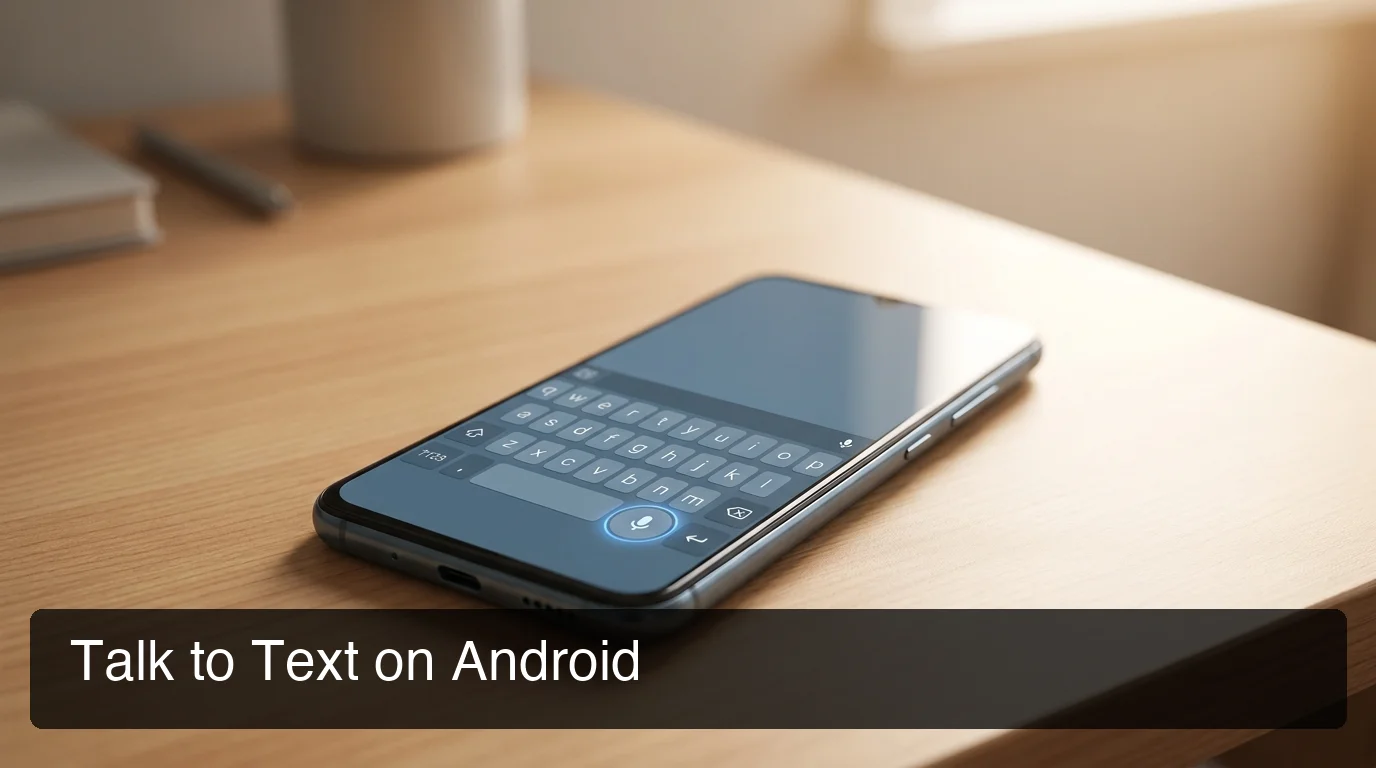
Talk to Text Android: Setup Guide & Best Apps
Talk to text on Android converts your spoken words directly into typed text — no third-party app required. Android's built-in voice typing works in Gmail, Messages, WhatsApp, and every app where you can type. If you want AI-enhanced output without the "ums" and choppy phrasing, a dedicated dictation keyboard handles that too.
What Is Talk to Text Android?
Talk to text on Android — sometimes called speech to text or voice typing — is a speech recognition feature built into Gboard, Android's default keyboard. It converts spoken words into typed text in real time and works across every app with a text field: messages, email, notes, documents, and search bars. On most modern Android devices, basic voice typing runs without an internet connection.
It's not a voice assistant. You're not asking Android to do something — you're speaking instead of typing. Words appear directly in the text field as you talk, and you edit or send them however you like.
Hundreds of millions of Android users have this feature and never use it. The microphone icon sits right on the keyboard.
Key Takeaways
- Talk to text on Android is a free, built-in Gboard feature that converts speech to typed text in real time — no additional app or account needed.
- Android's native voice typing works offline but doesn't remove filler words, fix grammar, or add punctuation automatically.
- Third-party dictation apps replace your Android keyboard and add AI enhancement — filler word removal, grammar correction, and one-tap tone rewriting.
- BossAI's Android free tier gives you 500 words per day with a daily reset — so the cap refreshes every morning, not once a week like most competitors.
How Do I Enable Voice Typing on My Android Phone?
To use talk to text on Android, tap any text field to open your keyboard, then tap the microphone icon at the top-right of the Gboard keyboard. Wait for "Speak now" and start talking. Words appear in real time as you speak. No login, no setup — the feature is on by default if Gboard is your active keyboard.
If the microphone icon is missing, the keyboard needs permission:
- Open Settings → Apps
- Select your keyboard app (usually Gboard)
- Tap Permissions → Microphone
- Choose Allow only while using the app
You can also dictate punctuation by voice. Say "comma," "period," "exclamation point," or "new paragraph" and Gboard inserts the symbol instead of typing the word.
Voice typing works in portrait and landscape mode, with or without a paired Bluetooth keyboard — in any app where a text cursor is active.
What's the Difference Between Talk to Text and a Voice Assistant?
Talk to text puts words in a text field — you dictate, it types. A voice assistant like Google Assistant interprets your speech as a command and acts on your behalf. One creates text output; the other performs tasks. They start with the same microphone tap but do completely different things.
When you tap the keyboard mic and say "let's reschedule to Thursday," those exact words appear in your email draft. When you say "Hey Google, reschedule to Thursday," Google Assistant opens your calendar and tries to modify an event.
Voice typing is for output — writing emails, texts, notes. Voice assistants are for control — setting reminders, opening apps, running searches. The two tools work well together but shouldn't be confused.
How Does Built-in Android Dictation Compare to Third-Party Apps?
Android's built-in voice typing covers the basics. Third-party dictation apps exist because the basics have real limits for professional use.
| Feature | Built-in Gboard | AI dictation keyboard |
|---|---|---|
| Filler word removal | ❌ | ✅ |
| Auto punctuation | Voice command only | Automatic |
| Grammar correction | Minimal | Full AI pass in ~300ms |
| Custom vocabulary | ❌ | ✅ |
| Works across all apps | ✅ | ✅ (keyboard replacement) |
| Tone rewriting | ❌ | ✅ (one tap) |
| Offline capability | ✅ | Varies by app |
| Free tier | Unlimited basic | 500 words/day (AI-enhanced) |
Built-in voice typing is fast and zero-cost. For quick texts or search queries, it's all you need. Raw output from Gboard reads like an unedited transcript: missing commas, lowercase proper nouns, and whatever filler words you said left intact.
Third-party apps sit at the keyboard layer, so the workflow is identical — tap mic, speak — but an AI processing step cleans up the output before it reaches the text field. What comes out is punctuated, grammatically correct, and filler-free.
For a broader comparison of Android voice input apps, the text-to-speech app guide for Android covers the full landscape across popular tools.
Which Talk to Text Android App Works Best?
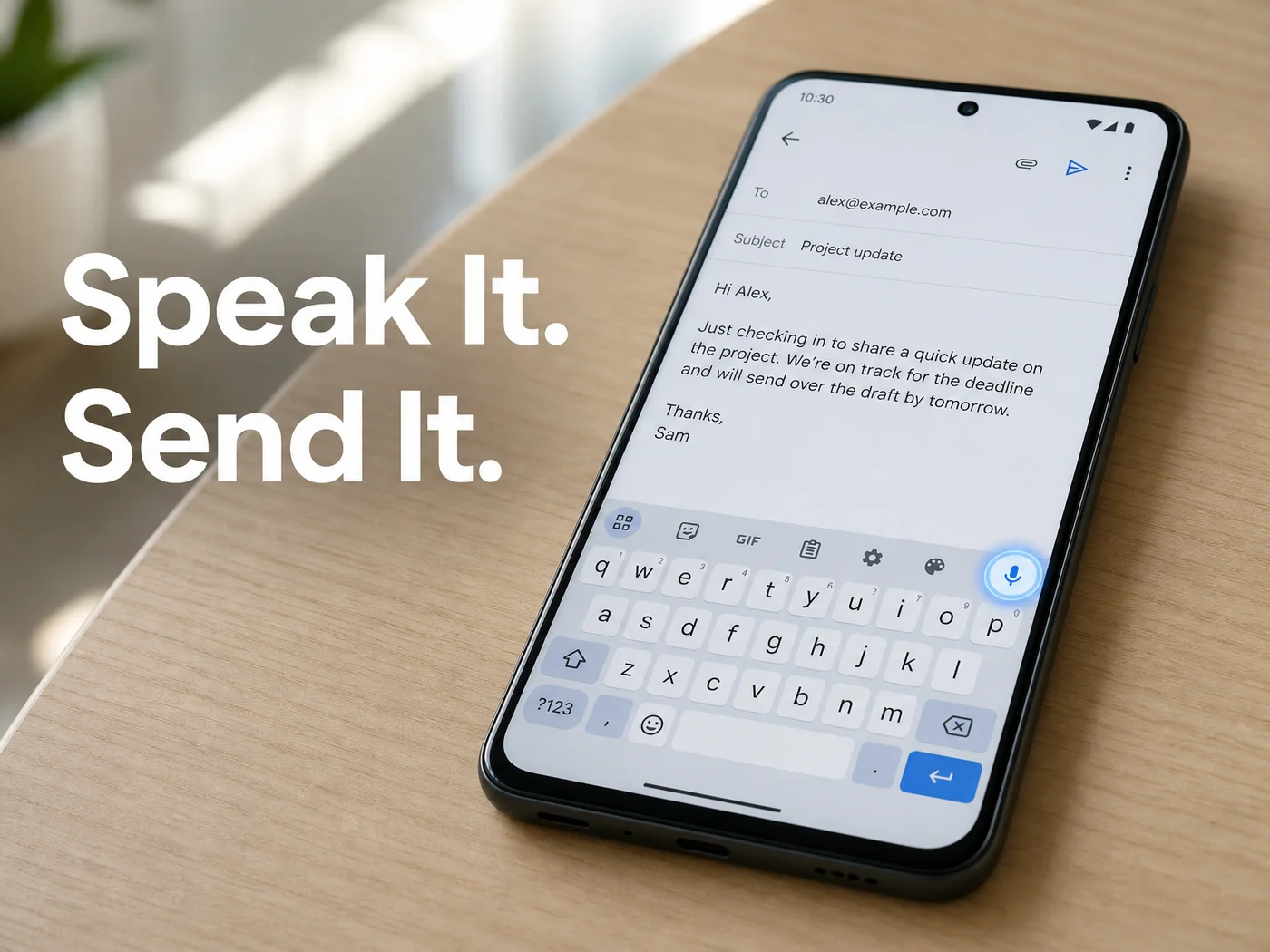 Dictate into Gmail or any app from the keyboard, and send polished text without copy-pasting.
The right choice depends on how you actually use your phone.
Stay with built-in Gboard voice typing if:
- You mostly dictate short messages and searches
- Offline-capable dictation matters to you
- You don't need filler word removal or grammar correction
Switch to a dedicated AI dictation app if:
- You write professional email or work messages and want polished output
- You want real-time voice dictation with automatic cleanup — no post-editing
- You need a custom dictionary for names, technical terms, or industry vocabulary
On Android, BossAI works as a full keyboard replacement that combines real-time transcription, automatic AI cleanup, and one-tap tone rewriting (Professional, Casual, Witty, Persuasive). You can also use speak-to-text features across every app on the device without switching to a separate tool.
The free tier structure is worth paying attention to. BossAI gives you 500 words per day with a daily reset — the limit renews every morning, unlike WisprFlow and Willow Voice which cap free users at 2,000 words per week. One heavy-use Tuesday can drain that weekly budget; with BossAI, you always start fresh the next day.
For most moderate users — a few emails, some Slack messages, occasional voice notes — 500 words a day covers daily usage without needing to upgrade. And when you need more, the Pro plan unlocks everything.
Round out your research with this overview of voice typing apps for Android and other platforms.
Reality check: The word cap model matters more than it looks on paper. A weekly cap means one busy day penalizes the rest of your week. A daily reset means the same 500 words show up every morning — which is a genuinely different experience for regular dictation users.
Why Isn't Voice Typing Working on My Android?
The mic key usually fails for one of three reasons: the keyboard app doesn't have microphone permission, voice input was switched off (often after a system update), or a different keyboard is set as the default and doesn't have voice input enabled. Each has a one-step fix.
Check permissions first: Settings → Apps → your keyboard app → Permissions → Microphone → Allow. This is the most common cause, especially after installing a new keyboard or restoring a phone from a backup.
If permissions look fine, confirm the keyboard you expect is actually the default in your phone's keyboard settings (the path varies by manufacturer). Several keyboards can be installed, but only one is active.
Common mistake: People re-enable voice typing in Gboard but forget they switched their default keyboard to another app months earlier. The toggle only applies to the keyboard that's currently active.
Can Voice Typing on Android Work in Multiple Languages?
Yes. Android's built-in voice typing works in the languages you've added to your keyboard settings, and for the most reliable results you pick the active language before you speak. If you dictate in more than one language, expect to switch it manually.
BossAI's Spoken Language setting can auto-detect the language you speak or be pinned to one, and a separate Output Language setting controls the language of the text you get back. The free plan includes one dictation language; Pro unlocks all 99+, including Hindi, Tamil, Malayalam and Marathi. Our multilingual voice typing guide walks through the setup.
Get BossAI on Android
BossAI gives you AI-enhanced dictation as your default Android keyboard — filler words removed, grammar corrected, and polished text ready to send without editing.
Frequently Asked Questions
How do I turn on talk to text on Android?
Open any app with a text field and tap to activate your keyboard. On Gboard, tap the microphone icon at the top-right corner, wait for "Speak now," and start dictating. If the mic isn't visible, go to Settings → Apps → Gboard → Permissions → Microphone and enable it — the feature then works in every text field, no account required.
Where is the talk to text button on Android?
On Gboard, the microphone button is at the top-right of the keyboard when a text field is active. If you don't see it, tap the three-dot menu (More) in the keyboard toolbar to find the voice input option. On some Android manufacturer keyboards (Samsung, Xiaomi), the mic may appear in the toolbar row instead of the top corner.
Why can't I talk to text on my Android anymore?
The most common causes are a revoked microphone permission, a lost internet connection, or an outdated Gboard version. Check Settings → Apps → Gboard → Permissions → Microphone first, then update Gboard in the Play Store. Force-stopping Gboard under Settings → Apps and relaunching clears most temporary recognition failures.
Is there a free talk to text app for Android?
Gboard's built-in voice typing is free with no word limits for basic dictation. For AI-enhanced output — filler word removal, grammar correction, tone rewriting — BossAI offers a free tier on Android with 500 words per day and a daily reset. No credit card needed; the limit refreshes every morning, so regular use on the free plan is practical for most people.