

Voice Typing Windows 11: Setup & Tips
Voice typing Windows 11 includes as a built-in feature is one of the most underused productivity shortcuts on any PC. Press Win + H in any text field and dictation starts instantly — no installation, no account, no cost.
Key Takeaways
- Windows 11 voice typing activates instantly via Win + H — no app installation or account needed.
- Enable auto-punctuation in Settings > Accessibility > Speech for cleaner output without manual corrections.
- Built-in voice typing works in most apps: browsers, Microsoft Word, Outlook, and messaging clients.
- Accuracy is solid for casual dictation but limited — no filler word removal, no grammar correction.
- For professional writing, BossAI adds AI-enhanced transcription, screen awareness, and one-tap tone rewriting on top of the Windows ecosystem.
Contents
- What Is Voice Typing Windows 11?
- How Do You Enable Voice Typing on Windows 11?
- How Accurate Is Voice Typing Windows 11?
- Can You Use Voice Typing in All Windows 11 Apps?
- What's the Difference Between Windows 11 Voice Typing and Third-Party Apps?
- Is Voice Typing Free on Windows 11?
- When Should You Upgrade to BossAI?
- Frequently Asked Questions
 Windows 11 voice typing turns any active text field into a dictation zone — press Win + H to begin.
What Is Voice Typing Windows 11?
Voice typing in Windows 11 is a built-in speech-to-text feature that transcribes spoken words into any active text field using your PC's microphone. Activated with the Win + H shortcut, it uses Microsoft Azure cloud speech recognition to convert speech in real time — with no third-party software, no account, and no cost.
Microsoft modernized this feature in the 2021 Windows 11 update, replacing the older Windows Speech Recognition panel with a cleaner floating toolbar. It supports auto-punctuation, basic voice commands like "period" and "new line," and runs in the background of most applications.
Voice typing is not a voice assistant — it doesn't control your PC or respond to commands. It's a focused dictation tool: you speak, and text appears wherever your cursor is positioned.
Key insight: Windows 11 voice typing is powered by Azure Cognitive Services — the same enterprise speech engine behind Microsoft's transcription products. That technology is available to any Windows 11 user at zero cost.
How Do You Enable Voice Typing on Windows 11?
To enable voice typing on Windows 11, press Win + H with any text field focused — the floating toolbar appears and listening begins immediately. No setup is required for basic use. For auto-punctuation and language preferences, navigate to Settings > Accessibility > Speech.
Here's the complete setup process from scratch.
How to Start Voice Typing Right Now
- Click inside any text field — a browser address bar, Word document, Notepad, email compose window, or chat box.
- Press Win + H to open the voice typing toolbar.
- The microphone activates automatically. Speak clearly and your words appear in real time.
That's the full basic setup. Voice typing is on by default in Windows 11 — no download or account required.
How to Configure Voice Typing Settings
For better output quality, open Settings > Accessibility > Speech and adjust these options:
- Auto-punctuation — Automatically inserts commas, periods, and question marks based on speech patterns. Off by default — turn this on first.
- Voice typing launcher — Shows a floating microphone button when text fields are focused, so you don't need to remember the shortcut.
- Language — Set to match your preferred dictation language or switch for multilingual use.
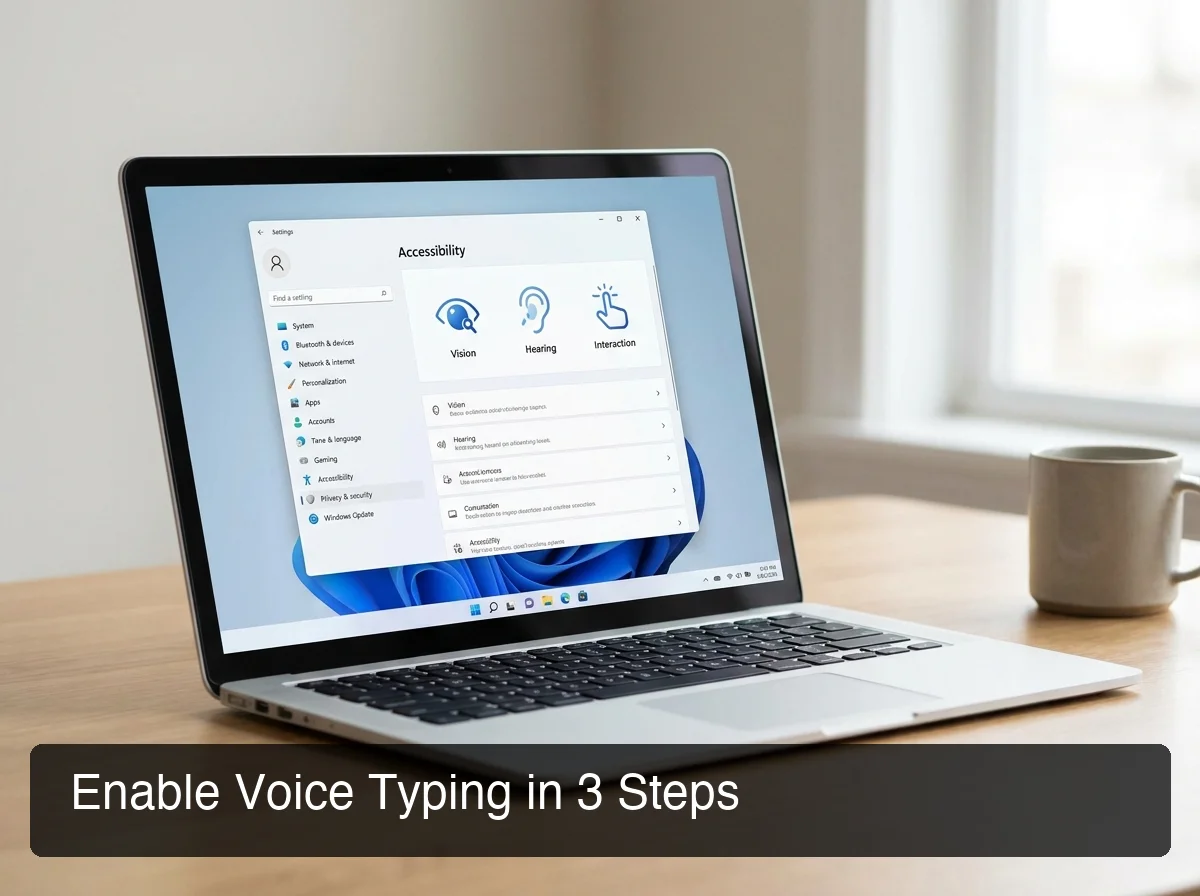 Enable auto-punctuation in Settings > Accessibility > Speech — it's the single biggest quality improvement for native voice typing.
Voice Commands That Work in Windows 11
Once the toolbar is active, these spoken commands control formatting:
- "period" / "comma" / "question mark" — Inserts punctuation at the cursor
- "new line" / "new paragraph" — Moves the cursor down
- "delete that" — Removes the last transcribed phrase
- "stop listening" — Deactivates the microphone without closing the toolbar
Pro tip: Say "stop listening" to pause dictation mid-session. This prevents the mic from picking up background conversation while you think, which is faster than clicking the toolbar button.
How Accurate Is Voice Typing Windows 11?
Windows 11 voice typing achieves 90–95% word accuracy in quiet environments with a clear microphone — on par with Google Docs Voice Typing and Apple Dictation. Accuracy drops with background noise, heavy accents, or technical vocabulary. Critically, it transcribes verbatim: filler words like "um" and "uh" appear in your text.
That last limitation is the key friction point for professional use. If you say "so, um, I was thinking we should probably just move the meeting," Windows faithfully transcribes all of it. You'll edit filler words out manually, which erases much of the time saved by dictating.
Auto-punctuation closes part of this gap. With it enabled, natural speech pauses trigger commas and periods automatically — producing noticeably cleaner output.
For a full accuracy comparison across Windows dictation tools including third-party options, see our complete voice to text Windows guide.
What Affects Accuracy?
| Factor | Impact |
|---|---|
| Quiet environment | +15–20% word accuracy |
| Quality headset mic vs. built-in | +10–15% improvement |
| Auto-punctuation enabled | Cleaner output, same word accuracy |
| Technical vocabulary / jargon | –10–20% drop |
| Accented speech | –5–15% depending on accent |
| Slow, deliberate speaking pace | +5–10% improvement |
By the numbers: Voice typing can reach 130–160 words per minute for trained speakers — 3–4x faster than the average keyboard typing speed of 40–50 WPM. The accuracy gap, not the speed, is what limits professional adoption.
Can You Use Voice Typing in All Windows 11 Apps?
Windows 11 voice typing works in any app that uses a standard Windows text input control — including Microsoft Word, Outlook, Edge, Chrome, Teams, Slack, and Notepad. It does not work in command-line interfaces (CMD/PowerShell) or apps with fully custom text rendering engines.
The rule of thumb: if you can click into a text field and type with your keyboard, voice typing will work there. Apps with proprietary rendering sometimes bypass Windows input, which blocks dictation.
For most everyday workflows, compatibility is excellent. Test your specific tools if you use specialized writing environments or legacy software.
 Voice typing works across the apps where professionals spend most of their time — email, documents, and messaging.
Where Voice Typing Works Best
- Email: Outlook, Windows Mail, browser-based Gmail, Yahoo Mail
- Word processing: Microsoft Word, Google Docs (browser), Notepad, WordPad
- Browsers: Edge and Chrome text fields, search bars, web forms
- Messaging: Teams (desktop), Slack (browser), Discord
For hands-free dictation beyond Windows — across iPhone, Mac, and Android — see our guide on typing with your voice across every major platform.
What's the Difference Between Windows 11 Voice Typing and Third-Party Apps?
Built-in voice typing transcribes what you say, verbatim, with optional auto-punctuation. Third-party voice typing apps add AI enhancement: filler word removal, grammar correction, tone rewriting, screen context awareness, and custom vocabulary — output quality that requires no post-editing.
This gap matters most for professional communication. If you send client emails, write Slack messages, or produce any text that others read critically, raw transcription quality leaves you editing instead of moving on.
Here's how Windows 11 native voice typing compares to dedicated alternatives:
| Feature | Windows 11 Voice Typing | BossAI | WisprFlow |
|---|---|---|---|
| Price | Free | $9.99/mo (free tier) | $15/mo (word cap) |
| Filler word removal | ❌ | ✅ | ✅ |
| Auto grammar correction | ❌ | ✅ | ✅ |
| Auto-punctuation | Toggle (off by default) | Automatic | Automatic |
| Screen context awareness | ❌ | ✅ (Boss Mode) | ❌ |
| One-tap tone rewrite | ❌ | ✅ | ❌ |
| Custom vocabulary | ❌ | ✅ | ✅ |
| Works across all apps | ✅ | ✅ | ✅ |
| iOS support | ❌ | ✅ (full keyboard) | Limited |
Windows 11 voice typing wins on price (free) and zero-friction setup. Third-party tools win on output quality — what you speak becomes what you'd actually send, without editing.
For a deeper breakdown of the full tool landscape, our voice dictation Windows guide covers setup and accuracy comparisons across the major options. And if you want to understand the full spectrum of voice typing strategies beyond Windows 11, the pillar guide covers all approaches.
Is Voice Typing Free on Windows 11?
Yes — voice typing in Windows 11 is completely free. It's a built-in Windows feature with no download, subscription, or Microsoft account required. The only technical requirements are an active microphone and an internet connection, since speech recognition runs on Microsoft's Azure cloud.
There's no word cap, no daily limit, and no trial period. Voice typing works indefinitely as long as your PC is online.
One limitation worth noting: offline voice typing is unavailable. The feature requires internet connectivity for Azure processing. If you need dictation without internet, you'll need a third-party app with a local processing mode (such as Superwhisper's local model option).
Bottom line: Windows 11 voice typing is the best free entry point for dictation — zero friction to start, no account needed, no limits. The upgrade case appears when you need AI-polished output rather than raw transcription.
When Should You Upgrade to BossAI?
 Raw Windows transcription vs. BossAI output: the same spoken sentence, dramatically different results.
Upgrade from Windows 11 native voice typing when you need output that requires no editing: filler word removal, grammar correction, tone rewriting, or screen-aware contextual replies. BossAI handles all of this in a 300ms AI pass after you speak — what comes out is ready to send.
Windows 11 voice typing is the right tool for quick notes, casual dictation, and occasional use. The friction appears with professional communication: emails, client messages, Slack, and documents where raw transcription quality creates cleanup work rather than saving time.
Signs You've Outgrown Native Voice Typing
- You edit out filler words ("um," "uh," "like") after nearly every dictation
- You need different tone for different audiences — client emails vs. internal messages
- You want to reply to an email by voice without copy-pasting the thread first
- You dictate across iOS and Windows and want consistent AI quality on both devices
BossAI runs as a Windows system tray app with the same hotkey activation pattern you're used to. But instead of verbatim transcription, it delivers a 300ms AI enhancement pass — removing fillers, correcting grammar, and formatting text for the app you're in. Its Boss Mode feature reads your screen and writes contextual replies directly, eliminating the copy-paste workflow no other dictation tool addresses.
The free tier gives you 500 words/day of fully AI-enhanced dictation to test it — enough for a real-world assessment with no credit card required.
For a complete comparison of Windows dictation options including BossAI, WisprFlow, and Superwhisper, our Windows 11 dictation guide covers every tool side-by-side. You can also explore voice dictation setup and app comparisons for Windows for deeper configuration guidance.
Looking for voice typing keyboard integrations that go beyond system-level dictation? That's a separate category worth exploring if you want voice input at the keyboard layer.
Get Started with BossAI
If you've reached the ceiling of what Windows 11 native voice typing can do, BossAI is the natural next step. Same hotkey activation, dramatically better output quality, and screen-aware replies no other tool offers — install takes under a minute.
Not ready to switch yet? Get Our AI Productivity Guide — free tips on voice dictation workflows that work across Windows, Mac, and mobile.
Frequently Asked Questions
How do I turn on voice typing in Windows 11?
Press Win + H with any text field active and the voice typing toolbar opens immediately. The microphone starts listening right away. For auto-punctuation, go to Settings > Accessibility > Speech and enable the toggle. No download or Microsoft account is required to use basic voice typing.
Does Windows have built-in voice dictation?
Yes. Windows 11 includes built-in voice typing activated via Win + H. It uses Microsoft Azure speech recognition, supports auto-punctuation, and works in most apps without any software installation. It was significantly improved from Windows 10's older Speech Recognition interface in the 2021 Windows 11 release.
Why is Windows 11 voice typing not working?
Check that your microphone is set as the default input device in Settings > System > Sound. Confirm you have an active internet connection — voice typing requires Azure cloud processing and won't function offline. If Win + H doesn't open the toolbar, click into a text field first, then press the shortcut again.
Can I use voice typing on Windows 11 without the internet?
No. Windows 11's built-in voice typing requires an internet connection because speech processing runs on Microsoft Azure cloud servers. For offline dictation, you need a third-party app with local AI model support, such as Superwhisper's local processing mode or Spokenly, which runs fully offline.
What is BossAI?
BossAI is an AI voice keyboard for iPhone and Android, and a voice-to-text app for Mac and Windows, that replaces typing with voice dictation. It transcribes speech in real time, removes filler words automatically, rewrites text in different tones with one tap, and includes Boss Mode — a screen-reading feature that reads your screen to generate contextual replies without copy-pasting.
How accurate is BossAI compared to Windows 11 voice typing?
BossAI uses advanced speech recognition models that achieve high accuracy in quiet environments and handles accented speech well. It automatically removes filler words (um, uh, like, you know) and corrects grammar in real time — so the transcribed text is cleaner than raw dictation from most built-in tools like Windows 11 voice typing.
Are there voice typing apps that work better than Windows built-in?
Yes. Dedicated voice typing apps like BossAI, WisprFlow, and Superwhisper add AI-enhanced transcription with filler word removal, grammar correction, and tone rewriting that Windows native voice typing doesn't provide. BossAI additionally offers screen awareness via Boss Mode and one-tap tone rewriting — features no other dictation app currently offers.