
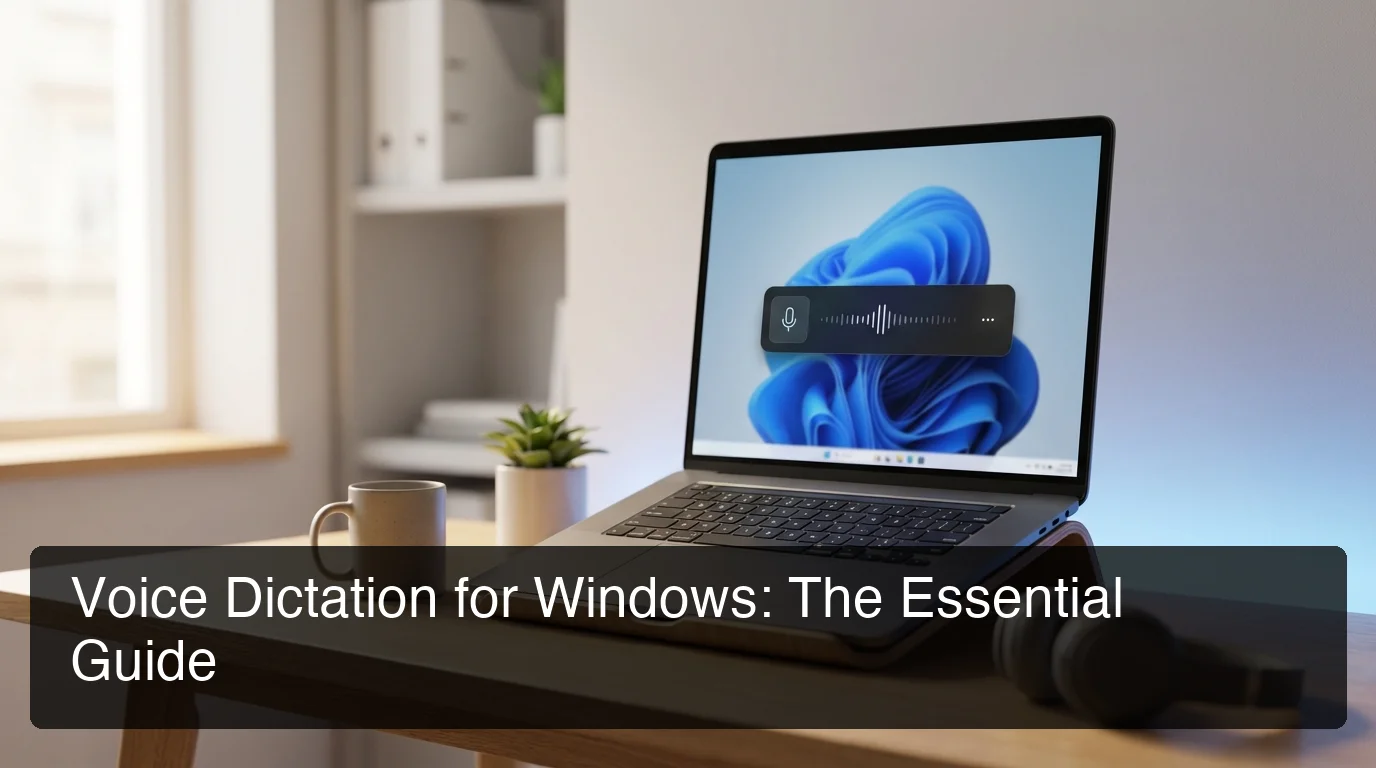
Voice Dictation on Windows: Guide for Windows 10 & 11
The voice dictation Windows ships with is free, built-in, and takes seconds to activate — yet most users have never tried it. Whether you want hands-free typing, faster email drafts, or relief from wrist strain, here's everything you need to get started today.
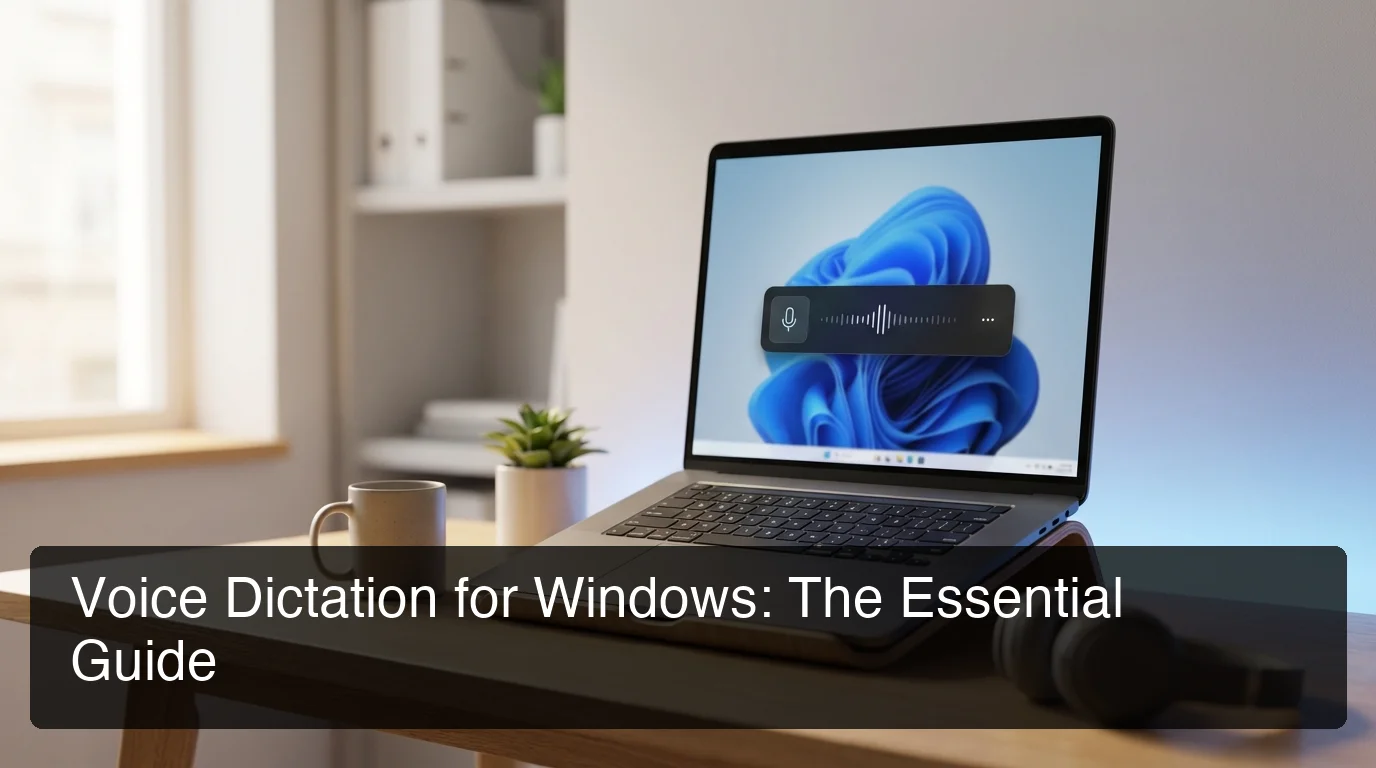 Voice dictation is built into Windows 10 and 11 — no downloads required to get started.
Key Takeaways
- Voice dictation on Windows converts speech to text in real time, built into Windows 10 and 11 at no cost.
- Enable it instantly with Windows key + H on Windows 11, or through Settings > Accessibility > Speech on Windows 10.
- Built-in Windows voice typing reaches 95%+ accuracy and works across every app on your PC.
- Third-party apps like BossAI, WisprFlow, and Dragon NaturallySpeaking add AI enhancement, filler word removal, and custom vocabulary support.
- Voice dictation reduces wrist strain and typing fatigue — making it essential for writers, developers, and anyone logging 4+ hours daily at a keyboard.
Contents
- What Is Voice Dictation Windows?
- How Can You Use Voice Dictation in Windows 11?
- How Do You Enable Voice Dictation on Windows 10?
- How Does Voice Dictation Work on Windows Devices?
- What Are the Best Voice Dictation Apps for Windows?
- How Accurate Is Voice Dictation Windows Compared to Typing?
- Why Should You Use Voice Dictation for Writing on Windows?
- Frequently Asked Questions
What Is Voice Dictation Windows?
Voice dictation on Windows is a built-in feature that converts spoken words into typed text in real time. It works across all apps — browsers, Word, Outlook, Slack, and any text field — requiring only a microphone and an active cursor. Windows offers this at no cost, with no software to install.
Windows ships with two voice input systems. Voice Typing is the modern, cloud-powered tool available in Windows 11 — faster out of the box and supports auto-punctuation. Speech Recognition is the older, trainable system in Windows 10 that can work offline after setup.
Both let you dictate hands-free. The key difference is how they process your audio: Voice Typing sends audio to Microsoft's Azure cloud for recognition, while Speech Recognition learns from your voice locally over time.
Voice dictation isn't just for accessibility users. The average person speaks at 130–150 words per minute — roughly three times faster than they type. That speed gap makes dictation one of the highest-return productivity tools available, especially for heavy writers, email-heavy professionals, and developers.
How Can You Use Voice Dictation in Windows 11?
Windows 11 Voice Typing activates with Windows key + H. A floating toolbar appears near your cursor. Click the microphone, start speaking, and your words appear in the active text field — with automatic punctuation added by default. It works instantly across every app without any configuration.
Enabling Voice Typing Step by Step
- Click into any text field (Notepad, Word, Outlook, a browser search bar — anywhere)
- Press Windows key + H simultaneously
- The Voice Typing toolbar appears as a small floating panel
- Click the microphone icon to start — or wait for it to auto-start
- Speak naturally; punctuation is inserted automatically
Voice Commands That Save the Most Time
Say "new line" for a line break or "new paragraph" for a paragraph break. Say "delete that" to remove the last phrase, or "stop listening" to pause dictation without closing the toolbar.
Key insight: Windows 11 Voice Typing uses Azure Speech Services for recognition. This gives you higher baseline accuracy than older offline tools — but it requires an active internet connection while dictating.
For a more detailed walkthrough of all Windows voice-to-text options, including shortcut differences across versions, see Voice to Text Windows: The Complete Guide to Dictation on Windows 10 & 11.
How Do You Enable Voice Dictation on Windows 10?
Windows 10 uses Speech Recognition, accessible via Settings > Ease of Access > Speech. Unlike Windows 11's cloud tool, Speech Recognition processes your voice locally and improves accuracy through a voice training session. After training, it can operate fully offline — making it the stronger choice for privacy-sensitive environments.
Setting Up Speech Recognition on Windows 10
- Open Settings > Ease of Access > Speech
- Click "Get started" under "Speech Recognition" (or search "Windows Speech Recognition" in Start)
- Choose your microphone type (headset, built-in, or desktop mic)
- Complete the optional voice training session — this meaningfully improves accuracy
- Say "Start listening" or click the microphone icon to begin dictating
Windows 10 vs. Windows 11 Voice Dictation: Key Differences
| Feature | Windows 11 Voice Typing | Windows 10 Speech Recognition |
|---|---|---|
| Activation | Windows key + H | Settings > Ease of Access |
| Cloud-powered | ✅ Azure Speech | ❌ Local processing |
| Auto-punctuation | ✅ Built-in | ❌ Manual ("period", "comma") |
| Offline use | ❌ Requires internet | ✅ After voice training |
| Voice commands | Basic | Extensive (50+ commands) |
| Accuracy out-of-box | Higher | Lower (improves with training) |
The right choice depends on your priorities. If you need speed and simplicity, Windows 11's Voice Typing wins. If you're in a low-bandwidth environment or handle sensitive content, Windows 10 Speech Recognition's offline mode is the safer option.
How Does Voice Dictation Work on Windows Devices?
 Modern Windows voice dictation delivers results in under 500 milliseconds — fast enough to keep pace with natural speech.
Windows voice dictation captures audio from your microphone, converts it into text using speech recognition models (local or cloud-based via Azure), and inserts the result into the active application. Cloud-based systems like Windows 11 Voice Typing deliver results in under 500 milliseconds — fast enough to feel instantaneous during normal dictation.
Raw Transcription vs. AI-Enhanced Dictation
Native Windows Voice Typing transcribes what you say accurately — but it doesn't clean up your speech. Say "um, I was thinking, like, maybe we should reschedule" and that exact phrase appears on screen.
AI-enhanced dictation goes further. Tools that process your voice with a language model remove filler words automatically (um, uh, like, you know), fix grammar, add punctuation contextually, and format text based on which app you're in. The output reads like polished writing rather than raw speech.
By the numbers: Speakers average 130–150 WPM versus 40–50 WPM for typing. Voice dictation can cut content creation time by up to 60% — recovering hours every week for professionals who write at volume.
This distinction matters most for email-heavy users and content creators. Raw transcription requires significant cleanup time. AI-enhanced dictation produces near-final-quality text on the first pass.
What Are the Best Voice Dictation Apps for Windows?
 Windows users have more voice dictation options than any other platform — from free built-in tools to professional AI-enhanced apps.
The best voice dictation apps for Windows in 2026 are Windows Voice Typing (free, built-in), BossAI (AI-enhanced with screen awareness), WisprFlow (premium cloud dictation), Dragon NaturallySpeaking (professional-grade offline), and Voicy (lightweight, universal). Your ideal choice depends on accuracy needs, budget, and whether you want raw transcription or AI-polished output.
Windows Voice Dictation Apps Compared
| App | Price | AI Enhancement | Filler Removal | Screen-Aware | Offline |
|---|---|---|---|---|---|
| Windows Voice Typing | Free | ❌ | ❌ | ❌ | ❌ |
| BossAI | Free / $9.99/mo | ✅ | ✅ | ✅ Boss Mode | ❌ |
| WisprFlow | Free / $15/mo | ✅ | ✅ | ❌ | ❌ |
| Dragon NaturallySpeaking | $300–$500 | Partial | Partial | ❌ | ✅ |
| Voicy | $8.49 | Limited | ❌ | ❌ | ❌ |
Matching the Right Tool to Your Use Case
Casual users get everything they need from Windows Voice Typing. Email drafts, quick notes, search queries — the built-in tool handles these reliably with zero setup.
Power users and professionals benefit significantly from AI-enhanced tools. The filler word removal alone saves meaningful editing time when dictating long-form content. For a full breakdown of how these tools compare, see Best Apps Like Wisprflow in 2026: Top Voice Dictation Alternatives Compared.
Privacy-first users should consider Dragon NaturallySpeaking or Windows 10 Speech Recognition for on-device processing without cloud upload.
How Accurate Is Voice Dictation Windows Compared to Typing?
Modern Windows voice dictation achieves 95–99% accuracy for standard English in quiet environments. Windows 11's Azure-powered Voice Typing hits 97%+ out of the box. AI-enhanced tools improve effective accuracy further by using context to correct misrecognized words — making the final output meaningfully more usable than raw accuracy percentages suggest.
What Affects Accuracy the Most
Microphone quality is the single biggest lever. A dedicated USB headset or external microphone outperforms laptop built-in mics by a significant margin. Noise-canceling headsets add 3–5% accuracy improvement in shared or open office environments.
Vocabulary complexity is where built-in Windows dictation falls short most often. Medical terms, legal jargon, technical product names, and proper nouns frequently trip up Voice Typing. Custom dictionary features — available in BossAI, Dragon, and WisprFlow — fix this permanently: add a term once and it's recognized correctly every time.
Bottom line: For everyday writing, Windows built-in dictation is good enough. For professional or technical content — where accuracy on specific terminology matters — third-party tools with custom dictionaries pay for themselves quickly.
If you're evaluating cross-platform options, Best Apple Dictation Alternatives in 2026 covers how Windows tools stack up against Mac alternatives in detail.
 Voice dictation reduces repetitive strain while keeping your writing output high — the ergonomic case for going hands-free.
Why Should You Use Voice Dictation for Writing on Windows?
Voice dictation on Windows increases writing output by up to 3x, reduces repetitive strain injury risk from extended keyboard use, and keeps your hands free while composing. For professionals spending 4+ hours daily at a keyboard, switching to voice dictation for drafting tasks is one of the highest-return productivity changes available.
The Ergonomics Case
Carpal tunnel syndrome, RSI, and wrist tendinitis affect millions of desk workers. Voice dictation eliminates the repetitive typing motion for content drafting — editing still requires the keyboard, but the highest-volume activity (composing new text) moves to your voice.
This makes dictation both a productivity tool and an accessibility tool. Users with existing hand or wrist conditions consistently describe switching to voice dictation as transformative for their daily work.
The Speed Case for High-Volume Professionals
Heavy email users send 40–60 emails per day. At 4 minutes per email, that's 3–4 hours daily in email. Voice dictation at 3x speed compresses that to under 90 minutes — recovering 2+ hours every day.
For content creators, dictating first drafts at 150 WPM and editing at the keyboard delivers fast raw output with precise final control.
How BossAI Elevates Windows Voice Dictation
BossAI runs as a native Windows system tray app and activates with a single hotkey. Beyond AI-enhanced dictation — which removes filler words and fixes grammar automatically — its Boss Mode reads your screen in real time.
Instead of copying an email, switching to ChatGPT, writing a reply, and pasting it back, you say "Boss, reply to this email professionally" and BossAI reads the email on your screen and writes the response directly in your email client.
No copy-paste loop. No app switching. Your reply is ready in seconds, inside the app where you're already working.
This screen-aware workflow is something no other dictation tool on Windows offers — not WisprFlow, not Dragon, not the built-in tool. If you also use mobile voice tools, iPhone's voice dictation capabilities pair well with a desktop workflow; see our guide on dictation on iOS devices to build a cross-device setup.
Get Started with BossAI on Windows
Voice dictation is already one of the fastest ways to write. BossAI makes it smarter — removing the filler words, fixing the grammar, and reading your screen so you never have to copy-paste again. Try it free and see how quickly it becomes your default way to write on Windows.
Not ready to install yet? Get Our AI Productivity Guide — free tips on working faster with AI, including voice dictation strategies for busy professionals.
Frequently Asked Questions
How do I start voice dictation on Windows?
Press Windows key + H to activate Voice Typing on Windows 11. A toolbar appears near your cursor — click the microphone icon and start speaking. On Windows 10, go to Settings > Ease of Access > Speech and launch Speech Recognition, which inserts text into whatever active app you're in.
Does Windows 11 have built-in voice dictation?
Yes, Windows 11 includes Voice Typing, a cloud-powered dictation tool requiring no downloads or setup. Press Windows key + H in any app to open the toolbar and click the microphone. It supports auto-punctuation, voice commands, and 40+ languages — with 97%+ accuracy for standard English.
How do I transcribe my voice on Windows without software?
Use Windows 11's built-in Voice Typing (Windows key + H) or Windows 10's Speech Recognition (Settings > Ease of Access > Speech). Both are pre-installed and require no third-party downloads. For audio file transcription rather than live dictation, you'll need a separate tool like Otter.ai or a cloud transcription service.
Can I use voice dictation on Windows offline?
Windows 10 Speech Recognition operates offline after initial voice training. Windows 11 Voice Typing requires an internet connection because it sends audio to Microsoft's Azure cloud for processing. Third-party tools vary: Dragon NaturallySpeaking offers full offline capability, while most AI-enhanced tools like BossAI and WisprFlow require a connection for their enhancement features.
Is voice dictation accurate enough for professional use on Windows?
Modern Windows Voice Typing (Windows 11) reaches 97%+ accuracy for standard English. For professional use with technical vocabulary, medical terms, or custom proper nouns, built-in dictation often struggles. Third-party tools with custom dictionaries — BossAI, Dragon, WisprFlow — correct this by letting you train the tool on your specific terminology, delivering production-ready accuracy for specialized content.
What is the best free voice dictation tool for Windows?
Windows built-in Voice Typing (Windows key + H) is the best free option — it requires no download, works across every app, and delivers 97%+ accuracy on Windows 11. For users who need free AI enhancement, BossAI's free tier offers 500 AI-enhanced dictation words per day, filler word removal, and grammar correction at no cost. Limits reset daily.