
Windows 11 Dictation: Setup, Tips & Accuracy | BossAI
Windows 11 Dictation: How to Enable, Use, and Get the Most from Voice Typing
Windows 11 includes a built-in dictation feature — called Voice Typing — that lets you speak text into any app on your PC with no extra software required. Here's everything you need to know to set it up and use it effectively.
Key Takeaways
- Windows 11 includes a built-in dictation feature (Voice Typing) activated by pressing Windows Key + H — no installation required.
- Voice Typing achieves 95%+ accuracy in quiet environments with a quality microphone and clear speech.
- Windows 11 dictation requires an internet connection for full functionality; offline mode is limited to basic Windows Speech Recognition.
- Third-party apps like BossAI offer advanced capabilities including AI-enhanced accuracy, filler word removal, offline support, and cross-app compatibility.
- Enabling dictation takes seconds — press Win+H in any text field and start speaking immediately.
Contents
- What Is Windows 11 Dictation?
- How Do You Enable Dictation on Windows 11?
- What's the Keyboard Shortcut for Voice Typing in Windows 11?
- How Accurate Is Windows 11 Dictation?
- Can You Use Windows 11 Dictation Offline?
- How Does Windows 11 Dictation Compare to Third-Party Apps?
- What Are the Best Tips for Using Windows 11 Dictation?
- Try BossAI: Advanced Dictation for Windows
- Frequently Asked Questions
What Is Windows 11 Dictation?
Windows 11 dictation — officially called "Voice Typing" — is a built-in speech-to-text feature that converts spoken words into typed text across any application on your PC. It uses Microsoft's online speech recognition engine, supports automatic punctuation, and works anywhere you can place a text cursor, from Notepad to your browser address bar.
Microsoft rebranded the feature from "Dictation" to "Voice Typing" in Windows 11, though both terms refer to the same capability. It's powered by Microsoft's cloud speech recognition service, which means your voice is processed on Microsoft's servers and returned as text in near real time.
The feature works in virtually any text input area — Word documents, email clients, browsers, chat apps, and code editors. For a broader look at voice dictation options across Windows versions, see our Voice Dictation Windows: The Complete Guide for Windows 10 & 11.
 Windows 11 Voice Typing activates with a single keyboard shortcut and works across all your apps.
How Do You Enable Dictation on Windows 11?
To enable dictation on Windows 11, press Windows Key + H in any text field to open the Voice Typing toolbar. For first-time setup, go to Settings → Accessibility → Speech and toggle "Voice typing" on. The feature is built into Windows 11 and requires no downloads — just a working microphone and internet connection.
Here's the full step-by-step setup:
Step 1: Open Voice Typing Settings
- Open Settings (Windows Key + I)
- Navigate to Accessibility → Speech
- Toggle Voice typing to On
Step 2: Enable Auto-Punctuation (Recommended)
While in the Speech settings, also toggle on Auto-punctuation. This lets Windows 11 automatically add commas, periods, and question marks as you speak — no need to say "period" or "comma" out loud.
Step 3: Activate and Start Speaking
Press Windows Key + H in any text field. A small floating toolbar appears at the top of your screen. Click the microphone button (or press Win+H again) to start listening. Speak naturally — your words appear as text in real time.
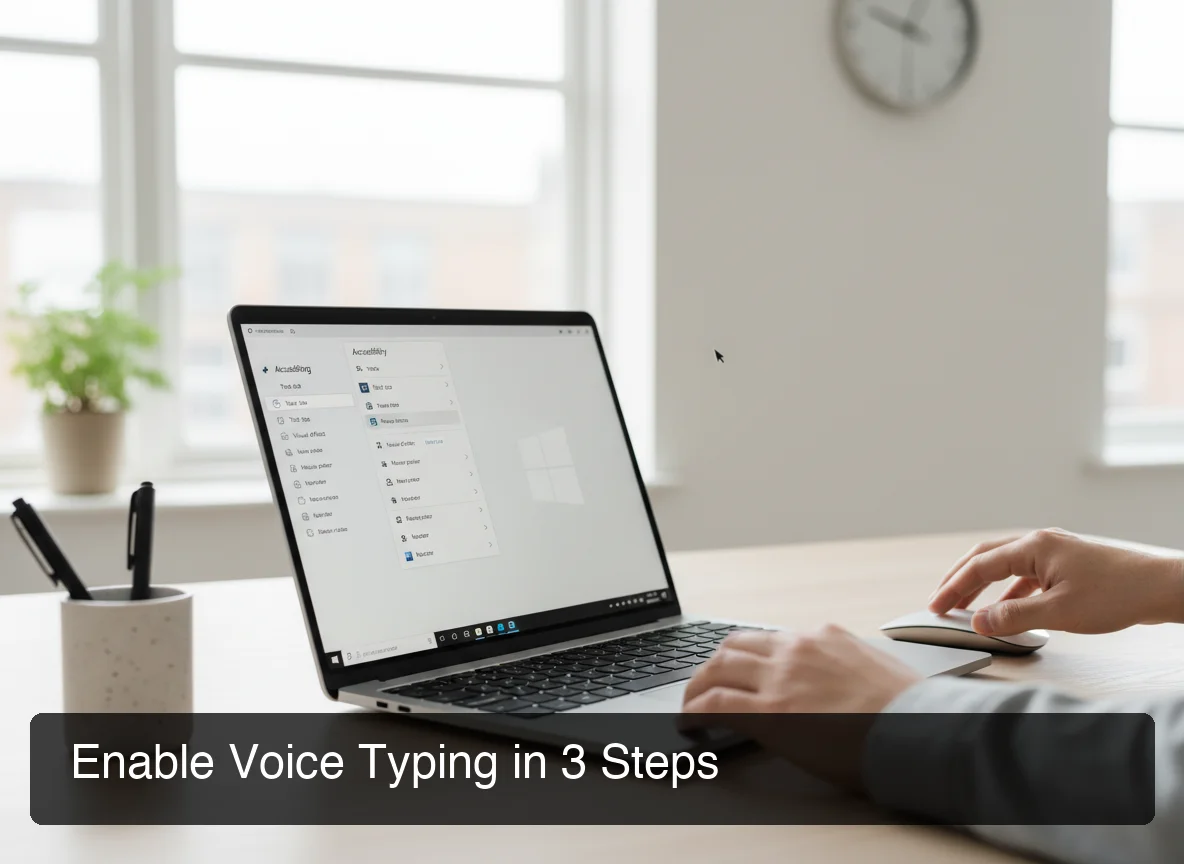 Enabling Voice Typing takes under a minute via Windows 11 accessibility settings.
What's the Keyboard Shortcut for Voice Typing in Windows 11?
The keyboard shortcut for voice typing in Windows 11 is Windows Key + H. Press it once to open the Voice Typing toolbar, then click the microphone or press the shortcut again to start dictating. To stop, say "Stop listening" or click the microphone button to toggle it off.
This shortcut works system-wide — you don't need to be inside a specific app. As long as a text cursor is active somewhere on screen, Win+H opens the toolbar and you can start speaking immediately.
Voice Typing Commands You Should Know
Windows 11 Voice Typing responds to spoken commands in addition to dictating text:
- "Delete that" — removes the last word or phrase
- "Scratch that" — removes the last dictated segment
- "Stop listening" — closes the microphone
- "Go to end of line" — moves the cursor
- "Select [word]" — selects specific text
- "Undo that" — undoes the last action
Key insight: Saying "Stop listening" is faster than reaching for the keyboard — build this habit early and your dictation workflow will feel much more seamless.
How Accurate Is Windows 11 Dictation?
Windows 11 dictation achieves 95%+ accuracy for most users in quiet environments with a quality microphone. Accuracy drops significantly in noisy settings or with heavy accents. Unlike AI-enhanced dictation tools, the native feature transcribes speech verbatim — including filler words like "um" and "uh" — without cleanup.
The accuracy depends heavily on:
- Microphone quality — A USB condenser or headset microphone delivers far better results than a built-in laptop mic
- Environment noise — Background noise (fans, music, other voices) directly degrades accuracy
- Speech clarity — Speaking at a moderate pace with clear enunciation improves results
- Accent and dialect — Microsoft's model performs best with standard American and British English
How Does It Compare to Dedicated AI Tools?
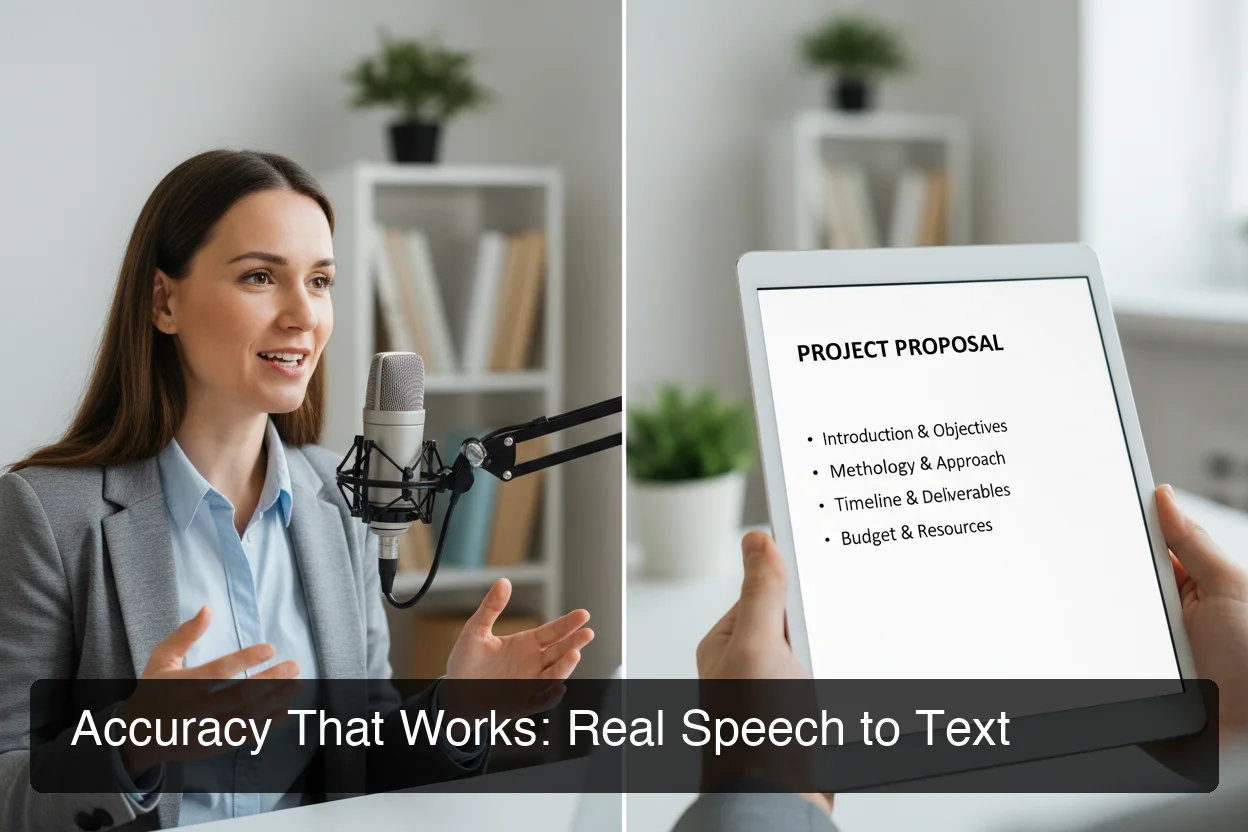 AI-enhanced dictation tools process raw speech into polished text automatically — something Windows 11 Voice Typing doesn't do.
The native feature outputs raw transcription — your filler words, grammar mistakes, and run-on sentences all go in verbatim. Dedicated AI dictation tools like Windows Speech Recognition or third-party apps apply AI enhancement on top of the transcription, producing polished, clean text automatically.
For technical writing, professional emails, or long-form documents, this distinction matters a lot. You'll spend time manually editing raw output that AI-enhanced tools handle automatically.
By the numbers: Users who switch from raw transcription to AI-enhanced dictation report 40-60% less post-dictation editing time — a significant productivity gain for high-volume dictators.
Can You Use Windows 11 Dictation Offline?
Windows 11 Voice Typing requires an internet connection for full functionality because it uses Microsoft's cloud speech recognition service. For offline dictation, Windows includes a separate feature — Windows Speech Recognition — that processes audio locally without sending data to Microsoft's servers.
Here's the breakdown of your offline options on Windows 11:
| Feature | Online Required? | Quality | Filler Removal |
|---|---|---|---|
| Windows 11 Voice Typing (Win+H) | Yes — cloud-based | High | No |
| Windows Speech Recognition | No — local processing | Moderate | No |
| BossAI (Windows) | No — offline capable | High + AI-enhanced | Yes |
| Superwhisper (Windows) | No — local Whisper model | High | Via custom modes |
If you frequently work in areas with poor or no internet — flights, remote locations, or secure corporate environments that restrict outbound traffic — the native Voice Typing feature will fail silently. The toolbar opens but dictation won't start.
For offline voice dictation with high accuracy on Windows, see our comprehensive guide on voice to text for Windows which covers both native and third-party options.
How Does Windows 11 Dictation Compare to Third-Party Apps?
Windows 11 Voice Typing is a solid free starting point for basic dictation, but it has real limitations: it requires internet, outputs raw unedited text, lacks cross-app context awareness, and offers no tone rewriting or custom vocabulary. Third-party AI dictation tools fill these gaps with features built specifically for professional and power users.
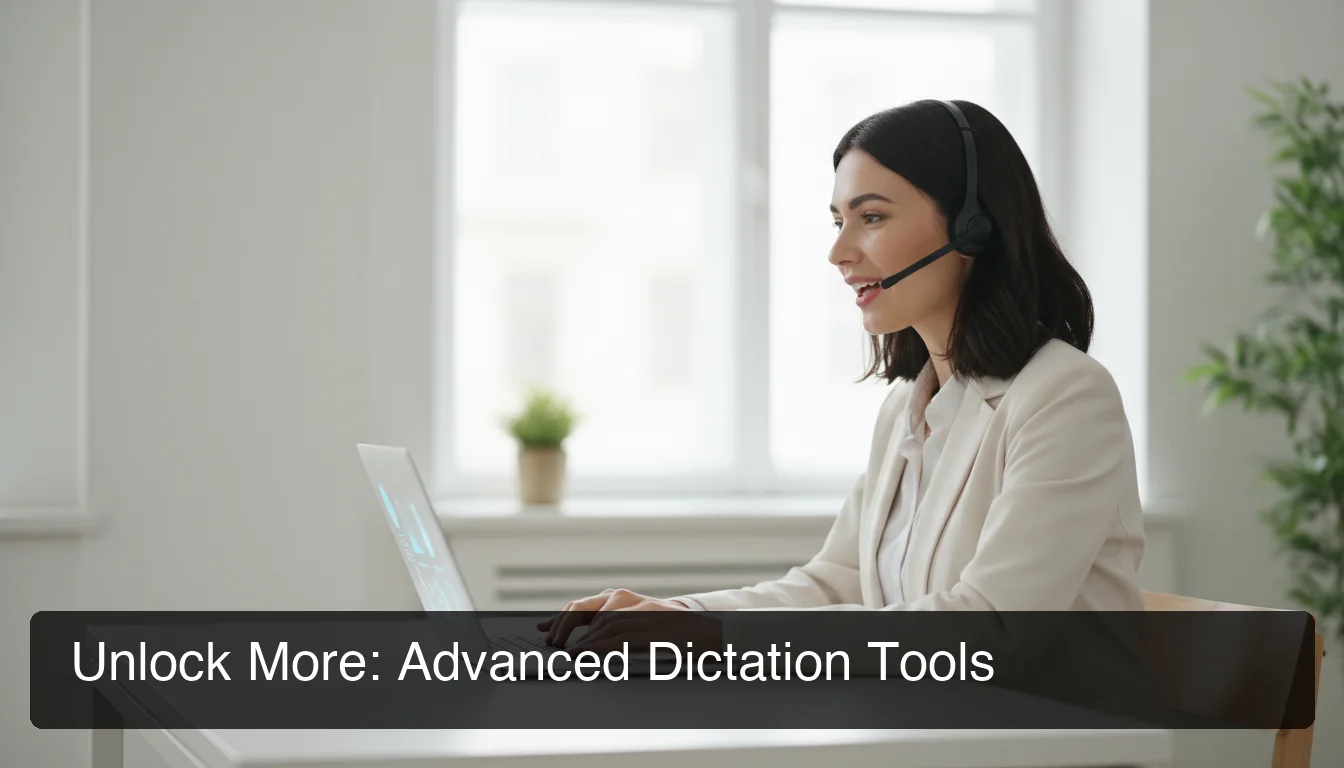 When native Windows dictation isn't enough, AI-enhanced tools like BossAI offer professional-grade accuracy and editing.
Where Windows 11 Dictation Falls Short
After you've used Voice Typing for a few days, these limitations become noticeable:
- No filler word removal — Every "um," "uh," and "like" gets transcribed
- No grammar correction — Run-on sentences and punctuation errors stay as-is
- No custom vocabulary — Technical terms, product names, and proper nouns are often misrecognized
- No rewrite capability — You can't change the tone of what you dictated with one tap
- Internet dependency — No connection, no dictation
BossAI vs. Windows 11 Voice Typing
BossAI is an AI voice keyboard for Windows that sits in your system tray and works across every app — the same hotkey activation as Win+H, but with AI enhancement running on top.
| Capability | Windows 11 Voice Typing | BossAI |
|---|---|---|
| Activation shortcut | Win+H | Custom hotkey |
| Filler word removal | ❌ | ✅ Automatic |
| Grammar & punctuation | Auto-punctuation only | ✅ AI-corrected |
| Custom vocabulary | ❌ | ✅ Custom dictionary |
| Offline support | ❌ | ✅ |
| Tone rewriting | ❌ | ✅ 6 tones, one tap |
| Screen context (Boss Mode) | ❌ | ✅ |
| Cost | Free | Free tier / $9.99/mo |
The free tier of BossAI includes 500 words/day of AI-enhanced dictation — enough to evaluate whether the upgrade over native voice typing is worth it for your workflow.
What Are the Best Tips for Using Windows 11 Dictation?
The most impactful improvements to Windows 11 dictation accuracy come from microphone placement, enabling auto-punctuation, speaking at a consistent pace, and learning the core voice commands. These adjustments alone can close most of the accuracy gap between native voice typing and premium AI-enhanced tools.
Tip 1: Always Enable Auto-Punctuation First
Before you dictate anything, ensure auto-punctuation is enabled (Settings → Accessibility → Speech). Without it, you'll need to say "comma," "period," and "new paragraph" out loud — which slows you down and breaks your flow.
Tip 2: Use a Dedicated Microphone
The single biggest accuracy improvement is microphone quality. A $30–50 USB headset or lapel mic dramatically outperforms a built-in laptop microphone, especially in anything less than a silent room.
Tip 3: Speak in Phrases, Not Words
Don't pause between individual words — Windows 11 Voice Typing performs better when you speak in natural phrases. Pausing mid-phrase causes the engine to finalize the text early and often misses word context.
Tip 4: Correct as You Go with Voice Commands
Use "Delete that" and "Scratch that" commands immediately after a mistake rather than stopping to type corrections manually. Staying in voice mode keeps your momentum and works faster for high-volume dictation.
Tip 5: Use Custom Vocabulary Workarounds
Windows 11 doesn't support custom dictionaries natively. For technical jargon or names the engine consistently misrecognizes, try speaking them more slowly and clearly the first time — the engine has some context memory within a session.
Pro tip: For high-volume professional dictation — emails, reports, client communications — consider whether the time saved on editing with an AI-enhanced tool like BossAI outweighs its $9.99/month cost. Most users who dictate more than 30 minutes a day find the ROI immediate.
For additional strategies covering voice-to-text across all Windows versions, our complete voice to text Windows guide covers workflow optimization in depth.
Try BossAI: Advanced Dictation for Windows
Windows 11 Voice Typing is a great starting point — free, fast to set up, and available everywhere. But if you're ready for AI-enhanced output, filler word removal, offline support, and one-tap tone rewriting, BossAI picks up where native dictation leaves off.
Not ready to switch yet? Get Our AI Productivity Guide — free tips on working faster with voice dictation on Windows.
Frequently Asked Questions
Does Windows 11 come with dictation software? Yes. Windows 11 includes a built-in feature called Voice Typing, activated by pressing Windows Key + H in any text field. It uses Microsoft's cloud speech recognition and supports automatic punctuation. No installation is required — just a microphone and an internet connection.
How do I turn on voice typing in Windows 11? Press Windows Key + H in any app where you can type text. A small toolbar appears at the top of the screen. Click the microphone button or press Win+H again to start speaking. You can also pre-enable it in Settings → Accessibility → Speech for a smoother experience.
How do I turn off voice typing in Windows 11? Say "Stop listening" out loud, click the microphone button on the toolbar, or press Windows Key + H again. The toolbar will minimize or close. Auto-punctuation and other preferences stay saved for your next session.
How to dictate in Word on Windows 11? Open Microsoft Word, click inside a document, then press Windows Key + H to open the Voice Typing toolbar. Start speaking and your words appear in the document in real time. Alternatively, Word has its own Dictate button in the Home ribbon, which uses the same Microsoft speech recognition engine.
Can Windows 11 dictation remove filler words automatically? No. Windows 11 Voice Typing transcribes speech verbatim, including filler words like "um," "uh," and "like." To get automatic filler word removal, you need a third-party AI dictation tool like BossAI, which enhances transcription output before inserting it into your text field.
What is BossAI? BossAI is an AI-powered voice keyboard for iOS, macOS, and Windows that replaces typing with voice dictation. It transcribes speech in real time, removes filler words automatically, rewrites text in different tones with one tap, and includes Boss Mode — a screen-reading feature that reads your screen to generate contextual replies without copy-pasting.
Is Windows 11 voice typing free? Yes, Windows 11 Voice Typing is completely free and built into the operating system. There are no word limits, no subscriptions, and no downloads required. The only requirement is a working microphone and an active internet connection, since the feature relies on Microsoft's cloud speech recognition service.