
Windows Speech Recognition: Complete Setup Guide 2026
Windows comes with a built-in voice typing tool that most users never discover — and after a 10-minute setup, it handles everyday dictation without costing a cent.
 Master Windows Speech Recognition — the free built-in voice typing tool hiding in your PC.
Key Takeaways
- Windows Speech Recognition is a free, built-in dictation tool in Windows 10 and 11 that converts spoken words to text using your microphone.
- Setup takes under 5 minutes and improves accuracy through voice training; most users achieve 95%+ accuracy after initial calibration.
- While solid for basic use, third-party voice-typing apps like BossAI offer superior accuracy, automatic filler removal, and cross-application support that Windows Speech Recognition cannot match.
- Windows Speech Recognition works best in quiet environments; accuracy drops significantly with background noise or strong accents without training.
- BossAI uniquely integrates voice typing into any Windows app — email, messaging, documents — without requiring Settings configuration or per-app enabling.
Contents
- What Is Windows Speech Recognition?
- How Does Windows Speech Recognition Work?
- How Accurate Is Windows Speech Recognition for Typing?
- How to Set Up Windows Speech Recognition in Windows 11?
- Why Does Windows Speech Recognition Sometimes Misinterpret Words?
- How Does Windows Speech Recognition Compare to Third-Party Apps?
- What Are the Best Alternatives to Windows Speech Recognition?
- How Can BossAI Improve Your Windows Voice Typing Results?
- Frequently Asked Questions
What Is Windows Speech Recognition?
Windows Speech Recognition (WSR) is a free, built-in voice-to-text tool included with Windows Vista and later — including Windows 10 and 11. It converts spoken words into typed text, lets you issue voice commands to control your PC, and improves accuracy over time through a voice training process, all without installing third-party software.
Microsoft introduced WSR primarily as an accessibility feature under Ease of Access. It handles dictation into documents, emails, and text fields, plus navigation commands like "click Start" or "scroll down."
 Windows Speech Recognition listens for voice commands and dictation through your PC microphone.
In Windows 11, Microsoft also released a newer "Voice Typing" feature (Win+H), powered by Azure Speech Services. The two tools overlap but aren't identical — Voice Typing is cloud-based and faster for pure dictation; Speech Recognition is local, command-heavy, and more customizable for PC control.
Key insight: Windows has two distinct voice tools: classic Windows Speech Recognition (local, command-based, offline) and the newer Voice Typing (Win+H, cloud-based). Most users asking about "windows speech recognition" may benefit from either — this guide covers both.
How Does Windows Speech Recognition Work?
Windows Speech Recognition uses an acoustic model that maps your voice's patterns to phonemes and words, then a language model to predict the most likely word sequence based on context. It runs locally on your PC — no internet required — processing audio from your microphone in real time.
Here's the basic processing flow:
- Your microphone captures audio
- The acoustic model identifies phonemes (sound units) from the audio signal
- The language model applies probability scoring to produce the most likely word sequence
- Output text is inserted into the active text field
The voice training step ("Train your computer to better understand you") feeds your voice patterns into the acoustic model, tuning it to your pronunciation, accent, and speaking pace. This is why post-training accuracy is consistently better than out-of-the-box performance.
Voice Typing (Win+H) works differently — it streams audio to Azure Speech Services and returns transcription via the cloud. This makes Voice Typing more responsive for pure dictation, while WSR remains stronger for complex voice commands and full PC navigation.
How Accurate Is Windows Speech Recognition for Typing?
Windows Speech Recognition achieves approximately 95% word accuracy after voice training in quiet environments — roughly 1 error per 20 words. Without training, expect 80–90% accuracy, which is manageable for casual use but frustrating for long-form dictation or professional writing.
Accuracy varies significantly by several factors:
- Microphone quality — a USB headset or condenser mic outperforms built-in laptop mics dramatically
- Background noise — open offices, HVAC sound, or family environments can drop accuracy to 70–80%
- Accent strength — non-native English speakers often struggle without extended voice training
- Technical vocabulary — uncommon names, jargon, and brand names are frequent error points
Voice Typing (Win+H) often outperforms classic WSR on raw dictation accuracy because it uses Microsoft's regularly updated Azure Speech cloud models. WSR's advantage remains offline capability and deep PC navigation commands.
By the numbers: After training, most users hit 95%+ word-level accuracy in quiet environments — that's roughly 5 corrections per 100 words. Manageable for casual use; significant friction for professionals dictating 5,000+ words per week.
How to Set Up Windows Speech Recognition in Windows 11?
To set up Windows Speech Recognition on Windows 11: open Settings → Accessibility → Speech, or type "Speech Recognition" in the Start menu search bar. Run the microphone setup wizard, then complete the voice training session for best results. The entire process takes under 10 minutes.
Classic Windows Speech Recognition (Best for Voice Commands)
- Open Control Panel → Ease of Access → Speech Recognition
- Click Set up a microphone and follow the audio calibration steps
- Click Start Speech Recognition to launch the setup wizard
- Select Train your computer to better understand you — this 10–15 minute session improves accuracy by 5–8 percentage points
- Say "Start listening" or press Win+Ctrl+S to activate dictation
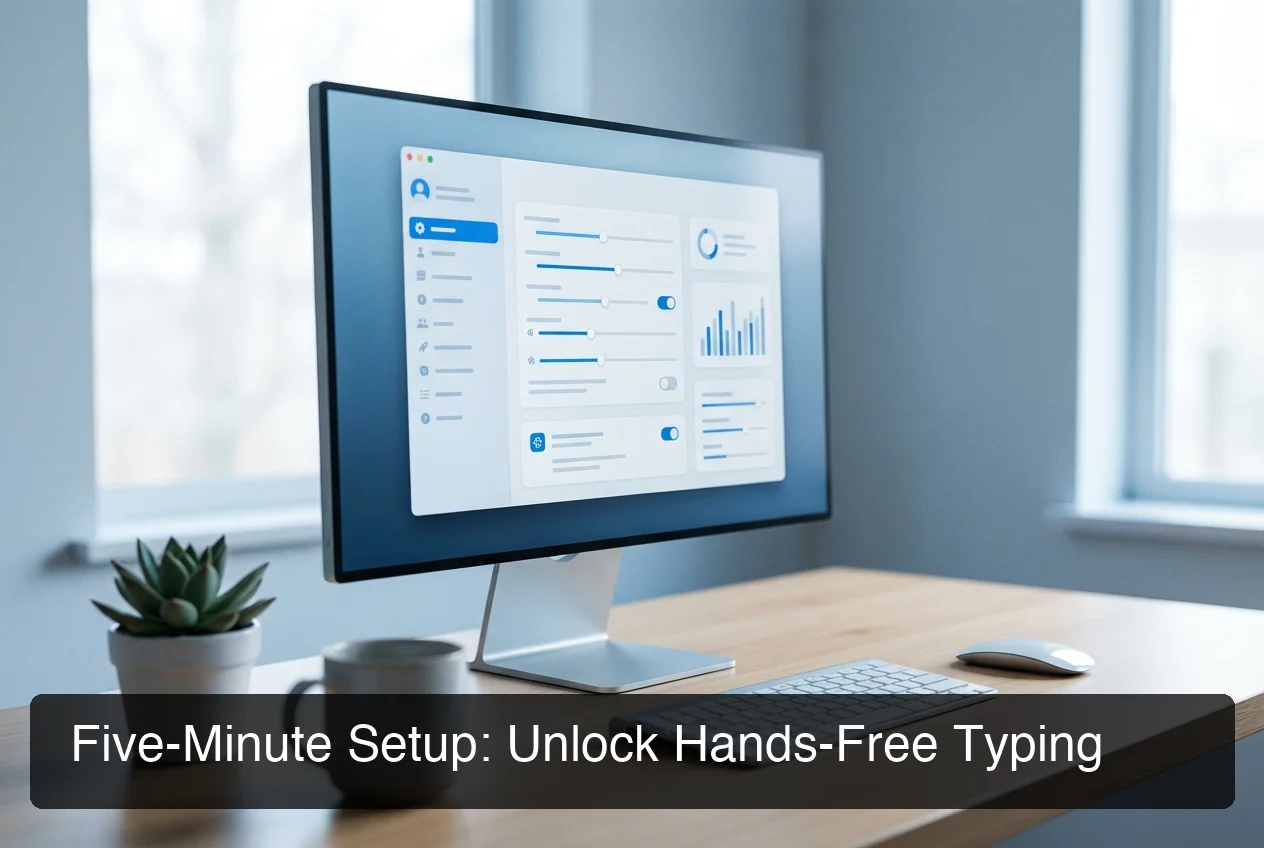 The Windows Speech Recognition setup wizard walks you through microphone calibration and voice training.
Voice Typing — Win+H (Best for Pure Dictation)
Voice Typing requires no setup at all:
- Open any text field in any Windows app
- Press Win+H to open the Voice Typing bar
- Speak — transcription appears immediately
- Press Win+H again or say "Stop listening" to finish
Voice Typing works immediately and performs well without training. It does require an internet connection since transcription happens in the cloud.
Microphone Tips for Better Accuracy
- Use a USB headset or external mic instead of built-in laptop hardware
- Position the mic 6–8 inches from your mouth, slightly to the side
- Work in a quiet room — even mild background noise degrades accuracy noticeably
- Run the microphone setup wizard regardless of which tool you use
Pro tip: Run the full voice training session even if you have a neutral accent — the 10-minute investment typically eliminates most proper noun and technical term errors that out-of-the-box WSR gets wrong.
Why Does Windows Speech Recognition Sometimes Misinterpret Words?
Windows Speech Recognition misinterprets words most often due to three causes: background noise interfering with the acoustic signal, uncommon vocabulary the language model handles poorly, and speaking too fast without natural pauses between phrases. Most issues are fixable through targeted training and microphone improvements.
Common error patterns and fixes:
| Problem | Root Cause | Fix |
|---|---|---|
| Similar-sounding words confused | Language model ambiguity | Voice training; speak more deliberately |
| Proper nouns consistently wrong | Low-confidence vocabulary | Add to custom dictionary in WSR settings |
| Commands trigger during dictation | Running in command mode | Switch to Voice Typing (Win+H) for dictation |
| Accuracy worsens over time | Acoustic drift | Re-run voice training wizard |
| Technical terms always wrong | Out-of-vocabulary words | Use "Correct [word]" command to teach model |
The built-in correction system ("correct [word]") handles common substitutions well. For systematic errors — like your name being mis-transcribed every time — WSR's custom vocabulary feature adds your specific terms to the language model permanently.
How Does Windows Speech Recognition Compare to Third-Party Apps?
Windows Speech Recognition is solid for free, occasional dictation but falls short of third-party tools on accuracy for heavy use, filler word handling, cross-app integration, and AI-enhanced transcription. The gap becomes significant when dictating professional communication or technical content daily.
The voice dictation Windows landscape has evolved rapidly — cloud-based AI models now achieve 97–99% accuracy vs. WSR's ~95% ceiling, and AI-enhanced tools automatically remove "um," "uh," and false starts that both WSR and Voice Typing leave verbatim.
| Feature | Windows Speech Recognition | Voice Typing (Win+H) | BossAI |
|---|---|---|---|
| Cost | Free | Free | Free tier + $9.99/mo Pro |
| Internet required | No | Yes | Yes |
| Accuracy (quiet) | ~95% after training | ~96–97% | High |
| Filler word removal | No | No | Yes (automatic) |
| AI grammar correction | No | Limited | Yes |
| Works in all apps | No (some gaps) | Yes (most apps) | Yes (all apps) |
| Voice PC navigation | Full control | Limited | Limited |
| Custom vocabulary | Yes (training) | No | Yes |
| Screen-aware replies | No | No | Yes (Boss Mode) |
The right choice depends on use case. WSR wins for offline capability and full PC voice navigation.
Voice Typing wins for quick, no-setup cloud dictation. Third-party AI tools win for professional heavy use where output quality and accuracy matter most.
What Are the Best Alternatives to Windows Speech Recognition?
The best alternatives to Windows Speech Recognition for Windows 10 and 11 are: Microsoft Voice Typing (Win+H) for free cloud-based dictation, BossAI for AI-enhanced voice typing that works across every app, and Nuance Dragon for enterprise-grade accuracy and customization. Most professionals find an AI-enhanced tool outperforms Windows defaults within the first week.
For a full comparison of every voice to text Windows option — including pricing, accuracy benchmarks, and use case breakdowns — that guide covers the complete market. For a broader look at voice typing apps across all platforms and price tiers, there's a dedicated overview there too.
Top alternatives ranked by use case:
- Microsoft Voice Typing (Win+H) — Free, built-in, cloud-based. The smartest first upgrade from classic WSR with zero setup required
- BossAI — AI-enhanced dictation with automatic filler removal, grammar correction, and Boss Mode screen-reading. Available on Windows, Mac, iOS, and Android — no per-app configuration
- Nuance Dragon — Enterprise accuracy at 99%+ with deep workflow integration. Starts at $200+; justified for medical, legal, or high-volume professional use
- Google Docs Voice Typing — Free in Chrome, surprisingly accurate for document work; limited to Google Docs only
For users who type professionally or frequently, the gap between built-in Windows tools and AI-enhanced dictation becomes obvious after the first session of heavy use. Advanced voice typing settings for Windows 11 can help squeeze more out of the built-in experience, but serious users will quickly outgrow it.
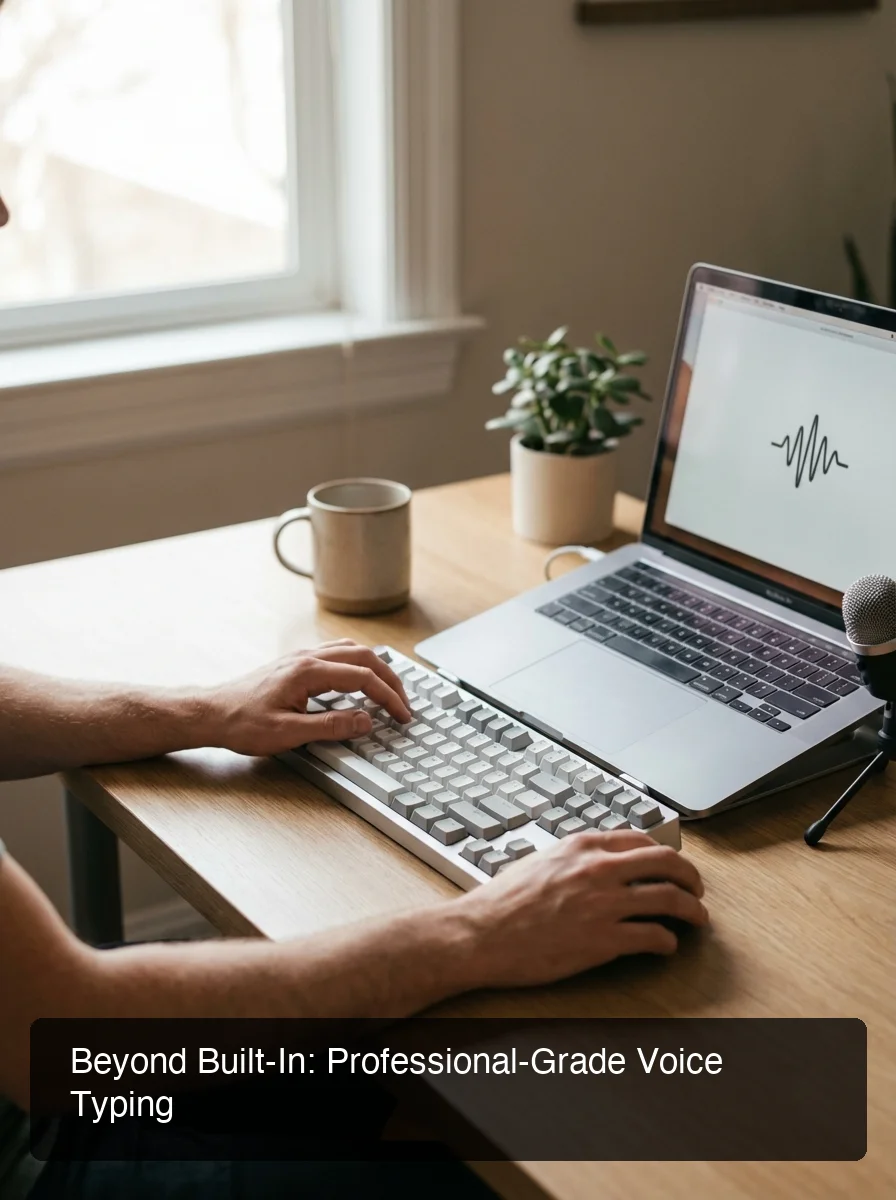 BossAI runs as a Windows system tray app — no setup wizard, no per-app enabling, just press the hotkey and speak.
How Can BossAI Improve Your Windows Voice Typing Results?
BossAI is a voice-to-text app for Windows that transcribes speech, automatically removes filler words, applies grammar correction, and inserts polished text into any app — email, Slack, Word, or browser — without per-app setup or training sessions. It runs quietly in your system tray and works everywhere Windows does.
Where Windows Speech Recognition requires a setup wizard and training sessions to perform well, BossAI delivers professional-grade accuracy from the first use. The difference shows up immediately in output quality.
Why Clean Output Changes Everything
Windows Speech Recognition transcribes exactly what you say — including "um," "uh," "like," and false starts. BossAI's AI layer strips fillers, corrects grammar, adds punctuation, and formats text contextually before it's inserted. You speak naturally; the output reads professionally.
The result is a fundamentally different workflow. Instead of dictating and then editing, you dictate once and move on.
Boss Mode: What Windows Speech Recognition Can't Touch
Boss Mode is BossAI's screen-reading feature — and it has no equivalent in any Windows tool. Activate it and speak: "Boss, reply to this email confirming the meeting time and ask for an agenda." BossAI reads your screen, understands the email you're looking at, and generates a complete contextual reply — no copy-pasting, no describing what's on screen, no app switching.
For cross-platform speech-to-text apps that outperform Windows defaults, BossAI's combination of dictation quality, AI correction, and screen awareness puts it in a different category entirely.
Bottom line: BossAI runs as a lightweight system tray app on Windows — no Control Panel wizard, no voice training, no per-app enabling. Press the hotkey and speak.
Get Started with BossAI
Windows Speech Recognition is a capable free tool — but if you're dictating professionally, you'll hit its accuracy and friction ceiling within weeks. BossAI replaces it with AI-enhanced transcription, automatic filler removal, and Boss Mode screen-awareness that Windows simply doesn't offer.
Not ready to try it yet? Get Our AI Productivity Guide — free tips on working faster with AI.
Frequently Asked Questions
How do I use speech recognition on Windows?
Press Win+H to open Voice Typing in any text field and start speaking immediately — this is the fastest method in both Windows 10 and 11. For the classic Windows Speech Recognition experience with full PC voice control, go to Control Panel → Ease of Access → Speech Recognition, run the setup wizard and voice training, then say "Start listening" to begin dictation.
Is Windows Speech Recognition free?
Yes. Both Windows Speech Recognition and Voice Typing (Win+H) are completely free and built into Windows 10 and 11 — no download, no subscription, no Microsoft account required. Voice Typing uses Azure Speech Services in the background but has no usage cost to the end user.
What is Windows Speech Recognition now called?
Microsoft now refers to the modern experience as Voice Typing (Win+H). The original Windows Speech Recognition still exists in Control Panel under Ease of Access and is maintained for users who need full PC voice navigation commands. They serve different purposes: Voice Typing handles dictation; Windows Speech Recognition handles controlling your entire PC by voice.
How accurate is Windows Speech Recognition?
After voice training in a quiet environment, Windows Speech Recognition achieves approximately 95% word accuracy — about 1 error per 20 words. Voice Typing (Win+H) performs slightly better at 96–97% using Microsoft's cloud models.
Both drop significantly with background noise, strong accents, or technical vocabulary. Third-party AI tools typically reach 97–99% accuracy and add grammar correction and filler removal that built-in Windows tools lack.
What is BossAI?
BossAI is an AI voice keyboard for iPhone and Android, and a voice-to-text app for Mac and Windows, that replaces typing with voice dictation. It transcribes speech in real time, removes filler words automatically, rewrites text in different tones with one tap, and includes Boss Mode — a screen-reading feature that reads your screen to generate contextual replies without copy-pasting.
Is BossAI free?
Yes. BossAI's free plan includes 500 words of dictation a day, and the allowance resets daily.
Pro makes everything unlimited — dictation, Boss Mode, Rewrite, every tone and all Clips, for $9.99/month or $69.99/year. No credit card required to start.
Why does Windows Speech Recognition keep making mistakes?
The most common causes are microphone quality (built-in laptop mics perform poorly), background noise, and insufficient voice training. Run the "Train your computer to better understand you" session in Speech Recognition settings — even one training pass typically adds 5–8% accuracy improvement and significantly reduces errors on proper nouns and technical terms. For recurring errors on specific words, use the "Correct that" voice command to teach the model your preferences.