
Dictation Shortcut Windows: What to Press & Change
The dictation shortcut Windows gives you is the Windows logo key + H. Click into any text field first, then press the keys and start talking. Microsoft documents that same combination for opening voice typing.
If you want a shortcut you can actually change, that's a different tool. The rest of this page covers both.
What Is the Default Dictation Shortcut Windows Uses?
The default dictation shortcut on Windows is the Windows logo key + H. It opens the voice typing toolbar, and whatever you say is typed into the text field that has focus. Microsoft's own support pages describe it as the way to open voice typing.
Click where you want the text to land, press Windows + H, wait for the microphone to show as listening, and talk. Press the same keys again, or click the microphone on the toolbar, to stop.
The shortcut works in most apps with a text box: Word, Outlook, Teams, Notepad, and web editors such as Google Docs in a browser. If nothing happens, the cursor probably isn't in an editable field. For turning voice typing on and fixing a missing toolbar, see our Windows 11 dictation setup guide.
The short version: Windows + H is a fixed, built-in key combination. It starts dictation, and that's about all it controls.
Key Takeaways
- Windows' built-in voice typing starts with the Windows logo key + H.
- Microsoft doesn't document a way to remap Windows + H to another key.
- BossAI on Windows runs from the system tray, and you can change its activation shortcut anytime in Settings.
- BossAI offers two modes: push-to-talk (hold to dictate, release to stop) and hands-free (press once to start, press again to stop).
Can You Change the Dictation Shortcut Windows Uses?
Not with anything Microsoft documents. The Windows + H combination for voice typing has no setting that lets you pick a different key, and we won't tell you a workaround exists when the support pages don't mention one.
That matters if Windows + H clashes with a keyboard layout you use, or if you just find a two-key chord awkward to hit while your hands are already on the mouse. Third-party remapping utilities exist, but they sit outside Windows' documented behaviour, so test them before you rely on them for daily work.
The cleaner route is a dictation app that lets you choose its own shortcut. You keep Windows + H as a fallback and use something you picked for everything else.
Searchers also ask about a separate speech-recognition feature in older Windows versions. That is a different tool from voice typing, with its own setup. Our full Windows voice-to-text guide explains how the options differ.
How Do You Change the BossAI Dictation Shortcut on Windows?
 Pick the key combination that suits how you actually type, then change it whenever it stops fitting.
Open BossAI from the system tray, go to Settings, and change the activation shortcut. The app lets you change it anytime. Because the shortcut is set by you, we won't quote a default key here. Use whatever your BossAI Settings screen shows.
BossAI on Windows is a native system tray app, so it sits in the background and doesn't replace your keyboard. Pressing your shortcut starts dictation in whichever app has focus, with the same hotkey activation and text insertion as the Mac app. It runs on Windows 10 (version 17763.0 or higher) and Windows 11.
Here is how to change it:
- Click the BossAI icon in the system tray and open the app window.
- Select Settings from the left-hand menu.
- Change the activation shortcut to a combination you can press without thinking.
- Click into a text field in another app and test it.
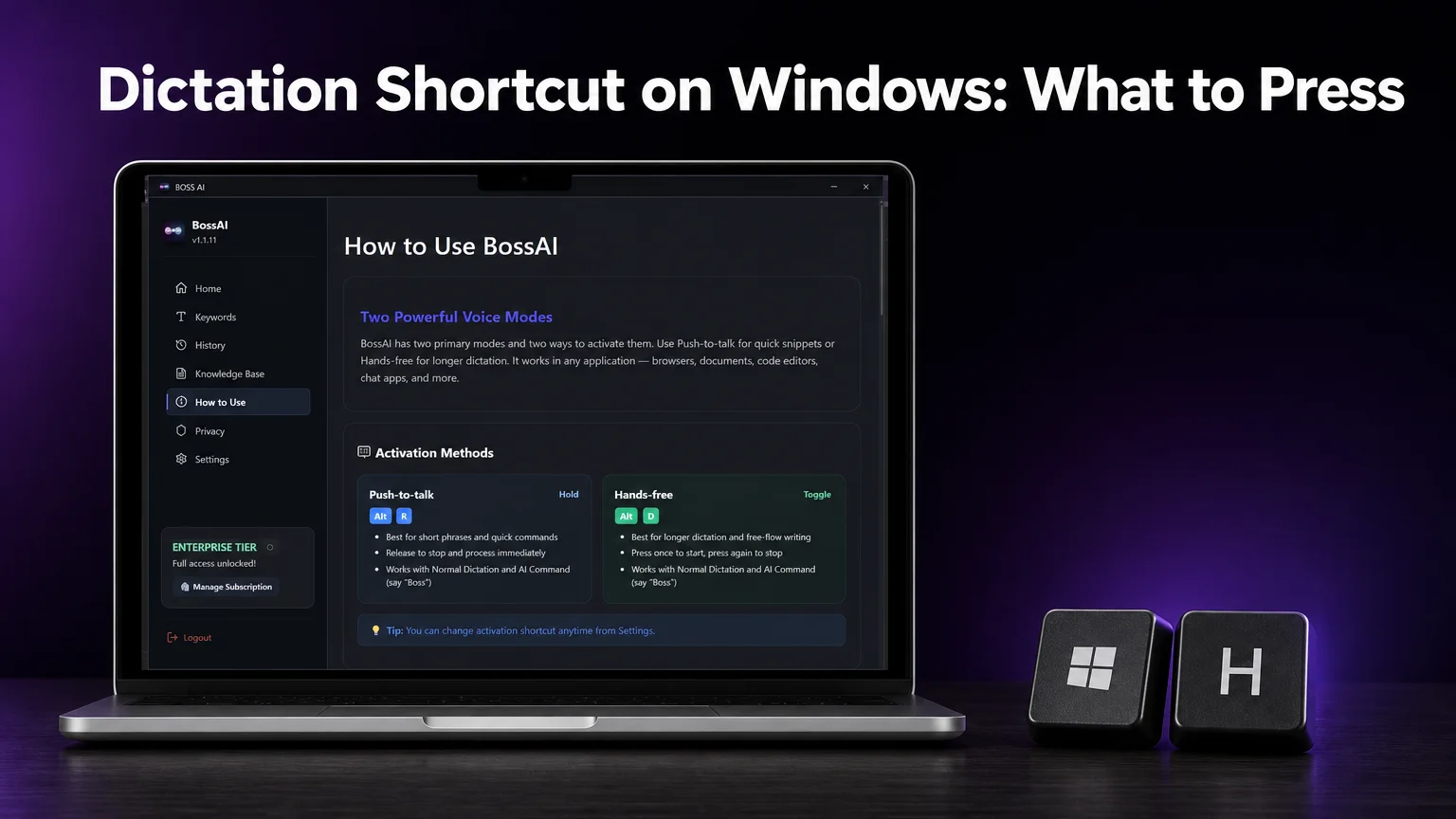
The app's own "How to Use" screen carries a tip saying exactly this: you can change the activation shortcut anytime from Settings. That's the screen shown in the hero image above, and it's the reason a shortcut you dislike isn't a permanent problem. Our roundup of dictation software for Windows compares how other apps handle this.
Worth knowing: Windows + H types what you say as-is. BossAI also strips filler words, fixes grammar and adds punctuation as you dictate, so the text arrives cleaner.
Push-to-Talk in the BossAI Windows App
Push-to-talk means you hold the shortcut down while you speak and release it to stop. BossAI then processes what you said and inserts the text. It's the mode for short phrases and quick commands.
The "How to Use" screen in the Windows app lists push-to-talk first. It's labelled "Hold": press and keep the keys down, say your sentence, let go. Nothing keeps listening after you release, which makes it hard to dictate something by accident.
It works with normal dictation and with AI commands. Start a request with "Boss", for example "Boss, reply to this email and confirm Friday", and BossAI handles it as a command instead of plain dictation.
Push-to-talk suits:
- A quick answer in a Teams or Slack chat
- A one-line Outlook reply
- A short search phrase or form field
- A voice command where you want to control exactly when it stops
Hands-Free vs Push-to-Talk: Which Shortcut Mode Fits?
 Hands-free mode keeps listening, so you can talk through a longer passage without holding a key.
Use hands-free when you're dictating more than a sentence or two. Press the shortcut once to start, talk as long as you need, then press it again to stop. It's the better fit for longer, free-flowing writing.
Holding a key for two minutes while you draft a document is uncomfortable, and that's the whole reason the toggle mode exists. It's labelled "Toggle" in the app. Like push-to-talk, it works with normal dictation and with "Boss" AI commands.
A simple rule: if you'd say it in under ten seconds, hold. If you'd be thinking aloud, toggle. Many people use both, depending on whether they're replying to a message or drafting a section of a report.
Quick win: Pick a shortcut you can press one-handed. You'll dictate more often when starting takes no effort.
Using a Mac as well? The same question has its own answer in our Mac dictation shortcut guide.
Get Started with BossAI on Windows
Windows + H is fine for a quick sentence, but a shortcut you choose and two activation modes make dictation easier to keep using. BossAI runs from the Windows system tray and lets you change the shortcut anytime.
FAQ
What is the keyboard shortcut for voice typing on Windows?
Press the Windows logo key + H with the cursor in a text field. This opens the built-in voice typing toolbar and starts listening. Press the keys again, or click the microphone on the toolbar, to stop dictating. It works in most apps that have a text box.
Can I change the Windows + H dictation shortcut?
Microsoft doesn't document a setting for changing Windows + H. If you want a different key, use a dictation app with its own shortcut. In BossAI, you can change the activation shortcut anytime in Settings, so it fits the way you work.
What platforms does BossAI support?
BossAI runs on iOS, Android, macOS and Windows. On iPhone and Android it works as a keyboard you can dictate from in any app. On Mac and Windows it runs as a hotkey app from the menu bar or system tray, and the Windows build requires Windows 10 version 17763.0 or higher.
Is BossAI free?
Yes. The free plan includes 500 words of dictation a day, which resets daily, plus one language. Pro removes the limits for $9.99 a month or $69.99 a year. A 7-day full Pro trial needs no account.