
Mac Dictation Shortcut: Enable & Customize | BossAI
Mac Dictation Shortcut: Complete Guide to Voice Typing on Mac
Most Mac users don't know their keyboard already has a built-in voice typing shortcut — one that works across nearly every app without installing anything extra.
 The Mac dictation shortcut lets you speak directly into any text field — no extra software required.
Key Takeaways
- The default Mac dictation shortcut is Fn+Fn (press the Fn key twice) or the Microphone key on newer MacBooks
- Enable it in System Settings → Keyboard → Dictation in under two minutes — no restart needed
- Native Mac dictation transcribes raw speech without filler-word removal, grammar fixes, or punctuation control
- A dictation shortcut can save 30+ minutes per day for heavy typers — over 90 hours per year
- Third-party tools like BossAI extend native dictation with AI-enhanced transcription, tone rewriting, and screen-aware commands
Contents
- What Is the Default Mac Dictation Shortcut?
- How Do You Enable the Dictation Shortcut on Your Mac?
- What's the Best Keyboard Shortcut for Mac Dictation?
- Can You Customize Your Mac Dictation Shortcut?
- How Much Time Does Using a Mac Dictation Shortcut Save?
- Does Mac Dictation Shortcut Work on All Mac Applications?
- What's the Difference Between Mac Dictation Shortcut and Third-Party Tools?
- How Does BossAI Compare to Native Mac Dictation?
- Get Started with BossAI
- Frequently Asked Questions
What Is the Default Mac Dictation Shortcut?
The default Mac dictation shortcut is pressing the Fn key twice (Fn+Fn) on most Mac keyboards. On newer MacBooks with a dedicated Microphone key (typically F5), one press activates dictation instantly. Both shortcuts open a floating microphone indicator, signaling macOS is listening and ready to transcribe your speech into the active text field.
Apple's built-in dictation uses on-device processing on Apple Silicon Macs, so your voice data stays local. On Intel Macs, audio is sent to Apple's servers for transcription.
The shortcut works wherever your text cursor is active: Mail, Notes, Google Docs, Slack, or any text field in any app. Speak naturally, pause, and macOS inserts the transcribed text.
Key insight: The Fn+Fn shortcut is disabled by default. You need to enable Dictation in System Settings before it works — new Macs ship with it turned off.
How Do You Enable the Dictation Shortcut on Your Mac?
To enable the Mac dictation shortcut, open System Settings → Keyboard → Dictation and toggle Dictation to On. macOS will prompt you for microphone access and may download a voice language pack. The Fn+Fn shortcut activates immediately — no restart required. The process takes under two minutes on any macOS version.
Here's the step-by-step process:
- Click the Apple menu → System Settings
- Select Keyboard from the left sidebar
- Scroll to Dictation and toggle it On
- Choose your preferred language from the dropdown
- Grant microphone permission when prompted
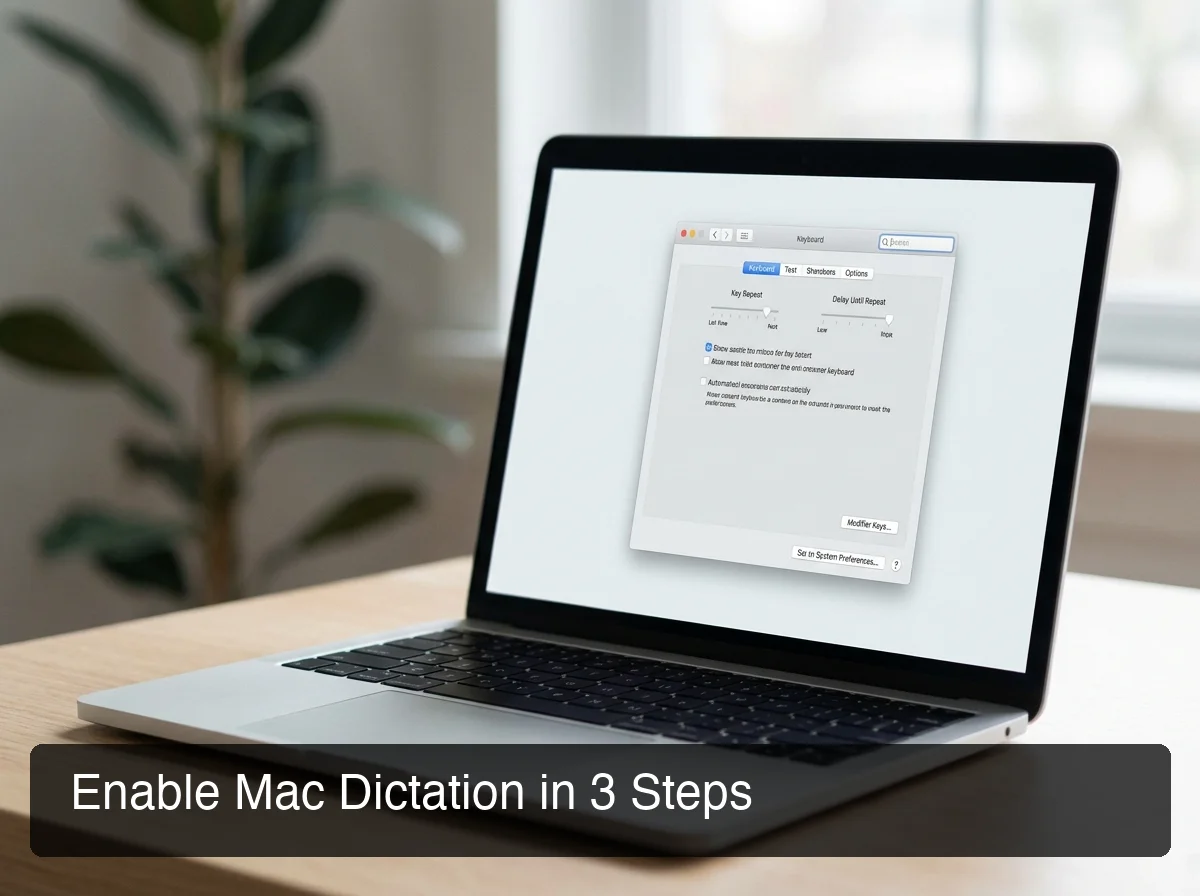 Enable Mac dictation in System Settings → Keyboard — the shortcut activates instantly after toggling on.
On macOS Ventura and later, look for the Enhanced Dictation option, which enables offline processing and extended dictation sessions without a 30-second clip limit. On Apple Silicon Macs, enhanced dictation is automatically used.
For a broader walkthrough of voice typing on Mac, including alternative setup methods and tips for different workflows, that guide covers the full ecosystem in detail.
What's the Best Keyboard Shortcut for Mac Dictation?
The best Mac dictation shortcut depends on your hardware. MacBooks made after 2021 with a dedicated F5 Microphone key respond to a single keypress — faster than the legacy Fn+Fn double-tap. If your Mac lacks a dedicated microphone key, Fn+Fn is the fastest native option. Both trigger the same dictation session once Dictation is enabled.
| Mac Type | Default Shortcut | Activation Method |
|---|---|---|
| MacBook with Microphone key (post-2021) | F5 (Microphone key) | Single press |
| Older MacBook / Mac desktop keyboard | Fn+Fn | Press Fn key twice |
| Custom shortcut (any Mac) | Your choice | Configured in System Settings |
The Fn+Fn double-tap occasionally triggers accidentally for users who frequently use function keys. If that's happening, setting a custom shortcut — covered in the next section — solves it entirely.
Can You Customize Your Mac Dictation Shortcut?
Yes. macOS lets you replace the default Fn+Fn shortcut with any keyboard combination. Open System Settings → Keyboard → Dictation → Shortcut, select "Customize," and press your preferred key combination. Common replacements include Option+D or Control+Space, which are easier to reach without interrupting typing momentum.
To set a custom shortcut:
- Go to System Settings → Keyboard → Dictation
- Click the Shortcut dropdown
- Select Customize
- Press your preferred key combination
- Click OK
 Custom keyboard shortcuts make the Mac dictation command easier to trigger without breaking your typing flow.
Avoid assigning a combination already used by another app. macOS will prioritize dictation globally, which can conflict with tools like Final Cut Pro, Logic Pro, or gaming software.
Pro tip: Writers who dictate frequently prefer Option+D — reachable with one hand, distinct from every default shortcut, and quick to remember.
How Much Time Does Using a Mac Dictation Shortcut Save?
The average professional types at 40-60 words per minute. Natural speech runs at 120-150 WPM — two to three times faster. For someone writing 1,000 words of email and documents per day, the Mac dictation shortcut saves 10-15 minutes daily, roughly 50-90 hours per year, from speed alone.
That calculation ignores a hidden multiplier: reduced decision fatigue. When you can capture a thought by speaking instead of typing, you stop losing ideas while your fingers catch up.
Who Benefits Most
Heavy email users — managers, salespeople, consultants, and founders — see the largest returns. Dictating a 200-word email takes under 90 seconds compared to 3-5 minutes of typing.
Dictation also reduces wrist strain and helps prevent repetitive stress injuries. The Mac dictation shortcut is one of the few productivity tools that benefits power users and people managing physical limitations equally.
By the numbers: Typing 40 WPM vs. speaking at 130 WPM over 1,000 words saves 16 minutes per session. Do that once daily and you reclaim 4+ days per year — no apps, no subscriptions.
Does Mac Dictation Shortcut Work on All Mac Applications?
Mac dictation works in any app with an active text field — Mail, Safari, Pages, Notes, Slack, Microsoft Word, Google Docs, and most third-party apps. The main exceptions are apps with custom text rendering, such as some code editors and terminal emulators. If your cursor is placed in a standard input field, dictation works.
Where It Works Well
- Productivity apps: Mail, Calendar, Notes, Pages, Numbers, Keynote
- Browsers: Safari, Chrome, Firefox (text fields, search bars, web forms)
- Communication apps: Messages, Slack, Discord, WhatsApp Desktop, Teams
- Document editors: Google Docs, Notion, Obsidian, Bear
Known Limitations
- Code editors: VS Code and Cursor support dictation in text files, but autocomplete and syntax-aware behavior can interfere mid-input
- Terminal: dictation inserts text but behaves unpredictably with command-line syntax
- Custom web apps: Some CMS platforms and finance tools use non-standard input components that may not receive dictated text
For a full comparison of voice-to-text apps for Mac that handle these edge cases better than native dictation, that guide covers solutions across different use case needs.
What's the Difference Between Mac Dictation Shortcut and Third-Party Tools?
The Mac dictation shortcut is free, built-in, and works offline — but it transcribes raw speech without cleanup. Third-party tools add AI enhancement: automatic filler-word removal (um, uh, like), grammar correction, punctuation insertion, and in some cases screen-aware commands that native dictation cannot perform. The trade-off is cost versus output quality.
Here's how native dictation stacks up against the top third-party alternatives:
| Feature | Mac Dictation | BossAI | WisprFlow | Superwhisper |
|---|---|---|---|---|
| Keyboard shortcut trigger | ✅ | ✅ | ✅ | ✅ |
| Filler word removal | ❌ | ✅ | ✅ | ✅ |
| Auto punctuation & grammar | Partial | ✅ | ✅ | ✅ |
| Screen-aware AI commands | ❌ | ✅ | ❌ | ❌ |
| One-tap tone rewriting | ❌ | ✅ | ❌ | ❌ |
| Custom vocabulary | Limited | ✅ | ✅ | ✅ |
| Offline processing | ✅ (Apple Silicon) | ❌ | ❌ | ✅ |
| Monthly price | Free | $9.99/month | $15/month | ~$8/month |
The native shortcut is the right choice for light, occasional dictation. If you're dictating emails, messages, and documents daily, raw transcript quality becomes the bottleneck — you spend more time cleaning up output than you save by speaking.
For a full look at premium options, the best Apple dictation alternatives in 2026 covers this comparison with detailed use-case breakdowns.
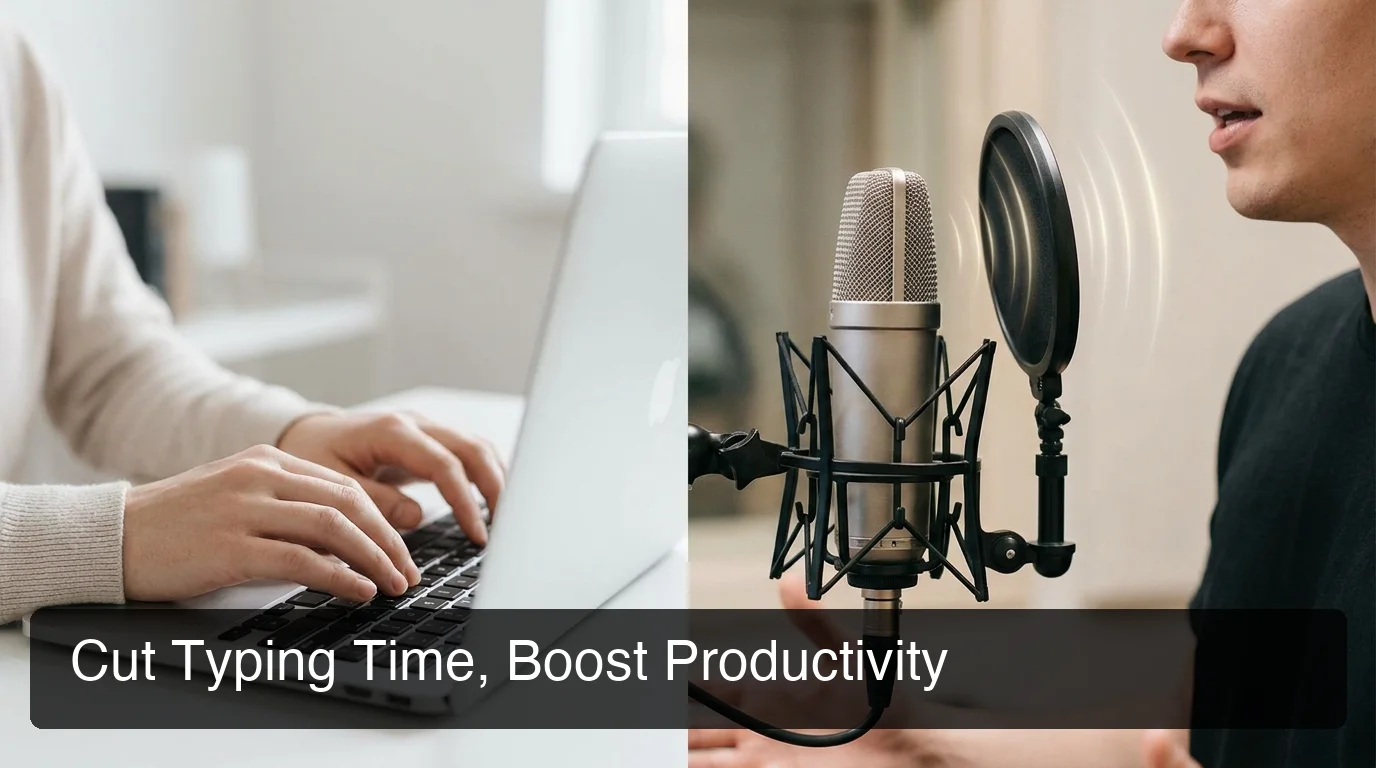 AI-enhanced dictation eliminates the editing step that raw Mac transcription creates — what comes out is already ready to send.
How Does BossAI Compare to Native Mac Dictation?
BossAI is an AI-enhanced voice keyboard for Mac that activates with the same hotkey workflow as native dictation but delivers polished, clean output instead of raw transcription. It removes filler words, fixes grammar, and inserts punctuation automatically in ~300ms after you stop speaking — so what lands in the text field is ready to send, not ready to edit.
What Native Dictation Misses
Native Mac dictation transcribes exactly what you say — including "um," "uh," "like you know," and every false start. You then fix it manually. That editing cost compounds across 50+ voice inputs per day.
BossAI's AI enhancement model processes the transcript before inserting it. Speak naturally, receive clean text. No editing loop.
Boss Mode: A Feature Native Dictation Cannot Match
BossAI includes Boss Mode — a screen-reading feature with no equivalent in native dictation or any other dictation app. Trigger it with a voice command like "Boss, reply to this email professionally," and BossAI reads your current screen, understands the context (the email thread, the Slack message, the LinkedIn post), and writes a complete, contextual response.
No copy-pasting. No explaining what's on screen. No app switching.
One-Tap Tone Rewriting
After dictating, tap a tone button — Professional, Casual, Witty, Persuasive, Empathetic, or Bold — and BossAI rewrites the text in that voice. One tap, instant result, no voice command required.
Bottom line: Native Mac dictation gives you raw speed. BossAI gives you the speed plus the polish — and adds screen-aware AI that no other dictation tool offers.
Get Started with BossAI
If the Mac dictation shortcut is already part of your workflow, BossAI removes the cleanup step that native dictation leaves behind. Speak naturally — BossAI handles grammar, punctuation, and filler words automatically, so every dictated message is already ready to send.
Not ready yet? Get Our AI Productivity Guide — free tips on working faster with AI.
Frequently Asked Questions
What is the Mac dictation keyboard shortcut?
The default Mac dictation keyboard shortcut is pressing the Fn key twice (Fn+Fn). On newer MacBooks with a dedicated Microphone key (typically F5), a single press activates dictation. Both trigger the floating microphone indicator and begin transcribing speech into whatever text field is currently active.
How do I turn on voice typing on a Mac?
Go to System Settings → Keyboard → Dictation and toggle Dictation to On. Grant microphone permission when prompted — the Fn+Fn shortcut activates immediately, no restart needed. On macOS Ventura and later, enabling Enhanced Dictation adds offline processing for Apple Silicon Macs and removes the 30-second session limit.
Can I change the Mac dictation shortcut to a different key?
Yes. In System Settings → Keyboard → Dictation, click the Shortcut dropdown and select Customize. Press your preferred key combination and click OK. Option+D and Control+Space are popular replacements. Avoid combinations used by other apps — macOS applies the shortcut globally across all applications.
Does Mac dictation work offline without internet?
On Apple Silicon Macs (M1 and later), Mac dictation processes speech on-device using Enhanced Dictation — fully offline, no internet required. On Intel Macs, audio is sent to Apple's servers for transcription. Enable Enhanced Dictation in System Settings → Keyboard → Dictation to activate offline mode where supported.
What is BossAI?
BossAI is an AI-powered voice keyboard for iOS, macOS, and Windows that replaces typing with voice dictation. It transcribes speech in real time, removes filler words automatically, rewrites text in different tones with one tap, and includes Boss Mode — a screen-reading feature that reads your screen to generate contextual replies without copy-pasting.
Is BossAI free?
Yes. BossAI has a free tier with no weekly word cap — you can dictate as much as you want. The paid plan unlocks advanced features including unlimited Boss Mode screen reads, priority processing, and extended Clips storage. No credit card required to start.
Why is my Mac dictation shortcut not working?
Check three things: (1) Dictation is toggled On in System Settings → Keyboard → Dictation; (2) macOS has microphone permission for the app you're typing in — check System Settings → Privacy & Security → Microphone; (3) the Fn key behavior setting — in System Settings → Keyboard, ensure Fn key usage doesn't conflict with your shortcut configuration.