
Voice Typing on Mac: Setup Guide & Best Alternatives
Voice Typing Mac: Complete Setup and Alternatives Guide (2026)
The built-in voice typing Mac offers through macOS Dictation has been free for years — but most users still type everything manually. Here's how to activate it, what it can't do, and when an AI-powered upgrade makes sense.
Key Takeaways
- macOS includes built-in voice typing via System Settings → Keyboard → Dictation, activated with a keyboard shortcut.
- Third-party tools like BossAI offer superior accuracy, filler word removal, and AI-powered text refinement compared to native Mac dictation.
- Voice typing on Mac works best for emails, documents, and messaging apps, reducing typing time by up to 40% in productivity workflows.
- Most Mac voice typing features are free with your existing device; premium alternatives unlock advanced formatting and multi-language support.
Contents
- How Do You Enable Voice Typing on Mac?
- What's the Difference Between Voice Typing and Dictation on Mac?
- How Accurate Is Voice Typing on Mac?
- Does Voice Typing Mac Work in All Applications?
- How Fast Can You Type With Voice Typing on Mac?
- Can You Use Third-Party Voice Typing Apps on macOS?
- What Are the Best Voice Typing Mac Alternatives to Native Dictation?
- Why BossAI Outperforms Built-in Mac Dictation
- Get Started with BossAI
- Frequently Asked Questions
How Do You Enable Voice Typing on Mac?
Enabling voice typing on Mac takes under two minutes. Open System Settings → Keyboard → Dictation, toggle it on, choose a shortcut (default: press the Fn key twice or use the dedicated microphone key), and select your input microphone. Once enabled, press the shortcut in any text field to start dictating immediately.
macOS Dictation works system-wide — it's not limited to Apple apps. You can activate it in Mail, Notes, Pages, Safari, Slack, or any third-party app with a standard text field.
 Voice typing on Mac is built in — no downloads required for basic dictation setup.
Step-by-Step: Enabling macOS Voice Typing
- Click the Apple menu → System Settings
- Go to Keyboard → Dictation
- Toggle Dictation to On
- Set your preferred activation shortcut (Fn key, double Fn, or custom shortcut)
- Choose your input microphone (built-in mic, AirPods, or external microphone)
- Click Enable Dictation in the confirmation dialog
Key insight: On newer MacBooks (M-series chips), the microphone key is F5 by default. If your function keys are mapped to system brightness/volume controls, hold Fn + F5 to trigger dictation, or remap the shortcut in System Settings.
Voice Control vs. Dictation: Two Different macOS Features
macOS has two distinct voice input systems. Dictation is the lightweight shortcut-activated transcription tool for text input. Voice Control is a full accessibility mode that lets you control the entire Mac by voice — clicking buttons, navigating menus, scrolling, and typing.
This guide covers Dictation — the option most users need. Voice Control is designed for users who require complete hands-free Mac operation due to mobility limitations.
What's the Difference Between Voice Typing and Dictation on Mac?
"Voice typing" and "dictation" on Mac refer to the same built-in feature. The distinction that matters is between macOS Dictation (shortcut-activated, text input only) and Voice Control (always-available, full Mac navigation by voice). For day-to-day writing tasks — emails, messages, documents — macOS Dictation is the right tool.
Voice Control goes beyond typing: you can click any button, navigate menu bars, scroll pages, and control apps entirely hands-free. To enable it, go to System Settings → Accessibility → Voice Control.
For knowledge workers who want faster text input without learning a full voice command system, Dictation is simpler to configure and less resource-intensive. Voice Control is better reserved for users who need complete hands-free Mac operation.
How Accurate Is Voice Typing on Mac?
Native macOS Dictation accuracy is solid for clean speech in quiet environments — typically 90–95% for standard vocabulary. Its real limitation isn't word accuracy: it transcribes filler words verbatim (every "um," "uh," and "you know"), doesn't auto-punctuate, and requires you to speak punctuation commands like "comma" or "period" explicitly.
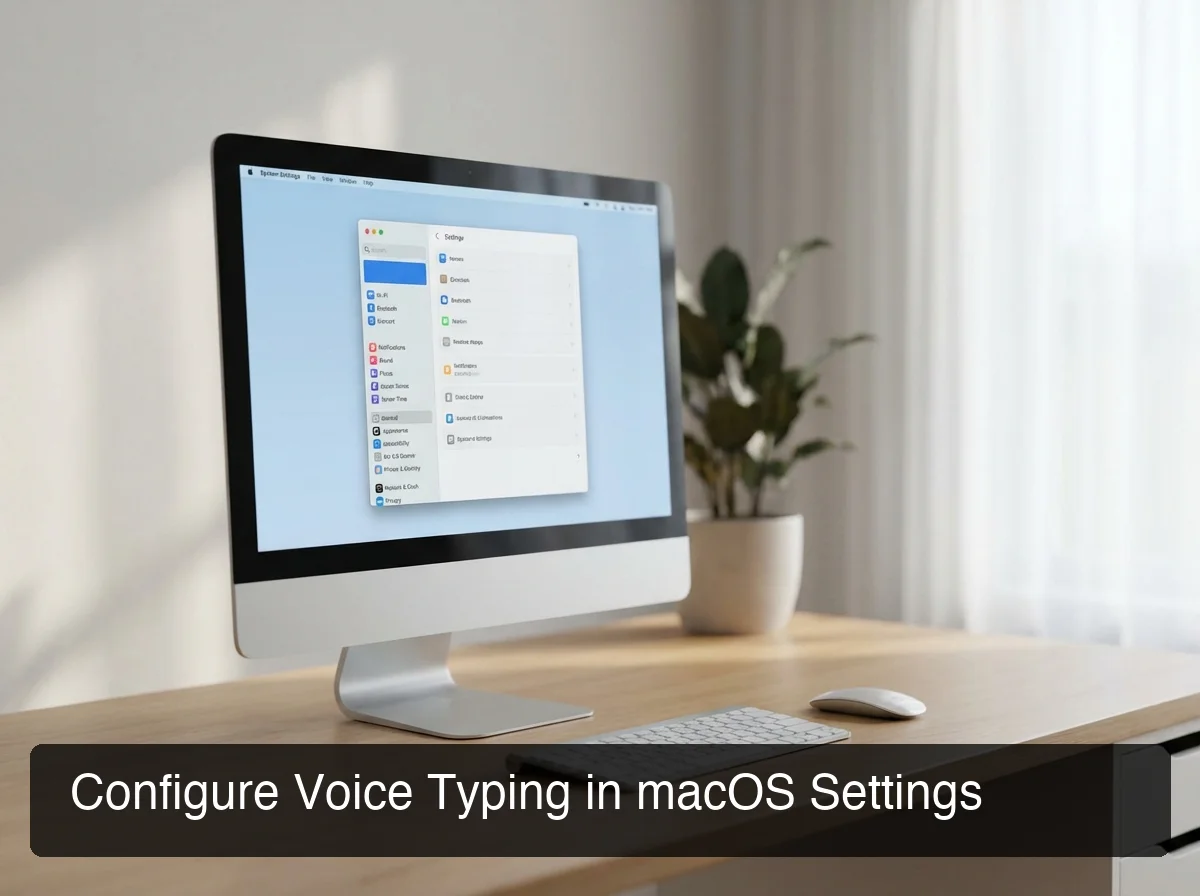 Configure macOS Dictation settings — choose your shortcut, microphone source, and language in System Settings → Keyboard → Dictation.
The practical result: native dictation produces raw transcripts that need manual editing. Speak "um so I wanted to follow up on the meeting from uh yesterday" and you get exactly that — not "I wanted to follow up on yesterday's meeting." AI-powered voice typing tools strip fillers, fix grammar, add punctuation, and format text appropriately for the app you're using before anything reaches the screen.
By the numbers: Voice input is 3x faster than typing for most users. But that speed gain disappears if you spend 5 minutes cleaning up a verbatim transcript. AI post-processing eliminates the cleanup loop entirely.
What Affects macOS Dictation Accuracy?
- Microphone quality — AirPods and external mics consistently outperform the built-in mic in noisy environments
- Background noise — Open offices and coffee shops significantly degrade transcription accuracy
- Speech pace — Moderate, deliberate speech outperforms rushed or mumbled delivery
- Vocabulary complexity — Common words transcribe well; proper nouns, brand names, and technical terms frequently fail
Does Voice Typing Mac Work in All Applications?
macOS Dictation works in most apps with standard text fields — Mail, Messages, Notes, Pages, Safari, Chrome, Slack, and most third-party apps. Voice typing Mac users run into limitations with custom UI frameworks that bypass the native input layer, and it cannot execute app commands, click buttons, or navigate menus — those require Voice Control.
Apps that consistently work well with native Mac voice typing:
- Apple Mail, Messages, Notes, Pages, Numbers, Keynote
- Safari and Chrome address bars and web forms
- Productivity apps: Notion, Obsidian, Bear, Craft
- Communication: Slack, Teams, Discord (desktop apps)
Apps that may have compatibility gaps:
- Electron apps with custom text editors (some VS Code extensions)
- Web-based rich text editors (Google Docs has its own separate voice typing feature)
- Apps built with non-standard input controls
For a cross-app alternative that works universally — including apps where native dictation sometimes fails — tools like BossAI for Mac insert text at the system level rather than relying on app-specific text field compatibility.
How Fast Can You Type With Voice Typing on Mac?
Voice typing on Mac is typically 3x faster than keyboard input. Most people type at 40–60 WPM but speak at 130–150 WPM. For a 500-word email, that's the difference between 8–10 minutes typing and under 4 minutes dictating. Professionals who type with voice consistently report 30–40% reductions in daily communication time.
The productivity gain compounds when you factor in cognitive overhead. Physical typing coordination slows idea flow — you think faster than your fingers move. Dictation lets ideas transfer to text at nearly the speed you think them.
 Voice typing at 130+ WPM means your Mac keeps up with your thoughts — not the other way around.
Bottom line: Voice typing doesn't just save time — it removes the mental context switch between thinking and typing. Dictate first drafts, use the keyboard only for targeted edits.
When Voice Typing on Mac Delivers the Most Value
- Email first drafts — Compose without stopping to fix typos mid-thought
- Slack and Teams messages — Short, conversational, fast; dictation matches the medium
- Meeting notes — Capture ideas live without looking down at a keyboard
- Hands-free workflows — Standing desk setups, post-surgery recovery, RSI management
Can You Use Third-Party Voice Typing Apps on macOS?
Yes. macOS fully supports third-party voice typing apps. These tools run as menu bar apps, use a hotkey to activate, and insert transcribed text directly into whatever app is active — the same workflow as native dictation, but with AI enhancement, better filler-word handling, and additional features like tone rewriting and contextual replies.
The best voice to text app for Mac options run alongside native dictation rather than replacing it at the OS level. You can keep both enabled — though once you try AI-enhanced dictation, reverting to verbatim transcription is difficult to justify.
For a full landscape of what's available, the apple dictation alternatives guide covers every major third-party option for macOS.
Comparing Voice Typing Apps for Mac
| Tool | Free Tier | AI Enhancement | Screen Reading | Pro Price |
|---|---|---|---|---|
| BossAI | 500 words/day | Filler removal + grammar | Boss Mode | $9.99/mo |
| WisprFlow | 2,000 words/week | Yes | No | $15/mo |
| AquaVoice | 1,000 words total | Yes | No | $8/mo |
| Typeless | 4,000 words/week | Yes | No | $30/mo |
| Spokenly | Unlimited (local) | Limited | No | $7.99/mo |
| Native macOS | Unlimited | No | No | Free |
The key differentiator across paid tools isn't raw transcription accuracy — it's what happens to the audio before it reaches your screen.
What Are the Best Voice Typing Mac Alternatives to Native Dictation?
The best voice typing alternatives for Mac are AI-enhanced tools that go beyond raw transcription: they remove filler words automatically, fix grammar without manual editing, and insert polished text. Top options in 2026 are BossAI, WisprFlow, AquaVoice, and Typeless — each with different free tier limits, accuracy characteristics, and feature sets.
For users wanting comprehensive guidance on how to use voice typing effectively across every Mac app, AI-enhanced tools eliminate the manual editing step that makes native dictation slow in practice.
What to prioritize when choosing a Mac voice typing alternative:
- Filler word removal — non-negotiable for professional output
- Free tier limits — daily vs. weekly word caps vary significantly across tools
- Cross-app compatibility — verify it works in your specific apps
- Privacy model — check data handling policies for business or legal use
 Beyond built-in dictation: AI-powered tools like BossAI add filler removal, formatting, and screen-aware replies.
Why BossAI Outperforms Built-in Mac Dictation
BossAI's Mac app runs in the menu bar, activates with a hotkey, and inserts AI-polished text into any active app — the same workflow as native dictation, but with output that's ready to send instead of ready to edit. Three features make it a decisive upgrade over macOS Dictation.
1. Automatic filler word removal. Native macOS dictation transcribes every "um," "uh," and "you know" verbatim. BossAI strips them automatically before text reaches your screen. What you dictate casually becomes what reads naturally in writing — no editing required.
2. Boss Mode — screen-aware contextual replies. Speak a command like "Boss, reply to this email professionally" and BossAI reads your screen in real time, understands the context of the email you're responding to, and writes a complete reply. No copy-pasting into ChatGPT, no explaining what's on screen. This is a genuine capability gap — no other Mac voice typing tool offers screen awareness. For readers comparing options, the voice to text app for mac guide explores this in more depth.
3. One-tap tone rewriting. After dictating, tap Professional, Casual, Witty, or Persuasive to instantly rewrite your text in that voice. One tap — no voice command, no typing instruction. Useful for matching tone to the relationship: casual for a teammate, formal for a client, persuasive for a pitch.
Key insight: BossAI's free tier includes 500 words/day at full AI quality. At $9.99/month Pro, it's the most affordable option in the category that includes screen-reading capability.
BossAI runs natively on macOS (menu bar), iOS (keyboard replacement), and Windows (system tray) — making it the only voice typing tool that follows you across your full device stack. There's no cross-platform alternative that matches this coverage.
Get Started with BossAI
If you're already using voice typing on Mac and want cleaner output without the editing loop — or if native dictation's filler-word problem is costing you time — BossAI is the direct upgrade. It installs as a menu bar app, takes two minutes to configure, and replaces the native dictation workflow with AI-polished results.
Frequently Asked Questions
How do I turn on voice typing on my Mac? Open System Settings → Keyboard → Dictation, toggle Dictation on, and choose your activation shortcut (default: press Fn twice or use the microphone key). Once enabled, press the shortcut in any text field to begin dictating. macOS will prompt you for microphone permission on first use — approve it and you're ready.
Is voice typing on Mac free? Yes. macOS Dictation is included at no cost with every Mac running macOS Monterey or later, with no word limits or usage caps. Third-party AI-enhanced alternatives offer free tiers with usage limits; paid plans range from $8–$30/month depending on the tool and features required.
Does Mac voice typing work without internet? Standard macOS Dictation requires an internet connection — audio is processed on Apple's servers. For offline dictation, enable "Use Enhanced Dictation" in System Settings, which downloads a local speech model to your Mac. Third-party AI tools typically require internet connection for AI post-processing.
What is BossAI? BossAI is an AI-powered voice keyboard for iOS, macOS, and Windows that replaces typing with voice dictation. It transcribes speech in real time, removes filler words automatically, rewrites text in different tones with one tap, and includes Boss Mode — a screen-reading feature that reads your screen to generate contextual replies without copy-pasting.
What's the difference between macOS Dictation and Voice Control? macOS Dictation is a shortcut-activated transcription tool for text input only. Voice Control is a full accessibility feature that lets you control every aspect of your Mac by voice — clicking buttons, navigating menus, scrolling pages, and typing. Most users need Dictation; Voice Control is designed for users who require complete hands-free Mac operation.
How accurate is BossAI voice typing compared to native Mac dictation? BossAI uses advanced speech recognition models that achieve high accuracy in quiet environments and handles accented speech well. It automatically removes filler words (um, uh, like, you know) and corrects grammar in real time — so the transcribed text is cleaner than raw dictation from most built-in tools like Apple Dictation or Google voice typing.
Is BossAI good for RSI or hand injuries on Mac? Yes. BossAI is designed for zero-keyboard use — you dictate everything and it handles transcription, filler word removal, and tone correction automatically. Users with RSI, carpal tunnel, broken wrists, or repetitive strain injuries use BossAI to write emails, messages, and documents entirely hands-free, with no typing required at any step.