
Dictation Not Working Mac? 8 Fixes That Work (2026)
Dictation not working Mac-wide? The cause is almost always one of four things: the feature is switched off, the wrong microphone is selected, the shortcut changed, or the connection dropped. Work through them in that order and most Macs are talking again in minutes.
Apple's own support guide opens with the same two checks, input volume and microphone choice.
Dictation Not Working Mac: Why Does It Fail?
Mac Dictation usually fails because it is turned off in System Settings, the wrong microphone is selected, the Dictation shortcut was changed or removed, or the Mac cannot reach Apple's servers. A language mismatch or a competing voice feature can also stop it silently.
Dictation rarely throws a clear error. You press the shortcut, the microphone icon never appears, and nothing happens. That silence is why guessing wastes time.
Here are the usual suspects, roughly in order of how often they bite:
- Dictation is off, or was reset after a macOS update
- The input device is a Bluetooth headset or an external display with no working mic
- The shortcut is blank, or clashes with another app
- The dictation language does not match what you are speaking
- Wi-Fi is down, so audio cannot be processed
- Voice Control is running and fighting for the microphone
Key Takeaways
- Check System Settings → Keyboard → Dictation first. The toggle is off more often than people expect.
- Confirm the microphone under System Settings → Sound → Input and watch the level meter move as you speak.
- A missing or changed shortcut makes Dictation look broken when it is simply not being triggered.
- Apple's built-in Dictation can depend on a network connection and your language setting, so check both.
- If Dictation stays unreliable, BossAI's Mac menu bar app is a hotkey-driven alternative with push-to-talk and hands-free modes.
How Do I Enable Dictation on macOS?
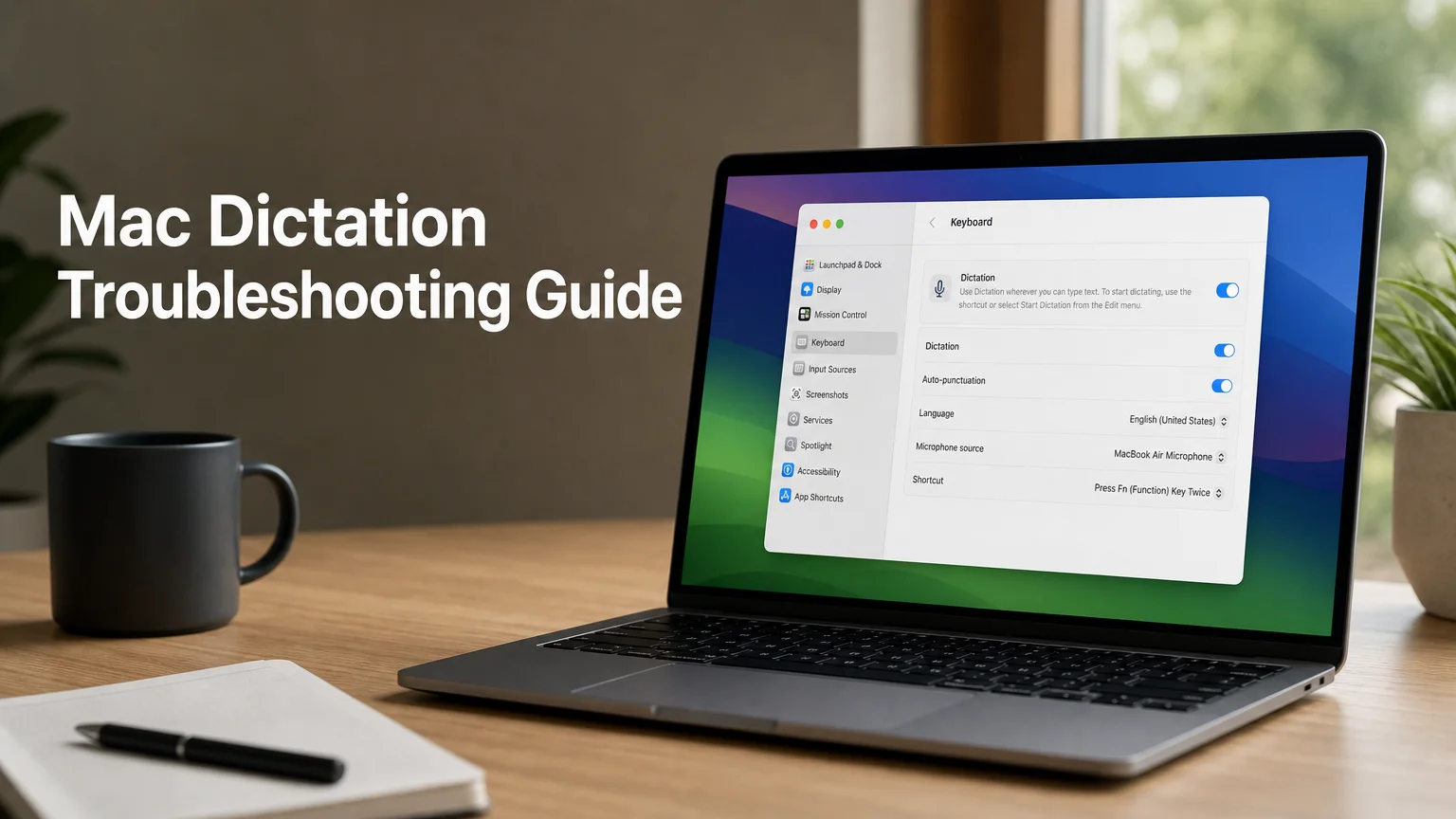
Open the Apple menu, choose System Settings, click Keyboard, then turn on the Dictation toggle. Confirm the language, pick a microphone source, and check the shortcut field. Once enabled, click into any text field and use the shortcut to start.
On recent macOS versions the steps look like this:
- Choose Apple menu → System Settings → Keyboard.
- Scroll to Dictation and switch it on. Click Enable if macOS asks.
- Set the Language to the one you actually speak.
- Set Microphone source to your built-in mic or the headset you are using.
- Click inside a text field, such as a Notes document, and start dictating.
Already on? Toggle it off, wait ten seconds, and turn it back on.
A user on MacRumors reported fixing a new MacBook Air this way, adding a safe-mode restart to the mix. It is crude, but it resets the service.
How Do I Fix Microphone Issues with Mac Dictation?
Open System Settings → Sound → Input, select the microphone you want, and speak while watching the input level bar. If the bar stays flat, raise the input volume or switch devices. Then check Privacy & Security → Microphone to make sure the app you are typing in has access.
Bluetooth headsets cause more trouble than any other hardware. When you connect one, macOS may switch input to it, and some headsets drop to a low-quality mode that Dictation handles badly. Pick the built-in microphone to test.
Also unplug anything odd. An external display, audio interface or webcam can silently become the default input. If the level bar moves only when you choose the built-in mic, you have found your culprit.
Can a Wrong Shortcut Cause Dictation Not Working on Mac?
Yes. If the Dictation shortcut is blank or shared with another app, pressing it does nothing, which looks exactly like a broken feature. Go to System Settings → Keyboard → Dictation → Shortcut and set a combination that nothing else uses.
Apple's default has long been pressing the Fn (Globe) key twice, but you can choose another option from the menu. A clash with a launcher, a screen recorder or a remapped keyboard is a common reason it stops responding.
If you want the full setup, our Mac dictation shortcut guide walks through every shortcut option and how to customize it. Or skip the shortcut and trigger Dictation from the menu bar: in a text field, open the Edit menu and choose Start Dictation.
Reality check: If Start Dictation works from the Edit menu but the shortcut does not, the feature is fine. Only the trigger is broken.
Dictation Not Working Mac Mid-Sentence: What to Check
Dictation cutting out after a few words is a different problem from Dictation never starting. Three causes cover most cases.
First, the connection. Depending on your Mac and language, audio may be sent to Apple for processing, so a weak Wi-Fi signal ends the session early. Test with a different network or a phone hotspot.
Second, a long pause. Dictation can stop when it hears silence, so speak in a steady stream and press the shortcut again to resume.
Third, a stuck background process. Quit the app you are typing in, then restart your Mac.
If a restart does not fix it, turn Dictation off, restart, and enable it again. Also check System Settings → Accessibility → Voice Control: if it is on, switch it off and retest, since it competes for the same microphone.
Are There Alternatives to Apple's Dictation on Mac?
Yes. Third-party Mac dictation apps run alongside macOS and type into any app using their own hotkey and speech engine. They suit people who dictate daily and need a trigger that works every time, with options like push-to-talk, hands-free mode and custom vocabulary.
Several tools exist, and they trade off price, offline support and polish. Our ranked Apple Dictation alternatives list compares them, and the voice to text app for Mac guide covers the wider field. If you want the built-in route done properly first, see our voice typing on Mac setup guide.
One caution. None of this replaces macOS accessibility features. If you rely on Voice Control or Apple's accessibility tools, keep them and add a dictation app on top.
 A hold-to-talk hotkey replaces the Fn double-press when built-in Dictation misbehaves.
Why BossAI Might Be Your Next Step
BossAI runs on Mac as a native menu bar app. You hold a hotkey, which is Fn by default, speak, and the text lands wherever your cursor is, in any app or text field. You can change the shortcut anytime in Settings.
It has two activation modes. Push-to-talk means you hold the shortcut and release to stop, which suits short phrases and quick commands. Hands-free means you press once to start and press again to stop, which suits longer dictation.
Beyond raw transcription, BossAI removes filler words, fixes grammar and adds punctuation as you speak. A custom dictionary keeps names and jargon right.
Say "Boss" and you can also issue AI commands, such as asking it to reply to the email on your screen. The free plan gives you 500 words a day, so you can test it on your real workflow before paying.
Get Started with BossAI
If built-in Dictation keeps letting you down, try a hotkey tool you control. BossAI is free to start, and one Pro plan covers Mac, Windows, iPhone and Android.
FAQ
Why does Mac Dictation say it is not available?
Dictation may be off, the language may be unsupported, or the Mac may be offline. Open System Settings → Keyboard → Dictation, switch it on, choose a supported language, and confirm you are connected to the internet. Then try again from a text field.
What is BossAI on Mac?
BossAI is a menu bar voice-to-text app for Mac, also available on Windows, iPhone and Android. It turns speech into clean text in any app, removing fillers and fixing grammar, and its Boss Mode can read your screen to write replies in context.
Is BossAI free on Mac?
Yes, there is a free plan with 500 words of dictation a day that resets daily. Pro removes the limits for $9.99 a month or $69.99 a year, and a 7-day full Pro trial needs no account.
Does restarting my Mac fix Dictation?
Often, yes. A restart clears stuck audio and speech processes. If it does not help, turn Dictation off in System Settings → Keyboard, restart, turn it on again, and recheck the microphone under Sound → Input.