
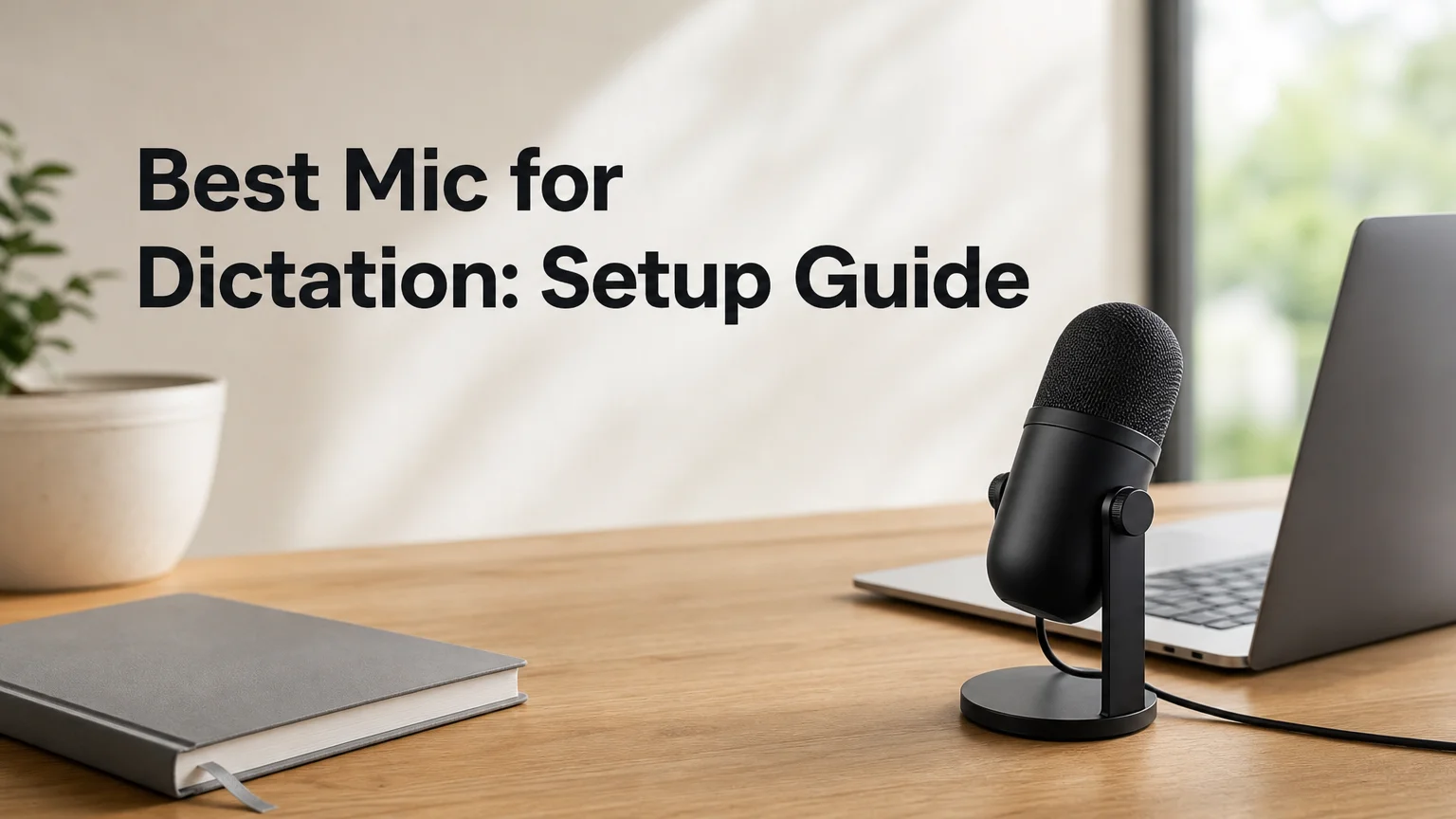
Dictation Microphone: What to Use & How to Set It Up
Most dictation mistakes start before any software gets involved. The microphone hears a muffled voice, a fan, or half a sentence, and the transcript inherits every flaw. Choosing and placing your dictation microphone well fixes more than any setting will.
Key Takeaways
- The best dictation microphone is the one closest to your mouth in a quiet room, and distance affects accuracy more than price does.
- On a phone, the built-in mic works for short dictation; wired earbuds or a headset mic give steadier input for longer sessions.
- On a Mac or Windows PC, a headset or USB mic placed a few inches from your mouth beats a laptop's built-in mic in a busy room.
- Noise control (closed room, no fan or open window near the mic) is the cheapest accuracy gain.
- BossAI works with whichever mic your device already uses: tap the keyboard mic on iPhone or Android, or hold the hotkey (Fn by default) on Mac and the Windows tray app.
Contents
- What Is the Best Dictation Microphone?
- Which Microphone Works Best on a Phone?
- Does a Better Dictation Microphone Improve Accuracy?
- How Do You Set Up a Microphone for Desktop Dictation?
- How Do You Reduce Background Noise for Dictation?
- How Do You Use BossAI With Your Microphone?
- Get Started with BossAI
- FAQ
What Is the Best Dictation Microphone?
The best dictation microphone is the one closest to your mouth in a quiet room. Placement and noise affect how clearly your words reach the speech engine more than price does, so a basic headset mic a few inches from your lips usually beats an expensive mic sitting across the desk.
Shopping lists for dictation mics tend to focus on specs. Those matter less than three plain questions: how far is the mic from your mouth, what else is it hearing, and can you keep it in the same spot for an hour?
There are three practical categories, and each fits a different habit:
- Built-in mic (phone or laptop): zero setup, fine for short bursts, sensitive to distance and room noise.
- Wired earbuds or headset with a boom mic: the mic sits at a fixed distance from your mouth, so volume stays even as you move.
- Desktop USB mic: good for a fixed home or office desk, as long as you place it close and off to the side of your breath.
Reality check: A mic that looks professional but sits two feet away will lose to a plain headset mic an inch from your cheek.
If you are new to the idea itself, it helps to know how cloud based dictation works, because your audio is processed by an online speech engine and a clean signal is the first thing it needs.
Which Microphone Works Best on a Phone?
For short messages, your phone's built-in mic works fine when held close in a quiet spot. For longer sessions, wired earbuds with an inline mic or a headset mic give steadier input, because the mic stays at a fixed distance from your mouth while your hands stay free.
Phones are built for speech, so the built-in mic is better than most people expect. The common failure is holding the phone at arm's length or dictating while walking past traffic.
Here is how the three phone options compare in daily use:
| Option | Best for | Watch out for |
|---|---|---|
| Built-in mic | Quick replies, short notes | Held too far away; hand covering the mic |
| Wired earbuds with inline mic | Longer dictation, walking | Mic rubbing against clothing |
| Headset mic | Long sessions, noisy rooms | Boom mic placed too close to your breath |
On the BossAI keyboard, the microphone button sits at the bottom right of the keyboard, and a Start button appears at the top right of the keyboard bar. The settings also include Instant Recording, which starts recording as soon as you tap the mic, so you can begin speaking right away.
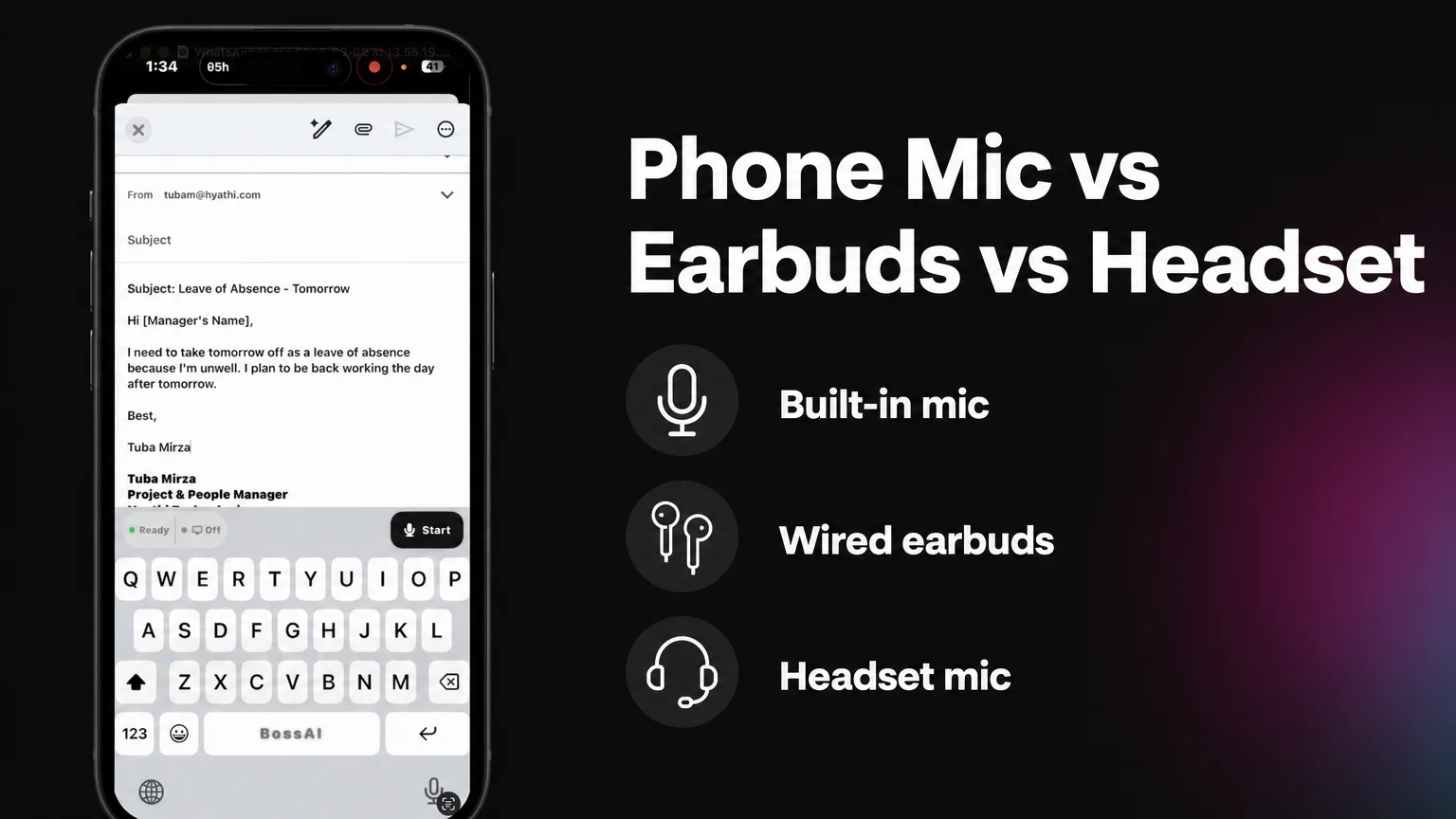 The BossAI keyboard on iPhone: tap the mic or Start, then speak into whichever mic your phone is using.
On an iPhone, you can also begin dictating from the Action Button, or with Back Tap (a double-tap on the back of the phone) on older models. Neither needs BossAI opened first, which keeps your hands and attention on the message you are writing.
Does a Better Dictation Microphone Improve Accuracy?
A better microphone helps most when your current one is the problem: far from your mouth, picking up room echo, or competing with noise. Beyond a clean, close signal, extra spending gives diminishing returns, and the speech engine behind your dictation tool matters just as much as the hardware.
Think of the chain as three links: your voice, the mic, and the speech engine. Upgrading the middle link only helps if it was the weak one. A clean signal from a modest mic and a quiet room beats a premium mic in an echoing kitchen.
That is why we make no accuracy promises for particular hardware here. Results depend on your voice, your room, and your accent, and no honest guide can predict them from a product name.
Worth knowing: Every dictation tool works from the audio it receives. Giving it a close, steady, quiet signal is the one thing you control on every platform.
A useful self-test costs nothing. Dictate the same paragraph three times: arm's length, a hand's width from your mouth, and with a headset. Compare the transcripts and keep whichever setup produces the fewest corrections.
How Do You Set Up a Microphone for Desktop Dictation?
Plug in a headset or USB mic, select it as the system input in your sound settings, position it a few inches from your mouth, test with a short dictation, then start your dictation tool. The same five steps work on both Mac and Windows.
Desktops and laptops default to the built-in mic, which is usually a few feet away and picks up keyboard clatter. Switching the input takes about a minute.
- Connect the mic. Plug in the headset or USB mic before you open any dictation app.
- Pick it as the input. On a Mac, open System Settings, then Sound, then Input. On Windows, open Settings, then System, then Sound, and choose it under Input.
- Check the level. Speak normally and watch the input meter move; if it spikes to the top, move the mic back slightly.
- Position it. Keep it a few inches from your mouth, slightly to one side so breath does not hit it.
- Test. Dictate one sentence into a text field and read the result before you commit to a long session.
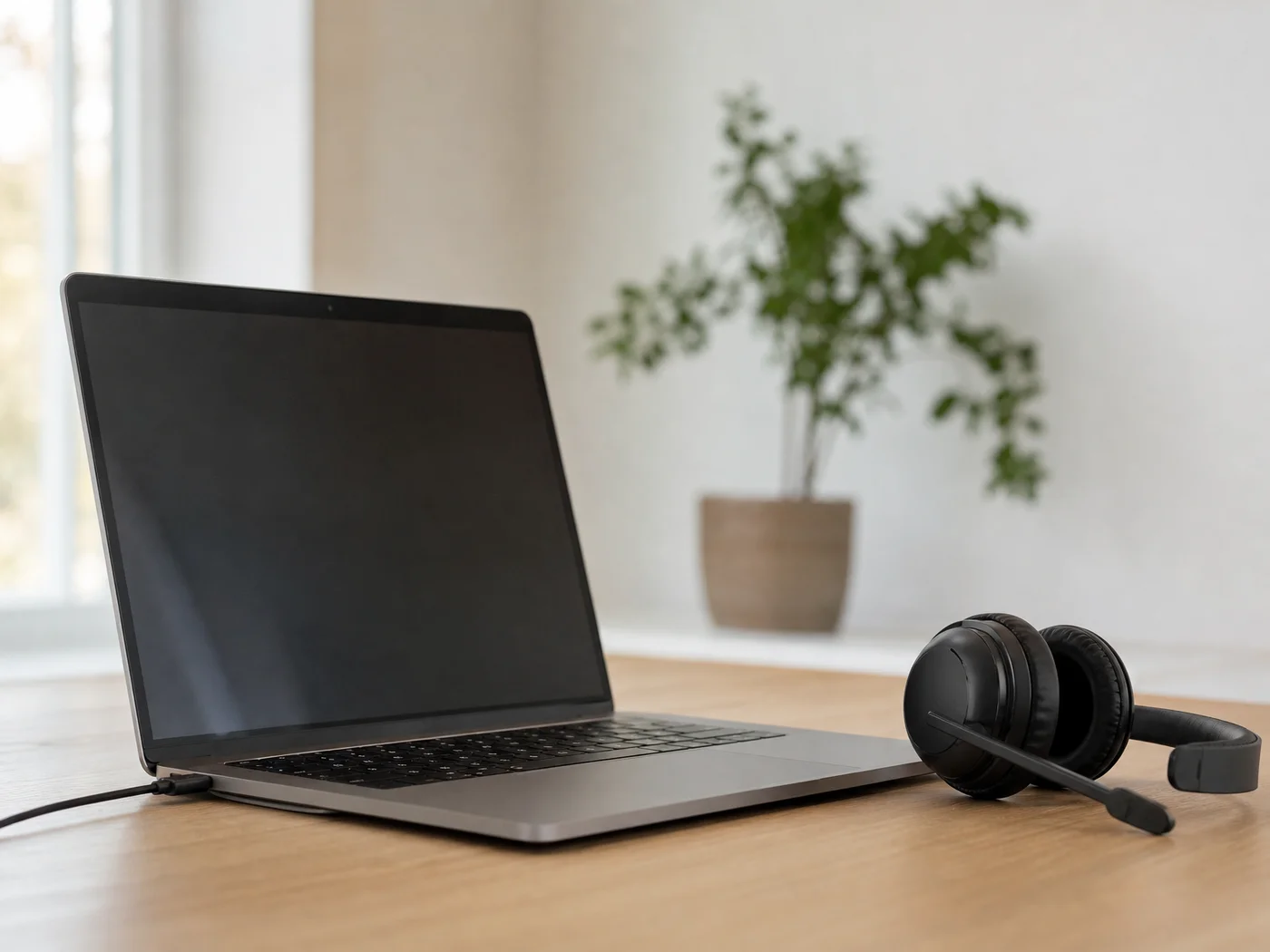 A laptop with a headset connected: choose it as the system input before you start dictating.
If your Mac does not hear the mic at all, the usual culprit is permission or the wrong selected input, and our guide to dictation not working on Mac walks through those fixes. Windows users who want the built-in route can read the full guide to voice to text on Windows, and the dictation shortcut for Windows covers the keys you press to start.
How Do You Reduce Background Noise for Dictation?
Close the door, switch off fans, and keep windows shut, then place the mic a few inches from your mouth. Cutting noise at the source is free and works better than hoping software filters it out afterwards, because the speech engine can only transcribe what the mic captures.
Noise comes in two kinds. Steady noise, such as a fan or air conditioner, blurs everything evenly. Sudden noise, like a door slam or a colleague's question, creates a gap or a stray word.
A short checklist covers most rooms:
- Dictate in a closed room when you can, even a small one.
- Turn the mic away from fans, speakers and open windows.
- Use a soft surface nearby (curtains, a rug, a sofa) to cut echo.
- Pause dictation when someone speaks near you instead of talking over them.
- Stay at the same distance for the whole session so volume stays even.
Quick win: Moving the mic from your desk to a spot just below your chin costs nothing and removes more room sound than most settings do.
The same rules apply inside any app, including voice dictation in Word, where the app listens to whichever microphone your system has selected. Professionals dictating sensitive or long documents tend to be the strictest about a quiet room, and for good reason: fixing a transcript costs more time than closing a door.
 A close, quiet setup beats an expensive mic in a noisy room.
How Do You Use BossAI With Your Microphone?
BossAI uses whichever microphone your device is already using, then turns your speech into polished text with filler words removed. On iPhone and Android you tap the keyboard's mic button; on Mac you hold the hotkey (Fn by default), and on Windows the tray app uses the same hotkey.
That makes BossAI the dictation layer on top of your mic, not a replacement for good input. A clean signal still gives the cleanest result, and BossAI then handles the rest: it removes fillers like "um" and "you know", fixes grammar, and adds punctuation as you go.
Here is how it starts on each platform:
- iPhone: tap the mic on the BossAI keyboard, or start from the Action Button or Back Tap. With Instant Recording on, recording begins the moment you tap.
- Android: switch to the BossAI keyboard and tap its mic in any text field.
- Mac: the menu bar app listens while you hold the hotkey (Fn by default).
- Windows: the system tray app works the same way, with the same hotkey. You can change the shortcut any time in Settings.
On desktop there are two modes: push-to-talk, where you hold the shortcut and release to finish, and hands-free, where you press once to start and again to stop. Push-to-talk suits quick phrases; hands-free suits long dictation, where holding a key would get tiring.
Add the names and terms your mic tends to mishear to the Custom Dictionary so they come out right every time.
Get Started with BossAI
Once your mic is set up, the missing piece is software that turns a clean signal into text you can send. BossAI works on iPhone, Android, Mac and Windows with the mic you already have.
FAQ
What is the best microphone for dictation?
The best microphone is the one closest to your mouth in a quiet room. A headset mic sitting a few inches from your lips gives steadier input than a laptop's built-in mic, and you do not need an expensive model. Distance and noise matter more than price.
Can I dictate with my phone's built-in mic?
Yes. A phone's built-in mic works well for short messages when you hold it close and avoid noisy places. For longer sessions, wired earbuds with an inline mic or a headset mic keep the distance steady and leave your hands free.
Do I need a USB microphone to dictate on a computer?
No. A headset with a boom mic is often enough and keeps the mic near your mouth. A USB desk mic also works well if you place it close and off to one side. Either beats a laptop's built-in mic in a busy room.
Does BossAI need a special microphone?
No. BossAI uses whichever microphone your iPhone, Android phone, Mac or Windows PC is already using. Tap the keyboard mic on mobile, or hold the hotkey on desktop. A closer mic in a quiet room gives the cleanest transcription, but nothing special is required.
Is BossAI free?
Yes. The free plan includes 500 words of dictation a day, which resets daily, plus one Boss Mode reply, one Rewrite and one language. Pro unlocks everything for $9.99 a month or $69.99 a year, and there is a 7-day full Pro trial with no account needed.