
Voice Dictation in Word: Setup & Limits
Voice dictation in Word turns your Microsoft 365 microphone into a typing shortcut: click Dictate on the Home ribbon, and your spoken words land on the page as you talk. It's built in, free with a 365 subscription, and caps out at 2,000 words before you have to restart the session. That ceiling — plus zero automatic filler-word cleanup — is why professional writers eventually look past it.
How Do You Turn On Voice Dictation in Word?
To turn on voice dictation in Word, open the Home tab, click the Dictate button in the Voice group, and speak once the microphone icon turns red. You'll need an active Microsoft 365 sign-in and a working microphone — the button doesn't appear at all in perpetual-license copies like Word 2019.
The setup takes under a minute:
- Open your document and go to Home > Dictate.
- On Windows, press Win + H to launch it instantly from anywhere in the document — no ribbon click needed.
- Confirm you're signed into Microsoft 365; the button stays greyed out for local, non-subscription installs.
- Speak naturally. Word transcribes in real time as you talk.
- Say "stop dictating," or click the button again, to end the session.
Mac and web versions follow the same flow, though the microphone icon lives in the compose toolbar on web rather than a ribbon tab. If you want the full walkthrough with screenshots and troubleshooting for greyed-out buttons, how to dictate in Microsoft Word covers that step by step.
Key Takeaways
- Microsoft Word includes built-in dictation via the Dictate button, but it requires manual cleanup — fillers like "um" and "uh" stay in your text unless you remove them by hand.
- Word dictation has a 2,000-word limit per session and doesn't format lists, code blocks, or punctuation as intelligently as AI-enhanced solutions.
- Professional workflows — emails, reports, coding — benefit from AI-enhanced dictation that removes fillers, fixes grammar, and adds context-aware formatting automatically.
- Cross-platform voice input often outperforms desktop-only solutions because it captures ideas wherever you are, not just at your desk.
- AI dictation with custom dictionaries and tone-based rewrites accelerates writing far beyond what Word's native tool offers.
What Are the Limits of Voice Dictation in Word?
Voice dictation in Word stops at 2,000 words per session, requiring you to restart the feature for longer documents, and it transcribes your speech exactly as spoken — filler words, false starts, and all. Nothing gets cleaned up automatically; every "um" and run-on sentence sits in your draft until you edit it out yourself.
That 2,000-word cap matters more than it looks on paper. A single dictated status report or long email thread can blow past it mid-sentence, cutting the session and forcing you to click Dictate again to pick up where you left off. Word also doesn't interpret intent — it types exactly what it hears, so a rambling explanation becomes a rambling paragraph.
- No automatic filler-word removal (um, uh, like, you know all stay in)
- 2,000-word session cap, then a manual restart
- No smart list or heading formatting — everything lands as plain text
- Requires an active Microsoft 365 subscription and internet connection to work at all
By the numbers: 2,000 words is roughly eight minutes of continuous speech at an average speaking pace — short for anyone dictating a full report or a long client email in one sitting.
If you're working from a recorded meeting rather than dictating live, transcribing audio in Word covers that separate workflow, since Word handles pre-recorded audio differently than live speech.
Better Than Word's Built-In Dictation: AI-Enhanced Voice Typing
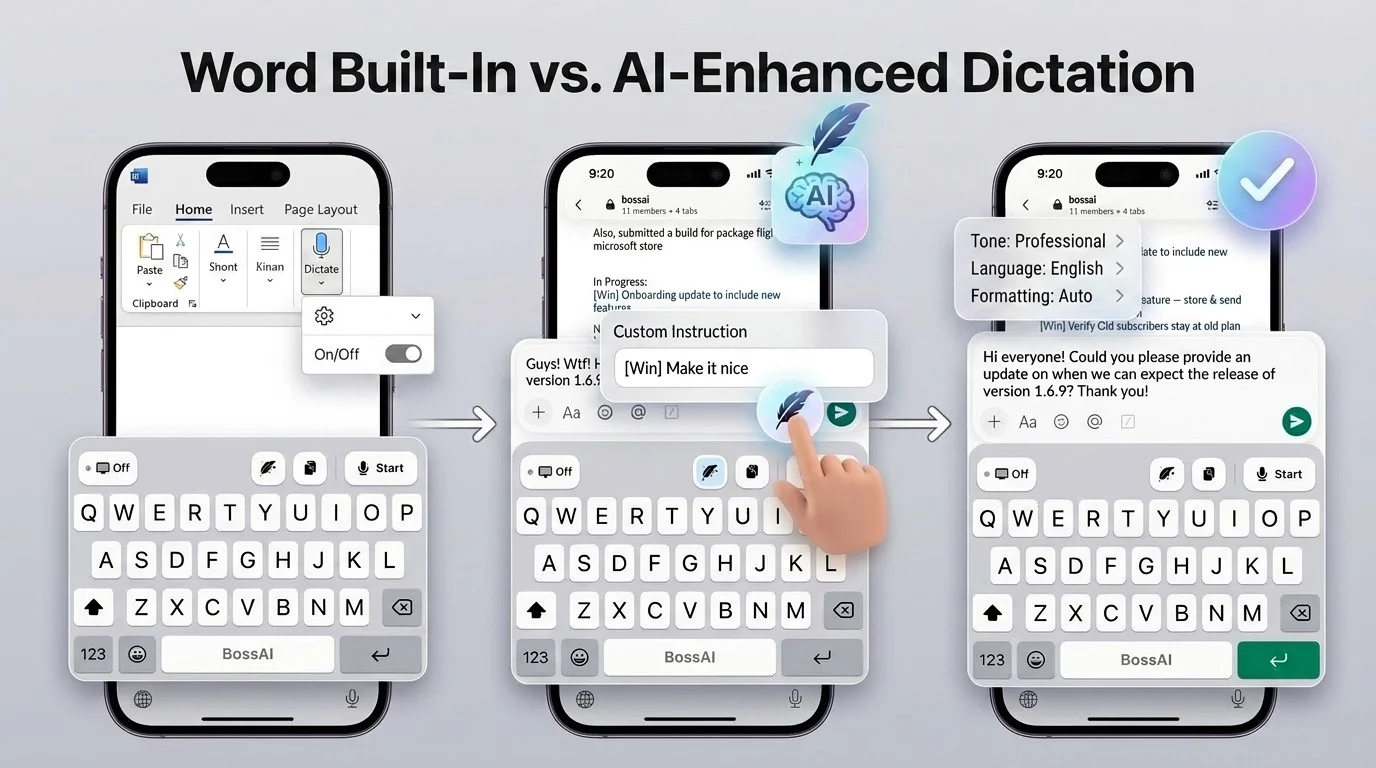 Word's Dictate button offers a language toggle and an on/off switch. AI-enhanced dictation adds tone, formatting, and custom-instruction controls in the same space.
Word's native tool solves one problem: getting your voice onto the page. It doesn't solve the next one — turning that raw transcript into something you'd actually send. That's the gap AI-enhanced dictation tools close.
BossAI, for example, runs as a keyboard on iOS and Android and as a background app on Mac and Windows. It strips filler words, fixes grammar, and adds punctuation roughly 300 milliseconds after you stop talking — before the text ever lands in your document. There's no session cap tied to word count, no separate cleanup pass, and it works the same way in Outlook, Slack, or a browser tab as it does in Word.
| Feature | Word's Built-In Dictate | BossAI |
|---|---|---|
| Free session limit | 2,000 words, then restart | 500 words/day, resets daily |
| Filler word removal | Manual only | Automatic (~300ms) |
| Works outside Word | No — Microsoft 365 apps only | Yes — any app on the device |
| Custom vocabulary | Not supported | Custom dictionary for names & jargon |
| Setup | Microsoft 365 sign-in required | No account needed to start |
One practical difference shows up in how each handles a messy first draft. Say the same rough sentence into Word and you get exactly what you said, filler words included. An AI layer applies a custom instruction — something like "make it professional" — and rewrites the sentence in that tone with one tap, no manual polish required afterward.
When Should You Use Word Dictation vs. an AI Keyboard?
Word's built-in dictation works fine for short, casual notes where cleanup takes ten seconds. AI-enhanced dictation earns its place once you're writing anything that goes out the door as-is — client emails, status reports, or long-form drafts where manual editing eats the time you saved by speaking in the first place.
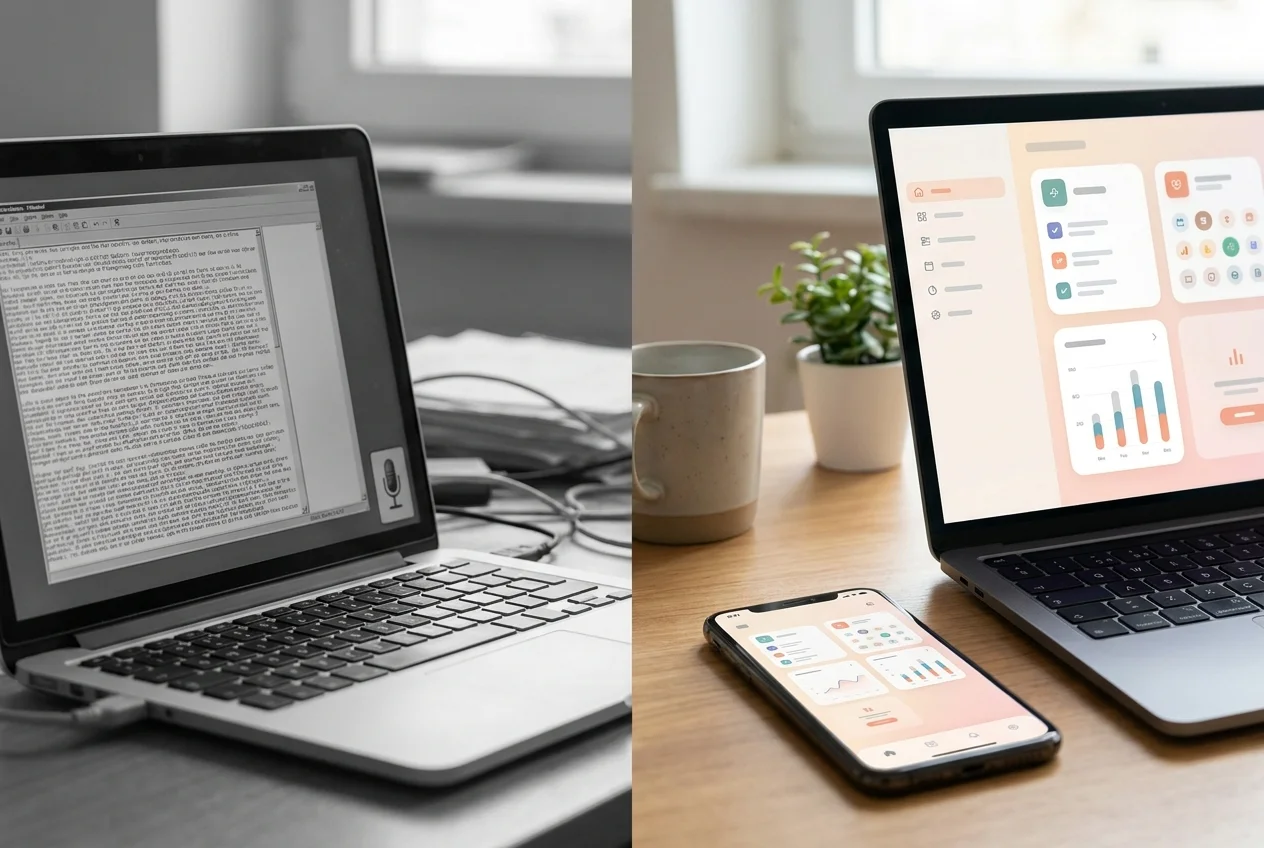 A raw dictation dump on one side, a cleaned-up, formatted draft on the other — the difference AI enhancement makes before you ever open the editor.
A quick to-do list or a placeholder paragraph you'll rewrite later? Word's Dictate handles that without any extra setup. A client-facing email, a meeting recap headed straight to your team, or a chunk of documentation? That's where the 2,000-word cap and the lack of filler removal start costing real time.
The short version: Match the tool to the stakes. Casual notes stay in Word; anything that needs to look finished on the first pass benefits from AI cleanup before it's typed.
The same limits show up in Google Docs' voice typing — another free, built-in tool that transcribes well but leaves every filler word and run-on sentence for you to fix.
Get Started with BossAI
Word's Dictate gets your words onto the page. Getting them ready to send — without stripping filler words and fixing grammar yourself — is what an AI-enhanced keyboard handles automatically, in Word and every other app you use.
FAQ
Is Microsoft Word dictation free or part of Microsoft 365?
Word's Dictate feature is included free with any active Microsoft 365 subscription — there's no separate charge. It doesn't appear in one-time-purchase versions like Word 2019 or 2016, and it requires an internet connection since transcription runs through Microsoft's cloud rather than processing locally.
Can you remove filler words with Word dictation?
Not automatically. Word's Dictate transcribes exactly what you say, including "um," "uh," and false starts, leaving cleanup entirely to you. AI-enhanced tools like BossAI strip filler words and fix grammar in real time, so the text lands polished instead of raw.
Is BossAI actually free to use?
Yes — BossAI's free plan includes 500 words of dictation a day at no cost, and the allowance resets daily. Pro makes everything unlimited — dictation, Boss Mode, Rewrite, every tone and all Clips — and the 7-day trial needs no account.
What's the best alternative to Word dictation for fast, accurate typing?
For dictation that doesn't need manual cleanup, AI-enhanced keyboards like BossAI apply filler removal, grammar correction, and tone rewrites automatically across every app, not just Word. If Word's cap and cleanup steps feel limiting, Speechify alternatives breaks down other tools professionals use instead.