
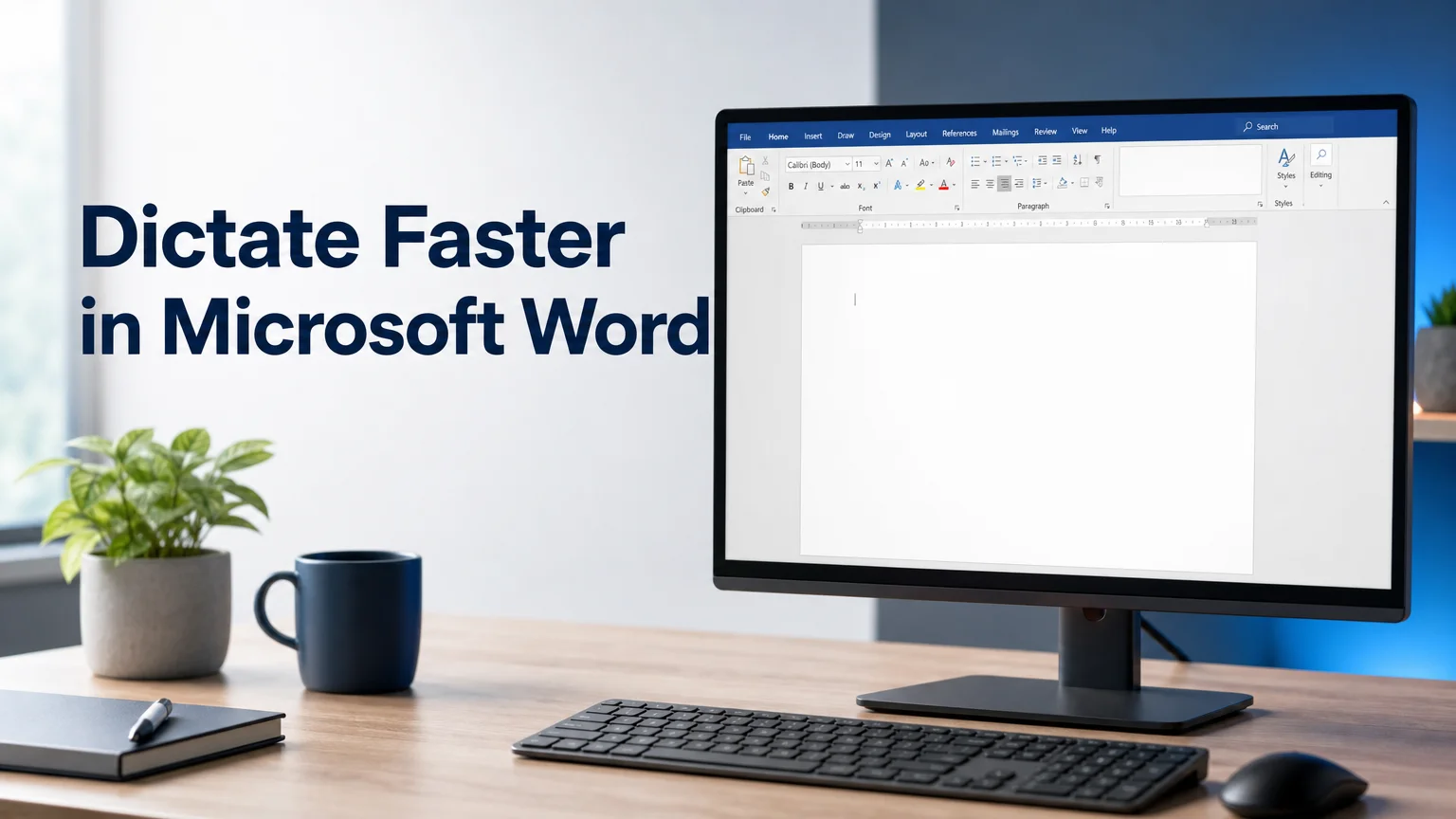
Dictate in Microsoft Word: Setup & Fixes
You can dictate in Microsoft Word by clicking the Dictate button on the Home ribbon — no downloads, no settings hunt, no add-ons. It's free with a Microsoft 365 sign-in, works in Word for Windows, Mac, and the web, and starts transcribing in under two seconds once your mic is on. What it won't do is clean up after you: every "um," half-finished sentence, and missing comma stays exactly where you said it.
Microsoft's own support docs cover dictation across dozens of languages in Word for Microsoft 365 — but they stop short of telling you how to fix what comes out the other side.
What Is Microsoft Word's Dictate Feature?
Microsoft Word's Dictate feature is a built-in speech-to-text tool that converts spoken words into typed text in real time, using the Home ribbon and a Microsoft 365 account. It works in Word for Windows, Mac, and the web without installing anything extra, and it's included free with any active 365 subscription.
The button lives in the Voice group on the Home tab, marked with a microphone icon and the word "Dictate" underneath it. Click it once to start listening, click it again — or say "stop dictating" — to end the session. On Windows, the keyboard shortcut Win + H opens dictation from anywhere in the document, no ribbon click required.
If you're working from a recording instead of speaking live, transcribing audio in Word is the related feature worth knowing — it converts an existing audio file rather than live speech.
Key Takeaways
- Word's Dictate button is free, built into the Home ribbon, and needs only a Microsoft 365 sign-in plus a working microphone.
- Native Dictate produces raw transcription — filler words, run-on sentences, and missing punctuation all need a manual cleanup pass.
- AI-enhanced tools like BossAI remove fillers and fix grammar automatically, before the text ever lands on the page.
- Dictation behaves the same across Word for Windows, Mac, and web, but perpetual-license (non-365) copies don't have the button at all.
- Turning dictation on takes one click; getting consistently clean output takes either manual editing or a smarter layer underneath it.
How Do You Dictate in Microsoft Word?
To dictate in Microsoft Word, open the Home tab, click Dictate in the Voice group, and start speaking once the microphone icon turns red. You need an active Microsoft 365 sign-in and a working microphone — free, non-subscription copies of Word typically don't show the button at all.
The steps are the same on desktop and largely the same on web:
- Open your document and go to Home > Dictate, or press Win + H on Windows.
- Confirm you're signed into Microsoft 365 — the button stays inactive for local, non-subscription installs.
- Pick your dictation language from the gear icon if you're not dictating in English.
- Speak naturally; Word transcribes in real time as you talk.
- Say "stop dictating" or click the button again to end the session.
The web version works identically, but the microphone icon sits in the compose toolbar rather than a ribbon — same function, different spot to find it.
Where Word's Dictation Breaks Down
Word's Dictate does exactly what it promises: it turns speech into text. What it doesn't do is understand what you meant to say.
Every "um," "like," and false start gets typed verbatim. Punctuation lands where you paused, not where a sentence actually ends. Long dictation sessions turn into wall-of-text paragraphs that need a full editing pass before they're usable in an email or a report.
Reality check: A five-minute dictation session in Word can produce 600-plus words of raw text — and most writers end up trimming a good chunk of it before it's presentation-ready.
How Accurate Is Word's Built-In Dictation Compared to AI Alternatives?
Word's Dictate is accurate at transcribing your exact words but doesn't interpret intent — it won't strip filler words, fix run-ons, or adjust tone. AI-enhanced dictation tools handle that layer automatically; BossAI, for instance, applies grammar and punctuation correction roughly 300 milliseconds after you stop talking.
Say the same sentence into Word and into an AI-enhanced keyboard, and the initial transcription is often nearly identical — both start from solid speech recognition. The difference shows up after. Word hands you "so um I think we should probably move forward with the, uh, proposal by Friday." An AI layer delivers "I think we should move forward with the proposal by Friday."
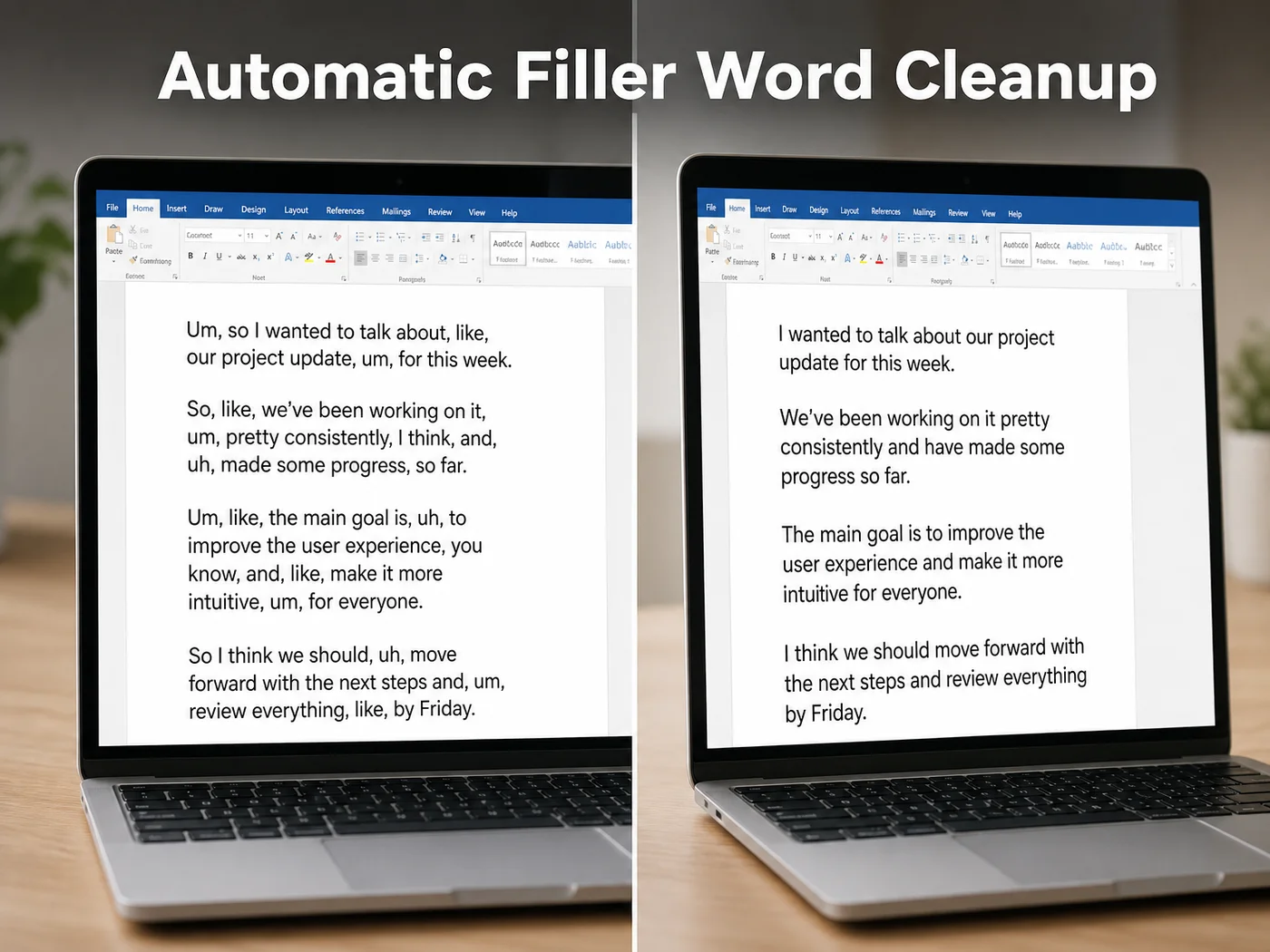 Raw Word dictation on the left, AI-cleaned output on the right — same speech, different outcome.
The same gap shows up in Google Docs' voice typing — another free, built-in tool that transcribes accurately but leaves the cleanup entirely to you.
What Happens When You Use an AI Keyboard for Word Dictation?
An AI keyboard like BossAI sits between your voice and the page, so Word receives already-polished text instead of a raw transcript — fillers removed, grammar corrected, punctuation added, no separate editing pass. Unlike Word's Dictate, it also works the same way in Outlook, Teams, Slack, or any other app on the same device.
BossAI runs in the background on Windows and Mac, activated with a hotkey instead of a ribbon click. Speak into any text field — a Word document, an email, a chat message — and the enhancement layer applies before the words land on the page.
For dictation with more control over tone and vocabulary, custom dictation instructions let you set rules once and have every future dictation follow them. The same setup carries over to Outlook too, though email dictation has its own formatting quirks worth covering separately.
How to Get Better Dictation Results in Word
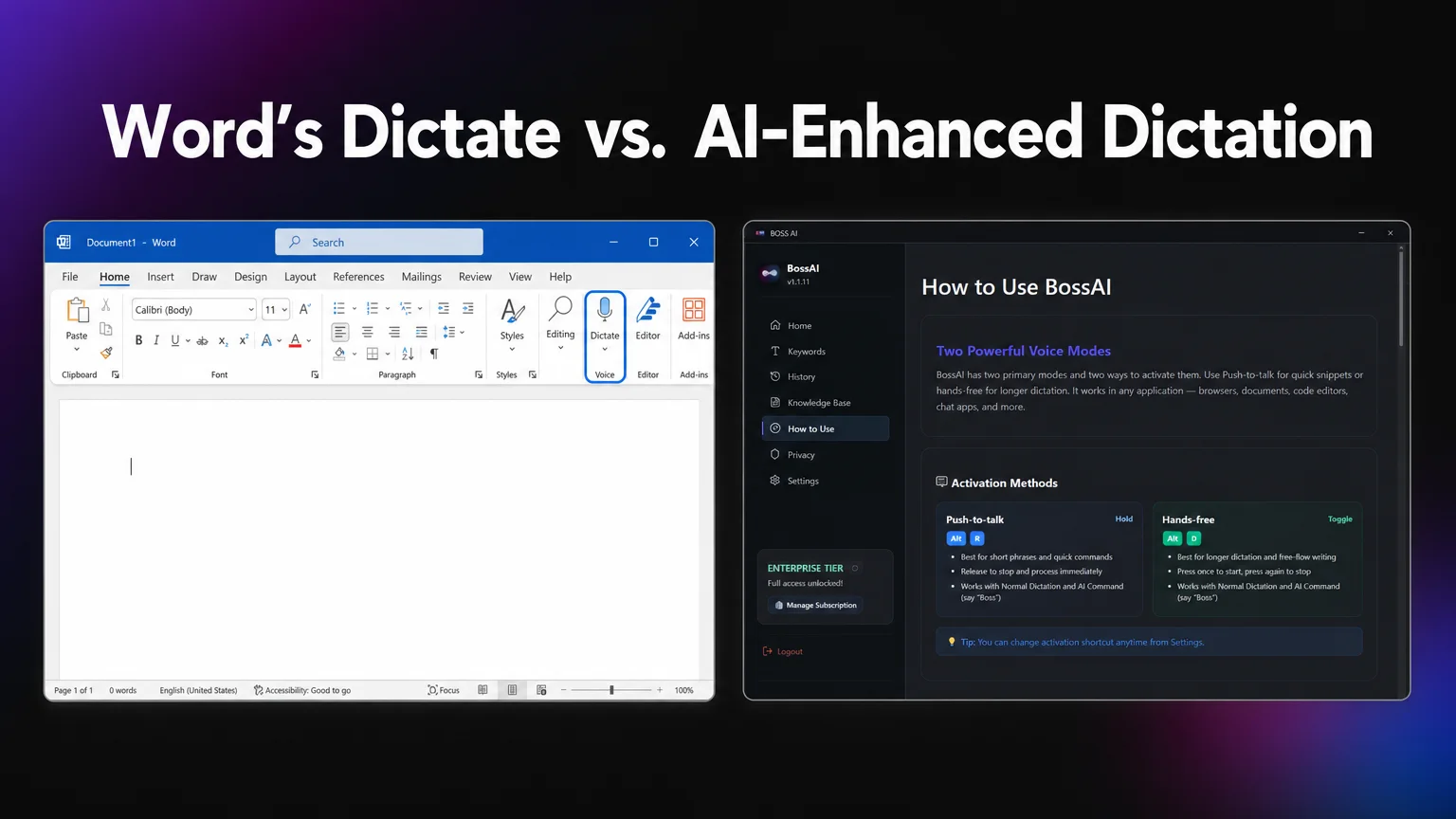 Word's ribbon-based Dictate button next to BossAI's push-to-talk activation.
Getting clean dictation in Word without much editing comes down to two options: change how you dictate, or change what you're dictating with.
Inside Word itself, short sentences and explicit punctuation commands — saying "period" or "new paragraph" out loud — cut down on cleanup. They also slow you down, which defeats a lot of the point of dictating in the first place.
BossAI takes the other approach. It applies grammar correction, filler removal, and punctuation automatically and in real time, so what lands in your Word document is close to final on the first pass. On iOS and Android it runs as your keyboard's dictation button directly, no ribbon click needed. For Word specifically, that means fewer trips back through a draft to delete the sentence you were still forming out loud when you started the next one.
Can You Dictate in Microsoft Word on Mac and Windows?
Yes — you can dictate in Microsoft Word the same way on Mac and Windows, both requiring a Microsoft 365 sign-in and a connected microphone. The button sits in the same Home ribbon location on both platforms, though the Windows shortcut Win + H has no Mac equivalent.
Mac users trigger dictation only through the ribbon button; there's no built-in keyboard shortcut inside Word itself. macOS's own system-level dictation (Edit > Start Dictation) works as a separate fallback in any app, Word included, if the ribbon button ever misbehaves.
For a broader look at Windows-level dictation outside of Word specifically, voice to text on Windows covers the OS-wide options worth knowing about.
Fixing the Most Common Word Dictation Problems
Dictate button missing entirely, greyed out, or the mic icon spinning without transcribing anything — these are the three complaints that show up most often in Word support threads.
- Missing button: You're on a non-Microsoft 365 copy of Word (2016, 2019 perpetual license, or older). Dictate requires an active 365 subscription to appear at all.
- Greyed out: Check your system's default microphone. It needs to be selected correctly, not muted, and not pointed at a disconnected device.
- No transcription happening: Dictation processes through Microsoft's cloud, so it stops working the moment your internet connection drops.
- Wrong language showing up: Open the Dictate settings gear icon and confirm the spoken language matches what's selected there.
Worth knowing: Dictation shortcuts differ by platform — Win + H opens it instantly on Windows, but Mac and web users click the ribbon or toolbar icon every time.
If none of these fixes solve it, dictation software for Windows breaks down the alternatives worth trying instead.
Get Started with BossAI
Word's Dictate gets your words on the page. Getting them page-ready — without a second pass to strip filler words and fix grammar — is where an AI-enhanced keyboard like BossAI takes over, in Word and everywhere else you type.
FAQ
Why is the Dictate button missing or greyed out in Word?
The Dictate button usually goes missing when Word isn't running under an active Microsoft 365 subscription — older perpetual-license versions don't include it. If it's greyed out instead, check that your system's default microphone is selected and not muted; Word can't activate dictation without detecting an input device.
Does Word's Dictate feature require a Microsoft 365 subscription?
Yes. Dictate only appears in Word for Microsoft 365 across desktop, Mac, and web — it's not available in one-time-purchase versions like Word 2019 or 2016. It also needs an internet connection, since transcription runs through Microsoft's cloud servers rather than processing locally on your device.
How is BossAI different from Word's built-in Dictate feature?
BossAI adds a layer Word's Dictate doesn't have: automatic filler-word removal, grammar correction, and one-tap tone rewriting, all applied before text lands on the page. It also works in every app on your device, not just Word, and includes Boss Mode, which reads your screen to draft context-aware replies.
Is BossAI free to use for dictating in Word and other apps?
Yes. BossAI's free plan includes 500 words of dictation a day at no cost, and the allowance resets daily. Pro makes everything unlimited — dictation, Boss Mode, Rewrite, every tone and all Clips — and the 7-day trial needs no account.