
Custom Dictation Instructions
Custom Dictation Instructions are a BossAI Pro feature that let you write a standing style rule once and have it applied automatically to every dictation after that. Type "never use em dashes" or "always write in British English" into a single settings screen, and BossAI folds that instruction into every transcript it produces — on iOS, Android, macOS, and Windows — without you touching a toggle before each dictation.
One number tells you how far that goes: the rule box caps at 600 characters, enough room for four or five standing preferences stacked together.
What Are Custom Dictation Instructions?
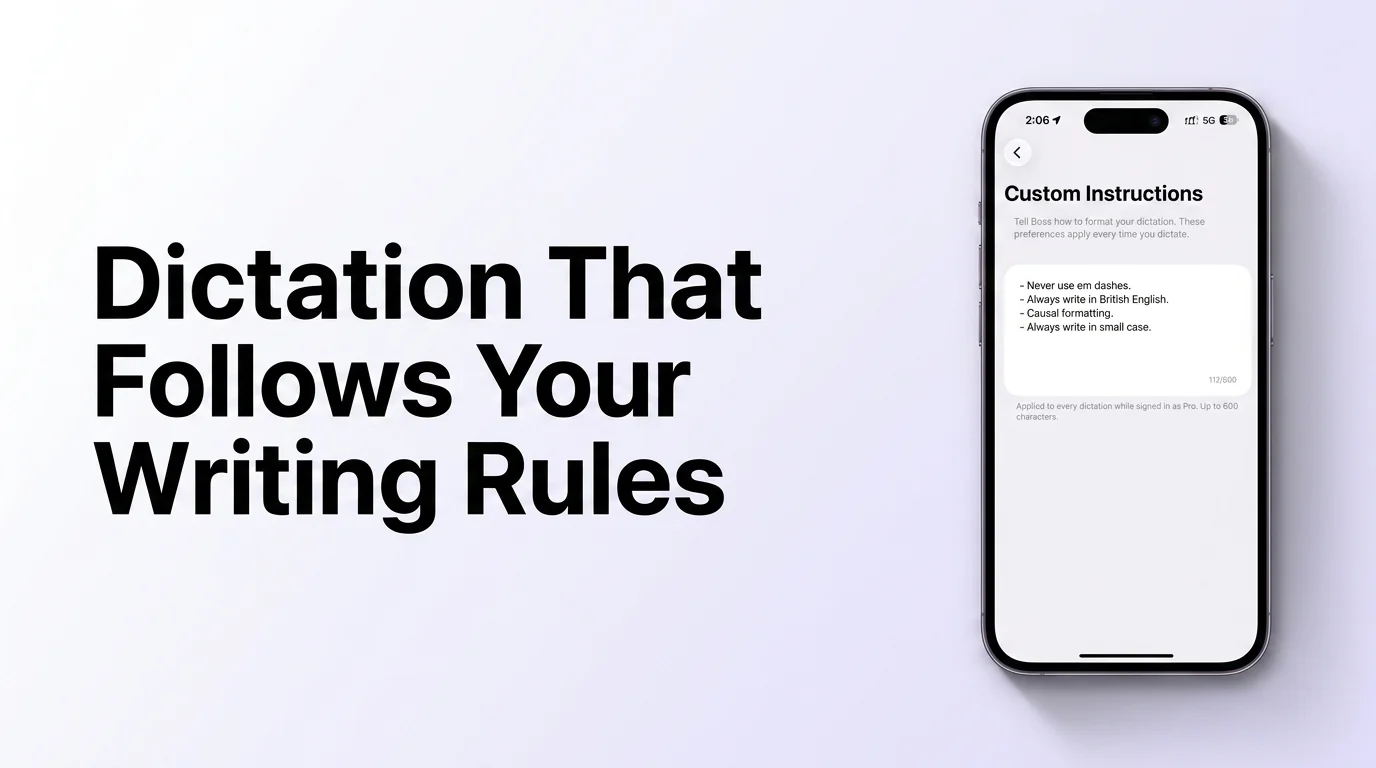
Custom Dictation Instructions is a single settings screen inside BossAI where Pro users type standing formatting rules into one text box, capped at 600 characters, and BossAI applies every rule automatically to future dictations — no per-message toggles, no repeating the same instruction twice. The screen itself is deliberately plain: one heading, one input field, a running character counter, and a short line explaining that rules apply "while signed in as Pro."
The example rules BossAI ships as placeholder text are worth looking at directly, because they show the range the feature covers in one glance:
- Never use em dashes — a punctuation preference, not a grammar fix
- Always write in British English — spelling and vocabulary, not just tone
- Casual formatting — a register instruction, applied to structure and word choice
- Always write in small case — a capitalization override for the entire output
Four different rule types, one input box, applied everywhere at once. That range is the point — this isn't a single toggle for "formal" or "casual," it's a free-text instruction that BossAI's AI enhancement layer reads and follows the same way it follows grammar and punctuation rules. Standing style rules like these are still rare across the category; our rundown of the best dictation AI tools breaks down how few competitors let you set formatting preferences that persist by default.
Key Takeaways
- Custom Dictation Instructions let you set standing rules for every voice dictation — no manual edits after each use.
- Define rules once ("never use em dashes," "always British English," "casual formatting," "lowercase") and they apply automatically to all future dictations.
- It's a Pro feature, available in BossAI's $9.99/month plan (or $69.99/year, or $149.99 lifetime).
- Custom Instructions work on iOS, Android, macOS, and Windows — across every app you dictate into.
- The rule box has a 600-character limit, so most users combine a few short, specific instructions rather than writing paragraphs.
How Do Custom Instructions Work?
Custom Instructions run at the same enhancement step where BossAI removes filler words and fixes grammar — your saved rule gets read alongside every transcript before it lands in the text field, so the output already matches your style by the time you see it. You write the instruction once, save it, and it stays active until you edit or delete it. There's no daily reset, no per-app setup, and no separate switch to flip before dictating.
This is a different job from BossAI's custom dictionary app feature, and the distinction matters. A custom dictionary teaches BossAI how to recognize specific words — names, technical terms, brand names it would otherwise mishear. Custom Instructions don't touch recognition at all; they control how the already-correct text gets formatted and phrased. Most Pro users end up using both: the BossAI custom dictionary for vocabulary accuracy, Custom Instructions for tone and punctuation. Together they're what turns generic dictation into something closer to personalized voice dictation — output shaped around how you actually write, not a default house style.
What Types of Custom Dictation Rules Can You Create?
Custom Instructions accept plain-language rules across four practical categories: punctuation preferences, regional spelling, tone or register, and capitalization — the same four the feature's own example text demonstrates. Because the field is free text rather than a set of preset toggles, you're not limited to BossAI's suggestions; you write the rule the way you'd explain it to a person.
Some working examples beyond the defaults:
- Punctuation — "avoid semicolons," "use Oxford commas," "keep sentences under 20 words"
- Regional spelling — "American English" or "British English" spelling and vocabulary
- Tone and register — "casual formatting," "professional tone for emails," "no exclamation points"
- Capitalization — "always write in small case," "capitalize product names exactly as I say them"
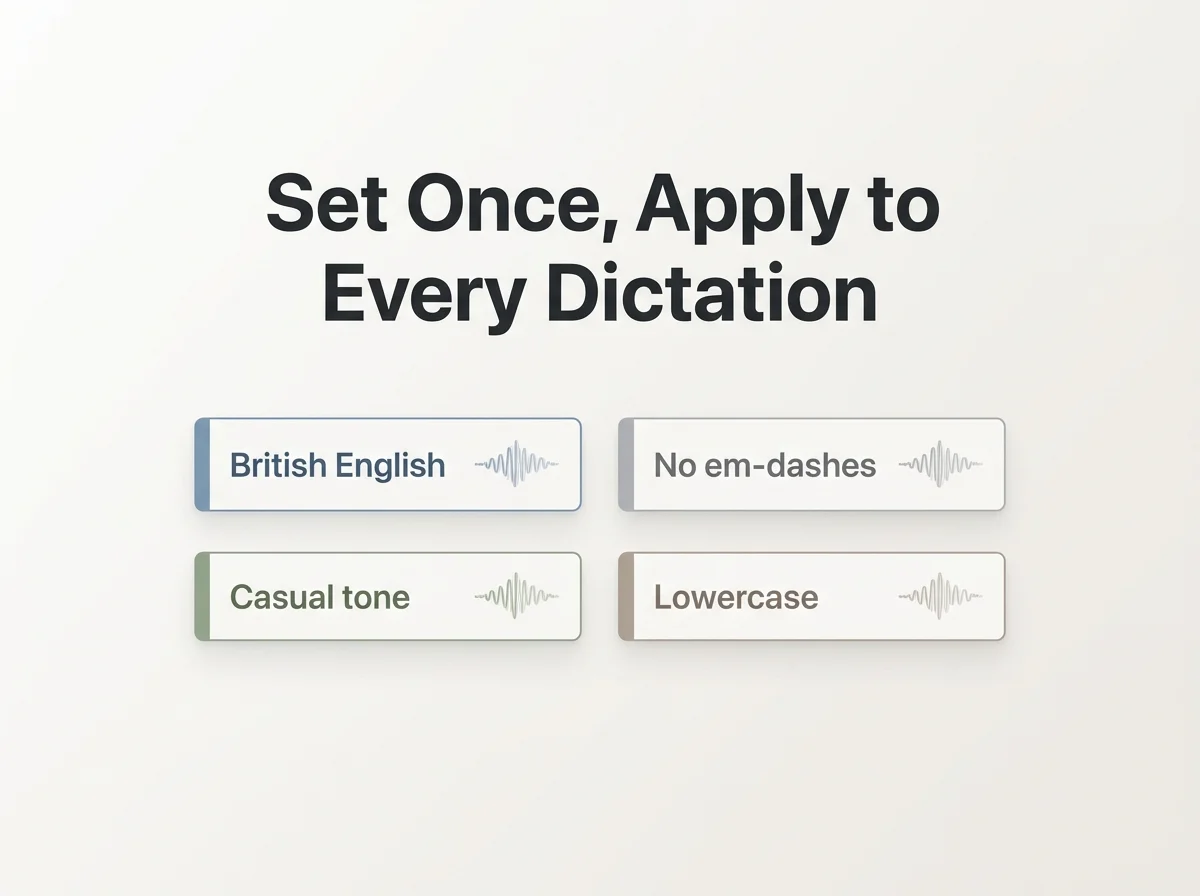 Four rule types, one input box — set once, applied to every dictation after that.
Worth knowing: The 600-character limit rewards specificity over length. A rule like "never use em dashes, always British English, casual tone, lowercase output" fits comfortably and does more work than one long paragraph explaining your general writing philosophy.
Custom Instructions Apply to Every Dictation, Automatically
Where this saves real time isn't the first dictation — it's the fiftieth. Anyone who dictates emails and messages daily ends up making the same small fixes over and over: swapping em dashes for commas, correcting "color" to "colour," toning down a message that came out too formal. Custom Instructions move that correction from every dictation to one setup screen.
The practical effect is fewer manual edits between speaking and sending. Instead of dictating, then rereading, then fixing the same two or three things by hand, the rule is already applied by the time the text lands in the field. That compounds across a full day of emails, Slack messages, and notes — especially for anyone who standardized their style once (British spelling for a UK client, casual tone for a team channel) and has been re-applying it manually ever since.
Which Platforms Support Custom Dictation Instructions?
Custom Dictation Instructions work on iOS, Android, macOS, and Windows, and the rule you set applies inside every app on that device — email, Slack, Notes, a browser text box, anywhere BossAI's keyboard or dictation is active. You don't set a separate rule per app; one instruction, saved once, covers everything you dictate on that platform.
That cross-app reach is what separates this from features tied to a single app's settings, the way Apple Dictation or a word processor's voice tool might work only inside that one program. BossAI's rules travel with the keyboard itself, which is also what makes personalizing every dictation with standing style rules practical instead of tedious — you're not reconfiguring anything each time you switch from email to a group chat.
Is Custom Instructions Worth the Pro Upgrade?
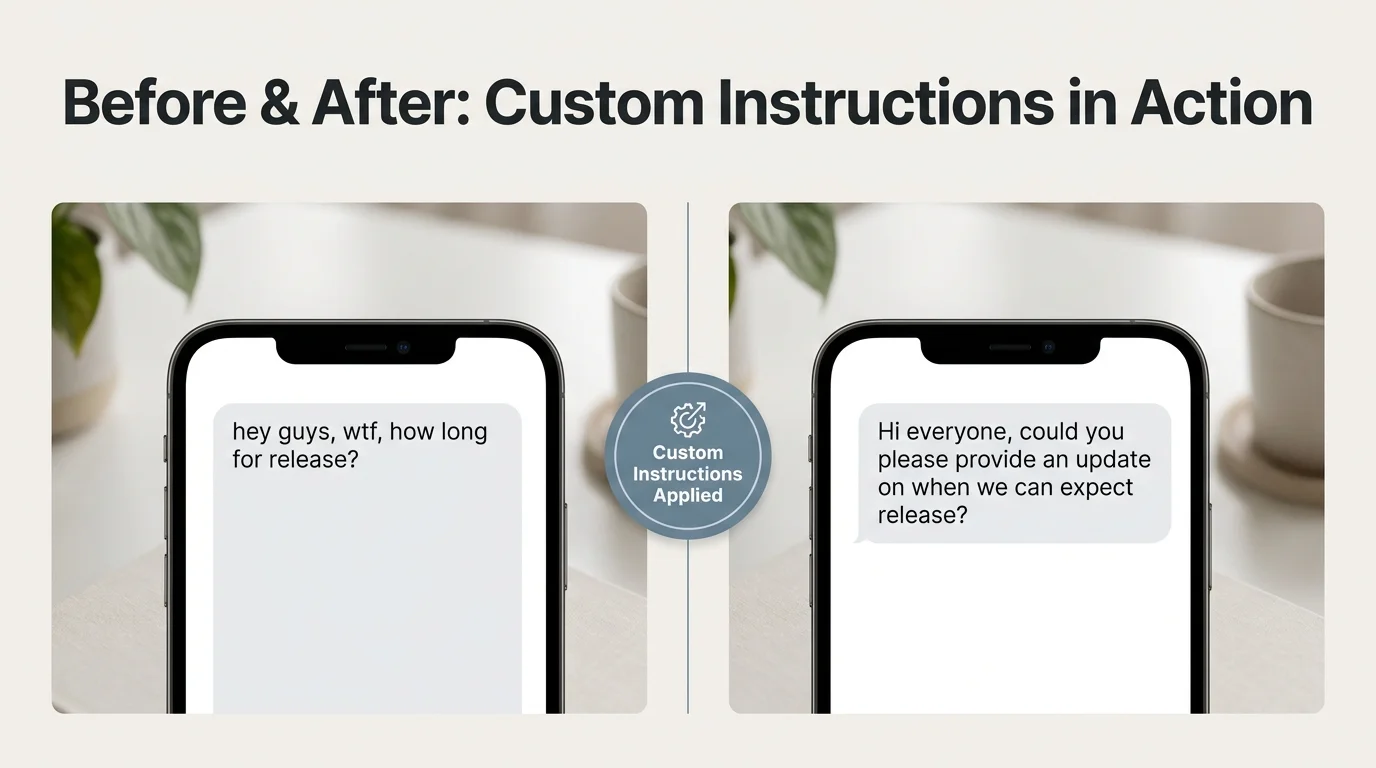 Before: raw, informal dictation. After: the same words, formatted to a standing style rule — no manual editing.
Custom Instructions is one of several BossAI Pro features, alongside unlimited Boss Mode, full Rewrite tones, and expanded Clips, bundled into the $9.99/month plan (or $69.99/year, or $149.99 as a one-time lifetime purchase). On its own, a single formatting rule might not tip the decision. Combined with the rest of the Pro tier — and the fact that free users still get 500 words of dictation per day to test the basics — it's a low-friction feature to try during BossAI's 7-day free Pro trial before deciding.
Reality check: Custom Instructions alone won't justify Pro for someone who dictates a text message once a week. It earns its place for people who dictate daily and were already manually re-editing the same formatting every single time.
If your writing style has a standing rule you keep applying by hand — British spelling, no em dashes, always casual — that's exactly the gap this feature closes. It sits alongside BossAI's other customization options; unlocking custom instructions alongside unlimited Boss Mode, Clips and every tone is what most Pro upgrades are actually paying for, not any single feature in isolation. For dictation that needs a tone shift instead of a standing rule, the AI tone changer covers on-demand rewrites — a reactive complement to Custom Instructions' set-it-once approach.
Get Started with BossAI
If you're tired of fixing the same three things after every voice message, Custom Instructions removes that step permanently — set the rule once inside BossAI and every dictation after it already matches your style.
FAQ
What is BossAI? BossAI is an AI voice keyboard for iPhone and Android, and a voice-to-text app for Mac and Windows, that replaces typing with voice dictation. It transcribes speech in real time, removes filler words automatically, and includes Boss Mode, a screen-reading feature that drafts contextual replies without copy-pasting.
How long can a custom dictation instruction be? The rule field has a 600-character limit, shown as a running counter on the settings screen. That's enough space for several short, specific instructions — like punctuation, regional spelling, tone, and capitalization rules — combined into one saved entry.
Do Custom Instructions apply automatically, or do I have to turn them on each time? They apply automatically. Once saved while signed in as a Pro user, the rule runs on every dictation from that point forward, in every app, with no per-dictation toggle or repeated setup required.
Is Custom Instructions a free feature or Pro-only? Custom Instructions is Pro-only, included in BossAI's $9.99/month plan, $69.99/year plan, or $149.99 lifetime purchase. Free users can still dictate up to 500 words per day, but standing style rules require an upgrade or the 7-day free Pro trial.