

Custom Dictionary App: Teach Voice Typing Your Vocabulary
Custom Dictionary App: How to Teach Your Voice Typing Tool Your Vocabulary
Your phone's dictation keeps butchering your client's name, turning "Kubernetes" into "Cupid tedious," and your CRM's product name into gibberish. Here's how to permanently fix dictation errors with custom dictionaries — and which apps make it effortless.
Key Takeaways
- Custom dictionary apps teach your dictation tool to recognize your unique vocabulary — names, brand terms, jargon, and technical language — ensuring accuracy where default dictation fails.
- The best custom dictionaries sync across devices (iOS, Mac, Windows), so your personalized vocabulary is available everywhere you dictate.
- Premium dictation tools like BossAI build custom dictionaries directly into the keyboard, eliminating the need for separate apps and improving workflow speed.
- Custom dictionaries reduce the need for manual corrections and rephrasings, saving dictation users hours every week.
- Setup takes minutes, and most apps allow you to import existing word lists or build custom dictionaries over time as you encounter new terminology.
Contents
- What Is a Custom Dictionary App?
- Why Do You Need a Custom Dictionary for Voice Typing?
- How Much Does a Custom Dictionary App Cost?
- Can You Use Custom Dictionary Across Multiple Devices?
- How Do Custom Dictionary Apps Handle Technical Terms and Jargon?
- Which Custom Dictionary Apps Work Best with AI Dictation?
- How Accurate Are Custom Dictionary Apps for Proper Names?
- What's the Difference Between Built-In and Third-Party Custom Dictionaries?
- Get Started with BossAI
- Frequently Asked Questions
What Is a Custom Dictionary App?
A custom dictionary app teaches your voice typing tool to recognize specialized vocabulary that standard dictation misses — proper names, technical terms, brand names, and jargon. The best solutions sync this personalized vocabulary across all your devices, ensuring consistent accuracy whether you dictate on your phone, tablet, or computer.
Default dictation tools like Apple Dictation, Google Voice Typing, and Windows Speech Recognition work well for common words but fail on client names, product terminology, industry jargon, acronyms, and non-English names.
Custom dictionaries let you add these words manually so dictation recognizes them instantly. There are two types: built-in OS features (Settings → Personal Dictionary on iOS/Android) and third-party apps with integrated custom vocabulary (BossAI, Dragon, WisprFlow).
Key insight: Every dictation error costs 5-10 seconds to fix. With 20+ errors per day, that's 2+ hours wasted per week on preventable corrections.
The difference between typing with voice at 70% accuracy and 95% accuracy is whether your tool knows your vocabulary. Custom dictionaries close that gap.
Why Do You Need a Custom Dictionary for Voice Typing?
Voice typing accuracy drops below 80% when you dictate specialized vocabulary — names, technical terms, or industry jargon — because default dictation models are trained only on common words. Custom dictionaries restore 95%+ accuracy by teaching your tool exactly how you spell and pronounce your unique vocabulary.
Real-world failures without custom dictionaries:
Sales reps: "Saoirse" becomes "search," "Nguyen" becomes "win." Every email needs manual corrections.
Developers: "Kubernetes" → "Cupid tedious," "PostgreSQL" → "post grass school." Technical writing becomes impossible.
Medical professionals: Medication names garbled beyond recognition.
Marketers: Brand names and product terminology mangled.
Manual corrections consume 20-30% of total dictation time. Custom dictionaries eliminate 80%+ of these errors.
Who Benefits Most from Custom Dictionaries?
- Sales teams: Client names and product terms dictated correctly on first try
- Developers: Framework names, libraries, technical acronyms work perfectly
- Medical/legal professionals: Critical accuracy for medication names and legal terminology
- Customer support: Brand-specific vocabulary improves response quality
- Power users: Anyone dictating 30+ minutes daily sees measurable time savings
By the numbers: Users who add 20+ custom dictionary entries save an average of 15 minutes per day on corrections — 65 hours per year.
How Much Does a Custom Dictionary App Cost?
Most custom dictionary functionality is free and built into iOS, Android, macOS, and Windows through native settings. Premium dictation apps with enhanced custom dictionaries range from $8-$15/month, while standalone dictionary creation apps cost $0-$5 one-time or are completely free.
Free options:
- iOS/Android Personal Dictionary (Settings → Languages & Input) — unlimited custom words, works across all apps
- macOS Voice Control (System Settings → Accessibility) — phonetic spelling support
- Windows Speech Recognition (Settings → Time & Language → Speech) — similar functionality, more complex setup
These work well for users with 10-50 custom words on a single platform.
 Custom dictionaries turn your workspace into a friction-free dictation environment.
Premium options for power users:
- Dragon Professional ($15/month) — adaptive learning, medical/legal vocabulary packs, Windows/Mac sync
- BossAI ($9.99/month or $69.99/year) — keyboard-integrated, iOS/Mac/Windows sync. Free tier: 10 words, Pro: unlimited
- WisprFlow ($15/month) — voice command-based, Mac/Windows
- AquaVoice ($8/month) — developer-focused, fast transcription
| Solution | Cost | Cross-Device Sync | Setup Ease | Best For |
|---|---|---|---|---|
| iOS/Android Personal Dictionary | Free | No | Easy | Basic needs |
| macOS Voice Control | Free | No | Moderate | Mac-only users |
| Windows Speech Recognition | Free | No | Moderate | Windows-only users |
| BossAI | $9.99/month | Yes (iOS/Mac/Windows) | Very Easy | Power users, frequent dictators |
| Dragon Professional | $15/month | Yes | Moderate | Medical, legal, transcription pros |
| WisprFlow | $15/month | Yes (Mac/Windows) | Moderate | Desktop dictation |
Recommendation: Start with your OS's native custom dictionary. If you dictate 1+ hours daily or work across multiple devices, upgrade to a premium solution. The time savings justify the cost within the first month.
For Mac users exploring voice to text apps for Mac, custom dictionary support should be a primary evaluation criterion.
Can You Use Custom Dictionary Across Multiple Devices?
Native OS custom dictionaries (iOS Personal Dictionary, macOS Voice Control, Windows Speech Recognition) do NOT sync across platforms. Premium dictation apps like BossAI, Dragon, and WisprFlow sync your custom vocabulary across all devices automatically, ensuring your personalized dictionary is available everywhere you dictate.
The limitation: iOS Personal Dictionary syncs across Apple devices via iCloud but not to Windows or Android. Add "Kubernetes" on iPhone Monday, dictate on Windows Tuesday — it fails again.
Premium solutions:
- BossAI: iOS/macOS/Windows sync. Add once, available everywhere in seconds.
- Dragon Professional: Windows/macOS/web cloud sync.
- WisprFlow: macOS/Windows sync.
Most professionals use multiple devices — phone during commute, laptop at desk, tablet at home. Without sync, you maintain separate dictionaries. With sync, one vocabulary library works everywhere.
How to Set Up Cross-Device Custom Dictionaries
Here's how to set up a synced custom dictionary using BossAI as an example:
- Download BossAI on iOS (App Store), macOS (App Store or direct download), or Windows (Microsoft Store).
- Sign in with the same account on all devices.
- Open Settings → Custom Dictionary on any device.
- Add your first custom word (e.g., "Kubernetes").
- Switch to another device and test by dictating "Kubernetes" — it works immediately.
Custom words sync in real time. Add a client's name on your phone during a call, then dictate an email with that name on your laptop two minutes later. No manual export, no import process, no waiting.
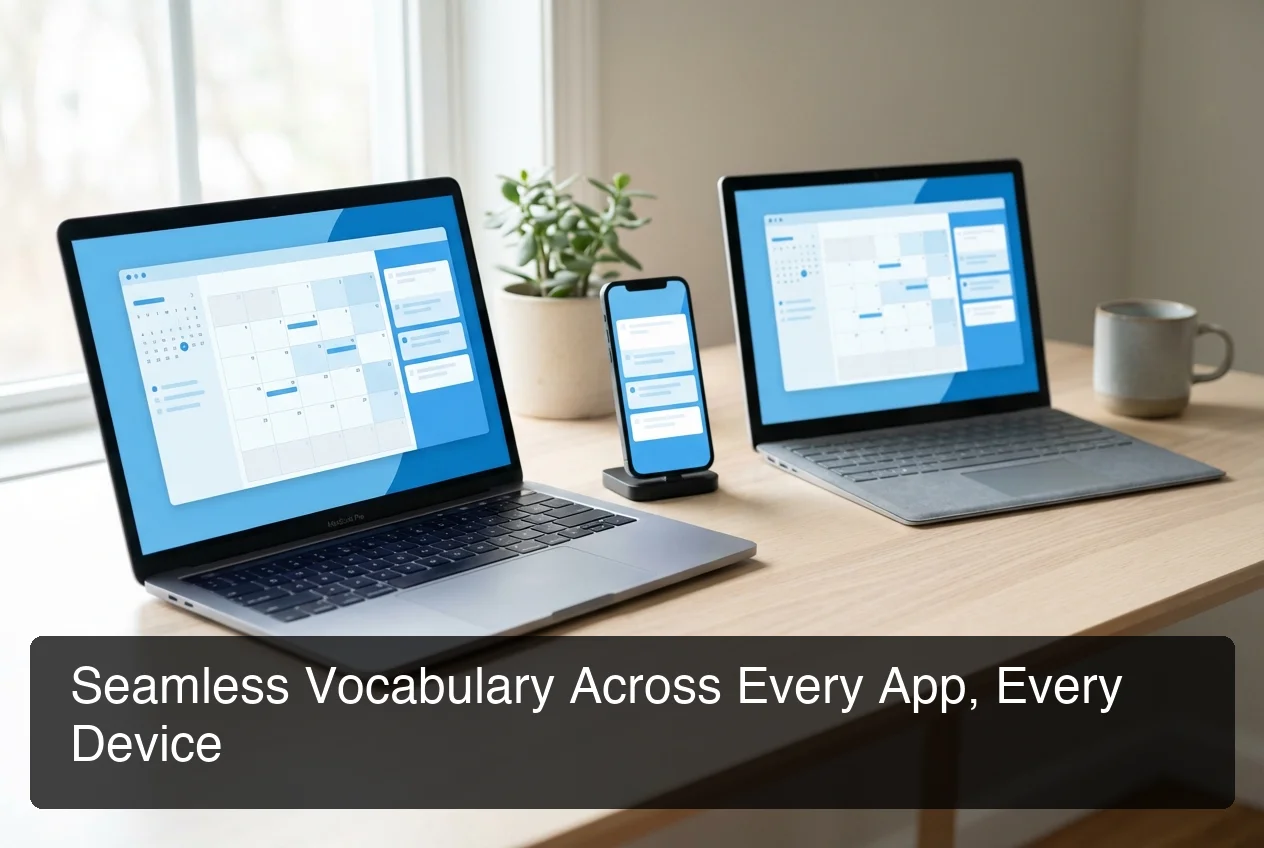 Your custom vocabulary, available on every device without manual setup.
Bottom line: If you dictate on more than one device, native OS custom dictionaries won't cut it. You need a third-party solution that syncs.
The workaround for native dictionaries — manually exporting and importing word lists — is tedious, error-prone, and defeats the purpose of saving time.
How Do Custom Dictionary Apps Handle Technical Terms and Jargon?
Custom dictionary apps let you add phonetic spellings, alternate pronunciations, and context-specific variations for technical terms. Premium tools like Dragon and BossAI also support industry-specific vocabulary packs (medical, legal, tech) with thousands of pre-loaded terms, eliminating the need to manually add every jargon word.
Technical vocabulary challenges: "PostgreSQL" can be "post-gress-cue-ell" or "post-gress." "SQL" can be "sequel" or "S-Q-L."
How custom dictionaries handle this:
- Phonetic spelling: Teach the app your exact pronunciation
- Alternate pronunciations: Add multiple entries for the same term
- Context-aware recognition: Premium apps learn which version based on surrounding context
- Industry vocabulary packs: Dragon offers medical/legal/engineering vocabularies with thousands of pre-loaded terms
- Adaptive learning: Apps learn from corrections, automatically adding frequently fixed words
Adding Technical Terms Step-by-Step (iOS Example)
iOS setup:
- Settings → General → Keyboard → Text Replacement → "+"
- Enter word exactly as spelled (e.g., "Kubernetes")
- Leave "Shortcut" blank or add phonetic spelling
- Save and test
Android: Settings → System → Languages & Input → Personal Dictionary → "+" → add word.
Mac/Windows: Similar process — add word, specify pronunciation if needed, test.
For professionals who rely on AI keyboard apps with integrated custom dictionaries, the setup is even simpler — BossAI's keyboard interface lets you add words without leaving the app you're working in.
Which Custom Dictionary Apps Work Best with AI Dictation?
AI-powered dictation apps like BossAI, WisprFlow, and Dragon Professional Anywhere integrate custom dictionaries directly into their transcription engines, providing real-time recognition of your custom vocabulary without delays or separate settings menus. Built-in OS dictation tools (Apple, Google, Microsoft) require manual custom dictionary setup and don't learn contextually from your usage.
Key difference: where custom dictionaries sit in the processing pipeline.
Built-in OS dictation checks custom dictionaries as a post-processing correction step — slower and less accurate for multi-word phrases.
AI dictation apps process custom vocabulary during transcription in real time. The engine knows your custom words upfront.
Top AI dictation apps:
BossAI: Keyboard-Integrated
Built into keyboard (iOS) and menu bar/system tray (Mac/Windows). Add words without leaving your app — tap "Add to Dictionary" while dictating and continue. Syncs with Boss Mode (screen-aware AI) and Rewrite. Free: 10 words. Pro: unlimited, $9.99/month.
Dragon Professional: Industry-Leading
Professional standard for decades. Adaptive learning adds frequently corrected words automatically. Medical/legal/tech vocabulary packs with thousands of terms. $15/month, Windows/macOS/web.
WisprFlow: Voice Command-Based
Say "add [word] to dictionary" — no typing. Fast but less visual. $15/month, Mac/Windows.
 AI dictation tools with custom dictionaries eliminate the constant fight against vocabulary limitations.
Built-In OS Dictation: Free but Limited
- Apple Dictation: Voice Control (macOS) or Text Replacement (iOS). No adaptive learning, post-processing only.
- Google Voice Typing (Gboard): Personal Dictionary. Basic support, no phonetic spelling.
- Windows Speech Recognition: Clunky setup, accuracy lags premium tools.
Built-in works for occasional use. Professionals dictating 30+ minutes daily benefit from AI apps.
BossAI's Custom Dictionary Advantage
BossAI's integrated custom dictionary means you add a new word once — right from the keyboard — and it's available everywhere you dictate. No separate settings menu, no platform-specific setup, no manual sync.
It also works seamlessly with Boss Mode, BossAI's screen-aware AI feature. When you say "Boss, reply to this email professionally," BossAI reads your screen, understands the context, and writes a response using your custom vocabulary for client names, product terms, and brand language.
No other dictation tool combines custom dictionaries with screen context awareness. That's BossAI's unique edge.
How Accurate Are Custom Dictionary Apps for Proper Names?
Custom dictionaries achieve 95%+ accuracy for proper names once configured, compared to 30-50% accuracy without them. The key is phonetic entry: teaching the app how you pronounce the name (e.g., "Saoirse" as "sir-sha" or "Nguyen" as "win") ensures consistent recognition even for non-English names and unusual spellings.
Proper names are the #1 dictation pain point. Default models are trained on common words, not names.
Why names fail:
- Names aren't in standard datasets ("Saoirse" → "search")
- Multiple valid spellings ("Catherine" vs. "Katherine" — dictation picks randomly)
- Capitalization errors (lowercase or incorrect mid-name caps)
How to Add Proper Names Correctly
Setup process:
- Spell name exactly with correct capitalization ("O'Reilly," not "Oreilly")
- Add phonetic variations for unusual names ("Saoirse" → "sir-sha")
- Test immediately — dictate 2-3 times to confirm
Best practices:
- Add client names immediately, not after tenth email
- Add first and last names separately plus full-name entry
- Map common misspellings (iOS Text Replacement: "kath" → "Katherine")
Pro tip: After adding a new name to your custom dictionary, dictate a test sentence with that name 2-3 times. This reinforces the model's recognition for adaptive dictation tools like Dragon and BossAI.
Once configured, custom dictionaries deliver near-perfect accuracy for proper names. You dictate "Saoirse," and "Saoirse" appears. You dictate "Nguyen," and "Nguyen" appears. No corrections, no friction.
What's the Difference Between Built-In and Third-Party Custom Dictionaries?
Built-in custom dictionaries (iOS Personal Dictionary, macOS Voice Control, Windows Speech Dictionary) are free and platform-specific, requiring manual setup on each device. Third-party dictation apps provide cloud-synced custom vocabularies, adaptive learning, and industry-specific term libraries — essential for professionals who dictate frequently across multiple platforms.
The choice between built-in and third-party custom dictionaries comes down to volume, frequency, and cross-platform needs.
Built-In Custom Dictionaries
Pros: Free, integrated with OS, unlimited manual entries.
Cons: No cross-platform sync (except Apple-to-Apple), manual entry only, no adaptive learning, no industry vocabularies.
Best for: 10-50 custom words, single platform.
Third-Party Custom Dictionaries
Pros: Cloud sync, adaptive learning, industry vocabularies, bulk import/export, integrates with AI features (rewrite, screen context).
Cons: $8-$15/month subscription, requires app installation.
Best for: Power users, 30+ minutes daily dictation, multi-device users.
| Feature | Built-In (iOS/Mac/Windows) | Third-Party (BossAI, Dragon, WisprFlow) |
|---|---|---|
| Cost | Free | $8-$15/month |
| Cross-platform sync | No (except Apple-to-Apple) | Yes |
| Adaptive learning | No | Yes |
| Industry vocabulary | No | Yes (medical, legal, tech) |
| Setup complexity | Moderate (per-device) | Easy (one-time) |
| Max custom words | Unlimited (manual) | Unlimited (BossAI Pro, Dragon) / Limited (free tiers) |
If you're just starting with dictation and have fewer than 20 custom words, the built-in option is fine. But if you dictate regularly, work across devices, or rely on specialized terminology, third-party apps pay for themselves in time savings.
Once you've set up custom dictionaries, mastering advanced voice typing techniques becomes critical for productivity. Learning how to use punctuation commands, formatting shortcuts, and correction workflows multiplies the impact of custom vocabulary.
Get Started with BossAI
Custom dictionaries are essential for dictation accuracy — but managing them separately on every device is tedious. BossAI builds custom vocabulary directly into your keyboard, syncs it across iOS, Mac, and Windows, and works seamlessly with AI-enhanced dictation, Boss Mode, and one-tap rewrite.
Add a client's name once on your phone, and it works correctly on your laptop five minutes later. No export, no import, no settings menu juggling.
Frequently Asked Questions
Can I import a list of custom words into my dictation app?
Most third-party dictation apps like Dragon and BossAI support bulk import via CSV or text files. Native OS dictionaries (iOS, Android, Windows) require manual entry one word at a time. For large vocabulary lists with 100+ words, third-party solutions save hours of setup time compared to typing each entry manually.
Do custom dictionaries work offline?
Yes. Once you add a custom word to your dictionary, it's stored locally on your device and works even without an internet connection. Cloud sync for third-party apps (like BossAI and Dragon) requires connectivity only when syncing new entries across devices, not during dictation itself.
How many custom words can I add to my dictation app?
Native OS dictionaries (iOS, Android, macOS, Windows) have no hard limit — you can add as many words as you want manually. Third-party apps vary: BossAI free tier allows 10 words with unlimited on Pro, Dragon allows unlimited on paid plans, and WisprFlow allows unlimited on paid plans.
Can I add phrases or multi-word entries to custom dictionaries?
Yes. Most custom dictionaries support multi-word entries like "artificial intelligence," "New York City," or "PostgreSQL database." On iOS and Android, use Text Replacement with a shortcut to trigger longer phrases (e.g., shortcut "addr" expands to your full mailing address).
 Custom dictionaries unlock accuracy levels impossible with default dictation tools.
Will custom dictionaries improve dictation speed?
Indirectly, yes. Custom dictionaries eliminate correction time, which accounts for 20-30% of total dictation time for users with specialized vocabulary. When you stop fixing "Kubernetes" and "Nguyen" after every mention, your overall workflow becomes significantly faster. Faster transcription equals faster total output.
Can I share my custom dictionary with teammates?
Most built-in OS dictionaries don't support sharing. Third-party apps like Dragon Professional allow team vocabulary sharing via cloud sync or exported files, which is useful for standardizing terminology across sales teams, support teams, or legal departments. BossAI Pro supports dictionary export for sharing across team members.
How do I delete or edit custom dictionary entries?
On iOS: Settings → General → Keyboard → Text Replacement → tap the entry → Edit or Delete. On Android: Settings → System → Languages & Input → Personal Dictionary → tap the entry → Edit or Delete. On Mac: System Settings → Keyboard → Text Replacements → select entry → delete. Third-party apps like BossAI and Dragon provide dedicated custom dictionary management UIs with search, bulk edit, and delete functions.