
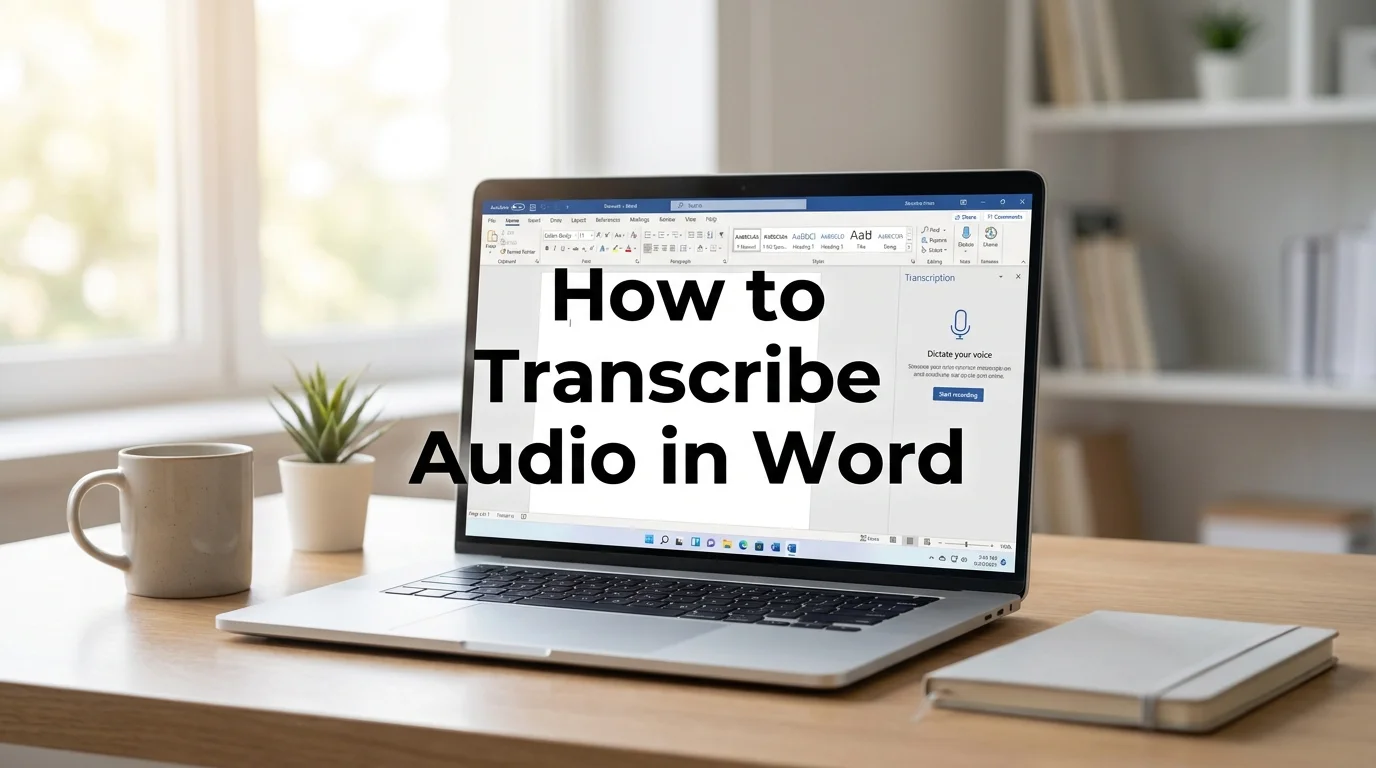
How to Transcribe Audio in Word (Windows & Mac)
Here's how to transcribe audio in Word in one line: click Home, then Dictate, then Transcribe, and upload a file or start recording. Word turns the audio into an editable transcript inside your document, and that's the entire path. Microsoft built this directly into Word for Microsoft 365 subscribers in 2023, and it now covers more than 90 languages with zero add-ins required.
The catch is what it's built for. Word's transcription tool processes audio you already have — a meeting recording, an interview, a lecture — it doesn't replace live, hands-free dictation while you're typing a document in real time.
What Is Transcription in Microsoft Word?
Word's Transcribe feature is a built-in Microsoft 365 tool that converts a recorded audio file, or a fresh live recording, into text inside a Word document — tagging each line by speaker and timestamp automatically. It launched in 2023, runs on Microsoft's cloud speech models, and supports 90-plus languages without a third-party plugin.
It lives inside the same Dictate menu as Word's voice-typing button, which trips people up. Dictate types what you say as you speak; Transcribe processes a longer recording all at once and hands you back a structured transcript you can edit, trim, or insert into the body of your document.
Key Takeaways
- Word's Transcribe feature converts audio files into editable text directly inside a document — no external transcription app needed.
- It works on both Windows and Mac, though the underlying process differs: Windows handles recording and processing through the cloud, while Mac users upload a finished audio file for processing.
- Real-world accuracy runs roughly 85–95%, depending on audio clarity, background noise, and which of the 90+ supported languages you select.
- The feature is included free with an active Microsoft 365 subscription — there's no separate fee, but you do need the subscription and an internet connection.
- It's built for one-time file processing, not live hands-free typing — for that, most professionals reach for a dedicated dictation tool like BossAI instead.
How to Transcribe Audio in Word, Step by Step
To transcribe audio in Word, open a document, go to Home > Dictate > Transcribe, then choose Upload audio or Start recording. Word processes the file in the cloud, drops a timestamped transcript into the Transcribe pane on the right, and lets you insert all or part of it into your document with a single click.
The full workflow breaks down into four steps:
- Upload or record. Select an existing audio file (WAV, MP3, MP4, or M4A) or record fresh directly from the Transcribe pane.
- Choose the language. Pick from the language dropdown before processing starts — this affects accuracy more than any other setting.
- Review the transcript. Word displays the finished text with speaker labels and timestamps in a scrollable side panel.
- Edit and insert. Add individual lines, add all of them, or export the full transcript as a separate document.
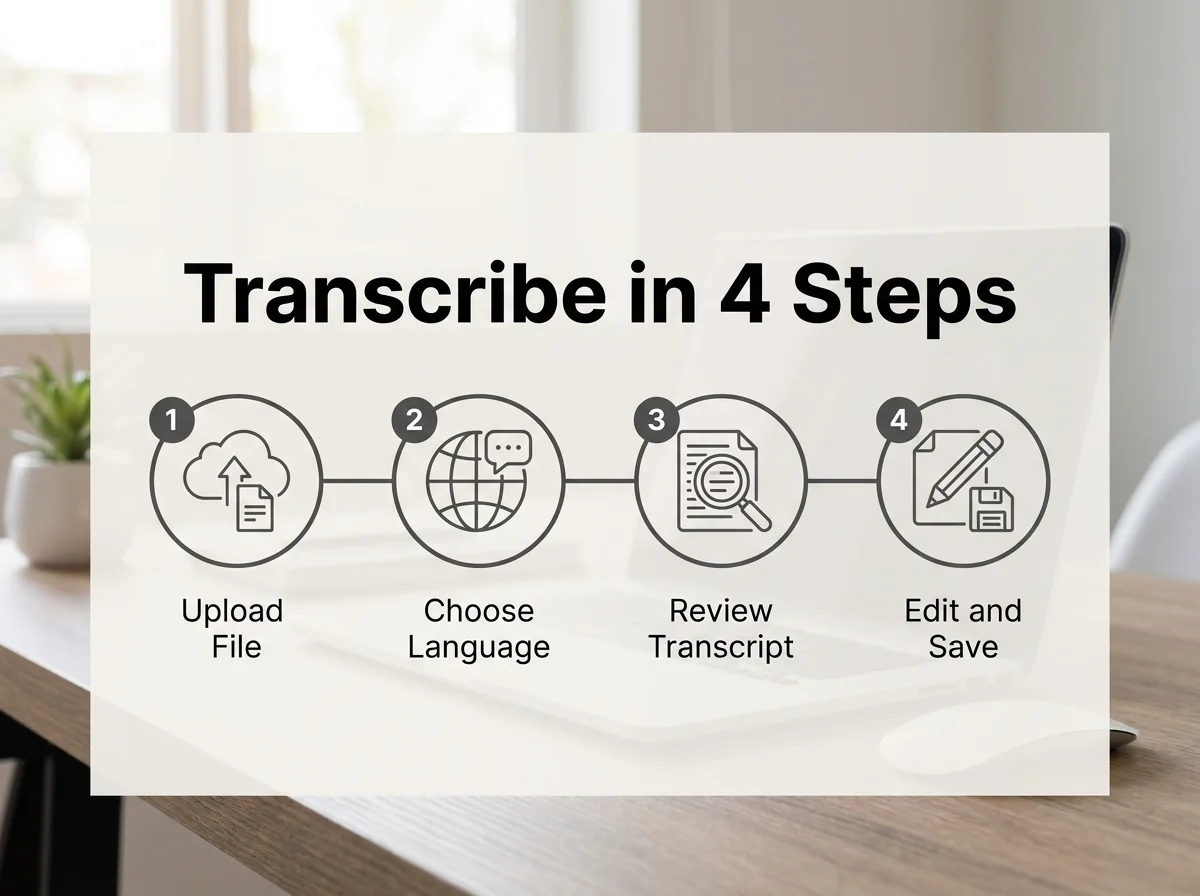 The four-step path from raw audio to an editable Word transcript.
For background on transcription outside of Word specifically, our complete guide to transcribing audio to text covers the process across every major platform.
Which Operating Systems Support Word's Transcription Feature?
Word's Transcribe feature works on both Windows and Mac, but the mechanics differ by platform. Windows users can record audio live and have it processed through Microsoft's cloud in near real time; Mac users transcribe by uploading a pre-recorded file, since live in-app recording isn't available on macOS the same way.
Both platforms require:
- An active Microsoft 365 subscription (Transcribe doesn't work with a one-time-purchase Word license)
- A stable internet connection, since processing happens in Microsoft's cloud, not locally
- Word for the web or a recent desktop build — older perpetual versions of Word don't include the feature at all
Chromebook and mobile Word users can typically upload files through Word for the web as well, though the interface is more limited than desktop.
How Accurate Is Word's Built-In Transcription Tool?
Word's transcription accuracy typically lands between 85% and 95%, with the gap driven almost entirely by audio quality, not the software. Clean audio with one speaker and minimal background noise sits at the high end; overlapping voices, echo-heavy rooms, or strong accents push accuracy toward the lower end and mean more manual cleanup afterward.
Three factors move the needle most:
- Microphone proximity. A phone recording an in-person meeting from across the table loses far more accuracy than a dedicated mic close to the speaker.
- Language selection. Picking the wrong dialect before processing (say, UK English on a US recording) measurably lowers punctuation and word accuracy.
- Speaker overlap. Word's speaker-labeling logic struggles when two people talk over each other, which is common in casual meeting recordings.
Reality check: No transcription tool — Word included — eliminates the need to proofread. Budget five to ten minutes of cleanup per fifteen minutes of source audio, even on a clean recording.
Voice Typing vs. Transcription in Word
Voice typing and transcription solve two different problems, even though Word bundles both under the same Dictate button. Voice typing writes text as you speak it, live, inside the document you're drafting — no audio file involved at all. Transcription works backward: you already have a recording, and Word converts that finished file into text after the fact.
The distinction matters for workflow. If you're dictating an email or drafting a report in real time, you want voice typing (or a keyboard-level tool that does the same thing everywhere, not just in Word). If you're processing a meeting you already recorded, transcription is the right tool. Confusing the two is the single most common reason people can't find the option they're looking for.
How Does Word's Transcription Compare to Other Tools?
Word's Transcribe feature is free with a Microsoft 365 subscription and handles file-based transcription well, but it's confined to Word itself — it won't help you dictate a Slack reply or a text message. Dedicated dictation tools like BossAI, by contrast, work as a system-level keyboard across every app on your device, turning speech into polished text in real time rather than processing a finished recording.
 Word's transcription feature is file-first; tools built for live dictation work app-first.
Here's how the three most common approaches stack up:
| Feature | Word Transcribe | Google Docs Voice Typing | BossAI |
|---|---|---|---|
| Real-time dictation | No — processes finished audio | Yes | Yes |
| Works across all apps | No — Word only | No — Google Docs only | Yes — every app on device |
| Platforms | Windows, Mac (Word for web) | Chrome browser | iOS, Android, macOS, Windows |
| Free tier | Included with Microsoft 365 | Free with any Google account | 500 words/day, no weekly cap |
| Reads your screen for context | No | No | Yes (Boss Mode) |
Google's equivalent lives entirely in the browser — our Google Docs transcribe breakdown and voice to text Google Docs setup guide cover how that version handles the same core problem differently.
Worth knowing: If you regularly transcribe recorded meetings, Word's tool is genuinely good and free. If you want to dictate a reply to whatever's on your screen right now — an email, a Slack thread, a LinkedIn comment — that's a different job, and it's the one BossAI's Boss Mode was built for.
Anyone toggling between Word's static transcription and something closer to live voice typing in Word itself is really asking a platform question, not a feature question.
Get Started with BossAI
If Word's Transcribe pane covers your recorded-meeting workflow but you still retype every email and Slack message by hand, that's the gap a system-level dictation keyboard closes. BossAI works in any app on iOS, Android, macOS, and Windows, cleaning up filler words and formatting in real time as you speak.
FAQ: How to Transcribe Audio in Word
Why Don't I Have the Transcribe Option in Word?
The Transcribe button only appears with an active Microsoft 365 subscription — perpetual, one-time-purchase versions of Word (like Word 2019 or 2021) don't include it. It also requires Word for the web or a recent desktop build with cloud connectivity, since processing happens on Microsoft's servers rather than locally.
Can You Transcribe Real-Time Audio in Word?
Yes, on Windows — you can start a live recording directly from the Transcribe pane and Word processes it as you go. On Mac, live in-app recording isn't supported the same way; Mac users upload a pre-recorded audio file instead and Word transcribes it after upload.
Is Word's Transcription Feature Really Free?
It's free in the sense that there's no separate charge beyond your existing Microsoft 365 subscription — you're not paying extra per transcript or per minute. But it isn't available at all without an active subscription, so "free" here means bundled, not free-standing.
Is BossAI Free to Use?
Yes — BossAI's free plan includes 500 words of dictation a day, and the allowance resets daily instead of weekly, so one busy day doesn't use up your whole week. Upgrading makes everything unlimited — dictation, Boss Mode, Rewrite, every tone and all Clips — and the 7-day trial needs no account.