
Google Docs Transcribe: Setup Guide & Limits
Open a blank Google Doc, click Tools → Voice typing, and start talking — words appear on the page within a second. That's the fastest way to understand how Google Docs transcribe works in practice: no upload, no third-party plugin, just a microphone icon and Google's speech engine listening in real time.
Key Takeaways
- Google Docs voice typing is free, built into every account, and works on desktop Chrome, iOS, and Android — but it skips AI touches like filler-word removal and tone control.
- Turning it on takes three steps: open a Google Doc, go to Tools → Voice typing, and grant microphone access.
- Accuracy holds up well in quiet rooms and drops with background noise, accents, or specialized terminology.
- It's solid for first drafts and quick notes, but it won't rewrite tone, read your screen, or transcribe pre-recorded audio files.
- Writers, journalists, and multilingual users tend to outgrow it fast and move to dedicated dictation tools instead.
Contents
- How Do You Enable Voice Typing in Google Docs?
- Can Google Docs Transcribe Audio Files?
- How Accurate Is Google Docs Voice Typing?
- What's the Difference Between Google Docs Voice Typing and Dedicated Transcription Apps?
- Why Google Docs Voice Typing Isn't Enough
- When Should You Use a Dedicated App Instead of Google Docs Transcribe?
How Do You Enable Voice Typing in Google Docs?
To enable voice typing in Google Docs, open any document, click Tools in the menu bar, select Voice typing (or press Ctrl+Shift+S on Windows/Chrome OS, Cmd+Shift+S on Mac), then click the microphone icon that appears and allow browser microphone access when prompted.
A red microphone box pops up in the top-left of your document once voice typing is active. Speak naturally and clearly — Google starts converting speech to text in real time, no pausing between sentences required. This basic voice dictation in Google Docs works well for quick notes and rough drafts.
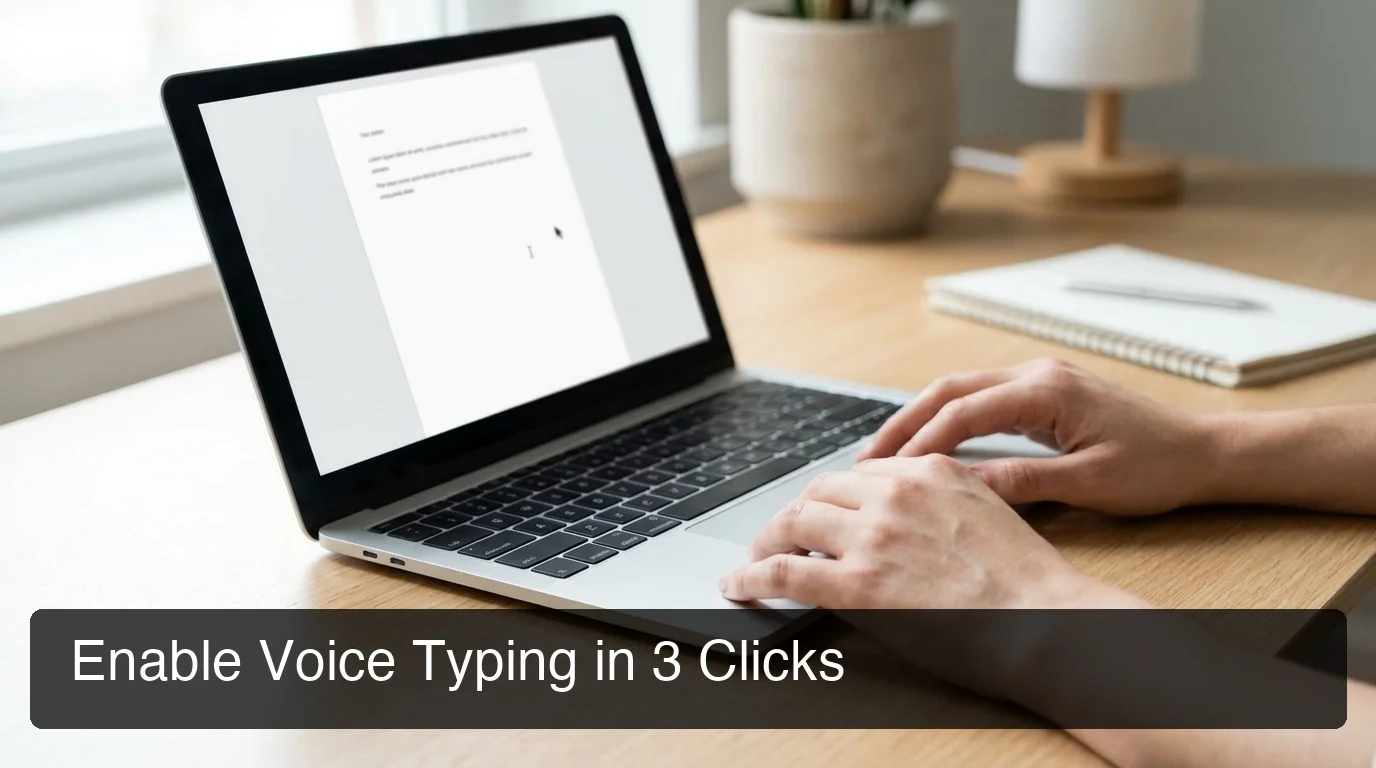 The Tools → Voice typing path is the entire setup process — no extensions required.
On the Google Docs mobile app for iOS and Android, there's no separate voice typing button. Instead, you tap the microphone icon on your device's own keyboard, and Docs treats it like any other typed input. Windows and Mac desktop users go through the same Tools menu path described above.
For the platform-by-platform breakdown, our voice to text setup guide for Google Docs covers every device path in more depth.
Worth knowing: Voice typing only activates in Chrome and other Chromium-based browsers on desktop — it won't turn on in Safari or Firefox, even though the rest of Google Docs works fine there.
Can Google Docs Transcribe Audio Files?
No — Google Docs voice typing only transcribes live speech through your device's microphone in real time; it cannot import, upload, or transcribe pre-recorded audio or video files directly. To get text from an existing recording, you'd need to play the file aloud while voice typing listens, or use a separate transcription tool.
This trips up a lot of people searching for Google Docs transcription of an MP3 or an existing recording. The feature was built for live dictation, not batch transcription. Some users play a recording through their speakers while voice typing listens through the mic, but background noise and speaker overlap tank accuracy fast.
Common mistake: Replaying a voice memo through your speakers to "transcribe" it in Docs also picks up every echo, bark, or interruption in the room — and types that in too.
If you regularly need to convert existing recordings — interviews, meeting recordings, voice memos — into text, our guide to transcribing audio to text walks through purpose-built tools that handle files directly instead of relying on a live-mic workaround.
How Accurate Is Google Docs Voice Typing?
Google Docs voice typing is reasonably accurate in quiet environments with clear speech, handling common English vocabulary and standard punctuation commands well. Accuracy drops noticeably with background noise, regional accents, overlapping speakers, or industry-specific jargon — situations where the built-in engine has no way to learn or adapt.
Under Tools → Voice typing, Google Docs does apply some automatic cleanup: basic accuracy corrections and punctuation insertion when you say commands like "period" or "new paragraph." What it doesn't do is learn your vocabulary over time or smooth out filler words the way an AI-enhanced tool does — every session starts from the same baseline model.
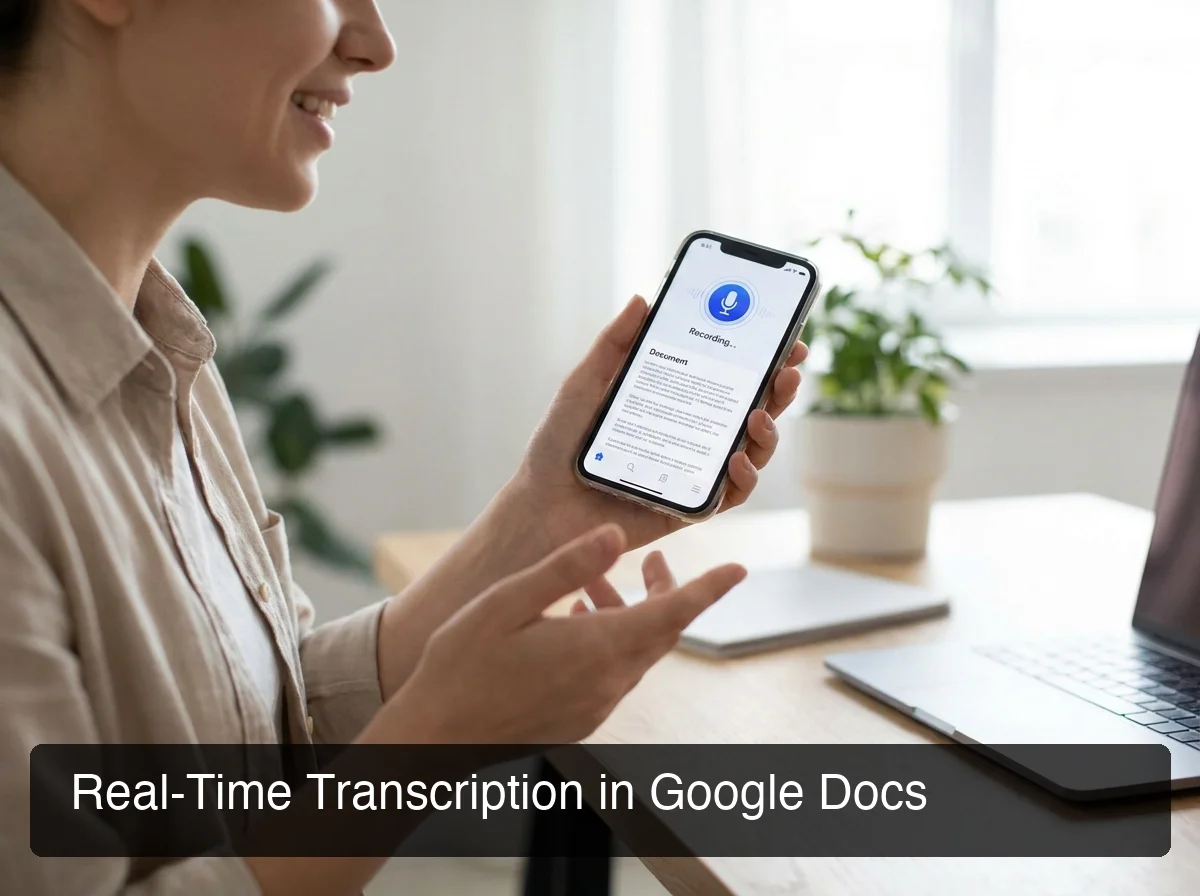 Real-time transcription shows up as you talk — corrections happen after you stop.
That baseline works fine for straightforward google docs voice to text needs, like drafting a quick email. It gets shakier once you're dictating a name like "Xiomara" or a term like "polymorphism" — the engine guesses phonetically and moves on, leaving you to fix it later.
Reality check: Voice typing has no custom dictionary. Every proper noun and piece of jargon gets re-guessed at the same rate, session after session, with no memory of your last correction.
What's the Difference Between Google Docs Voice Typing and Dedicated Transcription Apps?
Google Docs voice typing is a free, built-in dictation tool limited to live speech inside one app. Dedicated dictation apps like BossAI add AI-powered filler-word removal, tone rewriting, and custom vocabularies, and they work across every app on your device — not just Google Docs.
| Feature | Google Docs Voice Typing | Dedicated Dictation App (BossAI) |
|---|---|---|
| Cost | Free | Free tier (500 words/day) + $9.99/mo Pro |
| Works outside Google Docs | No — Docs only | Yes — every app, system-wide |
| Filler word removal | No | Yes, automatic |
| Tone rewriting | No | Yes — one-tap tones |
| Custom vocabulary | No | Yes — custom dictionary |
| Reads on-screen context | No | Yes — Boss Mode |
| Audio file transcription | No | No (live dictation only, same as Docs) |
| Platforms | Chrome browser only | iOS, Android, macOS, Windows |
The gap isn't just about accuracy. It's about what happens after the words land on the page. Google Docs gives you raw-ish text; AI-enhanced tools give you text that's already been cleaned, formatted, and in some cases rewritten in the tone you asked for.
Our breakdown of Google Docs' full voice typing setup covers the native feature in more depth if you want the exhaustive walkthrough before comparing alternatives.
Why Google Docs Voice Typing Isn't Enough
Voice typing does one job — turning speech into text — and it does that job for free. What it doesn't do is anything past transcription: no filler-word cleanup beyond basic punctuation, no tone adjustment, no awareness of what's already on your screen.
 Native voice typing gets words on the page; AI-enhanced dictation gets them publication-ready.
This is where an AI-enhanced alternative to native voice typing comes in. BossAI, for example, runs as a keyboard on iOS and Android and a background app on Mac and Windows. It removes filler words automatically, rewrites your dictation in a chosen tone with one tap, and can read whatever's on your screen to draft a contextual reply without you copying anything into Docs first.
None of that replaces Google Docs voice typing for a quick note. But for anyone dictating client emails, long-form drafts, or messages across multiple apps — not just one document — the native tool starts to feel like the entry point it actually is.
What this means for you: If you only ever dictate inside a single Google Doc, native voice typing covers you. If you dictate across email, Slack, and text messages too, a cross-app tool saves the copy-paste step entirely.
When Should You Use a Dedicated App Instead of Google Docs Transcribe?
Switch to a dedicated dictation app when you need accuracy for technical terms and names, tone-adjusted writing, dictation outside of Google Docs, or work across multiple apps — none of which Google's native voice typing handles.
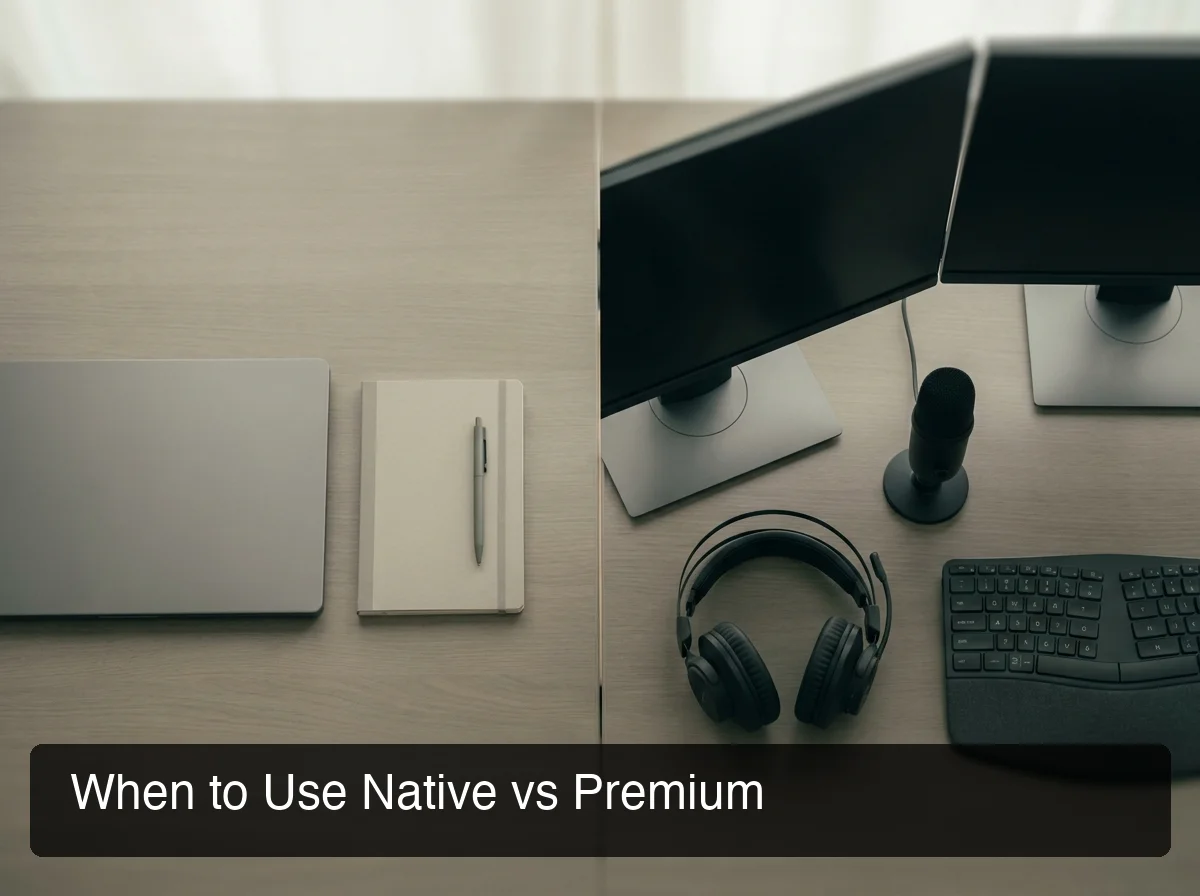 Free and built-in covers quick notes; cross-app AI dictation covers everything else.
Journalists and researchers who dictate long-form notes benefit most from a custom dictionary that remembers names after the first correction. Multilingual users hit a similar wall — Docs supports many languages, but switching between them mid-document isn't seamless the way it is in tools built around multilingual dictation from the start.
- Quick note or single email → native voice typing is enough
- Daily dictation across email, chat, and documents → a cross-app tool saves real time
- Technical vocabulary, client names, or jargon → custom dictionary matters
- Need the reply written, not just the words typed → screen-aware tools like Boss Mode close that gap
If your dictation is specifically about live conversations or lectures rather than writing, our live transcription app roundup compares tools built for that exact use case. Our piece on voice-activated journaling covers a workflow Google Docs voice typing already supports reasonably well on its own.
Get Started with BossAI
Google Docs voice typing is the right starting point for a quick note or a first draft. Once you're dictating daily — emails, messages, documents — across more than one app, BossAI picks up where the native feature stops, with filler-word removal, tone rewriting, and a keyboard that works everywhere you type.
FAQ
Does Google Docs have a transcribe feature? Yes — Google Docs has a built-in voice typing feature under Tools → Voice typing that transcribes live speech into text in real time. It's free, requires no add-ons, and works in Chrome on desktop. It doesn't transcribe pre-recorded audio files or apply AI enhancements like tone rewriting.
How do you turn on voice typing in Google Docs? Open a Google Doc in Chrome, click Tools in the menu bar, select Voice typing, then click the microphone icon that appears and allow microphone access when your browser prompts you. Speech starts converting to text immediately once you begin talking.
Is Google Docs voice typing free? Yes, Google Docs voice typing is completely free with any Google account — there's no word limit, subscription, or hidden paywall. It's a standard feature inside Google Docs on desktop, though it requires Chrome and a working microphone.
Can Google Docs transcribe audio files directly? No. Google Docs voice typing only converts live speech from your microphone — it can't import or process existing audio or video files. For file-based transcription, you'd need Google's Speech-to-Text API or a purpose-built transcription app instead.
What's the difference between BossAI and Google Docs voice typing? Google Docs voice typing only transcribes speech inside one app with no cleanup beyond basic punctuation. BossAI adds automatic filler-word removal, one-tap tone rewriting, a screen-reading Boss Mode that drafts contextual replies, and works across every app on iOS, Android, Mac, and Windows — not just Google Docs.
Is BossAI free to use? Yes. BossAI has a free tier with no weekly word cap, resetting 500 words every day, so there's no need to ration usage across a week. Pro makes everything unlimited — dictation, Boss Mode, Rewrite, every tone and all Clips — and the 7-day trial needs no account.