
Hands-Free Texting on Android: How It Works
Yes — Android has let you text without touching the keyboard for years, and the tools for doing it well have gotten a lot better. Voice dictation apps now transcribe speech into clean, punctuated text almost as fast as you can talk, no fingers required. One measured benchmark: adults speak at roughly 150 words per minute, compared to about 40 words per minute typing on a phone screen.
For a wider look at the apps behind this feature, our text-to-speech app for Android guide covers the voice typing and dictation landscape beyond what's below.
 Voice dictation puts the microphone where the keyboard used to be.
What Is Hands Free Texting Android?
Hands-free texting on Android means sending text messages by speaking instead of typing, using a microphone-based dictation tool that transcribes your voice directly into a message field. It works inside SMS, WhatsApp, iMessage-alternatives, and any app with a text box — you're not limited to one messaging platform. The feature ships two ways: built into Android's Gboard keyboard for free, or through a dedicated third-party dictation app that adds AI cleanup on top.
Google's own voice typing documentation covers the native version, which is the baseline most Android users start with.
Key Takeaways
- Hands-free texting on Android works through voice dictation, either Google's built-in Gboard microphone or a dedicated AI keyboard app, both of which convert speech into text inside any messaging app.
- Free tiers gate word count differently across apps: BossAI resets 500 words every day, while other dictation tools in the category cap out weekly instead — a daily reset means you're never locked out for a full week.
- Speaking is roughly 3-4x faster than typing on a phone screen, but accuracy drops in noisy environments or with heavy background chatter.
- People with RSI, carpal tunnel, or hand injuries get the most durable benefit from hands-free texting since it removes keyboard strain from the equation entirely.
- BossAI and Typeless are currently the only AI-enhanced dictation keyboards that ship a full Android version — most competitors in this space are Mac/iOS/Windows only.
How Does Hands Free Texting Android Work?
Hands-free texting runs on automatic speech recognition (ASR), a model that converts your spoken audio into text in real time as you talk. Tap the microphone icon on your keyboard, speak naturally, and words appear on screen within a second or two. Better tools add a second AI pass after you stop talking — cleaning up filler words, adding punctuation, and formatting the message before it's ready to send.
If you want the fundamentals before comparing apps, our talk to text on Android guide walks through the basic setup, and our broader speak to text explainer covers how that two-stage pipeline works across platforms, not just Android. A few things affect quality in practice:
- Microphone position and background noise
- Whether the app has learned your vocabulary (names, slang, technical terms)
- How much punctuation and formatting the AI layer adds automatically
- Whether the app works offline or needs an internet connection
Who Benefits Most From Hands-Free Texting?
Busy professionals replying to messages between meetings get an obvious speed win — dictating a two-sentence reply takes seconds instead of the fumbling that comes with a small keyboard. But the more durable use case is medical.
People managing RSI, carpal tunnel, or a temporary hand injury don't have the option to just "type a bit less" — every keystroke costs them. For that group, hands-free typing isn't a productivity trick, it's the only way to keep communicating without pain.
Drivers using Android Auto's hands-free mode fall into a third category: safety rather than speed or comfort. The phone reads incoming texts aloud and lets you reply by voice without looking at the screen at all.
How Accurate Is Hands-Free Texting Compared to Traditional Typing?
Voice dictation on Android is faster than typing by a wide margin — roughly 150 words per minute spoken versus 40 typed — but raw accuracy depends heavily on your environment. In a quiet room with clear speech, modern dictation models routinely hit accuracy comparable to careful typing. Add background noise, a fast talker, or an unusual name, and errors creep in.
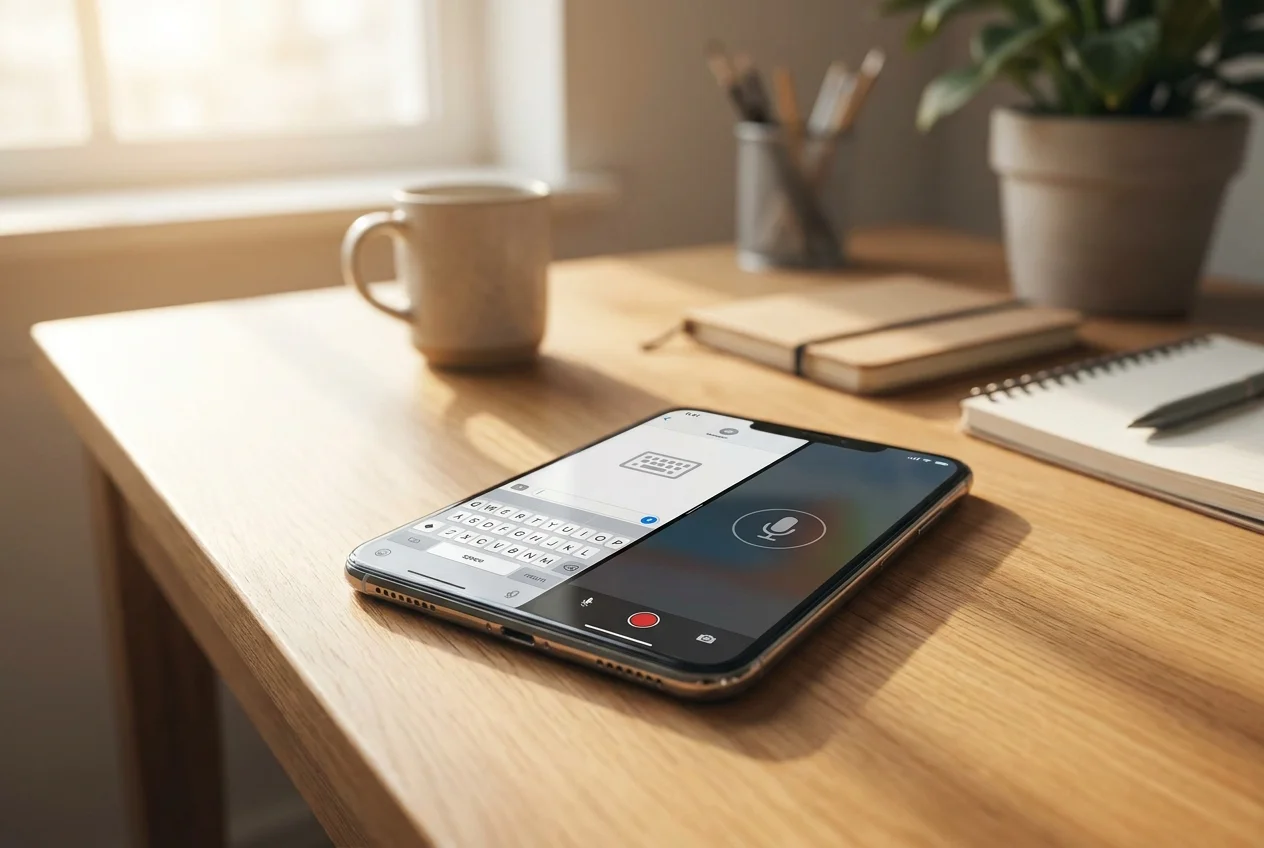 Typing and voice dictation solve the same problem at very different speeds.
Worth knowing: Custom dictionaries close most of the accuracy gap — once an app learns a name or technical term once, it stops guessing on that word every time.
Two accuracy levers matter most: microphone quality (headphones usually beat the phone's built-in mic in a loud room) and whether the app supports a custom dictionary for names and jargon it wouldn't otherwise recognize.
Best Hands-Free Texting Apps for Android
 A dedicated Android keyboard adds AI cleanup that Gboard's free voice typing skips.
The three real options for hands-free texting on Android are Gboard's free built-in voice typing, BossAI, and Typeless — most other AI dictation keyboards in this category are Mac, Windows, or iOS only and haven't shipped Android support. Here's how the Android-available options stack up:
| App | Free Tier | AI Cleanup | Standout Feature | Price |
|---|---|---|---|---|
| Gboard (native) | Unlimited | Minimal | Built into every Android phone, zero setup | Free |
| BossAI | 500 words/day | Filler removal, grammar, tone rewrite | Boss Mode reads your screen to draft replies | $9.99/mo |
| Typeless | 4,000 words/week | LLM-based rewrite | Cross-platform (Mac, Windows, iOS, Android) | $30/mo |
By the numbers: Free-tier word limits vary by reset cadence, not just size. BossAI resets 500 words every day; other dictation apps in the wider category cap out at 2,000 words per week and don't reset until Monday. A daily reset means a bad Tuesday doesn't cost you the rest of the week.
For messages that need more than a clean transcript — replying to a text thread, drafting something in a specific tone — BossAI's AI keyboard for Android layers Boss Mode and one-tap tone rewrites on top of dictation, so the same voice input that fills in a quick reply can also draft a fuller one. Voice typing on Android doesn't have to stop at raw transcription; it's the starting point for a faster reply, not the whole job.
Can I Use Voice Typing in All Android Messaging Apps?
Yes. Once a voice keyboard like BossAI is your default Android keyboard, it works in every app with a text field: SMS, WhatsApp, Slack, Gmail, Facebook Messenger and anything else. There's no per-app setup and no switching keyboards depending on the app.
A voice keyboard isn't a feature bolted onto one app. It replaces the keyboard system-wide, so the mic shows up everywhere your regular keyboard would.
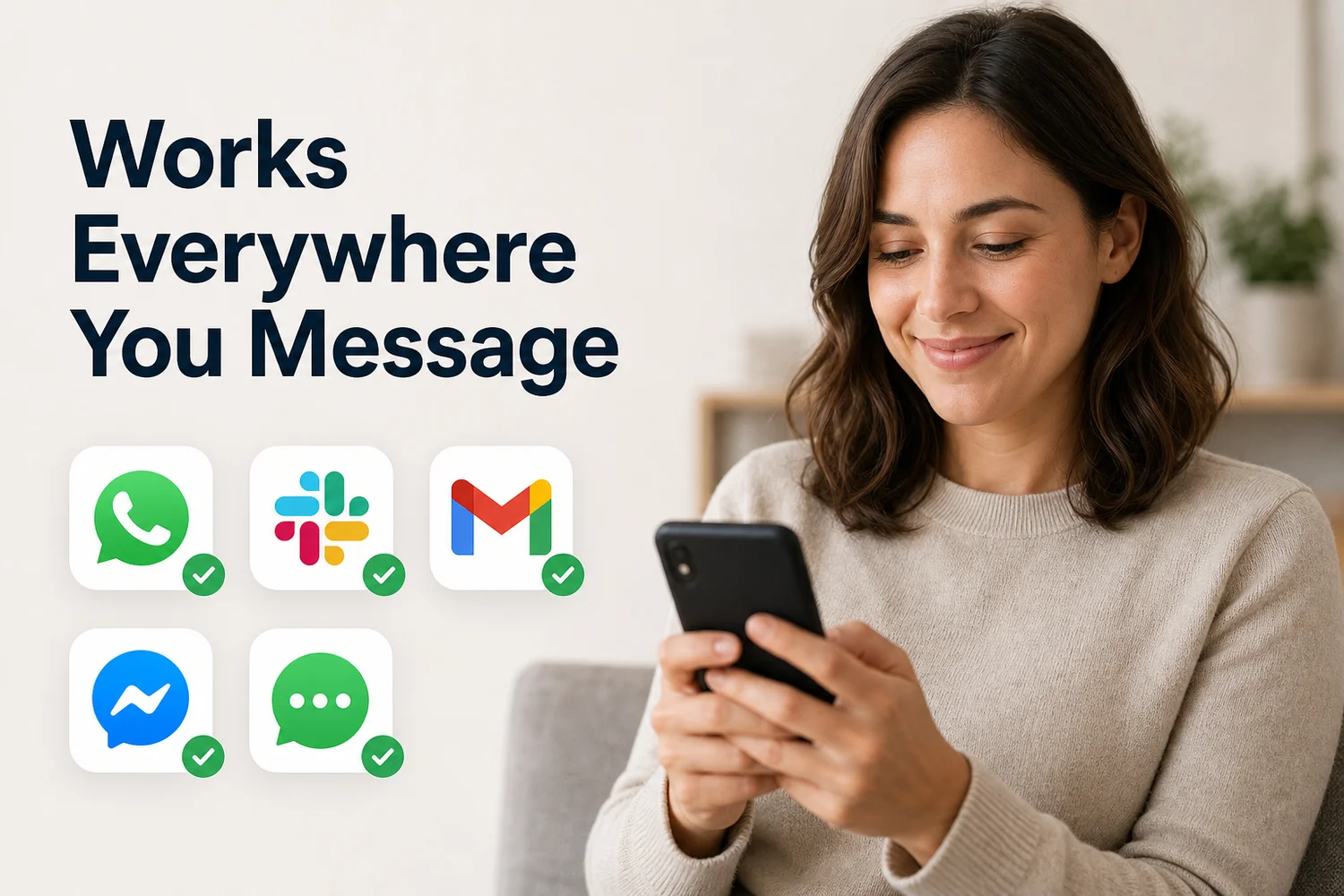 One keyboard, every messaging app you already use, with no separate setup per app.
A few apps add their own layer on top. WhatsApp, for example, has its own voice-message transcripts (Settings → Chats). That's separate from keyboard-level voice typing, and the two work side by side.
Get Started with BossAI
If you're already dictating texts on Android, the gap between "words on screen" and "message ready to send" is where BossAI does its work — filler words removed, grammar cleaned up, tone adjusted with one tap, all inside the keyboard you already use.
FAQ
How do I turn on hands-free texting on Android? Open Settings, go to System > Languages & Input > Voice Input, and enable Gboard's voice typing. Tap the microphone icon on the keyboard in any messaging app — SMS, WhatsApp, or email — to start dictating immediately. No extra download or account is required to use the built-in version.
Does BossAI work as an Android keyboard? Yes. BossAI is a full Android keyboard replacement that dictates in real time, removes filler words automatically, and rewrites text in different tones with one tap. It also includes Boss Mode, which reads your screen and drafts a contextual reply without any copy-pasting.
Is hands-free texting good for people with hand injuries? Yes. Dictation-based texting removes keyboard strain entirely, since every word is spoken rather than typed. People managing RSI, carpal tunnel, broken wrists, or a temporary injury can keep writing full messages, emails, and documents entirely hands-free, without touching a screen at any step.
Can Android Auto text hands-free while driving? Yes. Android Auto reads incoming messages aloud and lets you dictate replies by voice, all without looking at or touching the phone. It's built specifically for safety while driving, handling both incoming reads and outgoing replies through voice alone.
Why is my phone voice typing automatically? Usually an always-listening option is switched on in your keyboard, so the mic starts the moment you tap a text field instead of waiting for a tap on the mic key. Open your keyboard's settings and turn that option off if you don't want it.
Can I change the dictation language in BossAI on Android? Yes. BossAI's Spoken Language setting can auto-detect what you speak or be pinned to one language for the best accuracy, and a separate Output Language setting controls the language of the text. The free plan includes one dictation language; Pro unlocks all 99+.