Speech Accessibility Project Guide
Researchers at the University of Illinois are collecting a million speech samples from people with ALS, Parkinson's, and cerebral palsy so that voice assistants finally understand them. That's one kind of speech accessibility project. There's a second kind — smaller, faster to start, and available to any workplace or individual today.
Key Takeaways
- Speech accessibility tools like dictation replace typing entirely, removing barriers for users with RSI, carpal tunnel, arthritis, dyslexia, and hand injuries.
- Custom instructions, multi-language support, and dictation that learns your vocabulary make speech-to-text more inclusive than native OS dictation.
- Boss Mode screen reading eliminates copy-pasting for disabled users, writing responses directly from context without manual app switching.
- Accessibility features in dictation apps measure success through time saved, reduced strain, and real-world employment outcomes.
- Organizations implementing speech accessibility projects see better retention, reduced sick leave, and faster turnaround on written communication from employees with accessibility needs.
Contents
- What Is a Speech Accessibility Project, and Why Does It Matter in 2026?
- How Does Dictation Support Users With Disabilities and Accessibility Needs?
- Which Speech Accessibility Features Work Best for Non-Native Speakers?
- What's the Difference Between Speech-to-Text and Speech Accessibility Tools?
- What Are Real-World Speech Accessibility Projects Doing Today?
- How Can Organizations Implement Speech Accessibility Projects for Employees?
- How to Set Up Custom Dictation Instructions for Accessibility on Your Device?
- Why Should Tech Companies Invest in Speech Accessibility Features?
What Is a Speech Accessibility Project, and Why Does It Matter in 2026?
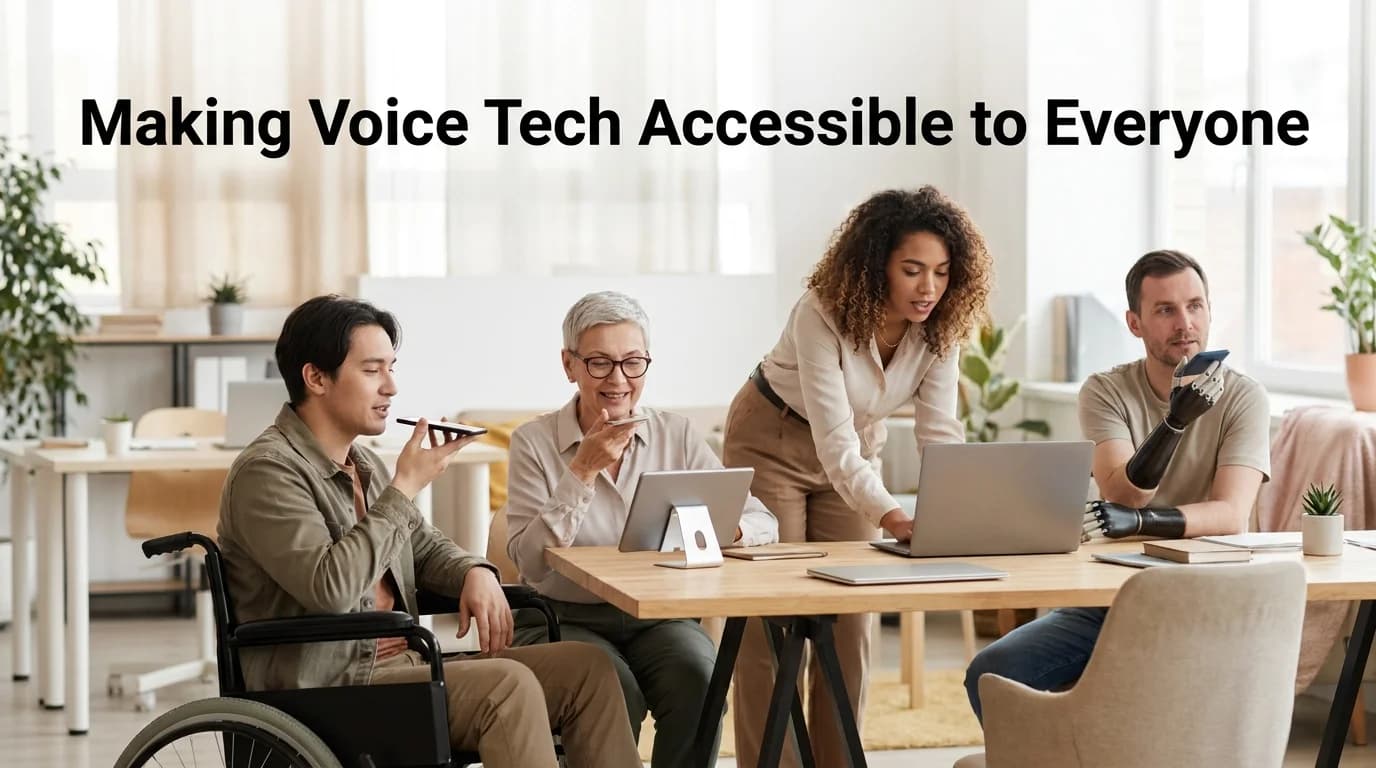
A speech accessibility project is any structured effort — academic, corporate, or individual — to make voice technology usable by people that standard speech recognition ignores: disabled users, non-native speakers, and anyone typing causes pain. The term covers two very different things, and mixing them up wastes research time.
The first is the actual Speech Accessibility Project run by the University of Illinois Urbana-Champaign's Beckman Institute. It's a multi-year effort to collect 1.2 million speech samples from 2,000 people with diverse speech patterns — ALS, Parkinson's, Down syndrome, cerebral palsy — and hand that data to the tech companies training the next generation of speech recognition models.
The second is what most people searching this phrase actually need: a plan for rolling out dictation-based accessibility tools inside a company, a classroom, or a household. That's a project you can start this week, not a two-year research study.
Worth knowing: The academic Speech Accessibility Project fixes the training data problem at the model level. Everyday accessibility rollouts fix the workflow problem — which tool sits on your desk and does the typing for you.
Both matter. But if you're evaluating dictation for a disabled employee or a dyslexic student right now, the second one is where you'll spend your time.
How Does Dictation Support Users With Disabilities and Accessibility Needs?
Dictation removes the physical act of typing entirely, which matters for anyone whose hands, wrists, or fine motor control make a keyboard painful or impossible to use for long stretches. Voice input replaces keystrokes with speech, and AI-enhanced dictation goes further — it cleans up the output automatically instead of leaving a disabled user to manually fix garbled text.
For someone with RSI or carpal tunnel, the win is obvious: no keys pressed, no strain accumulated. For someone with dyslexia, the win is different — spelling and grammar stop being obstacles because the AI layer handles both. Words come out formatted correctly the first time, with no need to proofread letter by letter.
Custom formatting rules are where this gets concrete rather than theoretical. BossAI's Custom Instructions setting lets a user tell the app exactly how to format their dictation — expand contractions, avoid certain phrasing, keep sentences short — once, and it applies every time they speak.
Multi-language settings sit right next to those formatting rules in the same screen, which matters because accessibility and language support are often the same workflow problem wearing different clothes.
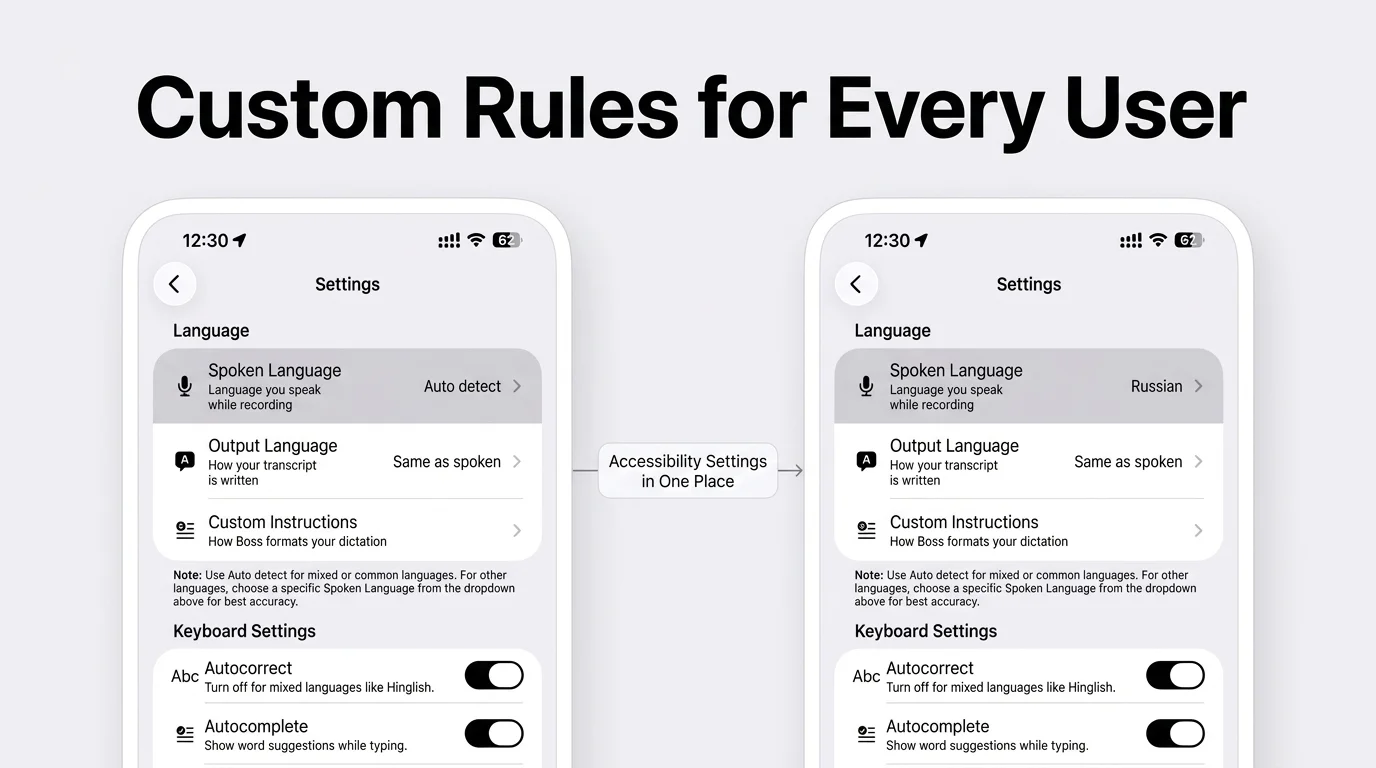 Spoken language and Custom Instructions live in the same settings screen — one panel set to Auto Detect, the other to Russian, showing how quickly the same dictation engine adapts.
What this means for you: A dyslexic user and a non-native English speaker can both use the exact same dictation engine — they just configure two different settings.
If you're comparing dedicated tools against general-purpose ones, the best speech-to-text app for disability breakdown covers how these accessibility-specific features stack up feature-by-feature.
Which Speech Accessibility Features Work Best for Non-Native Speakers?
Non-native speakers benefit most from custom dictionaries, accent-tolerant transcription, and output formatting that fixes grammar without changing meaning — three features that separate accessibility-grade dictation from a basic voice-to-text toggle. A custom dictionary means a user's name, their company's name, and industry jargon get transcribed correctly instead of mangled into the nearest English word.
Accent tolerance is the harder problem. Most built-in OS dictation is trained overwhelmingly on standard American or British pronunciation, and it shows the moment someone speaks with a different accent — dropped words, wrong homophones, garbled technical terms.
Grammar correction on top of transcription helps a non-native speaker sound as polished in writing as a native speaker, without needing to memorize every article and preposition rule in English. BossAI applies this automatically after transcription, fixing grammar and punctuation in the same ~300ms pass that removes filler words.
A short list of what actually moves the needle for this group:
- Custom dictionary entries for names, brands, and technical terms
- Auto-detect or manually selected spoken language, independent of output language
- Grammar and punctuation correction applied after transcription, not before
- Tone rewrite options so a message can be dialed toward "Professional" without the user hunting for the right words themselves
What's the Difference Between Speech-to-Text and Speech Accessibility Tools?
Speech-to-text just converts audio into text; speech accessibility tools add the layer that makes that text usable by someone who can't or won't clean it up themselves — grammar correction, custom vocabulary, formatting rules, and screen-aware responses. Apple Dictation and Google's built-in voice typing are speech-to-text. They transcribe what you say and stop there.
That distinction is the whole ballgame for someone with limited hand mobility. Raw transcription that needs manual editing defeats the purpose if editing is exactly what's painful.
| Capability | Native OS Dictation | Speech Accessibility Tool (BossAI) |
|---|---|---|
| Filler word removal | No | Yes, automatic |
| Grammar/punctuation fix | No | Yes, ~300ms after speech ends |
| Custom vocabulary | Limited or none | Yes, user-editable dictionary |
| Screen-aware replies | No | Yes (Boss Mode) |
| Custom formatting rules | No | Yes (Custom Instructions) |
| Works across every app | Varies by OS | Yes, keyboard-level on iOS/Android |
By the numbers: BossAI users average 65,800 dictated words and 18.9 hours saved per month, according to in-app usage data — a rough proxy for how much manual typing and editing gets skipped entirely.
What Are Real-World Speech Accessibility Projects Doing Today?
Real-world speech accessibility projects range from million-sample academic research to a single company swapping keyboards for microphones — and both categories are producing measurable results in 2026. On the research side, the University of Illinois's Speech Accessibility Project has already contributed data behind the 2025 Interspeech SAP Challenge, where teams built ASR systems specifically tuned for atypical speech patterns.
On the workplace side, the projects look less like research and more like operations. A support team gives dictation software to an employee recovering from wrist surgery instead of putting them on leave, a university writing center rolls it out for dyslexic students drafting essays, and a call center pilots it with non-native-English agents to cut post-call documentation time.
None of these workplace projects need a grant or a two-year timeline. They need one tool, a short rollout, and someone tracking whether it actually saved time.
For teams weighing dictation against other physical accommodations, the typing alternative for disability guide covers adaptive keyboards and switch access alongside voice input, since not every accessibility need is solved by dictation alone.
It's also worth checking what actual users say works before committing to a tool — communities like r/accessibility and r/disability surface complaints and workarounds that vendor pages never mention.
How Can Organizations Implement Speech Accessibility Projects for Employees?
Organizations should start with one team, measure time saved and error rates for 30 days, then expand based on results rather than rolling out dictation company-wide on day one. A phased pilot surfaces configuration problems — wrong custom dictionary entries, missed formatting rules — before they affect dozens of employees at once.
A workable rollout sequence:
- Identify employees with a documented accessibility need or a preference for voice input (RSI, dyslexia, non-native speaker, temporary injury)
- Pick a dictation tool that covers custom vocabulary, multi-language support, and cross-app use — not just one app's built-in dictation
- Set custom formatting rules per employee during onboarding, not after complaints start
- Track time saved and typing-related sick leave over one quarter
- Expand to teams with similar communication loads once the pilot shows results
Employees dealing with typing-related injuries are usually the fastest to see benefit, since the alternative to voice input is often more physical therapy, not more keyboard practice.
Reality check: The biggest implementation failure isn't the software — it's skipping the custom dictionary setup, which is the single feature that makes accessibility-grade dictation usable for technical or jargon-heavy roles.
How to Set Up Custom Dictation Instructions for Accessibility on Your Device?
Custom Instructions let a user define, once, exactly how their dictation should be formatted — dyslexia-friendly phrasing, expanded contractions, or a specific tone — and BossAI applies those rules automatically to every dictation afterward. The setting sits inside Settings → Language, right next to Spoken Language and Output Language.
The setup takes under a minute:
- Open BossAI's Settings and tap into the Language section
- Set Spoken Language to Auto Detect (best for mixed languages) or pick a specific language for higher accuracy
- Tap Custom Instructions and describe formatting preferences in plain language — "avoid contractions," "keep sentences under 15 words," "always add a greeting"
- Set Output Language independently if dictating in one language but writing in another
- Dictate normally — the rules apply automatically going forward, no need to repeat them per message
This is different from how Google Docs' built-in transcription handles voice typing, which transcribes raw audio with no persistent formatting layer — every dictation starts from zero, with no memory of past preferences.
BossAI's Android app has the same dictation features as the iOS app, and the text-to-speech app for Android guide covers other Android-side accessibility options.
Why Should Tech Companies Invest in Speech Accessibility Features?
Tech companies that build genuine speech accessibility features capture users that competitors' generic dictation tools lose — a market that includes disabled workers, an aging population, and the growing number of employees who type in a second language. This isn't a compliance line item. It's a user base most competitors are actively ignoring.
The market data backs this up. Search volume for AI dictation tools has climbed steadily as remote work normalizes voice-first communication, and accessibility features widen that market rather than narrowing it to a niche.
There's also a retention argument that has nothing to do with disability specifically. Employees who type less and communicate faster generally report less friction with routine tasks — email, chat replies, documentation — regardless of whether they have a diagnosed accessibility need.
Investing here also builds defensibility. Screen-aware accessibility — reading what's on-screen to generate a contextual reply — remains a feature most dictation tools haven't shipped at all, which means the companies that do it well keep users that alternatives can't retain.
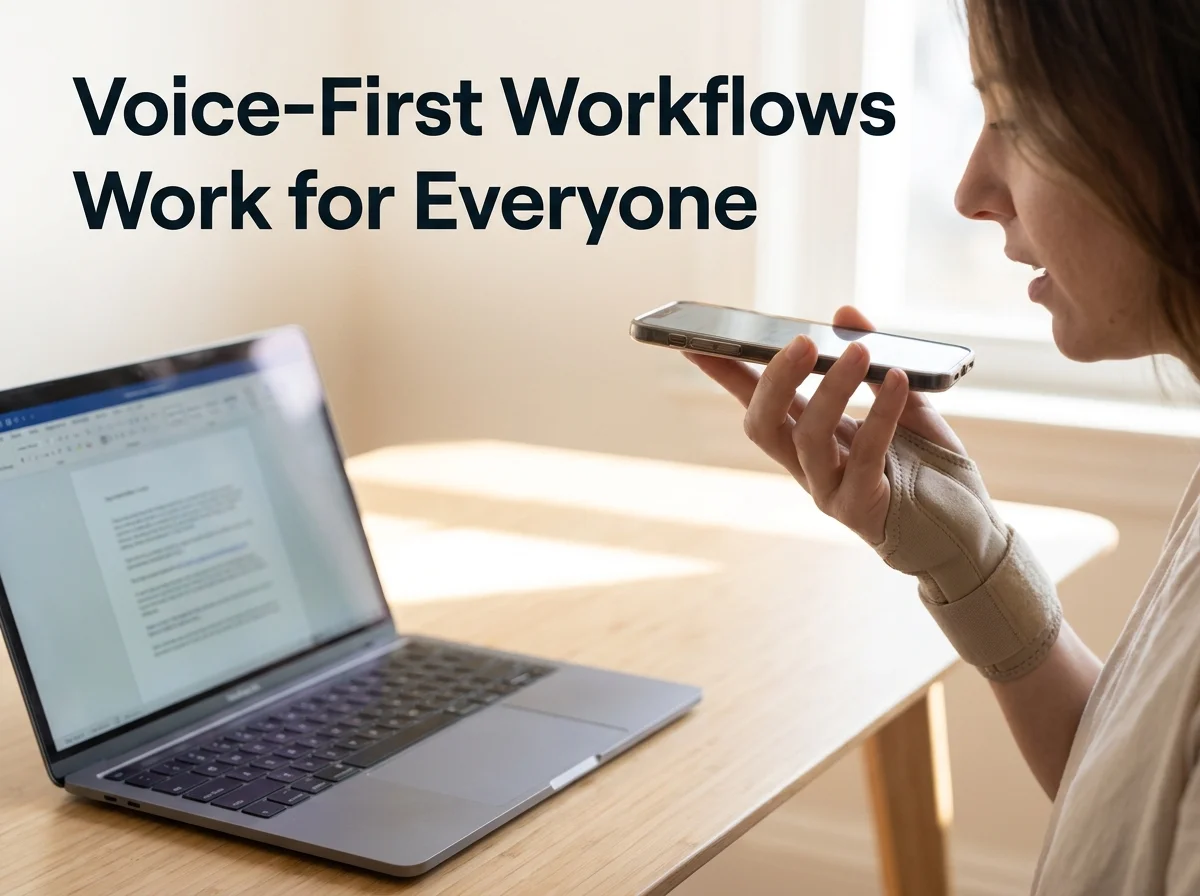 Voice-first workflows fit naturally into existing setups — no new hardware, just a different input method.
How to Start Using Speech Accessibility Features in BossAI Today
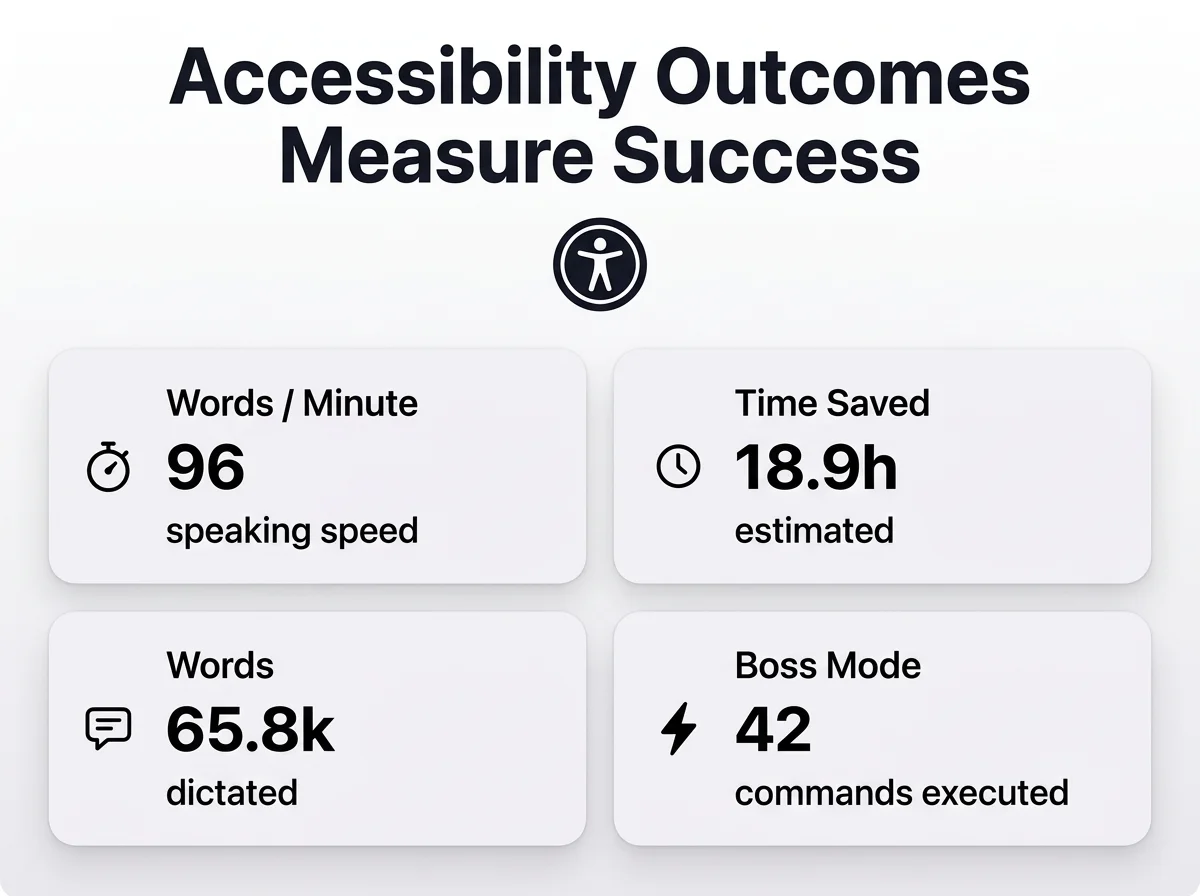 Time saved and words dictated are the two numbers that make an accessibility rollout easy to justify to a manager.
If you're weighing a specialized speech accessibility solution against generic OS dictation, the fastest way to know if it fits is to try it on your actual workload — email replies, chat messages, documentation — for a week. BossAI's free tier includes full AI-quality dictation (500 words a day, resetting daily), so there's no cost to testing it against your current setup.
FAQ Section
What is a speech accessibility project? It's any structured effort to make voice technology usable for disabled users, non-native speakers, or anyone who finds typing difficult. This ranges from academic research collecting diverse speech samples to a company piloting dictation software for employees with RSI or dyslexia.
Is BossAI good for RSI or hand injuries? Yes. BossAI is built for zero-keyboard use — you dictate everything, and it handles transcription, filler-word removal, and tone correction automatically. People with RSI, carpal tunnel, or wrist injuries use it to write emails and documents entirely hands-free.
Can non-native speakers benefit from speech accessibility tools? Yes. Custom dictionaries handle names and jargon, automatic grammar correction fixes phrasing without changing meaning, and multi-language settings let someone speak in one language while the output is written in another.
What platforms support accessible dictation software like BossAI? BossAI runs on iOS, Android, macOS, and Windows, working as a full keyboard replacement on mobile so dictation works inside any app without switching tools or copy-pasting text between them.
How much does it cost to implement speech accessibility in a workplace? Costs vary by tool, but BossAI's free tier (500 words/day) is enough to pilot with a small group before committing. A paid Pro plan runs $9.99/month per user for unlimited dictation and full feature access.
Is BossAI free to use for accessibility features? Yes. BossAI's free plan includes 500 words of dictation a day (resetting daily), a 10-word custom dictionary, and one dictation language; Pro unlocks unlimited dictation, all languages, and every feature. No credit card is required to start.