
Disable Keyboard Keys: How-To + Accessibility Fix
You can disable keyboard keys on every major platform — Windows and Mac both have built-in remapping tools that can turn a key off entirely, while iOS and Android rely on accessibility settings rather than a true per-key disable. None of those methods fix the reason a lot of people land on this search: a hand injury, a repetitive strain condition, or the plain fact that one-handed typing on a full keyboard is slow and frustrating. Voice dictation sidesteps the problem instead of working around it — and it's roughly 3-4x faster than hunt-and-peck typing with one hand.
Why Do People Disable Keyboard Keys?
People disable keyboard keys for three main reasons: stopping accidental presses (a stuck Num Lock, a pet that keeps hitting the same key), removing shortcuts they never use, and — the reason with the highest stakes — reducing physical strain when a hand injury or condition makes full-keyboard typing painful.
The first two reasons are five-minute fixes. A misbehaving key gets remapped, a distracting shortcut gets turned off, and the keyboard goes back to normal. The third reason is different, because disabling a key doesn't remove the need to type — it just removes one obstacle while the rest of the keyboard stays exactly as demanding as before.
Common triggers people search this keyword for:
- Accidental key presses from pets, spills, or a stuck switch
- Unused or disruptive shortcut keys (a Windows key, a stray Copilot key, Caps Lock)
- One-handed typing after a wrist, hand, or finger injury
- RSI, carpal tunnel, arthritis, or other chronic hand conditions
- Locking down a shared or kiosk device so certain keys can't be pressed
If a wrist injury is what brought you here, our guide to wrist pain from typing covers causes and hands-free alternatives in more depth.
Key Takeaways
- Users disable keyboard keys for accessibility (one-handed typing, preventing accidental touches, injury recovery), and voice dictation becomes the primary input method in these scenarios.
- Voice typing runs 3-4x faster than hunt-and-peck typing with one hand and removes the need for keyboard shortcuts or key access entirely.
- BossAI works as a native iOS and Android keyboard replacement, so dictation works in every app without switching to a separate tool.
- Dictation accuracy depends on a quiet environment and how well the tool handles filler words and technical terms — BossAI strips fillers automatically and supports a custom dictionary.
- People with RSI, carpal tunnel, arthritis, or hand injuries often stop using the keyboard entirely and switch to voice for email, messages, documents, and code.
How Do You Disable Keyboard Keys on Windows or Mac?
On Windows, the fastest way to disable a single key is Microsoft's own PowerToys utility — its Keyboard Manager remaps or disables any key without touching the registry. Mac users get a lighter version of the same control through System Settings' Keyboard pane, which can turn off individual modifier keys but not standard letter keys.
PowerToys is free, official, and reversible: install it, open Keyboard Manager, select the key, and set its remap target to "Disable." Editing the Windows registry directly does the same thing but carries more risk if you fat-finger a value — most guides now point people to PowerToys instead for exactly that reason.
Worth knowing: third-party "disable key" apps exist too, but they run as background processes that need to stay open — close the app and the key comes back to life.
macOS doesn't offer a true per-key disable for the main alphabet keys. What it does let you do is remap modifier keys (Caps Lock, Control, Option) and turn off specific keyboard shortcuts system-wide, which covers most of the "I keep hitting this by accident" complaints without third-party software.
Can You Disable Specific Keyboard Keys on iPhone or Android?
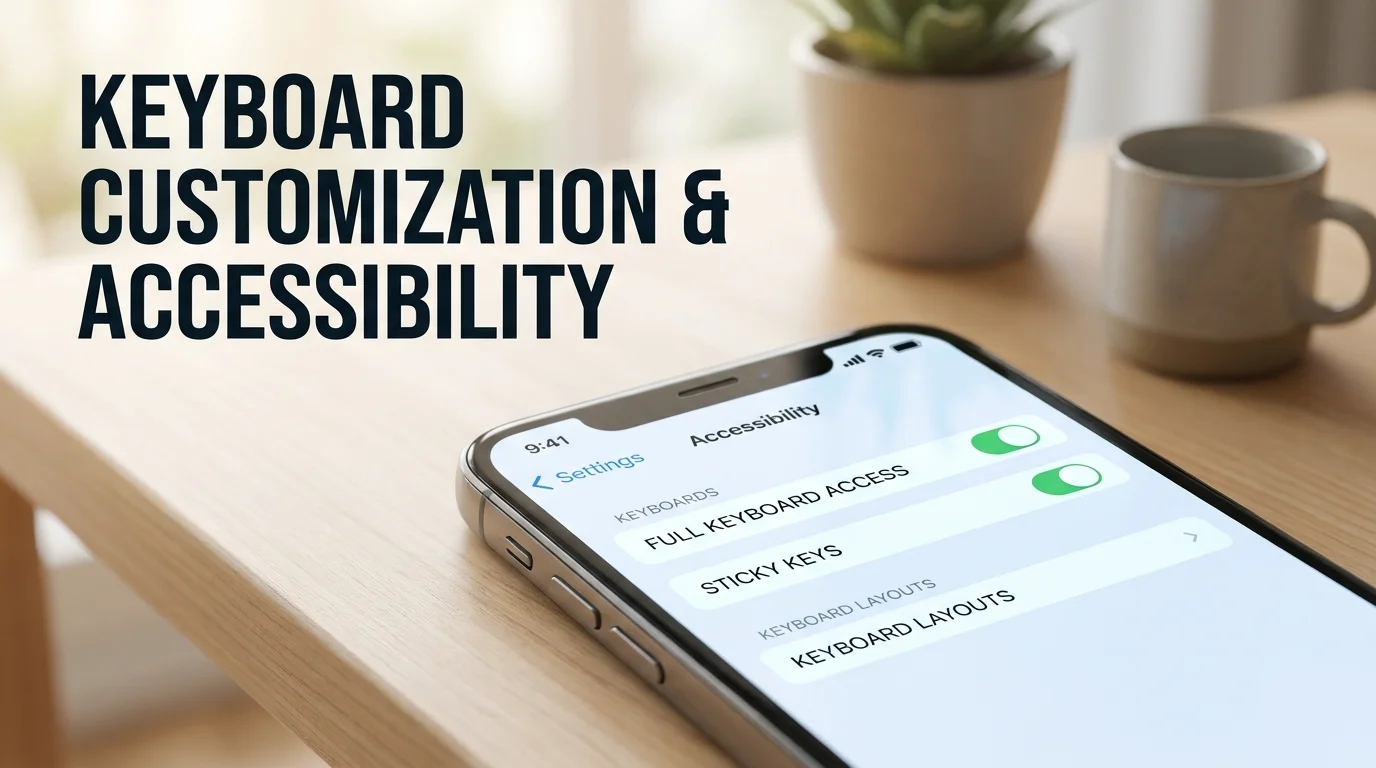
Neither iOS nor Android lets you disable a single physical key the way Windows does, because both rely on on-screen keyboards rather than physical hardware. iOS's accessibility keyboard settings can restrict Full Keyboard Access and enable Sticky Keys-style behavior, while Android's accessibility settings swap in a simplified, one-handed, or split layout instead of disabling individual keys.
This is where "disable phone keyboard" searches usually run into a wall — there's no toggle labeled "turn off the M key." What both platforms offer instead:
- iOS: Settings → Accessibility → Keyboards, with Full Keyboard Access and layout adjustments
- Android: Settings → Accessibility → Keyboard, with one-handed mode and simplified layouts
- Both: the option to replace the default keyboard with a third-party one built for a specific need
That last option matters more than it sounds. If accessibility settings alone aren't cutting it, swapping the entire keyboard — not just one key — is usually the better move. Our breakdown of the best third-party iPhone keyboards covers what to look for beyond Apple's defaults.
When Physical Key-Disabling Isn't the Right Fix
Disabling a key solves an annoyance, not an injury. For RSI, carpal tunnel, arthritis, or post-injury recovery, the problem isn't one key — it's the keyboard itself, and no amount of remapping changes that math.
Here's how the common approaches stack up for that specific case:
| Approach | Fixes accidental presses | Helps with injury/RSI | Works one-handed | Setup time |
|---|---|---|---|---|
| Disable a key (Windows/Mac) | Yes | No | No | 5-10 min |
| iOS/Android accessibility settings | Partial | Partial | Partial | 2-5 min |
| Voice dictation | Yes (no keys needed) | Yes | Yes | Under 2 min |
The same logic extends to disabling unwanted keyboard features you never asked for in the first place — a stray key you didn't want, a shortcut that keeps firing by accident. If RSI specifically is what's driving the search, our dedicated piece on BossAI for RSI goes further into recovery-stage typing alternatives.
How BossAI Solves the Disabled-Keyboard Problem
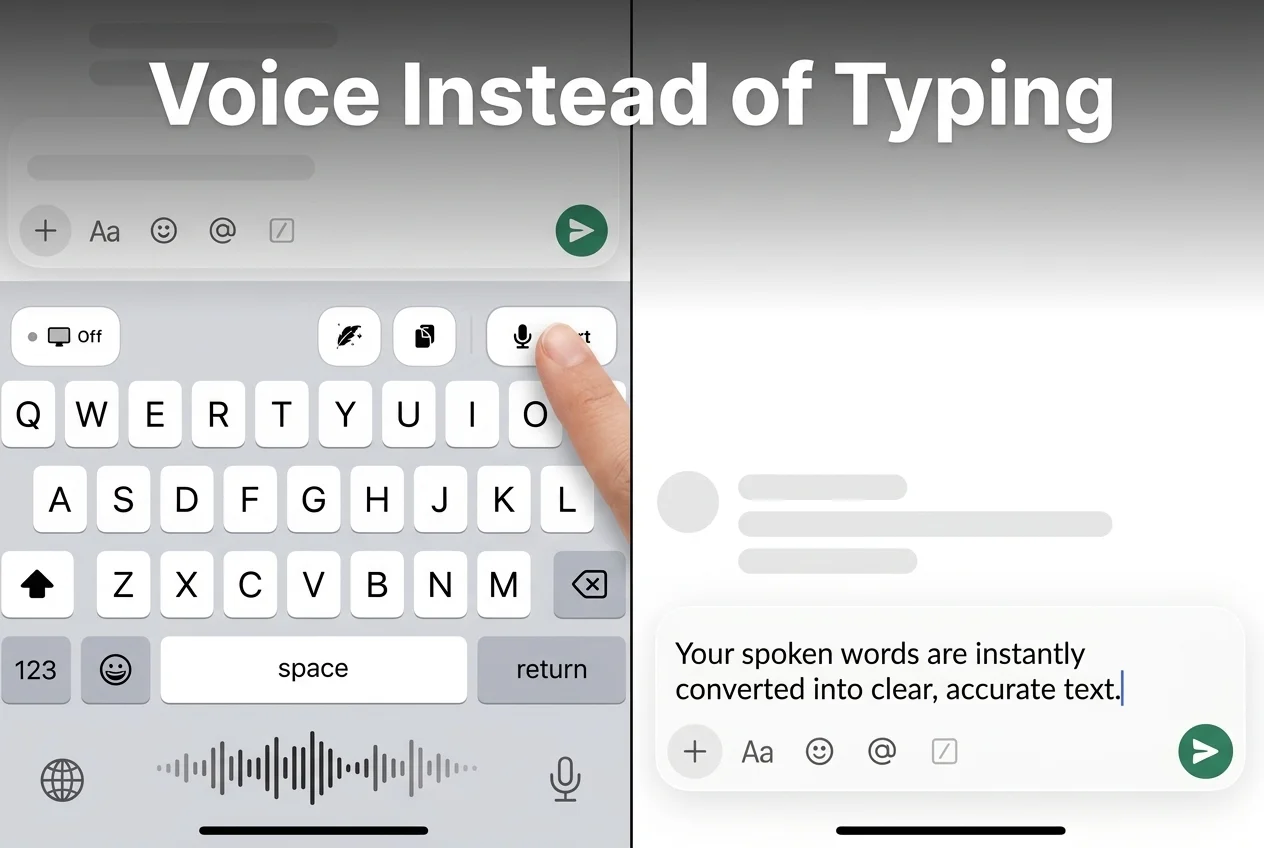 Tap the mic, speak, and the message is typed for you — no keys involved.
BossAI is a native keyboard replacement on both iOS and Android, which means it doesn't sit next to your phone's keyboard — it becomes it. Enable it once under Settings → Keyboards, and every app on the device gets a microphone button in place of hunting for individual letters.
That distinction matters for anyone with a genuinely disabled or unusable keyboard: there's no separate app to open, no copy-pasting text back into the app you were using. You switch to the BossAI keyboard the same way you'd switch to any other keyboard, tap the mic, and speak. The words appear as text — filler words like "um" and "like" stripped out automatically, grammar and punctuation cleaned up in real time.
For anyone typing technical terms, client names, or industry jargon one-handed, BossAI's custom dictionary learns those words so dictation doesn't have to be corrected every time. It's the same idea behind modern AI keyboards generally — the keyboard does more of the work than a plain QWERTY layout ever could, which is exactly the shift that makes hands-free typing realistic instead of a fallback.
Is Voice Input Accurate Enough to Replace a Disabled Keyboard?
Voice input from a modern AI keyboard is accurate enough for daily writing in a quiet-to-moderate environment, and BossAI specifically removes filler words and fixes grammar in roughly 300ms after you stop speaking. Accuracy drops in loud environments or with heavy background noise, the same limitation every dictation tool shares.
Two things determine whether voice input actually replaces a keyboard rather than just supplementing it: environment and vocabulary. A quiet room gets near-clean transcription on the first pass. A crowded café needs a second look before sending.
Vocabulary is the other half. Generic dictation tools stumble on names, technical terms, and brand jargon — BossAI's custom dictionary fixes that by learning the words you use repeatedly. For anyone treating voice as their primary input method rather than a backup, that repeated accuracy is what makes the switch stick.
- Quiet room, standard vocabulary: near-instant, clean transcription
- Noisy environment: expect more manual corrections
- Technical or niche vocabulary: accuracy improves as the custom dictionary learns your terms
- Long-form writing (emails, documents, code comments): works the same as short messages, just longer
 Voice input works the same whether you're replying to one message or drafting a full email.
Get Started with BossAI
If a disabled or painful keyboard is the actual obstacle, remapping one key won't fix it — switching your primary input to voice will. BossAI installs as your iOS or Android keyboard in a couple of minutes and works in every app you already use.
FAQ
Can you temporarily disable your entire keyboard instead of one key?
Yes. On Windows, Device Manager lets you disable the keyboard driver entirely, and it re-enables the same way. On Mac, unplugging an external keyboard or disabling Bluetooth for a wireless one has the same effect. Neither approach helps if you still need to type — that's where dictation comes in.
Are there keys that are risky to disable?
Modifier keys (Ctrl, Alt, Cmd, Fn) are the riskiest to disable because many system shortcuts depend on them — disabling one can break copy-paste, screenshots, or app-switching. Standard letter and number keys are safe to disable individually since nothing else relies on them.
Is BossAI good for RSI or hand injuries?
Yes. BossAI is built for zero-keyboard use — you dictate everything, and it handles transcription, filler removal, and tone correction automatically. People recovering from RSI, carpal tunnel, or a broken wrist use it to write emails, messages, and documents entirely hands-free.
Does disabling keyboard keys count as an accessibility feature?
Partially. Disabling a key removes one obstacle but not the physical demand of typing itself, so it helps with accidental presses more than with injury-related pain. True accessibility keyboard settings — like Full Keyboard Access on iOS or one-handed layouts on Android — go further, and voice dictation goes furthest by removing keys from the equation entirely.