
Voice Typing Chrome Extension: Best Options Compared
Chrome has no dictate-anywhere button of its own. If you want to speak into Gmail, a web form or a ChatGPT box, you need either a voice typing Chrome extension or a tool that sits outside the browser. This guide compares the main options, explains the setup, and covers the Mac and Windows route that skips extensions entirely.
Key Takeaways
- A voice typing Chrome extension turns speech into text inside web pages such as Gmail, Google Docs and online forms, using your microphone and the browser.
- Extensions like Voice In and Voicy work only inside Chrome, and many gate their best features behind a paid tier, so check the current limits on each listing.
- BossAI does not ship a Chrome extension. On Mac and Windows, its desktop app dictates into Chrome (and every other app) with a hotkey.
- Voice-to-text turns your speech into writing. Text-to-speech does the reverse, reading a page aloud. Extensions like Speechify are the second kind.
- Setup for any extension takes a few minutes: install it, allow microphone access, click into a text field and speak.
Contents
- What Is a Voice Typing Chrome Extension?
- How Does a Voice Typing Chrome Extension Work?
- What Are the Best Voice Typing Extensions for Chrome?
- BossAI Alternative for Mac & Windows Users
- Can You Use Voice Typing in Google Docs?
- What's the Difference Between Voice-to-Text and Text-to-Speech in Chrome?
- Get Started with BossAI
- FAQ
What Is a Voice Typing Chrome Extension?
A voice typing Chrome extension is a small add-on that listens through your microphone and types what you say into the text field you have selected. It works on websites like Gmail, Slack, Google Docs and web forms, so you can dictate without touching the keyboard.
Most extensions add a microphone button or a shortcut to the page. Click into a field, start the extension, and the words appear as you talk.
Some also handle punctuation commands ("comma", "new line") and a handful of languages. The depth varies a lot between tools, which is why a side-by-side look is worth ten minutes.
How Does a Voice Typing Chrome Extension Work?
Chrome extensions capture audio from your microphone after you grant permission, convert it to text with a speech recognition service, and insert the result into the active text field. The extension runs inside the browser, so it only works on pages Chrome is showing.
Setup is similar for every tool:
- Install the extension from the Chrome Web Store.
- Click the extension icon or a field's mic button, and allow microphone access when Chrome asks.
- Click into the text box you want to fill.
- Speak, then stop. Review the text before sending.
Two limits matter. First, recognition quality depends on your microphone and background noise more than on the extension. Second, extensions can't help you outside Chrome: a Word document, a desktop email client or a Slack desktop window stays silent.
Common mistake: Allowing the microphone on one site and assuming it carries over. Chrome grants microphone permission per site, so a new site can ask again.
What Are the Best Voice Typing Extensions for Chrome?
The most visible options are Voice In (from Dictanote), Voicy and the "Voice Typing" listing on the Chrome Web Store, with Speechnotes appearing on many roundups. They differ mainly in where they insert text, how many languages they cover, and what sits behind a paid plan.
Here is how they compare, based on each product's own listing. Pricing and limits change often, so confirm them on the page before you commit.
| Extension | Where it types | What its listing highlights | Watch for |
|---|---|---|---|
| Voice In | Any text box on a web page | Dictation in 50+ languages, for emails, notes and AI prompts | Free and paid tiers; check current limits |
| Voicy | Gmail, Google Docs, Slack and other sites | AI-powered dictation added to sites where you already write | Paid features; check current plan |
| Voice Typing (Web Store) | Any website | Text and emoji by voice in the browser | Simpler feature set |
| Google Docs voice typing | Google Docs only | Built into Docs, no install | Not available on other sites |
Voice In
Voice In is the extension roundups most often name first, and its Chrome Web Store listing is the top result for this keyword. It inserts text into most web text boxes, and its listing pitches it for emails, notes and prompts to AI tools.
If you only dictate occasionally, the free tier is the natural place to start. Heavy users should read the limits before building a habit around it.
Voicy
Voicy positions itself as AI-powered dictation for the places you already write, naming Gmail, Google Docs and Slack. That makes it closer to a writing assistant than a bare transcriber, which suits people who want cleanup as well as capture.
The generic "Voice Typing" listing
The plain Voice Typing extension is the lightweight pick. It promises text and emoji by voice on any website, nothing more. For a one-off form or a quick comment, that can be enough.
If you write in Indian languages, language coverage deserves its own check before you pick any of these, since support varies by tool and by dialect.
BossAI Alternative for Mac & Windows Users
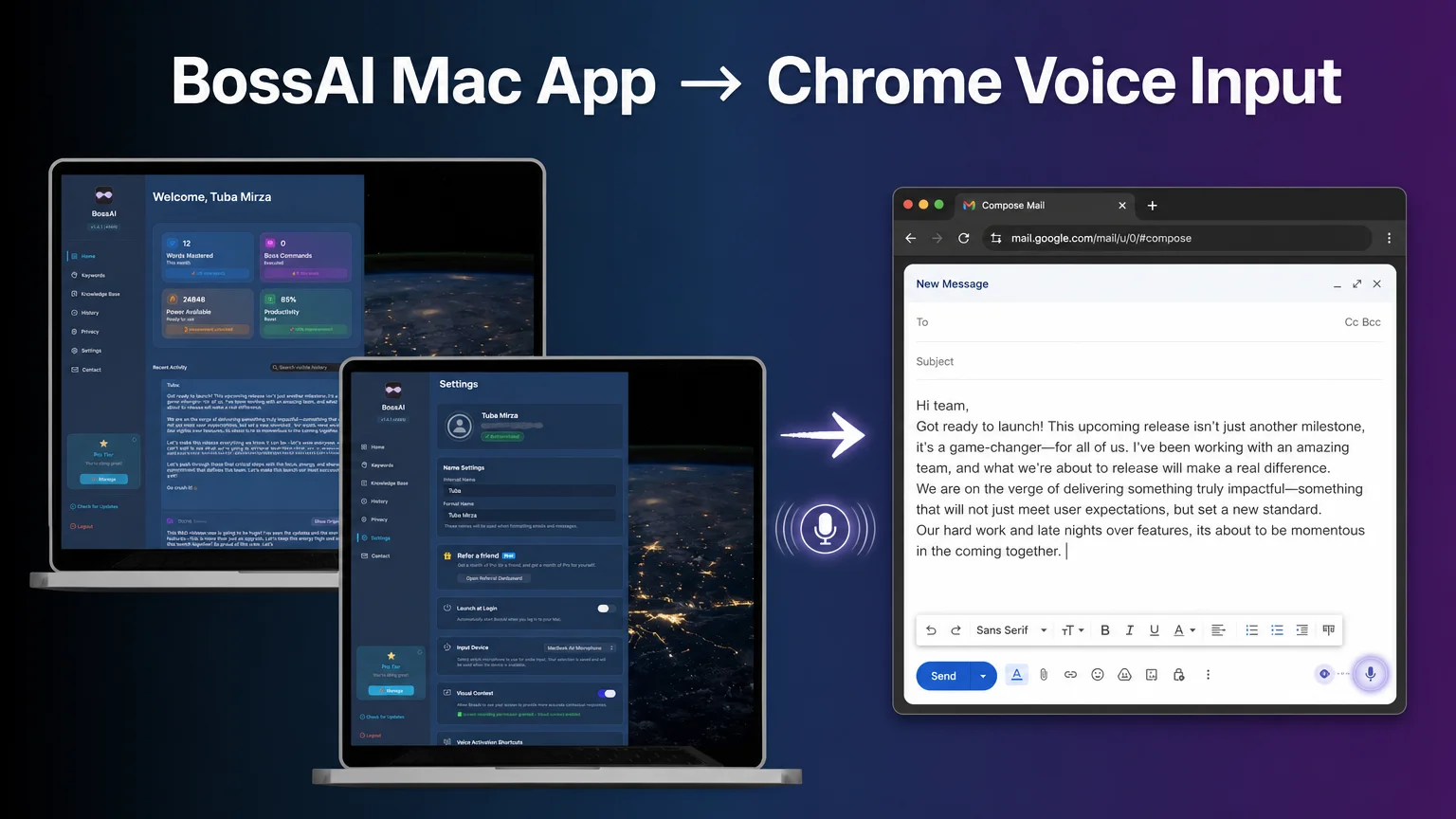 The BossAI Mac app (home and settings) dictating into a Chrome compose window.
If you are on Mac or Windows, you can skip the extension. BossAI is a native desktop app that types your dictation into whichever app has the cursor, including Chrome, using a hotkey you hold or tap.
That matters because an extension covers one browser. A desktop app covers Chrome, your notes app, your chat window and your IDE with the same shortcut.
Is there a BossAI Chrome extension?
No. BossAI does not ship a Chrome extension. On Mac it runs from the menu bar and on Windows from the system tray, and both insert text wherever your cursor is, so Chrome works without any add-on.
Mac and Windows are hotkey voice-to-text apps here, not keyboards. The iPhone and Android versions are full keyboards, but they are not relevant to desktop Chrome.
How do I enable voice typing on Mac to use in Chrome?
Install BossAI on your Mac, grant the microphone permission, click into any text field in Chrome, and hold the default Fn hotkey while you speak. Release it and the cleaned-up text lands at your cursor.
The desktop app offers two activation modes. Push-to-talk (hold the shortcut, release to process) suits short phrases. Hands-free (press once to start, press again to stop) suits longer dictation.
Its settings screen shows an input device picker, so you can choose which microphone it listens to. Text is cleaned as it is inserted: filler words such as "um" and "uh" are removed, grammar and punctuation are fixed. You can also say "Boss" followed by a command, and with screen recording permission granted BossAI can read the page for context, such as the email you are replying to.
What this means for you: One shortcut works in Chrome, Slack, Notes and everything else, so there is no per-browser extension to maintain.
The free plan includes 500 words of dictation a day, resetting daily, in one language. Pro is $9.99 a month, $69.99 a year or $149.99 once, and covers every platform. Our voice typing keyboard comparison covers how it stacks up against other apps.
Can You Use Voice Typing in Google Docs?
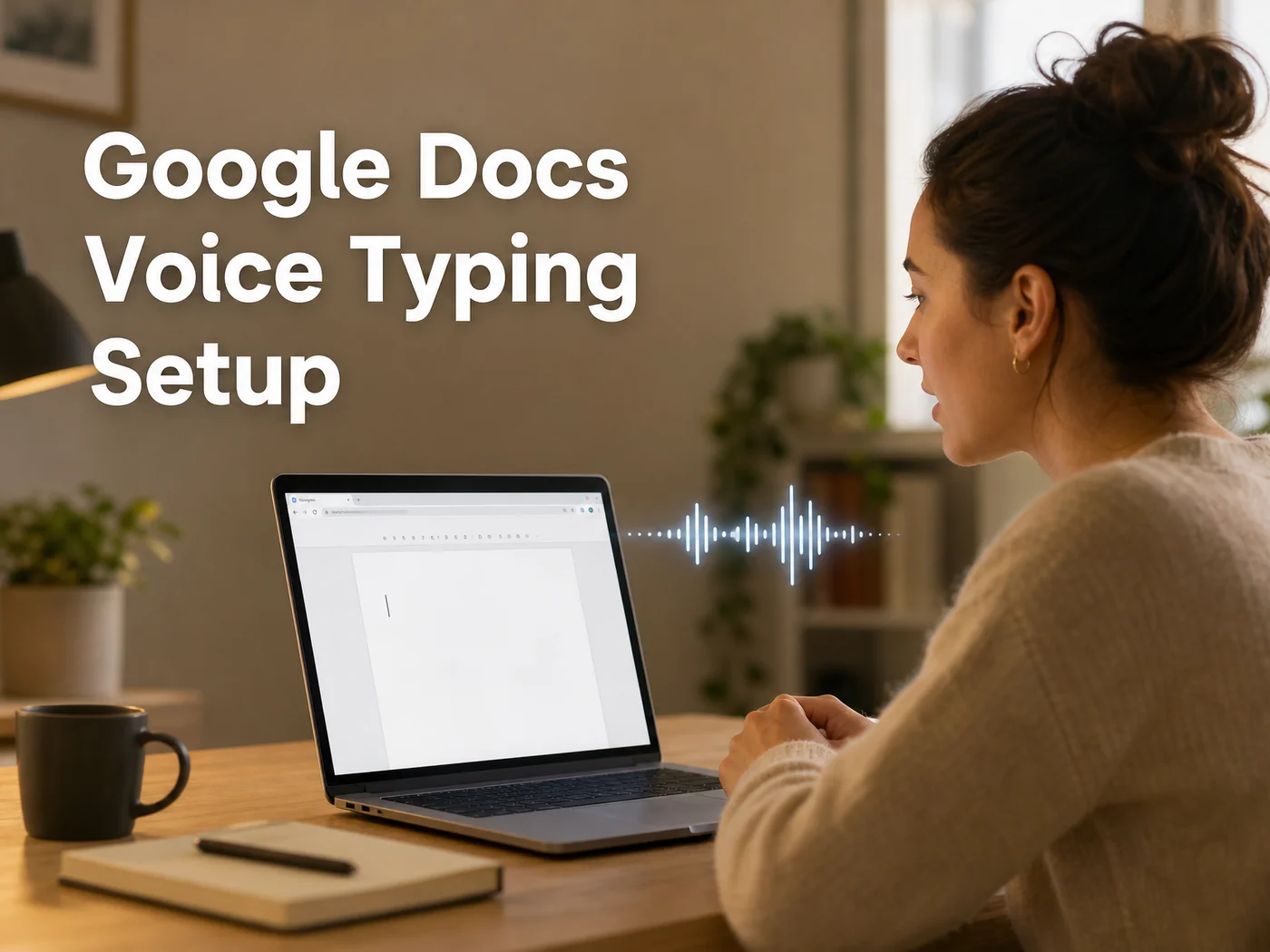 Google Docs has its own voice typing, no extension required.
Yes. Google Docs has built-in voice typing in Chrome. Open a document, choose Tools, then Voice typing, click the microphone and allow access. No extension is needed, but it only works inside Docs.
You can also use the keyboard shortcut Ctrl+Shift+S (Cmd+Shift+S on Mac). Spoken commands like "new paragraph" help with layout, though formatting depth is limited. We cover the whole flow, including commands, in our Google Docs voice typing guide.
This is why many people never need an extension for documents. The extension question really starts when you want the same dictation in Gmail, a CRM or a chat box.
What's the Difference Between Voice-to-Text and Text-to-Speech in Chrome?
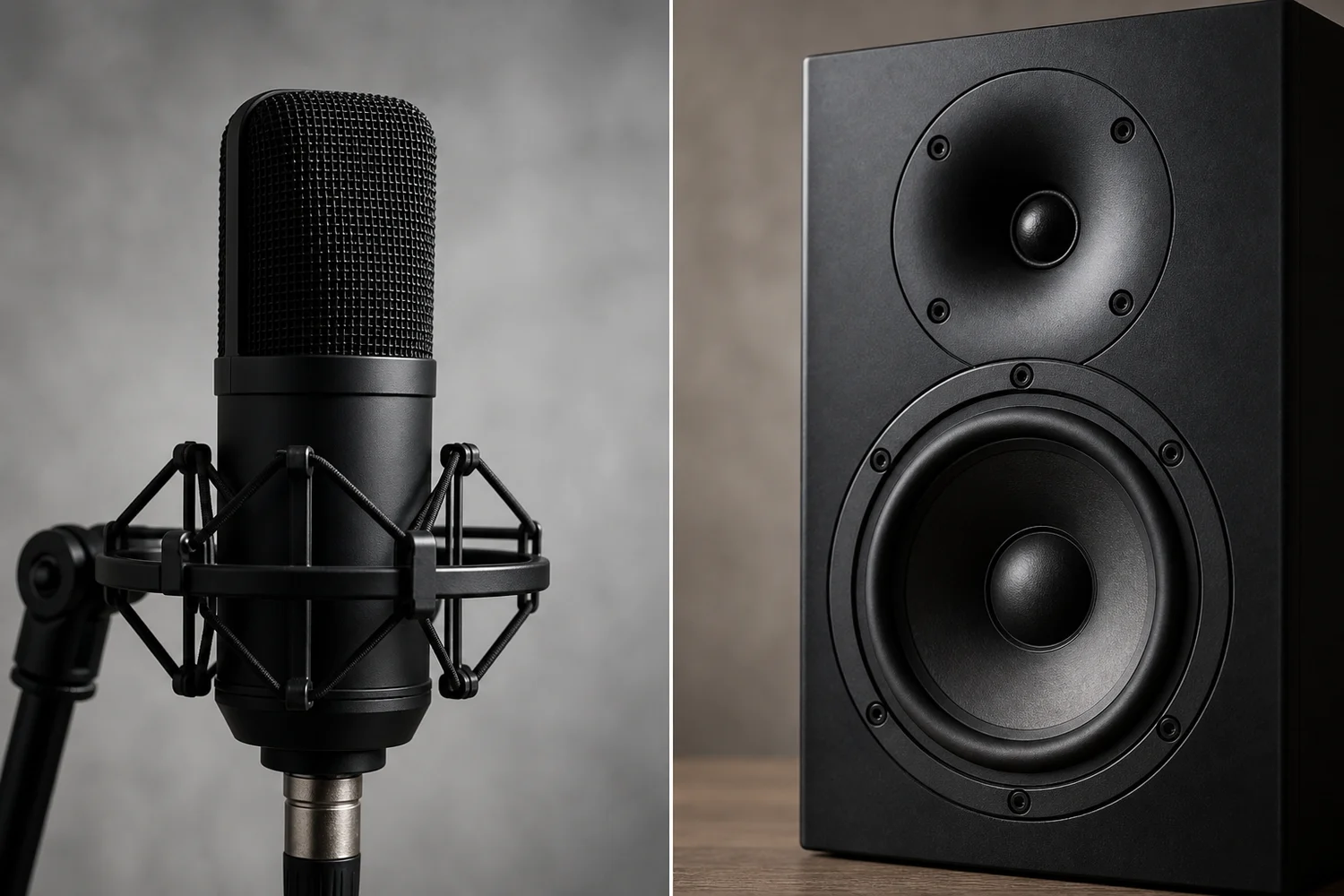 Voice-to-text takes audio in; text-to-speech sends audio out.
Voice-to-text converts your speech into written words, so you talk and a page fills up. Text-to-speech does the reverse: it reads existing text aloud. Extensions with "speech" in the name can be either, so read the listing before installing.
A quick test: do you want to talk or to listen? If you want to talk, you need dictation. If you want a page read to you, you need a reader.
- Voice typing (speech-to-text): Voice In, Voicy, Google Docs voice typing, BossAI.
- Read-aloud (text-to-speech): Speechify and similar tools. See our Speechify Chrome extension breakdown.
If dictation is new to you, our guide to typing with voice covers the basics before you pick a tool.
The short version: Search results for "speech" extensions mix both categories. Look for the words "dictate" or "type with your voice" in the listing.
Get Started with BossAI
If you want Chrome dictation without managing an extension, the desktop app gives you one hotkey across every app on Mac or Windows. The free plan covers 500 words a day, which is enough to test it in your real workflow.
FAQ
Is there a Chrome extension that can dictate speech to text?
Yes. Voice In, Voicy and several others on the Chrome Web Store let you dictate into text fields on websites. They run inside Chrome only, ask for microphone permission, and often put advanced features behind a paid plan.
Is Google Docs voice typing free?
Yes. Google Docs voice typing is built in and has no separate fee. Open Tools, choose Voice typing, click the microphone and allow access. It works in Chrome and only inside Google Docs.
How do I turn on voice typing in Google Chrome?
Chrome has no single switch. Install a voice typing extension and allow the microphone, or use Docs voice typing for documents. On Mac or Windows, a desktop dictation app such as BossAI works in Chrome with a hotkey.
Does BossAI work in Chrome?
BossAI works in Chrome through its Mac and Windows apps, not an extension. Hold the hotkey (Fn by default on Mac), speak, and cleaned text is inserted at your cursor. It runs in the menu bar on Mac and the system tray on Windows.
Is BossAI free to use?
Partly. The free plan gives you 500 words of dictation a day that reset daily, plus one Boss Mode reply, one Rewrite and one language. Pro removes the limits at $9.99 a month, and a 7-day trial needs no account.
Is voice typing the same as text-to-speech?
No. Voice typing turns your speech into written text. Text-to-speech reads written text aloud. Speechify is a read-aloud tool, while Voice In and Google Docs voice typing are dictation tools.