Voice Note Translator: Speak, Then Read It Translated
A support lead in Manila gets a voice note from a customer in São Paulo. She doesn't speak Portuguese, and a decade ago that message would have sat unanswered until someone tracked down a translator.
Today a voice note translator can turn spoken words into readable, translated text in seconds. Most tools built for this only solve half the problem.
What Is a Voice Note Translator?
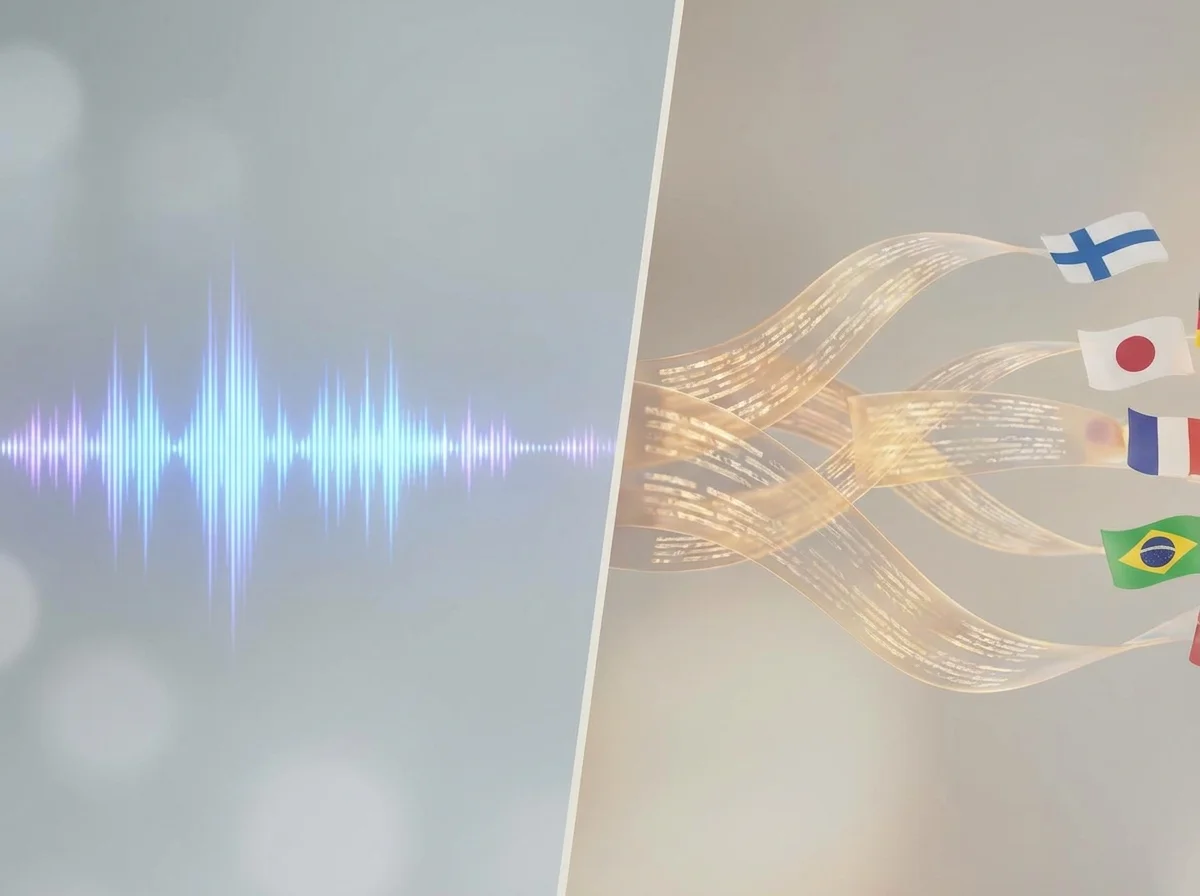
A voice note translator is software that listens to spoken audio in one language, transcribes it into text, and converts that text into a second language automatically. It combines two separate technologies — speech recognition and machine translation — into a single pass, so the person on the other end reads a message instead of hunting for someone who understands the original language.
Most tools in this category fall into two camps. Standalone translators like Google Translate or Microsoft Translator handle the audio-in, text-out job directly but require you to open a separate app and speak into it. Dictation-first tools work differently — they capture your voice accurately in your own language first, then hand the resulting text to a translation layer.
The distinction matters more than it sounds. A tool built primarily for translation often struggles with the accents, filler words, and mid-sentence corrections of natural speech. A tool built primarily for accurate dictation gets the words right first, which is the foundation any translation step depends on.
If you're new to the format itself, what a voice note is and how it differs from a voice message is worth a quick look before the translation layer gets added on top.
Why a Voice Note Translator Beats Typing or Manual Translation
Typing a message and running it through a translator is slower than it needs to be, and it breaks your train of thought twice — once to type, once to copy-paste. Voice notes remove the first bottleneck: you speak at roughly 150 words per minute versus 40 words per minute typing, so the raw capture is already faster before translation enters the picture.
Manual translation workflows add a second cost that's easy to underestimate. Copying text out of a notes app, pasting it into a translator, copying the result again, and pasting it into the destination chat is four steps for one sentence. A voice note taker built for speed cuts most of that friction by getting clean text on the first pass, before translation is even needed.
- Speaking is roughly 3x faster than typing for most people
- Manual copy-paste translation adds 3-4 extra steps per message
- Voice-first capture reduces the errors that come from transcribing while distracted
How Real-Time Voice Translation Actually Works
Real-time voice translation runs two AI models back to back. The first is an automatic speech recognition (ASR) model that converts audio into text as you talk, and the second is a machine translation (MT) model that converts that text into the target language, usually within a second or two of the sentence finishing.
The quality of the final translation depends heavily on what the ASR model hands off. Garbled transcription — missed words, wrong homophones, no punctuation — produces garbled translation, because the MT model has no way to recover meaning that was lost in step one. This is why transcription accuracy, not translation cleverness, is usually the actual bottleneck.
| Approach | How it captures speech | Translation step | App-switching required |
|---|---|---|---|
| Otter | Meeting-focused transcription | Secondary, limited | Yes — separate export |
| Google Translate / Microsoft Translator | Web-based voice input | Built-in, single language pair | Yes — dedicated app |
| BossAI | Native keyboard dictation, 500 words/day free | Pairs with a translation tool | No — works in any app |
Voice Notes for Remote Teams
Distributed teams run into the language gap constantly — a standup note from the Berlin office, a client update from the São Paulo office, a bug report from a contractor in Manila. None of it is planned; it just shows up in Slack or WhatsApp mid-workday.
 Multilingual teams increasingly capture updates as voice notes instead of typed messages.
Teams that standardize on voice-first capture — through a voice notes app built for daily use — get a side benefit beyond speed: every note becomes a searchable, translatable text record instead of an audio file nobody replays. That matters for async teams where a message sent at 11pm in one time zone needs to make sense to someone reading it at 8am in another. If your team is evaluating a voice-to-text app with translation built in, the capture step is where the workflow actually starts.
Can You Dictate in One Language and Get It Translated Automatically?
Yes, but the honest answer is that it happens in two connected steps rather than one. You dictate in your native language, the dictation tool transcribes it accurately, and a translation layer converts that clean text into the target language — the dictation quality determines how good the final translation is.
BossAI's role in that chain is the first step, not the second. Its multi-language support lets you dictate natively in your preferred language, with real-time transcription that removes filler words and fixes grammar as you speak — so you're never forced to think in English (or any language that isn't your own) just to get usable text.
Quick win: Dictate in your native language first, then translate the clean transcript — translating messy, half-formed speech produces messy, half-formed translations no matter which tool does the converting.
That native-language-first approach solves a problem typed translation doesn't: you're not composing in a second language while also trying to get the wording right. You think and speak normally, BossAI gets the words down cleanly, and the translation step works from accurate source text instead of a rough guess.
How to Set Up Voice Translation with BossAI
 Selecting a dictation language in BossAI's keyboard settings is the first step in a voice-to-translation workflow.
Setting up the dictation half of a voice translation workflow takes about a minute. Enable BossAI as your keyboard on iOS or Android (or open the menu bar app on Mac and system tray app on Windows), then open Settings and select your preferred dictation language from the multi-language list.
From there, dictate your voice note as you normally would — BossAI transcribes it in real time and cleans up filler words and grammar automatically. Copy the finished text into your translation tool of choice for the second step, and you have a complete voice-to-translated-text workflow without ever typing a word.
Get Started with BossAI
If your work involves capturing ideas across languages, the fastest fix is getting the first step right: fast, accurate dictation in whatever language you actually think in. BossAI's multi-language dictation handles that half of the workflow on iOS, Android, macOS, and Windows.
How Accurate Is Automated Voice Translation?
Accuracy depends almost entirely on transcription quality, since translation models work from whatever text the speech recognition step produces. In quiet environments with clear speech, modern ASR models exceed 95% word accuracy; background noise, heavy accents, and technical jargon all drag that number down before translation even starts.
Accented speech is where most voice tools still struggle, because training data skews toward a narrow set of accents. Tools that let you build a custom dictionary for names, brands, and jargon — rather than relying purely on a generic model — tend to hold up better across the accents and vocabulary an actual multilingual team uses day to day.
Quick recap
- A voice note translator combines speech recognition and machine translation into one workflow — transcription accuracy is the real bottleneck, not the translation step.
- Voice capture is roughly 3x faster than typing, and it skips the copy-paste chain manual translation usually requires.
- Dictating in your native language first, then translating the clean text, produces better results than composing directly in a second language.
- BossAI's multi-language dictation handles the capture step natively across iOS, Android, macOS, and Windows.
FAQ
Can I translate a voice note with Google Translate? Yes — Google Translate's app supports voice input and will transcribe and translate spoken audio, but it requires opening a separate app and doesn't integrate with your keyboard or messaging apps, so you still copy-paste the result.
Is there a live, real-time voice translator? Yes. Several tools, including Google Translate's conversation mode and dedicated apps like Maestra, offer near-real-time voice translation, converting speech to translated text or audio within a second or two of you finishing a sentence.
What languages can voice note translators handle? Coverage varies by tool. Dedicated translation apps often support 100+ languages, while dictation-first tools like BossAI support multi-language dictation across dozens of languages, with the translation step typically handled by a separate connected tool.
How accurate is BossAI's dictation across different languages? BossAI uses advanced speech recognition that performs well in quiet environments and handles accented speech better than most built-in tools like Apple Dictation. It removes filler words and corrects grammar in real time, producing cleaner source text for any translation step that follows.
Does BossAI work on Android and Windows, or just iPhone? BossAI is available on iOS (App Store), Android (Google Play), macOS (App Store and direct download), and Windows (Microsoft Store) — full cross-platform coverage, with keyboard replacement on iOS and Android specifically.