
Text Replacement Android: Set It Up & Where It Stops
Switch from an iPhone to Android and one habit breaks fast. You type "addr", expect your full address to appear, and nothing happens. Text replacement android users can set up does exist, but it lives in the keyboard rather than the phone, and that one design choice explains most of the frustration.
This guide covers how the built-in feature works, where its limits show up, and how BossAI Clips handles the same job a different way. If you are coming from Apple's version, text shortcuts on iPhone work on the same idea, and BossAI offers Clips there too.
What Is Text Replacement on Android?
Text replacement on Android lets you map a short trigger, like "omw", to a longer phrase. You type the trigger, and your keyboard offers the full text as a suggestion. It is a feature of the keyboard app you use, not of Android itself, so each keyboard keeps its own list.
Google's Gboard calls its version shortcuts inside the personal dictionary. Samsung's keyboard calls them text shortcuts. SwiftKey has its own word-replacement tool.
Because the lists are separate, a shortcut you saved in Gboard does not follow you to Samsung Keyboard. Switch keyboards and you start with an empty list. Keep that in mind, because it comes back in every section below.
Text Replacement Android Setup: Gboard and Samsung Keyboard
The path depends on your keyboard. In Gboard, open the keyboard settings, go to Dictionary, then Personal dictionary, choose your language, tap the plus button and enter the shortcut and the full phrase. In Samsung Keyboard, open Text shortcuts instead and tap the plus icon.
Menu names shift between phones and Android versions, so treat the steps as a map, not a script. Third-party guides and Samsung's community pages agree on the broad route, though some devices tuck Samsung's option under "More typing options".
Gboard
- Open any app and tap a text field so the keyboard appears.
- Open Gboard settings from the gear icon, or from your phone's keyboard settings.
- Go to Dictionary, then Personal dictionary, and pick your language.
- Tap the plus button, type the full phrase, then type the shortcut.
- Save it, then test it in a message.
Samsung Keyboard
- Open Settings, then General management, then Samsung Keyboard settings.
- Tap Text shortcuts. On some devices it sits under More typing options.
- Tap the plus icon and enter your abbreviation and the phrase it expands to.
- Tap Add, then type the abbreviation in any app to see the phrase in the suggestion bar.
Not sure which keyboard you are on? Our guide to changing the keyboard on Android shows how to check on Pixel and Samsung phones.
What to Save as a Text Replacement on Android
Save text you type word for word, again and again: your email address, home address, a scheduling link, a standard "thanks, I'll get back to you" reply. Short, stable phrases work best. Anything long, sensitive or likely to change belongs somewhere you can edit quickly.
A useful test: if you have typed it three times this week, it deserves a shortcut. If you ever hesitate over whether it is current, skip it.
Good candidates:
- Email address and phone number
- Home or office address for forms and deliveries
- A meeting or booking link
- A polite stock reply ("Thanks for reaching out, I'll reply by end of day")
- A short signature line
Make triggers odd enough that you never type them by accident. "omw" is fine, "the" is not. A trigger that is also a real word will expand mid-sentence.
Text Replacement Android Limits: Where It Stops Working
Mostly yes, with one condition: it works in any app where that same keyboard is active. The shortcut belongs to the keyboard, so if a different keyboard is on screen, or you have switched keyboards, your saved shortcuts are not available.
That condition is the hidden catch. Samsung's own community moderators note that shortcuts will not work in apps or browsers that use another keyboard.
Two more limits worth knowing:
- Expansion shows up as a suggestion you tap in the bar above the keys, so it needs a visible suggestion bar.
- Some users report Samsung's Text shortcuts option greyed out on certain devices, and threads on SwiftKey describe replacements inserting in the wrong place.
These are not dealbreakers. They are the reason people look for a second method.
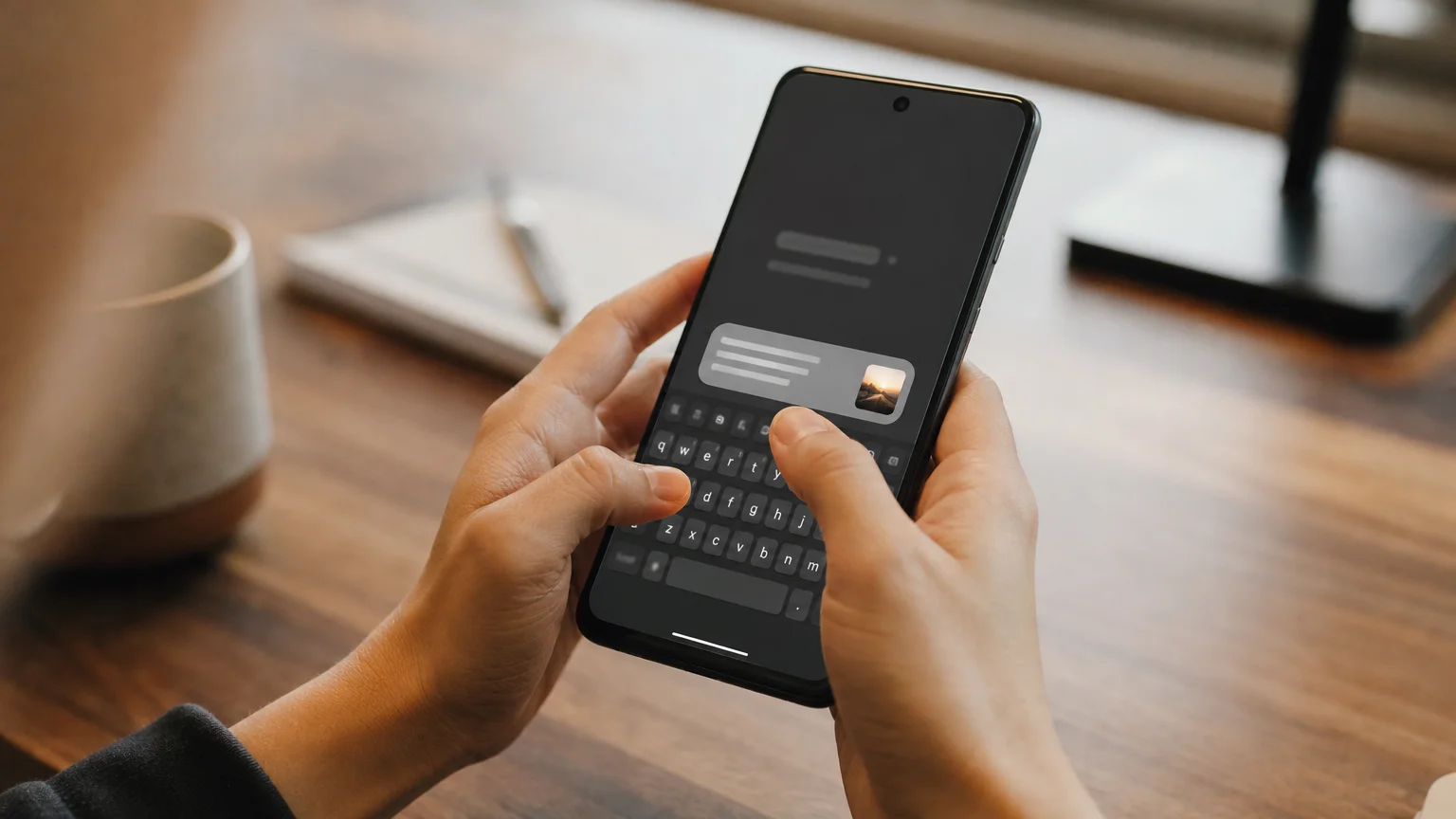 Saved text sits above the keys as a tap target, so nothing needs typing out.
Can BossAI Clips Replace Android Text Shortcuts?
Partly, and it works differently. BossAI Clips saves text you choose, such as signatures, addresses, standard replies and links, then pastes it with one tap from the keyboard. There is no trigger to remember and no app switching. It does not expand abbreviations as you type.
BossAI is a keyboard for Android with the same features as on iOS, including Clips. You install it from Google Play, enable it in your phone's keyboard settings and switch to it in any app. If you want the step-by-step for that, the Android keyboard guide covers it.
The approach differs. Built-in text replacement asks you to remember "addr" and type it, while Clips shows your saved text in the keyboard so you recognise it and tap. For anyone who forgets triggers, or keeps ten similar replies, that is the faster path.
What does Clips not do?
Be clear about the limits, because they decide whether it fits you:
- Clips stores text you save on purpose. It is not an automatic clipboard history.
- It pastes on tap. It will not turn a typed abbreviation into a phrase.
- The free plan includes two Clips. Pro unlocks all of them, at $9.99 a month or $69.99 a year.
Many people use both: a few typed triggers for the shortest phrases and Clips for the longer, more important blocks.
Android clipboard history options
If what you want is everything you copied in the last hour, that is a different tool. Gboard and other keyboards have their own clipboard panels, and standalone clipboard managers exist as apps.
Clips is the opposite idea: a small, curated tray of text you decided to keep. Pick the one that matches how you work, or run both.
How Do You Paste a Saved Clip from the Keyboard?
Open the app you are typing in, switch to the BossAI keyboard, and tap the saved clip you want. The text lands in the field at the cursor. You never leave the app, and you do not copy anything first.
That is the entire workflow, which is the point. Compare it with the usual alternative: leave your chat, open a notes app, find the text, copy it, return, paste. Five steps become one.
 One tap inserts the saved text without leaving the conversation.
Clips pairs well with voice. You can dictate the new part of a message and tap a clip for the fixed part, which is how people answer quickly while their hands are busy. Our piece on dictation apps for Android shows what that looks like in practice, and hands-free texting on Android covers replying without typing at all.
Quick Recap
Quick recap
- Android text replacement is a keyboard feature, so each keyboard keeps its own shortcut list.
- In Gboard, find it under Dictionary, then Personal dictionary. In Samsung Keyboard, open Text shortcuts.
- Shortcuts work in any app where that keyboard is active, as a suggestion you tap.
- BossAI Clips saves text you choose and pastes it with one tap. It is not clipboard history and does not expand typed triggers.
- BossAI on Android has the same features as iOS, including Clips.
Get Started with BossAI
Text replacement covers short phrases well. For the longer text you reuse every day, Clips keeps it one tap away inside the keyboard you already type with.
FAQ
Can you use text replacement on Android?
Yes. Android has no system-wide setting, but keyboards such as Gboard and Samsung Keyboard include shortcut tools. Save a trigger and a phrase, then type the trigger to see the full text suggested wherever that keyboard is active.
Where is text replacement in Android settings?
In Gboard, open keyboard settings, then Dictionary, then Personal dictionary. In Samsung Keyboard, open Settings, General management, Samsung Keyboard settings, then Text shortcuts. Menu names vary by phone and Android version, so search your settings for "shortcuts" if you cannot find it.
Why is text replacement not working on my Android?
The usual cause is a keyboard mismatch: the shortcut was saved in one keyboard but another is active. Also check that the suggestion bar is visible and that your trigger is not a real word. Some Samsung phones show the option greyed out.
Does BossAI work on Android?
Yes. BossAI is available on iOS, Android, macOS and Windows. On Android it is a full keyboard with the same features as iOS, including Clips, dictation, Rewrite and Boss Mode, installed from Google Play.
Is BossAI Clips free?
The free plan includes two Clips, along with 500 words of dictation a day. Pro unlocks unlimited Clips and every other feature for $9.99 a month or $69.99 a year. A seven-day full Pro trial needs no account.