
Slack Transcribe Audio: Native vs. BossAI
Slack Transcribe Audio: How the Native Feature Works (and a Faster Way)
If you searched "slack transcribe audio," you're likely trying to turn a voice clip into readable text — and Slack does have a built-in feature for exactly that. Slack quietly added it years ago, and a large share of daily users have still never clicked the button that does it. The feature works, but it was built for accessibility on recorded clips — not for getting a message written and sent in the next ten seconds.
Key Takeaways
- Slack's native transcription only works on recorded audio/video clips, not live typing — you record first, then generate a transcript after the fact.
- Transcription supports English only and can take a noticeable pause to process before text appears.
- BossAI dictates directly into the Slack message box in real time, so there's no separate recording step and no waiting for a transcript.
- BossAI also strips filler words (um, uh, like) and fixes grammar automatically — something Slack's transcript feature does not do.
- Combining both gives you real-time voice drafting for everyday messages and Slack's transcript feature for shared audio/video clips.
Contents
- What Is Slack Transcribe Audio and How Does the Native Feature Work?
- How Do I Enable Audio Transcription in Slack?
- How Accurate Is Slack's Audio Transcription Feature?
- Can I Dictate Messages Directly in Slack Instead of Recording a Clip?
- How BossAI Changes Your Slack Dictation Game
- How Does Native Slack Transcribe Audio Compare to BossAI Dictation?
- What's the Best Dictation App for Slack Users?
- How Do I Save Time Drafting Slack Messages with Voice?
What Is Slack Transcribe Audio and How Does the Native Feature Work?
Slack transcription is a built-in feature that converts recorded audio and video clips into readable text once you generate a transcript after recording. It's separate from typing or dictating a message — you first record a clip using Slack's clip tool, share it, then tap "Generate transcript" to get text underneath the recording. Slack introduced this primarily as an accessibility feature, not a productivity shortcut.
This matters because a lot of people searching for "Slack transcribe audio" actually want something different: a way to speak a message and have it appear as text in the compose box, the way dictation works in other apps. Slack's transcript feature doesn't do that — it only transcribes clips that have already been recorded and shared.
- Works on both audio clips and video clips recorded inside Slack
- Transcript appears as text below the shared clip, not in the message field
- Available on desktop and mobile Slack apps
- Requires the clip to finish uploading before transcription starts
How Do I Enable Audio Transcription in Slack?
To transcribe audio in Slack, record or open a shared audio clip, then click the "Generate transcript" icon that appears beneath it — Slack processes the clip and displays the text inline within a few seconds to a minute, depending on length. There's no separate settings toggle to find; the option lives directly on the clip itself.
Here's the exact flow, whether you're on mobile or desktop:
- Open a channel or DM and tap the message field.
- Tap the plus icon and select Record audio clip (or video clip).
- Record your message and send it.
- Once the clip posts, click the Generate transcript icon beneath it.
- Slack displays the transcribed text directly under the clip.
Worth knowing: Transcripts only generate on request — Slack doesn't auto-transcribe every clip by default, so anyone reviewing the channel later still has to click through if you never generate one.
Recipients can also generate a transcript on a clip you sent, which is handy for accessibility, but it means the transcript isn't guaranteed to exist unless someone deliberately creates it.
How Accurate Is Slack's Audio Transcription Feature?
Slack's transcription is generally reliable for clear, single-speaker English audio, but accuracy drops with background noise, overlapping speakers, or accents outside the model's training data — and it doesn't support languages other than English. For a quick voice memo in a quiet room, it holds up fine. For anything messier, expect gaps.
A few practical limits worth knowing before you rely on it for anything important:
- No filler-word removal — "um," "uh," and false starts get transcribed verbatim
- No automatic grammar correction or punctuation cleanup
- English-only, with no language selection option
- Processing isn't instant; longer clips take longer to transcribe
None of this makes the feature bad. It just means it was built to make a recorded clip readable, not to replace typing a clean message.
Can I Dictate Messages Directly in Slack Instead of Recording a Clip?
Yes — third-party AI keyboards like BossAI let you dictate straight into Slack's message box, so the words appear as you speak instead of requiring you to record a clip first and transcribe it afterward. This is the workflow most people are actually looking for when they search for Slack voice-to-text options.
BossAI replaces your device's default keyboard on iOS, and runs as a background app on macOS and Windows, so it works inside Slack the same way it works in every other app. There's no clip to record, no upload to wait on, no transcript button to remember.
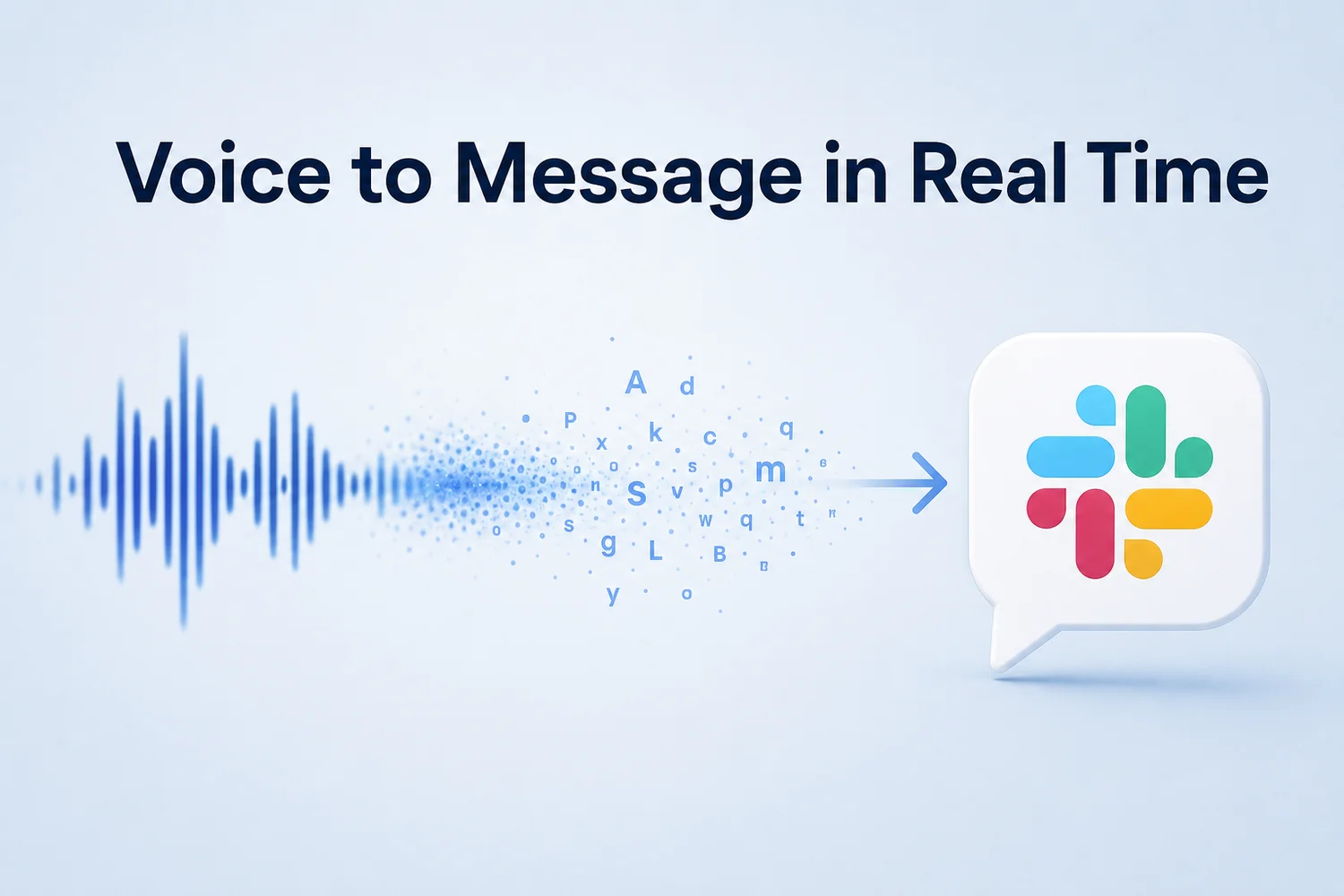 Speech becomes text, and text becomes a sent message — no recording step, no transcript button, no waiting.
In an actual BossAI-in-Slack session, the keyboard's Start control sits next to the rewrite and clips icons, right above the QWERTY layout. Tap it, speak, and the transcribed text lands in the message field in real time — not after a processing delay.
How BossAI Changes Your Slack Dictation Game
BossAI turns spoken words into a polished Slack message by removing filler words, correcting grammar, and formatting the text for chat — all in the roughly 300ms after you stop talking. You're not editing a raw transcript; you're sending something that already reads like you meant to type it.
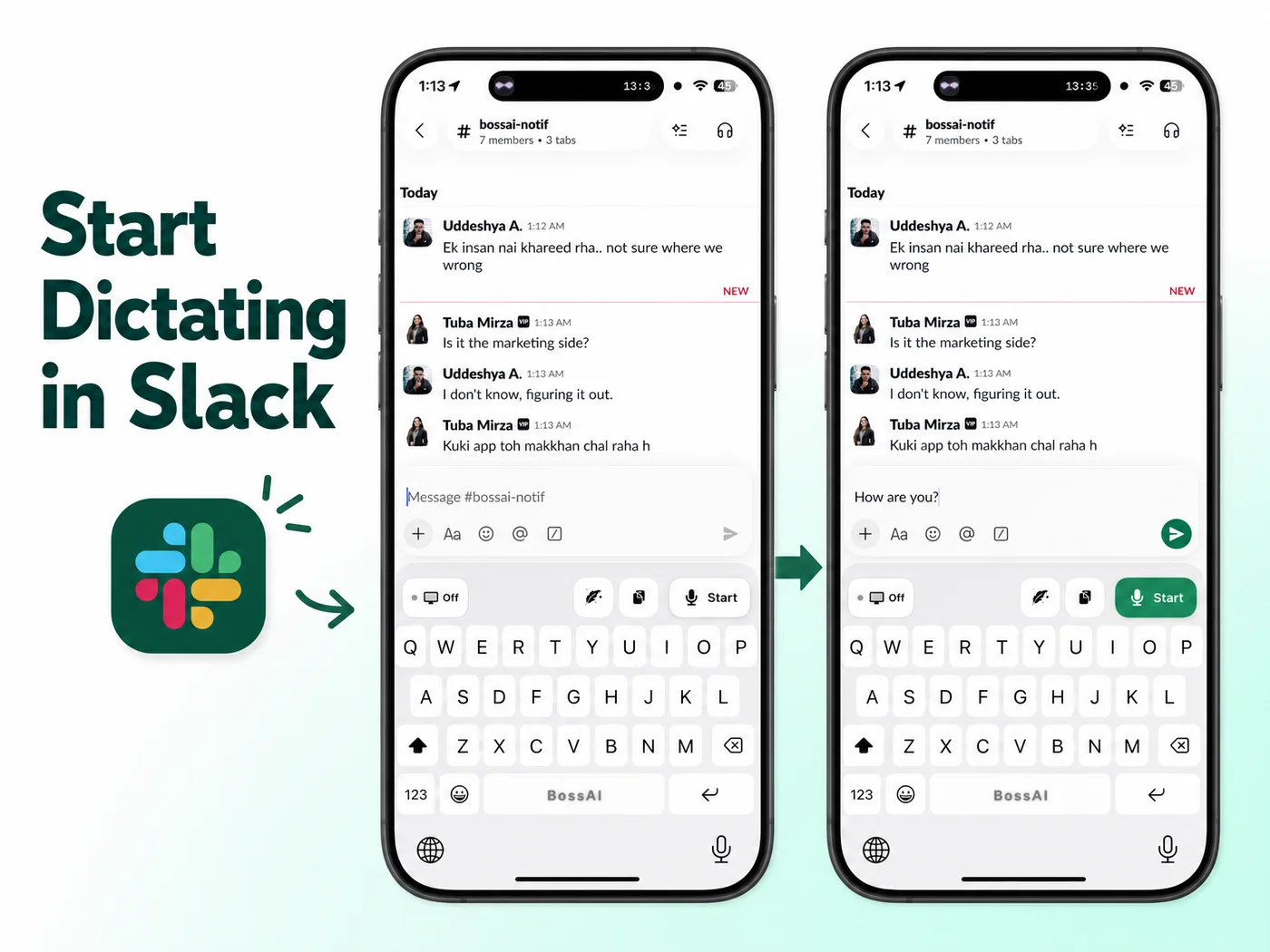 The flow from tapping Start to a cleaned-up message ready to send — no separate transcript step.
That gap between raw and readable is what most people underestimate. Say "so, um, I think we should, like, push the deadline to Friday, you know, if that works for everyone" out loud, and Slack's clip transcript would print it exactly as spoken. BossAI's dictation would land as: "I think we should push the deadline to Friday if that works for everyone."
Bottom line: Slack transcribes what you recorded. BossAI writes what you meant to say — while you're still typing it.
BossAI users report composing Slack messages roughly 2-3x faster than typing manually once dictation replaces the keyboard for longer replies. The gap shows up most on messages over two or three sentences, where typing speed and thumb fatigue start to matter.
How Does Native Slack Transcribe Audio Compare to BossAI Dictation?
Slack's transcription and BossAI dictation solve different problems: Slack converts an already-recorded clip into text after the fact, while BossAI converts speech into a live, cleaned-up message as you talk. They're not direct competitors so much as two tools for two different moments.
| Slack Native Transcription | BossAI Dictation | |
|---|---|---|
| When it works | After a clip is recorded and shared | Live, as you speak into any text field |
| Filler word removal | No | Yes, automatic |
| Grammar correction | No | Yes, automatic |
| Language support | English only | Multiple languages |
| Where text lands | Below the shared clip | Directly in the compose box |
| Extra step required | Generate transcript button | None — dictation is instant |
| Works outside Slack | No | Yes, every app on the device |
Slack still wins for one thing BossAI doesn't do: transcribing audio someone else already recorded and posted. If a teammate shares a voice clip from a meeting, Slack's transcript is still the right tool. For your own outgoing messages, dictation skips the round trip entirely.
What's the Best Dictation App for Slack Users?
The best dictation app for Slack is one that works inside the message box itself rather than requiring a separate recording step — which rules out tools built for post-hoc audio transcription and favors AI keyboards like BossAI that type as you talk. Fit matters more than raw accuracy scores here.
A few things worth checking before picking one:
- Does it insert text directly into Slack's compose field, or does it require copy-pasting from another app?
- Does it clean up filler words automatically, or leave you editing a raw transcript?
- Does it work across your other apps too, so you're not learning a Slack-only tool?
- What's the free tier actually usable for — a couple of messages a day, or real daily use?
Readers weighing broader real-time options beyond Slack specifically will find a wider field covered in this live transcription app comparison; this guide focuses on what actually lands cleanly inside a Slack message.
How Do I Save Time Drafting Slack Messages with Voice?
The fastest way to save time drafting Slack messages is to dictate the first draft by voice, then use a one-tap rewrite to adjust tone instead of retyping the message from scratch. That second step is where most of the time savings actually come from — not the dictation itself, but skipping the re-edit.
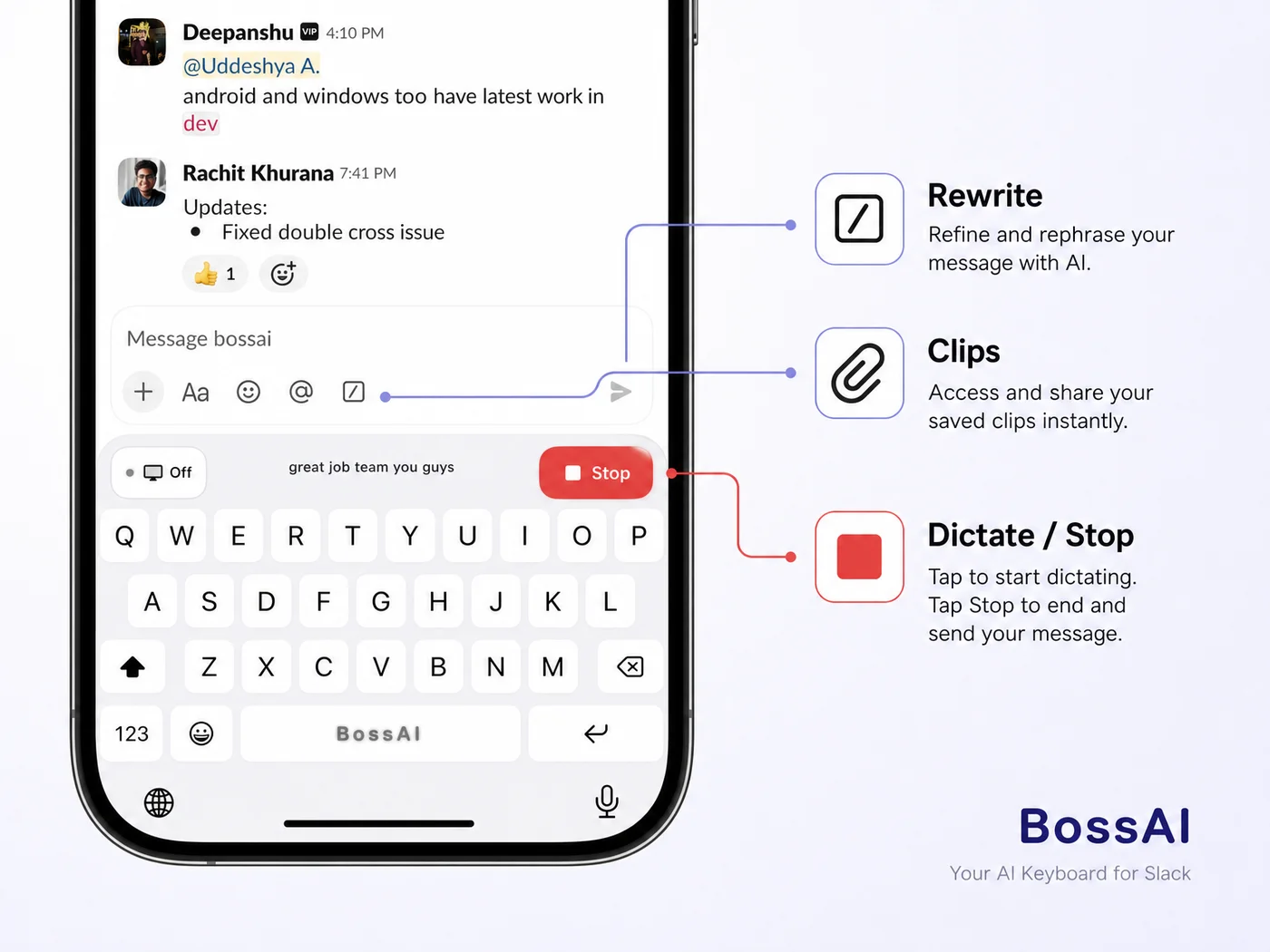 The same control row every dictated Slack message runs through: microphone to start, pencil to rewrite the tone, and clips for anything you paste often.
BossAI's Rewrite feature does exactly this — tap a tone (Professional, Casual, Witty, Persuasive, Empathetic, Bold) and the last thing you dictated gets rewritten instantly, without re-recording. Sending a quick "can you send that over" to a client becomes "Could you send that file over when you get a chance?" in one tap.
Clips help with the second half of the equation: standing replies, meeting links, or a status update format you send in every channel get saved once and pasted from the keyboard, no retyping required. Between dictation, rewrite, and clips, most of a typical Slack message never gets typed by hand at all.
Similar patterns show up across other productivity apps — the same logic that speeds up voice typing in Word or dictating replies in Outlook applies inside Slack too, since the underlying keyboard doesn't change between apps.
Get Started with BossAI
If you're already reaching for Slack's transcript button more than once a week, BossAI removes the extra step entirely — dictate straight into the message box and skip the record-then-transcribe cycle. It works the same way in every other app on your phone or desktop, not just Slack.
Not ready to try it yet? Get Our AI Productivity Guide — free tips on working faster with AI.
FAQ
Can I transcribe an audio message in Slack?
Yes. Record or open an audio clip in Slack, then tap the Generate transcript icon that appears beneath it. Slack processes the clip and displays text inline, typically within a minute for shorter recordings. The transcript only covers that specific clip, not live typing.
Can I do voice to text in Slack without recording a clip first?
Yes, with a third-party AI keyboard like BossAI. Instead of Slack's record-then-transcribe flow, BossAI dictates straight into the message field as you speak, so there's no clip, upload, or separate transcript step involved.
What is BossAI?
BossAI is an AI-powered voice keyboard for iOS, Android, macOS, and Windows that replaces typing with voice dictation. It transcribes speech in real time, automatically removes filler words, rewrites text in different tones with one tap, and includes Boss Mode, a screen-reading feature that drafts contextual replies without copy-pasting.
Is BossAI free to use in Slack?
Yes. BossAI has a free tier with no weekly word cap, so dictation works in Slack and every other app without hitting a hard wall after a few uses. The paid plan adds unlimited Boss Mode screen reads, priority processing, and extended Clips storage.
Does Slack's transcription support languages other than English?
No. Slack's native audio transcription currently supports English only. Teams communicating in other languages either need bilingual reviewers or a dictation tool with broader language support for live typing.
How is BossAI different from Slack's Generate Transcript button?
Slack's button converts a clip you already recorded into text after the fact, with no filler-word cleanup and English only. BossAI dictates live into the message box itself, strips filler words automatically, and supports multiple languages — it works before you'd ever need a transcript.