Best iPhone Dictation App in 2026: Voice Typing Guide
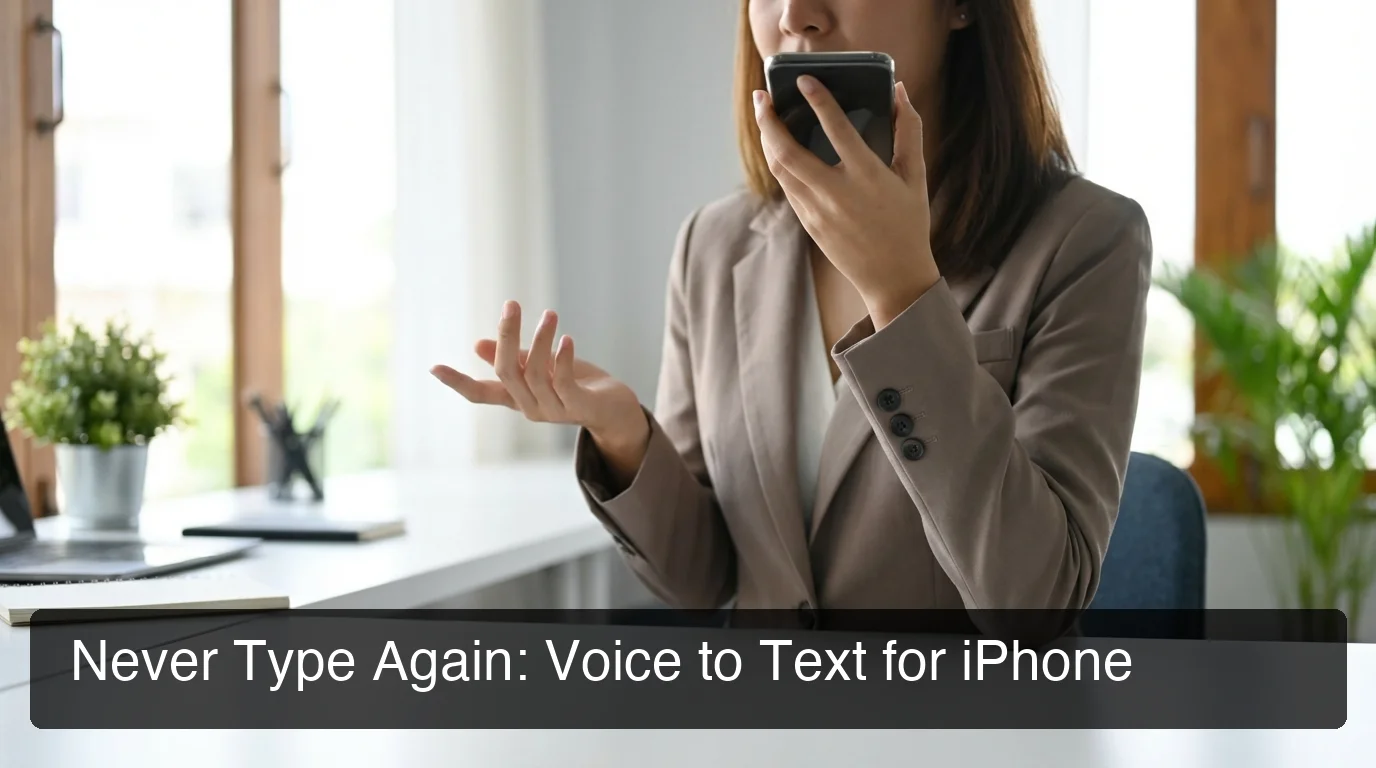
Modern professionals send hundreds of messages a day — emails, Slack replies, social posts, texts. The right iPhone dictation app turns all that typing into speaking, and the difference in speed is not marginal: voice runs 3-4x faster than touchscreen typing.
Key Takeaways
- Modern iPhone dictation apps use AI to recognize speech with 95%+ accuracy, even in noisy environments where native dictation struggles
- Third-party dictation apps integrate seamlessly into iOS keyboards, allowing hands-free typing in emails, messages, and documents without switching apps
- Premium dictation apps offer voice commands, custom dictionaries, and multilingual support that native iOS dictation lacks
- Setup takes just minutes — once installed, dictation becomes your primary input method across all apps without manual switching
- BossAI's dictation engine is optimized for mobile, prioritizing speed and accuracy to turn voice into polished text instantly
Contents
- What Is an iPhone Dictation App and How Does It Work?
- How Does the Best iPhone Dictation App Compare to Apple's Native Dictation?
- Which iPhone Dictation App Integrates Directly Into Your Keyboard?
- How Accurate Are Modern iPhone Dictation Apps in Real-World Conditions?
- Why Do iPhone Dictation Apps Beat Traditional Typing?
- How Do You Set Up an iPhone Dictation App in Minutes?
- Get Started with BossAI
- Frequently Asked Questions
What Is an iPhone Dictation App and How Does It Work?
An iPhone dictation app converts your spoken words into typed text in real time, using speech recognition models that capture what you say and insert it directly into any text field. The best apps go beyond raw transcription — they remove filler words, fix grammar, and format text based on context, so the output is clean on the first attempt.
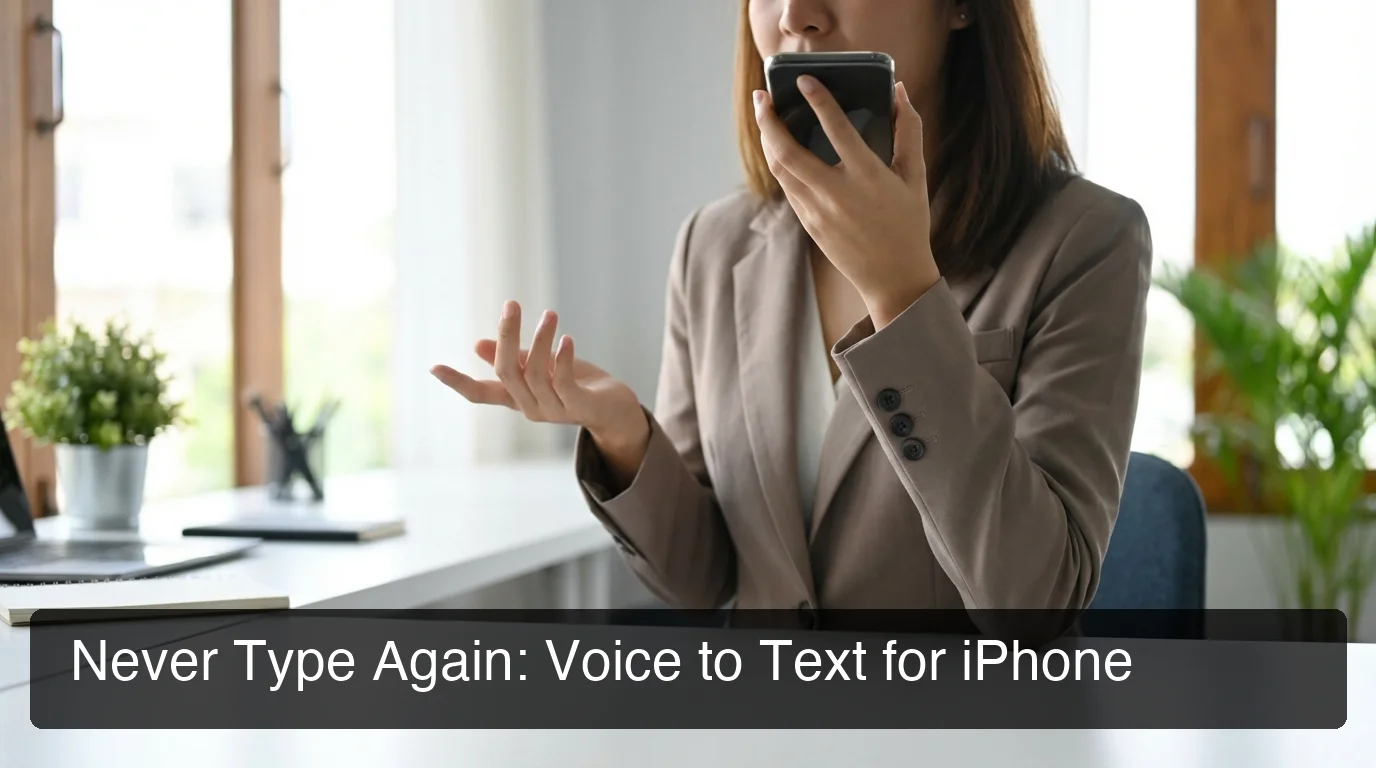 Professional voice input via iPhone — no typing, no corrections, polished text on the first attempt.
Native iPhone dictation has existed since iOS 5, triggered by the microphone button on the stock keyboard. It handles short inputs well but struggles with longer sentences, proper nouns, accents, and background noise.
Third-party dictation apps close this gap using more advanced AI models — often the same underlying technology powering enterprise transcription tools — packaged for mobile use.
How the Technology Works
Modern iPhone dictation apps run on two layers:
- Speech-to-text engine — Captures your audio and converts it to raw text (e.g., Deepgram, OpenAI Whisper, or proprietary models built for mobile)
- AI enhancement layer — Processes the raw transcript to remove "um," "uh," fix punctuation, capitalize proper nouns, and format output based on context
The result is polished text on your first attempt — no manual cleanup required.
How Does the Best iPhone Dictation App Compare to Apple's Native Dictation?
Apple's built-in dictation handles everyday tasks but lacks the AI cleanup layer that third-party apps provide. Native iOS dictation transcribes literally — every filler word and grammatical slip appears verbatim. Premium apps filter these automatically, producing clean text even from informal, unscripted speech.
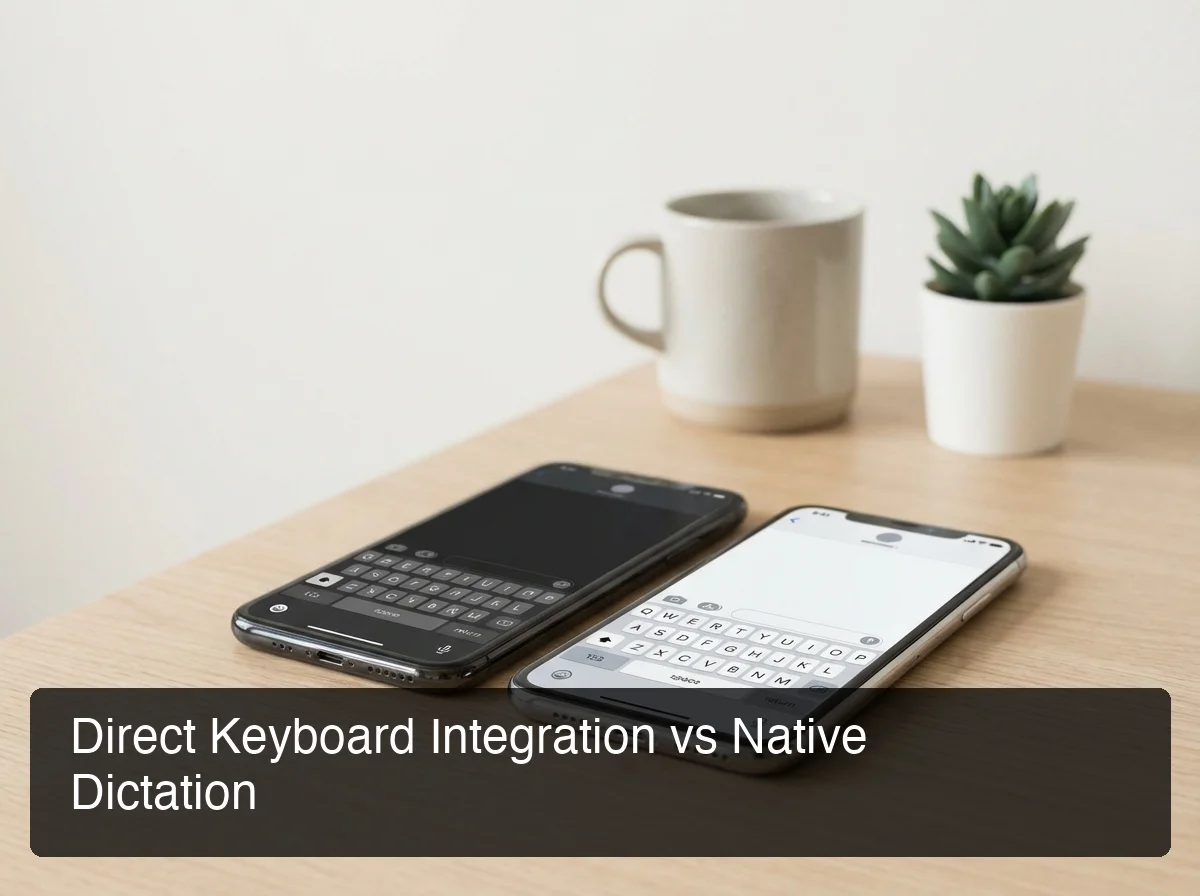 Native keyboard vs. AI-powered dictation keyboard — the input is identical; the output is not.
For quick notes or short searches, native iOS dictation is sufficient. But professionals sending emails, drafting documents, or composing longer messages encounter its limits fast.
Side-by-Side Feature Comparison
| Feature | Apple Dictation | BossAI | Dragon Anywhere | Otter.ai | Gboard |
|---|---|---|---|---|---|
| AI filler word removal | ❌ | ✅ | ❌ | ❌ | ❌ |
| Grammar auto-correction | Limited | ✅ | ✅ | ❌ | ❌ |
| Native iOS keyboard | ✅ | ✅ | ❌ | ❌ | ✅ |
| Custom vocabulary | ❌ | ✅ | ✅ | ❌ | ❌ |
| Screen context awareness | ❌ | ✅ | ❌ | ❌ | ❌ |
| One-tap tone rewriting | ❌ | ✅ | ❌ | ❌ | ❌ |
| Free tier | ✅ | ✅ | ❌ | ✅ (limited) | ✅ |
| Paid price | Free | $9.99/mo | $15/mo | $17/mo | Free |
For anyone relying on voice dictation for iPhone as a primary input method, native dictation becomes a bottleneck within days — the lack of filler-word removal is immediately obvious in any email you send by voice.
Key insight: Apple Dictation transcribes exactly what you say. AI-powered apps like BossAI transcribe what you meant to say — filtering out the "ums" and grammar slips automatically.
When evaluating apple dictation alternatives, keyboard integration is the single most important factor to filter on first.
Which iPhone Dictation App Integrates Directly Into Your Keyboard?
Keyboard-native dictation apps are more powerful than app-only dictation tools because they work everywhere without switching apps. True iOS keyboard integration means you can dictate in Gmail, iMessage, Slack, Notes, WhatsApp, and every other app — with one tap, no copy-pasting, no workflow interruption.
Most third-party dictation apps require you to open the app, dictate, copy the text, then paste it into your target app — adding 30-60 seconds per message and cancelling out the speed advantage.
BossAI solves this by operating as a full iOS custom keyboard. Enable it once in Settings, and it replaces your default keyboard system-wide. The voice button is always one tap away in every app.
Which iPhone Dictation Apps Are Actually Keyboard-Native?
| App | Keyboard Native | App-Switch Required | Works in Every App |
|---|---|---|---|
| BossAI | ✅ Full iOS keyboard | ❌ | ✅ |
| Gboard | ✅ Full keyboard | ❌ | ✅ |
| Apple Dictation | ✅ Built-in | ❌ | ✅ |
| Dragon Anywhere | ❌ | ✅ | ❌ |
| Otter.ai | ❌ | ✅ | ❌ |
| Voice Memo apps | ❌ | ✅ | ❌ |
Keyboard integration is the deciding factor for power users. If you're comparing the best voice to text iPhone app options, filter for keyboard-native apps first — app-switching kills the speed benefit you're trying to gain.
Bottom line: Other AI dictation apps now offer an iOS keyboard too, but none of them also reads your screen. That combination — keyboard-native, AI enhanced, and screen-aware — is what separates BossAI from both Apple Dictation and most third-party alternatives.
How Accurate Are Modern iPhone Dictation Apps in Real-World Conditions?
Top iPhone dictation apps achieve 95%+ accuracy in quiet environments and maintain 85-92% accuracy in moderate background noise. AI-enhanced apps consistently outperform raw speech recognition because they correct likely errors using linguistic context — even when audio capture was imperfect.
Accuracy is the #1 criterion power users evaluate. A tool that gets 9 of 10 words right sounds acceptable until you're editing errors in every third email you send.
What Factors Affect Dictation Accuracy Most
- Accent and speaking pace — AI-enhanced models handle these significantly better by using contextual correction beyond audio alone
- Background noise — Coffee shops, open offices, and traffic degrade raw recognition; some apps apply noise-cancellation preprocessing
- Technical vocabulary — Apps with custom dictionaries handle brand names, medical terms, and jargon accurately; apps without don't
- Filler words — Native dictation transcribes them verbatim; AI apps remove them automatically
By the numbers: AI-enhanced dictation apps produce 40% fewer editing corrections compared to native iOS dictation in professional use — saving an estimated 15-20 minutes per day for heavy communicators.
Custom dictionaries are the silent accuracy multiplier. Apps that learn your vocabulary — "Kubernetes," client names, product names — dramatically outperform generic engines for your specific use case.
Why Do iPhone Dictation Apps Beat Traditional Typing?
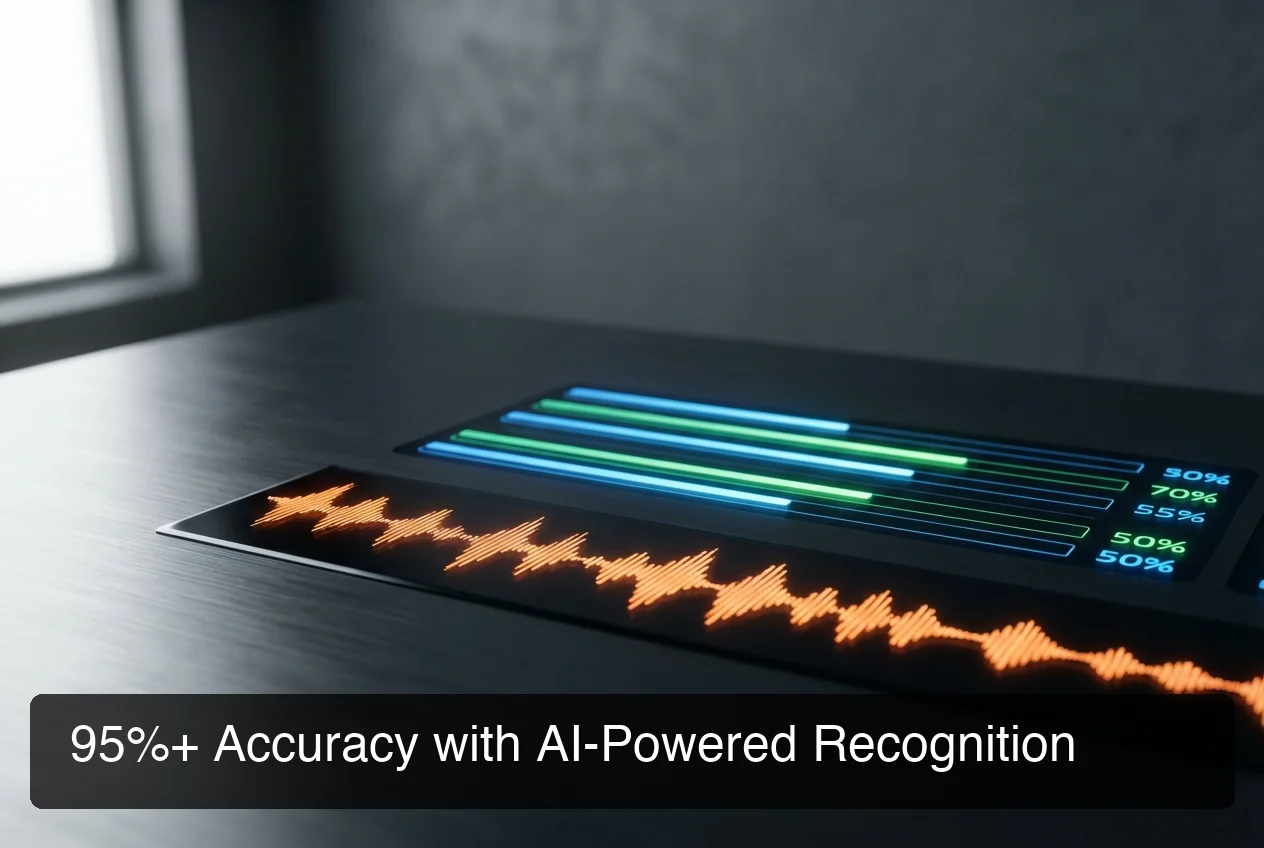 AI-powered accuracy metrics: where speed and clean output meet.
Voice is consistently 3-4x faster than touchscreen typing. Average iPhone typing speed is 36-45 words per minute; average speaking speed is 130-150 words per minute. With AI cleanup, the output quality of voice matches carefully edited typing — at a fraction of the time investment.
The math compounds with error correction. Touchscreen typing has a high error rate — type, backspace, retype, repeatedly. Dictation captures one attempt, the AI cleans it, done.
Where iPhone Dictation Apps Save the Most Time
- Email replies — Typing a 150-word email response takes 3-4 minutes on a touchscreen; dictating takes 60-90 seconds, including AI cleanup
- Slack and messaging — Short replies are where dictation has the highest ROI — you can respond to 5 messages in the time it takes to type 2
- Meeting notes — Capturing notes by voice in real time is dramatically faster than trying to type while listening
The BossAI Approach to Mobile Dictation
BossAI is built specifically for this workflow. As a native iOS keyboard, every app on your iPhone gains dictation capability the moment you enable it — no app switching, no copy-pasting.
For mobile professionals managing email and Slack on iPhone, BossAI's Boss Mode goes further: it reads your screen to understand context, then drafts a reply without requiring you to explain what's on screen. Replying to an email becomes "Boss, reply professionally and confirm the Friday call" — two seconds of speaking instead of two minutes of typing.
For a complete guide on voice typing on iPhone beyond individual apps, there are additional techniques worth exploring for users who want a consistent dictation experience across iPhone and Mac.
Key insight: The compounding effect matters. If dictation saves you 15 minutes a day, that's 65 hours per year — equivalent to more than 8 full working days recovered.
How Do You Set Up an iPhone Dictation App in Minutes?
Setting up a third-party iPhone dictation app takes 2-4 minutes. Download the app, go to Settings → General → Keyboard → Keyboards → Add New Keyboard, enable the app, and grant microphone permission. After that, switch to it by tapping the globe icon on any keyboard.
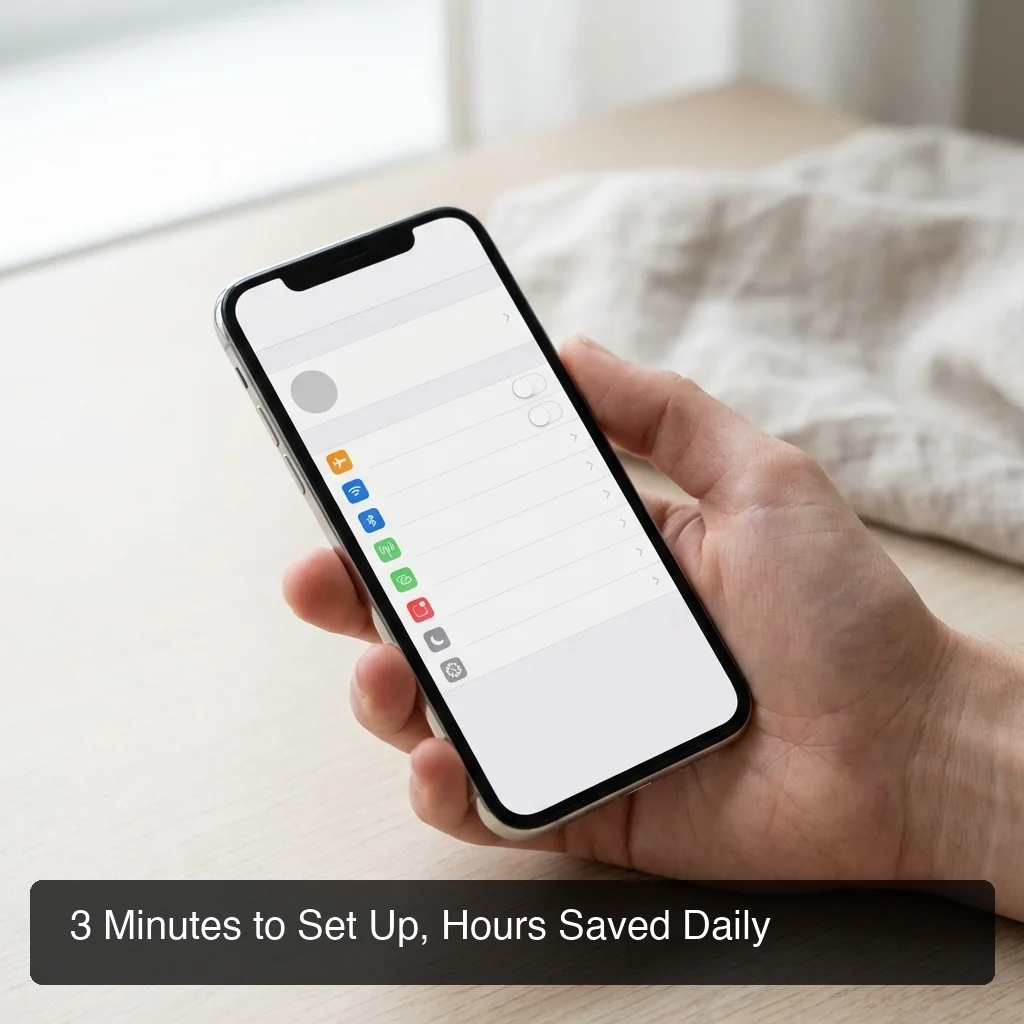 Quick setup, then dictation in every app.
Step-by-Step Setup for BossAI on iPhone
- Download BossAI from the App Store (free, no account required to start)
- Open Settings → General → Keyboard → Keyboards
- Tap Add New Keyboard and select BossAI from the list
- Enable Full Access — required for keyboard features including Boss Mode
- Open any app, tap in a text field to bring up your keyboard
- Tap the globe icon and select BossAI
- Tap the microphone button and start speaking
First-Time Configuration Tips
- Build your custom dictionary first — Add your name, company names, client names, and technical terms before your first real session; accuracy improves immediately
- Run the in-app tutorial — BossAI's onboarding covers Boss Mode screen broadcast activation in a single guided step
- Reorder your keyboards — In Settings, drag BossAI to the top so it appears as your default keyboard
Once set up, there's no daily configuration. BossAI works as your default keyboard in every app — dictation is always one tap away. Professionals who work across devices will find the same accuracy available on Windows, making cross-platform dictation a natural next step.
Get Started with BossAI
For iPhone users who type all day, BossAI turns voice into a first-class input method — with AI cleanup that removes fillers, fixes grammar, and formats text automatically for every app you use. No app switching, no copy-pasting, no post-editing.
Not ready to try it yet? Get Our AI Productivity Guide — free tips on working faster with AI on your iPhone.
Frequently Asked Questions
How do I get my iPhone to dictate text?
Tap the microphone icon on your keyboard while in any text field — this activates Apple's native dictation. For AI-enhanced dictation, download a third-party app like BossAI, enable it in Settings → General → Keyboard → Keyboards, then tap its microphone button. Third-party keyboards work in every app that accepts text input.
Is Apple Dictation free?
Yes. Apple Dictation is built into every iPhone running iOS 10 or later and is completely free. It works offline for basic recognition tasks. Third-party apps like BossAI offer free tiers with enhanced AI features — BossAI provides 500 words per day free with full AI quality, no credit card required to start.
Is it safe to enable Dictation on iPhone?
Enabling iPhone dictation is safe for standard use. Apple processes dictation on-device for basic requests and uses secure cloud processing for longer inputs. Third-party apps like BossAI use secure API calls and do not store raw audio recordings — voice is transcribed in transit and immediately discarded, with no data used for model training.
Can I dictate into Notes on my iPhone?
Yes. Open the Notes app, tap in a note to bring up your keyboard, then tap the microphone icon for native dictation or switch to BossAI and use its dictation button. Third-party keyboards with Full Access enabled work in Notes, Mail, Messages, and every other iOS app that accepts keyboard input.
What is BossAI?
BossAI is an AI voice keyboard for iPhone and Android, and a voice-to-text app for Mac and Windows, that replaces typing with voice dictation. It transcribes speech in real time, removes filler words automatically, rewrites text in different tones with one tap, and includes Boss Mode — a screen-reading feature that reads your screen to generate contextual replies without copy-pasting.
Is BossAI free?
Yes. BossAI's free plan includes 500 words of dictation a day, and the allowance resets daily. Pro makes everything unlimited — dictation, Boss Mode, Rewrite, every tone and all Clips, for $9.99/month or $69.99/year. No credit card required to start.
What makes BossAI different from other dictation apps?
Three features no competitor offers: (1) Boss Mode reads your screen and generates contextually aware replies without copy-pasting — the only dictation app with screen awareness; (2) Clips saves frequently used phrases for instant insertion; (3) one-tap tone rewriting lets you switch between six tones (Professional, Casual, Witty, Persuasive, Empathetic and Bold) in a single tap. WisprFlow, AquaVoice, and Typeless have none of these.