

How to Reply to an Email Professionally: Templates
How to reply to an email professionally comes down to three moves: answer the sender's actual question first, keep your tone warm but plain, and close with one clear next step. That is the whole job. The rest is knowing which phrases make a reply sound calm instead of cold.
What makes a professional email reply?
A professional email reply is short, specific and easy to act on. It answers what was asked, uses a courteous but natural tone, and ends with a clear next step or confirmation. It never needs the reader to hunt for your point or guess how you feel.
Most replies go wrong in one of two directions. Some are so casual they read as careless, and others are so padded with "I hope this email finds you well" that the point drowns.
A useful test: could the sender act on your reply without writing back to ask what you meant? If yes, it is professional enough.
Key Takeaways
- A professional reply answers the question first, then adds context, then names the next step.
- Tone does more work than vocabulary: the same facts can read as helpful, defensive or cold.
- Formal is not the same as professional. Stiff phrasing often reads as distance.
- Reply-all only when everyone on the thread needs your answer.
- BossAI's Boss Mode reads the email on your screen and drafts a reply from a spoken command, and Rewrite reshapes the tone of what you wrote.
How to reply to an email professionally: what's the right structure?
Structure a professional email response in four parts: a short greeting, one line acknowledging the message, your answer or decision, and a closing line with the next step. Put the answer in the first two sentences so a skimming reader gets it immediately.
That order matches how people read email: top, then a glance at the end. Anything essential belongs in those two places.
- Greeting. "Hi Priya," or "Hello Mr. Alvarez," mirroring how they addressed you.
- Acknowledgment. One line. "Thanks for the update on the timeline."
- Answer. What you decide, think or need. Lead with it.
- Next step and sign-off. Who does what by when, then "Best," or "Kind regards," and your name.
Keep the subject line unless the topic has genuinely changed. Changing it breaks the thread and makes the message harder to find later.
How to reply to an email professionally in common situations
Match the template to the situation: ask for clarification when the request is vague, push back when you can't agree, and acknowledge when you simply need to confirm receipt. Each has a different opening line, but all three end with a concrete next step.
Below are three reply templates you can adapt. Swap the bracketed parts and trim anything that does not apply.
Asking for clarification
Hi [Name],
Thanks for sending this over. Before I start, could you confirm whether you need the report by Friday or Monday? I want to make sure I prioritise correctly.
Best, [Your name]
Pushing back politely
Hi [Name],
Thanks for the proposal. I can't commit to the full scope by the 15th, but I can deliver the first two sections by then and the rest by the 22nd. Would that work for your team?
Kind regards, [Your name]
Acknowledging and confirming
Hi [Name],
Got it, thanks. I'll review the contract today and send my comments by end of day tomorrow.
Best, [Your name]
Notice what each one does. It states the decision, offers an alternative or timing, and leaves the sender with nothing to decode.
What is the difference between professional and overly formal?
Professional means clear, respectful and appropriate to the relationship. Overly formal means stiff, ceremonial wording that adds distance without adding meaning. A professional reply says "Thanks, I'll send it Thursday"; an overly formal one says "I shall endeavour to furnish the documents at the earliest."
Formality is a setting, not a virtue. Match the sender: a first email to a senior stakeholder can lean formal, while a reply in an ongoing thread with a colleague should sound like the rest of that thread.
| Situation | Too casual | Professional | Overly formal |
|---|---|---|---|
| Confirming a meeting | "Yep, works!" | "That works for me. See you Tuesday at 10." | "I hereby confirm my attendance." |
| Declining a request | "Nah, can't do it." | "I'm not able to take this on this month." | "I regret to inform you that I am unable." |
| Opening line | "Hey" | "Hi Sam," | "Dear Sir or Madam," |
| Sign-off | "Cheers!!" | "Best," | "Yours faithfully," |
Common mistake: Apologising in the first line ("Sorry for the late reply!") when the delay was a day or two. One brief "Thanks for your patience" does the same job without putting the sender on the back foot.
When should you reply all?
Reply-all etiquette comes down to one question: does everyone on the thread need your answer? If the reply only matters to the sender, reply to them alone. Hitting reply-all to say "thanks" sends the same noise to every inbox on the thread.
Use reply-all when your answer changes what others should do, such as confirming a time for a group meeting or correcting something everyone saw. If you were on CC rather than To, you generally don't need to reply at all unless you are asked directly.
When in doubt, trim the recipient list before you hit send. Removing people from a long thread is a courtesy, not a rudeness.
Can AI help you reply to an email professionally in seconds?
Yes. An AI writing tool can draft a professional reply from a short instruction, provided it can see the email you are answering. The practical difference between tools is context: some need you to paste the message in, while others read it directly from your screen.
Most AI email tools work from a pasted message and a prompt, which means switching apps, copying text and explaining the situation before you get a draft. For a broader look at that workflow, see our guide to the AI email writer and the AI email assistant.
The step that costs time is not typing the reply. It is gathering context. A tool that already sees the thread skips that step entirely.
AI drafts still need a read-through. Check names, dates and any commitment before sending, because those are the details a model cannot verify for you.
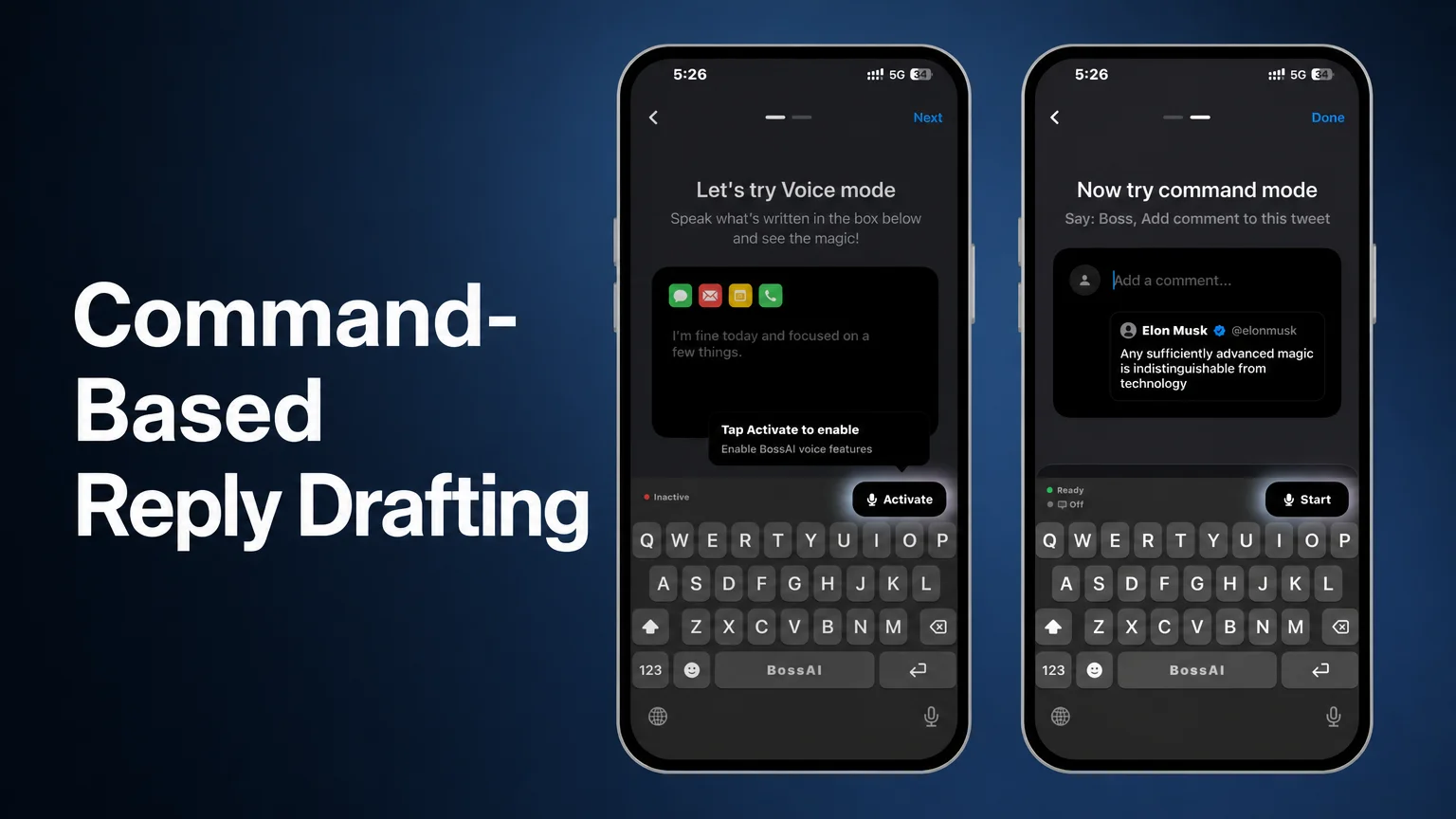 BossAI's onboarding walks through Voice mode and command mode; here the on-screen post is a tweet, and the same command flow applies to an email thread.
How BossAI Speeds Up Professional Email Replies
BossAI is an AI voice keyboard that includes Boss Mode, a feature that reads what is on your screen before it writes. You speak a command such as "Boss, reply to this email professionally," and BossAI reads your screen in real time, understands the email, and writes a complete response. No copy-pasting, and no explaining what the email says.
On iPhone, you start screen sharing from the host app and then switch to the BossAI keyboard, where the command mode panel shows a Start button. On Mac and Windows, you hold your activation hotkey and say "Boss" followed by the instruction.
You can steer the draft with the detail you add to the command:
- "Boss, reply to this email confirming Friday delivery and ask for a follow-up call."
- "Boss, reply to this email politely declining and suggest next month."
- "Boss, reply to this email and ask which of the two dates they prefer."
Because the draft is built from the actual message, it responds to the sender's real questions rather than a generic template. That is the gap Boss Mode closes compared with tools that only see what you paste.
Quick win: On iPhone 15 Pro and newer, you can start dictating a reply straight from the Action Button. On older iPhones, Back Tap (a double-tap on the back of the phone) does the same job, so you don't have to open BossAI first.
Rewrite for the right tone
Sometimes the first draft says the right thing in the wrong voice. BossAI's Rewrite works on text you already have: tap the rewrite button on the keyboard and it reshapes the message. Its tones are Professional, Casual, Witty, Persuasive, Empathetic and Bold.
The screenshot below shows the flow on iOS. A blunt draft ("Guys! Wtf! How long will it take to release the version 1.6.9?") goes in, the rewrite instruction is applied, and a polite, ready-to-send message comes out.
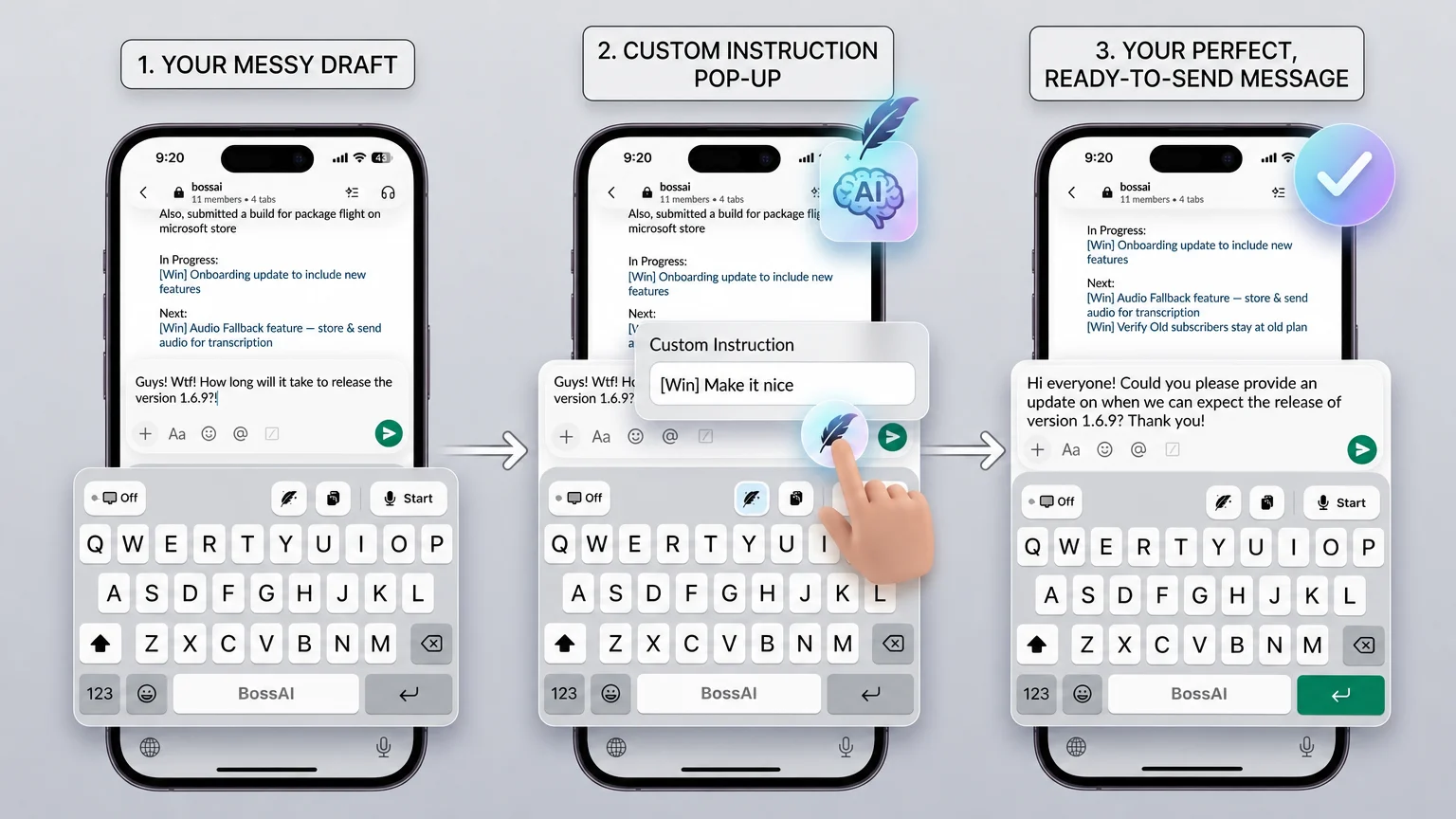 Rewrite turns a messy first draft into a message you can send, in a single tap.
For a deeper look at tone shifts, see our AI tone changer guide, and for automated replies end to end, the AI email reply generator.
Get Started with BossAI
You don't need to rebuild your email habits to reply faster. Speak the reply, let Boss Mode read the thread, and use Rewrite to land the tone.
Frequently Asked Questions
How quickly should you reply to a professional email?
Aim to reply within one business day. If you need longer to give a full answer, send a short acknowledgment saying when the sender can expect it. A brief "Got it, I'll have this to you by Thursday" is better than silence.
What is a good professional way to start a reply?
Start with a short thanks or acknowledgment that mirrors the sender's greeting, then give your answer straight away. "Thanks for sending this over" works in most cases. Skip long preambles such as "I hope this email finds you well" if the sender was brief.
Is BossAI free to use?
Yes. The free plan includes 500 words of dictation per day, which resets daily, plus one full Boss Mode reply and one Rewrite each day. Pro removes the limits for $9.99 a month or $69.99 a year, and a 7-day Pro trial needs no account.
Which devices does Boss Mode work on?
BossAI runs on iOS, Android, macOS and Windows. On iPhone and Android it works as a full keyboard, and on Mac and Windows it runs as a hotkey app in the menu bar or system tray. One Pro plan covers every platform.