
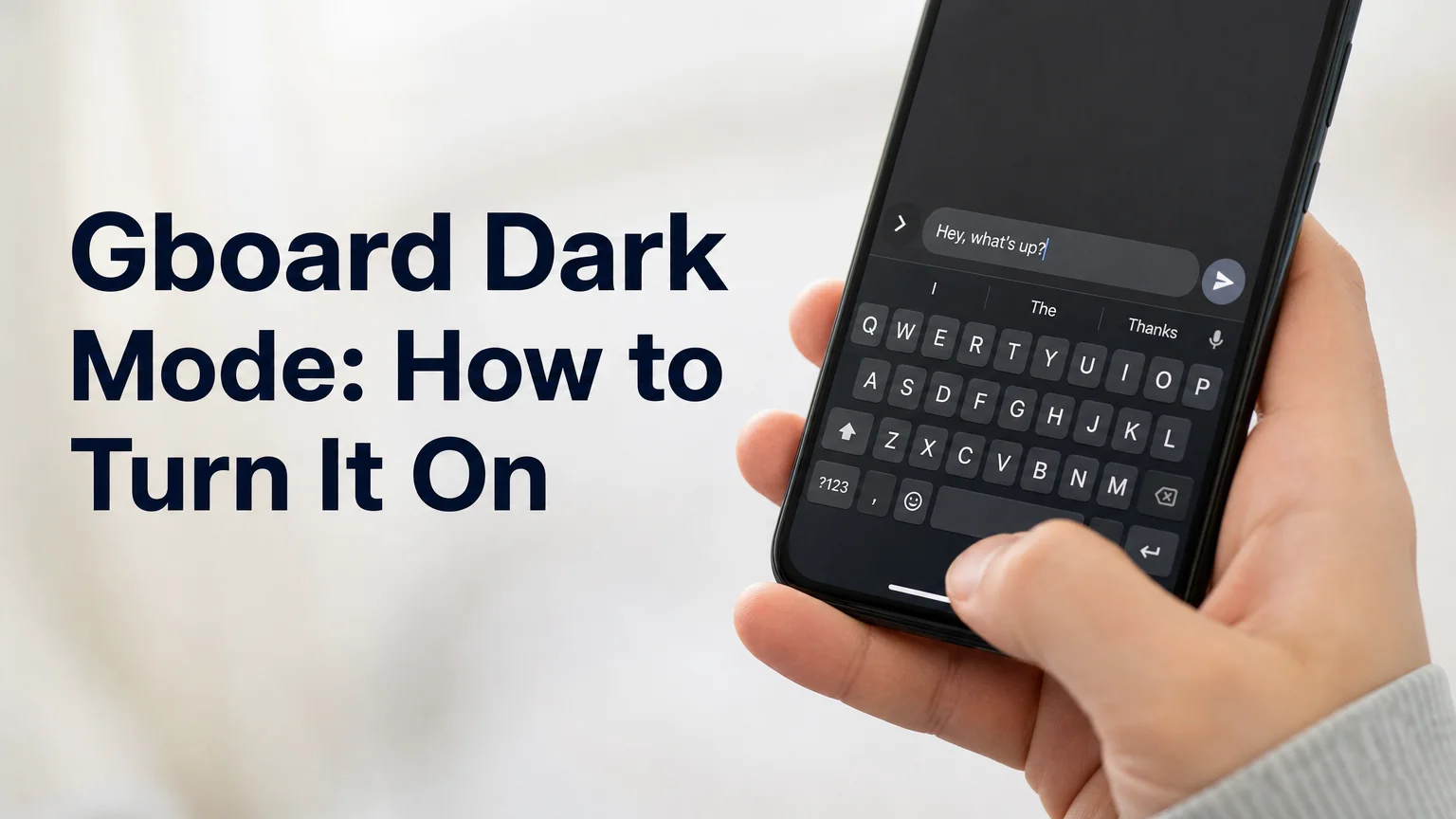
Gboard Dark Mode: How to Turn It On & Fix It When It Resets
Gboard dark mode is a keyboard theme. You switch it on from Gboard's own Theme menu: open any app, tap a text field, tap Menu, then Theme, pick a dark theme and tap Apply. It lives inside Gboard, so a dark phone does not always mean a dark keyboard.
That one detail explains most of the confusion behind this search. People turn on their phone's dark mode, open a chat, and a bright white keyboard slides up anyway. Or the reverse happens: the keyboard stays black in daylight.
What Is Gboard Dark Mode?
Gboard dark mode is a dark keyboard theme chosen inside Gboard's settings. Google describes themes as the way to change how Gboard looks, including a photo or color background. A dark theme gives you dark keys and a dark background, which is easier on the eyes at night.
Gboard is Google's keyboard, and its Theme menu is where every visual change happens. Google's own help page on changing your keyboard theme lists the steps and says nothing about the keyboard following your phone's dark setting. Community threads fill that gap, and they are full of mismatches in both directions.
Key Takeaways
- Gboard dark mode is a theme you select in Gboard's Theme menu, then confirm with Apply.
- Users report the keyboard and the phone's system dark mode getting out of step, so check the keyboard theme directly rather than assuming it follows.
- When a theme "switches back," the usual suspects are a custom theme, a stale app version, or a leftover setting. Reapplying the theme fixes most cases.
- BossAI is an alternative keyboard with built-in themes, including dark mode. The free plan includes one theme and Pro unlocks all of them.
How Do You Turn On Gboard Dark Mode?
Open any app where you can type, tap a text field to bring up Gboard, tap Menu at the top of the keyboard, then tap Theme. Choose a dark theme, then tap Apply. Google's Gboard Help page lists these steps for Android phones and tablets.
 Dark themes are easiest to judge at night, which is when most people go looking for them.
Here is the short version:
- Open Gmail, Keep or any other app with a text field.
- Tap the field so Gboard appears.
- Tap Menu at the top of the keyboard, then Theme.
- Select a dark theme from the list.
- Tap Apply.
If you cannot find the menu, there is a second route through system settings. One Pixel community answer gives the path as Settings, System, Languages & input, On-screen keyboard, Gboard, Theme. Menu names shift between Android versions and phone makers, so treat that route as a guide rather than a guarantee.
Quick win: Apply the theme while you are inside a text field. You see the real keyboard change instantly, so there is no guessing whether it took.
Samsung owners get a different path, because the stock keyboard is not Gboard. Our Samsung walkthrough covers that: Samsung keyboard dark mode. The iPhone version of this setup is different again.
Why Does Gboard Switch Back to Light or Stay Dark Unexpectedly?
Gboard changes theme on its own when its theme setting and your phone's dark mode disagree, or when a custom or photo theme overrides your choice. Google does not document an automatic light-dark switch in its theme steps, so the reliable fix is to reapply the theme by hand.
Two complaints dominate the threads: a keyboard that turned white overnight, and one that stays black while the rest of the phone is light. A Google Pixel support thread titled "Gboard theme is changing itself overnight" and a Reddit post about a design that "stays dark even if I am in light mode" show both sides of the same problem.
The Reddit fix is worth knowing. The top answer says to open Gboard themes, delete the entries under "My themes," and the keyboard drops back to the default theme. That is community advice from a few years ago, so treat it as a first thing to try rather than official guidance.
Reality check: Old guides, including 2020-era articles on matching Gboard to your system mode, describe menus that have since moved. If a step does not match your screen, trust what you see over the article.
What to Check When Gboard Dark Mode Is Not Working
When Gboard dark mode is not working, work from the cheapest fix to the most disruptive: reapply the theme, remove custom themes, update Gboard, then clear its cache. Most "not working" cases are a theme that never got applied or a custom theme overriding it.
Go through these in order. Stop at the first one that fixes it.
- Reapply the theme. Pick a dark theme again and tap Apply, even if it already looks selected. A skipped Apply tap is the most common cause.
- Delete custom themes. Remove anything under "My themes," per the Reddit answer above. Photo and custom backgrounds can keep the keyboard dark or light regardless of your pick.
- Update Gboard. In Google Play, check that Gboard is current. Theme menus have been rearranged over the years, and an old build behaves differently from the page you are reading.
- Clear Gboard's cache. In your phone's app settings, open Gboard and clear the cache, not the data. Then reopen a text field and apply the theme again.
- Check which keyboard is active. On many phones another keyboard can quietly take over, and then Gboard's settings change nothing you can see.
If you still see a white keyboard in a dark app after all five, the keyboard is not what you think it is. Check the active keyboard in Languages & input before you reinstall anything.
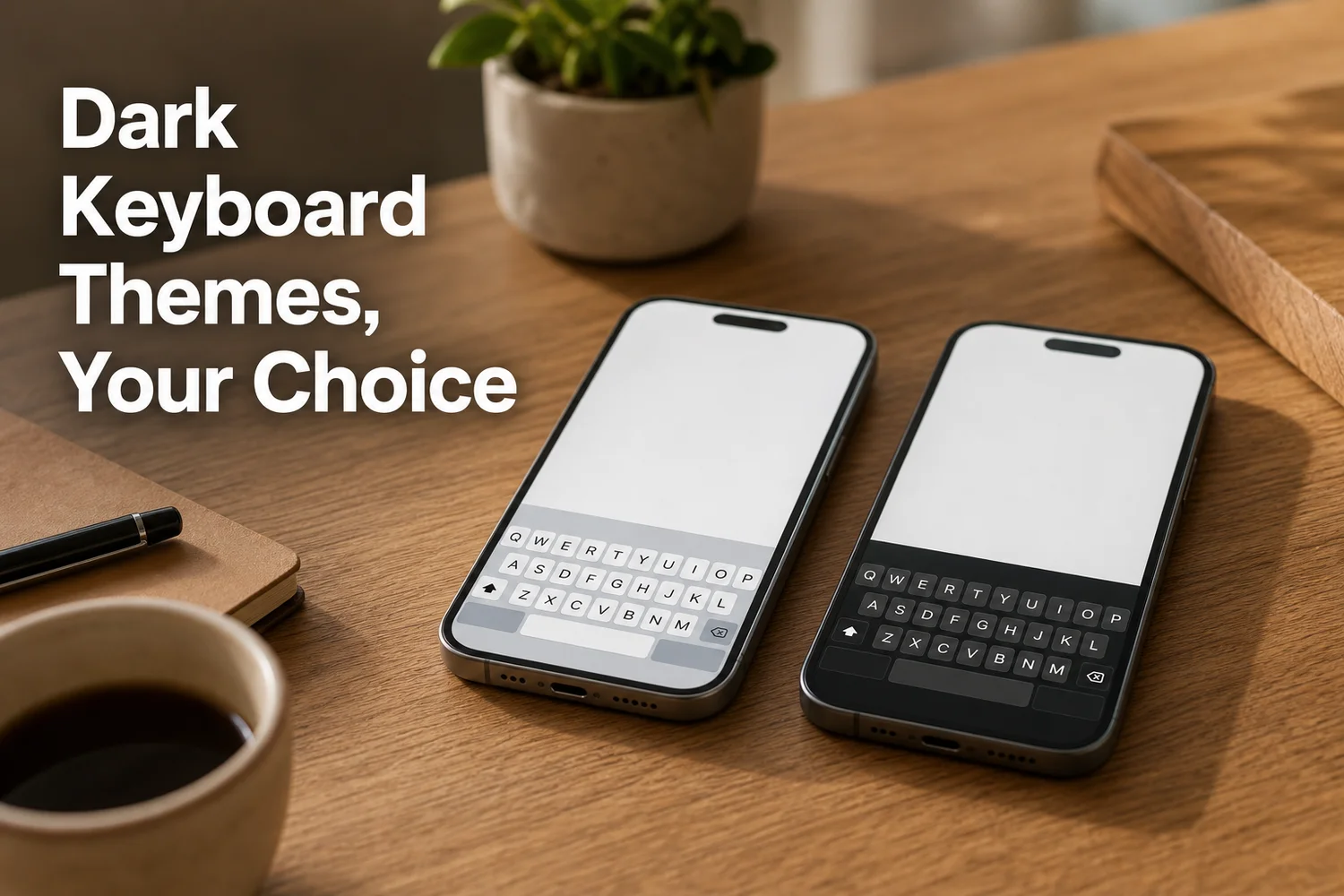 A dark theme is a per-keyboard choice, so a different keyboard brings its own set of themes.
Can a Third-Party Keyboard Give You a Dark Theme?
Yes. Any full keyboard app can ship its own themes, so a third-party keyboard can offer a dark look that you control inside that keyboard. BossAI is one such keyboard for Android and iPhone, with dark mode among its keyboard themes.
BossAI is an AI voice keyboard, and the theme is a side benefit rather than the pitch. You speak and it turns your voice into polished text, removes filler words, and offers one-tap tone rewrites. On Android it is a full keyboard with every iOS feature, plus a floating button.
For themes, the free plan includes one theme. Pro unlocks all of them, and one Pro subscription covers iOS, Android, macOS and Windows. Check the Themes screen in the app to see which theme your plan includes.
Be clear about what we do not claim. We have not verified that BossAI's dark theme follows your phone's system setting, so assume you pick it yourself, the same way you do in Gboard. If keyboard looks matter to you, keyboard themes are worth comparing before you commit to one.
Already a Gboard user for voice? Our Gboard voice typing comparison lays out where the two keyboards differ on dictation. For a wider Android pick, see the voice keyboard Android power users choose.
Choosing the Dark Theme That Fits Your Typing Habits
Pick Gboard's dark theme if you want zero setup and only care about looks. Pick a keyboard with its own theme list if you also want dictation, rewrites or saved text, since the dark look then comes bundled with those features.
The choice mostly comes down to what else you want from your keyboard:
| You mostly want... | Better fit |
|---|---|
| A dark keyboard and nothing else | Gboard's built-in dark theme |
| Dark keyboard plus voice dictation with filler words removed | BossAI |
| Dark keyboard plus one-tap tone rewrites and saved Clips | BossAI |
| To avoid installing anything | Gboard |
None of this is a reason to switch only for a color. If Gboard's dark theme works once you reapply it, keep it. Switch when you want the other things a keyboard can do.
Get Started with BossAI
If you want a dark keyboard theme and dictation in one keyboard, BossAI covers both on Android. Install it, choose your theme in the app, and start talking instead of typing.
FAQ
How do I turn on dark mode for Gboard?
Open an app, tap a text field, tap Menu on Gboard's top row, then Theme. Select a dark theme and tap Apply, and the keyboard changes at once. If the Menu button is missing, go through Settings, System, Languages & input, On-screen keyboard, Gboard, Theme.
Why does my Gboard keep switching back to light mode?
Usually a custom theme or a setting mismatch with the phone's system dark mode. Reapply a dark theme with Apply, delete anything under "My themes," and update Gboard from Google Play. If it still reverts overnight, check which keyboard is active.
Does Gboard dark mode follow my phone's dark mode?
Google's theme steps describe picking a theme manually and do not promise that the keyboard follows system dark mode. Community reports show them getting out of step in both directions. Set the Gboard theme yourself and check it after major Android updates.
Does BossAI have a dark keyboard theme?
Yes. Dark mode is among BossAI's keyboard themes. The free plan includes one theme, and Pro unlocks all of them, on a keyboard built for iPhone and Android.