
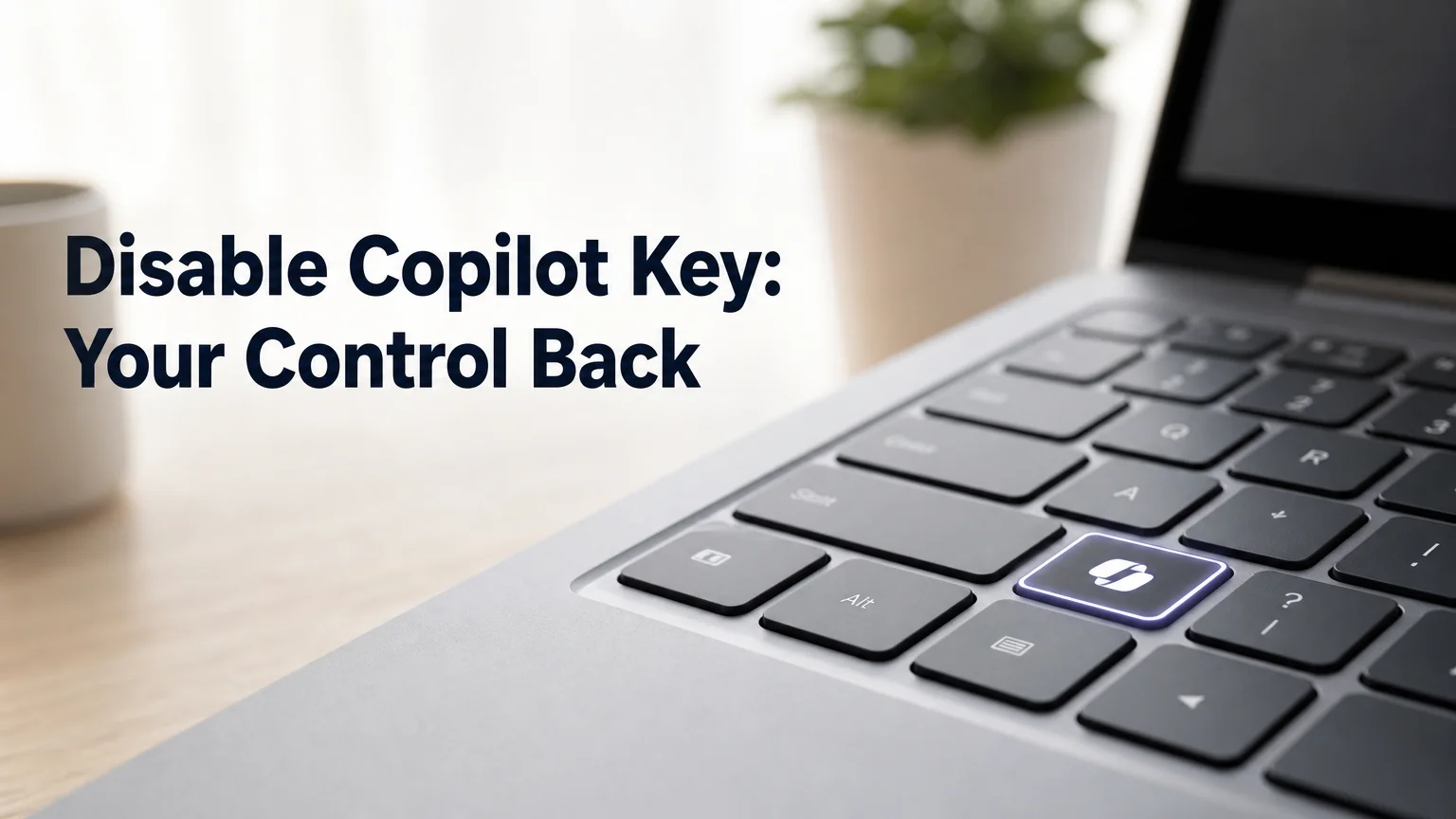
Disable the Copilot Key on Your Keyboard
Yes — you can disable Copilot key on keyboard layouts running Windows 11 in under two minutes, either through the built-in Settings remap option or Microsoft's free PowerToys utility, without touching the registry. If your laptop shipped before the newer Settings update landed, PowerToys' Keyboard Manager is the fastest fix, and Group Policy can turn Copilot off system-wide on Pro and Enterprise editions.
Microsoft has required a dedicated Copilot key on new Windows 11 laptops since May 2024, and on most keyboards it sits right next to Alt or Ctrl — close enough that accidental presses during normal typing are one of the most common complaints on r/Windows11.
What Is the Windows Copilot Key on My Keyboard?
The Windows Copilot key is a dedicated hardware key on newer Windows 11 keyboards that opens Microsoft Copilot with a single press, replacing the traditional right-Ctrl or menu key position on many layouts. It sends the keystroke combination Windows key + Shift + F23 under the hood, which is why keyboard-remapping tools can intercept and reassign it like any other key.
The key exists because Microsoft mandated it as a hardware requirement for OEMs building new Windows 11 "AI PC" laptops. It doesn't run its own driver — it's a scan code your keyboard sends, and Windows interprets that code as "launch Copilot."
That detail matters for troubleshooting. Because it's just a keystroke, you don't need OEM-specific software to change what it does. Any tool that can remap keyboard shortcuts in Windows can touch it, including Microsoft's own utilities.
Key Takeaways
- The Copilot key sends Windows key + Shift + F23, a keystroke that standard remapping tools can intercept without special drivers.
- You can disable or remap it through Windows Settings, Microsoft PowerToys, Group Policy (Pro/Enterprise), or in some cases OEM firmware utilities.
- Accidental presses during typing are the #1 complaint about the key, especially for users typing at speed or with limited hand mobility.
- Voice-first tools like BossAI remove the problem at the source by cutting keyboard shortcuts out of the workflow entirely.
- If your laptop doesn't have a physical Copilot key, none of the remapping steps below apply to you.
How Can You Disable Copilot Key on Keyboard Settings in Windows 11?
Windows 11 offers two reliable ways to disable the Copilot key: the built-in Settings remap option on updated systems, or Microsoft PowerToys' Keyboard Manager module on any Windows 11 build. Both work without registry edits, and neither requires admin-level scripting knowledge.
Use the Built-In Windows 11 Settings Option
On newer Windows 11 builds, Microsoft added a native remap control for the Copilot key. Go to Settings > Bluetooth & devices > Keyboard, find the Copilot key entry, and change its action to Do nothing or reassign it to a different function.
If that menu isn't there yet, your build hasn't received the update — Microsoft rolled it out gradually through 2026, so not every device has it on the same schedule. That's what makes PowerToys the more universal option below.
Use Microsoft PowerToys (Keyboard Manager)
PowerToys is Microsoft's own free utility for Windows 11, and its Keyboard Manager module is the most widely documented fix for this exact problem:
- Install PowerToys from the Microsoft Store or GitHub if you don't already have it.
- Open PowerToys, select Keyboard Manager, and turn it on.
- Click Remap a key, then Add.
- In the "Key" column, press the physical Copilot key to capture its code.
- In the "Mapped to" column, select Disable — or pick a key you actually use, like Right Ctrl.
Worth knowing: PowerToys remaps at the OS level, so the change applies across every app — browsers, IDEs, games — not just Windows Copilot itself.
This same panel is the standard reference for how to disable keyboard keys more broadly, whether that's a stuck function key, a duplicated modifier, or a key you've never used in ten years of typing.
More Ways to Disable Copilot Key on Keyboard Hardware (BIOS & Firmware)
The Copilot key itself is not something you'll find as a toggle in a standard BIOS setup screen — it's a Windows-level scan code, not a firmware feature. What some OEMs offer instead is their own function-key utility that sits above the BIOS layer.
ASUS laptops, for example, ship with MyASUS software that reassigns function-row behavior, including the Copilot key on some models, from an OEM control panel rather than Windows Settings. Dell and Lenovo owners have asked for the same in community threads, but neither ships a first-party toggle yet — PowerToys or an AutoHotkey script fills the gap.
If your laptop's brand doesn't offer this kind of utility, PowerToys remains the more reliable path — it works identically regardless of OEM.
Remapping the Copilot Key on Your Keyboard to Something You Actually Use
Disabling isn't the only option. Because the Copilot key is just a keystroke, you can point it at whatever function you actually reach for — Right Ctrl, a media control, or a snipping tool shortcut.
PowerToys' Keyboard Manager (covered above) handles simple one-to-one remaps in a few clicks. For more advanced logic — like a double-press doing one thing and a single press doing another — AutoHotkey scripts give finer control, at the cost of writing (or copying) a short script yourself.
Either approach solves the immediate annoyance. Neither one removes the underlying issue: your keyboard still requires a precise, correctly-timed press to do what you want, which is exactly the friction that trips up users managing keyboard ergonomics and key placement around an injury or limited mobility.
Why Would You Want to Disable the Copilot Key?
Most people disable the Copilot key because it interrupts their workflow — an accidental press mid-sentence launches a chat window, breaks focus, and sometimes eats a few seconds of unsaved work. For gamers, the key sitting near Ctrl or Alt makes it a liability during fast input sequences.
For another group, the issue runs deeper than annoyance. If your wrist hurts when typing, every extra key your hand has to navigate around — including one it wasn't designed to expect — adds friction to a task that's already uncomfortable.
 A stray press mid-sentence costs more focus than the key itself is worth.
Reality check: A single misplaced key doesn't sound like much until you're retyping the same sentence for the fifth time because Copilot keeps popping open mid-thought.
Alternatives: Voice Control Without the Copilot Key
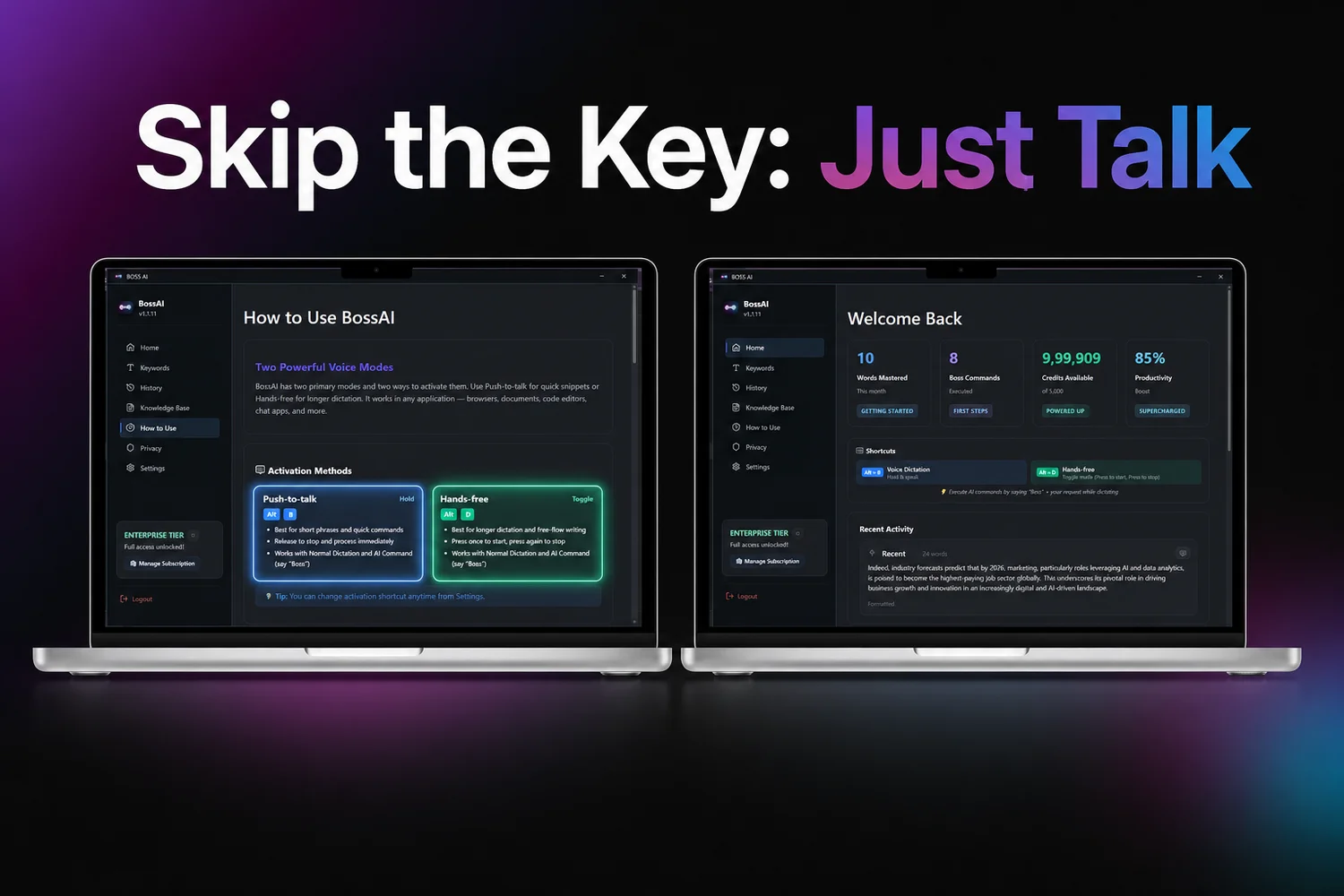 BossAI's Windows dashboard: push-to-talk and hands-free activation replace keyboard shortcuts entirely.
Remapping a key still leaves you managing keys. BossAI takes a different approach: it runs as a native Windows system tray app and lets you dictate directly into any text field with a single hotkey hold — no shortcut to remember, mistype, or accidentally trigger.
Instead of hunting for the right key combination, you hold BossAI's activation hotkey, speak, and the app transcribes in real time while stripping filler words and fixing grammar before the text lands in your document, email, or chat. There's no separate Copilot-style popup window to dismiss — text goes straight where your cursor is.
For anyone disabling the Copilot key specifically to reduce keyboard dependence, that's the more complete fix: one hotkey replaces the need to manage several.
How Do Accessibility Settings Help You Control Keyboard Keys?
Windows' accessibility settings — under Settings > Accessibility > Keyboard — let you filter repeated keystrokes, slow down key repeat rates, and use sticky keys, but they don't specifically target the Copilot key. For that, you still need PowerToys, Settings' dedicated remap option, or a voice-first tool that sidesteps key presses altogether.
This is where keyboard accessibility customization becomes less about one key and more about the whole layout. Someone typing with arthritis, for instance, benefits less from remapping a single key than from reducing how many precise presses a task requires in the first place — which is the same logic that makes voice dictation a stronger accessibility tool than key-by-key fixes.
- Filter Keys: ignores brief or repeated keystrokes from unsteady presses
- Sticky Keys: lets modifier combos be pressed one at a time instead of held together
- Key remapping (PowerToys/Settings): removes or reassigns specific keys like Copilot entirely
- Voice dictation: removes the keyboard from the equation for text entry altogether
Get Started with BossAI
If disabling the Copilot key is part of a bigger effort to reduce how much you rely on precise keystrokes, BossAI replaces the keyboard shortcut problem with a single hold-to-talk hotkey on Windows and Mac, and a microphone button on iOS and Android.
FAQ
How do I change the Copilot key back to Ctrl?
Open PowerToys' Keyboard Manager, select "Remap a key," capture the Copilot key in the "Key" column, and set "Mapped to" to Right Ctrl. On updated Windows 11 builds, you can also do this natively from Settings > Bluetooth & devices > Keyboard.
Can I disable the Copilot key without installing PowerToys?
Yes, if your Windows 11 build has received Microsoft's native remap update — check Settings > Bluetooth & devices > Keyboard for a Copilot key entry set to "Do nothing." If that option isn't present yet, PowerToys is currently the most reliable no-registry method.
Will Microsoft add an official way to disable the Copilot key?
Microsoft has already been rolling out a native "Do nothing" option for the Copilot key directly in Windows 11 Settings, though the rollout isn't on every device at once. Until it reaches your build, PowerToys' Keyboard Manager covers the same result.
Is BossAI good for people who want to avoid keyboard shortcuts because of wrist or hand pain?
Yes. BossAI is built for zero-keyboard use — you dictate everything and it handles transcription, filler-word removal, and formatting automatically. Users with RSI, carpal tunnel, or other repetitive strain concerns use it to write emails and messages entirely hands-free, without hunting for the right key combination.