
Outlook Voice to-Text: Setup, Limits & BossAI vs. Dictate
Outlook's microphone icon has sat quietly in the ribbon for years, and most people only notice it once their wrists get tired of typing the same replies. Outlook voice to-text is real, built in, and free — but it comes with limits that surprise people mid-email.
Key Takeaways
- Outlook has built-in voice-to-text on Windows 11, Mac, and web versions, but it's limited to 500 characters per session and lacks AI text polish.
- Outlook voice dictation doesn't automatically remove filler words or fix grammar — users must manually edit transcribed text.
- BossAI Pro's unlimited dictation, automatic filler removal, and one-tap rewrite tones offer a faster workflow than Outlook's native feature.
- Voice-to-text in Outlook works best for quick notes and short replies; longer emails or creative content benefit from AI-enhanced dictation.
- Power users needing hands-free email composition should consider third-party apps like BossAI alongside Outlook's built-in option.
Contents
- Can You Use Voice-to-Text in Outlook?
- How Does Outlook's Voice Dictation Feature Work?
- How Do You Enable Voice-to-Text in Outlook?
- Can You Use Outlook Voice to-Text on Both Mac and Windows?
- What Are Outlook Voice To-Text Limitations on Each Device?
- Why Do Outlook's Voice-to-Text Limits Matter?
- How Accurate Is Outlook Voice Typing Compared to Dedicated Apps?
- Why Do Outlook Users Switch to AI Dictation Tools Like BossAI?
- Get Better Results with BossAI
- FAQ
Can You Use Voice-to-Text in Outlook?
Yes — Outlook includes native voice-to-text through the Dictate button on Windows 11, macOS, Outlook on the web, and Outlook Mobile. You click Dictate, speak, and your words appear in the email body as text. No add-in or extension is required; it ships with Microsoft 365.
The feature has existed since 2020, though most users discover it by accident. It sits in the Home tab, tucked between Reply and Insert, easy to miss unless someone points it out.
Outlook's voice-to-text handles short messages fine. Where it struggles is length, formatting, and cleanup — the parts of email that actually eat up time. We'll get into exactly where it falls short later in this guide.
How Does Outlook's Voice Dictation Feature Work?
Outlook's Dictate button uses Microsoft's cloud speech-recognition engine to convert spoken audio into text in real time, inserting words directly into the compose window as you talk. It requires an active internet connection and a signed-in Microsoft 365 account — it won't function in perpetual-license versions like Outlook 2019.
Under the hood, your voice is streamed to Microsoft's servers, transcribed, and returned as plain text within a second or two of speaking. There's no local processing option and no offline mode.
A few things worth knowing about how it behaves:
- Punctuation must be spoken aloud ("comma," "period," "new line") — it isn't inferred automatically.
- Filler words like "um" and "like" get transcribed exactly as spoken.
- Capitalization of proper nouns is inconsistent unless you speak slowly and clearly.
Worth knowing: Outlook dictation transcribes what you say — it doesn't interpret what you meant. Every "um" and false start lands in your draft exactly as spoken.
How Do You Enable Voice-to-Text in Outlook?
Getting voice-to-text running in Outlook takes under a minute on desktop: open the Home tab, click Dictate, allow microphone access, then start speaking once the icon turns red. Here's the full sequence for Windows and Mac:
- Open a new email or reply, and go to the Home tab.
- Click Dictate in the ribbon, or press Windows key + H to launch it instantly from any text field.
- Allow microphone access if prompted — this only appears the first time.
- Wait for the microphone icon to turn red, then start speaking. Say "period" or "comma" out loud for punctuation.
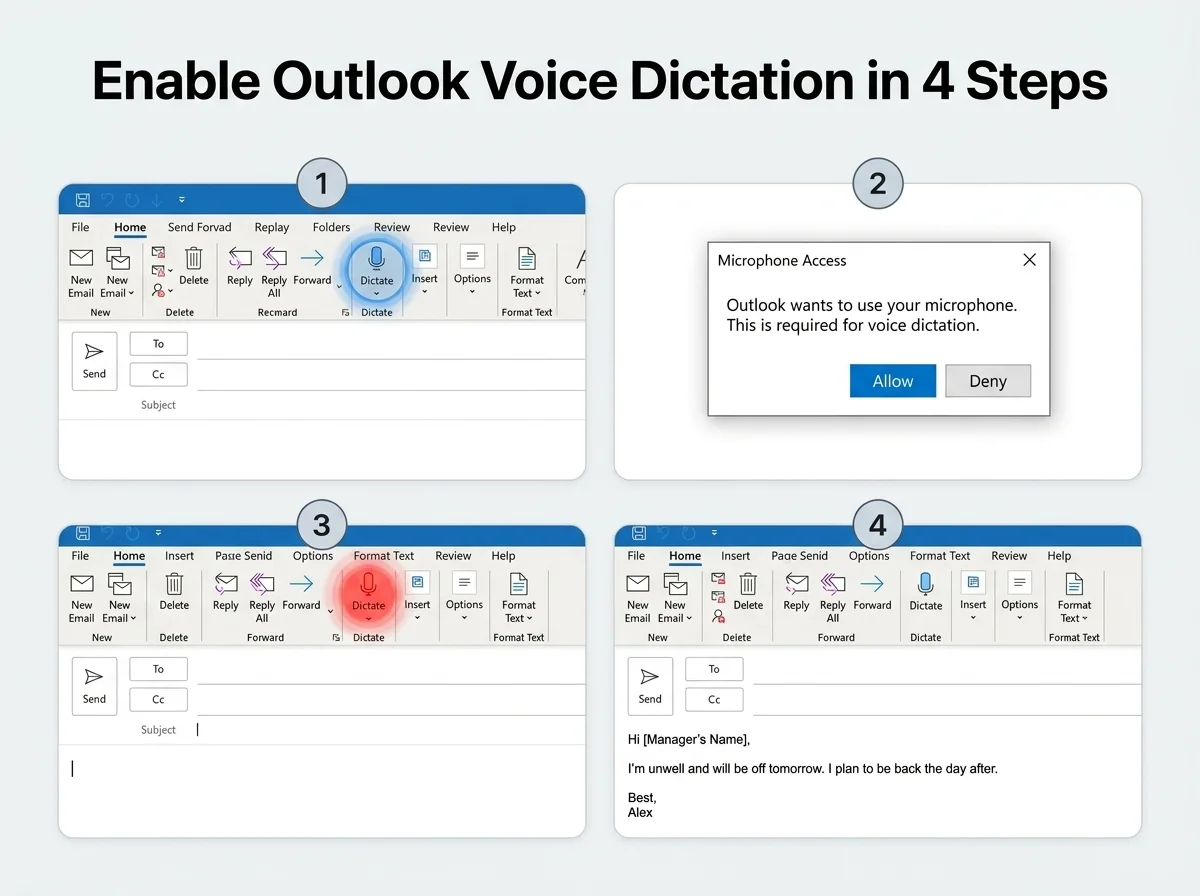 Enabling Dictate takes four steps: open Home, click Dictate (or press Win+H), allow the microphone, then speak.
On Mac, the process is nearly identical, but the shortcut differs — press Fn twice instead of Win+H, since macOS reserves that combination for its own dictation layer. Outlook for Mac's Dictate button sits in the same Home ribbon location.
If the Dictate button doesn't appear at all, check two things first: you need a Microsoft 365 subscription (not a one-time Office purchase), and your Outlook build must be current — Microsoft rolled dictation out gradually and older builds simply don't have it yet.
Can You Use Outlook Voice to-Text on Both Mac and Windows?
Yes, Outlook voice-to-text works on both Mac and Windows, plus Outlook on the web and Outlook Mobile — but the interface and shortcut differ slightly by platform. Windows uses Win+H as a universal shortcut across Office apps; Mac uses Fn twice; mobile uses a microphone icon inside the compose screen.
On Outlook Mobile (iOS and Android), tap the microphone icon while composing a new email or reply. The mobile experience is arguably the smoothest of the four, since it borrows from the OS-level keyboard dictation most people already use daily.
Outlook on the web supports dictation too, through the same Home-ribbon Dictate button — as long as you're using Edge, Chrome, or another Chromium-based browser. Firefox and Safari have had inconsistent support for the underlying Web Speech API.
What Are Outlook Voice To-Text Limitations on Each Device?
Outlook's dictation feature works reasonably well for short messages on every platform, but it shares three consistent weaknesses: no automatic filler-word removal, no grammar correction, and manual punctuation. These limitations apply whether you're dictating on Windows, Mac, web, or mobile.
A few platform-specific quirks compound the core problem:
- Windows/Mac desktop: Requires a live internet connection; dictation stops entirely if you lose signal mid-sentence.
- Outlook Mobile: Relies on the phone's native voice engine, so accuracy varies by device and OS version.
- Outlook on the web: Browser-dependent; Chromium browsers work best, others may not show the Dictate option at all.
None of this makes Outlook's dictation unusable. It makes it a tool for quick, low-stakes messages — not the client proposal you need polished on the first pass.
Why Do Outlook's Voice-to-Text Limits Matter?
On older versions of Outlook, a dictation session tops out at roughly 500 characters before it stops listening and has to be restarted — about two or three sentences, not even a full paragraph for most professional emails. That ceiling is the limitation that catches the most users off guard.
This 500-character session cap forces frequent restarts during longer emails, breaking your train of thought every few sentences and turning what should be a hands-free workflow into a stop-and-start chore. You finish a thought, the session ends, and you tap Dictate again to keep going.
Reality check: A 500-character ceiling sounds generous until you're three sentences into a client update and the session cuts out mid-word.
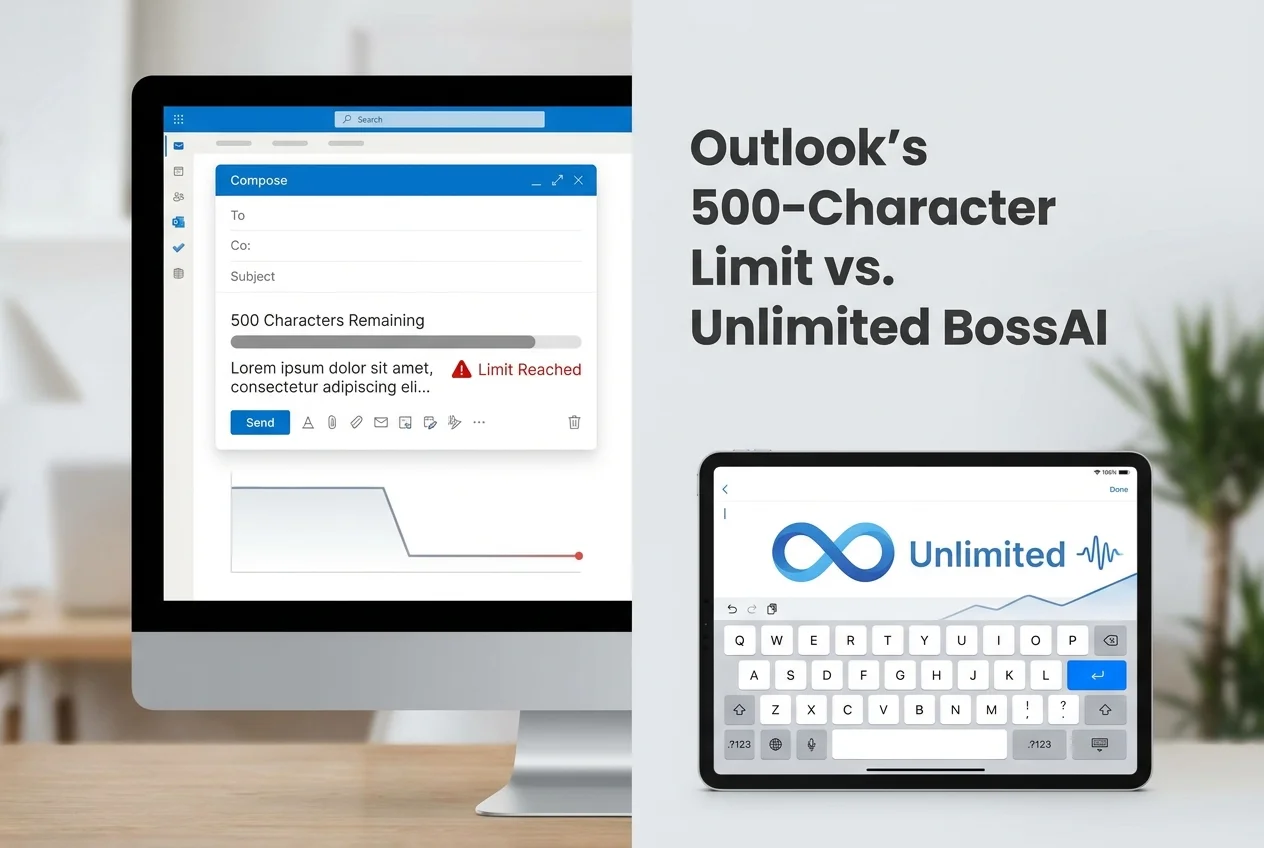 Outlook's session cap forces restarts on longer emails; BossAI Pro's dictation has no character ceiling.
BossAI Pro removes that ceiling entirely. There's no per-session cap on dictation length — you can compose a full email, a project update, or a long client reply in one continuous take, and the transcription keeps running the whole time. For anyone who emails in paragraphs rather than one-liners, that difference shows up daily.
How Accurate Is Outlook Voice Typing Compared to Dedicated Apps?
Outlook's dictation is accurate for clear, slow speech in a quiet room, but it falls behind dedicated AI dictation apps on real-world conditions: background noise, accents, technical vocabulary, and natural speaking pace. Outlook uses a general-purpose speech engine shared across Office; it wasn't purpose-built for dictation-first workflows.
The gap becomes clearest once you compare what happens after the words hit the page:
| Feature | Outlook Dictate | BossAI |
|---|---|---|
| Filler word removal | None (manual edit required) | Automatic |
| Grammar & punctuation cleanup | Manual (spoken punctuation only) | Automatic, real-time |
| Session/character limit | ~500 characters on older versions | Unlimited (Pro) |
| Tone rewriting | Not available | One-tap tones (Professional, Casual, Witty, and more) |
| Custom vocabulary/dictionary | Not available | Yes, learns names and jargon |
| Works outside Outlook | No | Yes — every app, system-wide |
| Free tier | Included with Microsoft 365 | 500 words/day |
Outlook wins on one thing: it's already installed, so there's zero setup. Everything after transcription — cleanup, tone, formatting — is left entirely to you.
Why Do Outlook Users Switch to AI Dictation Tools Like BossAI?
Outlook users who email heavily switch to dedicated dictation tools once they hit the same wall repeatedly: transcribed text that still needs a full editing pass before it's send-ready. Managers, consultants, and support teams that draft dozens of replies a day feel this most.
BossAI addresses that gap directly. It runs as a system-wide keyboard and desktop app, so the same voice-to-text you'd use in Outlook also works in Slack, Teams, or your CRM, without switching tools mid-task. Speak an email reply, and BossAI removes filler words, fixes grammar, and formats the message for you — the editing pass Outlook leaves on your plate happens automatically instead.
For messages that need a specific tone, BossAI's Rewrite feature turns a rough dictated draft into a polished one with a single tap. This is where the workflow diverges most sharply from Outlook's:
- Dictate the raw content first, without worrying about phrasing.
- Tap a tone — Professional, Casual, Witty, Persuasive, Empathetic, or Bold.
- Review the rewritten version and send.
That combination — voice input plus instant tone control — is what turns a rough first draft into something ready to send in one motion. If you've already tried Outlook's built-in dictation and found it lacking, this is the gap third-party tools are built to close.
Get Better Results with BossAI
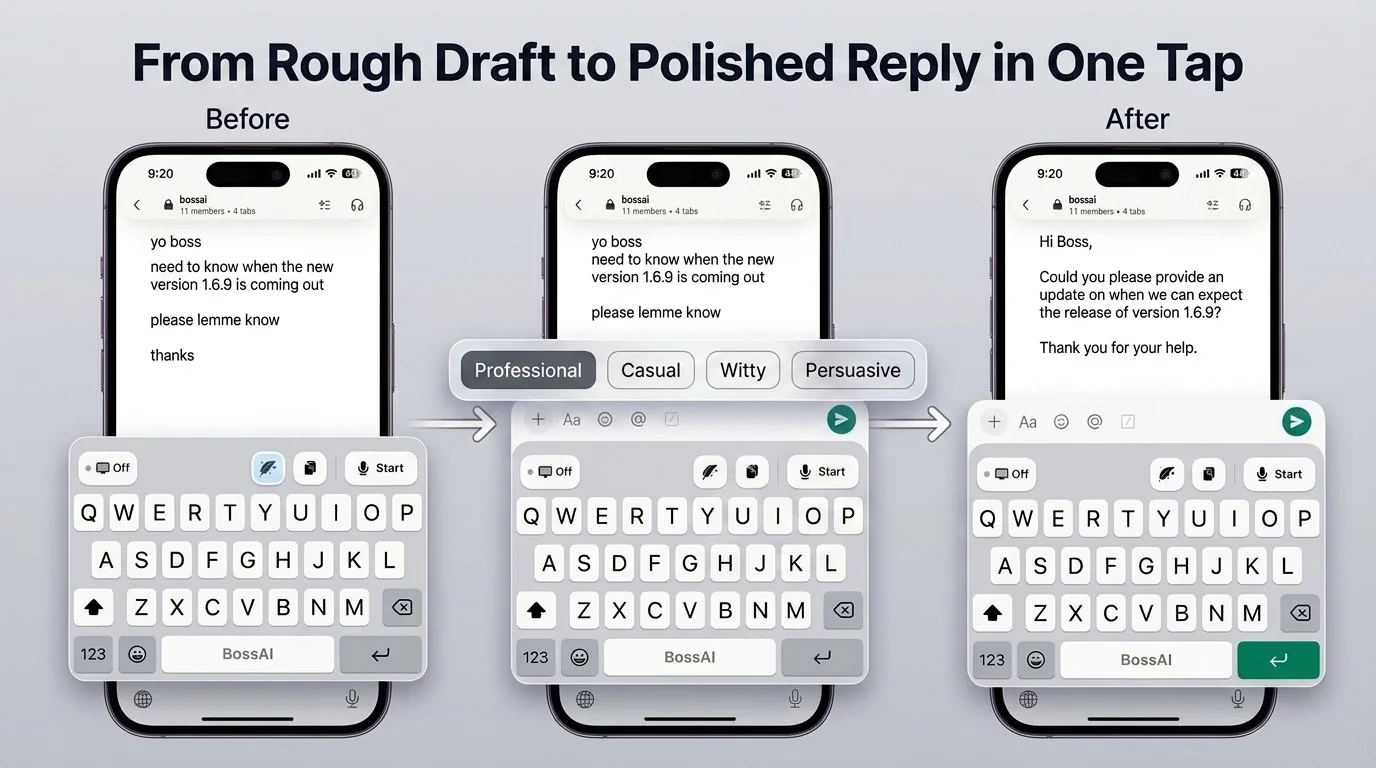 A rough dictated draft on the left; the same message polished with one tap on the right.
Outlook's Dictate button handles the basic job of getting words on a page. BossAI picks up from there — cleaning up filler words, fixing grammar automatically, and offering one-tap tone rewrites so your dictated draft doesn't need a manual edit before you hit send.
Download BossAI Free and dictate your next email the way you'd want it to read the first time, in Outlook or anywhere else you type.
FAQ
Can you use voice-to-text in Outlook for free? Yes. Outlook's Dictate feature is included with any active Microsoft 365 subscription at no extra cost. It isn't available in perpetual-license versions like Outlook 2019, which don't include the Dictate button at all.
Why isn't Outlook's Dictate button working? The most common causes are an inactive Microsoft 365 subscription, an outdated Outlook build, no internet connection, or denied microphone permissions. Check Settings for microphone access first, since that's the fix in most cases.
Does Outlook voice-to-text work offline? No. Outlook's dictation streams audio to Microsoft's cloud speech engine for transcription, so it requires an active internet connection at all times. Dictation stops immediately if your connection drops mid-session.
Can I use voice-to-text in Outlook on my phone? Yes. Outlook Mobile for iOS and Android includes a microphone icon in the compose screen that activates dictation using your phone's native speech engine, working similarly to the desktop version.
Is BossAI free? Yes. BossAI offers a free tier with a 500-word daily dictation allowance and no weekly cap, so you can dictate every day without losing access. The Pro plan removes the daily word limit and unlocks unlimited Boss Mode replies plus expanded Clips storage.
What makes BossAI different from Outlook's built-in dictation? BossAI automatically strips filler words and fixes grammar in real time, something Outlook's Dictate button never does. It also adds one-tap tone rewriting and works system-wide across every app, not just inside Outlook.
Related reading: How to Type with Voice: The Complete Guide to Voice Typing on Every Device covers dictation setup across every major platform, and Voice to Text Windows: The Complete Guide to Dictation on Windows 10 & 11 walks through Windows-specific voice-to-text configuration in more depth.