
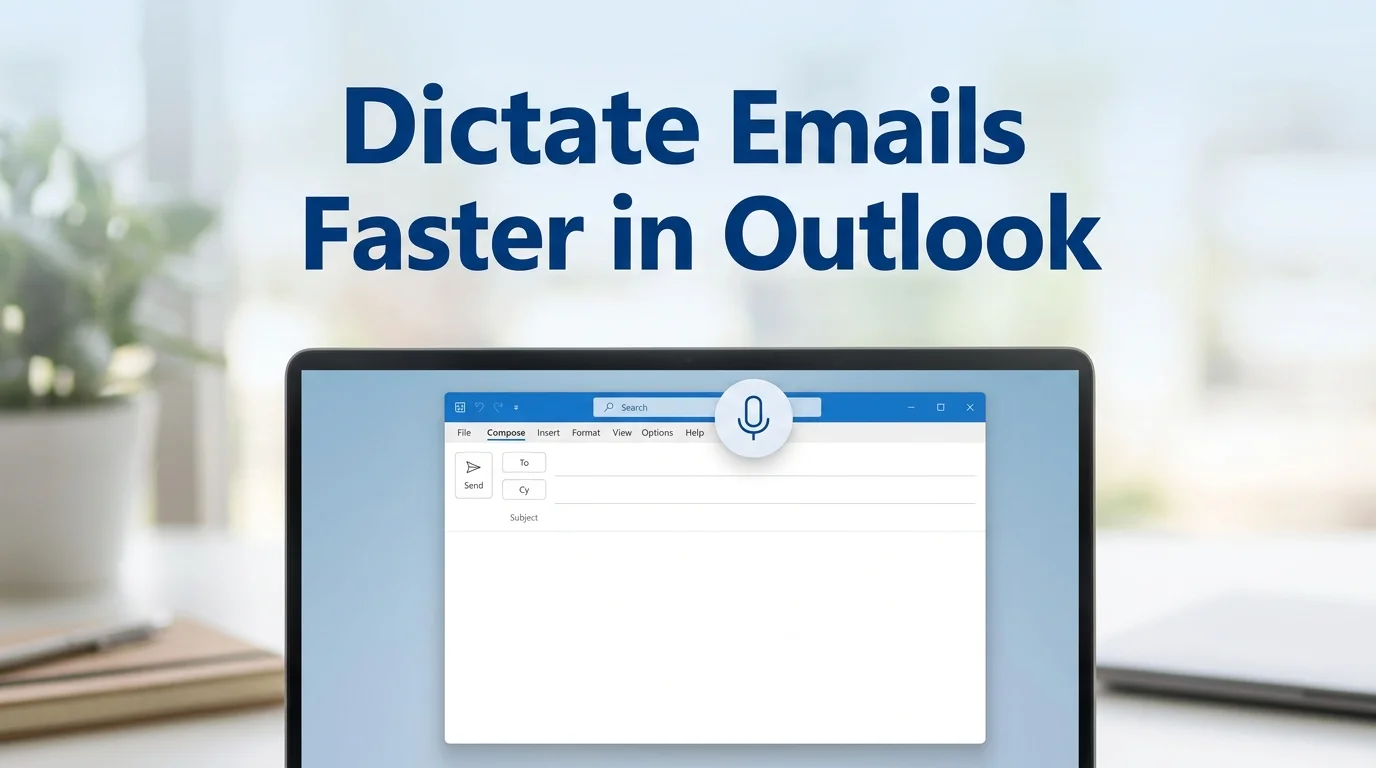
Dictation in Outlook: How It Works & Why It's Not Enough
Open a fresh email in Outlook and look at the ribbon. There's a microphone icon sitting next to Editor and Immersive Reader that most inboxes have carried for years — and most people have never clicked it. Dictation in Outlook has quietly existed since the Windows 10 era, waiting inside a menu nobody opens.
Outlook Already Has a Voice Dictation Button — Most People Never Touch It
Microsoft added native Dictate to Outlook for Windows, Mac, and web as part of Microsoft 365, using the same speech engine that powers Word and PowerPoint. It sits under the Message tab in a new email or reply, next to the formatting tools most users check daily. The reason it stays unused isn't that dictation doesn't work — it's that raw dictation output needs cleanup, and most people don't discover that trade-off until they've already tried it once and given up.
That's the gap this article closes: how the native feature actually works, where it breaks down, and what changes once AI handles the cleanup instead of you.
How Do You Turn On Dictation in Outlook?
To dictate in Outlook, open a new email or reply, go to the Message tab, and select Dictate (or press Alt+') — the button glows red when it's listening. Speak naturally, including punctuation commands like "comma" or "new line," and your words appear in the body as you talk. Click Dictate again, or just start typing, to stop.
A few setup notes that trip people up:
- Windows users need microphone permission granted to Outlook in Windows Settings > Privacy > Microphone
- The feature requires an active internet connection — it isn't a local, offline tool
- Mac and web versions place Dictate in the same Message tab location, though the icon styling differs slightly
- On Outlook Mobile, tap the microphone icon inside the compose screen instead of the ribbon
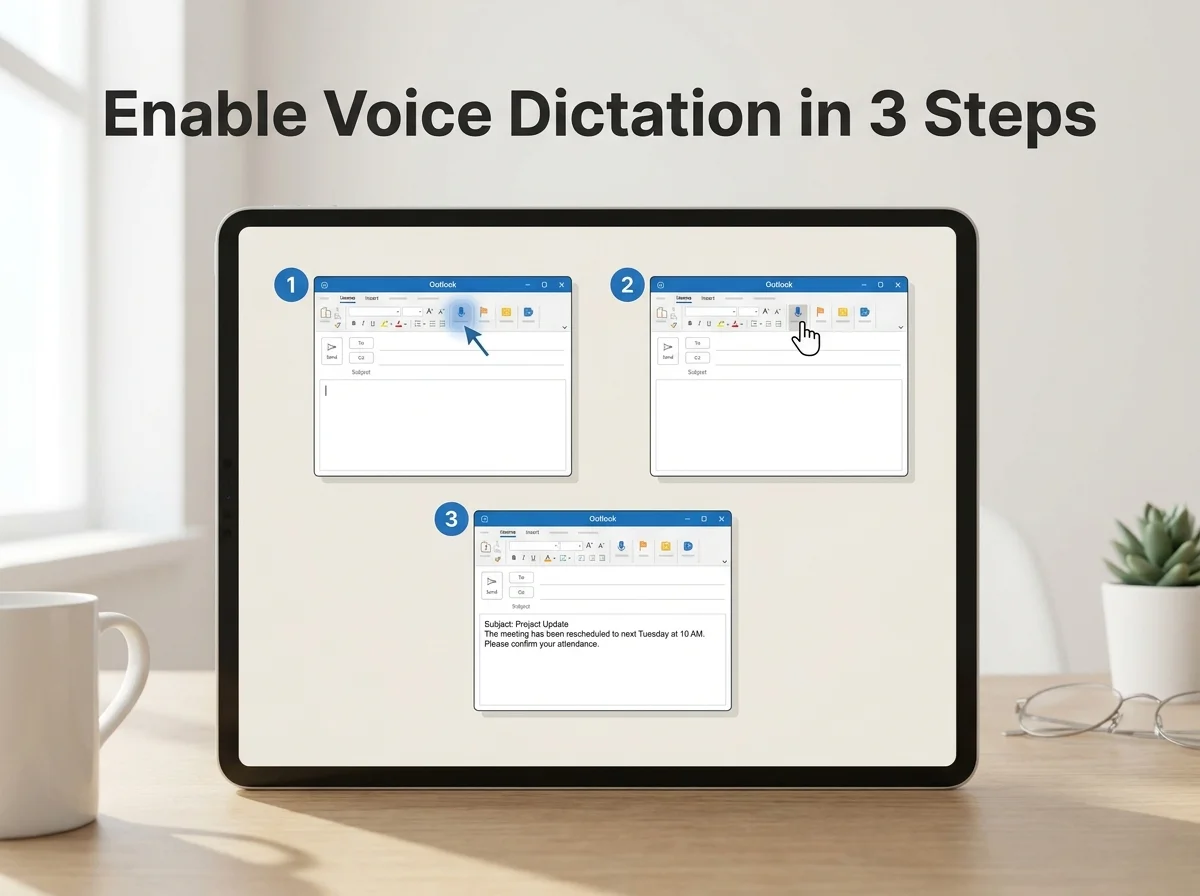 Enabling Outlook's native Dictate button takes three clicks — the hard part is what happens after you stop talking.
Once it's on, most first-time users notice the same thing within a sentence or two: the transcription is fast, but it types exactly what you said. Every "um" makes it in.
Where Native Dictation in Outlook Runs Out of Road
Microsoft's speech engine is genuinely good at converting sound into text. It's what happens to that text afterward where the built-in tool stops helping. Three gaps show up almost immediately once you dictate anything longer than a one-line reply.
No filler removal. Every "um," "uh," "like," and false start gets transcribed verbatim, because Outlook's Dictate has no language model sitting between your voice and the page — it's transcription, not composition.
No grammar or punctuation correction. Say "comma" out loud or you get a run-on sentence; forget it mid-thought and you're editing afterward anyway. There's no pass that reads back what you said and fixes tense, agreement, or missing commas.
No cross-app memory or consistency. Dictate lives inside Outlook (and separately inside Word and PowerPoint) with no shared vocabulary, no custom dictionary that follows you to Slack or Teams, and no formatting awareness of what kind of message you're writing.
Worth knowing: Outlook's Dictate button and Word's Dictate button are the same underlying feature, but they don't share settings, custom words, or history — enabling it in one app does nothing for the other.
For a five-word acknowledgment, none of this matters. For a real client email, it means you finish dictating and then spend nearly as long editing as you would have spent just typing it.
Why AI Dictation (BossAI) Outperforms Outlook's Native Feature
 The moment AI dictation actually saves time: you stop talking, and the email is already clean.
This is the actual productivity unlock, and it's simple: an AI layer between your voice and the screen fixes everything Outlook's native feature leaves for you to do by hand. BossAI runs as a background app on Windows and Mac, so instead of clicking a Dictate button buried in Outlook's ribbon, you hold a hotkey, speak, and the polished text lands wherever your cursor is — Outlook included.
The difference shows up in the output, not just the interface:
| What happens | Outlook Native Dictate | AI dictation (BossAI) |
|---|---|---|
| Filler words (um, uh, like) | Transcribed as spoken | Removed automatically |
| Grammar and punctuation | Manual — say "comma" aloud | Corrected in real time |
| Works outside Outlook | No (Word/PowerPoint only, separately) | Yes — every app, same hotkey |
| Custom names and jargon | No dictionary support | Learns your vocabulary |
| Tone adjustment | None | One-tap Rewrite (Professional, Casual, etc.) |
| Typical setup | Built-in, no install | Menu bar / system tray app |
That last row matters more than it looks. Outlook's Dictate is free and pre-installed — no argument there. What you're trading for that convenience is every email needing a manual read-through before it's fit to send.
How Much Faster Is Dictation Than Typing an Email in Outlook?
Dictation with AI cleanup typically cuts email composition time by 40-60% compared to typing, and by roughly a third compared to raw native dictation once you factor in the editing pass native dictation still requires. A typical 100-word reply that takes 3-4 minutes to type can be spoken in under 45 seconds — the remaining time with native dictation goes to fixing what came out wrong.
The math changes depending on how much email you handle:
- Occasional emailers (10-15/day) save a few minutes — nice, not transformative
- Heavy senders (30-50/day) — managers, support agents, consultants — recover roughly 2-3 hours a week
- Sales and account teams writing similar messages repeatedly benefit further from saved phrases and tone presets on top of raw dictation speed
None of that requires a stopwatch to notice. The first week most people use AI dictation for real work email, the difference between "speak and send" and "speak, then fix" becomes the whole point.
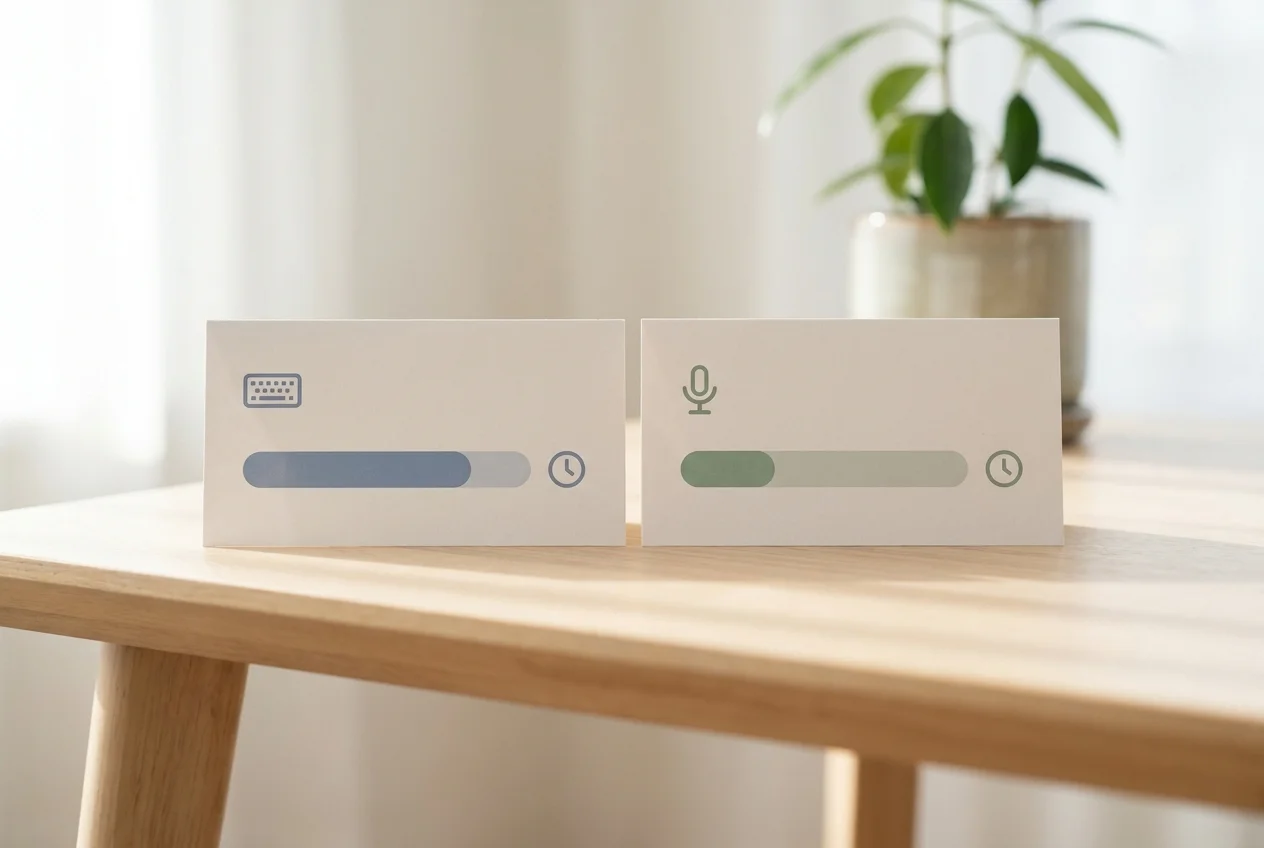 Typing, native dictation, and AI dictation side by side — the gap is almost entirely in the cleanup step.
Which Apps Let You Dictate in Outlook, Word, and Every App You Use?
Outlook's Dictate only works inside Outlook; Word has its own separate Dictate button with its own settings, and neither shares a vocabulary or history with the other. If your day moves between email, Word documents, Slack, and a CRM, native Microsoft dictation means learning (and re-triggering) a slightly different tool in each one.
An AI keyboard sidesteps that by running underneath every app rather than inside any single one. If you're drafting a proposal that needs to live in a document rather than an inbox, the mechanics are close to what's covered in how to dictate in Microsoft Word — same underlying idea, different app, same cleanup gap once you leave Outlook's native tool behind. Gmail users hit a nearly identical fork: Google's own voice typing versus an AI upgrade over Gmail's native dictation that fixes the same filler-word and grammar problem on the other major email platform.
Windows itself has a system-level dictation layer underneath all of this — the one Outlook's Dictate button quietly depends on. If you want the full picture of what Windows offers before any third-party app gets involved, the complete guide to voice to text on Windows 10 and 11 covers the OS-level settings worth knowing.
Quick recap
- Outlook's Dictate button has existed since Windows 10 — Message tab, Alt+', works in Windows, Mac, and web
- It transcribes accurately but does nothing else: no filler removal, no grammar fixes, no memory across apps
- AI dictation tools like BossAI sit underneath every app instead of inside just one, cleaning up speech as it lands
- Heavy email senders typically recover 2-3 hours a week switching from typing (or raw native dictation) to AI-polished voice input
- The setup cost is near zero either way — the difference is entirely in what you get back after you stop talking
Get Started with BossAI
If Outlook's native Dictate button has been sitting unused in your ribbon, the fix isn't a new habit — it's swapping in a version of dictation that finishes the job. BossAI runs in the background on Windows and Mac and cleans up your speech the same way inside Outlook, Word, Slack, or anywhere else you type.
Not ready to try it yet? Get Our AI Productivity Guide — free tips on working faster with AI.
FAQ
How do I enable dictation in Outlook? Open a new email or reply in Outlook, go to the Message tab, and click Dictate (or press Alt+'). The button turns red when it's listening — speak naturally and your words appear in the body. Click it again to stop. Windows users need microphone access granted to Outlook first.
Why isn't dictation working in Outlook? The most common causes are a missing microphone permission in Windows Privacy settings, no active internet connection (Dictate requires one), or an outdated Outlook build. Checking Settings > Privacy & Security > Microphone and confirming Outlook has access resolves the issue in most cases.
Does dictation in Outlook remove filler words automatically? No. Outlook's native Dictate transcribes exactly what you say, including "um," "uh," and false starts, because it has no language model cleaning up the output. AI dictation apps like BossAI remove filler words and fix grammar automatically as you speak.
What is BossAI? BossAI is an AI voice keyboard for iPhone and Android, and a voice-to-text app for Mac and Windows, that turns speech into polished, ready-to-send text instead of raw transcription. It strips filler words, fixes grammar and punctuation, and includes Boss Mode, which reads your screen to draft context-aware replies without copy-pasting.
Is BossAI free to use with Outlook? Yes. BossAI's free tier gives you 500 words of AI-enhanced dictation a day, reset daily, with no weekly cap — it works in Outlook the same way it works in every other app on your Mac or Windows machine. No credit card is required to start.