
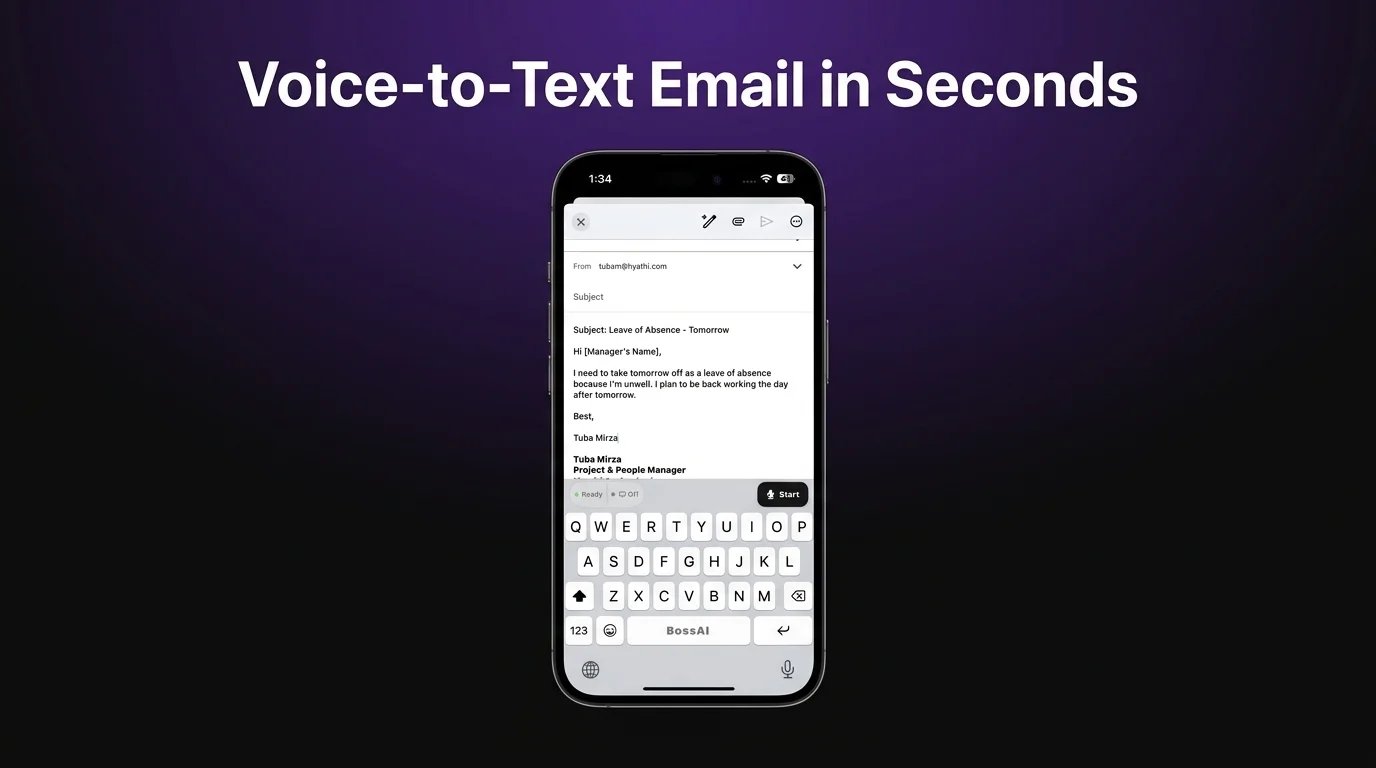
Voice to Text in Gmail: Setup Guide | BossAI
Can You Use Voice to Text in Gmail?
Yes — voice to text in Gmail works today through two built-in paths: Gboard's voice typing on Android and iOS, and Chrome's Voice Typing tool on desktop. Neither one is a Gmail feature exactly; both are OS or browser tools that happen to work inside the compose window. Gboard's voice typing ships standard on well over a billion Android devices, so most people already have the button without installing anything.
The catch: accuracy and punctuation handling vary a lot between the two, and neither strips filler words or fixes grammar on its own.
How Do You Activate Voice to Text in Gmail?
Voice dictation in Gmail is a device-level feature, not a Gmail setting: on Android and iOS, tap the microphone icon on your Gboard keyboard while composing; on desktop, click inside the compose box, open the Tools menu, and select Voice typing, or use the Ctrl+Shift+S shortcut in Chrome. The exact icon placement shifts between keyboard versions, but the mechanism is the same everywhere.
On mobile, with Gboard active:
- Open Gmail and tap Compose or Reply.
- Tap the microphone icon on the keyboard — it's usually next to the spacebar or under the emoji key.
- Speak naturally. Saying "comma," "period," or "new line" inserts the corresponding punctuation.
On desktop, in Chrome:
- Open a new message or reply.
- Click inside the message body so your cursor is active.
- Go to Tools, then Voice typing, or press Ctrl+Shift+S (Cmd+Shift+S on Mac).
- Click the microphone icon that appears and start talking.
Gmail voice typing on Windows works a little differently — pressing the Windows key plus H opens a system-wide dictation bar that types into any focused field, Gmail included, without needing Chrome's menu at all.
 Enabling voice dictation takes under a minute on any platform.
Key Takeaways
- Gmail has native voice-to-text on most devices, but it's limited to specific languages and browsers.
- BossAI works universally in Gmail across all platforms, automatically removing filler words (um, uh, like) and fixing grammar.
- Voice dictation in Gmail saves real time when composing on mobile or desktop, especially for quick replies.
- Setup takes less than one minute and requires no special permissions beyond standard Gmail access.
- For frequent emailers, voice-to-text cuts typing fatigue and supports hands-free composition workflows.
What Are the Limitations of Gmail's Built-in Dictation?
Gmail's native dictation has three consistent gaps: it transcribes exactly what you say, filler words and all, desktop voice typing only functions inside Chrome, and language support depends entirely on what's installed on your device rather than anything Gmail controls. None of these are bugs — they're just the boundaries of a feature built into the browser and OS, not into Gmail.
Say "um" or "like" mid-sentence and it lands in the email verbatim. Grammar and capitalization mistakes need a manual pass before you hit send. For a deeper look at Gmail's own settings and where they fall short, our full guide on how to dictate in Gmail walks through every native option in detail.
Worth knowing: Chrome-only support for desktop voice typing means Edge, Firefox, and Safari users are stuck using third-party extensions or the Windows+H shortcut instead.
Voice to Text in Gmail: Desktop vs Mobile
The method that works best depends entirely on where you're composing. Here's how the main options stack up:
| Method | Platform | How to Activate | Removes Filler Words | Language Support |
|---|---|---|---|---|
| Gboard Voice Typing | Android, iOS | Mic icon on keyboard | No | 100+ languages, set per device |
| Chrome Voice Typing | Desktop (Chrome only) | Tools > Voice typing, or Ctrl+Shift+S | No | Varies by browser locale |
| Windows Voice Typing | Desktop, any browser (Windows 11) | Windows key + H | No | Set in Windows settings |
| BossAI | iOS, Android, macOS, Windows | Tap mic on BossAI keyboard, or hold hotkey | Yes | Multiple languages, per user |
Mobile users get the more consistent experience since Gboard works the same way across every app, not just Gmail. Desktop is messier — you're locked to Chrome unless you route around it with Windows' own dictation bar or a third-party tool. For a broader look at how these options compare across every app you use daily, see our complete guide to voice typing on every device.
How Does BossAI's Voice to Text Compare to Gmail's Native Dictation?
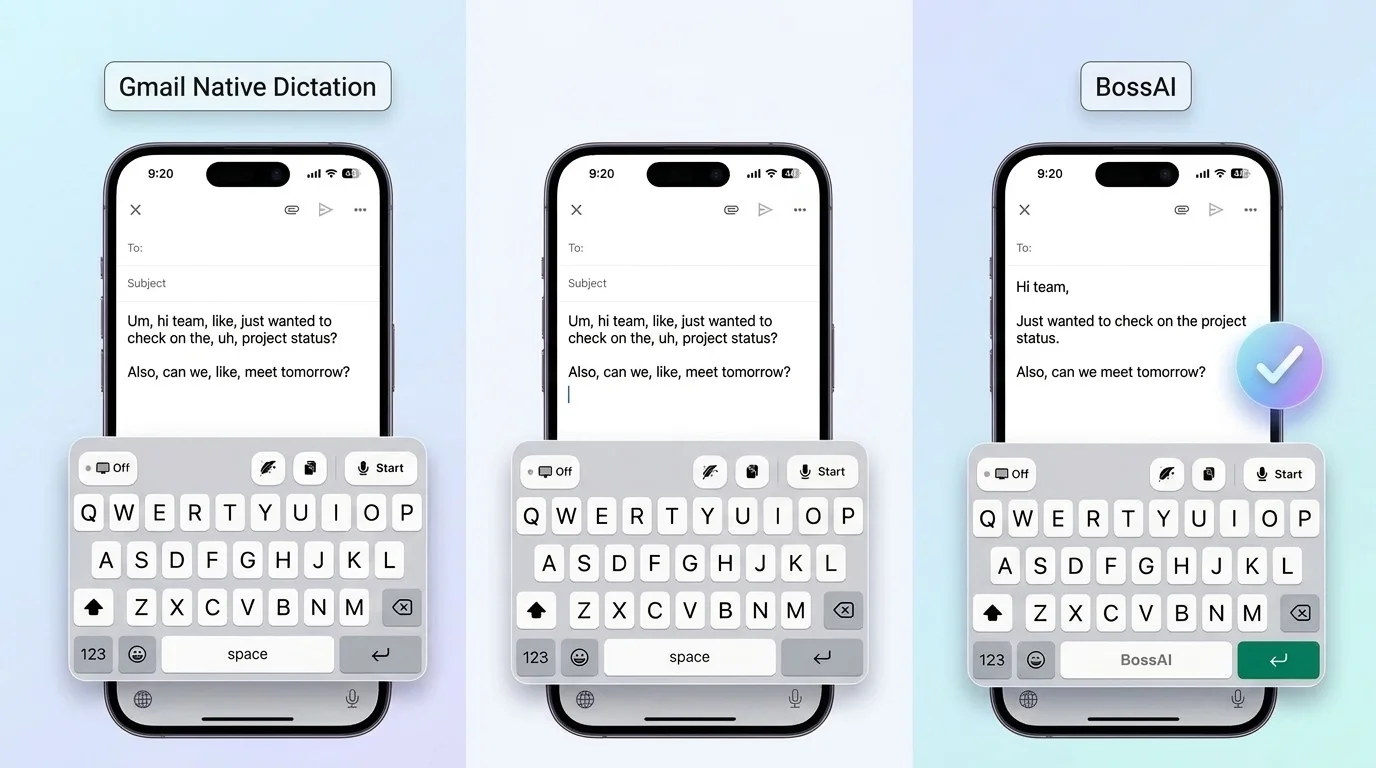 Same voice input, two very different drafts.
BossAI replaces Gmail's raw transcription with a finished draft: it strips filler words, fixes grammar and punctuation, and formats the result for email automatically — and it works identically whether you're in the Gmail app, Gmail in Chrome, or any other app on your device. Gboard and Chrome's voice typing only understand "type what I said." BossAI understands "clean up what I said."
Boss Mode goes a step past dictation entirely. Say "Boss, reply to this email confirming Friday's meeting and ask for a dial-in link," and BossAI reads the thread on your screen and drafts the reply itself — no copy-pasting the email into a separate app first. Gmail's native dictation has no equivalent; it only transcribes what you speak next, never what's already on the screen.
Bottom line: Gmail's built-in dictation handles a quick one-line reply fine. Anything longer than a sentence or two usually needs a cleanup pass, and that's the exact gap BossAI closes.
BossAI's free tier resets 500 words daily with no weekly cap, and Pro runs $9.99 a month if you outgrow it. Either way, setup mirrors the process above — a keyboard on iOS and Android, a menu bar or tray app on macOS and Windows.
Setting Up BossAI for Gmail Takes Under a Minute
On iOS and Android, BossAI installs as a keyboard: enable it once in your device's keyboard settings, then switch to it from any text field, Gmail's included. On macOS and Windows, it runs quietly in the background, and holding a hotkey starts dictation wherever your cursor happens to be.
No separate Gmail integration, plugin, or account permission beyond the standard keyboard or app install is needed. If you've already set up voice typing in another Google product, the pattern will feel familiar — our Google Docs voice dictation guide covers the same setup logic for that app, including where its native tool runs into the same filler-word problem Gmail has.
Get Started with BossAI
Every email you'd normally type by hand is a candidate for voice input, and BossAI turns that input into something you can actually send without editing it first. Download BossAI and switch your Gmail drafts from "close enough" to ready-to-send.
FAQ
Can you use voice commands to reply in Gmail? Gmail's native dictation only transcribes speech into the compose box — it can't read the email you're replying to. BossAI's Boss Mode can: say "Boss, reply to this email" and it reads the thread on screen and drafts a full response, something Gmail's built-in tools don't do.
How accurate is Gmail's voice-to-text feature? Accuracy is generally solid for clear speech in quiet environments, since Gboard and Chrome use Google's speech recognition. It struggles with names, technical terms, and background noise, and it never removes filler words or fixes grammar automatically — that part is left entirely to you.
Is BossAI free? Yes. BossAI has a free tier with no weekly word cap — you can dictate as much as you want. The paid plan unlocks advanced features including unlimited Boss Mode screen reads, priority processing, and extended Clips storage. No credit card required to start.
What makes BossAI different from Gmail's native dictation? Three things Gmail's dictation doesn't have: Boss Mode reads your screen to write contextual replies without copy-pasting, Clips saves frequently used phrases for instant paste, and one-tap tone rewriting switches your draft between casual, professional, or concise instantly.